How to fix
PR_CONNECT_RESET_ERROR in Firefox
on Windows
Resolve the PR_CONNECT_RESET_ERROR in Firefox on Windows 10 and 11 efficiently. Get expert-tested solutions and fix the issue in minutes!


What causes How to fix PR_CONNECT_RESET_ERROR in Firefox?
- Failure of the Firefox connection to the HTTPS server
- Filtering of the TCP Protocol issues
- Conflict with third-party applications like security tools and firewall apps
- Temporary data clearing done previously
- Compatibility issues with anti-malware tools
Repairs Windows system files, removes malware, and restores a clean OS state — without reinstalling.
Hello, I need help with the Firefox error. I cannot access various websites due to the PR_CONNECT_RESET_ERROR in the browser. I try to connect to the HTTPS server also and face the same error. The message states about secure connection failure. I need your help!
The issue with privacy and performance encourages people to for different browsers. The Mozilla Firefox web browsing application is one of the more common privacy-centric browsers.[ref en-1] However, there are some issues with the web browsing tools as with any other app or system. The PR_CONNECT_RESET_ERROR is the issue that users[ref en-2] encounter commonly.
Concerns with the issue occur because this problem occurs out of nowhere, and mainly, people have no idea why this is bothering them or how to solve the issue. The reason why the issue occurs is the failure of the Firefox connection to the HTTPS server. The request gets declined, and instead of the proper launch, the error message appears.
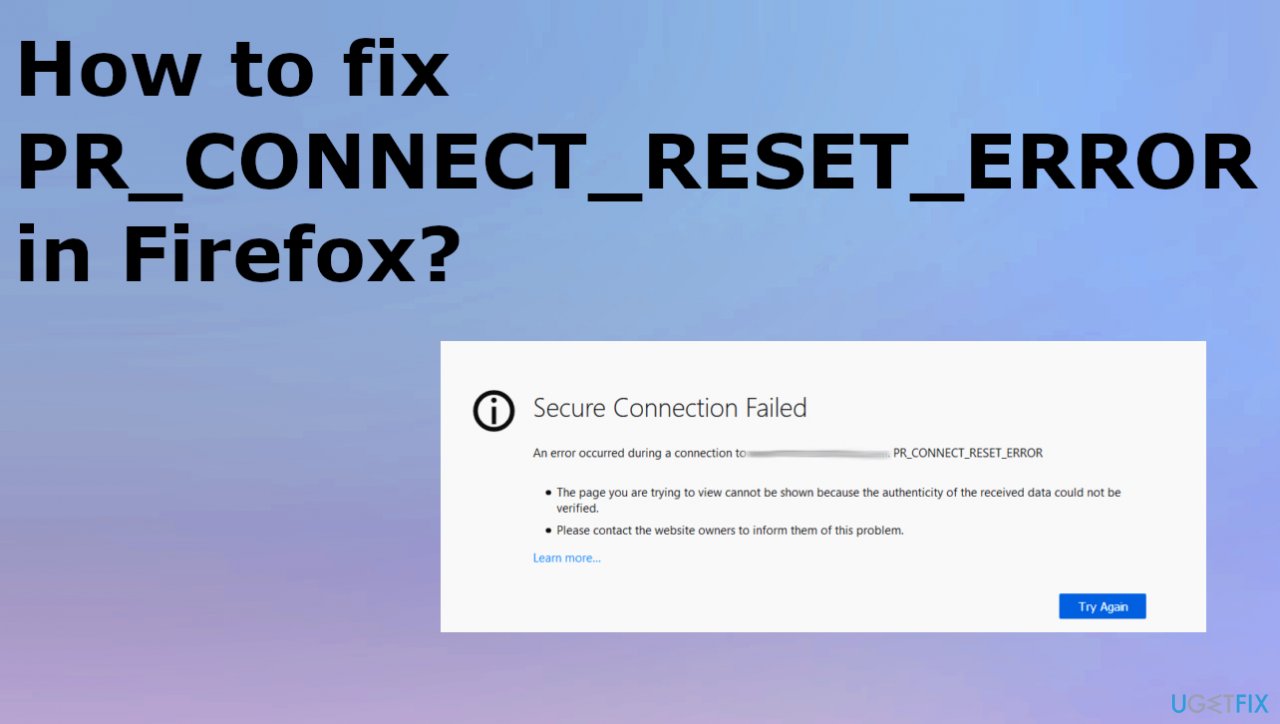
PR_CONNECT_RESET_ERROR in Firefox delivers the following pop-up or the message on the screen:
The page you are trying to view cannot be shown due because the authenticity of the received data could not be verified.
A common reason for the error is the Filtering of the TCP Protocol issues. If the temporary data clearing was done a while before, you might receive the error on the system. Sometimes, third-party applications like security tools and firewall apps can create conflict and lead to such an error.
This PR_CONNECT_RESET_ERROR in Firefox means that the issue is occurring in between the processes forcing the connection issues. You can sometimes solve the problem by altering settings or disabling some tools like AV apps or firewalls. Some of the anti-malware tools have particular features for protocol filtering by default, so the problem is triggered.
Infections or browser-based threats[ref en-3] shouldn't be responsible for this problem, but tools used to fight intruders can lead to performance problems on various devices due to compatibility and additional processes or features. Since leftover files and possibly damaged data can cause this issue in Firefox, you might want to run the [d1] tool for system clearing and restoration purposes. This is a quick way to repair problems.
Solution 1. Clear the browser cache
- On the upper-right corner of your Firefox browser, click the Hamburger icon or the Menu button.
- Select Option.
- Go to Privacy and Security.
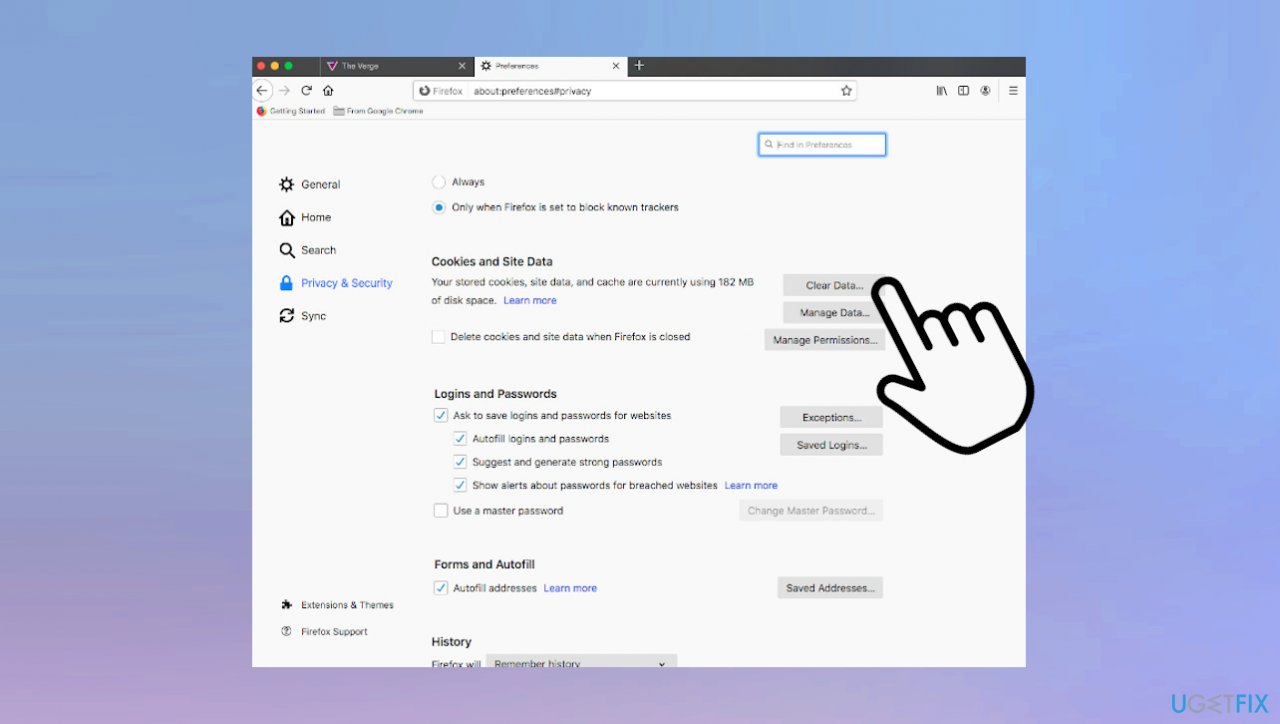
Pr connect reset error clear data - Navigate to Cookies and Data.
- Click the Clear Data button.
- Check the box next to Cached Web History.
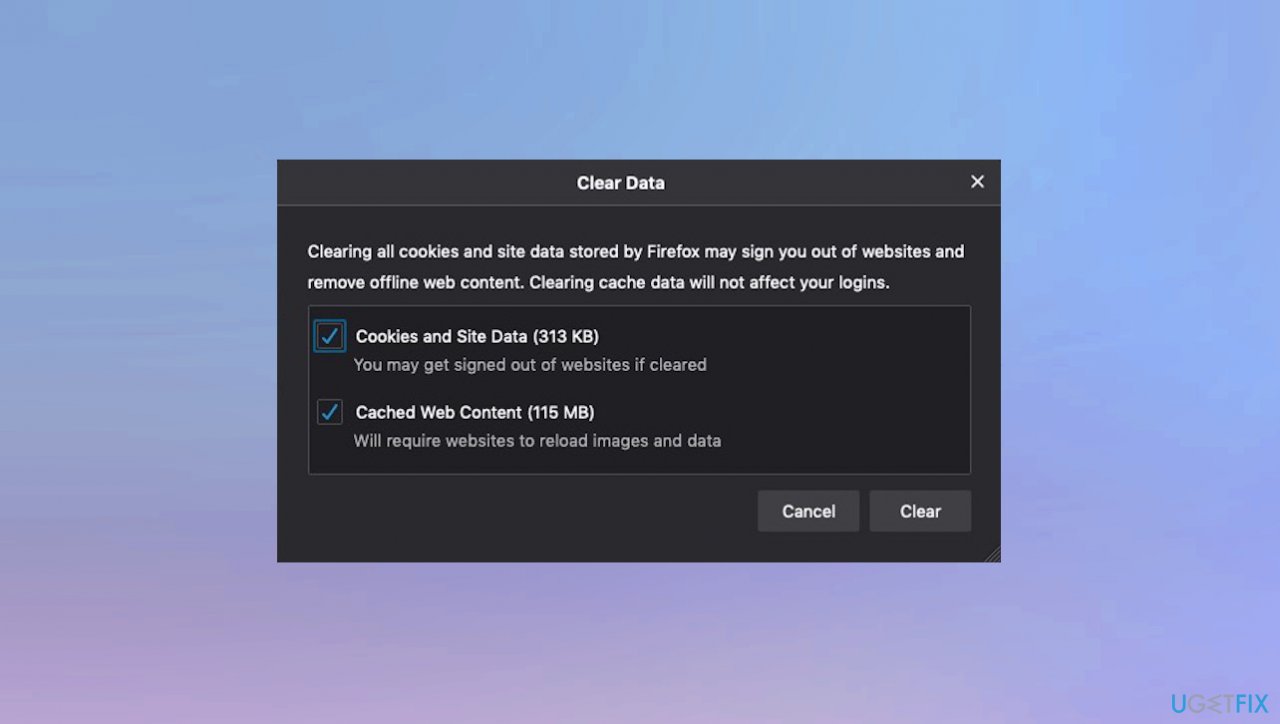
Pr connect reset error clear cache - Click Clear/OK.
Solution 2. Disable your VPN server
- If you are using the VPN client you might want to check this preference and see if the issue gets solved.
- Launch the Control Panel.
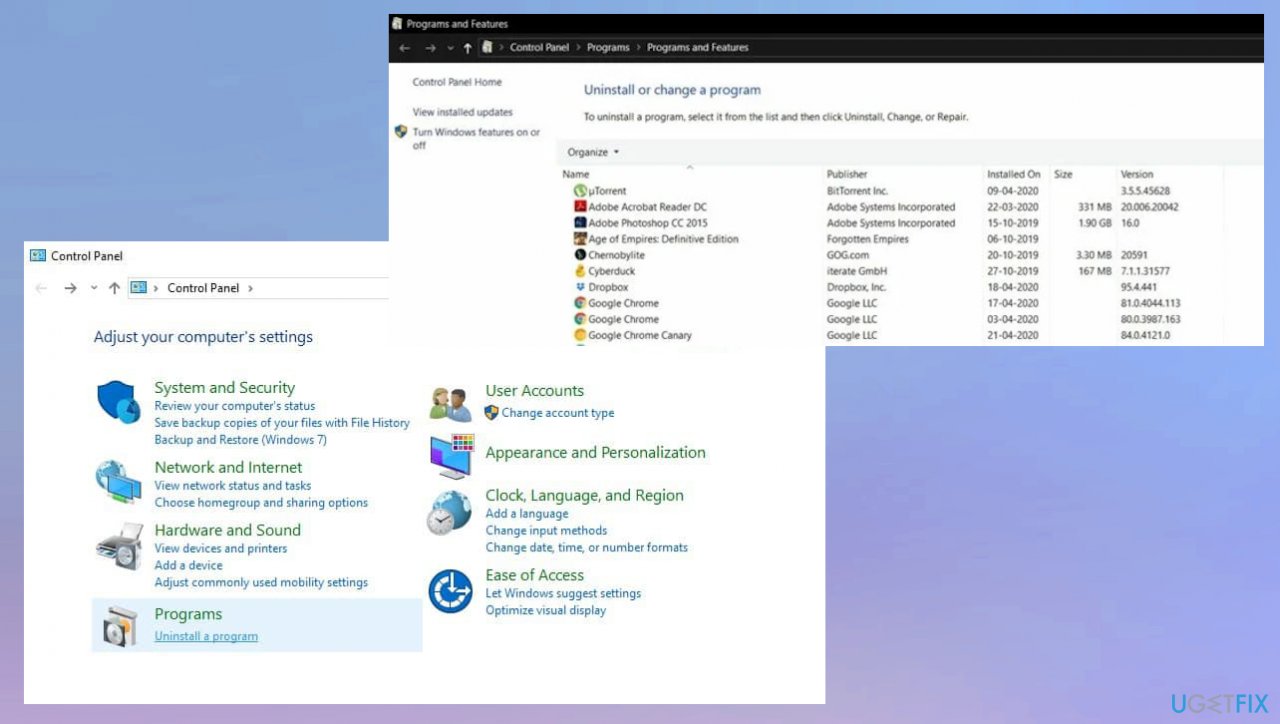
Pr connect reset error control panel - Go to Programs or Programs and Features.
- Look for the VPN you are using.
- Click the VPN client.
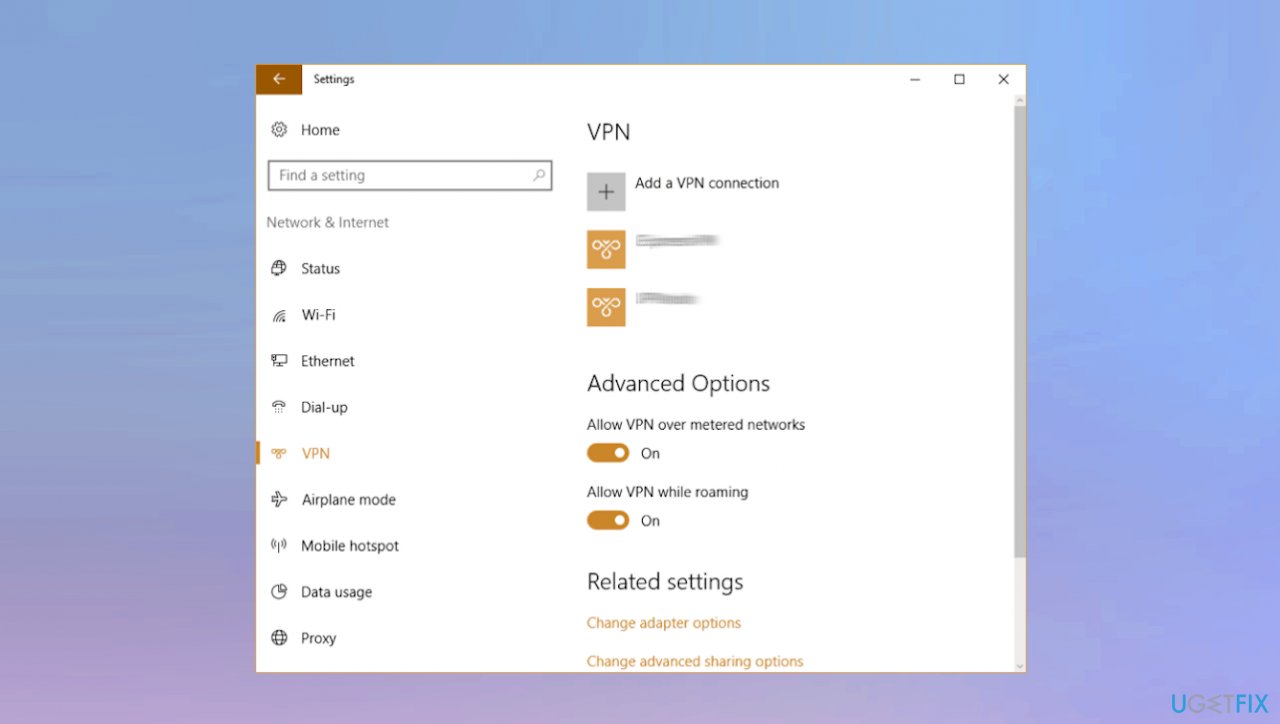
Pr connect reset error vpn - Select Uninstall.
Solution 3. Remove the Proxy server
- Press Windows key + R to open up a Run dialogue box.
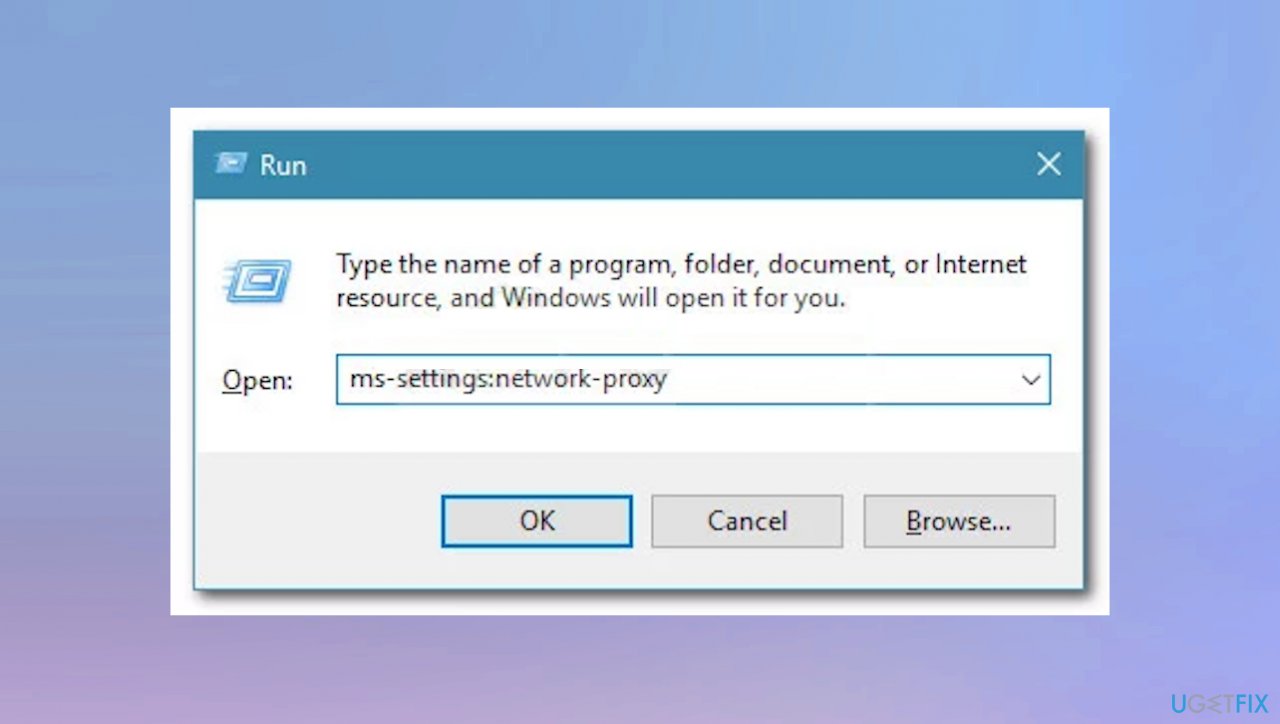
Pr connect reset error run proxy - Type ms-settings:network-proxy inside the text box and press Enter to open up the Proxy tab.
- The Settings app.
- Move down to the Manual Proxy Setup section.
- Navigate to the right-hand section of the screen and disable the toggle associated with the Use a proxy server.
- Restart your computer and wait for the operation to complete.
- Check if the issue occurs.
Solution 4. Disable Firefox extensions
- Open Mozilla Firefox browser and click on the Menu.
- Select Add-ons.
- In here, select the unwanted plugin and click Remove.
Solution 5. Disable Firewall
- Search Windows Defender Firewall from the Start menu.
- Click on Turn Windows Firewall On or Off from the left menu bar
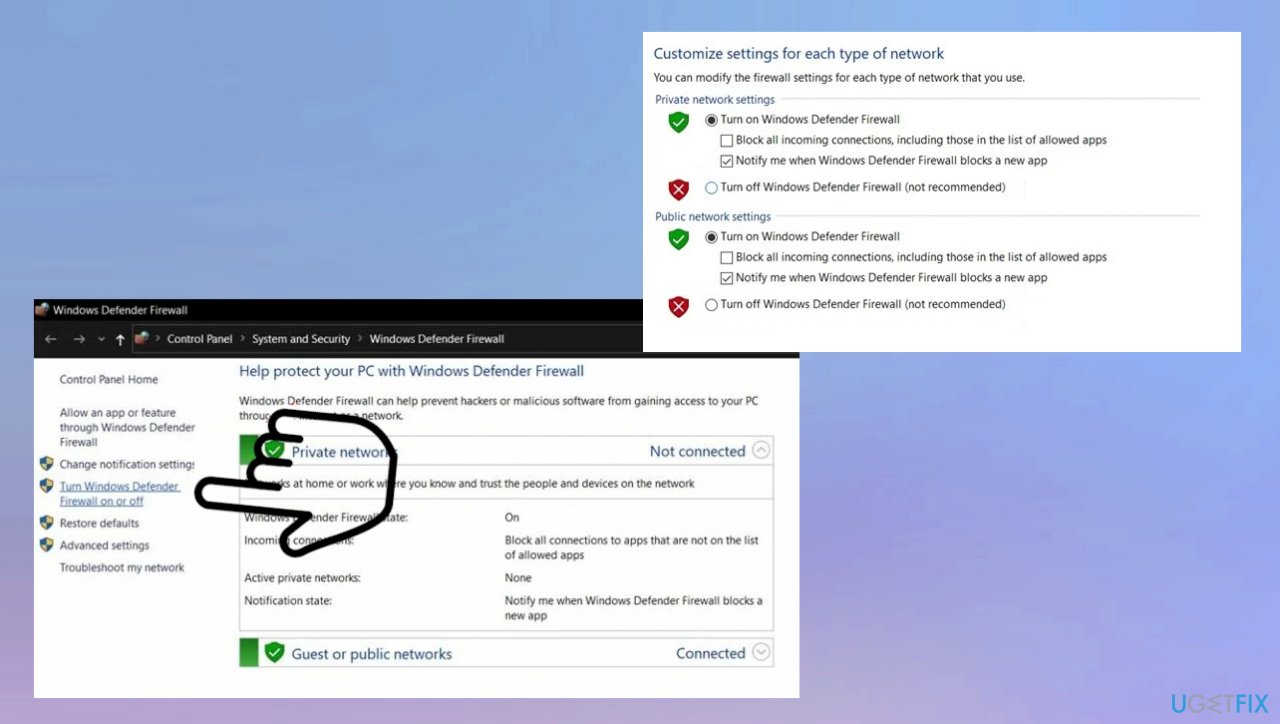
Pr connect reset error firewall - Select the Turn Windows Defender Firewall on or off option under both the Public and Private network.
- Click on OK and restart your PC.
- See if it fixes the Firefox issue.
Bottom line
To resolve the PR_CONNECT_RESET_ERROR in Firefox, you can try altering settings or disabling security tools and firewalls. Additionally, clearing temporary data and checking for compatibility issues with anti-malware tools may help. If none of these solutions work, consider seeking further assistance or trying a different browser.
Frequently asked questions
You can start by checking your internet connection and disabling any VPN or proxy settings. Additionally, resetting Firefox settings or clearing the browser cache may help fix the error.
Yes, you can try disabling any firewall or antivirus software temporarily, as they might be blocking the connection. Also, updating your network drivers can potentially resolve the issue.
Ensure that your Windows 10 or Windows 11 system has the correct date and time settings, as discrepancies can lead to connection issues. Also, verify that your network settings are configured correctly.




Report an issue
What's wrong with this guide? We review every report and update or remove content.
Report received — thank you. We'll review and fix it.
You need a free account to submit a report.
Be the first to comment