How to fix
“The local device name is already in use” error
on Windows
Resolve "The local device name is already in use" error on Windows 10 or Windows 11 effortlessly. Follow our expert-tested solutions for a quick fix!


What causes How to fix “The local device name is already in use” error in Windows?
- Different connection type used to log on
- Mapping information lacks user information
- Incorrect user input
- Disabled File and Printer Sharing setting
- Accidentally deleted registry files
Repairs Windows system files, removes malware, and restores a clean OS state — without reinstalling.
Hello. I have tried to map a network resource to my local device on my Windows computer but I receive an error that says "The local device name is already in use." I have no idea what this means. Can you help?
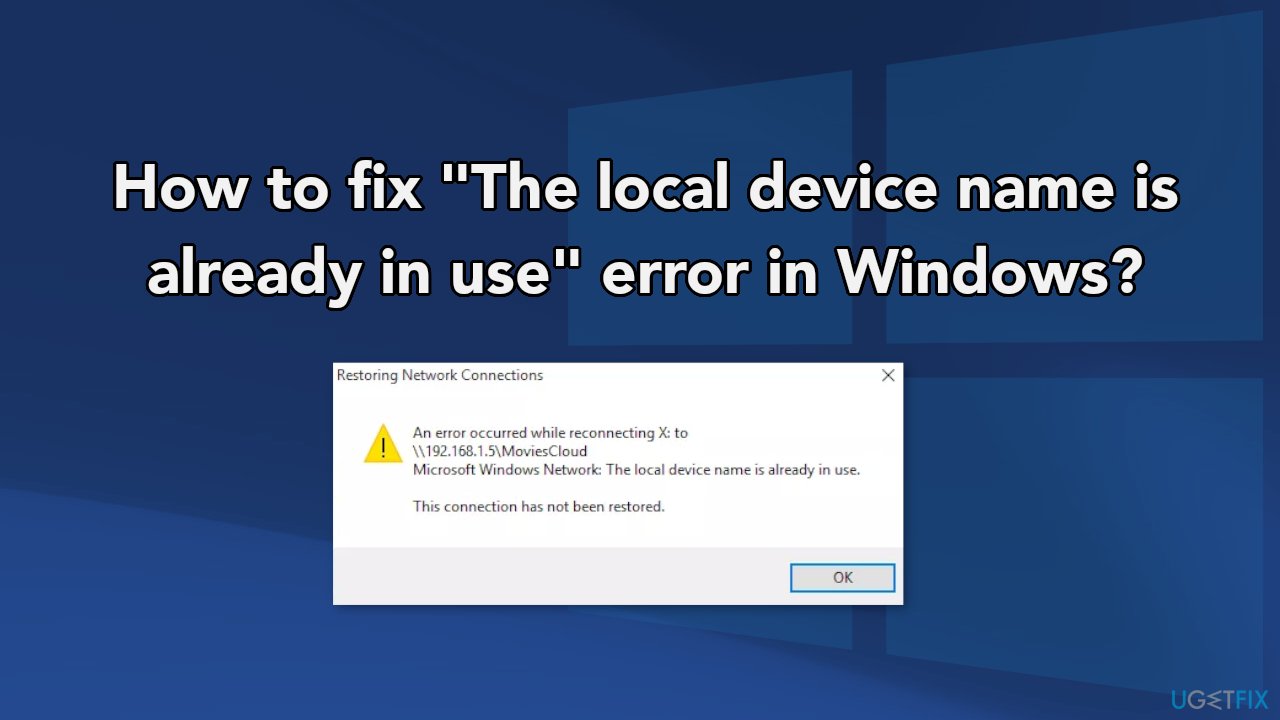
Recently, a handful of Windows users encountered "The local device name is already in use" error. Most of the times it appeared when they tried to restore a network mapping[ref en-1] connection to a shared network folder on a Windows XP-based client. This happens because Windows lets people map network drives to skip typing the address every time they want to use them. The message they see, says:
An error occurred while reconnecting <drive letter> to <file path> Microsoft Windows Network: The local device name is already in use. This connection has not been restored.
There are many things that could possibly be causing this. In some cases, the error appears when users log on to the Windows XP-based client by using a different connection type than they used to connect to the file server. If the network drive was created through a local area network (LAN) with current user credentials, the mapping information does not contain any user information.
When an error such as this appears, Windows cannot open files on shared folders. Other common reasons may include incorrect user input, a disabled File and Printer Sharing setting, and accidentally deleted files from the registry that now cause system malfunctions.
Troubleshooting manually could take a while because it is unclear what is causing the issue, so you can try using an automatic solution [d1] to avoid going through all of the possibilities. The repair tool can identify the damaged system components, fix BSODs,[ref en-2] and registry issues by scanning the system. This software could also be used to free up space by clearing cookies[ref en-3] and cache, which should boost the device's performance.
Below you will find a few manual methods that could fix "The local device name is already in use" error in Windows and let you use certain files again. Note that this will take a while, so please follow all of the steps very carefully:
Method 1. Remap the Drive
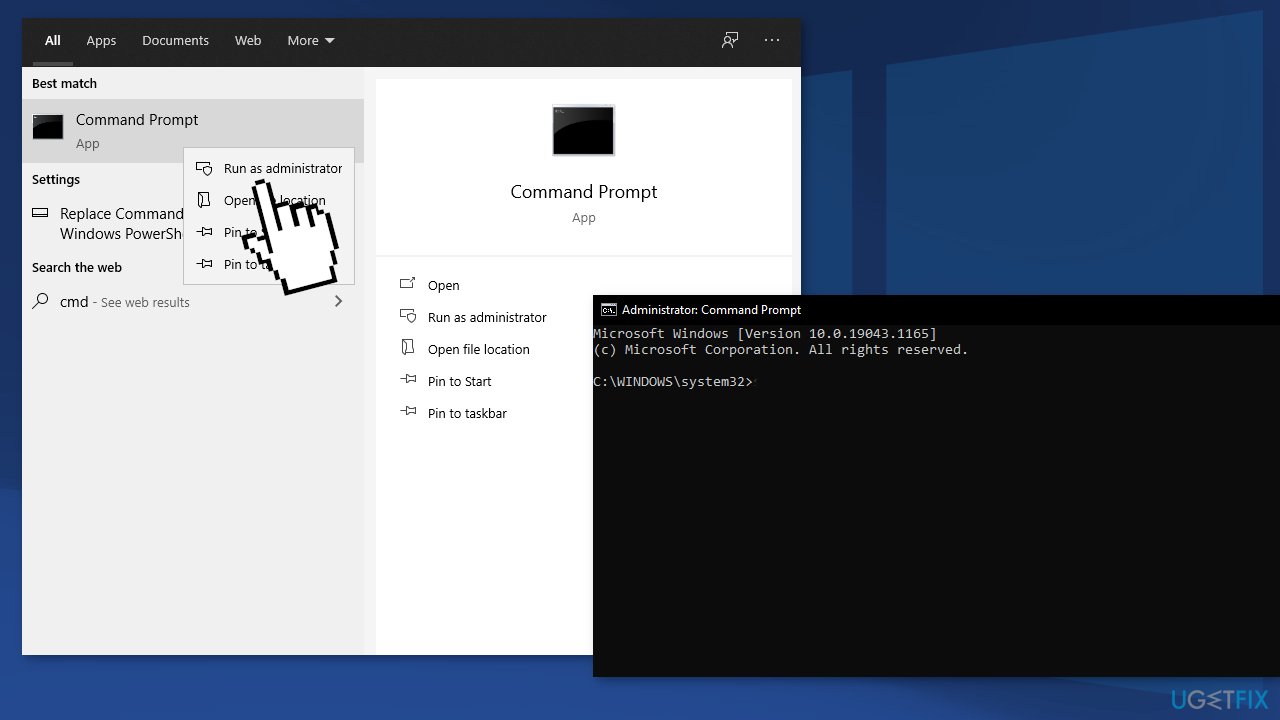
- Search for Command Prompt in the Start menu and select the Run as administrator option
- Copy and paste the command shown below and make sure you click the Enter:
net use * /delete
- After you see that the operation is completed successfully, run the following command:
net use Z: \\\\server\\share /user:username password
- Make sure you replace the username and password placeholders with the correct username and password. Check to see if the problem is resolved
Method 2. Reinitialize Browser
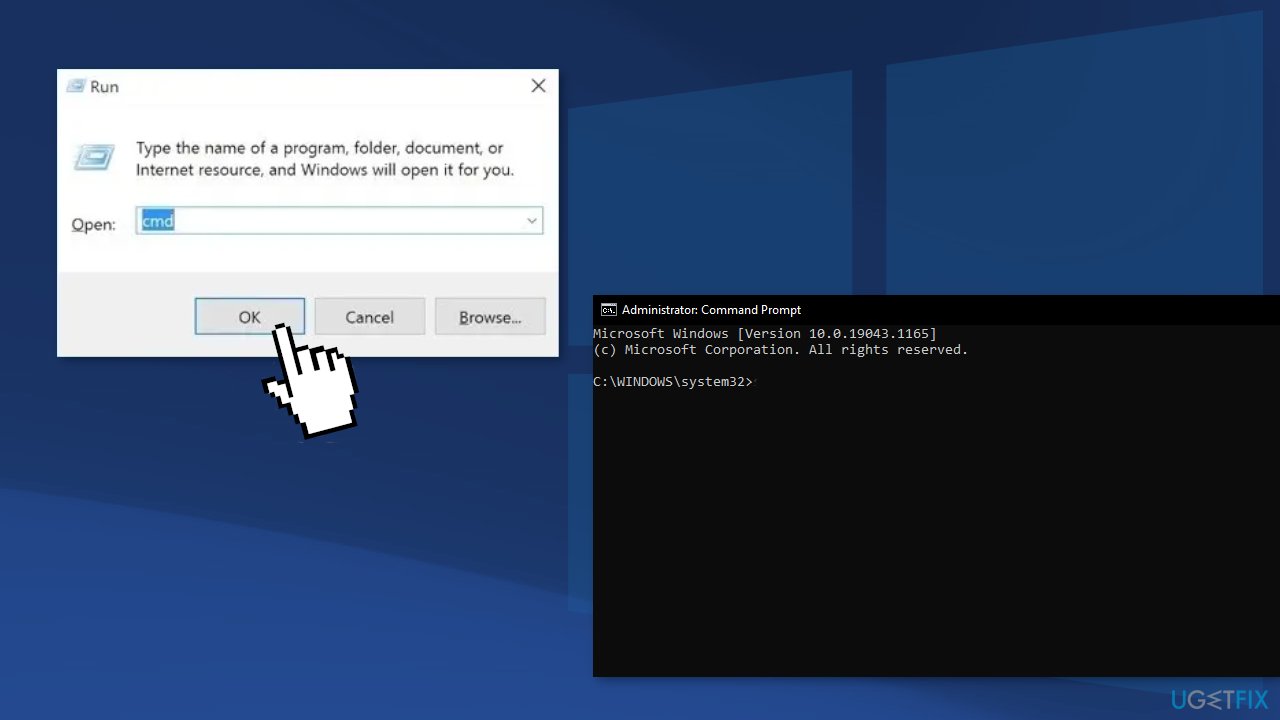
- Press the Windows + R keys simultaneously to open the Run prompt
- Type in cmd and press Shift + Ctrl + Enter to grant the Administrative Privileges
- Click on yes in the Are you sure you want to allow this application to make changes to your computer prompt
- Type in the following command and press Enter:
- net stop "Computer Browser"
- Then, type in this command and press Enter:
net start "Computer Browser"
Method 3. Edit the Registry
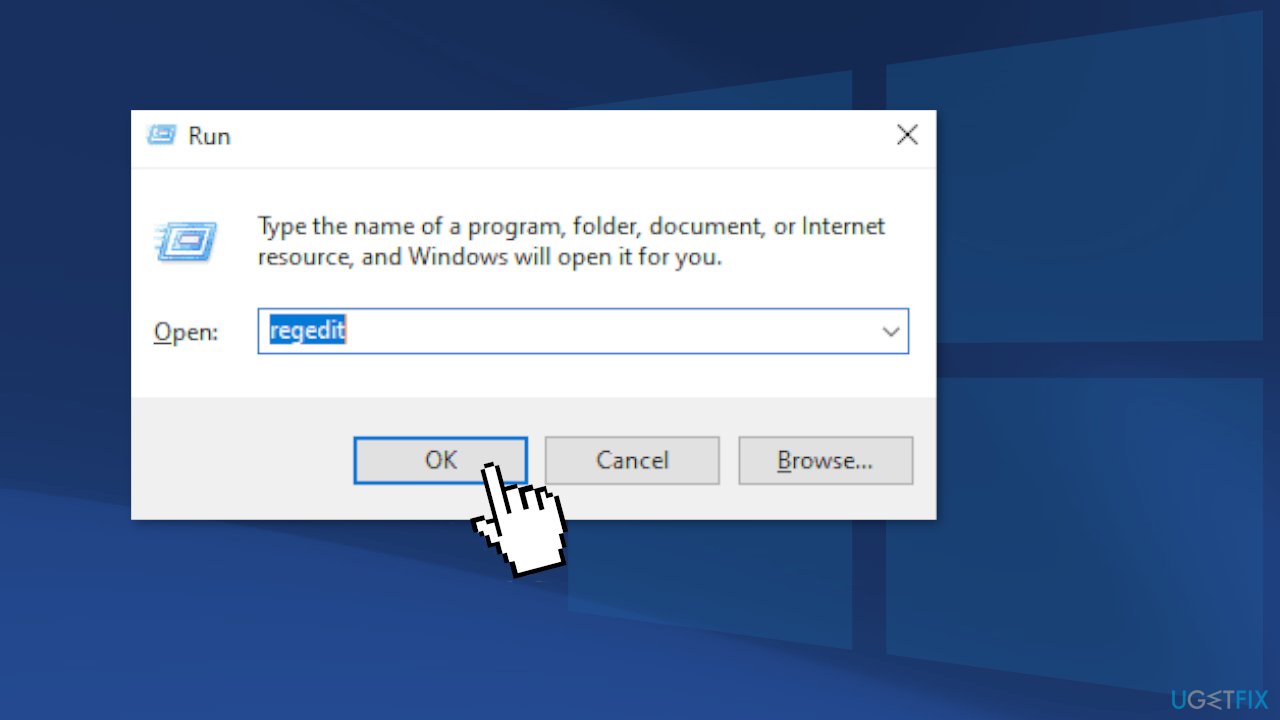
- Open the Registry Editor window by typing regedit in the search bar
- Navigate to the following key in your registry by navigating at the left pane:
HKEY_CURRENT_USER\\Software\\Microsoft\\Windows\\CurrentVersion\\Explorer
- Click on this key and try to locate a key named MountPoints2 inside the Explorer key. Right-click on it, and choose the Delete option from the context menu. Confirm any dialog boxes which may show up
- Check to see if the error message still appears after restarting your computer
Method 4. Assign Drive Letters
- First of all, you will need to make sure that no files from the storage devices you want to edit are in use or open in any other way. Next, make sure you are not copying or moving anything from or to the disk before proceeding
- After that, either use the Windows Key + X key combination or right-click on the Start menu and choose the Disk Management option in order to open its console
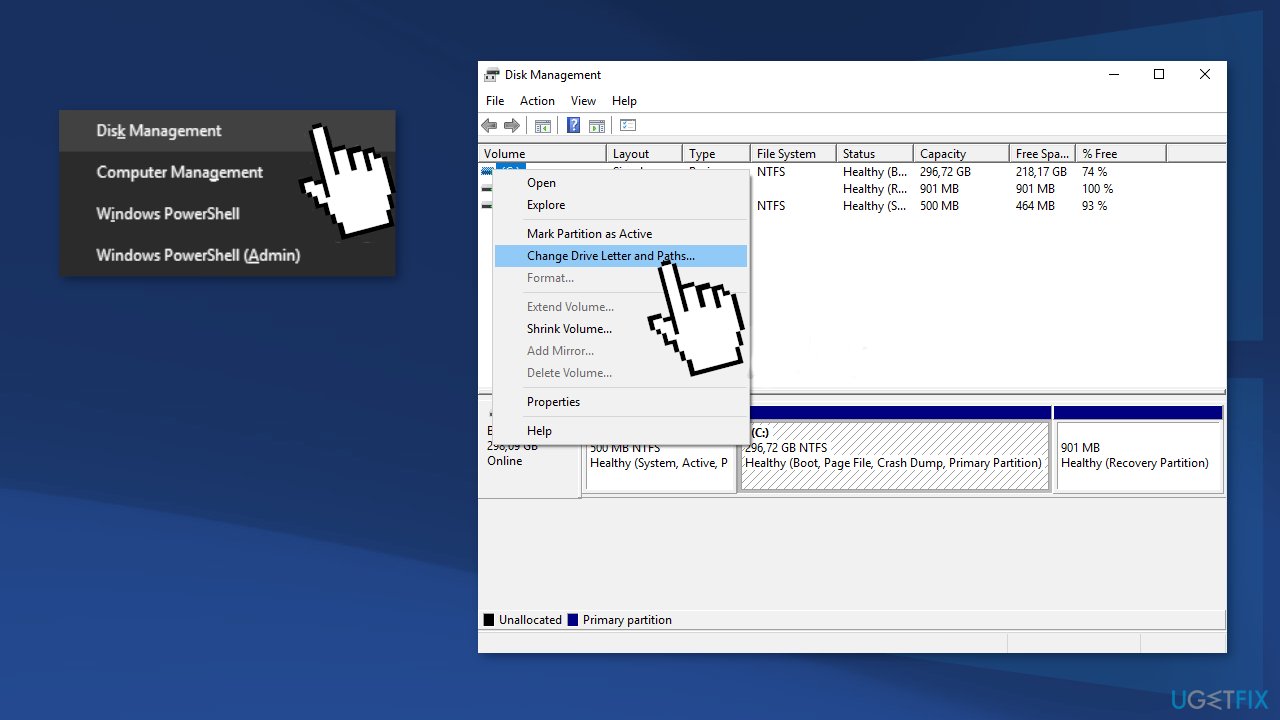
- Right-click the volume with the drive letter you want to change and choose the Change Drive Letter and Paths
- After that, click on Change and choose from a list of available drive letters
- We advise you not to choose letters A or B because they were reserved for floppy drives on older operating systems and this can confuse older software tools. Click on Apply and confirm any dialog boxes which may appear before closing the tool
- Check to see if the problem still persists
Method 5. Enable File and Printer Sharing
- Start Control Panel by searching for the utility in the Start menu
- After Control Panel opens, change the view to Large or Small icons and navigate to the bottom in order to open the Windows Defender Firewall
- Click on Windows Defender Firewall and click on the Allow an app or feature through Windows Firewall option from the left side list of options
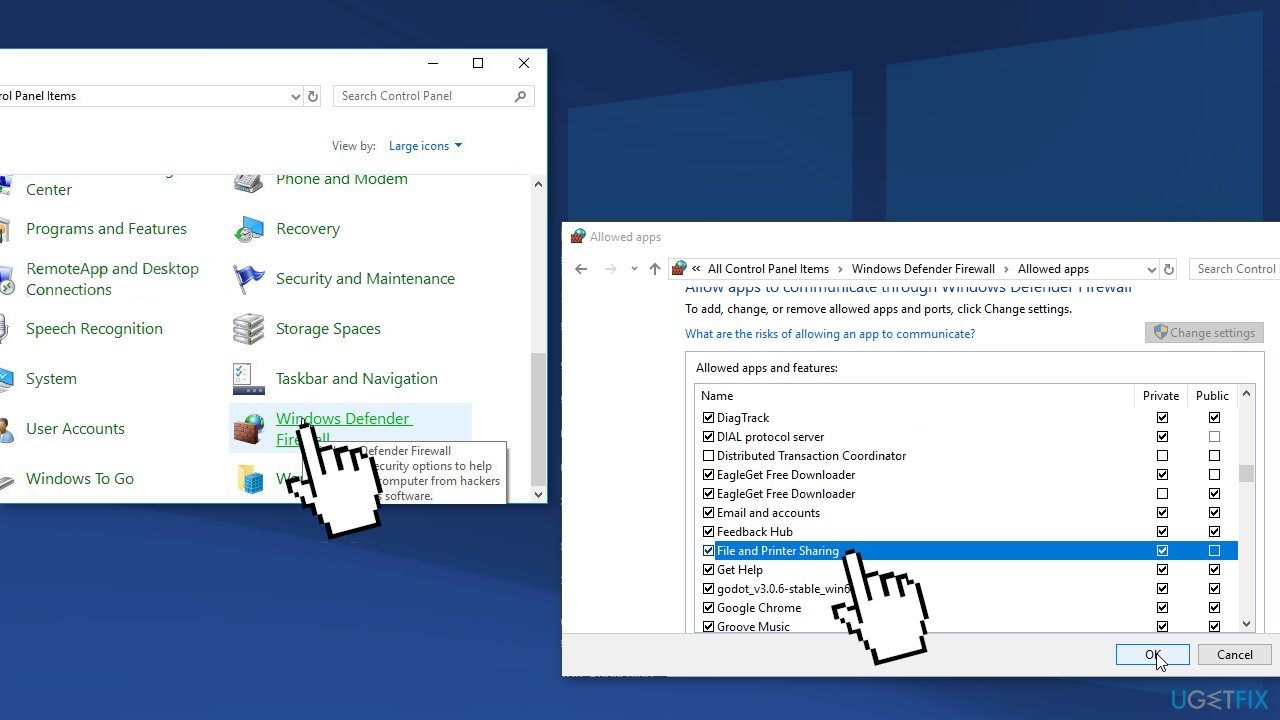
- Make sure you click the Change settings button at the top right part of the window and provide administrator permissions if needed
- Navigate to the File and Printer Sharing option and check the box right next to it before clicking OK and applying the changes
- Click OK and restart your computer
Method 6. Change the value of ProtectionMode
- Press Windows + R, type regedit in the dialogue box, and press Enter
- Once in the registry editor, navigate to the following path:
HKEY_LOCAL_MACHINE\\System\\CurrentControlSet\\Control\\SessionManager\\
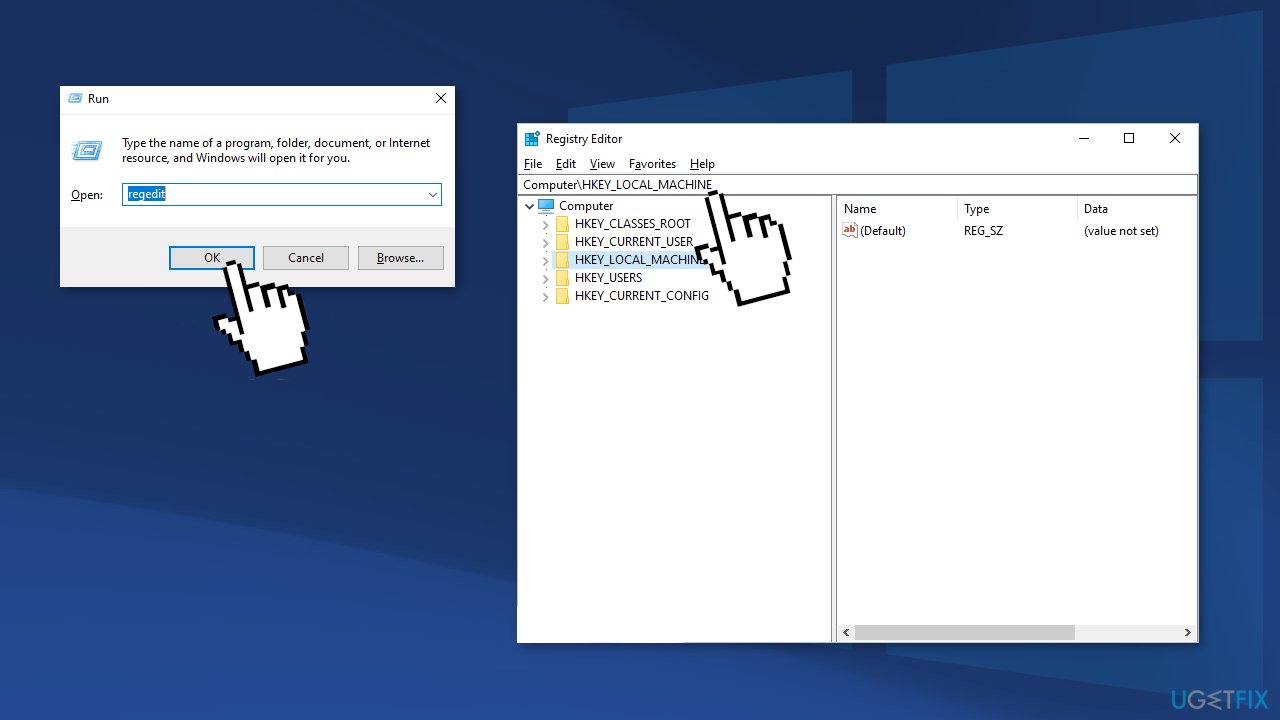
- Once in the correct location, search for the following key:
ProtectionMode
- Change the key from 0 to 1
- Save changes and exit
- Restart your computer
Bottom line
To fix the 'The local device name is already in use' error, you can try several manual methods such as checking your connection type, ensuring File and Printer Sharing is enabled, and verifying user input. If these methods do not resolve the issue, consider using an automatic repair tool to identify and fix system problems.
Frequently asked questions
This error typically occurs when there is a conflict with network drives or when a mapped drive cannot connect properly to the server. It may also happen if the drive letter is already in use by another device.
You can try disconnecting the mapped network drive and then remapping it using File Explorer. Alternatively, use the 'net use' command in Command Prompt to clear any existing connections.
Yes, a simple restart can sometimes resolve temporary network issues and refresh connections, potentially fixing the error. If the problem persists, further troubleshooting steps may be necessary.




Report an issue
What's wrong with this guide? We review every report and update or remove content.
Report received — thank you. We'll review and fix it.
You need a free account to submit a report.
Be the first to comment