How to fix
Error Code: Beaver in Destiny 2
on Windows
Fix the Beaver error code in Destiny 2 on Windows 10 or 11 with proven solutions. Get back to gaming in minutes with our expert-tested tips.

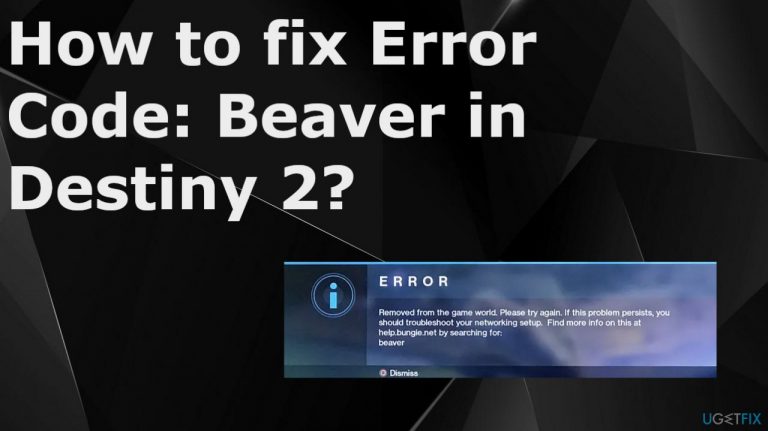
What causes How to fix Error Code: Beaver in Destiny 2?
- Network issues
- Improper DNS settings
- Incorrect router configurations
- Packet loss
- Wi-Fi setup problems
- ISP saturation
Repairs Windows system files, removes malware, and restores a clean OS state — without reinstalling.
Hey. I get the Destiny 2 Error code - Beaver. I get off the game then. I wish to know what is the problem and how to fix it. I want to continue playing, but this kicking me out thing is annoying. I think that developers should address this if the issue is inside, but I can't find anything. Can you help?
Error Code: Beaver in Destiny 2 is the problem that can occur repeatedly and cause issues with bans for the gamer due to the constant kicking off.[ref en-1] According to particular user complaints, it can appear when playing the Destiny game or even when the gameplay is launched.
The problem can be occurring due to network issues and not properly working connections. DNS settings of the device and the network issues can be causing this error code.[ref en-2] Configurations of the router, if wrong, can lead to connection issues and this error code.
The Error Code: Beaver in Destiny 2 can be explained as the issue occurring due to your console's failure to connect via the internet. Packet loss, specific Wi-fi setups, and ISP saturation can lead to issues with the game. These are individual causes and such problems require particular solutions. It is a common issue when multiple consoles connect to the internet via a single router.
There are additional issues that can affect the performance and these are issues with the Error Code: Beaver on machines. Malware,[ref en-3] file leftovers, compatibility issues, data that requires repair solutions can be considered the most common reasons for the ransom performance problems. So we offer the [d1] for a quick solution for the common issues with performance and compatibility.
However, the issue with Destiny often comes to the internet connection. You can try restarting the devices, the game itself. Also, make sure to use the wired connection to avoid wi-fi problems. Follow the guide to find the best solution for you. You can check if switching between the DNS setting of your router from Auto Detect and Google DNS fixes anything.
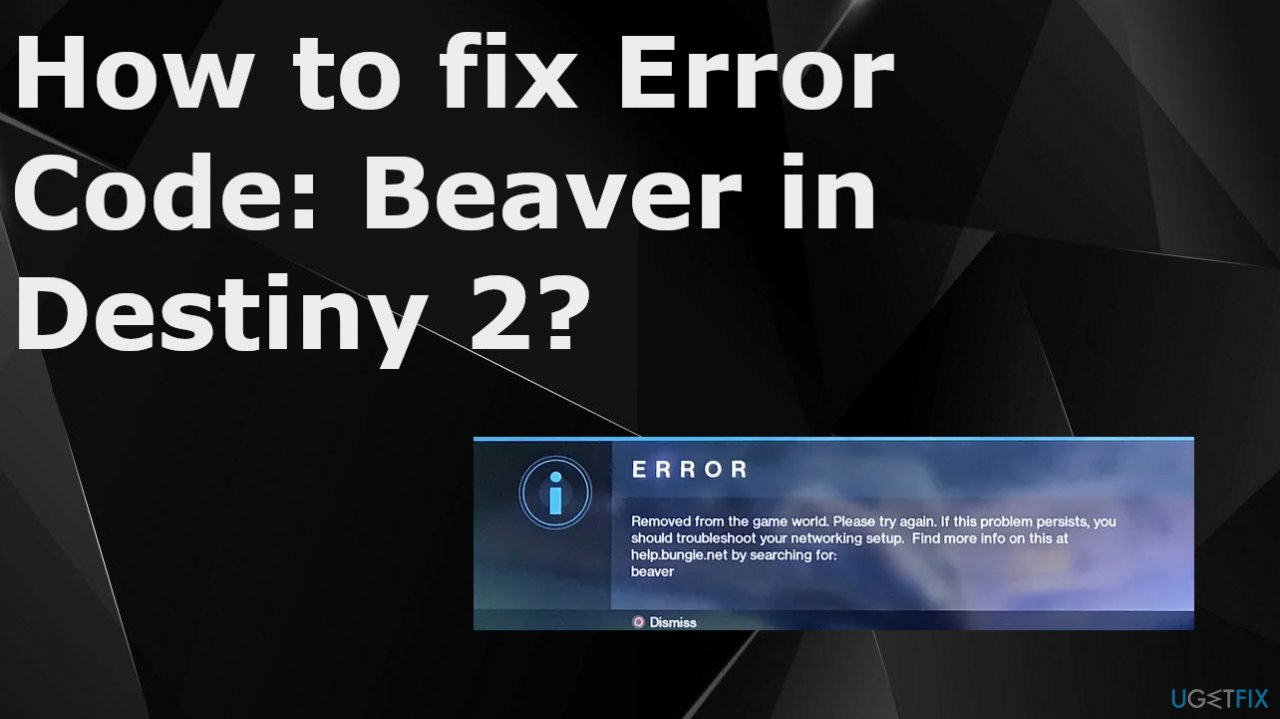
Fix 1. Try to connect to another network
- Disconnect your device from the current network and connect to another network.
- Make sure to use the cable connection if you can. But making the phone a hot spot should also work.
- Now launch Destiny and check if it is operating fine.
- If it is okay when connecting to another device, the issue may be related to ISP restrictions or router misconfiguration.
Fix 2. Renew the UP address
- Click Windows, type: Command Prompt.
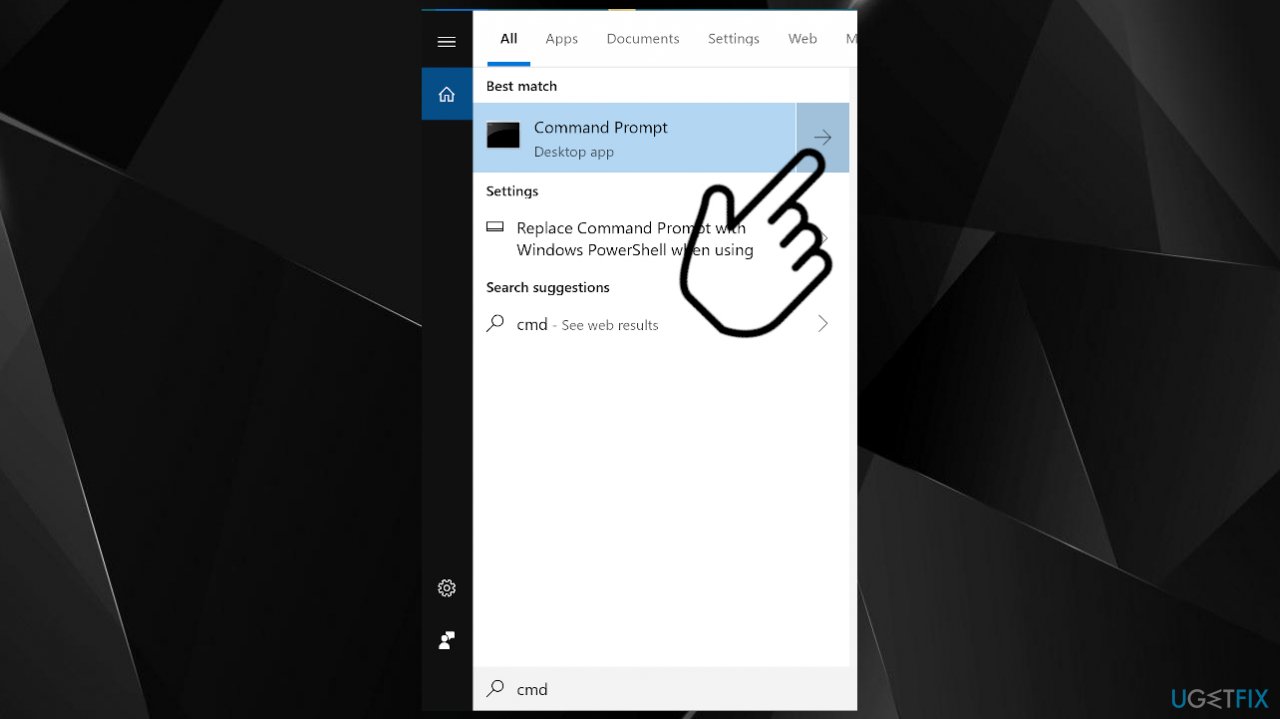
Beaver error code destiny2 cmd - Right-click on Command Prompt, and select Run as Administrator.
- Now execute the following commands one by one by hitting Enter after each:
ipconfig /release
ipconfig /renew - Once the IP address is renewed.
- Check if Destiny.
Fix 3. Edit DNS settings
- Right-click Windows and open Network Connections.
- Now open Change Adapter Options (under Advanced Network Settings) and right-click on your network connection.
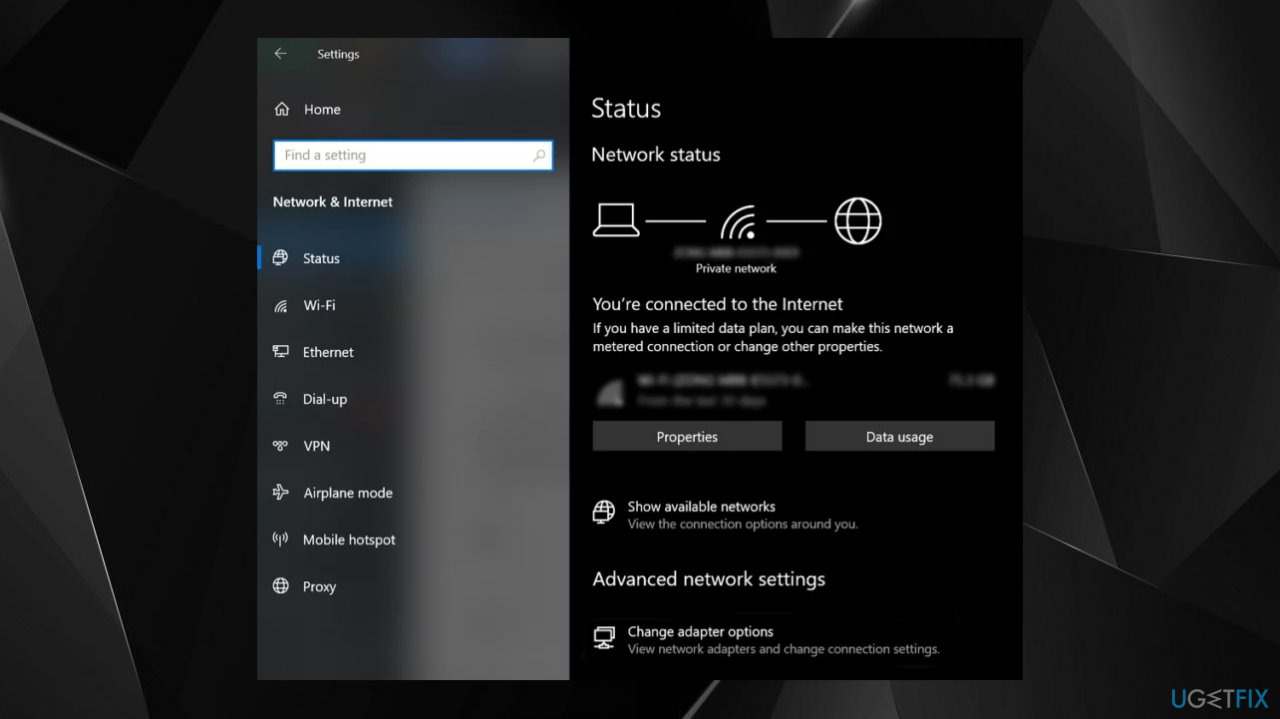
Beaver error code destiny2 network status - Select Properties.
- Select TCP/IPv4.
- Now click on the Properties button.
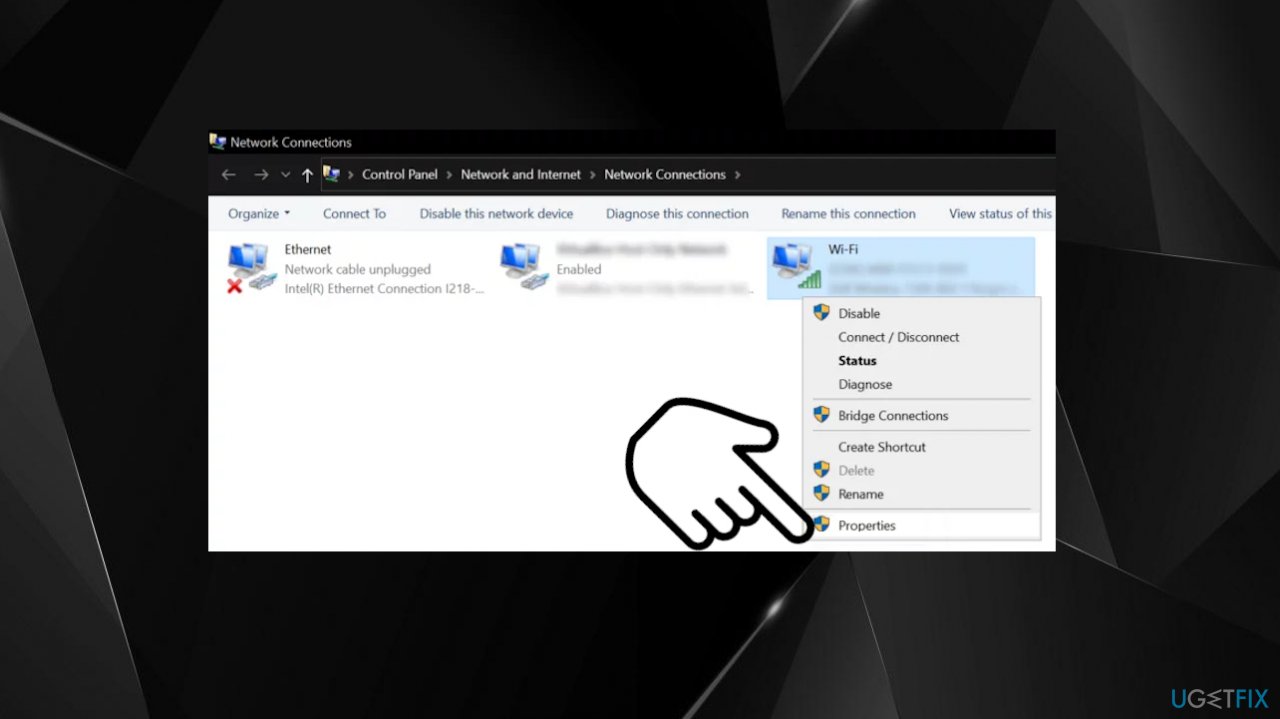
Beaver error code destiny2 wifi properties - Select the radio button of Use the Following DNS Servers.
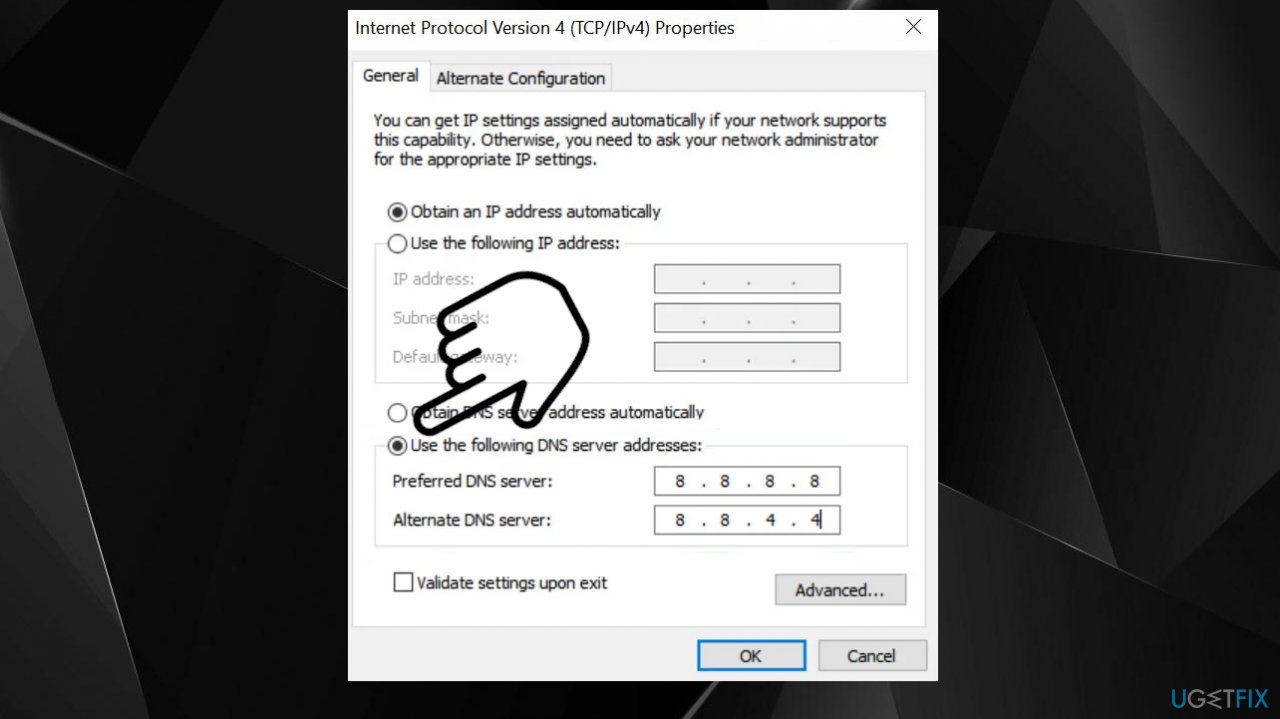
Beaver error code destiny2 dns settings - Then enter the following values:
Preferred DNS Server: 8.8.8.8
Alternate DNS Server: 8.8.4.4 - Now apply your changes and reboot your device.
Fix 4. Enable beta Steam client version
- Launch the Steam client and expand the Steam menu.
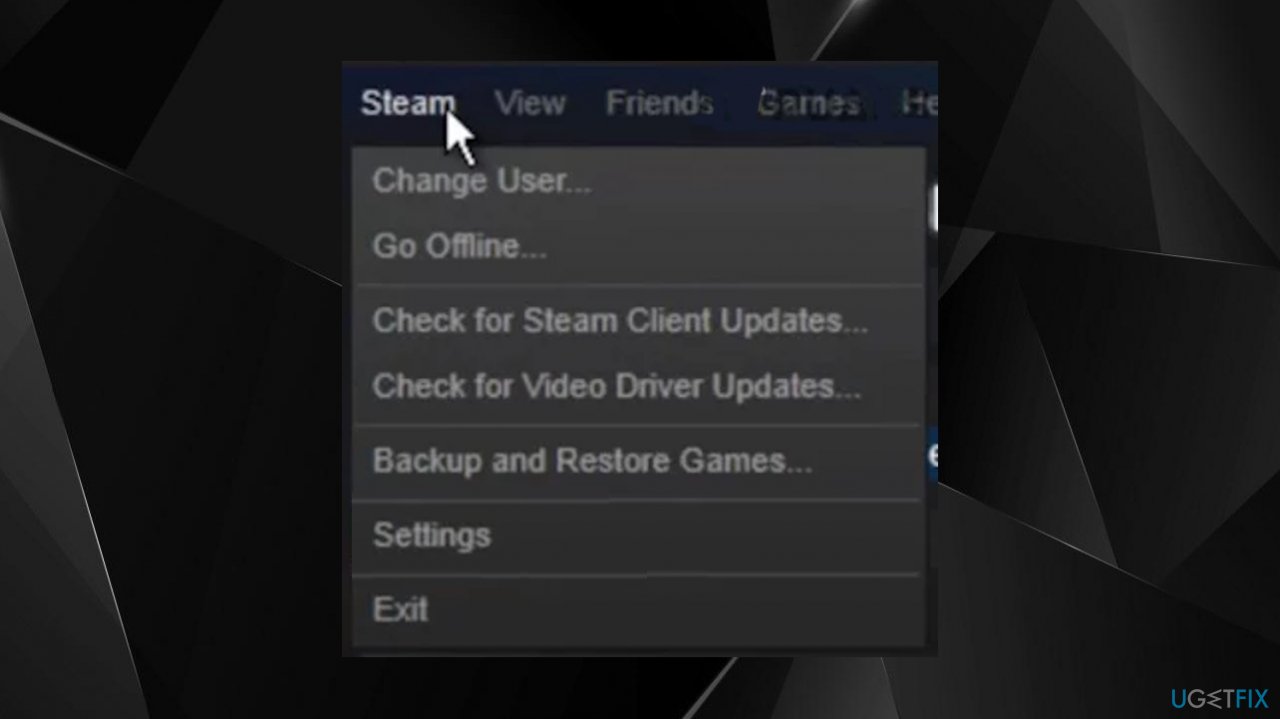
Beaver error code destiny2 steam settings - Select Settings and click on Change.
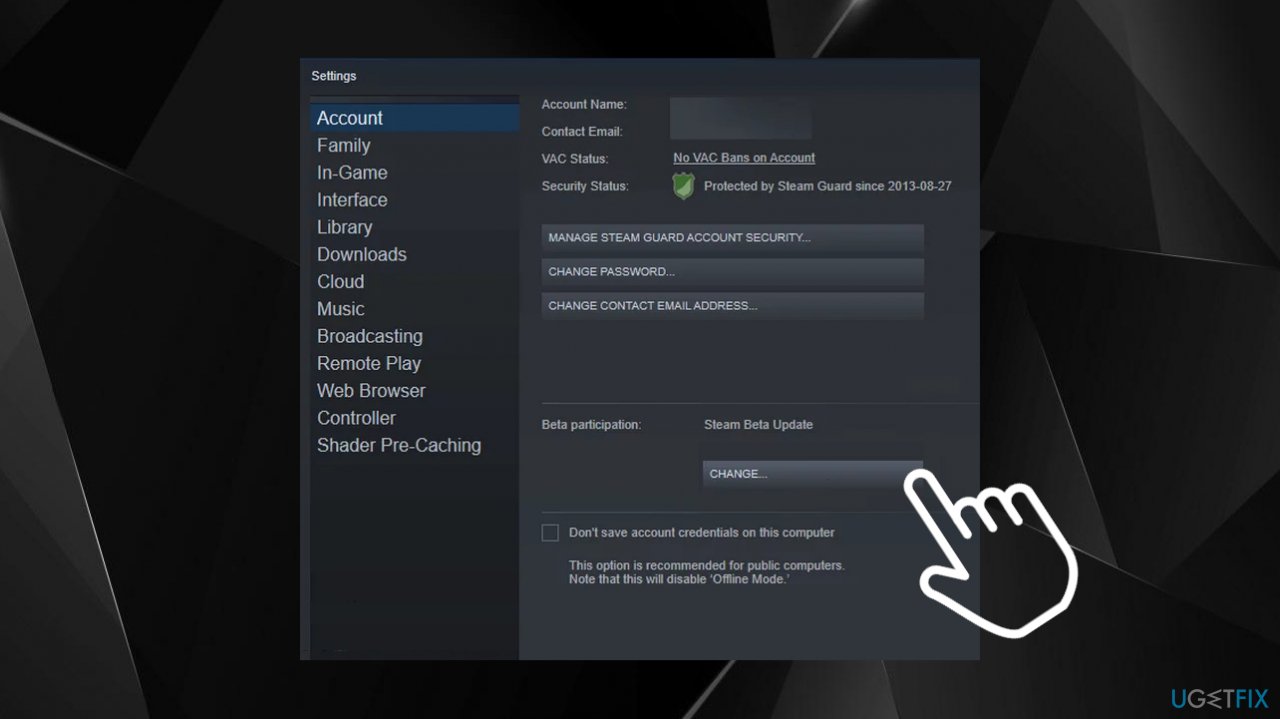
Beaver error code destiny2 change - Choose Steam Beta Update.
- Click on the OK button to apply your changes.
- Now click on Restart Steam and once relaunched, check if the issue occurs.
Fix 5. Reset router to defaults
- Launch a web browser, steer to the router’s admin portal.
- Log in using your credentials.
- Expand the System tab (or General tab).
- Go to the Restore Defaults tab.
- Click on the Restore button.
- Then confirm to restore the router.
- Launch Destiny to check.
Bottom line
To fix Error Code: Beaver in Destiny 2, try restarting your devices and the game, and use a wired connection to avoid Wi-Fi issues. Additionally, check if switching your router's DNS settings from Auto Detect to Google DNS helps. If none of these solutions work, consider connecting to another network.
Frequently asked questions
To fix Error Code: Beaver, try restarting your game and checking your internet connection. If the issue persists, consider resetting your network settings in Windows 10.
You can visit the official Bungie support website or their Twitter page to check for server status updates. If servers are up and running, ensure your Windows 11 firewall isn't blocking the game.
Yes, ensure that your Windows 10 is updated and optimize your network settings by disabling background applications that may consume bandwidth while playing Destiny 2.




Report an issue
What's wrong with this guide? We review every report and update or remove content.
Report received — thank you. We'll review and fix it.
You need a free account to submit a report.
Be the first to comment