How to fix
Live Kernel Event Code 193
on Windows
Resolve Live Kernel Event Code 193 issues on Windows 10/11 quickly with expert-tested solutions. Get back to smooth performance in minutes!

![[Fix] Live Kernel Event Code 193 on Windows](https://ugetfix.com/wp-content/uploads/articles/askit/fix-live-kernel-event-code-193-on-windows_en-768x432.jpg)
What causes [Fix] Live Kernel Event Code 193 on Windows?
- Hardware malfunction
- Corrupted system files
- Incompatible drivers
- Overheating components
- Power supply issues
Repairs Windows system files, removes malware, and restores a clean OS state — without reinstalling.
Hello. My PC often freezes up without any warning, even when I'm not doing anything. I am afraid if it keeps doing that it will ruin my whole PC. I checked it out and got this - "A problem with your hardware caused Windows to stop working correctly." Is this fixable?
Windows is an extremely complicated system that depends on thousands of processes running in the background to keep it running smoothly. If even one of these goes rogue, users can experience various bugs and errors. Sometimes the issues can also be caused by hardware, which means that simple OS troubleshooting[ref en-1] would not work.
Some Windows users have reported a strange problem with their PC where once they leave it in idle mode[ref en-2] for a short period of time. When they come back, the screen remains off and will not turn on no matter what they do. When users go to investigate in the Event Viewer, they discover a hardware error:
Description: A problem with your hardware caused Windows to stop working correctly.
Problem Event Name: LiveKernelEvent
Code: 193
There are many possibilities why you could be experiencing this. For some people, running a simple automatic troubleshooter could be enough, and for the other ones, a hardware replacement could be required. In this post, you will find a couple of steps that you can perform to try to fix the Live Kernel Event Code 193.
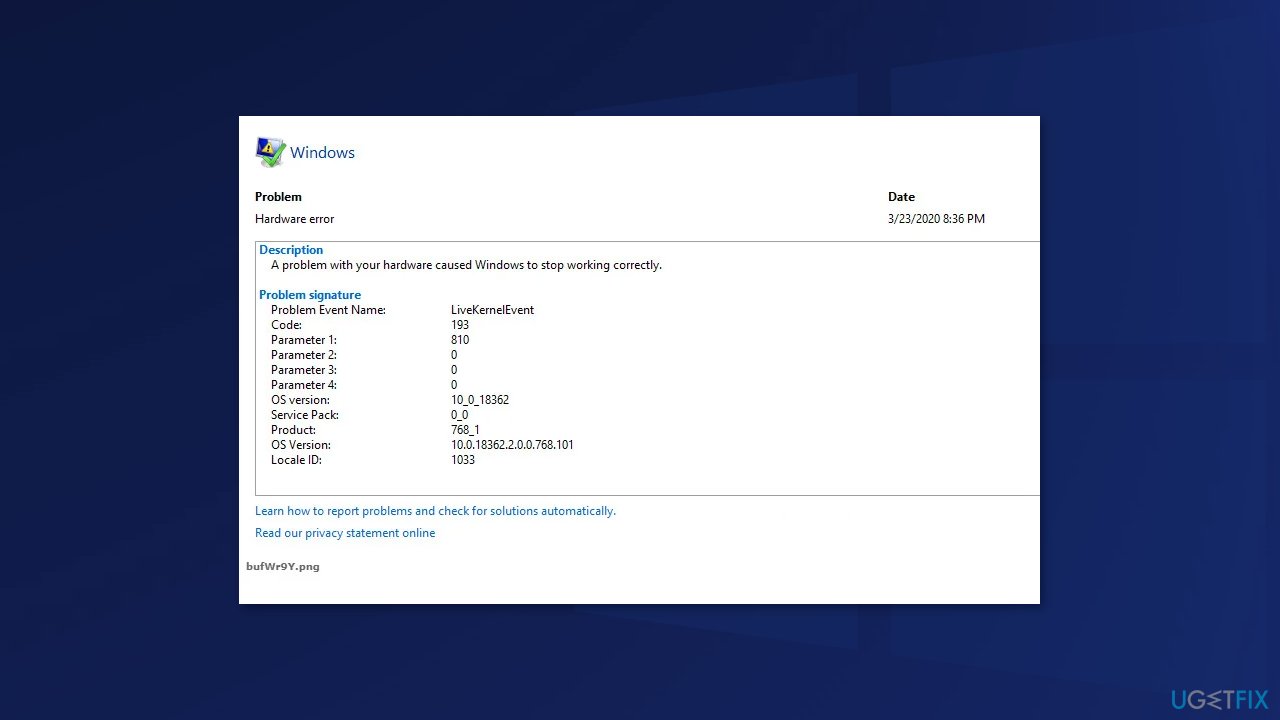
In this article, we provide a couple of possible solutions for the Live Kernel Event Code 193 on Windows. Depending on the severity of your issue, a simple scan could be enough, or you might have to reinstall Windows completely. If your PC is still functional, you can try using a repair tool [d1] to avoid going through all the possible fixes. This powerful software can fix various system errors, corrupted files, BSODs[ref en-3] and optimize the machine for maximum performance.
You can start the process step-by-step, make sure to pay close attention:
Method 1. Run the Hardware and Devices troubleshooter
- Open up a Run dialog box by pressing Windows key + R
- Type ms-settings:troubleshoot inside the text box and press Enter to open up the Hardware and Device Troubleshooter
- Click on Other troubleshooters from the menu on the right-hand pane
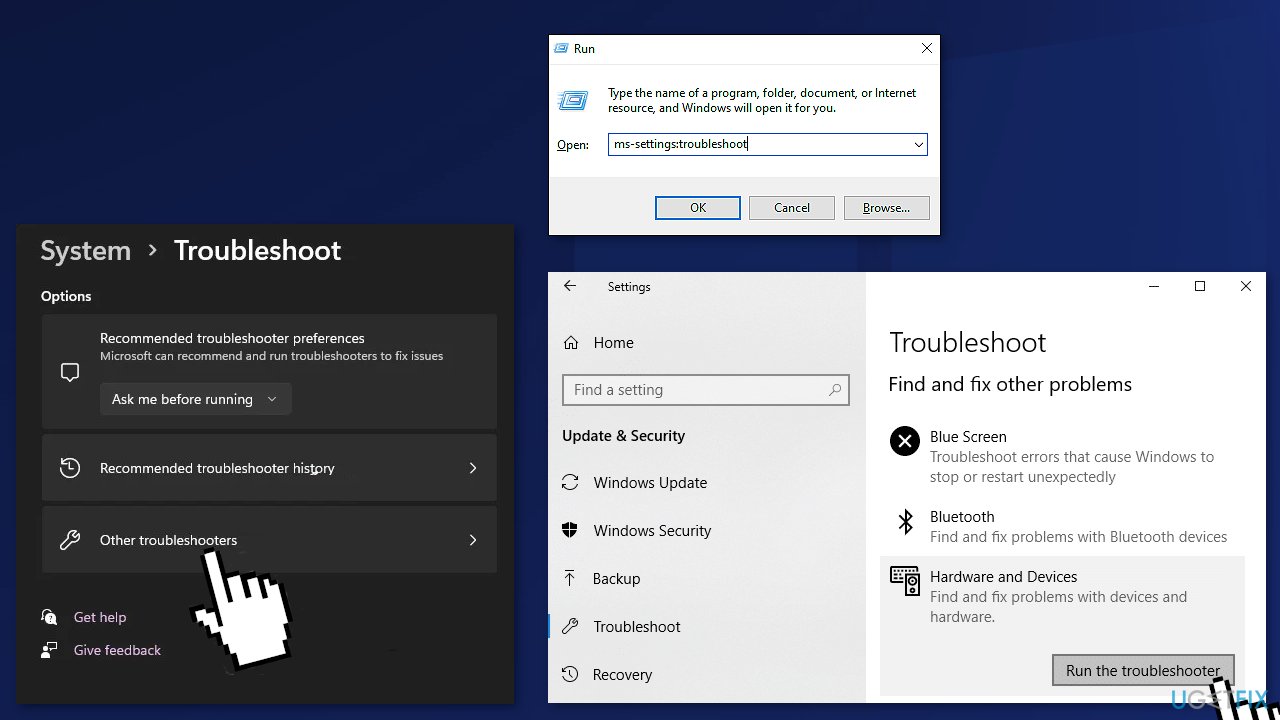
- Scroll under Find and fix other problems, then expand the listing associated with Hardware and Devices, then click on Run the troubleshooter
- Inside the Hardware and Devices troubleshooter, wait patiently until the initial scan is complete
- Click on Enable in order to configure your Windows installation to always search for new driver signatures when new hardware is connected
- Reboot your computer and see if the issue is fixed
Method 2. Update the Intel Wi-Fi Driver for Windows 10
- Open your default browser and visit the official download page of the Intel Dual Band Wireless-AC driver
- Click on the View details button associated with the Family & Intel Dual-Band Wireless-Ac 3160 driver
- Press on the Download button associated with the architecture compatible with your operating system
- Click on I accept the terms in the license agreement, then wait until the download is complete
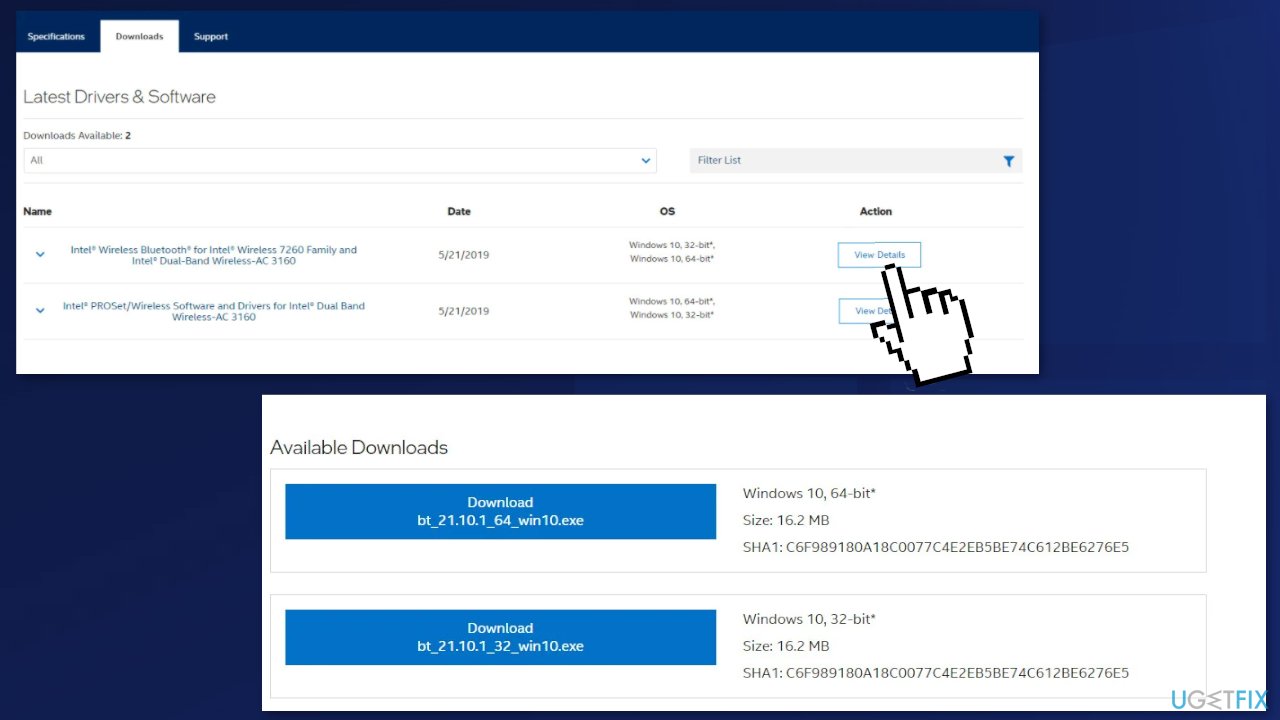
- Once the driver is downloaded locally, double-click on it, then press Yes at the User Account Control window to grant admin access
- Follow the on-screen instructions to install the driver, then reboot your PC and see if the problem is fixed
Method 3. Update the Chipset drivers
Improper chipset drivers can make your system unstable to resource-intensive tasks which might end up causing the LiveKernelEvent 193 error. You should be able to fix the issue by updating your chipset drivers to the latest compatible version.
AMD Chipset driver
- Start by opening your default browser and accessing the download page of AMD Drivers and Support page
- Next, scroll all the way down to the Search for your product section
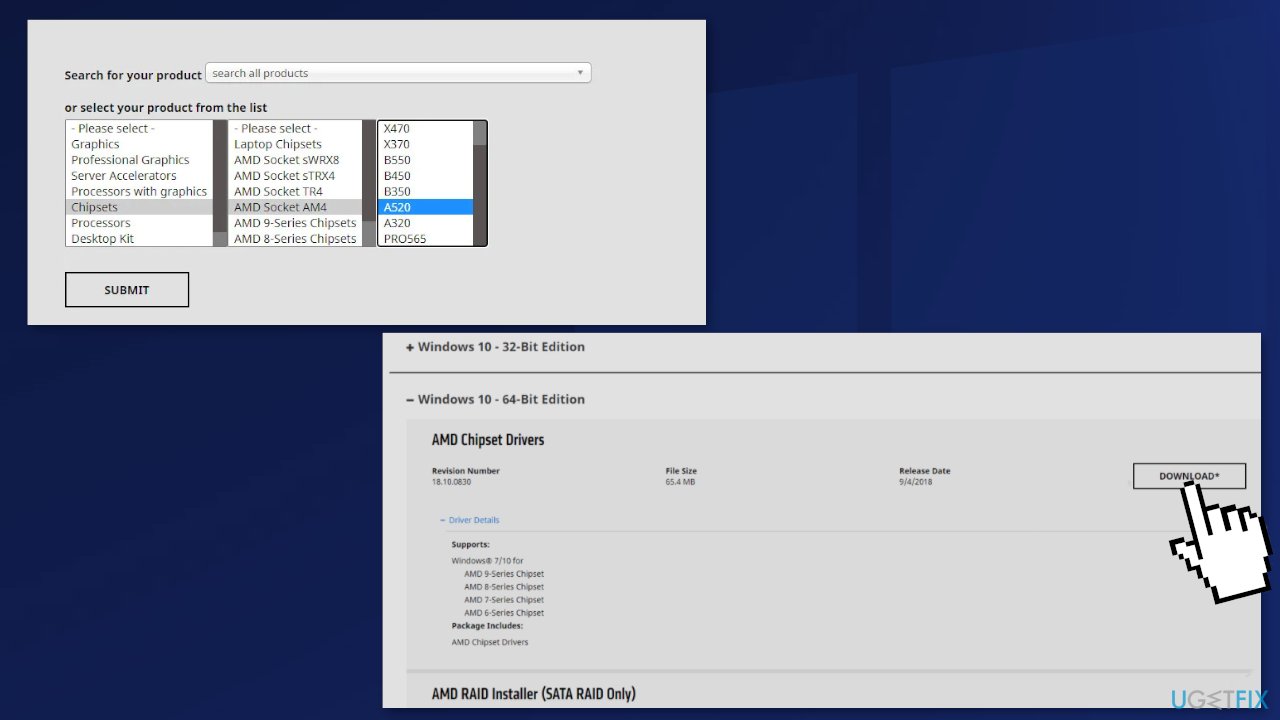
- Choose Chipsets from the column on the left, then pick the appropriate processor socket from the column on the right
- Select your processor from the third column, then click on Submit to get a list of the compatible chipset drivers
- After you hit the Submit button, you will be redirected to a page where you can download the chipset driver
- Once you’re inside, expand the drop-down menu associated with your compatible OS architecture and click on the Download button from the newly appeared menu
- After the download is finally complete, go ahead and double-click on the chipset driver installer, then click on Yes once you’re prompted by the User Account Control window
- Inside the chipset driver installer window, follow the on-screen instructions to update your chipset drivers to the latest version available
- Follow the on-screen instructions to complete the installation, then reboot your computer one final time and see if the LiveKernelEvent 193 error is now fixed
Intel Chipset driver
- Open your browser and visit the download page of the Chipset INF Utility
- Inside the correct download page, click on the Download button
- Click on I accept the terms in the license agreement to agree with the Terms of Licensing
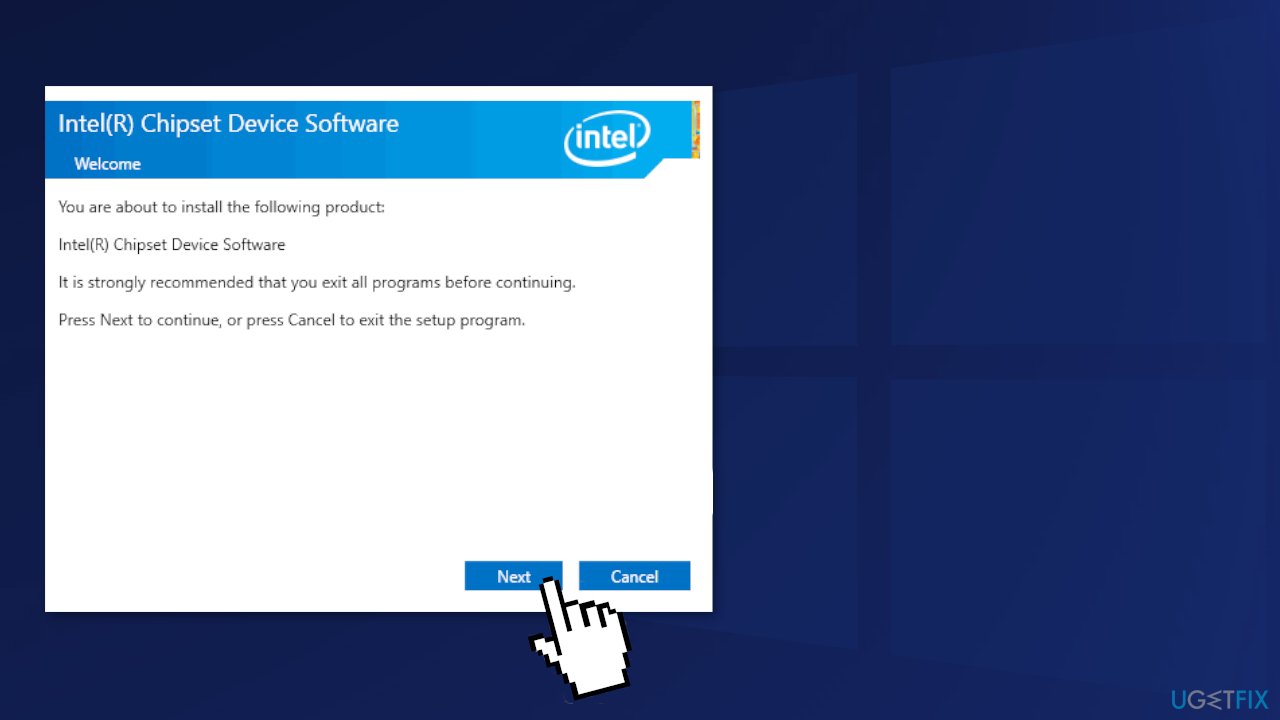
- Wait until the archive is downloaded locally, then use an extraction utility (like 7Zip, WinZip or Winrar) to extract the contents of the chipset driver updater software
- Once the contents of the archive are extracted, double-click on SetupChipset.exe, then follow the on-screen prompts to install the latest chipset driver
- Reboot your PC and see if the error is fixed
Method 4. Update BIOS drivers
- The best course of action is to head over to your motherboard manufacturer’s website and check the Drivers Download page for a BIOS updating utility – ASUS has E-Z Flash, MSI has MFlash, Gigabyte has @BIOS Live Update, etc
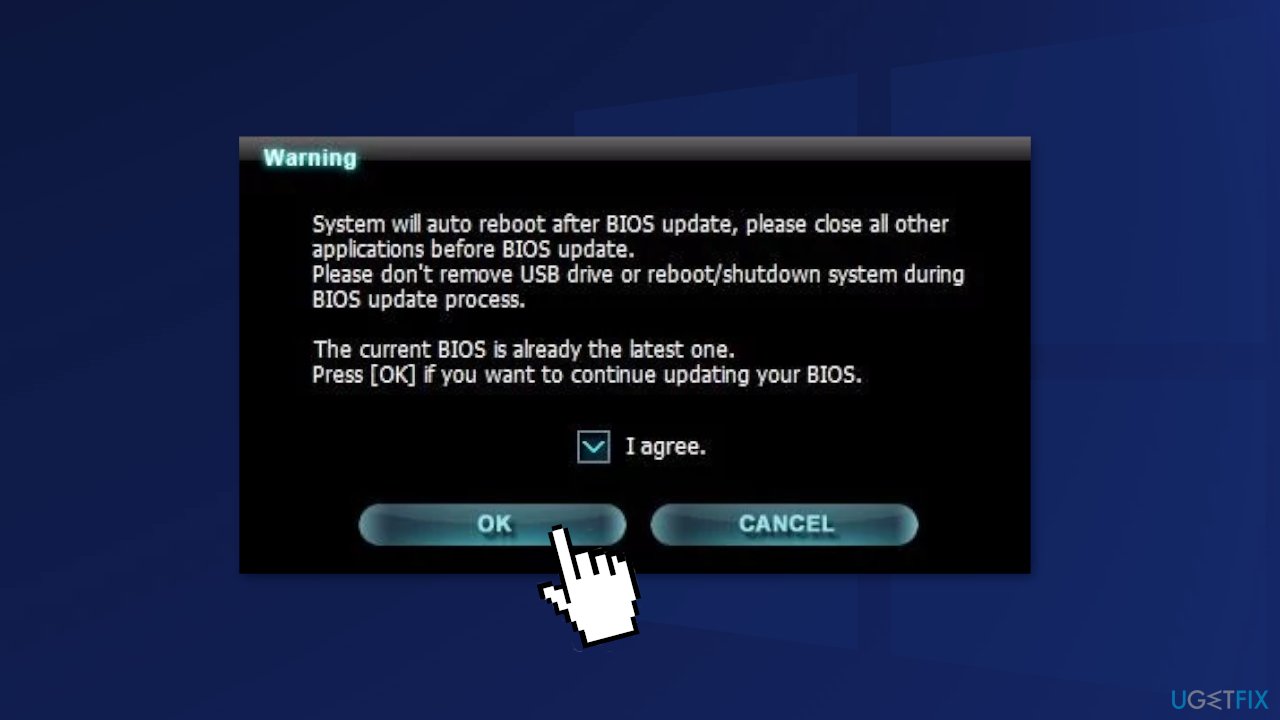
- Follow the on-screen instructions to update your BIOS version to the latest, then reboot your PC and see if the LiveKernelEvent 193 error is fixed
Method 5. Reinstall Windows
If all else fails and you can't even reset your Windows computer, you can reinstall the OS entirely. You won't even need an activation number or any proof of purchase, either. Just make sure you have more than 4GB of space available, as that's how much space the file you'll download takes up. Here's how to reinstall Windows 10:
- Download the ISO file
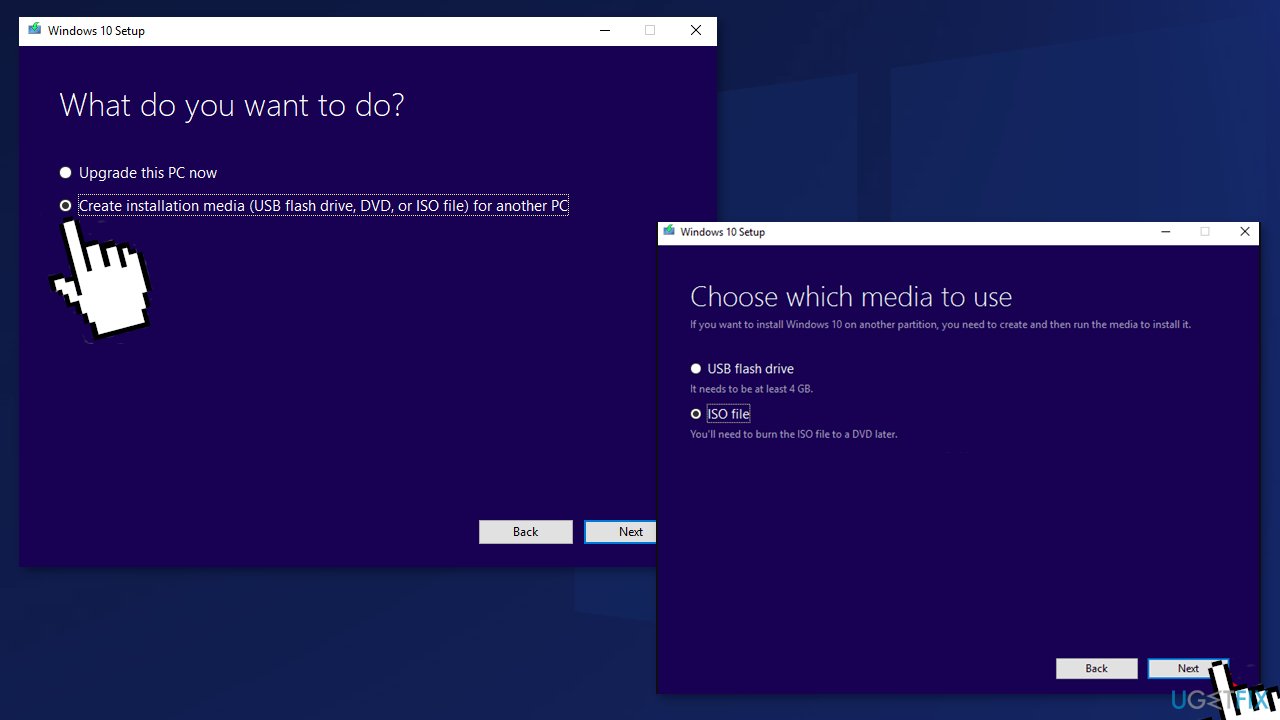
- Select Create installation media for another PC and click Next
- Select ISO file and click Next
- Click Finish
- Open the Windows ISO file you downloaded
- Open Setup and click Next
- Click Accept (Be prepared to wait; this next part may take a while)
- Click Install
- Wait for your system to restart and install Windows
Bottom line
To address Live Kernel Event Code 193, you can run the Hardware and Devices troubleshooter, use a repair tool, or reinstall Windows if necessary. If these solutions do not resolve the issue, consider seeking professional hardware assistance.
Frequently asked questions
Live Kernel Event Code 193 typically indicates a hardware or driver-related issue that causes system instability. This can lead to crashes or unexpected behavior in your operating system.
To troubleshoot this error, you should update your drivers, check for hardware compatibility, and run system diagnostics to identify any underlying issues. Additionally, you may want to check for Windows updates that could resolve compatibility problems.
Yes, temporarily disabling non-essential hardware components can help identify if they are causing the Live Kernel Event Code 193 error. If disabling resolves the issue, consider replacing or updating the problematic hardware.




Report an issue
What's wrong with this guide? We review every report and update or remove content.
Report received — thank you. We'll review and fix it.
You need a free account to submit a report.
Be the first to comment