How to fix
Windows activation error 0XC004F009
on Windows
Resolve Windows activation error 0XC004F009 effortlessly with our expert-tested solutions for Windows 10 and 11. Fixed in minutes!

What causes How to fix Windows activation error 0XC004F009?
- Grace period expired
- Corrupted system files
- Issues with update services
- Improper installation of Windows
- User account issues
Repairs Windows system files, removes malware, and restores a clean OS state — without reinstalling.
Hello. I had my Windows laptop for a couple of months and I started receiving an activation error 0XC004F009. The update services have stopped working also, which is causing problems. What can I do? Any tips would be appreciated.
Microsoft Windows is one of the most widely used operating systems in the world. Even though people love it for its user-friendly interface, built-in troubleshooters, and customization abilities, it is not flawless. It is an extremely complicated system that relies on thousands of processes to keep it running smoothly. People can experience bugs, crashes, errors, and other issues, which is never a fun experience.
Some users have encountered a Windows activation error 0XC004F009 or otherwise known as the Grace Period error. The term means that all users who installed a copy of the Windows operating system, fall into the grace period. They can use Windows and all of the features without any restrictions. However, if you receive the Grace Period Expired error, you might be left with a system that does not function properly.
When the system starts showing users an activation error saying that it has expired, they can encounter a shutdown of some important functions, like the update service. This can make the OS unstable and vulnerable.[ref en-1] The issue can be caused by many things and in this guide, we will present you with 8 solutions that could fix the Windows activation error 0XC004F009.
Manual troubleshooting can be a lengthy process so you can try using a repair tool like [d1] that can fix various system errors, like BSoDs,[ref en-2] registry issues, and corrupted files. Besides that, this powerful software can optimize your machine by getting rid of junk files, cookies[ref en-3] and cache, so you should notice an improvement in performance.
If you are ready to begin the process, follow the step-by-step instructions below:
Method 1. Use the Windows Activation Troubleshooter
- Launch the Settings app
- Go to Updates and Security and click Activation
- If you keep seeing the error, you should see the Troubleshoot button
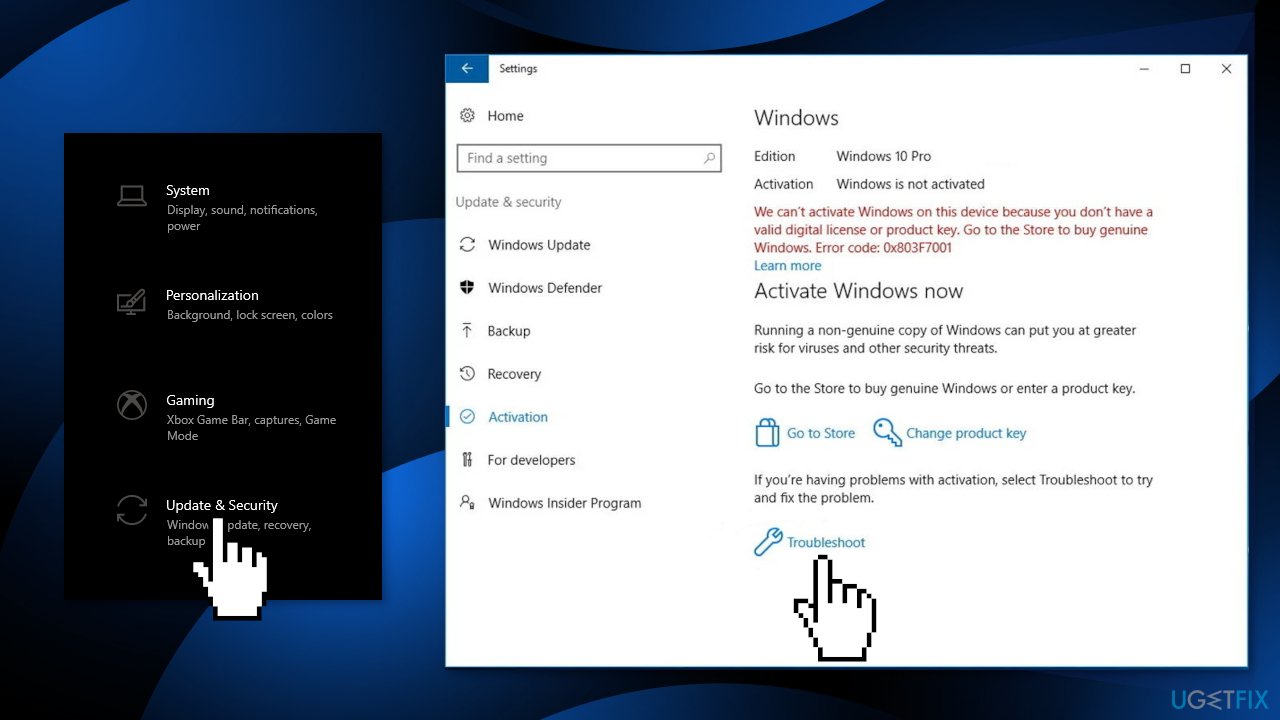
- If any problems are found, follow the instructions to fix it
Method 2. Repair Corrupted System Files
Use Command Prompt commands to repair system file corruption:
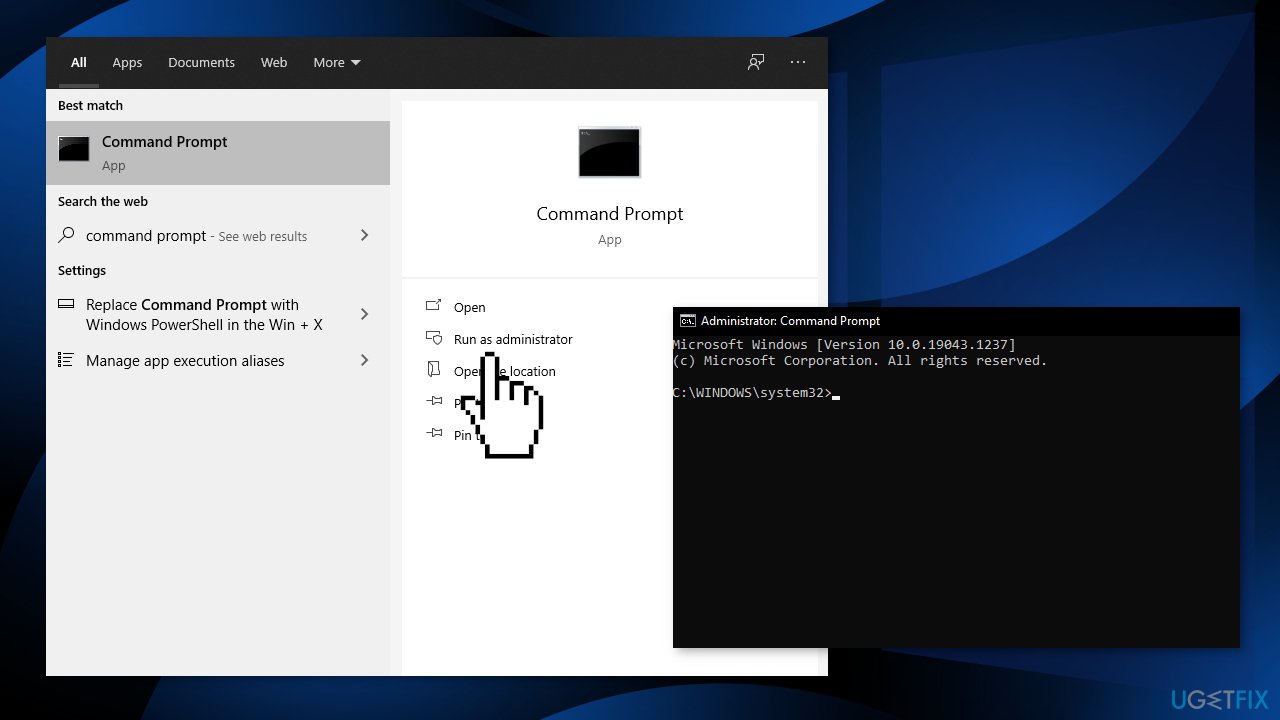
- Open Command Prompt as administrator
- Use the following command and press Enter:
sfc /scannow
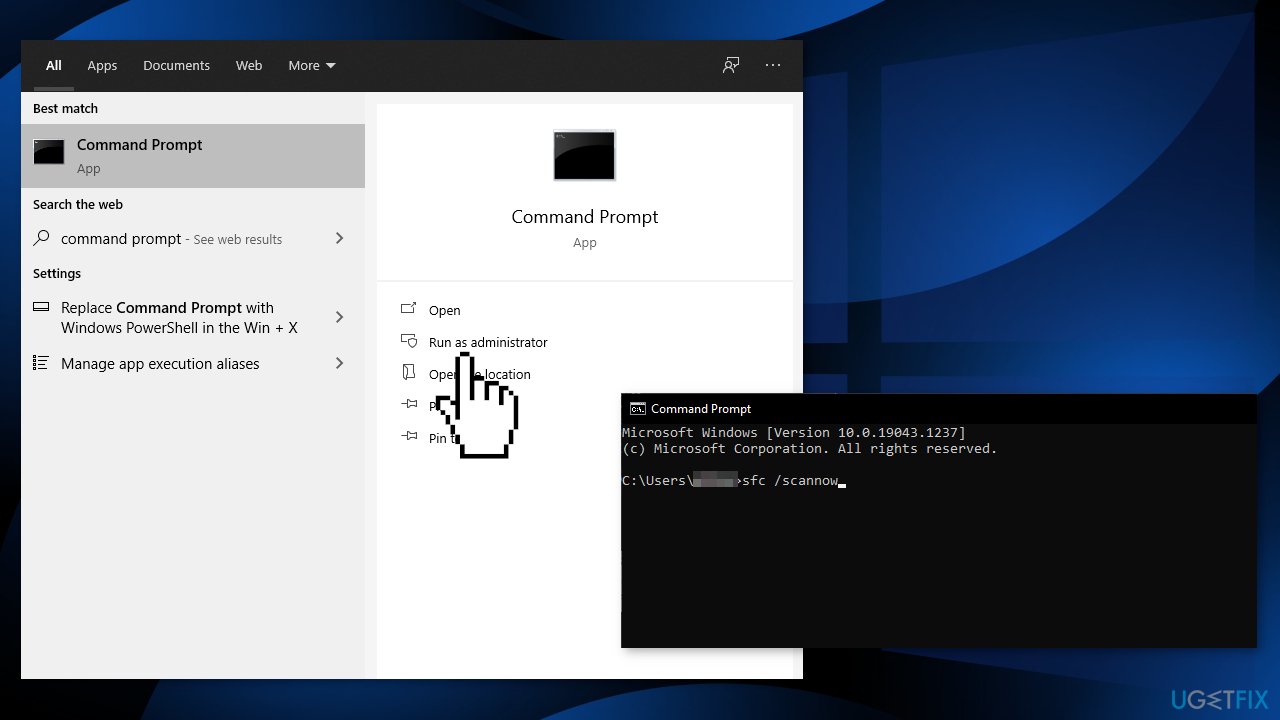
- Reboot your system
- If SFC returned an error, then use the following command lines, pressing Enter after each:
DISM /Online /Cleanup-Image /CheckHealth
DISM /Online /Cleanup-Image /ScanHealth
DISM /Online /Cleanup-Image /RestoreHealth
Method 3. Install All Available Windows Updates
- Type Updates in Windows search and press Enter
- In the new window, click Check for updates
- Install everything available (including optional updates)
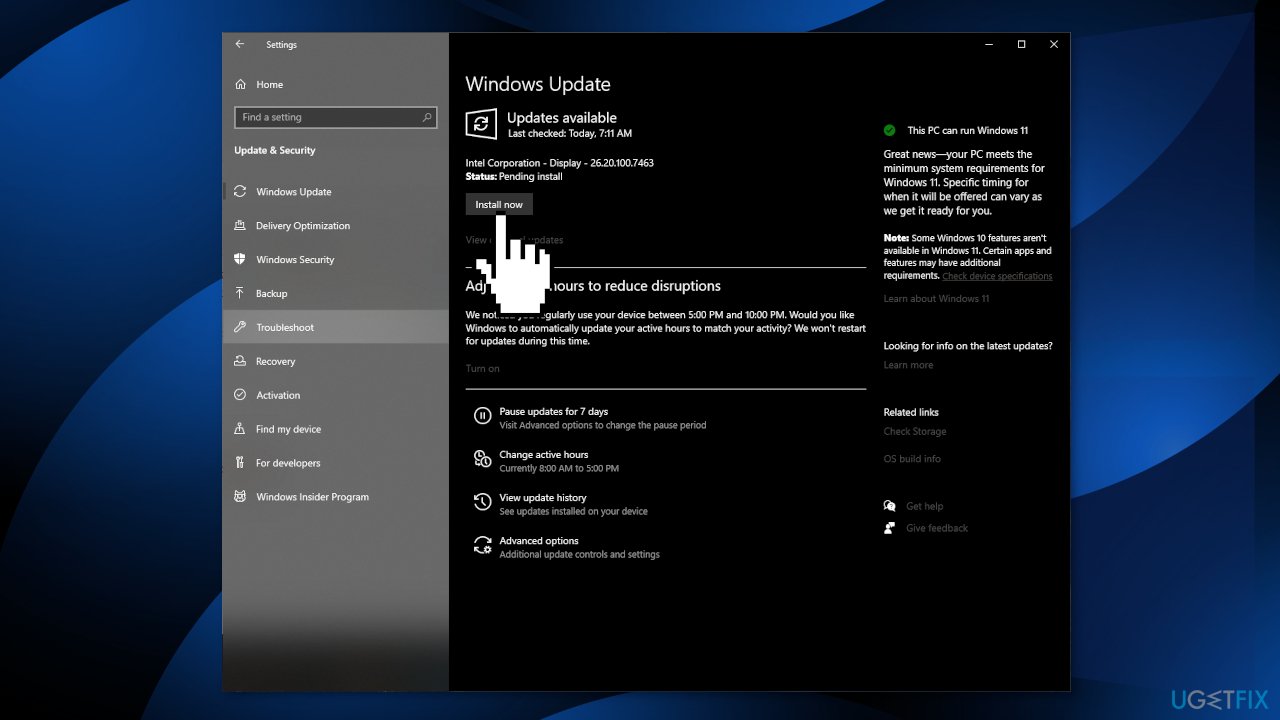
- Reboot your system
Method 4. Use Phone Activation
- Press the Windows + R keys to launch the Run prompt
- Type in ms-settings:activation and press OK
- If you do not see a Phone Activation option, press the Windows + R keys to open the Run box again and type SLUI 4
- Select your Country and press on Phone Activation
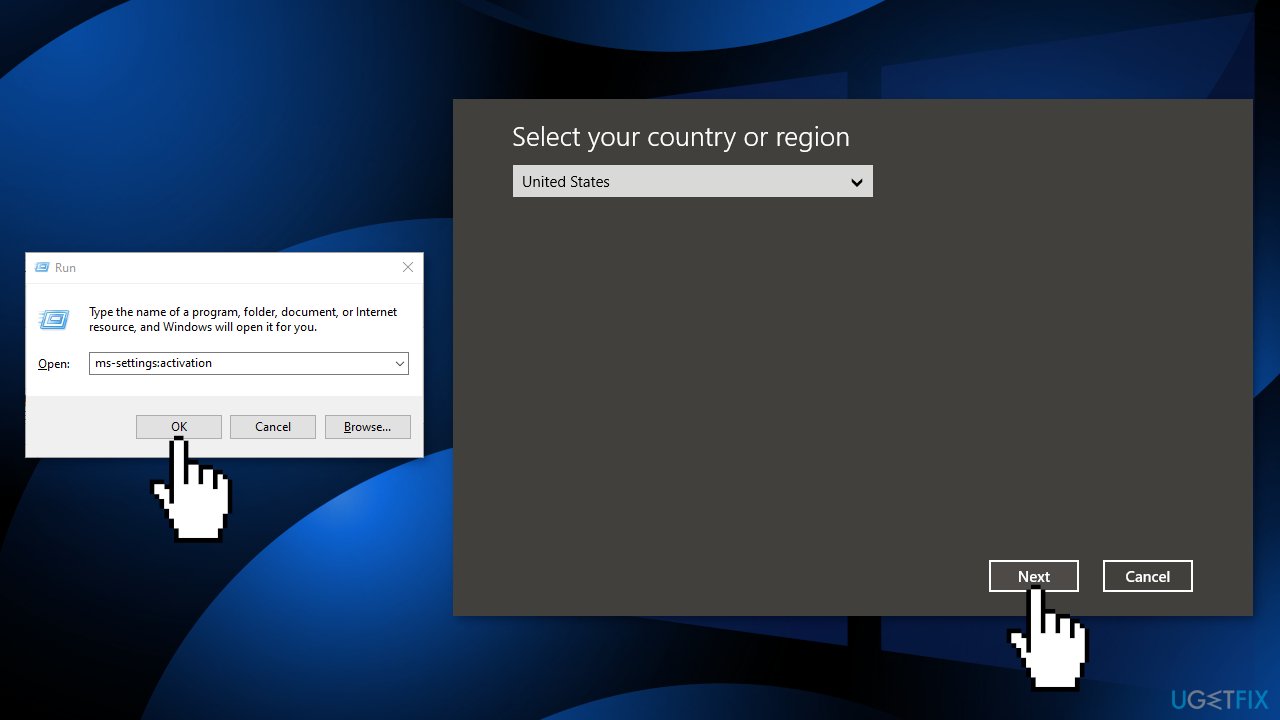
- Call the provided number
Method 5. Increase the Grace Period
If you purchased your MAK key from a retailer but you failed to activate it immediately, then you may encounter the error. MAK keys are not reusable, so the number of times you can use them is limited. You can reset the activation period four times, so if you have already used the key four times, you may have to get a new license key. Try to extend the grace period to activate the license key:
- Press the Windows + R keys to launch the Run box
- Type in regedit and hit Ctrl + Shift + Enter
- When prompted by the UAC, hit the Yes button to grant admin privilege
- Inside the Registry Editor, navigate to this key:
HKEY_LOCAL_MACHINE\\SOFTWARE\\Microsoft\\Windows\\CurrentVersion\\Setup\\OOBE\\mediabootinstall
- Double-click on mediabootinstall
- While in the Edit menu, set the base value to Hexadecimal and then change the value to 0
- Hit OK to save the changes
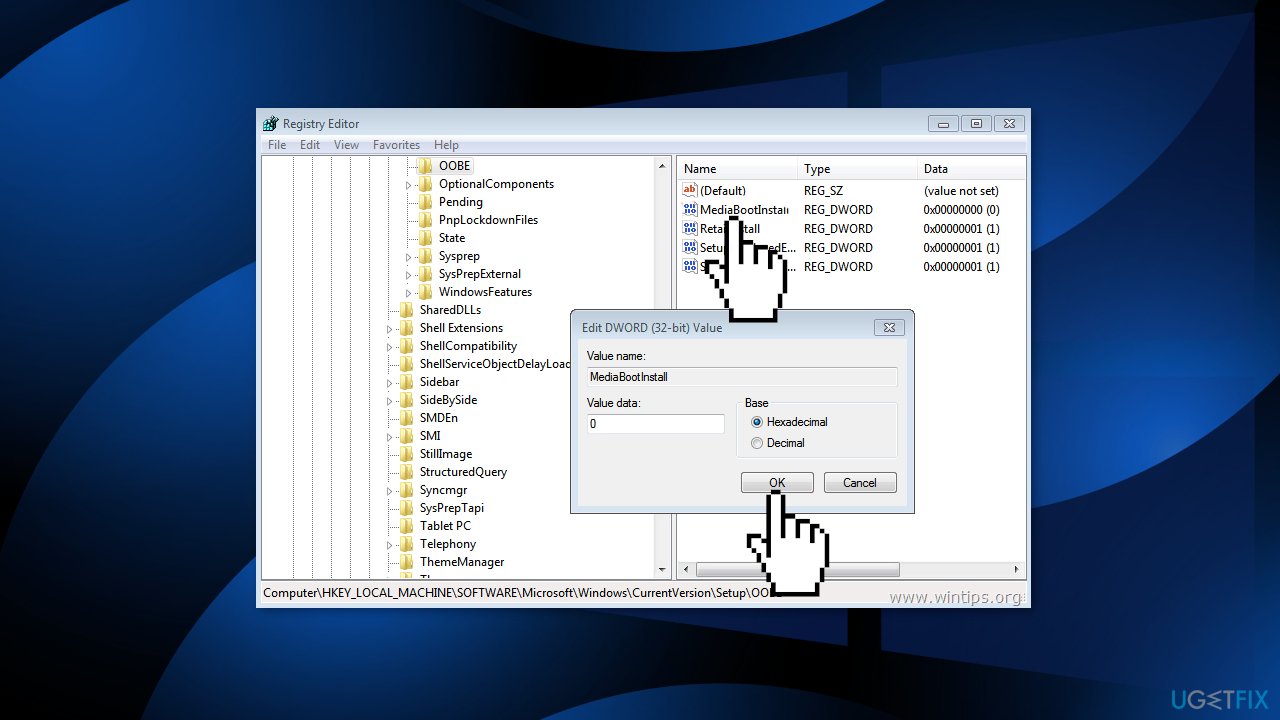
- Restart your computer
- Press the Windows + R keys to launch the Run dialog box again
- Type in cmd and hit the Ctrl + Shift + Enter keys
- When prompted by the UAC, hit the Yes button
- Type in slmgr -rearm command and hit Enter
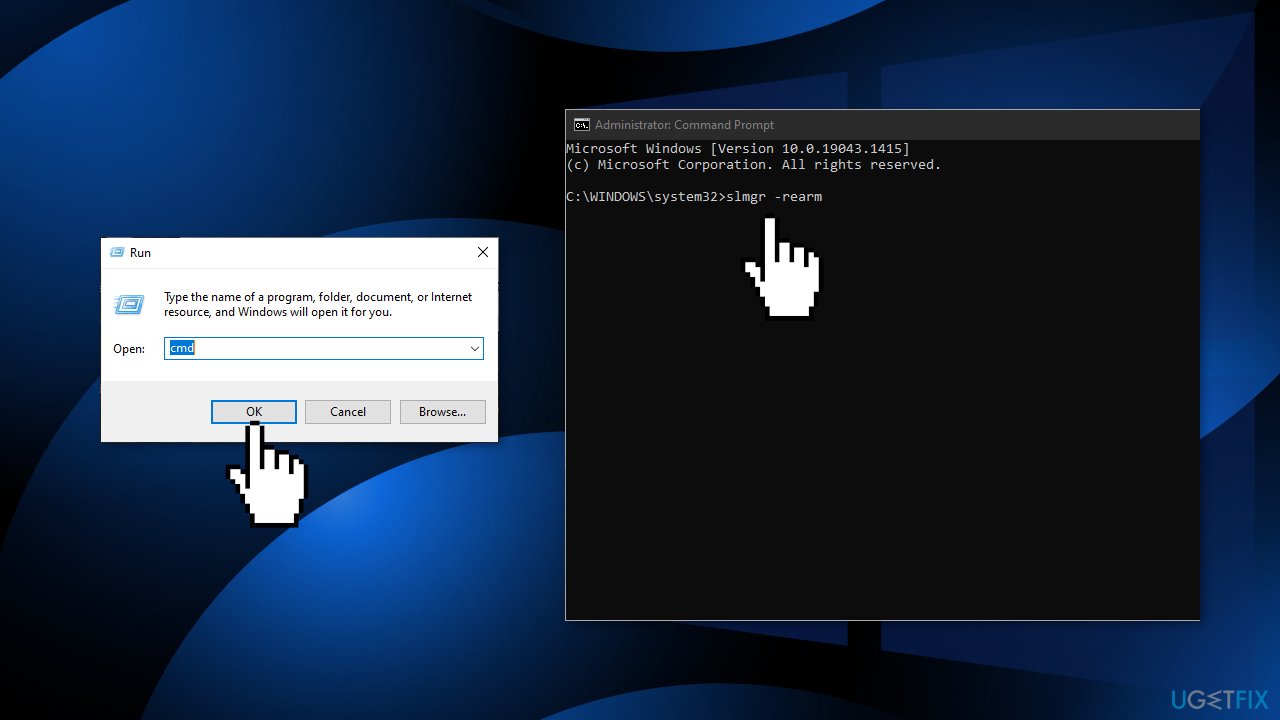
- Restart your computer again
- Repeat the activation process
Method 6. Use the Command Prompt to Activate Windows
- Take note of your MAK key
- Press the Windows key and type cmd into the search field
- Run the Command Prompt as Administrator
- Type in vbs -ipk <your MAK key> command and hit Enter
- Wait as Windows is being installed
- After that, input this command: vbs -ato and hit Enter to proceed
- Close the Command Prompt and restart your computer
Method 7. Use a Default Product Key
If none of the fixes above worked, you can try to use a default activation key. This is a generic key provided by Microsoft to resolve common activation errors. If you use it, Windows will activate temporarily. This is a temporary solution as you will need to replace it with a genuine key later on.
- Press Windows + I keys to open the Windows Settings
- Select the Update & Security option and then click on the Activation tab
- Under the Update Product key section, click on the Change product key
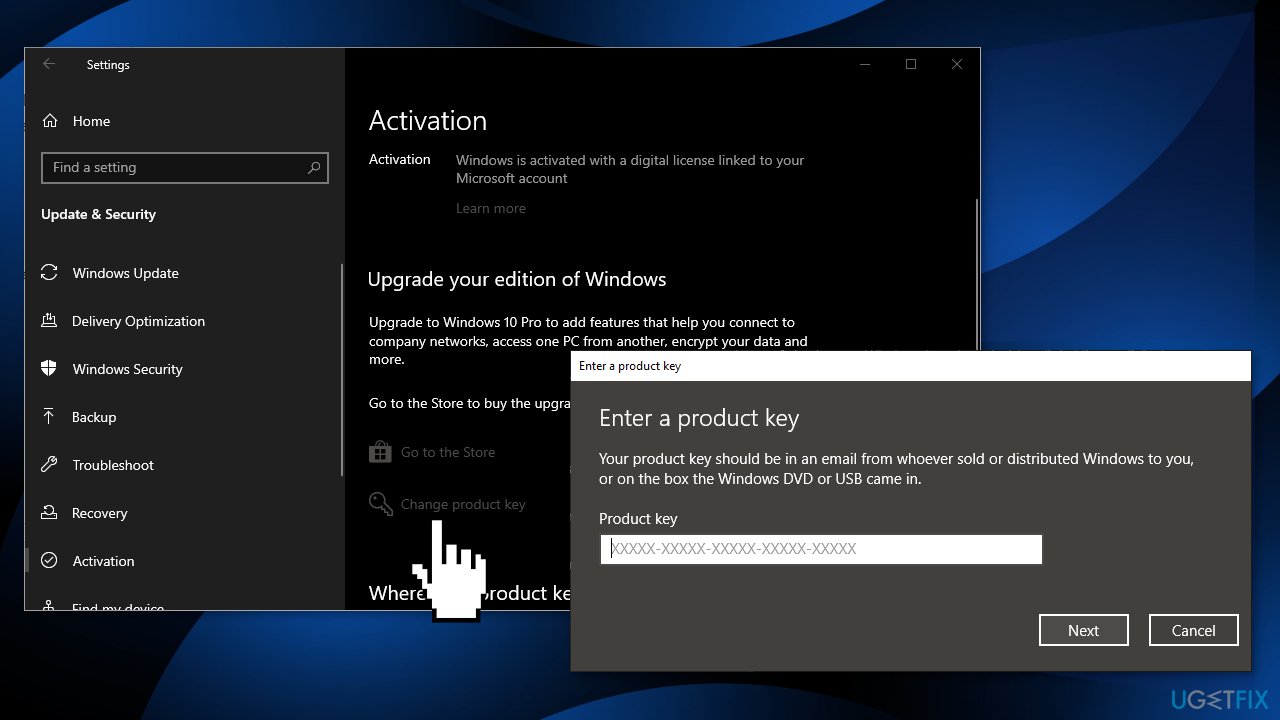
- Find a default license key according to the Windows version installed on your device on the Microsoft website
- After successful activation of the operating system, restart your computer
Method 8. Contact Microsoft Support
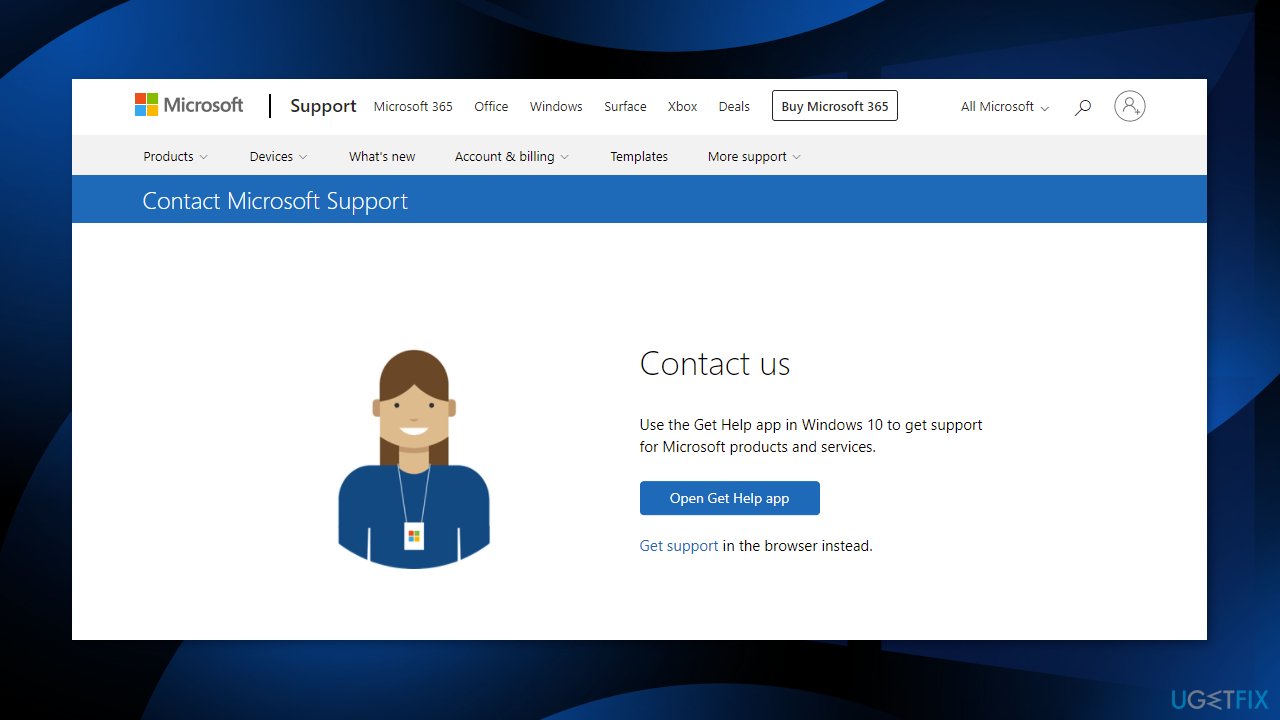
If none of the above methods have helped you in resolving the Windows activation error 0XC004F009, you might have a serious issue with restrictions and activation servers. A support agent from Microsoft might help you find the reason and remotely fix the problem for you. Try to contact Microsoft support via the official contact page.
Bottom line
To fix the Windows activation error 0XC004F009, you can use the Windows Activation Troubleshooter and repair corrupted system files. If these methods do not resolve the issue, consider using a repair tool to address various system errors.
Frequently asked questions
The error 0XC004F009 indicates that the Windows activation server cannot be reached, often due to network issues or server downtime on Windows 10 or Windows 11.
To fix the 0XC004F009 error on Windows 10, try running the Windows Activation Troubleshooter and check your internet connection.
If you're unable to connect to the internet, you can attempt to activate Windows 11 by using the phone activation method, which allows you to activate via a call.




Report an issue
What's wrong with this guide? We review every report and update or remove content.
Report received — thank you. We'll review and fix it.
You need a free account to submit a report.
Be the first to comment