How to fix
Afd.sys BSOD
on Windows
Resolve Afd.sys BSOD on Windows 10 or 11 with our expert-tested solutions. Get back to smooth operation in minutes, with clear screenshots for guidance.


What causes How to fix Afd.sys BSOD on Windows?
- Corrupted Afd.sys file
- Deleted Afd.sys file
- Outdated programs
- Hardware problems
- Corrupted drivers
Repairs Windows system files, removes malware, and restores a clean OS state — without reinstalling.
Hey. I need help because I get the blue screen error on my PC. It restarted already, but I think this is a major issue. It is the system service exception Afd.sys BSOD in particular. I cannot get the cause for this. Can you help me with it?
Afd.sys BSOD error on Windows s one of the critical system errors delivering the blue screen of death that surely scares people.[ref en-1] In most cases, these screens come with a particular code or additional information about the issue that occurred. Solving the problem requires knowing the root cause of it first, so users[ref en-2] who complain about this have a major issue to fix. You can detect the reason by investigating what the error code indication means.
The particular Afd.sys is the Ancillary Function Driver for the Winsock file that important for the operating system. It was first created by Microsoft for the Windows operating system and software packages. The file comes bundled with particular software files in Windows 10, Windows 8.1, Windows 8.
There are particular issues with the latest Windows 10 versions because even though there is already a Windows 11 version of the operating system available. The bootlog_not_loaded afd.sys Windows 10 or afd.sys driver_irql_not_less_or_equal Windows 10 issues are occurring on the machines running the particular versions.
Commonly Windows 10 problems occur due to the update[ref en-3] issues or general bugs in the operating system patches and installations. Unfortunately, these patches and fixes released for some of the existing issues can trigger problems with other parts if the machine, so it is not even advised to hurry and jump to Windows 11 before issues there are not properly solved.
These particular missing or deleted, corrupted file issues can create problems with the machine. This particular issue related to the SYS file can deliver different error messages on the blue screen:
- driver_irql_not_less_or_equal afd.sys;
- bootlog_not_loaded afd.sys;
- irql_not_less_or_equal afd.sys;
- kernel_data_inpage_error afd.sys.

There are different reasons for these blue screen errors. Most of the causes for these Windows Afd.sys errors are the file itself. Hardware problems, outdated programs, corrupted or deleted drivers can lead to issues with the major BSOD error. Stop codes like this can occur when playing a game, using the program, or out of nowhere when you work on the device.
A quick check for the issues with your system files and drivers like this file that creates issues could be a great first step. You might have additional issues with corrupted or damaged data on the machine, so running the scan using [d1] can indicate problems that require fixing. Solving the root cause might avoid further interference with settings and solve the blue screen error problem for you.
Unfortunately, if the issue occurs again and again, you might need to seek help with more in-depth methods and techniques involving the difficult changes and alterations on the machine. Nevertheless, it is possible to fix Afd.sys high dpc and other related issues, Blue screen of death errors, and system failures. Just follow the guide thoroughly.
Option 1. Check the PC for corrupt files
- Search for CMD and open the Command Prompt with Admin rights.
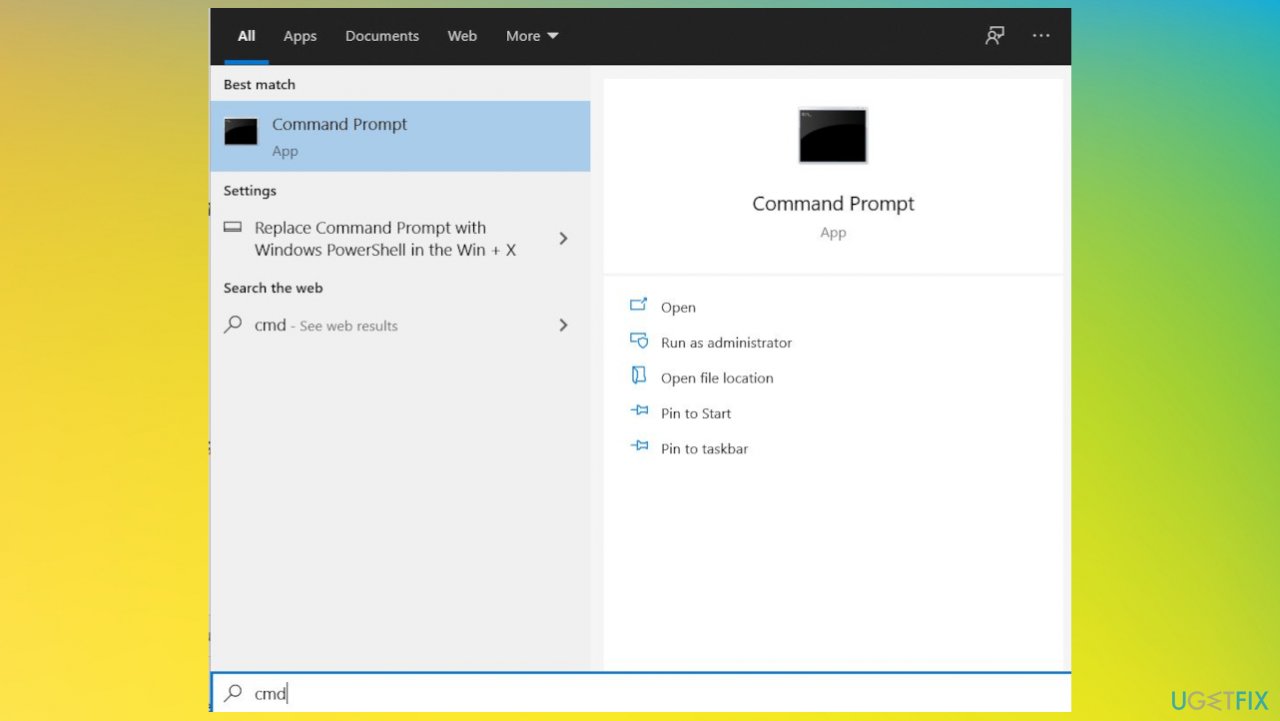
Fix afd sys bsod cmd - Type the following text in the black window to repair the core components of Windows:
DISM /online /cleanup-image /restorehealth - Wait until this process is finished.
- Type the following text in the black window to scan for corrupt files:
sfc/scannow - This process might take a long time.
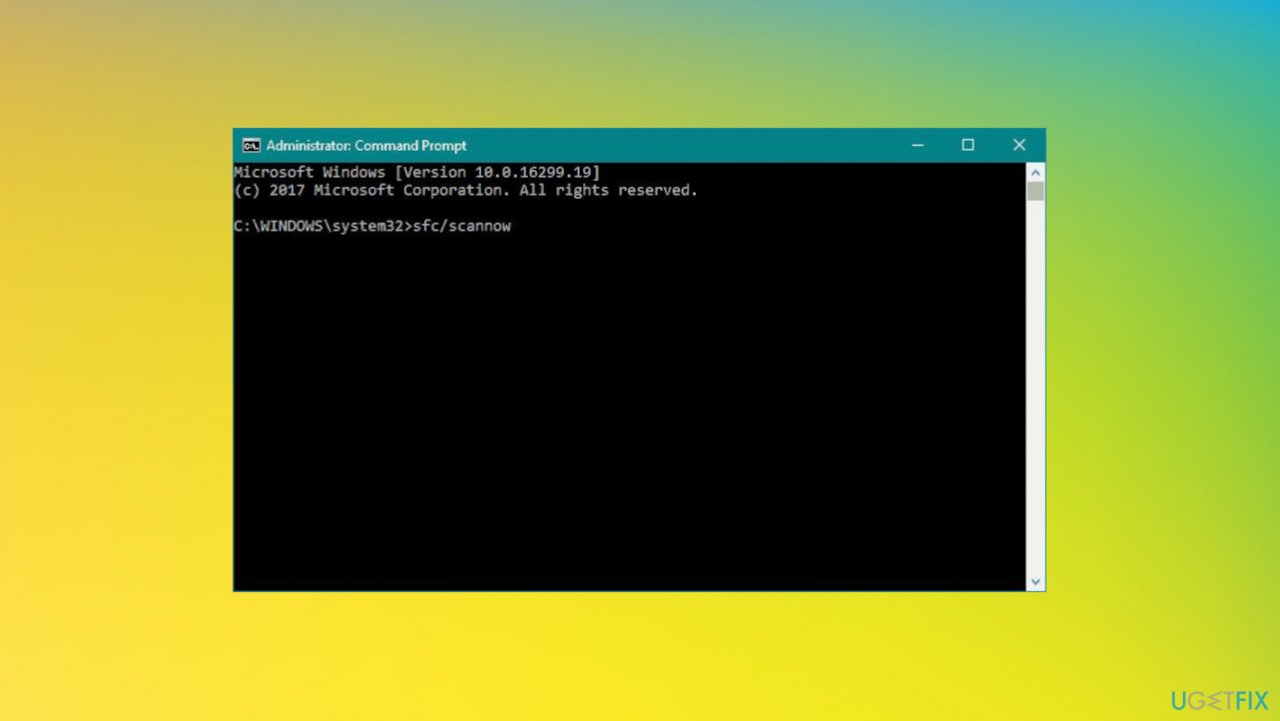
Fix afd sys bsod sfc scan
Option 2. Restore the PC back to a previous restore point
- Hit the Windows Start button
- When you see the search box, type System Restore and press ENTER.
- In the search results, find and click System Restore.
- Please enter the administrator password if applicable prompted.
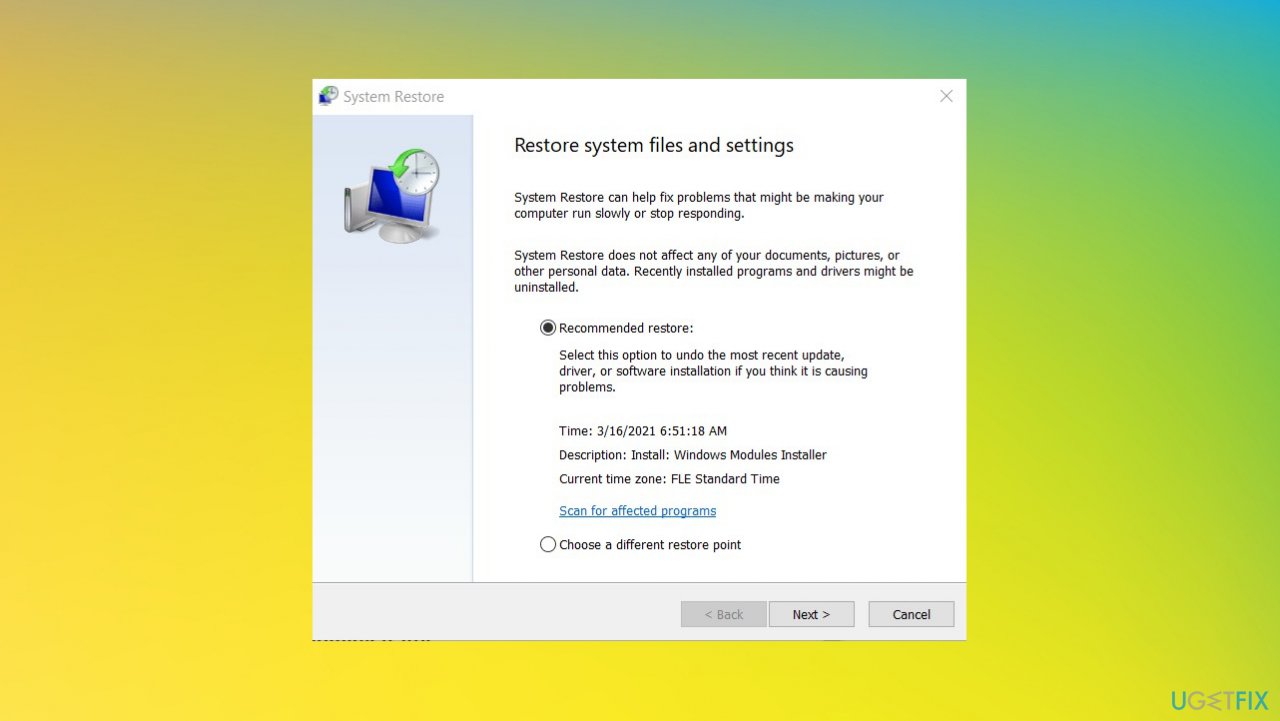
Fix afd sys bsod system restore - Follow the steps in the System Restore Wizard.
- Choose the possible restore point.
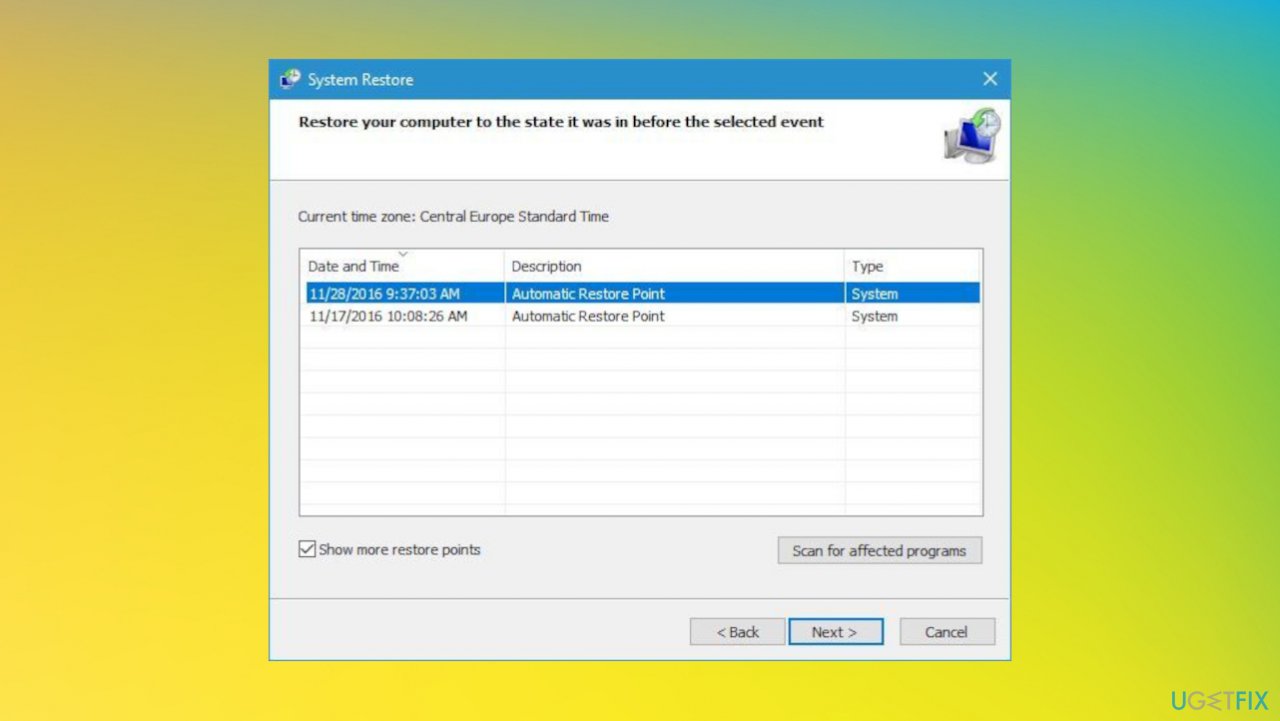
Fix afd sys bsod restore points - Restore your computer to that backup image.
Option 3. Check for the latest updates
- Hit the Windows Start button.
- In the search box, type Update and press ENTER.
- Or go to Settings and then find the Update&Security section to open Windows Update options.
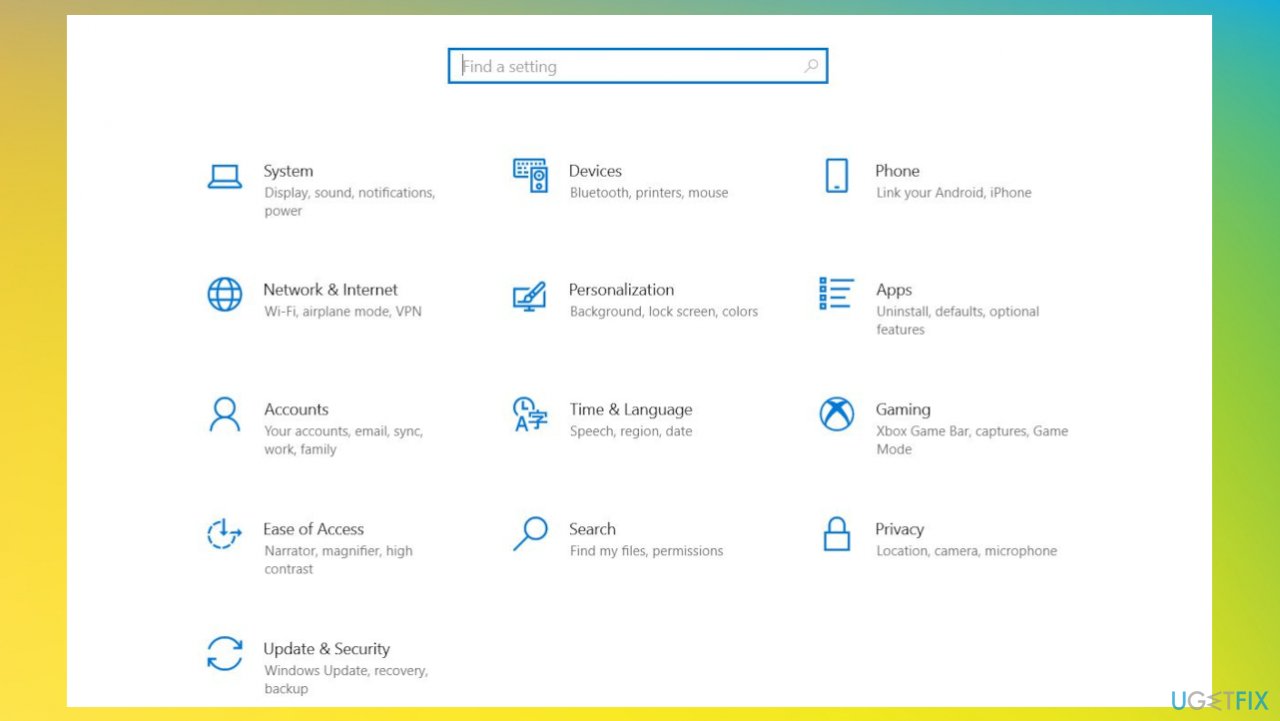
Fix afd sys bsod settings - Click Check for Updates.
- If updates are available for download, click Install Updates.
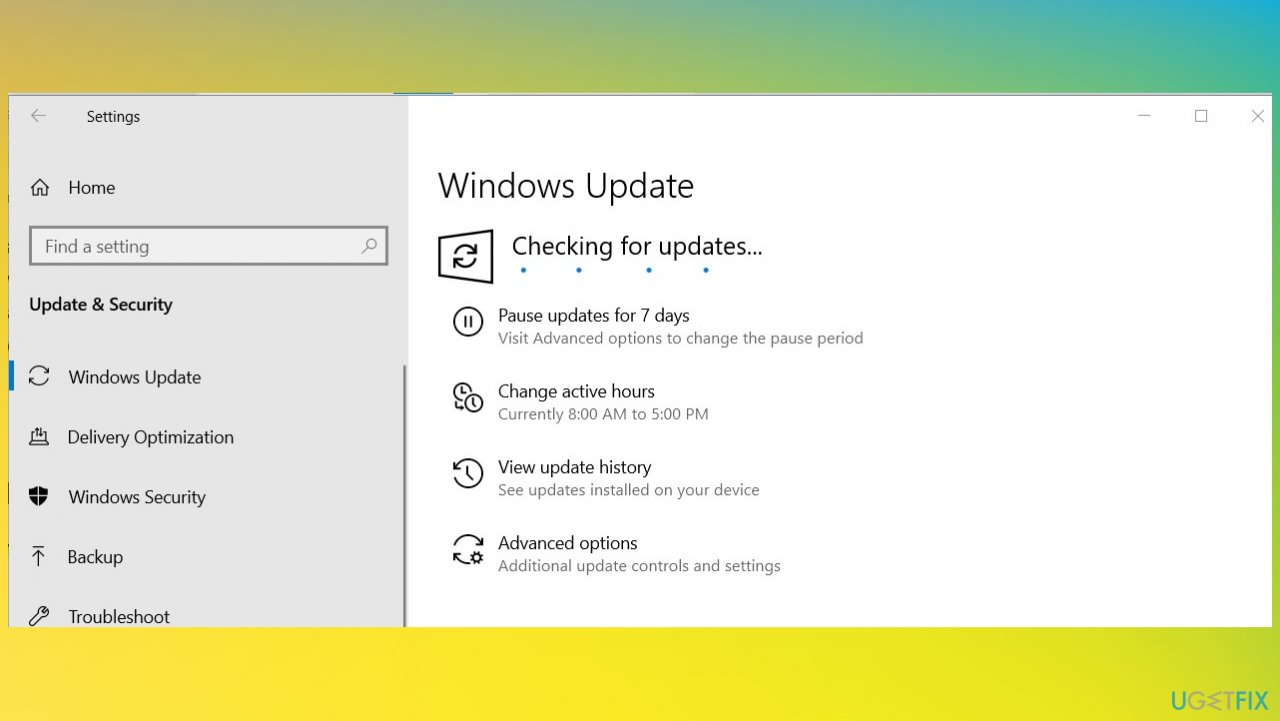
Fix afd sys bsod windows update - After the update is completed, restart your PC.
Bottom line
To fix the Afd.sys BSOD error, users should investigate the error code, check for corrupted or missing files, and ensure all drivers and programs are up to date. If the problem persists after these steps, consider seeking professional help or further technical support.
Frequently asked questions
The Afd.sys BSOD error is typically caused by corrupted drivers, conflicts with third-party applications, or system file corruption in Windows 10 or Windows 11.
To troubleshoot the Afd.sys BSOD on Windows 10, you can start by booting into Safe Mode and uninstalling any recently installed software or drivers, then running the System File Checker tool.
To prevent the Afd.sys BSOD in Windows 11, ensure that all drivers are updated regularly and consider disabling any conflicting third-party applications that may interfere with system processes.




Report an issue
What's wrong with this guide? We review every report and update or remove content.
Report received — thank you. We'll review and fix it.
You need a free account to submit a report.
Be the first to comment