How to fix
Visual Studio 2022 installation error
on Windows
Resolve Visual Studio 2022 installation errors on Windows 10 and 11 with our expert-tested solutions. Get back to coding quickly, fixed in minutes!


What causes How to fix Visual Studio 2022 installation error in Windows?
- Conflicting third-party antivirus software
- Corrupted system files
- Registry issues
- Underlying Windows problems
Repairs Windows system files, removes malware, and restores a clean OS state — without reinstalling.
Hello. I tried installing Visual Studio 2022 on my Windows 10 computer but after installation, I get the error: "Couldn't install Microsoft.NetCore.HostPath." Are there any solutions?
Microsoft Visual Studio is an IDE (integrated development environment)[ref en-1] made by Microsoft and used for different types of software development such as computer programs, websites, web apps, web services, and mobile apps. Visual Studio supports 36 different programming languages including C, C++, C++/CLI, Visual Basic .NET, C#, F#, JavaScript, TypeScript, XML, XSLT, HTML, and CSS. Support for other languages is available via plug-ins.
Using Visual Studio programmers can:
- Navigate, write, and fix your code fast
- Debug, profile, and diagnose problems
- Write code with testing tools.
- Use version control, and collaborate efficiently
As of 8 November 2021, the current production-ready Visual Studio version is 2022, with older versions such as 2013 and 2015 on Extended Support, and 2017 and 2019 on Mainstream Support.[ref en-2] However, some users have experienced issues when trying to install the latest Visual Studio version. Many of them receive installation errors, such as "Couldn't install Microsoft.NetCore.HostPath."
There are many possibilities of what could be causing this error, so we recommend using a repair tool like [d1] that can fix underlying Windows problems such as various system errors, BSoDs,[ref en-3] registry issues, and corrupted files automatically. By using it, you may also avoid a lengthy troubleshooting process.
If you are ready to begin the troubleshooting, please follow the guide carefully step-by-step:
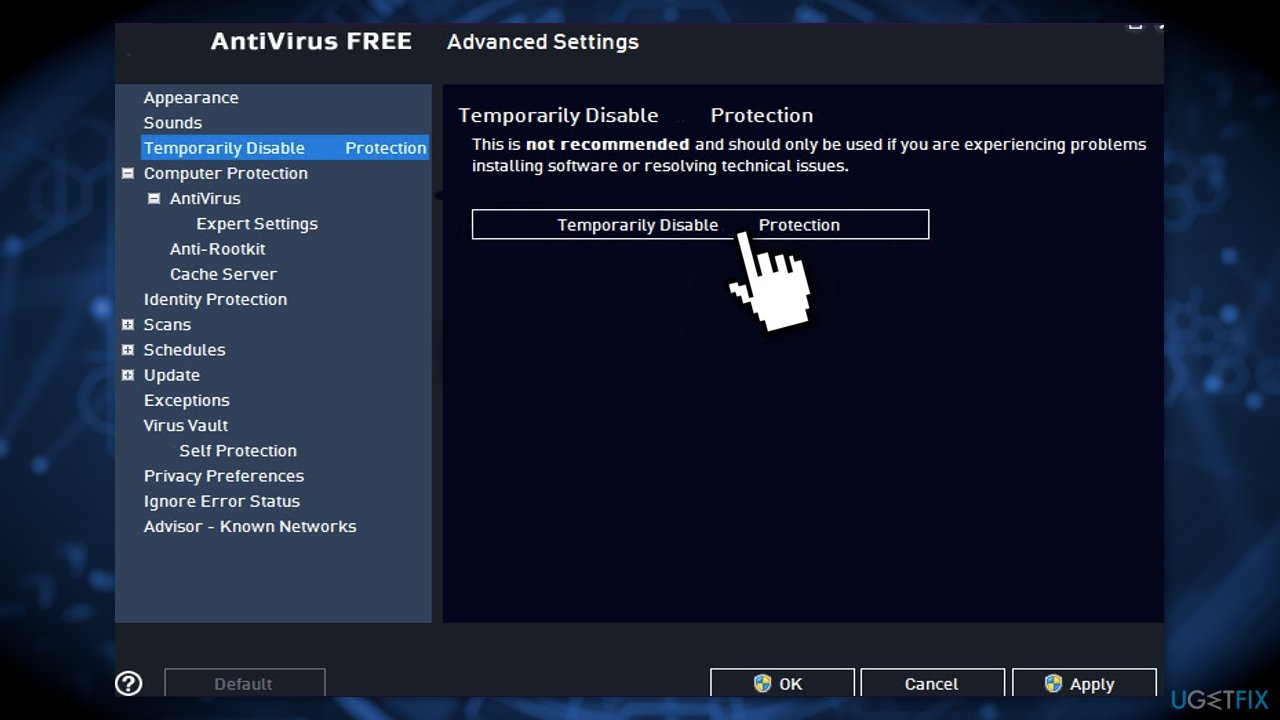
Method 1. Disable Third-Party Antivirus Software
Some security programs might be conflicting with your applications, mistakenly perceiving some files as insecure. Thus, it is known that removing or disabling AV software helped some users when trying to install Visual Studio 2022.
- Right-click the antivirus icon and select Disable
- You can also double-click the antivirus icon and look for a Disable option there
- Or you can open your antivirus program and click trust this project button on the blocked processes page
Method 2. Run SFC
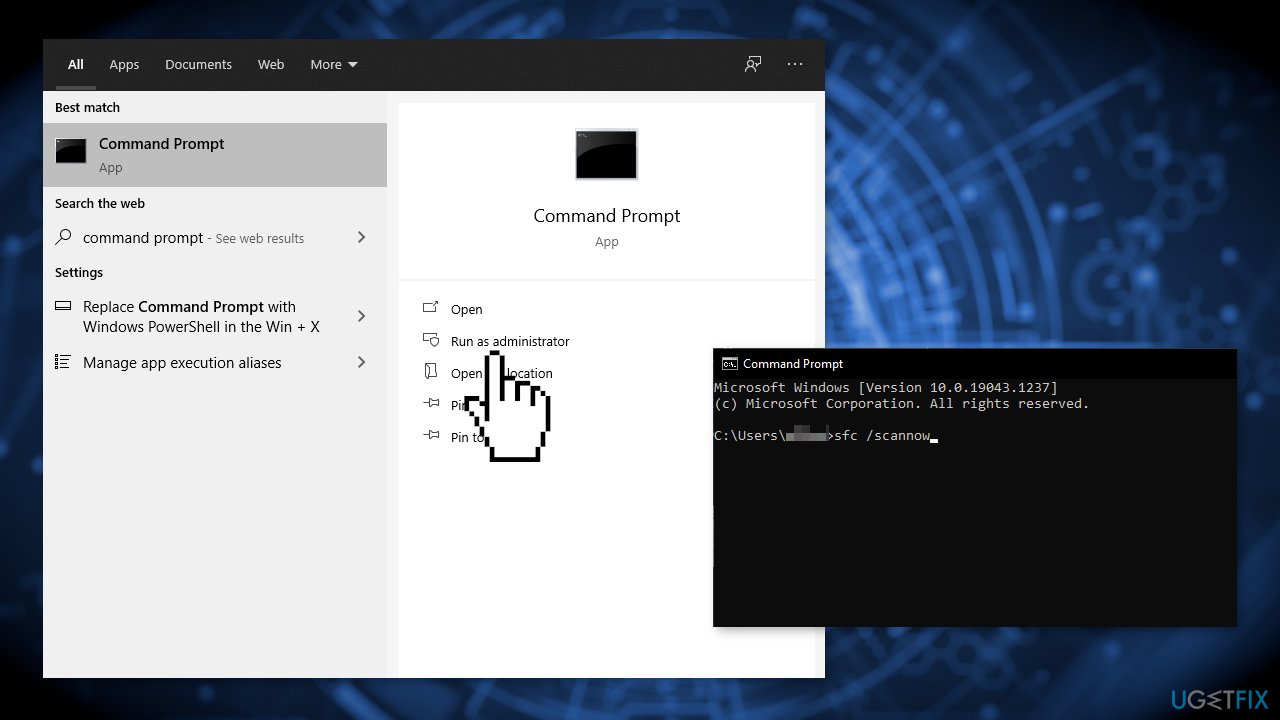
Use Command Prompt commands to repair system file corruption:
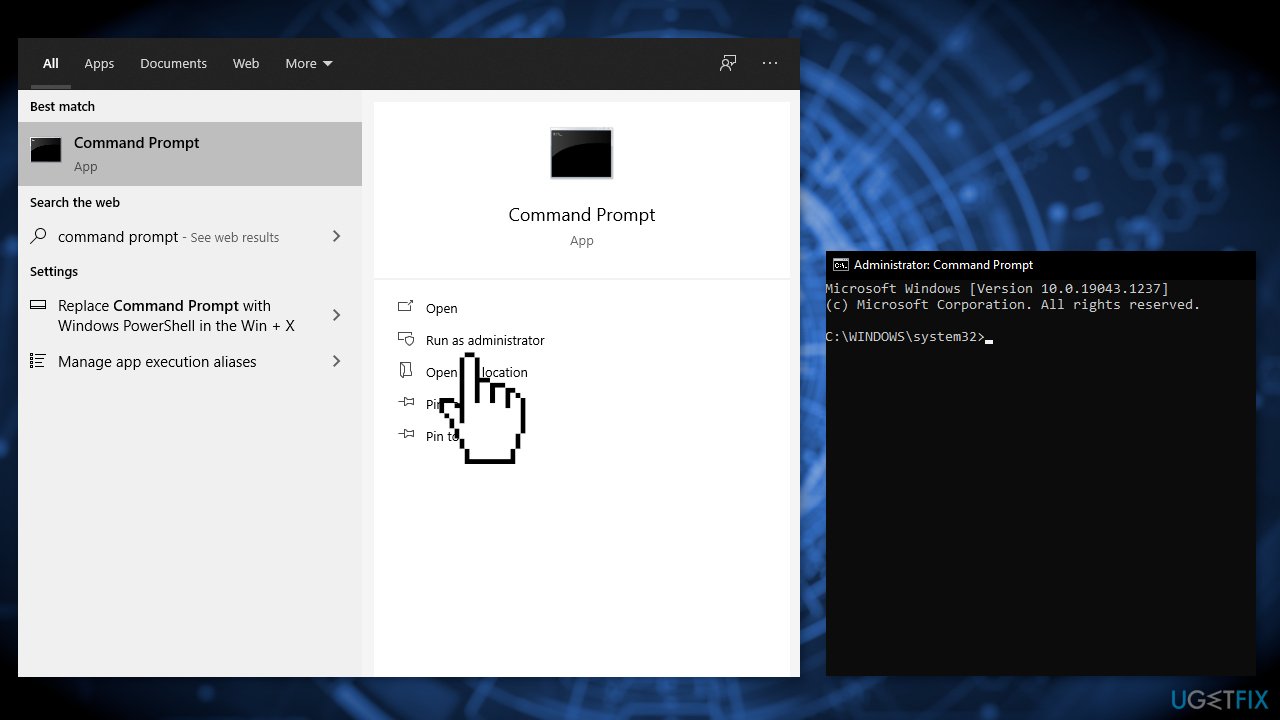
- Open Command Prompt as administrator
- Use the following command and press Enter:
sfc /scannow
- Reboot your system
- If SFC returned an error, then use the following command lines, pressing Enter after each:
DISM /Online /Cleanup-Image /CheckHealth
DISM /Online /Cleanup-Image /ScanHealth
DISM /Online /Cleanup-Image /RestoreHealth
Method 3. Check Disk
- Ensure that your disk is not damaged. You can perform checks using Administrative Command Prompt:
- If you are using an HDD as your main driver (where your operating system is installed - C: by default), use the following command and press Enter:
chkdsk c: /f - If you are using SSD, use this command:
chkdsk c: /f /r /x
- If you receive an error, type in Y and hit Enter
- Restart your device to perform the check
Method 4. Repair Visual Studio
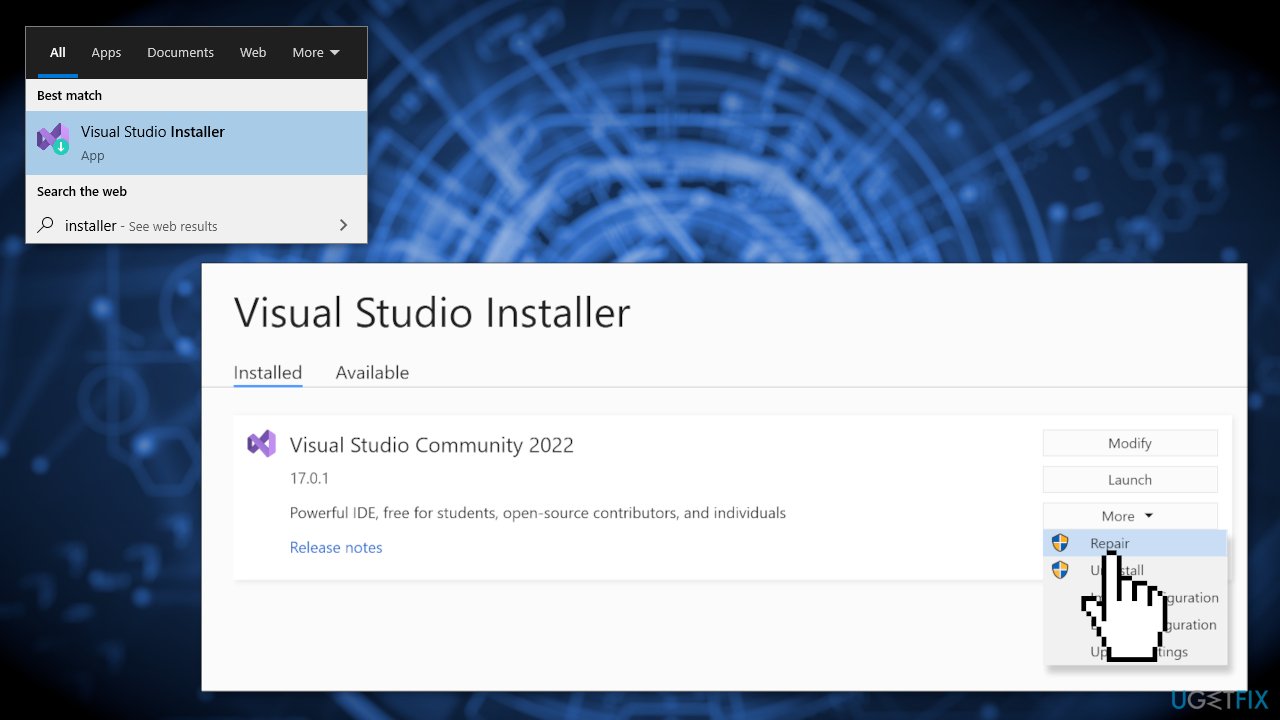
- Find the Visual Studio Installer on your computer
- In the Visual Studio Installer, look for the installation of Visual Studio that you want to repair. Then choose Repair from the More dropdown menu
Method 5. Modify the Execution Policy
Some users found that the PowerShell execution policy set to AllSigend by GPO was causing the installation. Modify (or make your Admin modify) the execution policy to RemoteSigned following these steps:
- Type Set-ExecutionPolicy RemoteSigned to set the policy to RemoteSigned
You can use the GPUpdate command to force the update:
- Press Windows key + X or right-click on the start menu
- Select Windows PowerShell or Command Prompt
- Type gpupdate /force and press enter
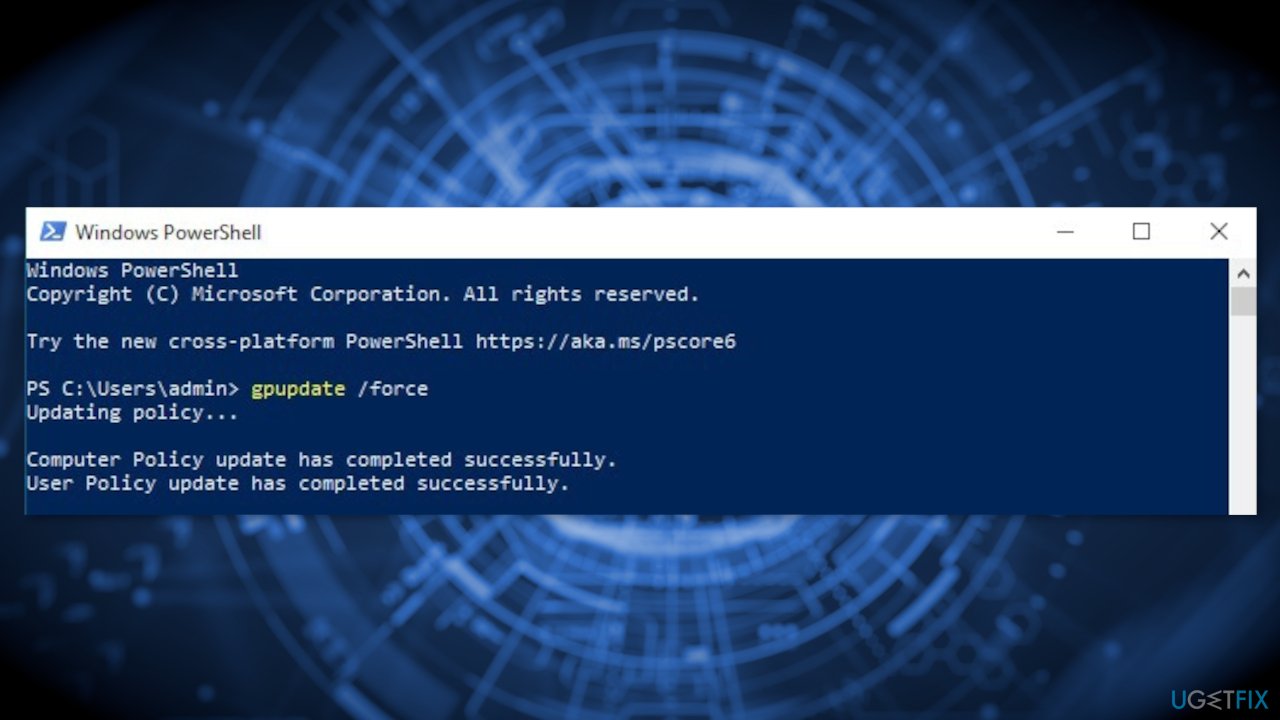
- Wait for the Computer and User policy to update
- Reboot your computer
- Try installing Visual Studio
Method 6. Install a Certificate for the PowerShell Script
- The PowerShell script is located at:
C:\\ProgramData\\Microsoft\\VisualStudio\\Packages\\Microsoft.NetCore.HostPath,version=17.0.32002.160,language=neutral,machinearch=x64\\dotnet-host-path.ps1
- To install the certificate, right-click on the script and select properties
- Select the Digital Signatures tab, select the signature and click details
- Click view certificate and then install certificate
- Install as current user and select Place all certificates in the following store and click browse
- Select the trusted publishers store, click OK, Next, and then Finish
- Try to install Visual Studio
Method 7. Reinstall Visual Studio
If you experience an error and cannot repair or uninstall Visual Studio, you can run the InstallCleanup.exe tool to remove installation files and product information for all installed instances of Visual Studio 2017, Visual Studio 2019, or Visual Studio 2022.
Use the InstallCleanup tool only as a last resort if repair or uninstall fails. This tool might uninstall features from other Visual Studio installations or other products, which then might also need to be repaired or reinstalled. You can use either of the following command-line switches with the InstallCleanup.exe tool:
| -i [version] | This switch is the default if no other switch is passed. It removes only the main installation directory and product information. Use this switch if you intend to reinstall the same version of Visual Studio after you run the InstallCleanup.exe tool. If a [version] value is specified, only products with a version that start with this string value will be removed. |
| -f | This switch removes the main installation directory, product information, and most other features installed outside the installation directory, that might also be shared with other Visual Studio installations or other products. Use this switch if you intend to remove Visual Studio without reinstalling it later. |
- Close the Visual Studio Installer
- Type cmd in the search box
- Right-click Command Prompt, and then choose Run as administrator
- Enter the full path of the InstallCleanup.exe tool and add the command-line switch you prefer. By default, the path of the tool is as follows. The double quotes enclose a command containing spaces:
C:\\Program Files (x86)\\Microsoft Visual Studio\\Installer\\InstallCleanup.exe
- For example, use the switch -i 17 with InstallCleanup.exe to remove all 17 versioned products
- Rerun the Visual Studio Installer bootstrapper. You might find the bootstrapper in your Downloads folder with a file name that matches a vs_[Visual Studio edition]__*.exe pattern. Or, you can download the bootstrapper for your edition of Visual Studio from the Visual Studio downloads page.
- Try to reinstall Visual Studio
Method 8. Contact Support
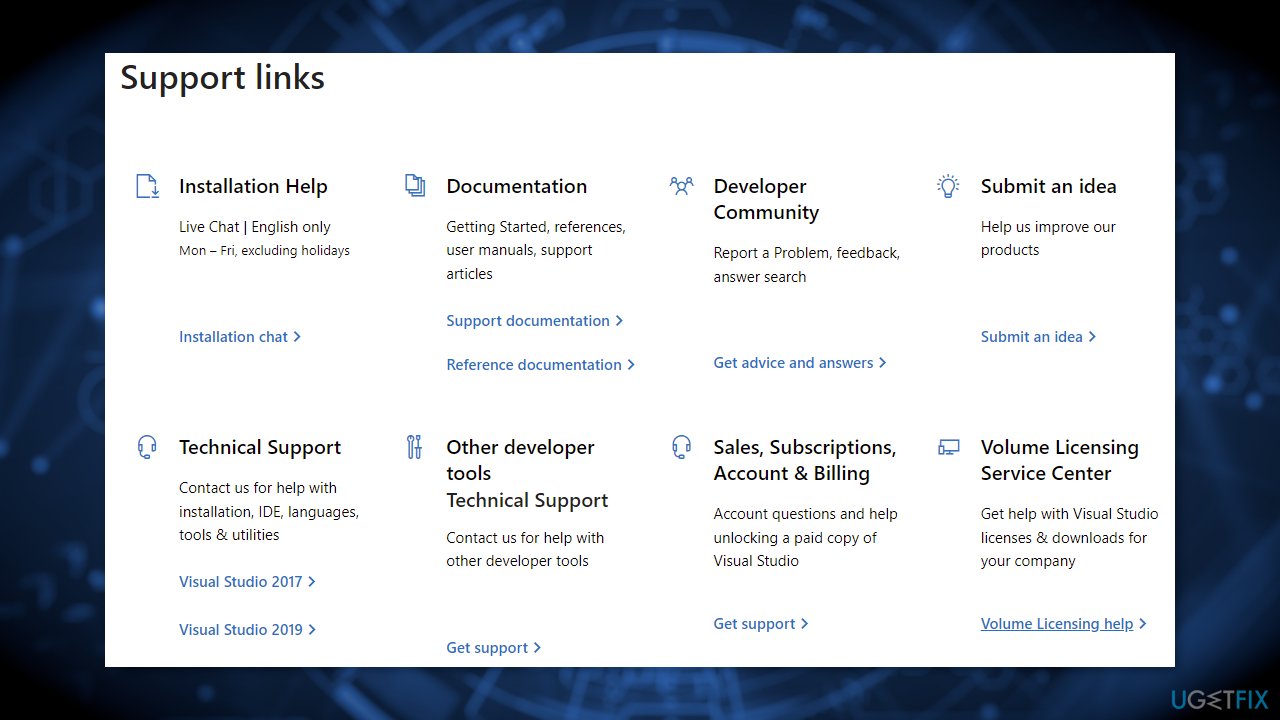
If the solutions listed in this guide do not help you successfully install Visual Studio, use Microsoft's live chat support option for further assistance.
Bottom line
To fix the Visual Studio 2022 installation error, you can disable third-party antivirus software and run the System File Checker (SFC) tool to repair system file corruption. If these solutions do not resolve the issue, consider using a repair tool to address underlying Windows problems.
Frequently asked questions
Try running the Visual Studio Installer as an administrator and ensure that all Windows updates are installed before retrying the installation.
Check your system for any pending updates and disable any antivirus software temporarily, then restart the installation process.
Yes, you can use the Visual Studio Installer to repair the installation by selecting the Visual Studio version and clicking on the 'Repair' option.




Report an issue
What's wrong with this guide? We review every report and update or remove content.
Report received — thank you. We'll review and fix it.
You need a free account to submit a report.
Be the first to comment