How to fix
OneDrive error “Connecting to d.docs.live.net” when opening Microsoft Office files
on Windows
Resolve the OneDrive “Connecting to d.docs.live.net” error in Windows 10 and 11 with expert-tested solutions. Get your files working seamlessly!

What causes How to fix OneDrive error “Connecting to d.docs.live.net” when opening Microsoft Office files?
- Microsoft Office Upload Center issues
- Malware or cyber threats
- Unwanted programs affecting performance
- Credential entry errors
- Read-only mode restrictions
Repairs Windows system files, removes malware, and restores a clean OS state — without reinstalling.
Hello. I have a very irritating issue, which prevents me from editing Word and Excel documents using OneDrive. I’m using Office 2013 on my Win 10 laptop. When I am trying to edit shared OneDrive Excel or Word files, I receive a Windows security pop-up saying: “Connecting to d.docs.live.net Enter your credentials.” OK, so I entered the username and password for three times, but the file opens in a read-only mode. When I click Enable Editing, the same pop-up shows up, and I have to enter the credentials another three times, but the protected view did not disappear, making me frustrated. Any ideas you could share?
Connecting to d.docs.live.net error is the error code that has been interrupting numerous users while using OneDrive. Having in mind how popular Microsoft One Drive is,[ref en-1] there is no surprise that tech forums are filled with similar questions almost every day.[ref en-2]
While the number of OneDrive users is counting millions, only a few of them are not having issues while using the app. Luckily, OneDrive bugs are usually not serious and can be solved quite easily.
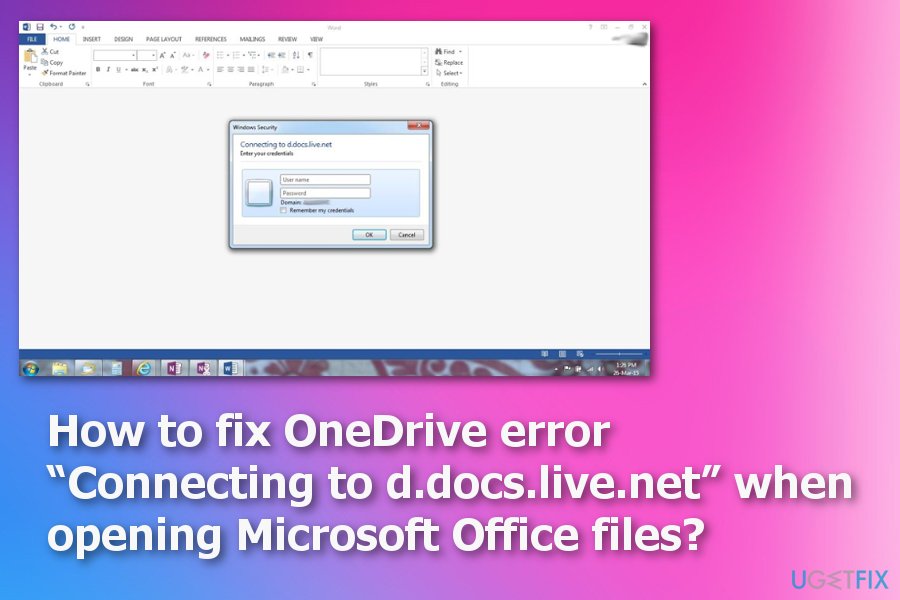
Usually, people notice files marked with a sync symbol on the file explorer which, once launched, throws up a pop-up asking to enter the credentials. A full “Connecting to d.docs.live.net” OneDrive error message reads the following:
Connecting to d.docs.live.net
Enter your credentials.
Technically, “Connecting to d.docs.live.net” error can be caused by Microsoft Office Upload Center, the system that allows Microsoft customers to see the state of their current files that are being uploaded to the server of OneDrive, for example.
Unfortunately, there is a possibility of unwanted programs or cyber threats that may affect the performance of your device or certain functions of the system. You should check if there is any malware[ref en-3] on the system before applying any manual error fixing methods. Make sure to scan the machine using antivirus program first.
Ways to fix "Connecting to d.docs.live.net" error
We prepared instructions that help you to open Microsoft Office files and edit them successfully. Please, let us know if you have managed to fix OneDrive error “Connecting to d.docs.live.net, enter your credentials” so that, in the case of a failure, we could initiate further research. Besides, don’t forget to maintain your Windows OS properly to prevent system errors in the future.
To maintain the system secure and virus-free, you should go for a tool like [d1] and keep in on the machine, running a scan from time to time. Such errors sometimes can be caused by cyber intruders and general system issues. This is a Windows-based software that can even repair files of the OS, so run the program before trying any other methods.
Delete Cache files to get rid of the error code
According to specialists, OneDrive error “Connecting to d.docs.live.net” while opening Microsoft Office files may be triggered by the data on the cache folder on the Microsoft Office Upload Center. Therefore, as a starting point, you can try to clean the cache folder:
- Click Win key + S, type Microsoft Upload Center, and click on the search results.
- Go to Settings and click on Delete Cached Files.
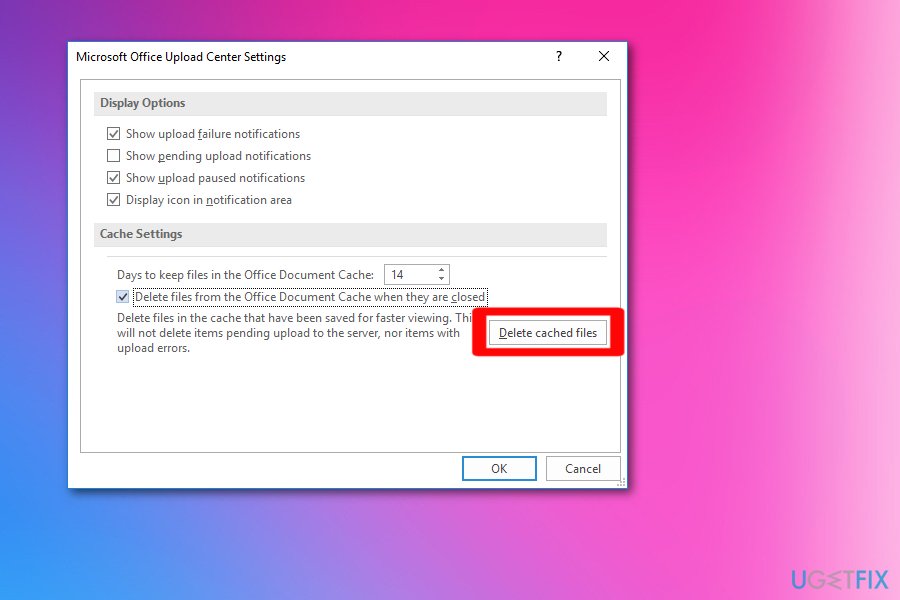
How to fix onedrive error connecting to d docs live cahce delete - Once done, reboot your PC and try to open OneDrive files that thrown a pop-up asking for credentials.
Empty Credential Manager and fix “Connecting to d.docs.live.net” error
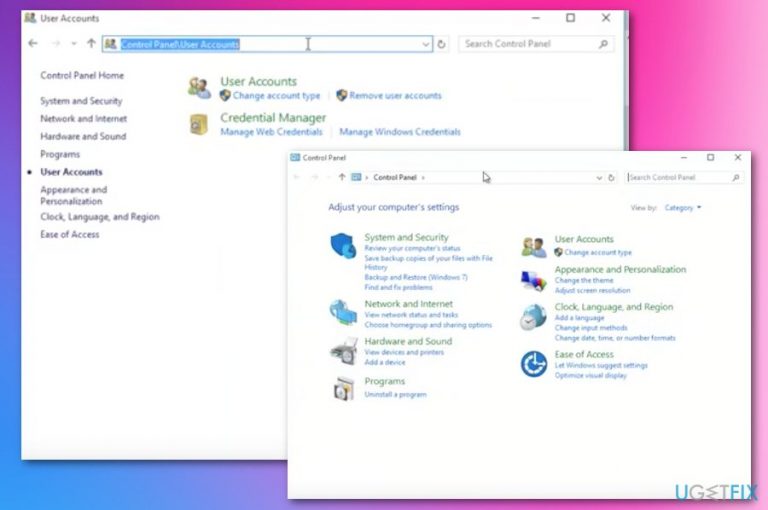
- Right-click on Win key and select Control Panel.
- Navigate to Accounts and Family Safety.
- Click on User Accounts.
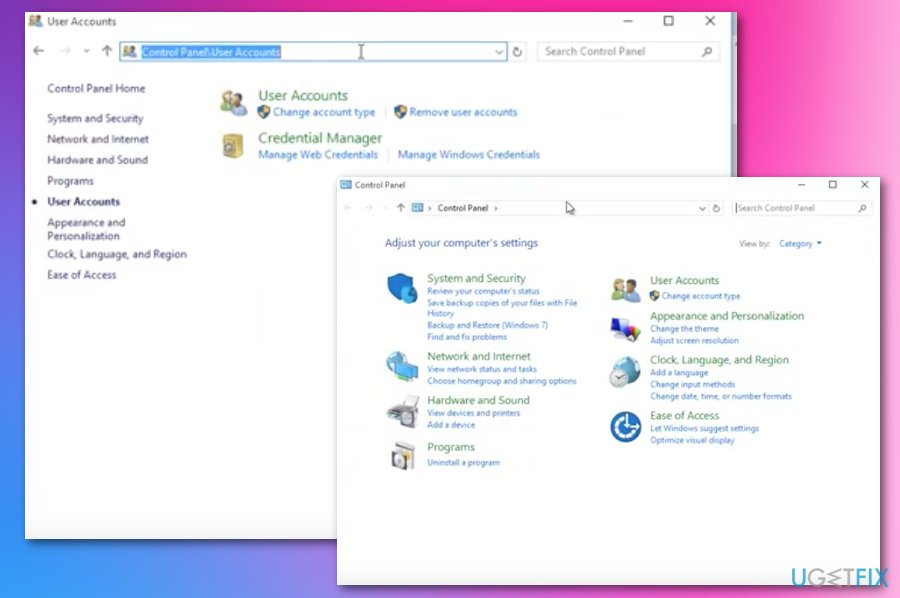
How to fix onedrive error connecting to d docs live user account - Find Manage your credentials and remove the live account ID and password for OneDrive.
- After that, restart your PC and try to open Word or Excel file that you need.
- If the file successfully opened, go to File, select Account, and add your OneDrive account.
Clean up Junk Files
- Right-click the Start button and choose Control Panel.
- Go to Category and from the drop-down menu choose Small icons.
- Click Administrative Tools.
- Double-click on Disk Cleanup and when a list appears, choose the drive that you want to clean.
- Click OK.
- Choose Delete Files when the dialog box offers to select checkboxes for the file typer you can to delete.
- Click OK.
- Disk Cleanup utility will close automatically after the completed process.
Reset your OneDrive to make it work with no errors
- Open up the Run window by pressing Windows key + R on the keyboard.
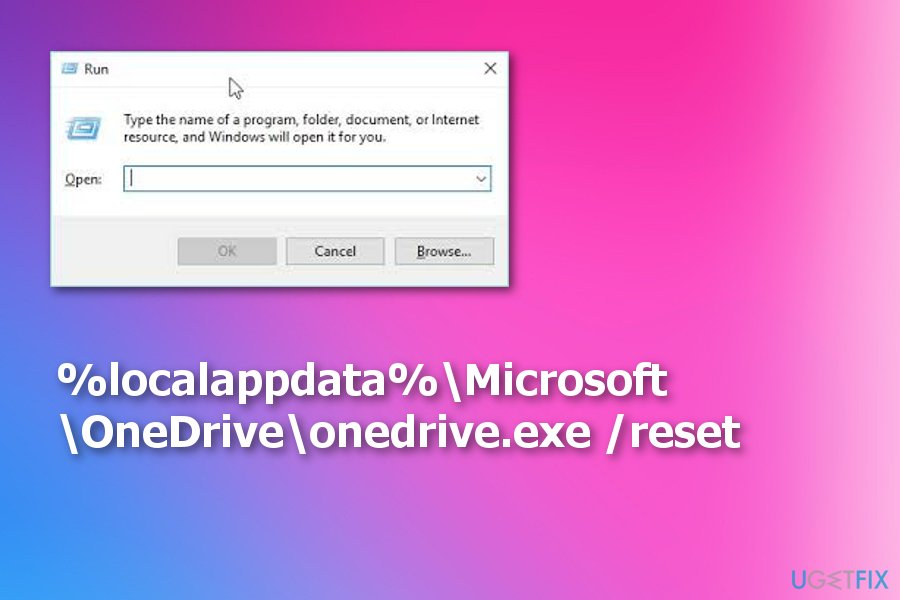
How to fix onedrive error connecting to d docs live run window - Enter the following in the window and press Enter:
%localappdata%\\Microsoft\\OneDrive\\onedrive.exe /reset - OneDrive icon should disappear from the taskbar and appear again
- If the icon is not re-appearing, open the Run window again and enter the following:
%localappdata%\\Microsoft\\OneDrive\\onedrive.exe - Once complete, right-click the OneDrive logo and choose Settings. Then select Choose Folders.
- You can choose which folders to sync. Make sure that folders you were previously using are set to sync with OneDrive still.
Run a scan for Application dependencies
- Launch Command Prompt with Administrative rights.
- Accept all the permissions that may be needed.
- Type the following and run a system file checker by pressing enter:
sfc /scannow - The system verifies errors, files that need repairing and so on.
Bottom line
To fix the 'Connecting to d.docs.live.net' error, ensure you check for malware using an antivirus program, verify the Microsoft Office Upload Center settings, and try entering your credentials correctly. If these solutions do not resolve the issue, consider seeking further assistance from tech forums or support.
Frequently asked questions
Try resetting OneDrive by pressing Windows + R, typing 'onedrive /reset', and pressing Enter. This action can resolve connection issues and allow you to access your documents again.
Ensure that your OneDrive application is up to date by checking for updates in the Microsoft Store, as outdated versions can cause connectivity problems. Additionally, check your internet connection to ensure it is stable.
You can adjust the OneDrive settings by right-clicking the OneDrive cloud icon, selecting 'Settings', and ensuring that the 'Use Office applications to sync Office files that I open' option is enabled.




Report an issue
What's wrong with this guide? We review every report and update or remove content.
Report received — thank you. We'll review and fix it.
You need a free account to submit a report.
Be the first to comment