How to fix
Security Center error DC040780
on Windows
Resolve the Security Center error DC040780 on Windows 10 or 11 effortlessly. Follow our expert-tested guide for quick fixes and peace of mind.

What causes How to fix Security Center error DC040780?
- Corruption of Windows files
- Conflicting third-party software
- Issues with Windows Defender
- Uninstalled Acronis True Image 2021
Repairs Windows system files, removes malware, and restores a clean OS state — without reinstalling.
Hello. I keep getting this error in the Event viewer: "Security Center failed to validate caller with error DC040780." What is it and how do I fix it?
Windows is one of the most popular operating systems in the world. It is used by companies in their offices and home users. It is liked for its easy-to-use interface, built-in troubleshooters, and customization abilities. However, it is a complex system that relies on thousands of processes to keep it running smoothly. If one of those processes goes rogue, people can experience bugs, crashes, and errors.
Some users experience an error in the Event Viewer.[ref en-1] It does not cause any particular symptoms, at least not the ones that the users can notice. The message that users see says:
Security Center failed to validate caller with error DC040780.
It seems like the issue can be related to the Windows Security Center[ref en-2] which makes it is easier for users to view and control the security protections they choose and better understand the security features already protecting them. Other possible reasons for this error include corruption of your Windows files or third-party software that is conflicting with Windows Defender.
Some users say that they stopped seeing the DC040780 error when they uninstalled Acronis True Image 2021. So if you have it in your system, you can try it out. In this guide, we will provide you with 6 possible solutions that could fix this issue.
Manual troubleshooting can be a lengthy process so if you want to avoid it, you can use a repair tool like [d1]. It can fix most system errors, corrupted files, registry issues, and even BSODs.[ref en-3] It is a powerful software that can optimize your machine and potentially increase the performance, also clear cookies and cache automatically.
If you are ready to proceed with the guide to fix Security Center error DC040780, follow the steps below carefully:
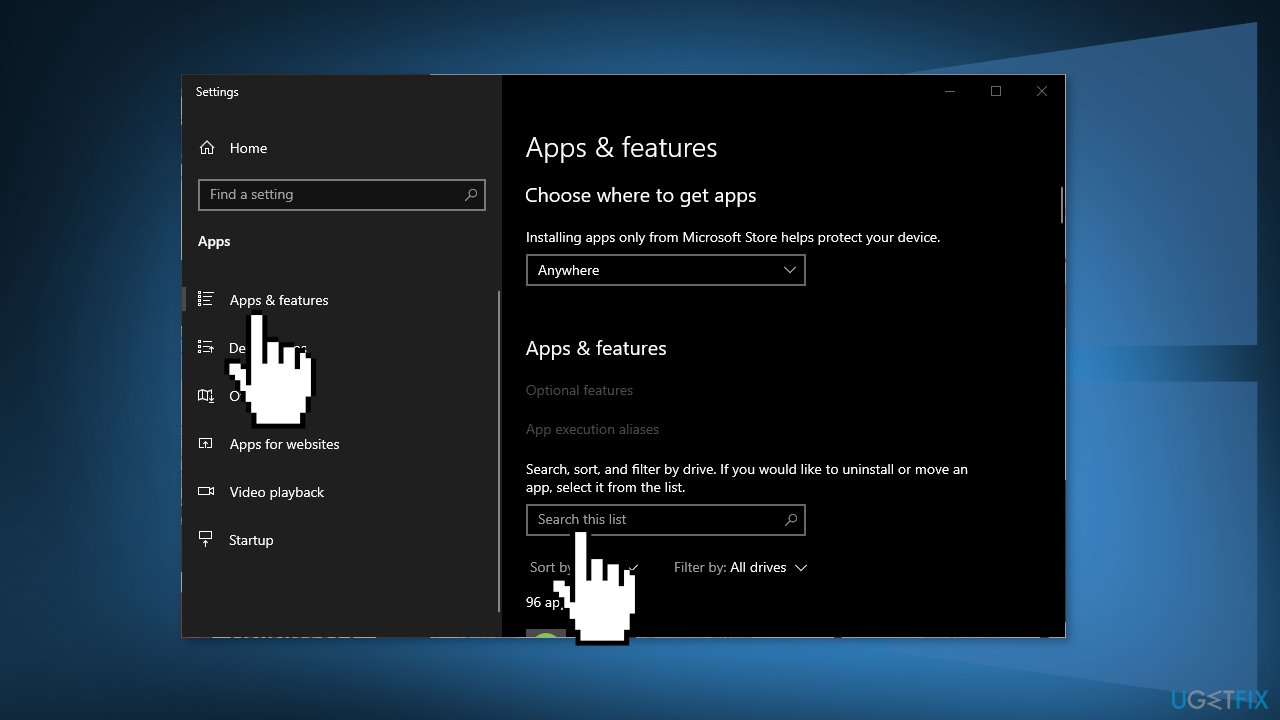
Solution 1. Uninstall Third-Party Antivirus Software
Some security programs might be conflicting with Windows processes. Thus, it is known that removing AV software helped some users when trying to fix Security Center error DC040780.
- Type Apps and Features in the Search menu
- Find your Antivirus software in the list
- Click Uninstall
Solution 2. Run SFC and DISM
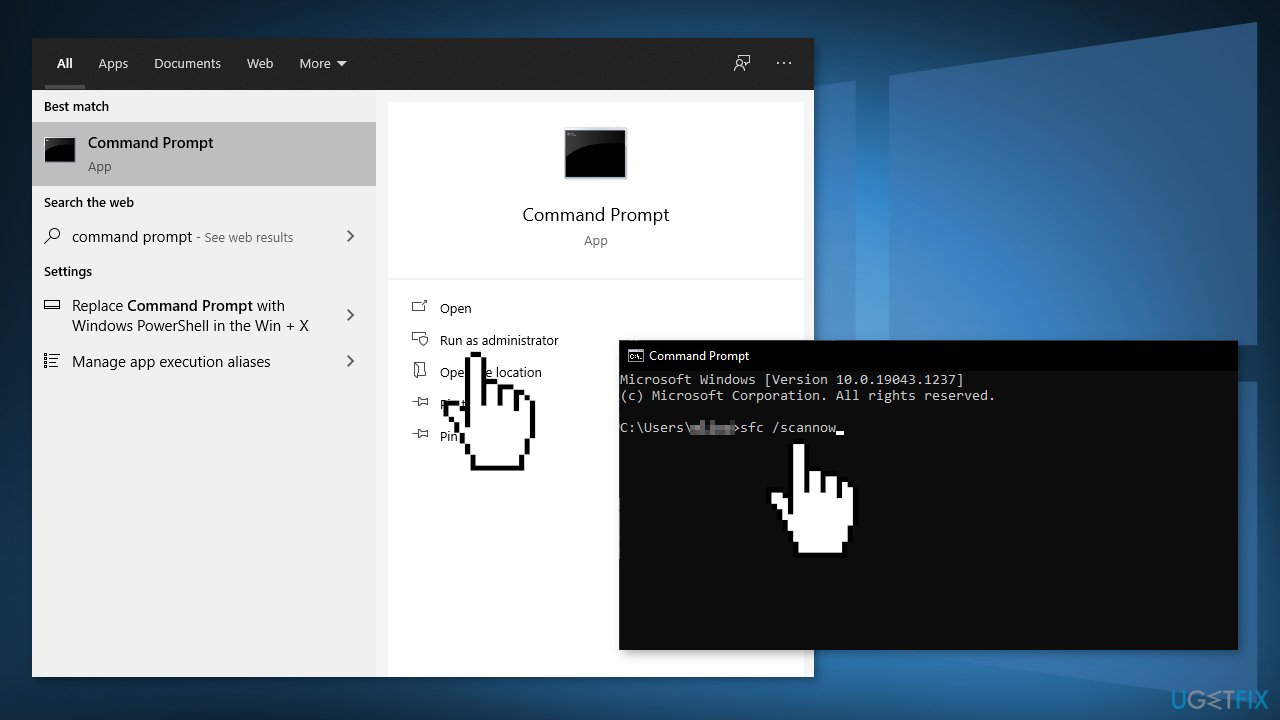
Use Command Prompt commands to repair system file corruption:
- Open Command Prompt as administrator
- Use the following command and press Enter:
sfc /scannow
- Reboot your system
- If SFC returned an error, then use the following command lines, pressing Enter after each:
DISM /Online /Cleanup-Image /CheckHealth
DISM /Online /Cleanup-Image /ScanHealth
DISM /Online /Cleanup-Image /RestoreHealth
Solution 3. Disable Windows Defender
- Click on Start, type Control Panel, and select it from the search results
- Go to System and Security > Windows Defender Firewall
- Click on Turn Windows Defender Firewall on or off
- Simply click on Turn off Windows Firewall (not recommended) for both the Private and Public network settings
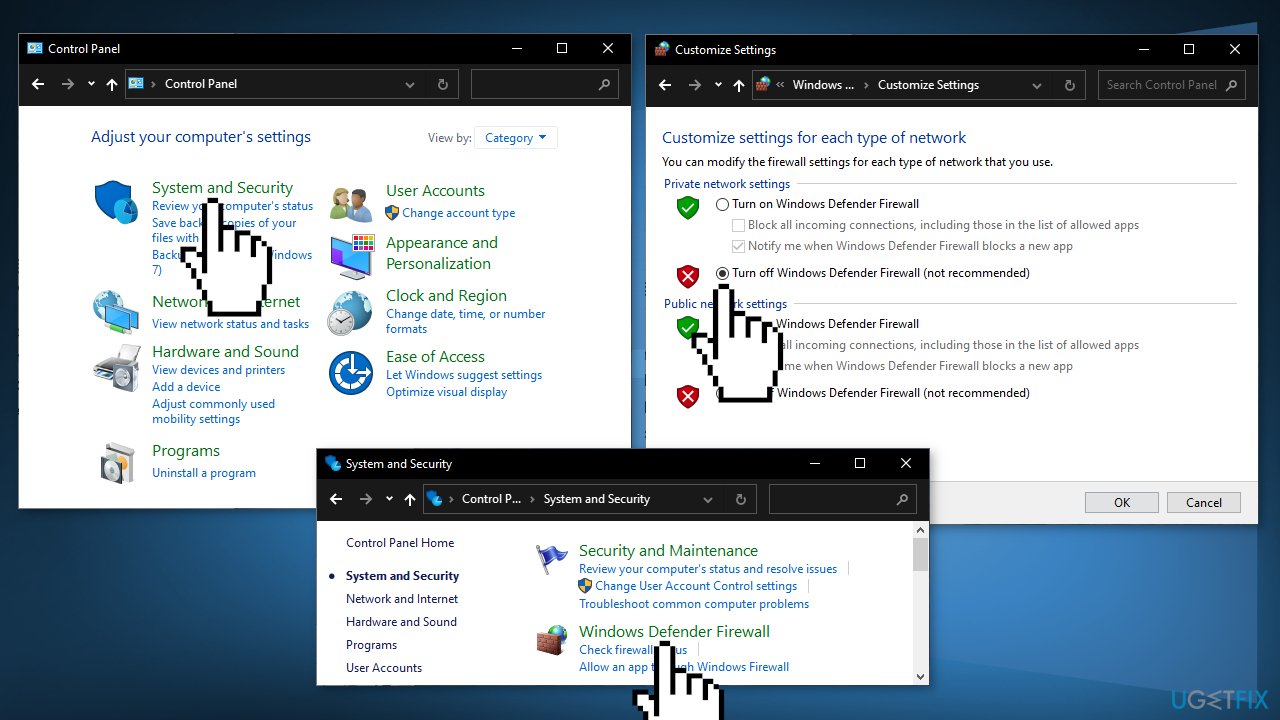
- Restart your system
Solution 4. Disable Security Center
- Press Windows key + R to open up a Run dialog box
- Type regedit inside the text box and press Enter. When you’re prompted by the UAC (User Account Control), click Yes to grant admin access
- Navigate to the following location:
HKEY_LOCAL_MACHINE\\SYSTEM\\CurrentControlSet\\Services\\SecurityHealthService
- Move over to the right-hand side section and double-click on Start Dword
- Set the Base of the Start value key to Hexadecimal and then change the Value data to 4
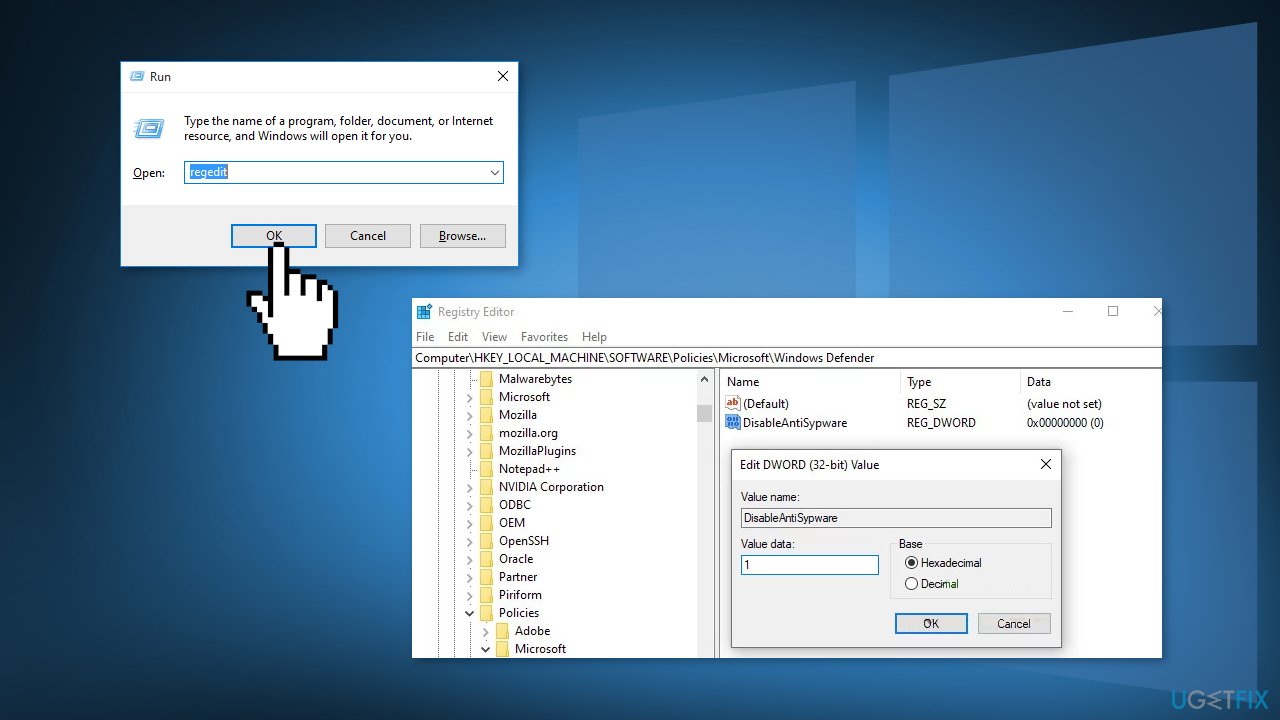
- Navigate to the following location using the navigation bar:
HKEY_LOCAL_MACHINE\\SYSTEM\\CurrentControlSet\\Services\\wscsvc
- Double-click on Start
- Change the Base to Hexadecimal and set the Value data to 4
- Restart your computer
Solution 5. Update BIOS
First, you need to find the BIOS version of the system:
- Press Windows key + X to open the WinX menu and select Command Prompt (Admin)
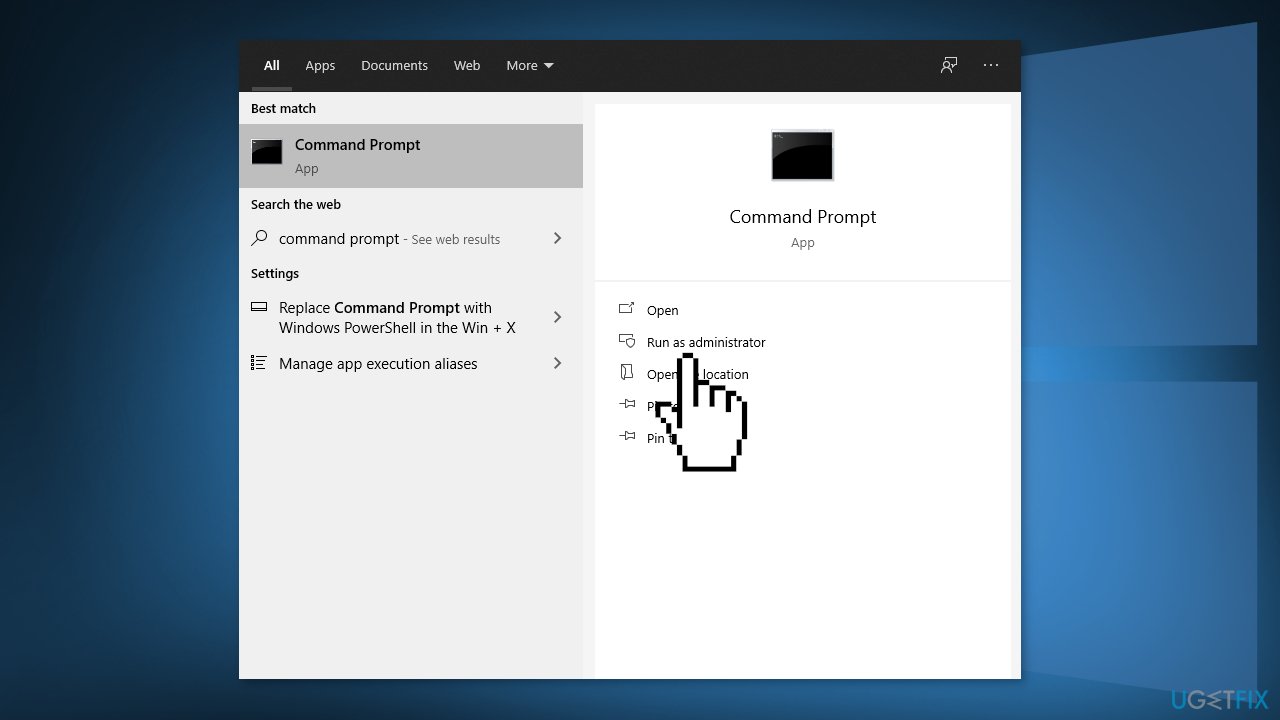
- Now run Command Prompt (Admin) and type the wmic bios get smbiosbiosversion and hit Enter. Just copy the command
- After this, you will see SMBIOSBIOSVersion and the BIOS version of your system
The next steps will wary for each user, as the manufacturers are different for many PCs. We are going to use Dell as an example:
- Type Dell.com in your favorite browser and hit the Enter key to reach the official website of DELL
- You can do the same for your laptop’s manufacturer
- Hover over the Support option and the website will display a drop-down menu
- Click on Support Home
- Scroll down to find the Downloads & Drivers option and click on it to open it
- You can either enter the required information according to your model manually or download the SupportAssist to detect the essential information automatically. Here is the manual option
- Now, scroll down to find the BIOS category drivers and expand it
- Type System Information in the Start menu and open it
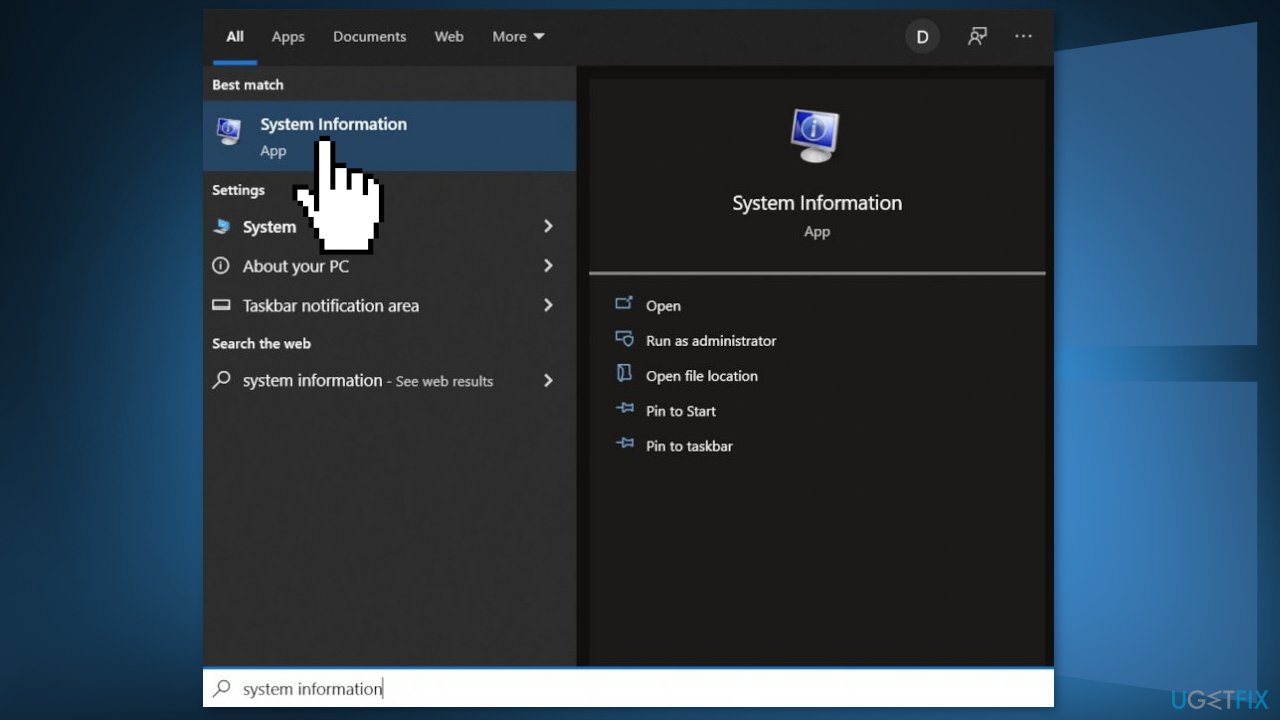
- Compare the BIOS Version/Date in the System Information with the version number specified on the official website
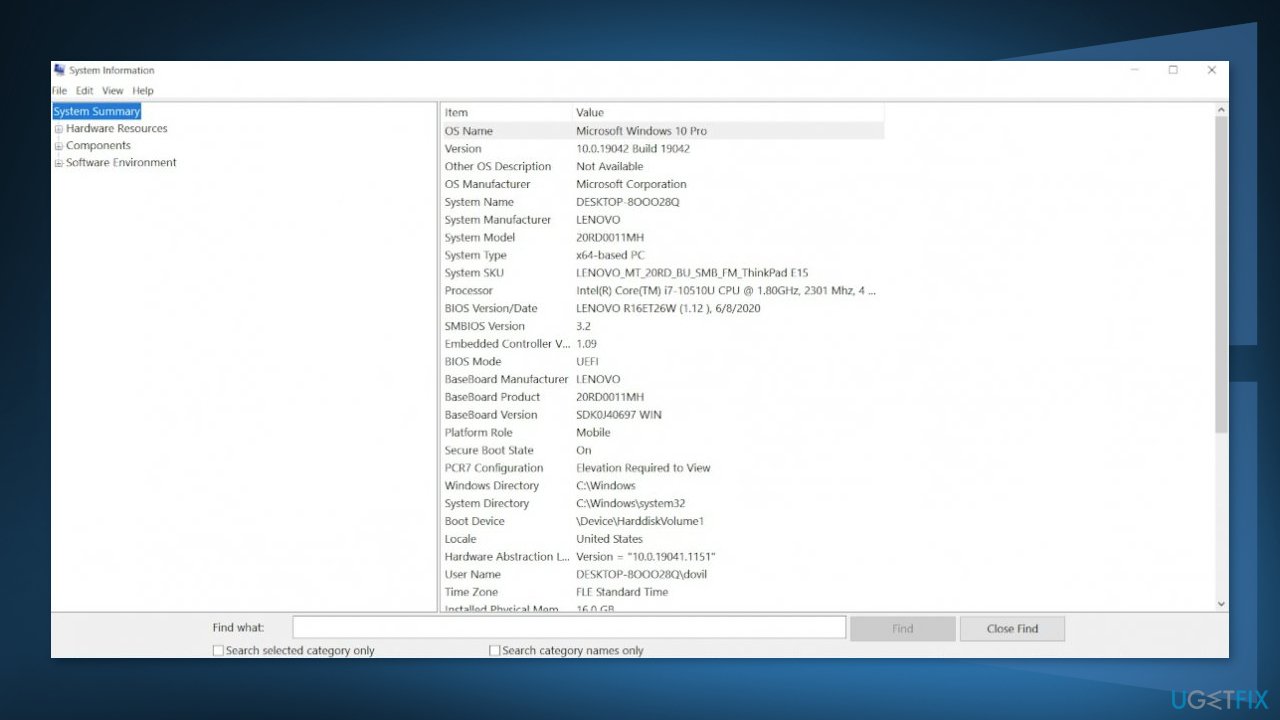
- Begin the downloading
- Once the download is complete, then double-click on the downloaded file
- Upon opening the file, the system will warn you that updating the BIOS process will reboot your system. Click on the OK button
- Next, the system will show you another information dialog, which indicates the current version of BIOS and the version you are installing. Click on the OK button again
- The system will begin the BIOS updating process
- Once the progress bar goes to 100%, you’ll see a black screen followed by the following screen
- After the updating procedure, the system will reboot normally
- Once the system has successfully rebooted, you can confirm that the latest BIOS version is installed
Solution 6. Perform an Upgrade Install
- Download Windows 10 installation media from the official page
- Once installed, run the tool with administrator privileges
- On the License terms page, select Accept
- On the What do you want to do? page, select Upgrade this PC now and then select Next
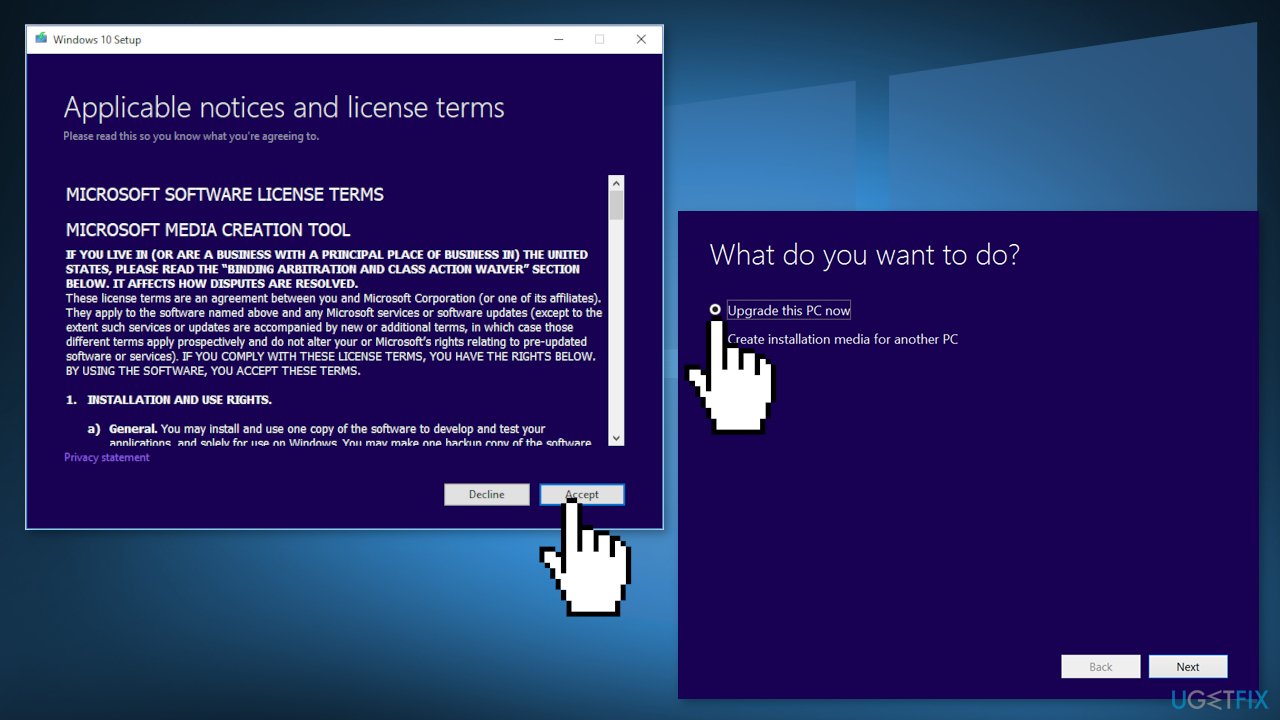
- Wait for the upgrade to finish
Bottom line
To fix the Security Center error DC040780, you can try uninstalling third-party antivirus software, using a repair tool, or addressing potential corruption in Windows files. If these solutions do not resolve the issue, further troubleshooting may be necessary.
Frequently asked questions
The Security Center error DC040780 can be caused by corrupted system files, misconfigured services, or conflicts with third-party security software. Ensuring that your system is updated and running the built-in troubleshooter may help resolve the issue.
To troubleshoot the error DC040780 on Windows 11, you can run the System File Checker tool and check the Windows Security settings to ensure all services are running properly. Additionally, consider disabling any third-party antivirus software temporarily to see if it resolves the conflict.
Yes, you can reset the Security Center by restarting the Security Center service through the Services application, or by executing a command in the Command Prompt to refresh the relevant settings. This can help clear up error DC040780.




Report an issue
What's wrong with this guide? We review every report and update or remove content.
Report received — thank you. We'll review and fix it.
You need a free account to submit a report.
Be the first to comment