How to fix
Windows 10 Cumulative Update KB3198586 Installation Error
on Windows
Resolve the Windows 10 Cumulative Update KB3198586 installation error quickly with our expert-tested solutions. Fix it in minutes, hassle-free!


What causes How to Fix Windows 10 Cumulative Update KB3198586 Installation Error?
- Damaged files of the update itself
- Incompatible software installed
- Insufficient disk space
- Additional peripherals causing incompatibility
- System malfunctions
Repairs Windows system files, removes malware, and restores a clean OS state — without reinstalling.
Hi. Installation of the November Cumulative Update KB3198585 fails to install with a Blue Screen of Death. Need help!
KB3198586 is a reference number of Windows Cumulative Update[ref en-3] released on November 8, 2016. This update concerns Windows security issues and quality of various Windows 10 features, including the shell, Edge, IE, proxy authentication, missing Japanese characters, network issues, Microsoft Store bugs, and more.
The vast majority of issues addressed by this update occurred after the release of previous KB3185614 update. Unfortunately, but Windows 10 updates always appear to be a problematic matter because for many Windows users they either fail to install or bring in various system problems, including BSOD[ref en-1] errors, missing/corrupted files, software incompatibilities and similar.
This time, Microsoft Community reported about a Cumulative Update KB3198586 installation error. According to the latest research, the same issue applies to KB3200970 and KB3198585 updates. The problem is that the updating process gets stuck at a certain level, ends up with a BSOD or displays an error message. Usually, these hitches occur due to the damaged files of the update itself.

Therefore, one of the basic solutions would be to download the standalone installer of the update from the official Microsoft’s website. However, sometimes such and similar bugs happen due to some system malfunction or incompatible software installed on it. Therefore, we will provide several fixes that might help to fix cumulative update KB3198585 installation error on Windows 10.
How to Fix Windows 10 cumulative update KB3198585 fails to install error?
If the automatic installation of cumulative update KB3198585 fails to install or throws an error message, click on this link, which will redirect you to the official Microsoft's website with a standalone installer of the update available. Besides, make sure that there is a sufficient amount of disk space because this may also prevent any cumulative update from being installed successfully.
If these simple measures did not help, try to disconnect hard drives, extra monitors, smart card readers or any other additional peripherals because they might be incompatible with some of the cumulative update’s files. Lastly, disable your antivirus, especially if you are using a third-party[ref en-2] guard because these programs tend to conflict with Windows files and software frequently. If, after all, cumulative update KB3198585 installation fails, try the following fixes.
Fix 1. Run Windows Update Troubleshooter
- Click Win key + S, type troubleshooting, and click on the search results.
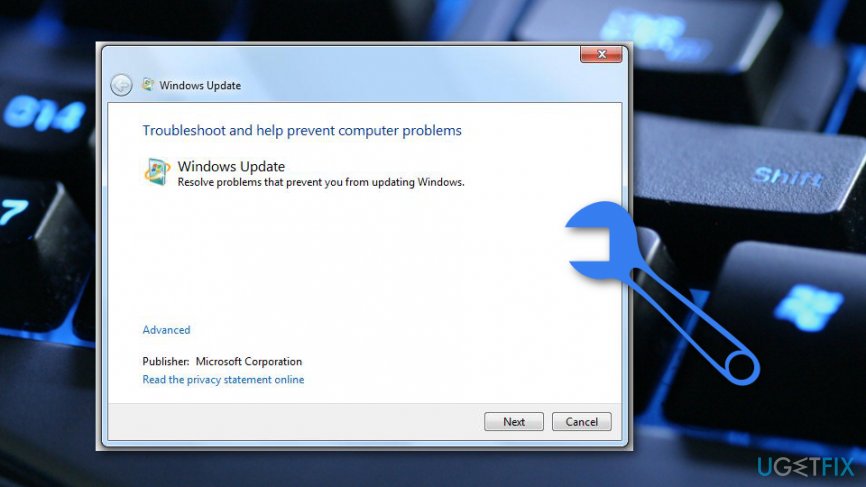
Run windows update troubleshooter - Navigate to System and Security and select Fix problems with Windows Update.
- Select Advanced at the bottom of the page and mark Apply Repairs Automatically.
- After that, select Run as administrator and type in your password in the UAC.
- Once done, hit Next and wait a while until the process finishes.
Fix 2. Delete cumulative update KB3198585 files
If the previous method did not help, our recommendation would be to remove all the files that belong to the KB3198585 update. This action will prompt Windows 10 system to reinstall the missing update. For this purpose, you should perform the following steps:
- Navigate to C:\\Windows\\SoftwareDistribution\\Download and remove all files that are stored in this folder.
- Reboot the system, go to Windows Update and select Check for Updates.
- Wait for the system to detect available updates, check if KB3198585 is on the list, and then click Install Updates.
Fix 3. Run sfc / scannow
When Windows OS encounters any issue, the majority of the IT specialists offer to run sfc /scannow command, the purpose of which is to detect missing files and fix the corrupted ones. As we have already pointed out, KB3198585 update freezes and fails to install issue may be fixed by performing the steps listed above in case if there are some damaged or missing system files.
- Click Win key + X and select Command Prompt (Admin).
- Type sfc /scannow command and press Enter.
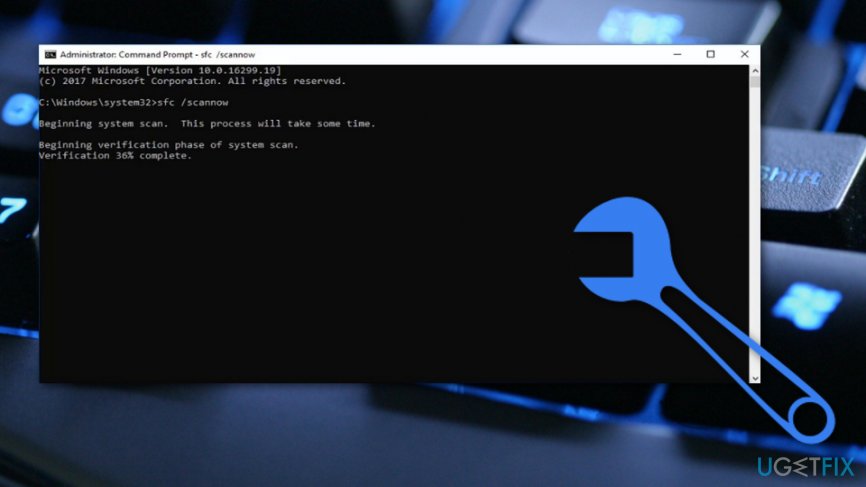
Run an sfc scan - Now you just have to wait for the command to be executed and then reboot the system.
Fix 4. Perform a full disk check
The sfc/scannow is not the only scan you can run to fix Windows 10 Cumulative Update KB3198586 Installation Error. The below-provided steps will allow you to check the system for possible disk corruption:
- Go to Windows search and type "cmd".
- A black dialogue box will appear and make sure that you activate Administrative powers here.
- Afterward, type DISM /Online /Cleanup-Image /RestoreHealth and hit the Enter key.
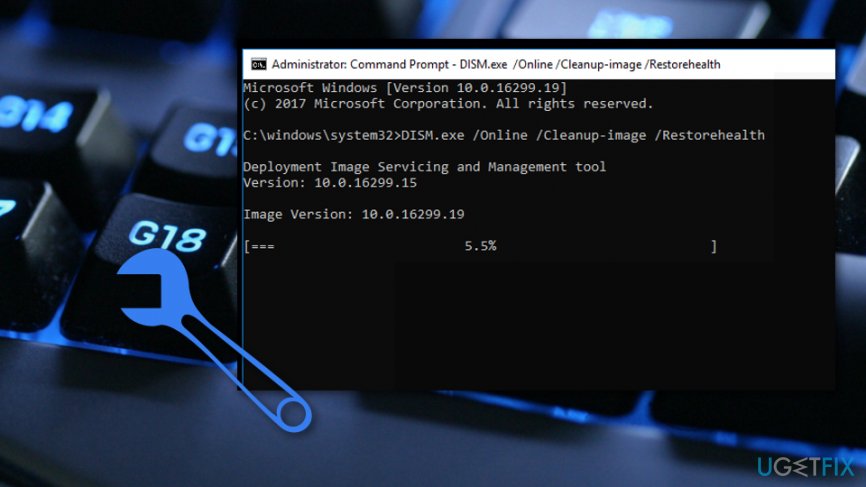
Perform a dism scan - Wait until the process is finished and reboot your computer system.
Fix 5. Use a System Restore Point
If your screen is stuck and you see the message “Preparing To Configure Windows. Please Do Not Turn Off Your Computer”, try to use a System Restore Point. For this purpose, do the following:
- Hold the power button to turn off your PC and then restart the system.
- Before Windows boot window shows up, press F8 to boot into Safe Mode.
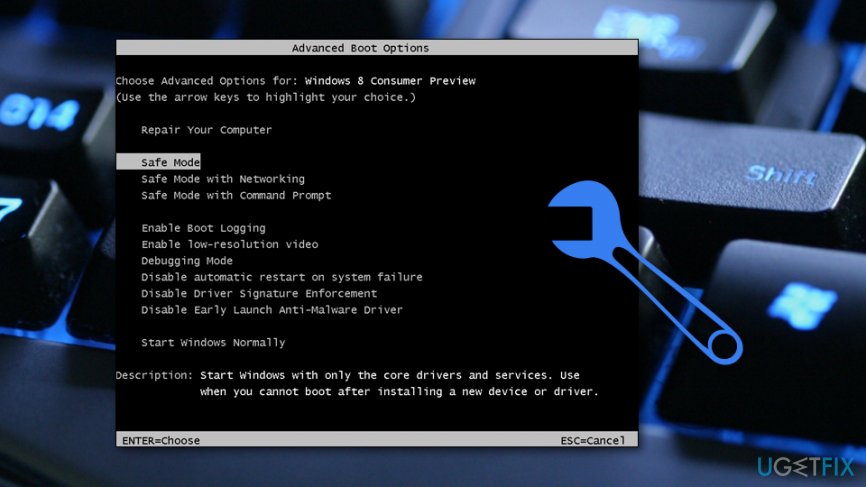
Boot in safe mode - If you are asked to log in, then log in to your account.
- Once the system is booted, disable your antivirus.
- Click Win key and type system restore.
- Select Create a restore point, select System Restore and hit Next.
- Select the latest systems restore point and click Next.
When you finally manage to install Cumulative Update KB3198585 successfully, don't forget to run a scan with [d1] to ensure proper system's maintenance.
Bottom line
To fix the installation error of cumulative update KB3198585, you can download the standalone installer from Microsoft's website, ensure sufficient disk space, and disconnect any additional peripherals. If these measures do not resolve the issue, consider disabling your antivirus software.
Frequently asked questions
Try running the Windows Update Troubleshooter to automatically detect and fix issues related to Windows Update. If that doesn't work, consider manually downloading the update from the Microsoft Update Catalog.
You can check the update history in Settings > Update & Security > Windows Update to see if KB3198586 shows any errors. If it does, you may need to uninstall it and then reinstall.
To minimize installation errors on Windows 11, ensure your system is updated regularly and check for compatibility issues before installing updates. Using the Windows Update Troubleshooter can also help.




Report an issue
What's wrong with this guide? We review every report and update or remove content.
Report received — thank you. We'll review and fix it.
You need a free account to submit a report.
Be the first to comment