How to fix
XAPOFX1_5.DLL was not found or missing error
on Windows
Resolve the XAPOFX1_5.DLL missing error on Windows 10 and 11 quickly and easily. Expert-tested solutions ensure your system runs smoothly. Fixed in minu…


What causes How to fix XAPOFX1_5.DLL was not found or missing error in Windows?
- Missing XAPOFX1_5.DLL file
- Corrupted important system files
- Outdated drivers
- Corrupt installation of the application
- Interference from recently installed third-party applications
Repairs Windows system files, removes malware, and restores a clean OS state — without reinstalling.
Hello. I have been trying to open a certain application on my Windows computer but every time I receive an error "XAPOFX1_5.DLL was not found or missing." How can I fix this?
Operating systems are made out of thousands of processes running in the background making sure it works smoothly. Windows is not an exception. It is used in homes and offices around the world. People love it for the user-friendly interface, built-in troubleshooters, customization abilities, and many more. However, if one of the system processes goes rogue, users can experience various errors, bugs, and crashes.
Some users receive the "XAPOFX1_5.DLL was not found or missing" error when they try to launch certain applications. That means that the program you are trying to use requires this file and cannot work without it. A DLL[ref en-1] (Dynamic-Link Library) contains code and data that can be used by more than one program at the same time so there might be multiple applications that you are unable to use.
XAPOFX1_5.DLL may be missing because important system files are corrupted and are causing the system directory to be unable to find this file. The error can also appear because of outdated drivers or after a corrupt installation. Also, sometimes third-party apps cause various system malfunctions so you should see if this was not caused by a program that you installed recently.
If you want to avoid going through all the possible troubleshooting options, we recommend you use a maintenance tool like [d1]. It can fix various system errors, corrupted files, registry[ref en-2] issues, BSoDs[ref en-3] automatically so you do not have to. If you already tried that, and it did not work or you want to solve this manually, proceed to the guide below:
Solution 1. Check for Updates
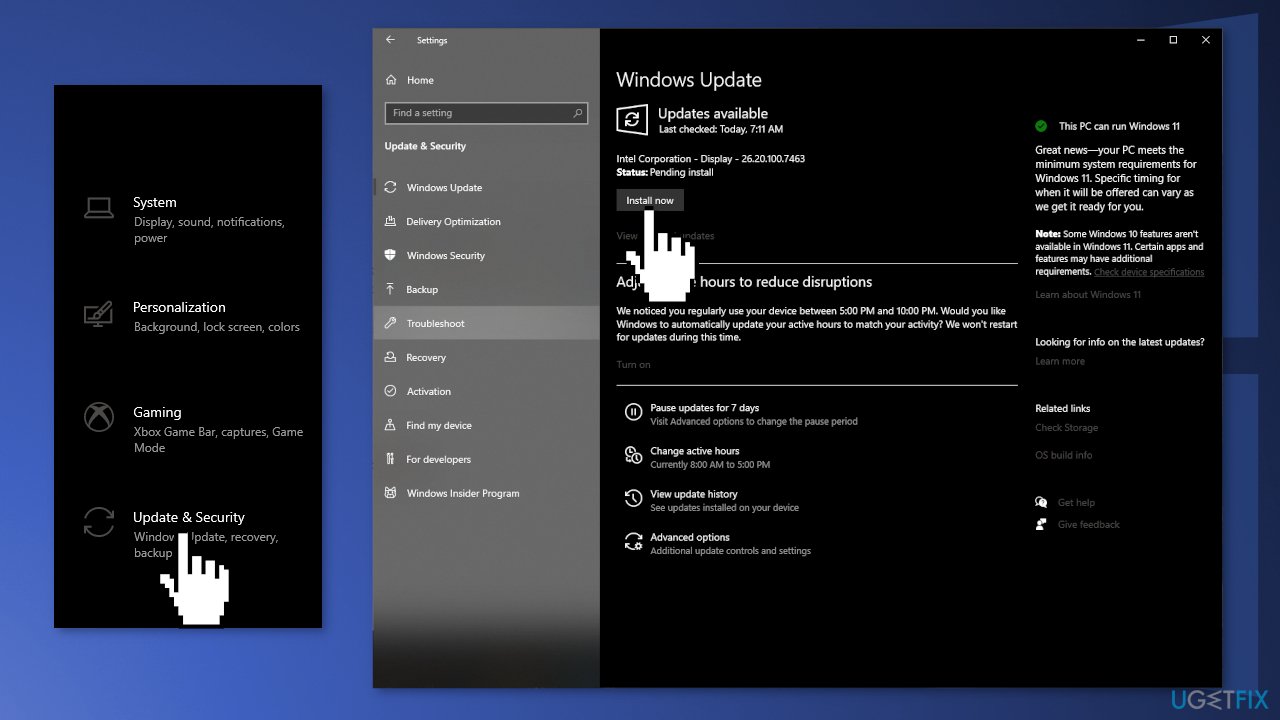
- Click Settings from your start menu and click Updates & Security
- Choose Windows Upgrade from the left panel and click the Check for updates button, and then your computer will check for, download, and install any updates found
Solution 2. Reinstall the Affected Program
If you experience the error when you try to launch a specific program, it is a good idea to try to reinstall it.
- Go to Apps & Features, find the program in the list using the search bar
- Click on it and choose Uninstall
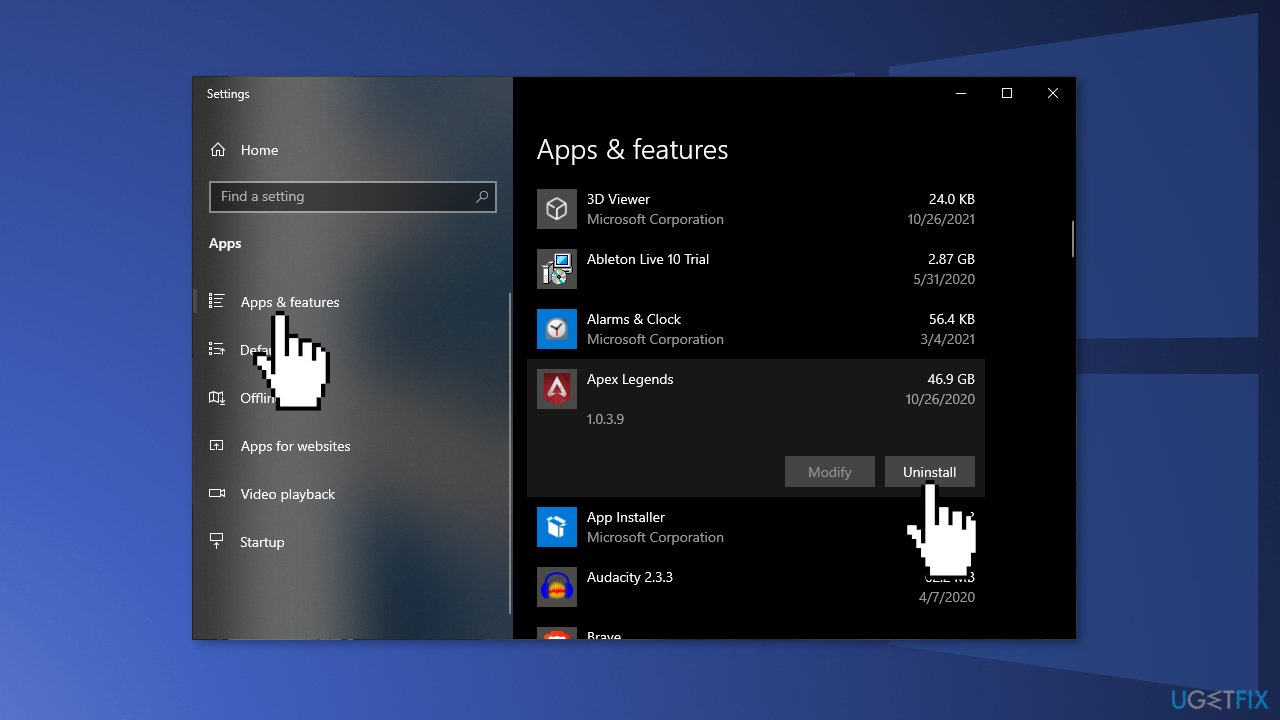
- Now install the program the same way you did before
Solution 3. Update DirectX
If you are getting the error due to the missing XAPOFX1_5.dll every time you try to open a specific app, you can try to resolve this issue by updating the DirectX version.
- Download the DirectX End-User Runtime Web installer
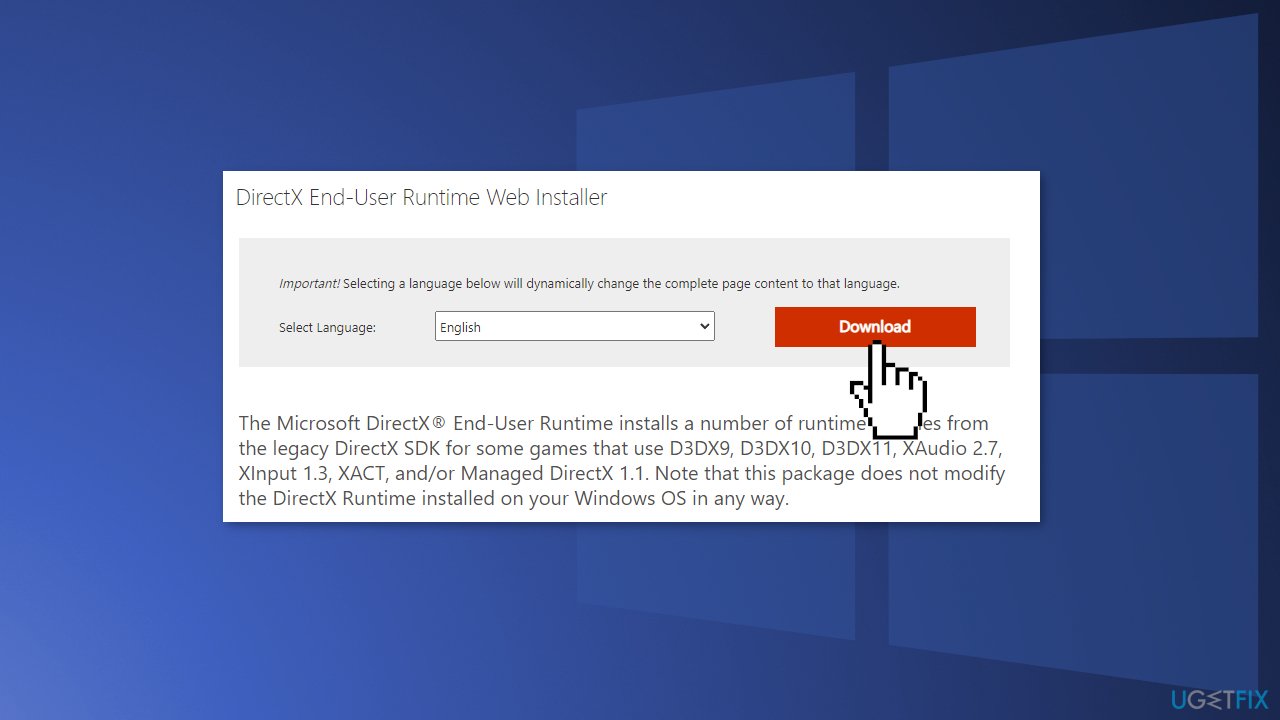
- Open the setup.exe file and follow the on-screen instructions to complete the installation
- Once all the missing packs are installed, click on Finish to exit the setup wizard
- Restart your PC and try opening the same program you were having a problem with
Solution 4. Update Graphics Driver
- Right-click on Start and find Device Manager
- Expand Display adapters section
- Right-click on your graphics card and select Properties
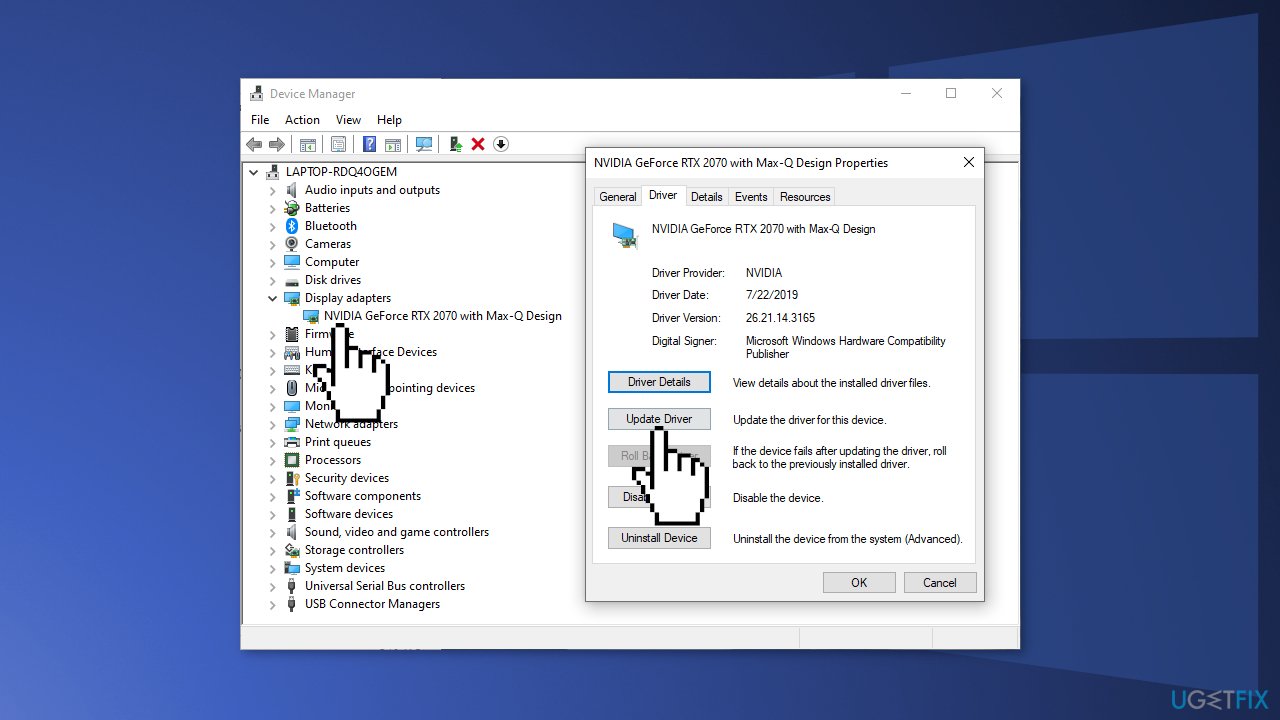
- Go to the Driver tab and click Update or employ an automatic updater such as [rev id="DriverFix"] which can be used to quickly update and backup all your drivers without hassle
- If the update did not get rid of the problem you can select Roll Back Driver and click Yes
- Restart your PC
Solution 5. Copy the XAPOFX1_5.dll Manually
- Check if your system architecture is 32-bit or 64-bit
- Download the XAPOFX1_5.dll file
- Open the Zip file and copy the XAPOFX1_5.dll setup file
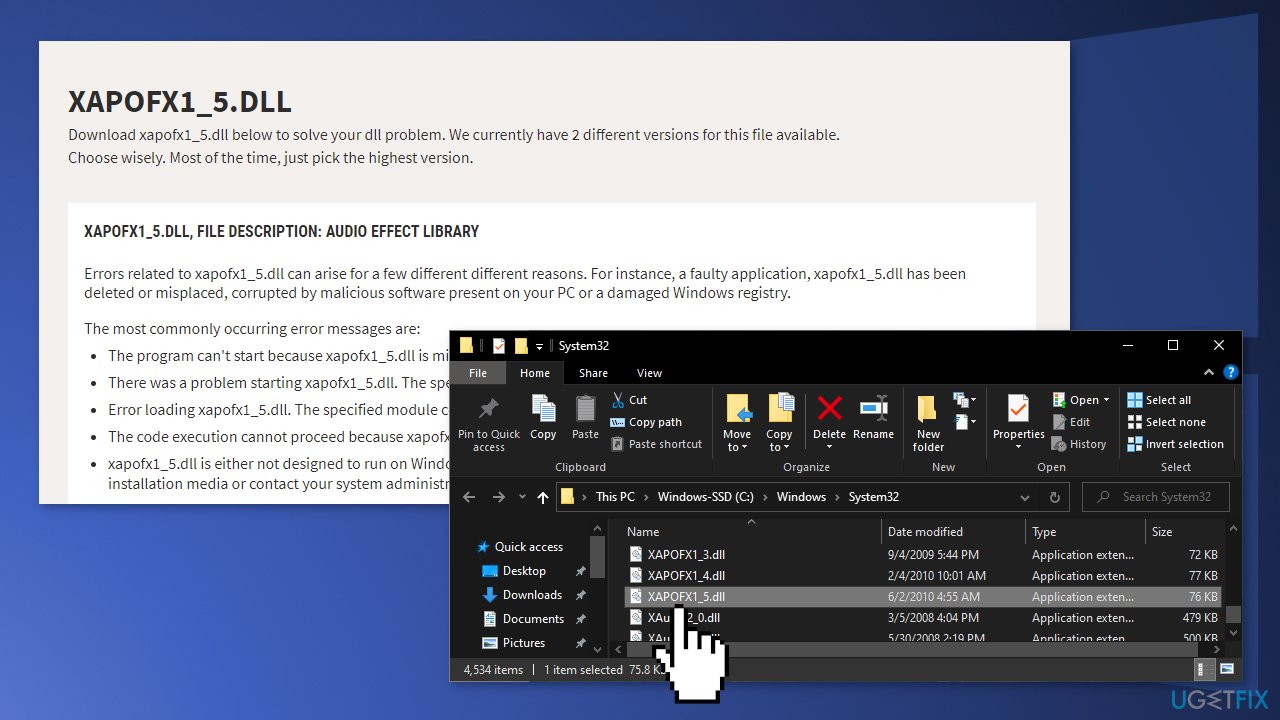
- Press the Windows + E keys to open the File Explorer window
- Navigate to the System32 folder following the below path:
C:\\Windows\\System32
- Paste the copied XAPOFX1_5.dll setup file here
Bottom line
To fix the 'XAPOFX1_5.DLL was not found or missing' error, you can check for Windows updates or reinstall the affected program. If these solutions do not resolve the issue, consider using a maintenance tool to automatically fix system errors.
Frequently asked questions
XAPOFX1_5.DLL is a dynamic link library file associated with DirectX, which is essential for running games and other multimedia applications on Windows 10 and Windows 11. If this file is missing, it can lead to errors when launching these applications.
You can restore the missing XAPOFX1_5.DLL file by reinstalling DirectX through the official Microsoft website or using the DirectX End-User Runtime Web Installer. This will replace any corrupted or missing files, including XAPOFX1_5.DLL.
If reinstalling DirectX does not resolve the error, try performing a System File Checker (SFC) scan by running 'sfc /scannow' in the Command Prompt as an administrator to repair any corrupted system files. Additionally, consider checking for Windows updates to ensure your system is fully up to date.




Report an issue
What's wrong with this guide? We review every report and update or remove content.
Report received — thank you. We'll review and fix it.
You need a free account to submit a report.
Be the first to comment