How to fix
0x80070185 error in OneDrive
on Windows
Resolve the 0x80070185 error in OneDrive on Windows 10 or Windows 11 effortlessly. Get expert-tested solutions that fix it in minutes!


What causes How to fix 0x80070185 error in OneDrive?
- Cache glitches
- Connection issues
- Windows registry issues
- File corruption
Repairs Windows system files, removes malware, and restores a clean OS state — without reinstalling.
Hello. When I try to open certain files on my OneDrive account I receive an error code 0x80070185 with the message "try again." What could be the issue?
OneDrive is an internet-based storage[ref en-1] platform created by Microsoft for anyone with a Microsoft account. It lets users store their files like photos, videos, documents online. All that people need to do is just sign in and they can upload, view, and share those files with others.
Users can share files or folders that are stored in OneDrive by sending or posting a link to the file or folder to whomever they want. However, this particular function sometimes causes issues. Some people report receiving a 0x80070185 error in OneDrive which seems to be related to shared files.
The error causes opening and synchronization failures on all the shared files, so users fail to access them online. People seem to be unsuccessful when they try to open or download them. Unfortunately, Microsoft OneDrive does not offer any insight into the error, and users are left trying to look for solutions themselves.
Errors like 0x80070185 are particularly devastating for businesses when workers cannot access important work-related files. The error message could be caused by a number of things, like cache glitches, connection, and Windows registry[ref en-2] issues, file corruption.
If you want to avoid the hassle, you can deploy a maintenance tool like [d1] that can fix various system errors, corrupted files, registry issues, clear cookies, and cache.[ref en-3] With this powerful software, you may not have to go through a lengthy troubleshooting process and fix the issue with one click.

If you are ready to begin the process that should fix 0x80070185 error in OneDrive, start with the guide below, and follow the steps very carefully:
Method 1. Restart OneDrive
- Right-click on the OneDrive icon (cloud symbol) on the right corner of the Taskbar
- Click on Close OneDrive
- When you see a prompt, Are you sure you want to close OneDrive?, just click on Close OneDrive
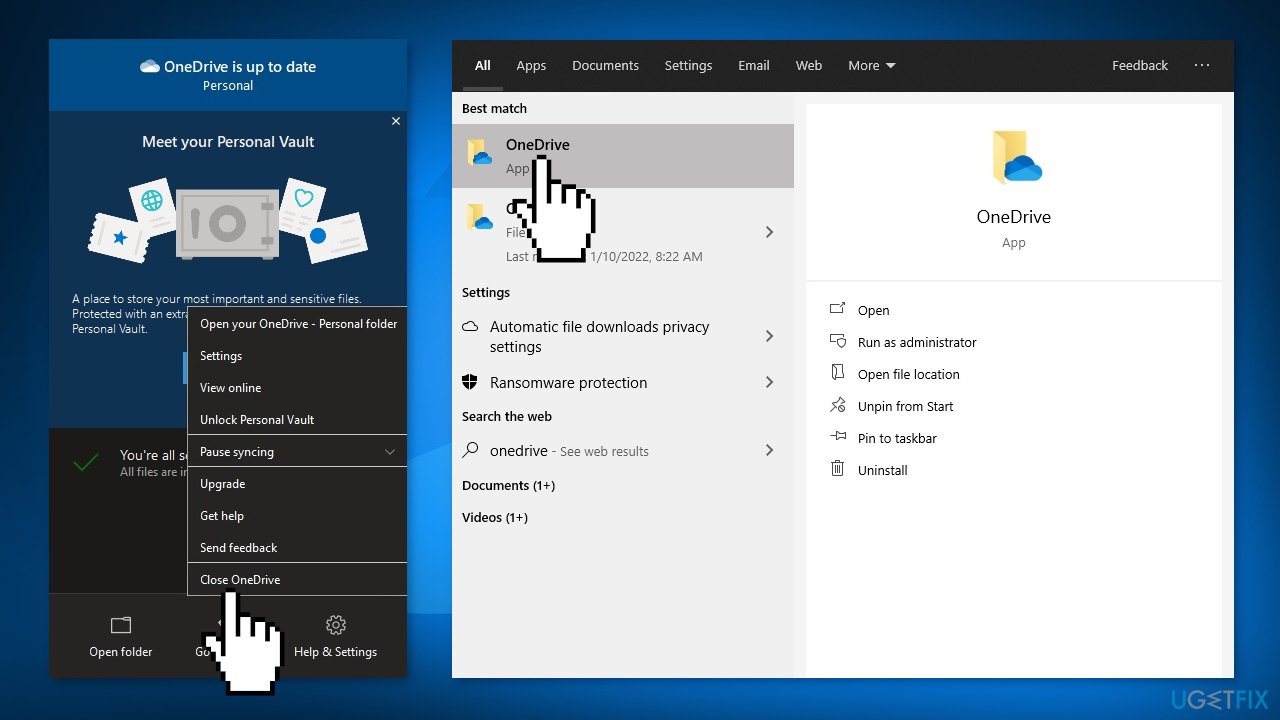
- Write OneDrive in the search box
- Click on OneDrive to open it and try to access the particular file again
Method 2. Sign out and Sign in
- Right-click on the OneDrive icon (cloud symbol) which is on the Taskbar
- Click on Settings to access the OneDrive settings on your computer
- Go to the Account tab
- Click on Unlink this PC and Unlink account
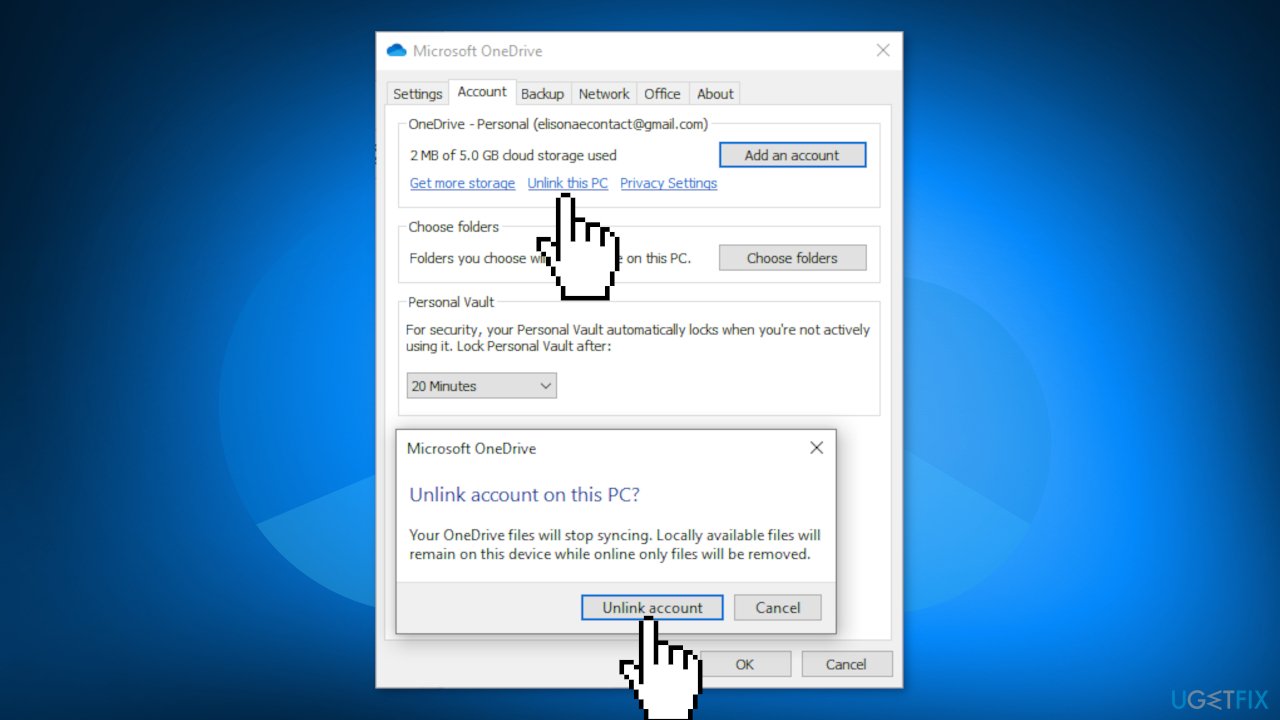
- Go to the search box and type OneDrive
- Open it and sign in
- Try to open the files again
Method 3. Reset OneDrive
- Press the Windows key + R to open the Run box
- Type in the following: %localappdata%\\Microsoft\\OneDrive\\onedrive.exe /reset and press OK
- The OneDrive icon should disappear and re-appear after a minute or two
- If the icon does not re-appear after a few minutes, in the Run window type: %localappdata%\\Microsoft\\OneDrive\\onedrive.exe
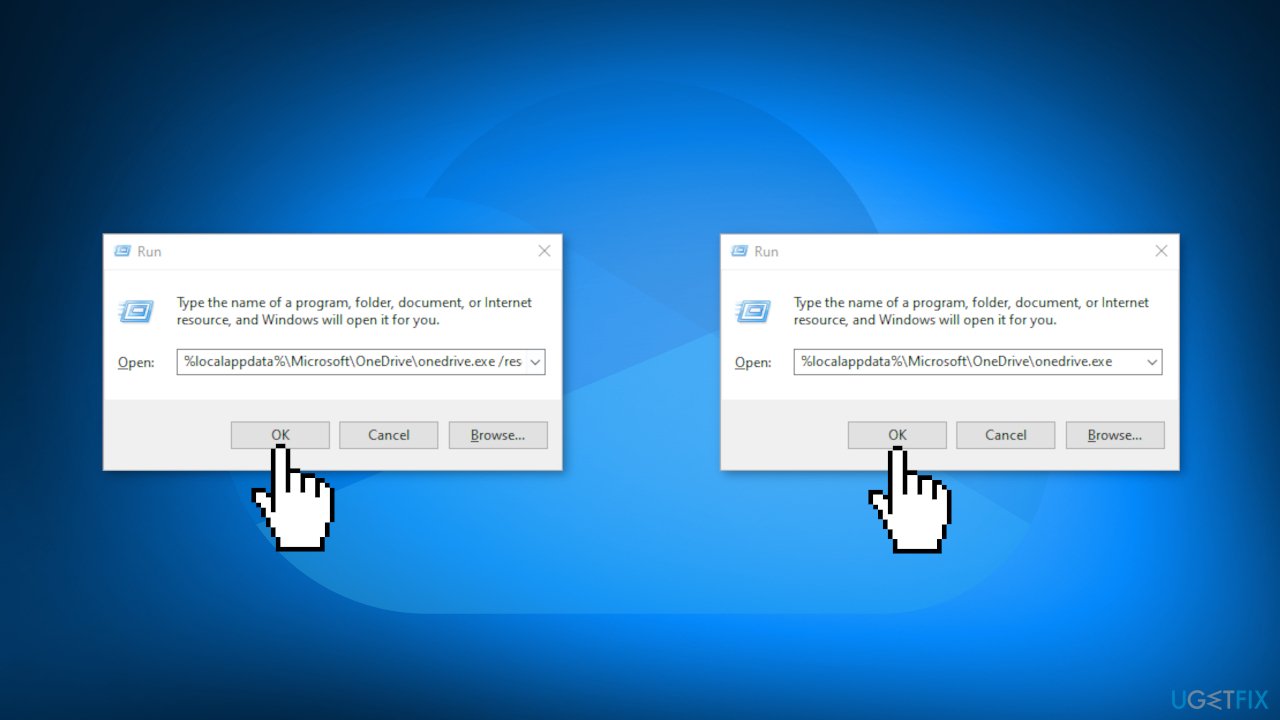
- Press Enter
Method 4. Map the Document as a Network Drive
- Go to the Microsoft OneDrive on your browser and log in
- Open the conflicting file
- Copy the URL of the particular document from the browser window
- Open the File Explorer by pressing the Windows key + E keys
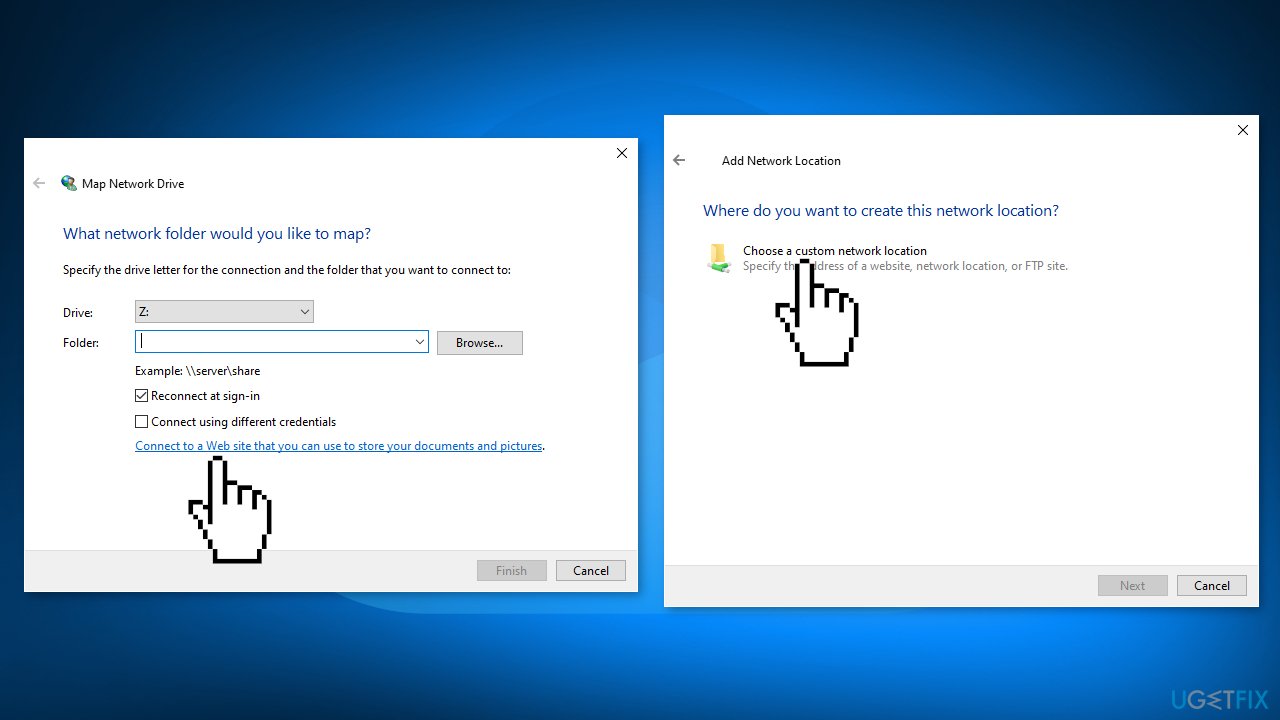
- Right-click on the Network and click on Map network drive...
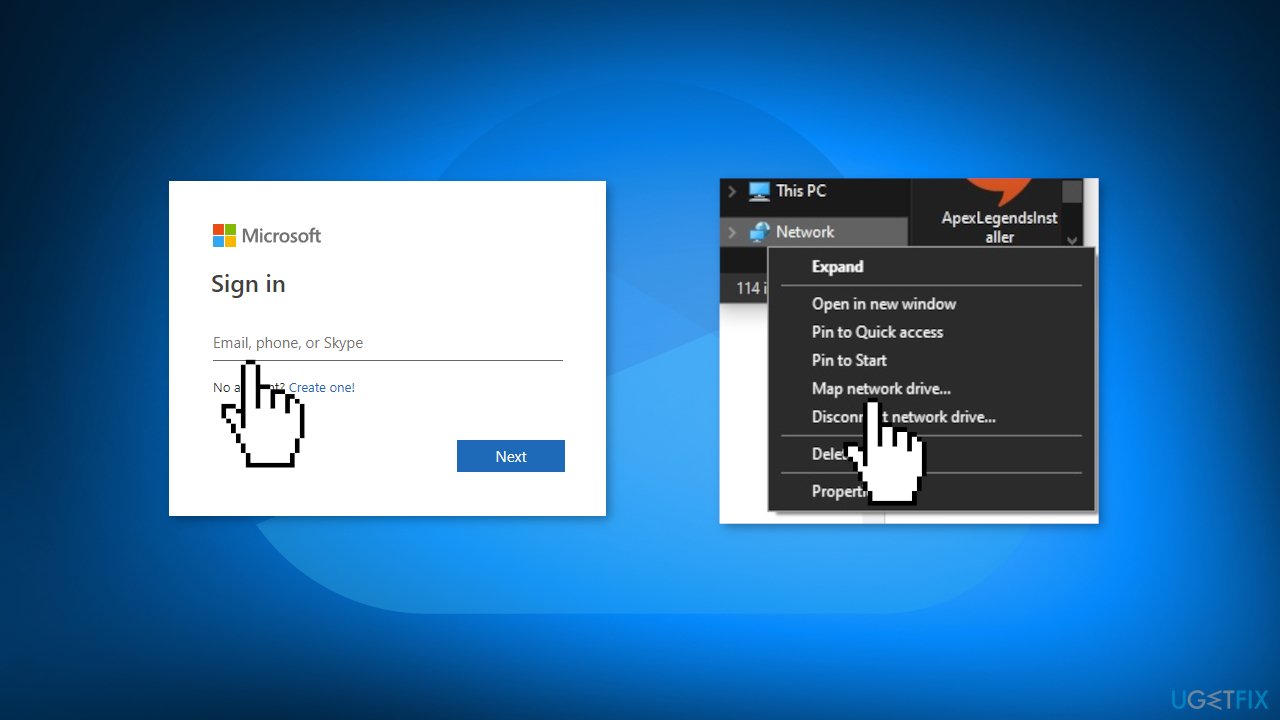
- Press on the Connect to a Web site that you can use to store your documents and pictures
- Click on Next until you land on a page that says Choose a custom network location
- Select the Choose a custom network location and click on Next
- Paste the copied URL of the conflicted document in that particular box
- Remove the https:// from the front of the URL and replace it with the \\\\
- Click on Next to proceed with the setup
- Set up a name of the network location (default case – The name of the network is the name of the file on the OneDrive)
- When you have completely set up the network, click on Finish
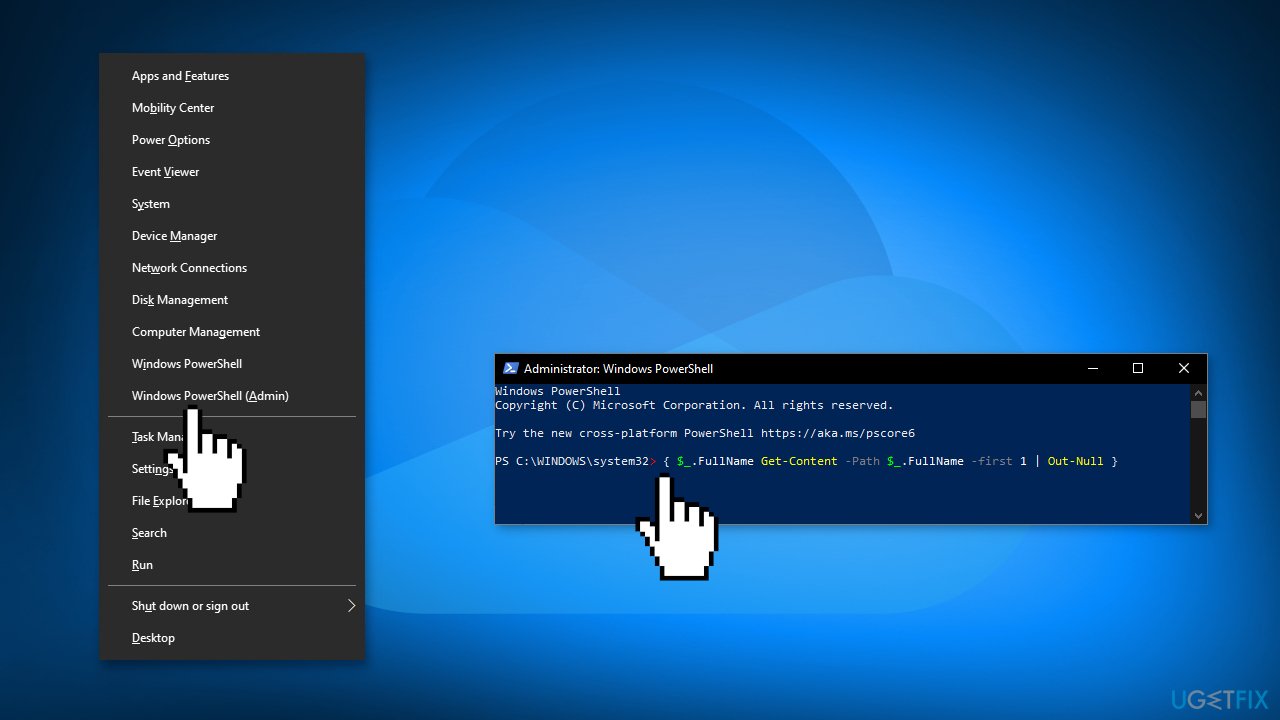
- Press the Windows key + X keys together
- Then, click on Windows PowerShell (Admin)
- Paste this script and hit Enter
{ $_.FullName Get-Content -Path $_.FullName -first 1 | Out-Null }
- Restart your computer
Method 5. Reinstall OneDrive
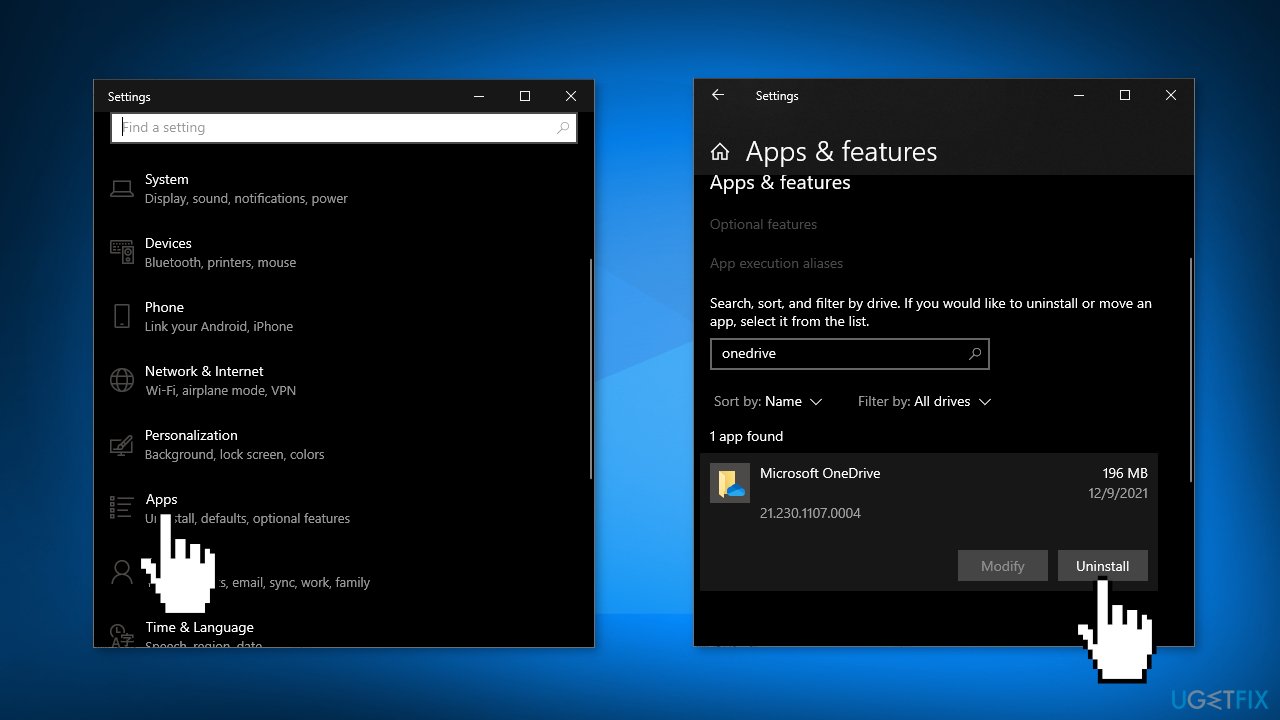
- Press the Windows key + I to open Settings
- Click on Apps, then Apps & Features
- Type OneDrive in the search box
- Click on Microsoft OneDrive and Uninstall
- Now open the Microsoft Store on your computer
- Search for OneDrive, click Get and Install
Bottom line
To fix the 0x80070185 error in OneDrive, you can try restarting OneDrive, which involves closing it from the Taskbar and reopening it. If the issue persists, consider using a maintenance tool to address various system errors. If none of these solutions work, further troubleshooting may be necessary.
Frequently asked questions
The 0x80070185 error typically indicates that OneDrive is unable to sync files due to a conflict or a missing file path. This can happen if the files have been moved or if there are issues with your OneDrive installation.
To fix this error, try unlinking and then relinking your OneDrive account through the settings, or check for any updates for OneDrive and install them. Additionally, ensure that the files you are trying to sync are still in their original location.
To minimize the chances of encountering the 0x80070185 error in Windows 11, regularly check that your OneDrive app is up to date and avoid moving files that are currently being synced. Keeping your system and application settings optimized can also help.




Report an issue
What's wrong with this guide? We review every report and update or remove content.
Report received — thank you. We'll review and fix it.
You need a free account to submit a report.
Be the first to comment