How to fix
Windows 10 Update Error Code 0x800705b4
on Windows
Resolve Windows 10 Update Error Code 0x800705b4 quickly with expert-tested fixes. Get back to seamless updates today—zero traces left!

What causes How to Fix Windows 10 Update Error Code 0x800705b4?
- Inner Windows system problems
- Uninstalled Office updates (2010 or 2013)
- Leftovers from previous Office versions
- Software conflict with third-party anti-malware
- Issues with the Windows Update service
Repairs Windows system files, removes malware, and restores a clean OS state — without reinstalling.
I upgraded from Windows 8 to 10 a couple of weeks ago. Up till now, everything worked perfectly, but yesterday I’ve noticed that the system is neither able to check for updates nor install them since the day I’ve upgraded the OS. The attempt to run Check for Updates in Windows Updates ends up with an error message 0x800705b4. Is this issue already acknowledged? Could you please provide any fixes? Thanks!!
0x800705b4 Error Code is one of the Windows 10[ref en-1] Update errors. The first occurrence of this bug has initially been registered in 2015 soon after the release of the Windows Anniversary Update. However, it seems that Microsoft did not solve it as its second wave of occurrence has been registered at the beginning of December 2016 after the release of Cumulative Update for Windows 10 for x64-based Systems (KB3081424).
While lots of people are asking for help to fix this bug and expresses the anxiety due to Microsoft’s unresponsiveness towards this issue, there is no patch released yet, as well as none of the officially approved fixed provided. Nevertheless, IT engineers are active enough, so there is a variety of 0x800705b4 error fixes presented on various IT forums.
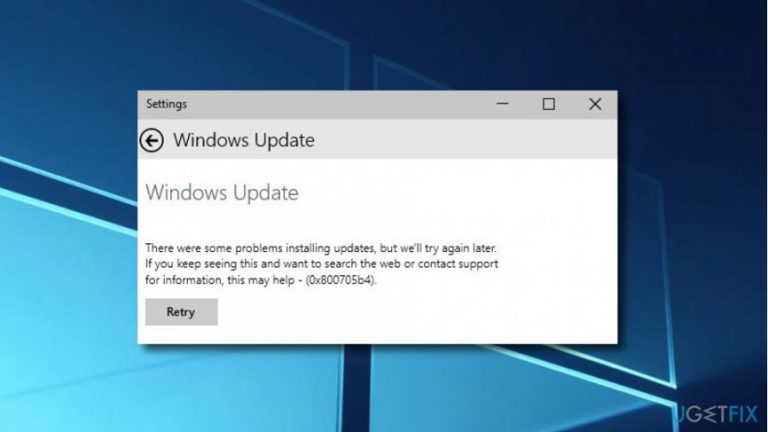
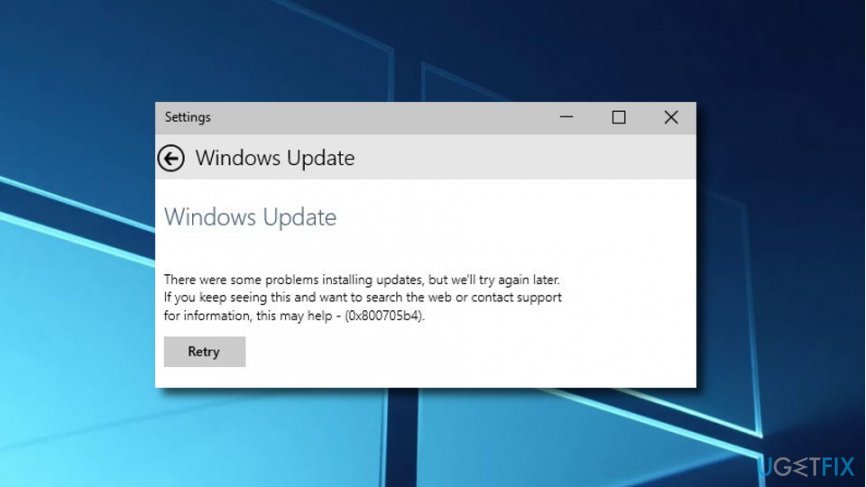
While the exact cause of 0x800705b4 Update Error is not clear, specialists point out that the problem is triggered by some kind of inner Windows system problems. As the full error message states, “There were some problems installing updates, but we'll try again later. If you keep seeing this and want to search the web or contact support for information, this may help: (0x800705b4).”
It indicates the fact that the available updates have successfully been downloaded, but cannot be installed due to a system distraction. According to people who have been issuing this bug, it is all related to Office (2010 or 2013) updates, which might haven't been installed or there might be some leftovers from the previous Office versions. Besides, there may be a software conflict between the update and the third-party[ref en-3] anti-malware.
Of course, there might be other reasons, but these are by far the most commonly discussed. Hoping that Microsoft is going to resolve Windows 10 Update Error 0x800705b4, you can try to perform several fixes before that happens. Down below, we will provide the most useful solution methods that we’ve managed to come up with.
How to Fix Windows 10 Update Error Code 0x800705b4?
There are many fixes provided on the Internet that apply to Windows 10 update bugs in general. The most common are: run DISM too, run sfc / scannow, run Windows Update Troubleshooter, reset Windows Update components manually, disable antivirus software, and similar. Unfortunately, 0x800705b4 error causes might differ in each case; therefore, different solution methods apply to each computer owner. Therefore, try each fix provided below until you get 0x800705b4 error removed.
Our recommendation would be to start from the very general fixes. Several PC owners reported that they’ve managed to work around this bug by disabling Windows Defender. In addition, disabling anti-virus software,[ref en-2] especially third-party one, is also worth given a try. Moreover, it’s always worth installing a PC optimization tool, such as [d1] to check for registry[ref en-4] issues, damaged system files, leftovers, etc. If the error 0x800705b4 keeps reappearing on Windows Update, then you can further try:
Method 1. Change Update & Security settings
- Navigate to Start -> Settings -> Update & Security -> Advanced options.
- Find the option Give me updates of other Microsoft products when I update Windows and uncheck it.
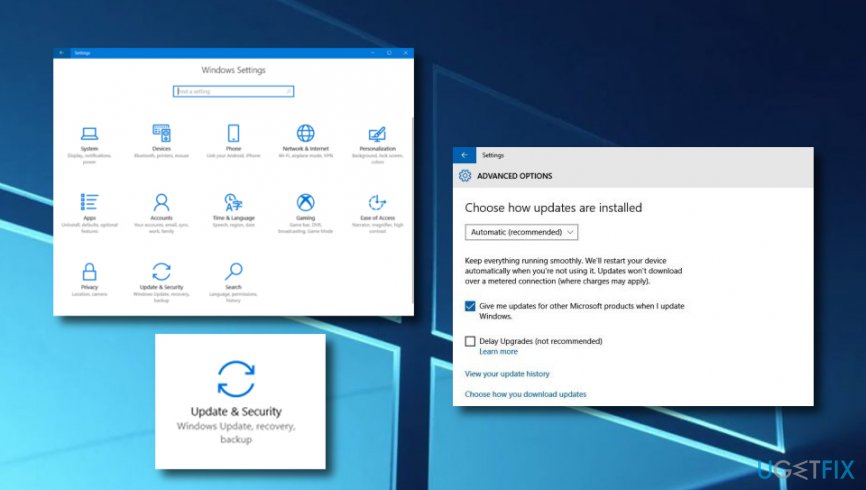
Method 1 for windows fix - After that, check for Updates and Run the ones that are available.
- If the updates have successfully installed, repeat the first two steps, except that you have to mark the Give me updates of other Microsoft products when I update Windows option.
Method 2. Restart Windows Update services
- Click Win key + R, type services.msc, and click Enter.
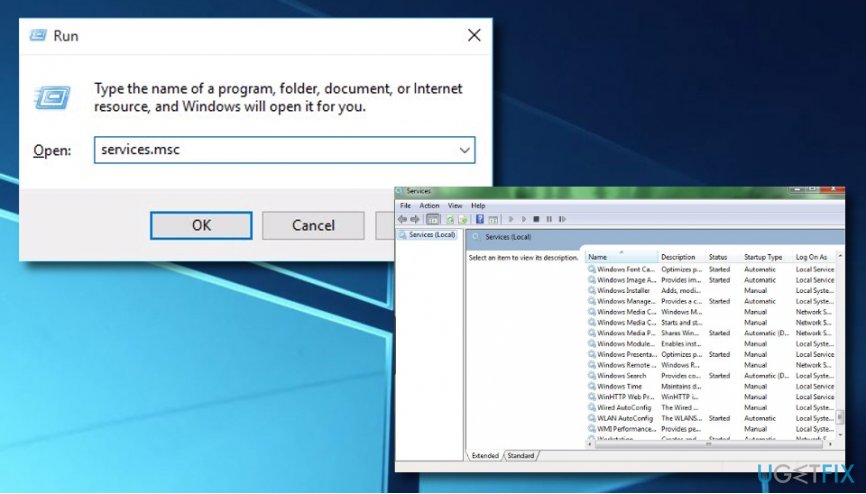
Fixing method 1 on windows - Locate Windows Defender service.
- If the status of Windows Defender is not indicated (the column is blank), right-click on it, and select Start.
- It might be that force start of Windows Defender ends up with an error. In this case, find the option Startup Type, and set it to Automatic.
- Finally, restart the system and try to run the update.
Method 3. Run sfc /scannow
- Click Win key + X and select Command Prompt (Admin).
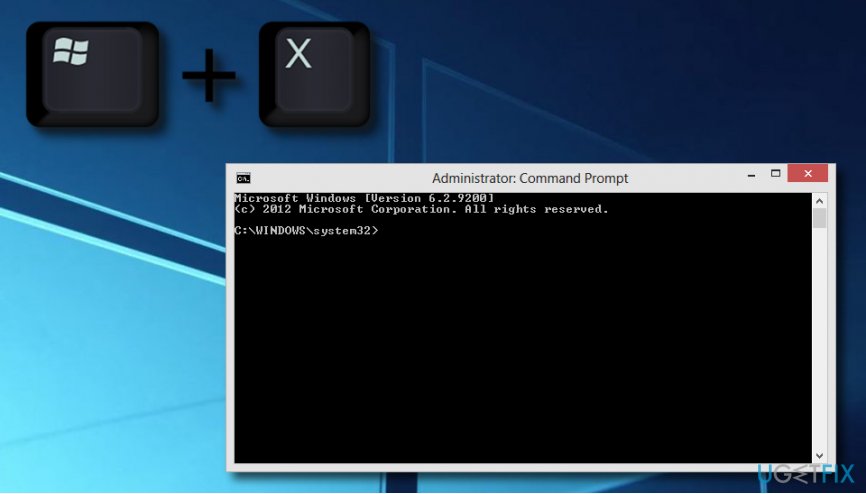
Fixing method 3 on windows - Type sfc /scannow command and press Enter.
- Wait for the system to execute the scan and repair issues. After that, restart the system.
Method 4. Run the DISM Tool
- Right-click on Win key and select Command Prompt (Admin).
- Click OK on the UAC window or type in your admin password if required.
- Then type the following command in the Command Prompt window and press Enter after each of them:
DISM.exe /Online /Cleanup-image /Scanhealth
DISM.exe /Online /Cleanup-image /Restorehealth - Close Command Prompt and try to install the updates.
Method 5. Manually reset Windows Update components
- Click Win key + X and select Command Prompt (Admin).
- Now disable BITS, Cryptographic, MSI Installer, and the Windows Update Services. For this purpose, type the following commands in the Command Prompt window and press Enter after each of them:
net stop wuauserv
net stop cryptSvc
net stop bits
net stop msiserver - After that, type the following commands to rename SoftwareDistribution and Catroot2 folders. Don’t forget to type Enter after each of them:
ren C:\\Windows\\SoftwareDistribution SoftwareDistribution.old
ren C:\\Windows\\System32\\catroot2 Catroot2.old
Once done, enable BITS, Cryptographic, MSI Installer and the Windows Update Services (disabled before). This can be done by inputting the following command and pressing Enter after each of them:
net start wuauserv
net start cryptSvc
net start bits
net start msiserver - Finally, close Command Prompt window and reboot your PC.
Method 6. Fix the issue by running the Windows Update Troubleshooter
If the previous methods did not give you any results, you can try performing the fix by running the Windows Update Troubleshooter. Make sure that you complete each below-given step exactly as shown in the instructions:
- Go to your Windows search section and type in "Troubleshoot".
- Ones you see the app, press Enter.
- On the left side select View All.
- Choose Windows Update from the menu.
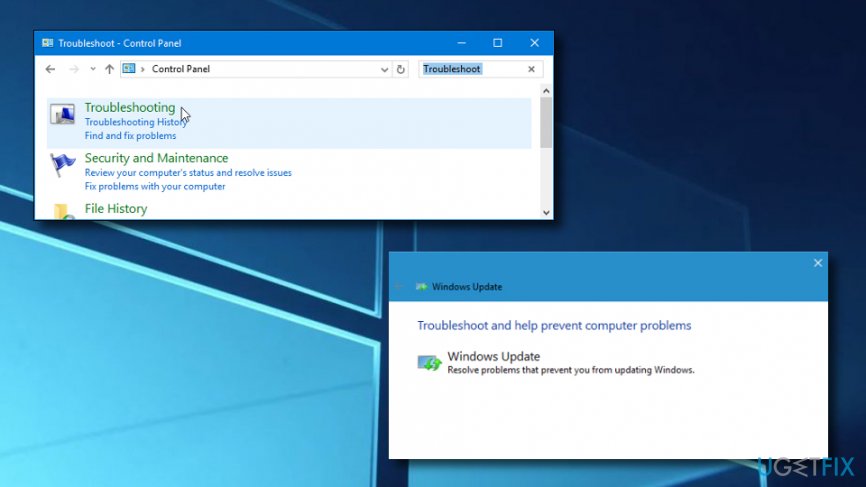
Fixing method 6 on windows - After that, click Advanced and Next.
- Then, select Advanced and Run as an Administrator.
- Check if the Apply repairs automatically option is selected and press Next.
- Finish the troubleshooting operation by selecting Close.
- Click View detailed instructions.
Bottom line
To fix the 0x800705b4 error, users can try reinstalling Office updates, removing remnants of old Office versions, and checking for conflicts with third-party anti-malware. If these solutions do not resolve the issue, it is advisable to seek further assistance from IT forums or contact Microsoft support.
Frequently asked questions
The error code 0x800705b4 typically indicates that a Windows update is failing due to a timeout or a problem with the Windows Update service. This can often happen if the update process is unable to communicate with the update server.
To resolve the 0x800705b4 error, try running the Windows Update Troubleshooter, which can automatically detect and fix common issues related to updates. Additionally, resetting the Windows Update components may also help in resolving this error.
Yes, the troubleshooting steps for fixing error 0x800705b4 are similar in both Windows 10 and Windows 11, including using the Windows Update Troubleshooter and resetting the update components.




Report an issue
What's wrong with this guide? We review every report and update or remove content.
Report received — thank you. We'll review and fix it.
You need a free account to submit a report.
Be the first to comment