How to fix
Service Control Manager Error 7001
on Windows
Resolve Service Control Manager Error 7001 on Windows 10 and 11 effortlessly. Get expert-tested solutions for a seamless experience—fixed in minutes!


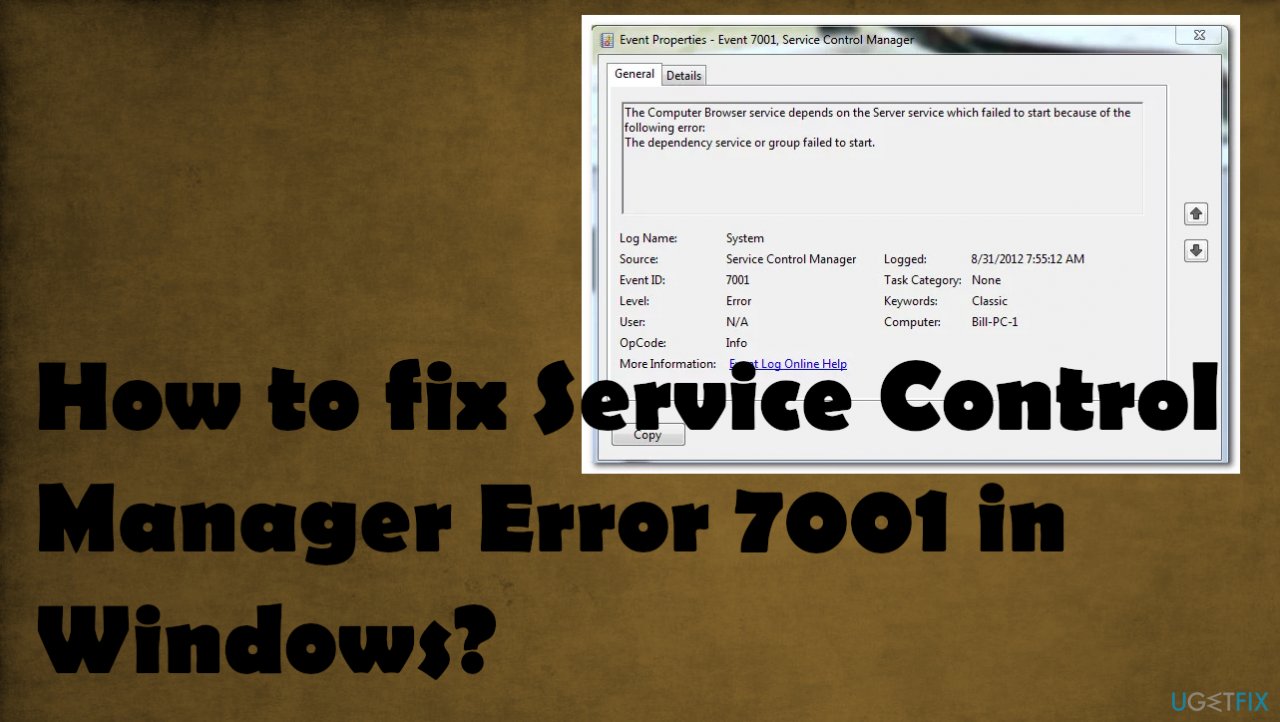
What causes How to fix Service Control Manager Error 7001 in Windows?
- Disabled mandatory services
- Missing network discovery dependencies
- Recent software conflicts
- Missing or corrupted system files
- Malware causing file changes
Repairs Windows system files, removes malware, and restores a clean OS state — without reinstalling.
Hello. My laptop fails to run normally and gives me the Error 7001. This is the service or server error, as I have read, but fixes that I have already found do not help my situation. Do you have any suggestions?
Service Control Manager Error 7001 is a problem appearing on Windows 10 mainly. The freeze of the system occurs due to this issue. Some of the users who reported the issues[ref en-1] mention the upgrade of the operating system, other additional issues experienced with the problem, and the fact that clean install sometimes is the possible trigger for this.
There are particular services that can deliver the error code. Microsoft services like NNTP, SMTP, browser services, FTP publishing, or World Wide Web publishing services, and many more. The problem still can occur on Windows 7, 8.1 machines besides Windows 10. However, additional issues with the updates and bugs in Windows 10[ref en-2] can lead to a more common occurrence.
There are several culprits for the issue, so solutions also vary. Service Control Manager Error 7001 in Windows can be caused by the disabled mandatory services, missing network discovery dependencies. Recent conflicts between software or missing, corrupted system files can also lead to issues with the freezes and system crashes.
There are various circumstances when the system files get corrupted because malware[ref en-3] can leave files and changes on the machine that lead to the problems. Some problems can be fixed with the app like [d1] that finds and repairs these corrupted or changed files to recover the performance and particular functions.
Other solutions for the Service Control Manager Error 7001 in Windows might include using the services screen and enabling the handful of essential services. Running commands via CMD can clear other possible triggers for the issue. These fixes are related to the reason behind your particular issue, so make sure to follow the steps and try the methods below.
Method 1. Enabling mandatory services
- Press Windows key + R to open up a Run dialog box.
- Type services.msc inside the text box and press Enter to open up the Services screen.
- Scroll down through the list of services and locate DCOM Server Process Launcher.
- Right-click on it and choose Properties from the context menu that just appeared.
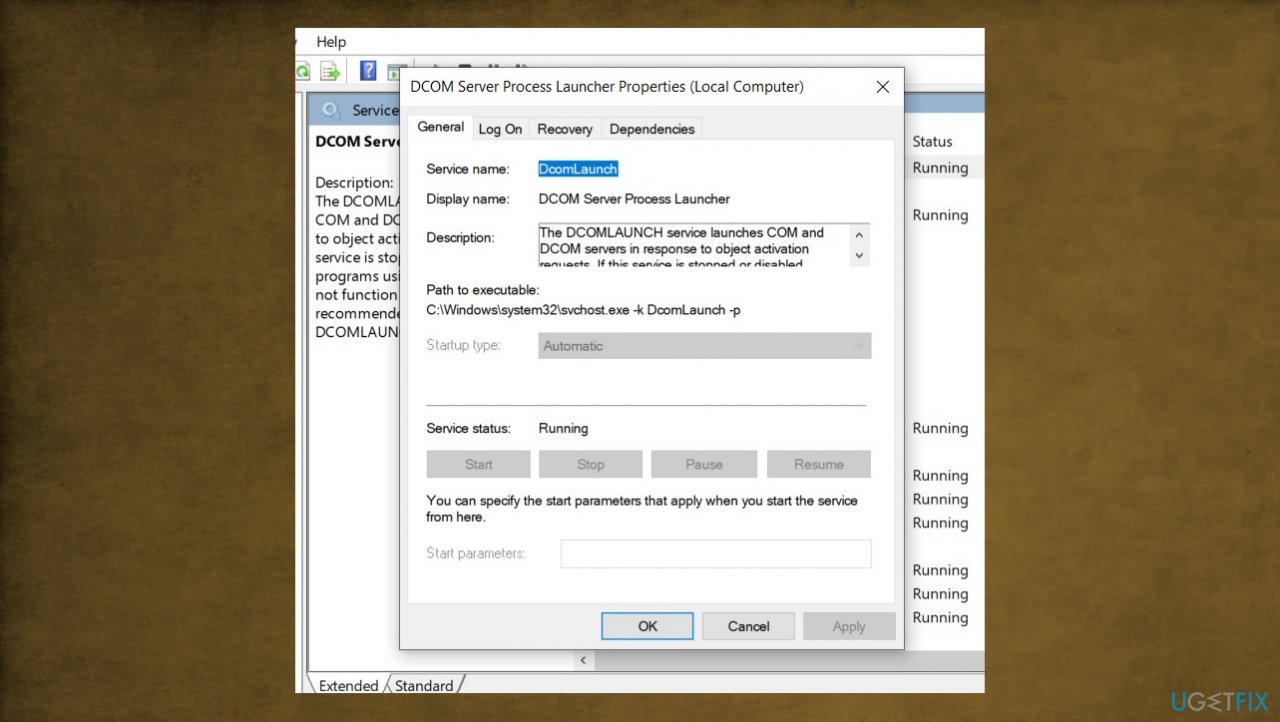
Service control manager error 7001 dcom - Click on the General tab and ensure that the Startup tab is set to Automatic.
- Check the Service status and click on Start if it shows as Stopped.
- Click on Apply to save the changes.
- Once the first problematic service is dealt with, repeat steps 3 and 4 with the remaining services:
RPC Endpoint Mapper
Remote Procedure Call (RPC)
Security Accounts Manager
Server - Reboot your computer and wait for the next startup to complete.
Method 2. Fix the network Discovery Dependencies
- Press Windows key + R to open up a Run dialog box.
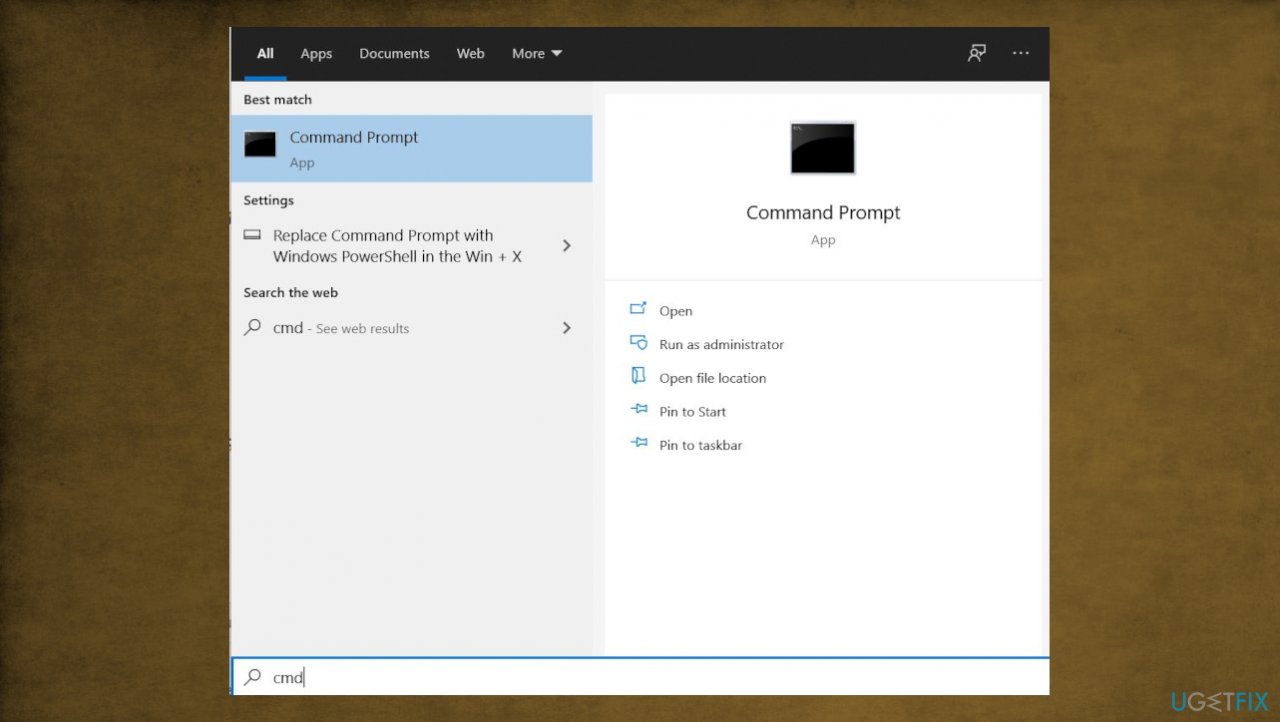
Service control manager error 7001 cmd - Type cmd inside the text box, then press Ctrl + Shift + Enter to open up an elevated Command Prompt.
- When prompted by the UAC (User Account Control), click Yes to grant admin access.
- Type the following commands and press Enter after each one:
net localgroup Administrators localservice /add
net localgroup Administrators service /add - Once both commands have been successfully processed, open File Explorer and navigate to the following location:
C:\\Windows\\ServiceProfiles\\LocalService\\AppData\\Roaming\\PeerNetworking - Once you’re inside the PeerNetworking folder, press Ctrl + A to select everything inside.
- Right-click on a selected item and choose Delete from the context menu that just appeared.
- Restart your computer.
Method 3. Use System restore
- Type in Create a Restore point in Windows search and hit Enter.
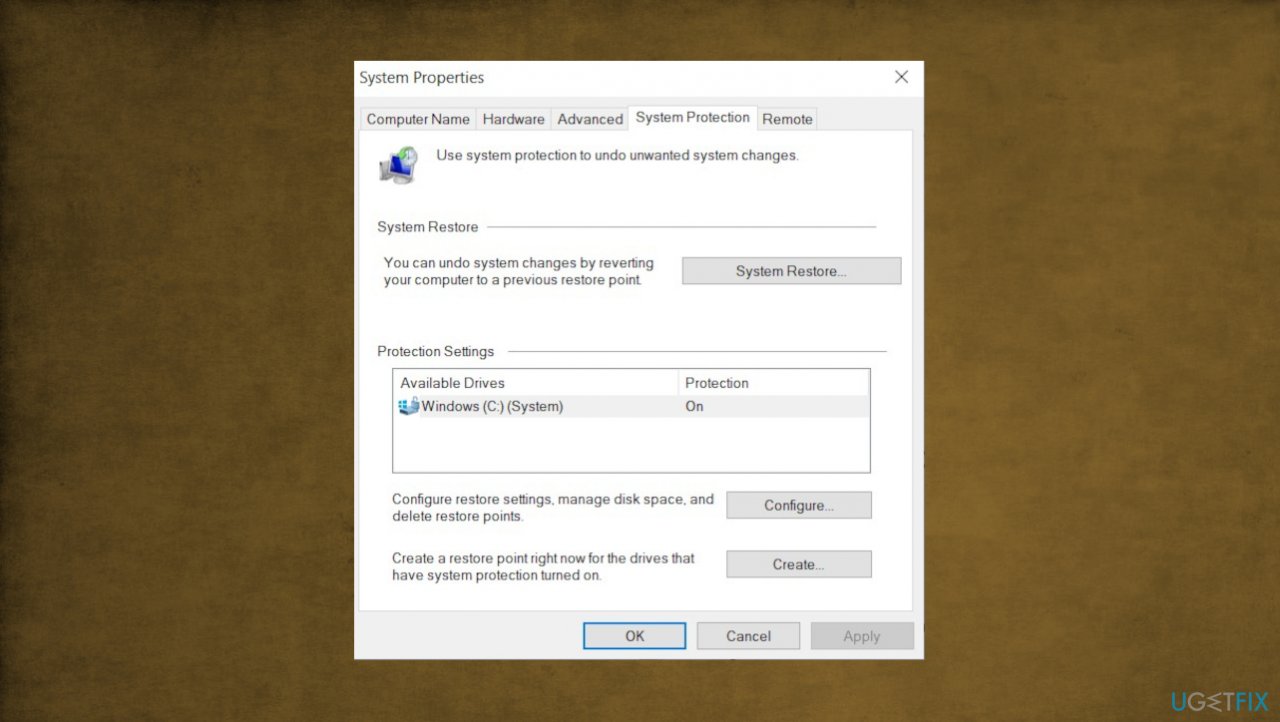
Service control manager error 7001 system properties - Go to the System Protection tab and choose System Restore.
- Click Next.
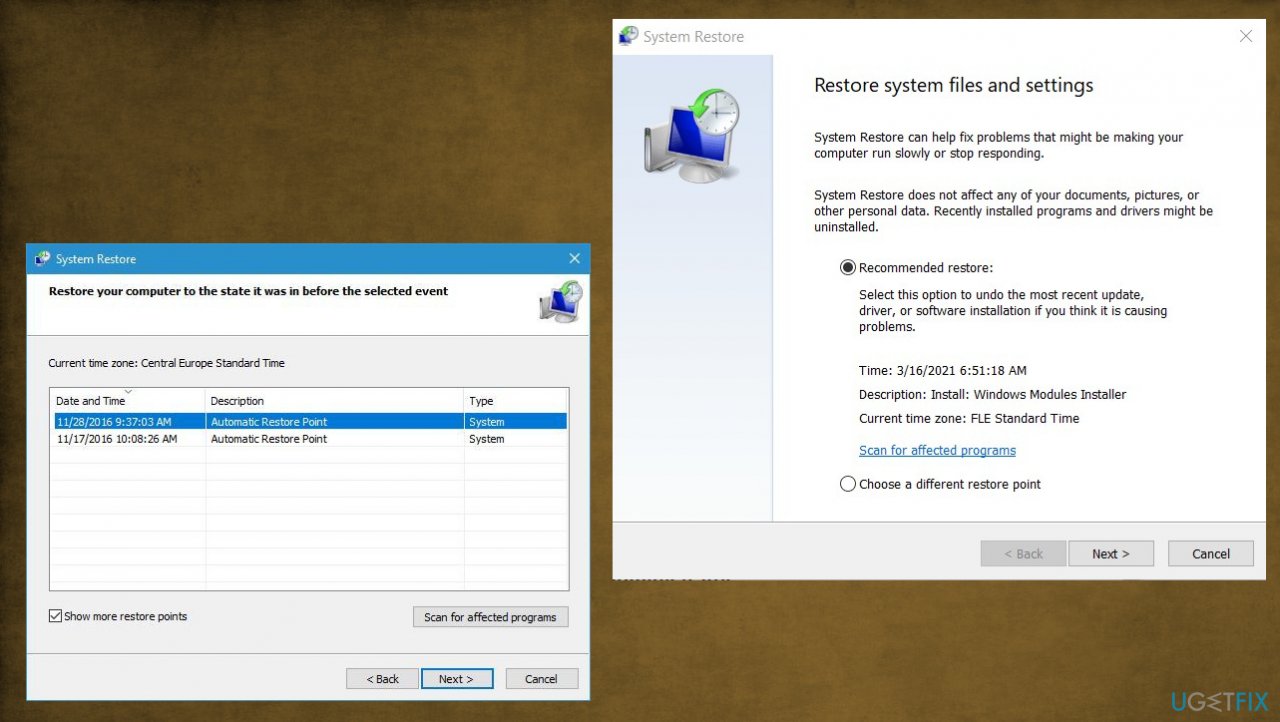
Service control manager error 7001 restore - Click Show more restore points.
- Pick the time before the problem occurred and click Next.
- Follow up the process with a PC reboot.
Method 4. Enable the Net.tcp port sharing service
- Type
services.mscin the Run dialog box and click OK. - Scroll down the list and locate Net.Tcp Port Service.
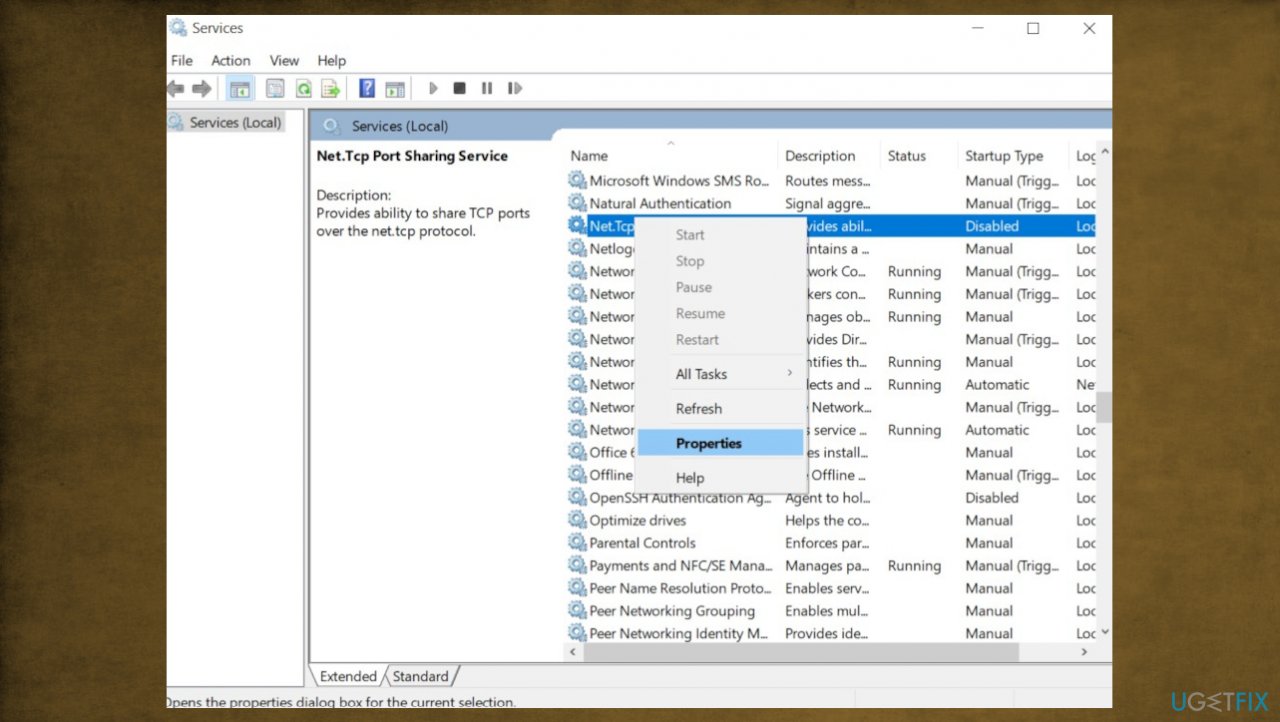
Service control manager error 7001 properties - Right-click on it and select Properties.
- Choose the startup type as Automatic.
- If it is stopped, click on the Start button and then click OK.
- Restart your computer.
Bottom line
To fix Service Control Manager Error 7001, you can enable mandatory services, use a repair app for corrupted files, or run commands via CMD to address potential triggers. If these methods do not resolve the issue, further investigation into specific system configurations may be necessary.
Frequently asked questions
This error typically occurs due to issues with service dependencies, such as a service not starting or being disabled. It can also result from corrupted system files or incorrect registry settings.
You can troubleshoot this error by checking the affected service's properties, ensuring all dependent services are running, and using the System File Checker tool to repair any corrupted files.
To prevent this error, make sure your Windows 10 system is up to date, regularly check for service dependencies, and avoid disabling critical services that other services rely on.




Report an issue
What's wrong with this guide? We review every report and update or remove content.
Report received — thank you. We'll review and fix it.
You need a free account to submit a report.
Be the first to comment