How to fix
Printing error 0x00000505
on Windows
Resolve the printing error 0x00000505 on Windows 10 or Windows 11 quickly and easily. Expert-tested solutions ensure your printer works flawlessly.

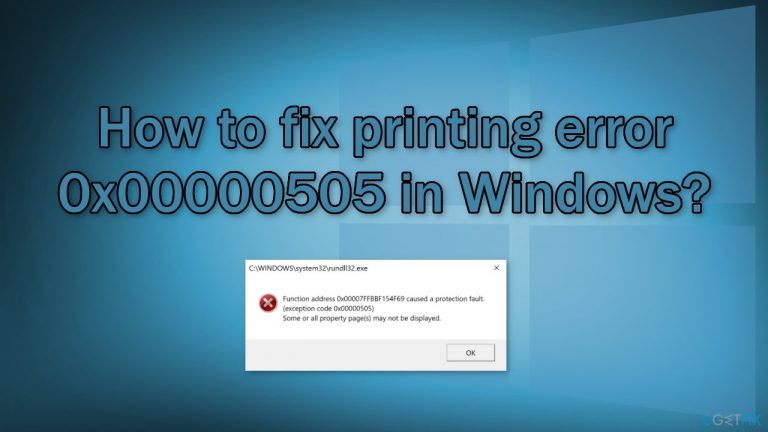
What causes How to fix printing error 0x00000505 in Windows?
- Reversion to Windows 10 may have corrupted the system
- Printer driver may be outdated after the upgrade
- Issues with the grayscale printing function
- Compatibility problems due to the Windows 11 upgrade
- General system component damage
Repairs Windows system files, removes malware, and restores a clean OS state — without reinstalling.
Hello. After restoring my system back to Windows 10 from Windows 11, I have encountered a printing error 0x00000505 when I tried the grayscale function. What should I do?
Windows is one of the most popular operating systems in the world. The newest version - Windows 11 was recently released. However, not all people wanted to stay with it after upgrading and decided to revert back to Windows 10. This seems to have caused various issues for users.
Some people have been experiencing a printing error 0x00000505. People report that their printers have been working fine before the upgrade. The error seems to appear when people try to use the grayscale[ref en-1] function. With grayscale printing, the device can reproduce color images as high-quality black and white images by using many shades of gray to represent subtle variations in color and light.
This printer function can be very important to professionals in various fields. It is unknown what exactly could cause the 0x0000050 error but it is clear that it is related to the Windows 11 upgrade. The reversion to Windows 10 could have been corrupted or after the upgrade, the printer driver has been outdated. In this guide, we will present you with 4 solutions that could fix the problem.
Trying to fix this issue could take a while, so you can try using [d1] repair tool to avoid going through all the possibilities. It can identify the damaged system components, fix BSODs,[ref en-2] corrupted files, and registry issues by scanning the system. This software could also be used to free up space by clearing cookies and cache,[ref en-3] which should boost the device's performance.
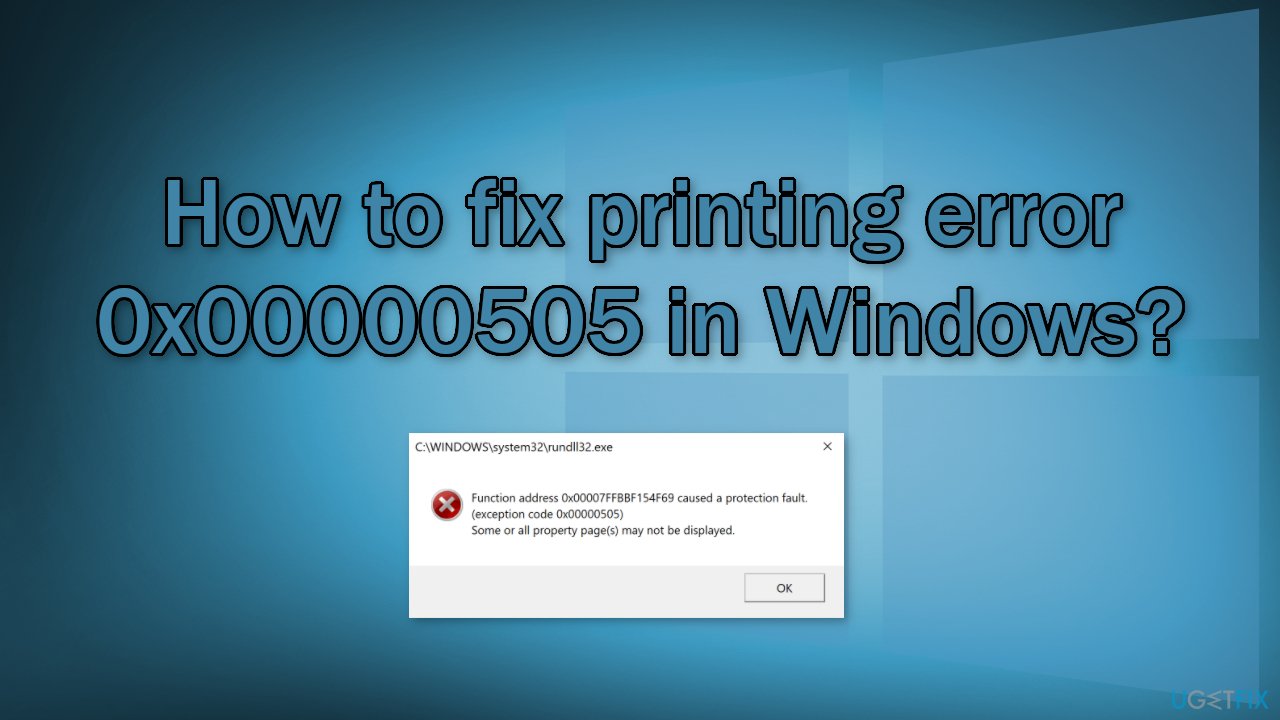
Below you will find a manual guide that could fix the printing error 0x00000505 in Windows. Please follow the steps carefully:
Solution 1. Run Printer Troubleshooter
- Click Start and select Settings
- Go to Update and Security
- Click the Troubleshooter tab and select Additional troubleshooters
- Scroll down and click on Printer
- Click the Run the troubleshooter button
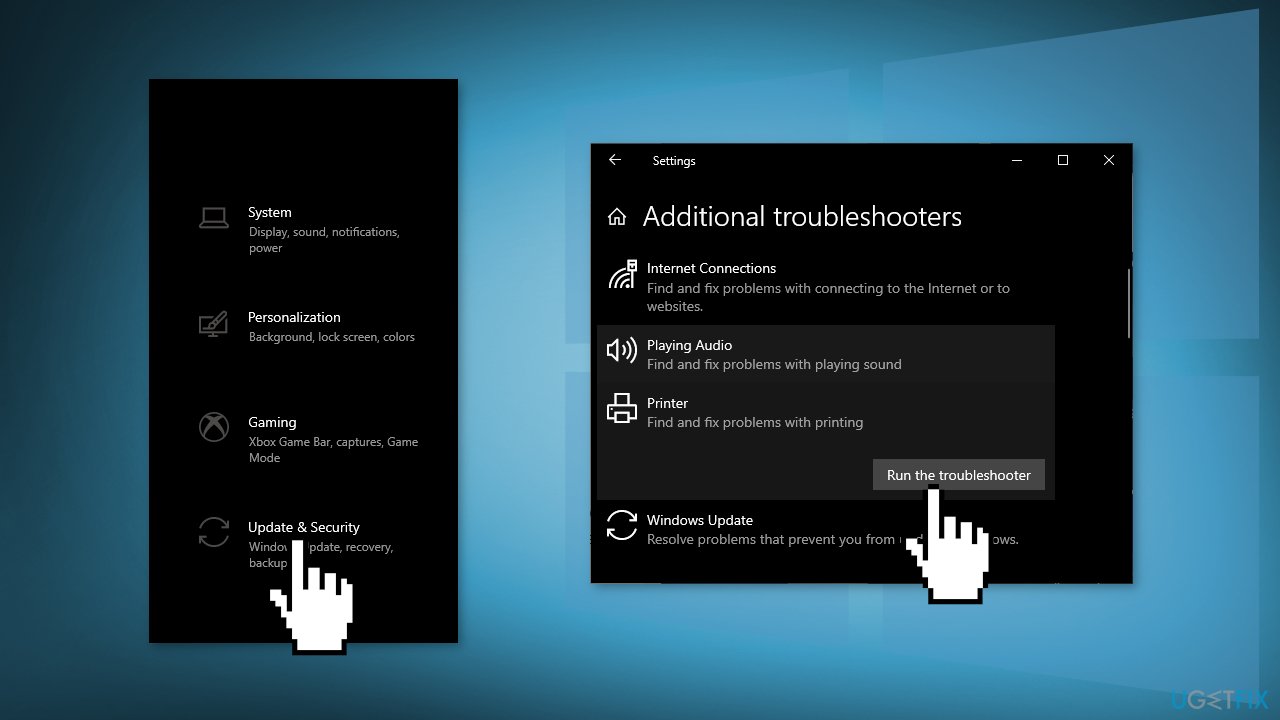
- Follow on-screen instructions and apply any recommended fixes
Solution 2. Update Printer Driver
You can go to the support page for your printer on the manufacturer's website, and install the device drivers and software they provide. You can also use a tool like [rev id="DriverFix"] that will search for the best drivers and install them automatically. Alternatively, you can update the printer driver via Device Manager:
- Press Windows key + X to open the Power User Menu
- Press M key to open Device Manager
- Expand/collapse the Print queues section
- Right-click on the printer that you’re having issues with and choose Update driver
- Click on Search automatically for drivers
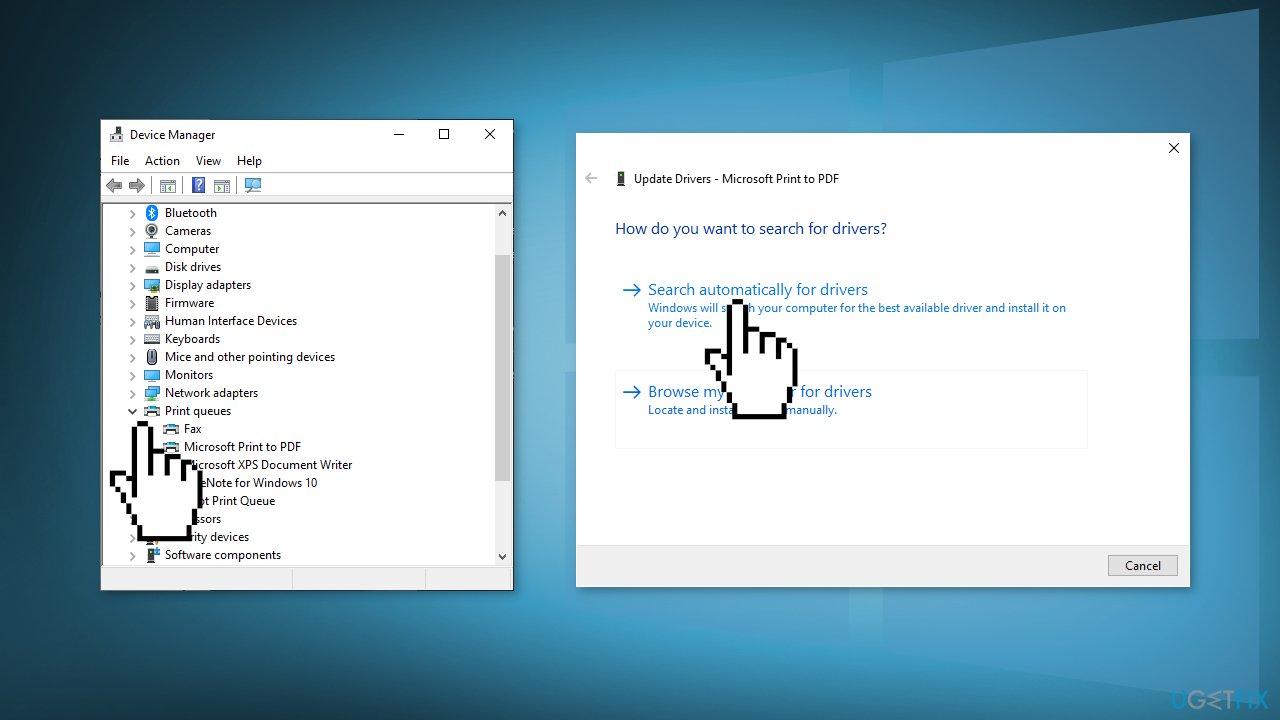
- If a new driver version is found, follow the on-screen instructions
- Restart your device
Solution 3. Perform a Root Uninstall
- Search for Programs and features
- Select your Printer and select Uninstall
- Open Devices and printers
- Look for your printer. Right-click on it and choose Delete or Remove Device
- Open up the run command with the Windows key + R key combo.
- Type printui.exe /s and click Ok
- Click on the Drivers tab and look for Printer driver
- Click on it and click Remove at the bottom
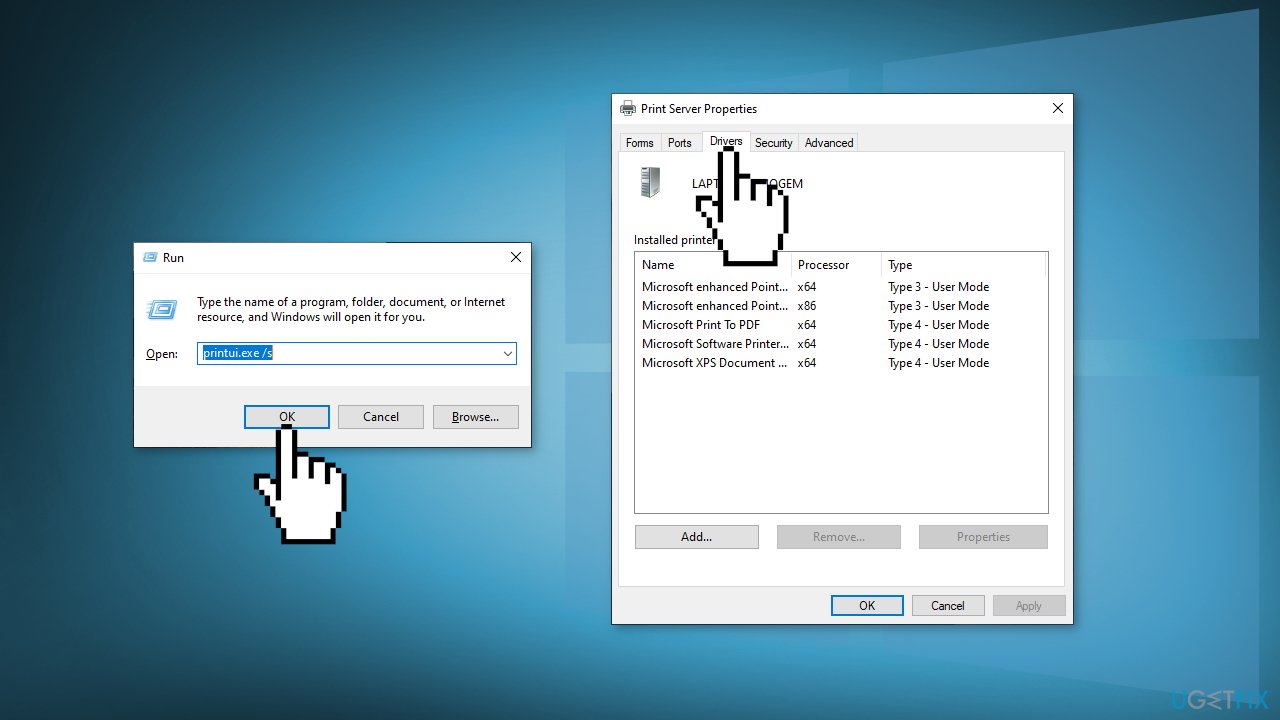
- Select Apply and Ok on the Print Server Properties window
- Open up the run command with the Windows key + R keys
- Type c:/programdata and click Ok
- Go to Hewlett Packard folder, remove any printer related folders & files
- Restart the computer
Solution 4. Repair Upgrade
- Download Media Creation Tool from Microsoft
- Mount the ISO image file, double-click on the mounted driver, and double-click on the setup.exe application
- In the Choose what to keep window, select Keep personal files and apps and click Next
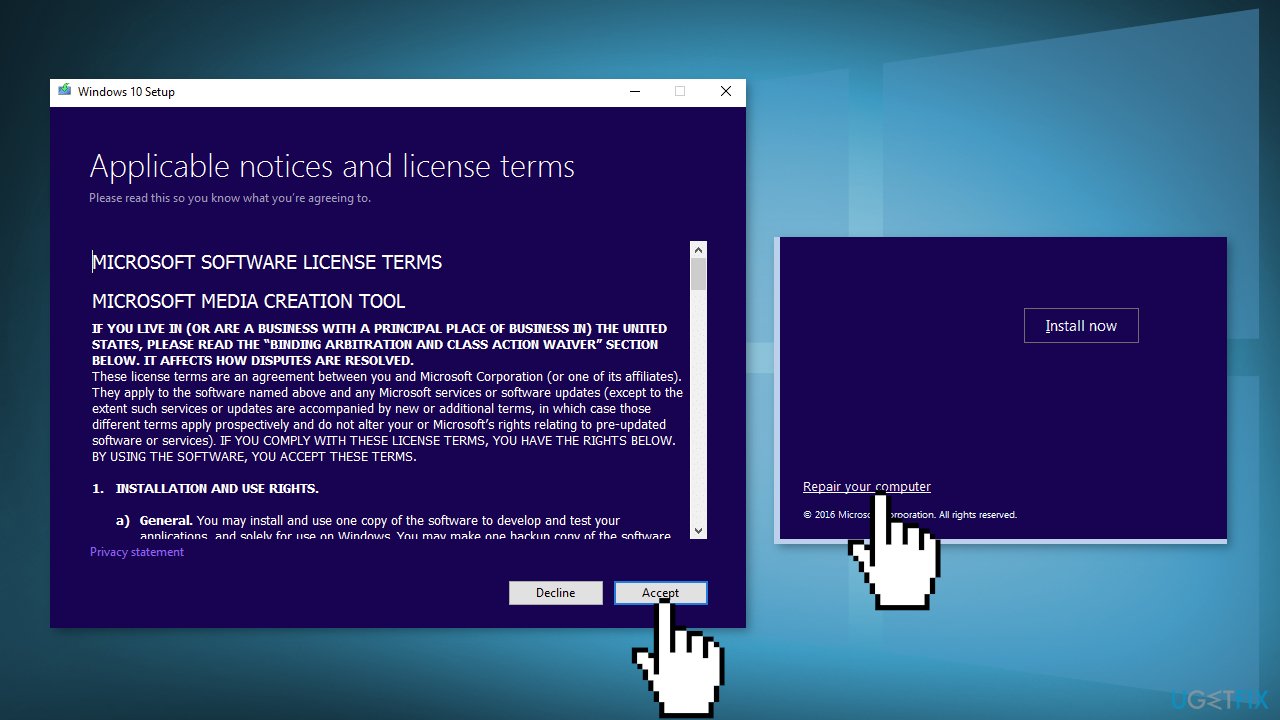
- Click the Install button to begin
- Wait for the installation to complete
Bottom line
To fix the printing error 0x00000505, you can run the Printer Troubleshooter and update the printer driver. If these solutions do not resolve the issue, consider using a repair tool to identify and fix any underlying system problems.
Frequently asked questions
This error typically arises due to issues with printer drivers, incorrect printer settings, or connectivity problems between your computer and the printer.
You can update your printer drivers by going to Device Manager, locating your printer under 'Printers', right-clicking it, and selecting 'Update driver' to search for the latest version.
Yes, restarting your Windows 10 or Windows 11 computer after making changes to printer settings or drivers can help ensure that all updates take effect properly.




Report an issue
What's wrong with this guide? We review every report and update or remove content.
Report received — thank you. We'll review and fix it.
You need a free account to submit a report.
Be the first to comment