How to fix
Error 0x8004242d (Failed to format the selected partition)
on Windows
Resolve error 0x8004242d on Windows 10 and 11 effortlessly. Follow our expert-tested guide to fix partition formatting issues in minutes.

What causes How to fix error 0x8004242d (Failed to format the selected partition)?
- Inconsistency with the Master Boot Record
- Missing or corrupted important system files
- Conflict between BIOS and UEFI settings
- Issues with USB Boot support
- Problems with disk partitions
Repairs Windows system files, removes malware, and restores a clean OS state — without reinstalling.
Hello. I have tried to clean install my Windows 7 PC but I receive a message "Failed to format the selected partition" with an error code 0x8004242d. What should I do?
Disk partitions separate a single hard drive into multiple pieces. There is still technically a single drive, but if one partition has a problem, the whole disk will not fail. Users can create separate system, recovery, Windows, or data partitions. However, for some reason sometimes the system fails to format them which can lead to serious issues.
Some users have encountered "Error 0x8004242d (Failed to format the selected partition)" which has prevented them from installing Windows. This can be very annoying as people cannot use the device until the error is fixed. The error seems to occur when users try to format, merge or install the operating system using the installation media.[ref en-1]
This can be caused by a number of things. Firstly, there could be some kind of inconsistency with the Master Boot Record.[ref en-2] Important system files could be missing or corrupted. The 0x8004242d error can also appear due to a conflict between BIOS[ref en-3] and UEFI[ref en-4] settings. In this guide, we will show you how you can delete all partitions instead of reformatting them to fix the problem. We will also try to disable USB Boot support during the installation which has helped some people bypass the issue.
Maintaining a healthy system is very important if you want to avoid corrupted files, serious system errors, BSoDs,[ref en-5] and registry issues. A maintenance tool like [d1] can fix all of these issues automatically so your operating system maintains running smoothly. If you are ready to begin the troubleshooting process, you can proceed with the guide below to fix error 0x8004242d.
Method 1. Delete All Partitions
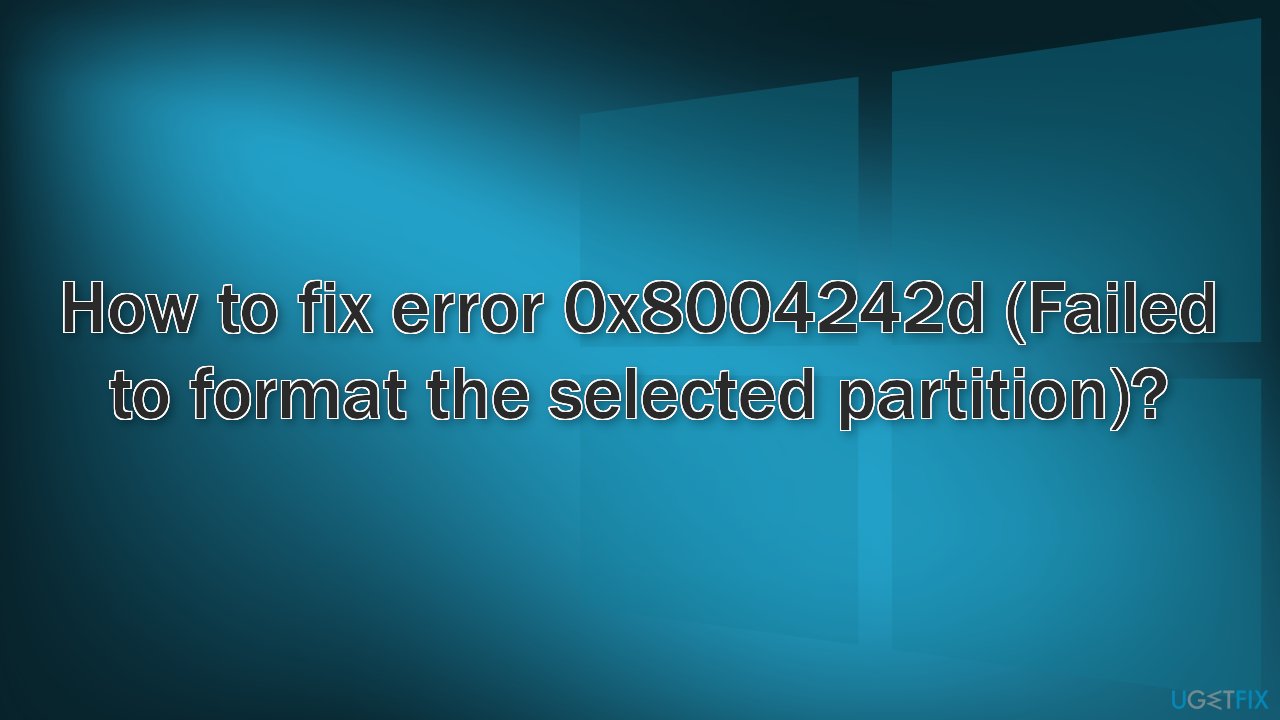
- Insert a compatible installation media and restart your computer
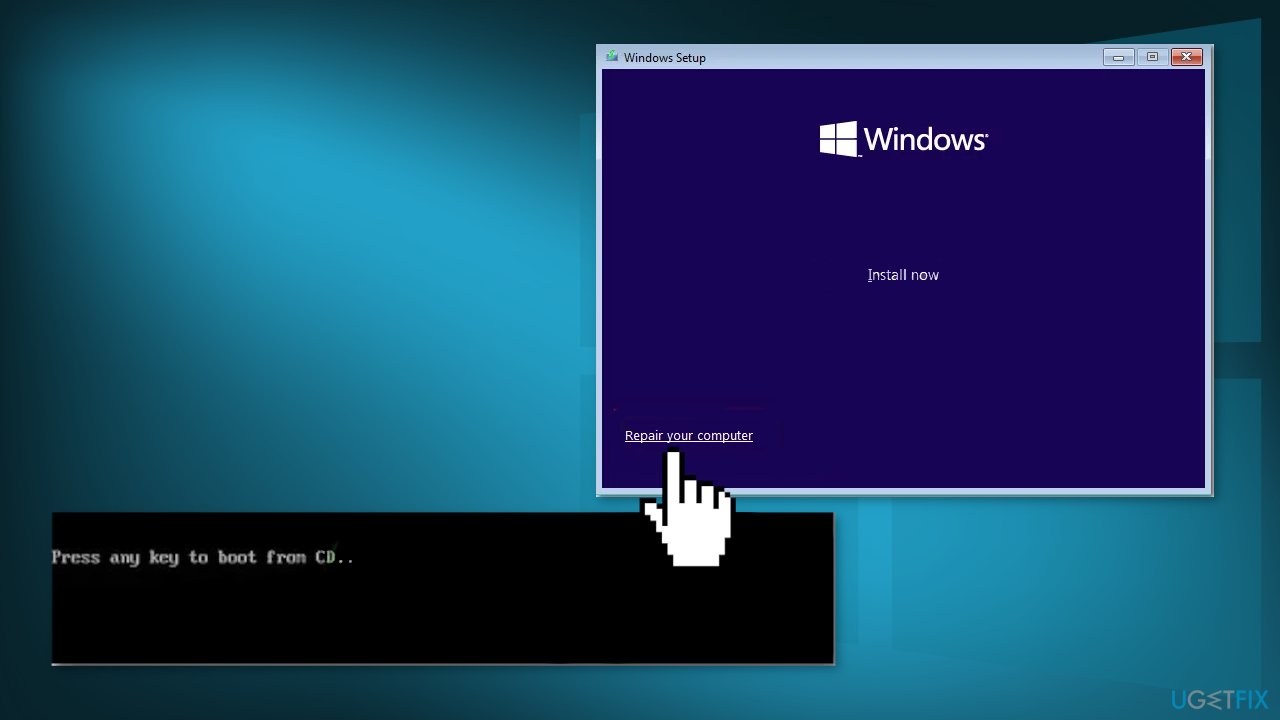
- Your computer will ask whether you want to boot from the installation media, to do this, press any key
- Click on Install now and proceed with the installation steps
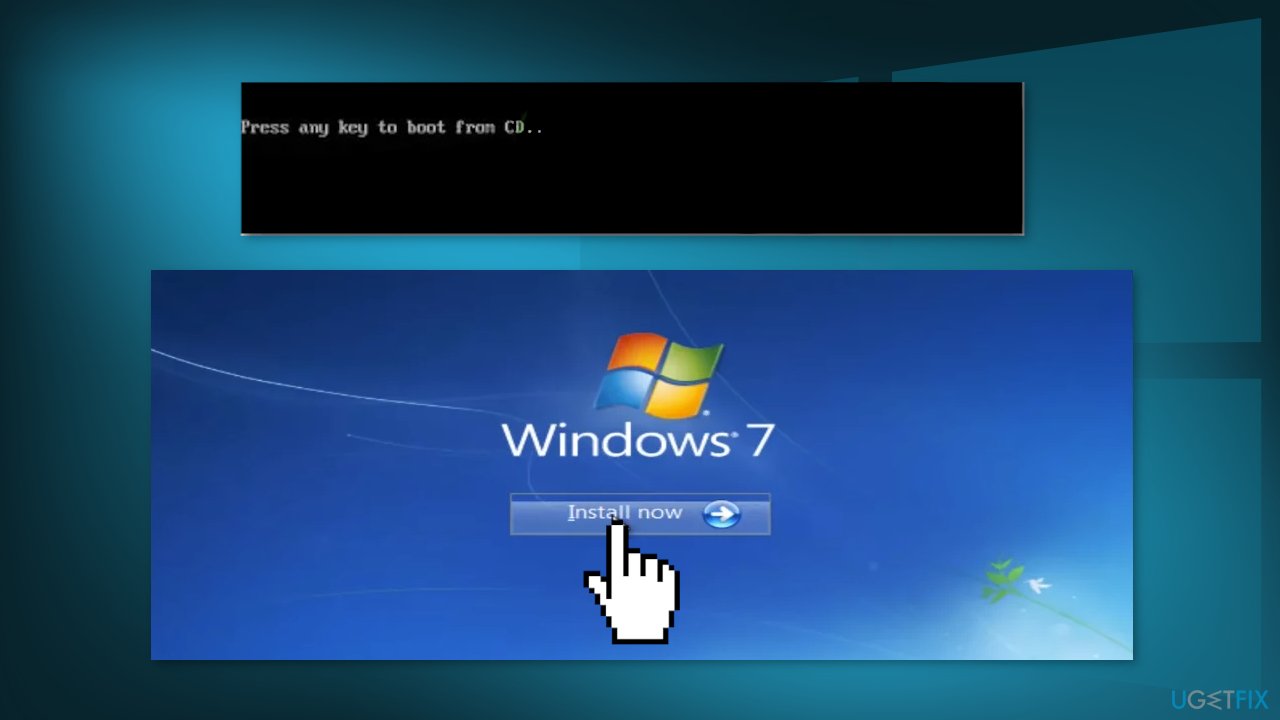
- Click on Custom: Install Windows only (advanced)
- Start selecting each partition individually and then click on Delete
- When asked to confirm the operation, click Yes
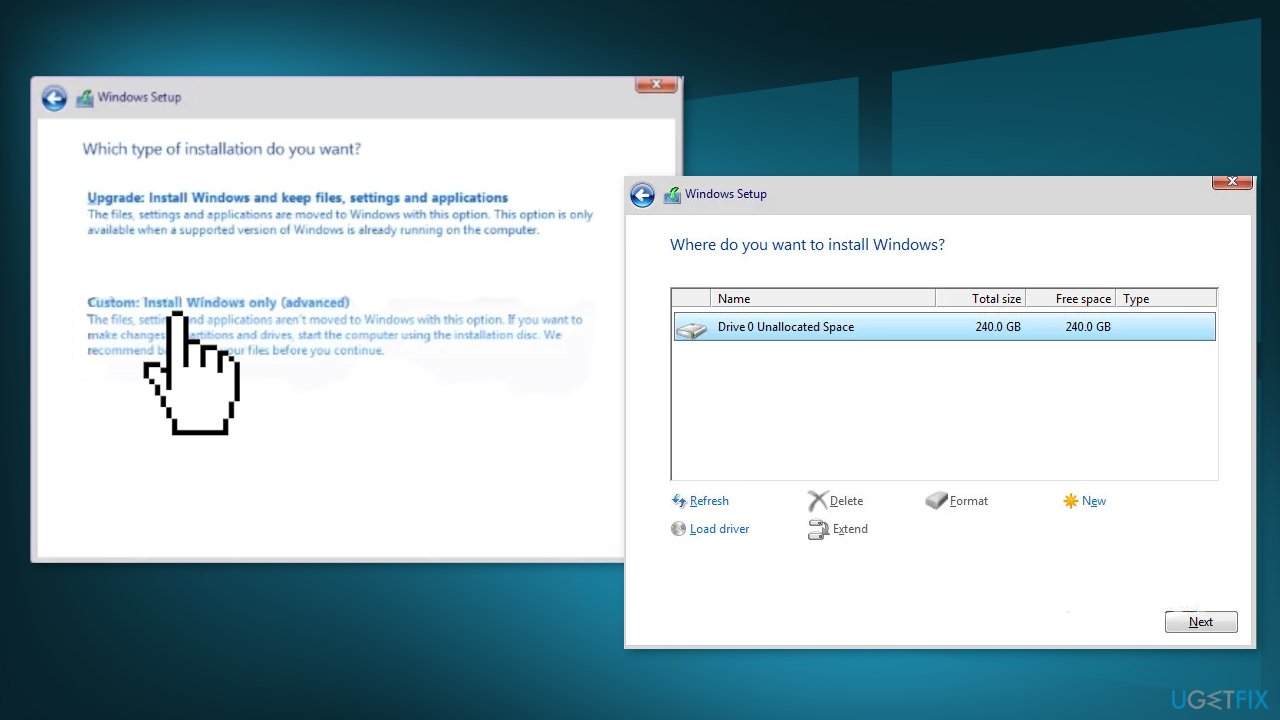
- Do this until you are left with a single Drive (0) of Unallocated Space
- You should now be able to create new partitions without encountering the 0x8004242d error
Method 2. Clean the Hard Disk
- Insert an installation media that’s compatible with your Windows version and restart your computer
- Press any key and click on Repair your computer
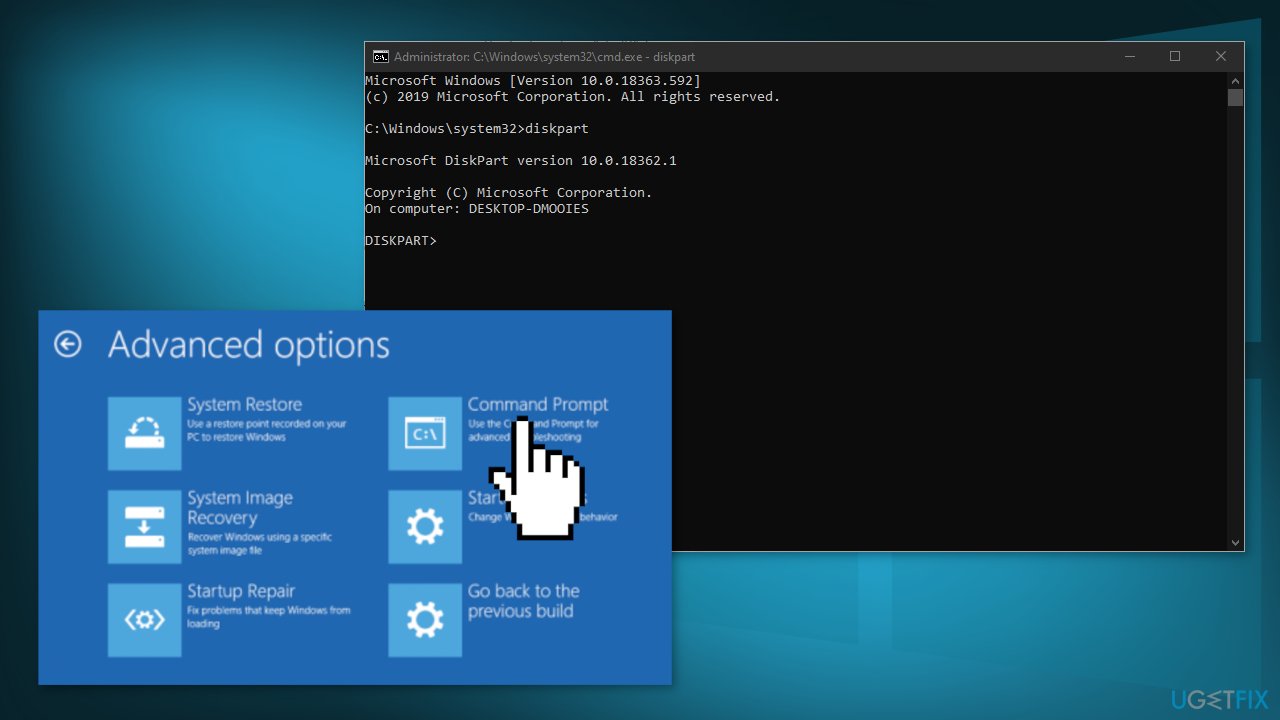
- Click on Troubleshoot and choose Command Prompt from the list of Advanced options
- Type diskpart and press Enter
- With the Diskpart utility opened, type the following command and press Enter:
list disk
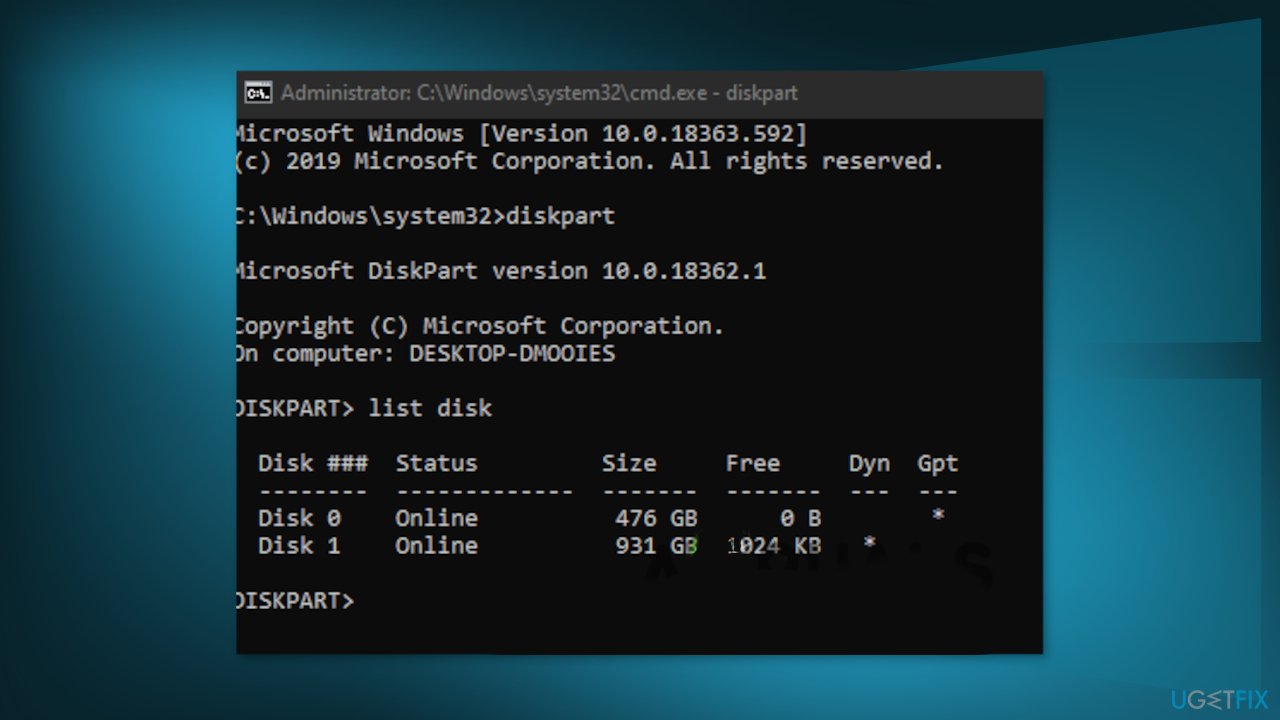
- Determine which one of the disks is causing the error
- Type the following command and press Enter:
sel disk *number*
- Type the following command and press Enter:
det disk
- Type the following command and press Enter to begin the cleaning of your disk:
clean all
- Type the following command and press Enter to exit the tool:
exit
- Close the Command Prompt window, restart your computer and return to the Disk selection screen
Method 3. Disable USB Boot Support
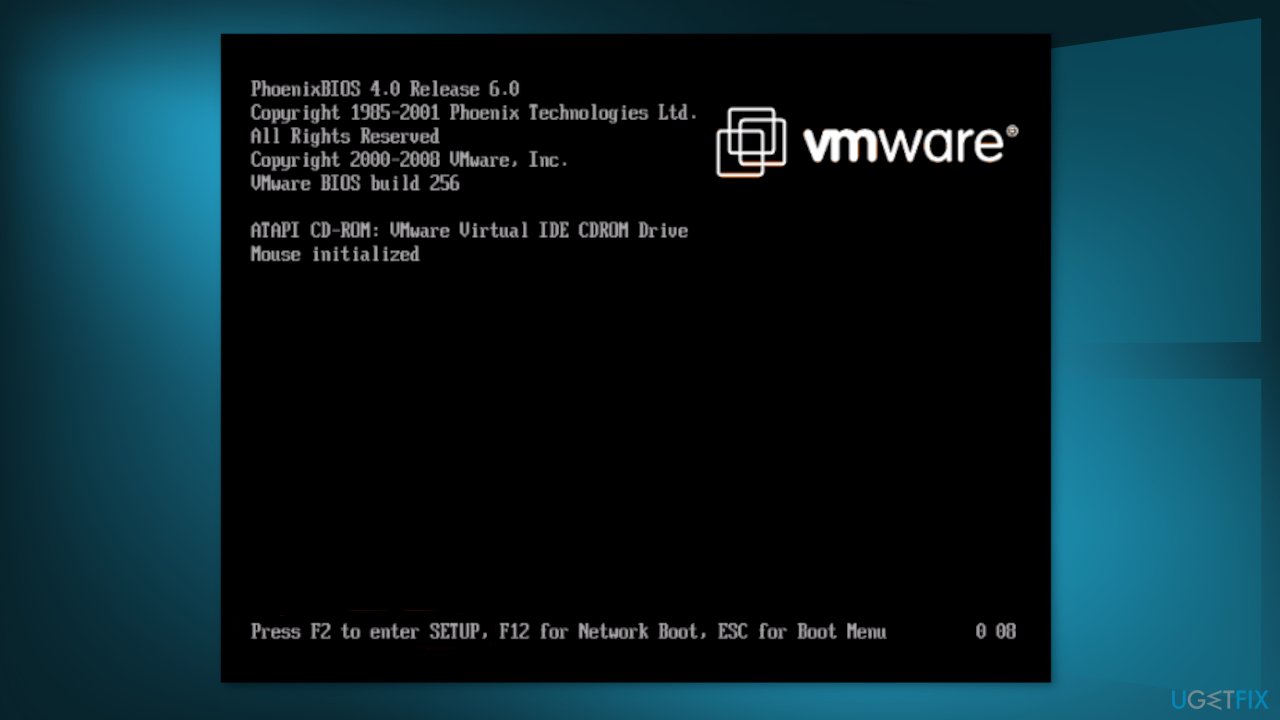
- Power on your computer and start pressing the Setup key as soon as the initial startup key comes up. Press the key repeatedly until you find yourself inside the BIOS menu.
- Access the BOOT tab and ensure that UEFI Boot Support is Disabled
- Save the modifications and see if the issue has been resolved
- If you manage to complete the Windows installation, you can then reverse engineer the steps above and re-enable UEFI Boot support
Bottom line
To fix error 0x8004242d, you can delete all partitions instead of reformatting them and disable USB Boot support during installation. If these methods do not resolve the issue, consider using a maintenance tool to address potential underlying problems.
Frequently asked questions
The error 0x8004242d typically occurs due to issues with the disk partition table or the presence of corrupted files. It can also be triggered by improper drive settings or insufficient permissions.
To fix the 0x8004242d error on Windows 11, try using the Disk Management utility to delete the partition and create a new one, or use Command Prompt with 'diskpart' to clean the drive.
To prevent the 0x8004242d error in Windows 10, ensure that your system is up to date, check the drive for errors using the CHKDSK command, and confirm that you have administrative privileges when performing disk operations.




Report an issue
What's wrong with this guide? We review every report and update or remove content.
Report received — thank you. We'll review and fix it.
You need a free account to submit a report.
Be the first to comment