How to fix
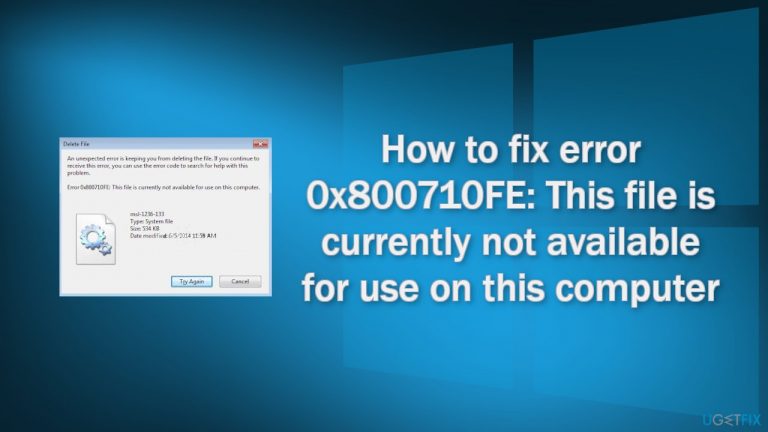
Error 0x800710FE: This file is currently not available for use on this computer
on Windows
Resolve the 0x800710FE error on Windows 10 and 11 effortlessly with expert-tested solutions. Get your files back in minutes, with screenshots.

What causes How to fix error 0x800710FE: This file is currently not available for use on this computer?
- System-protected file
- File or folder belonging to a third-party security package
- Office File Synchronization issue
- CSC database glitch
- Bugs on the drive
Repairs Windows system files, removes malware, and restores a clean OS state — without reinstalling.
Hello. I have tried to delete a specific file on my Windows computer multiple times but every time I receive this message - "Error 0x800710FE: This file is currently not available for use on this computer." What could this all mean?
Some Windows users have encountered the 0x800710FE (This file is currently not available for use on this computer) error when attempting to delete a file or folder. This can happen when a user is trying to delete a system-protected file or a file or folder that belongs to a third-party security package. Some have found that the error could be caused by Office File Synchronization[ref en-1] which is included in every recent Windows version or by a CSC database glitch.
Depending on the cause, different troubleshooting methods may apply to different users. Most people should be able to fix the 0x800710FE error by accessing Sync Center settings and disabling offline files. If that does not work, you may have to use the Registry Editor to create a new key. In some cases, the error has been observed to be caused by bugs on the drive, so running a CHKDSK command should provide more insight into the issue.
It is important to maintain the operating system so tools like [d1] come very handy. This repair tool can fix most system errors, BSoDs,[ref en-2] corrupted files, and registry[ref en-3] issues so if you do not want to go through the lengthy troubleshooting process, you should give this software a shot. It can also automatically clear cookies and cache and optimize the machine which should boost the performance. It is an overall useful tool that helps in many different situations when trying to deal with Windows errors.
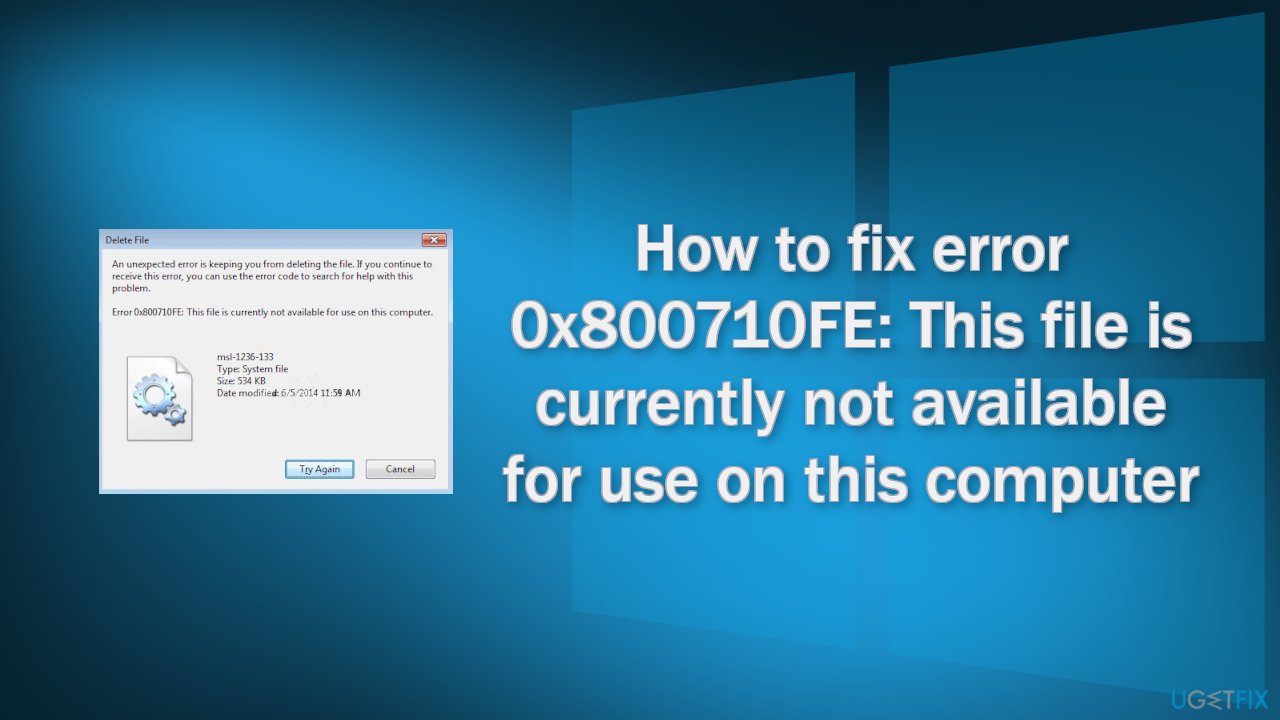
If you are ready to begin our step-by-step guide to fix "Error 0x800710FE: This file is currently not available for use on this computer," proceed carefully:
Solution 1. Check Disk
- Ensure that your disk is not damaged. You can perform checks using Administrative Command Prompt:
- If you are using an HDD as your main driver (where your operating system is installed - C: by default), use the following command and press Enter:
chkdsk c: /f
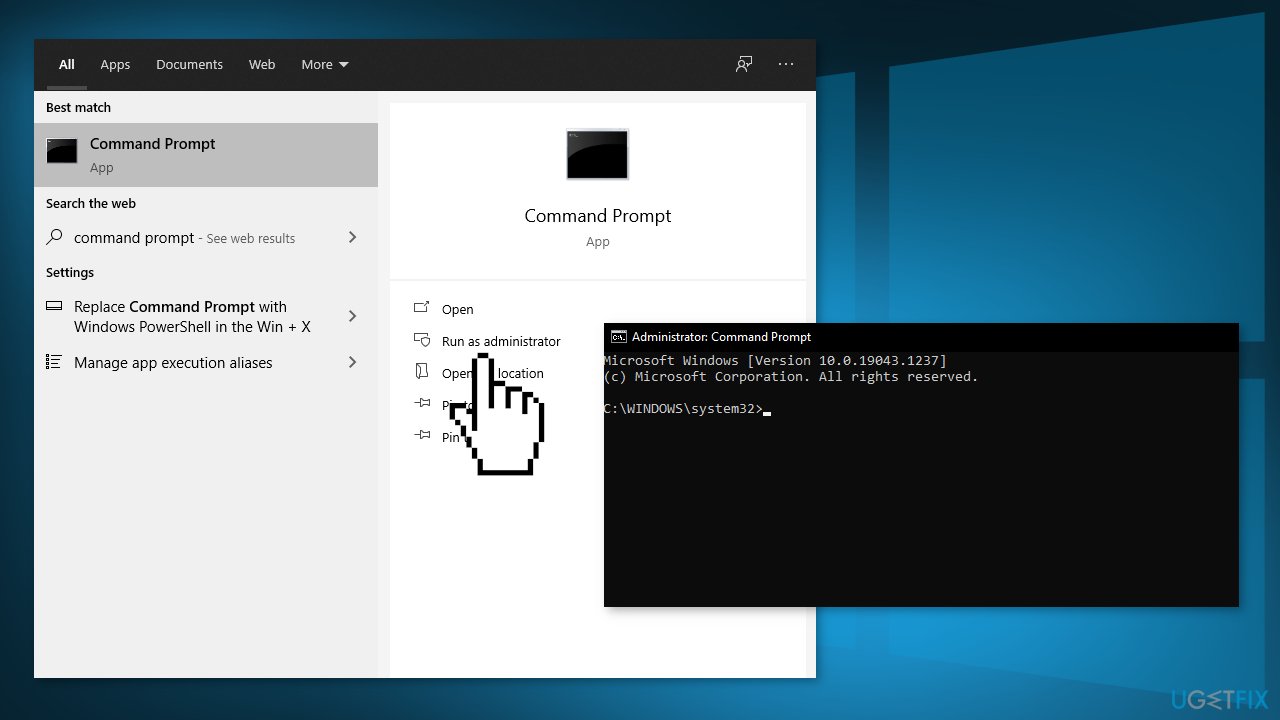
- If you are using SSD, use this command:
chkdsk c: /f /r /x - If you receive an error, type in Y and hit Enter
- Restart your device to perform the check
Solution 2. Disable Offline File Synchronization
- Press Windows key + R to open up a Run dialog box
- Type control and press Enter
- Use the search function to search for sync center and press Enter
- Double-click on Sync Center and choose Manage offline files

- Select the General tab and click on Disable offline files
- When prompted by the UAC (User Account Control), click Yes to grant admin access
- Try to delete the file that was causing the error
Solution 3. Format the CSC Database
- Open the Run box by pressing Windows key + R
- Type regedit and press Enter
- When you’re prompted by the UAC (User Account Control), click Yes to grant administrative privileges
- Navigate to the following location:
HKEY_LOCAL_MACHINE\\System\\CurrentControlSet\\Services\\CSC
- Right-click on an empty space and choose New > Dword (32-bit) value
- Name the newly created Dword value FormatDatabase, then double-click it
- Set the Base to Hexadecimal and the Value Data to 1
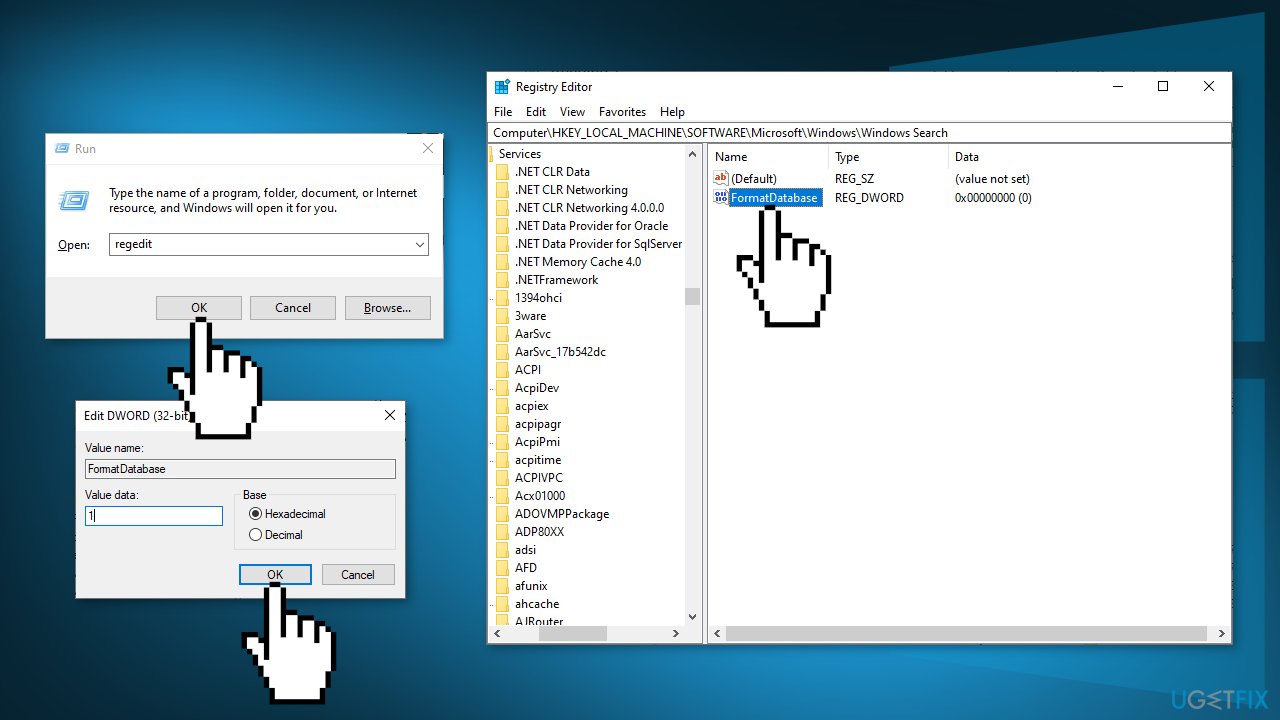
- Click Ok to save the changes
- Close the Registry Editor and restart your computer to see if the issue has been resolved
Solution 4. Disable Sync Center
- Press Windows key + R to open up the Run box
- Type cmd and press Ctrl + Shift + Enter
- When you see the UAC (User Account Control), prompt, click Yes to grant admin access
- Type the following command and press Enter:
for %G in ("CSC","CscService") do sc config "%~G" start= disabled
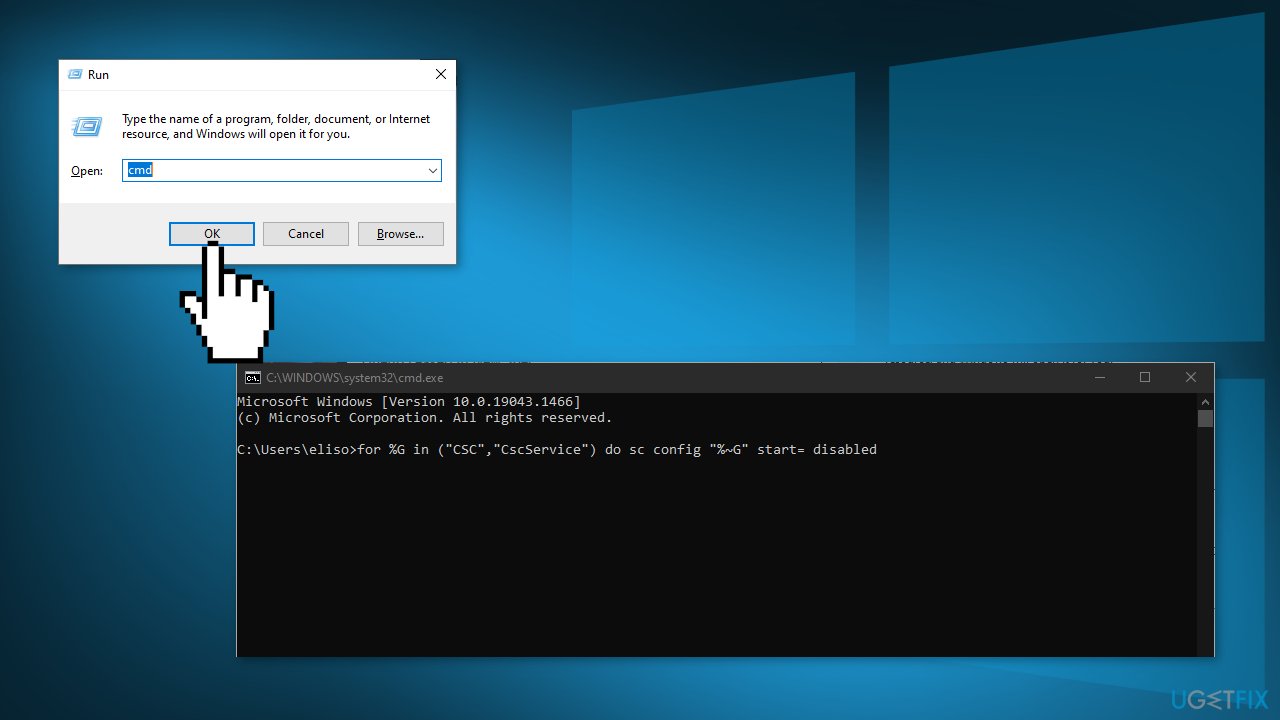
- In the same window, type the following commands and press Enter after each one:
takeown /f "%windir%\\CSC" /a /r
icacls "%windir%\\CSC" /grant:r *S-1-5-32-544:F /t /c /q
icacls "%windir%\\CSC" /grant:r *S-1-5-18:F /t /c /q
for /d %G in ("%windir%\\CSC\\v2.0.6\\namespace\\*") do rd /s /q "%~G"
- Type the following commands and press Enter after each one to disable the scheduled tasks associated with the Sync Center:
schtasks /change /tn "\\Microsoft\\Windows\\Offline Files\\Background Synchronization" /disable
schtasks /change /tn "\\Microsoft\\Windows\\Offline Files\\Logon Synchronization" /disable
- Run the following commands by pressing Enter after each one:
reg add "HKCU\\Software\\Classes\\Local Settings\\Software\\Microsoft\\Windows\\CurrentVersion\\SyncMgr" /v "StartAtLogin" /t REG_DWORD /d 0 /f
reg add "HKCU\\Software\\Classes\\Local Settings\\Software\\Microsoft\\Windows\\CurrentVersion\\SyncMgr\\HandlerInstances\\{750FDF10-2A26-11D1-A3EA-080036587F03}" /v "Active" /t REG_DWORD /d 0 /f
reg delete "HKCU\\Software\\Microsoft\\Windows\\CurrentVersion\\SyncMgr" /f
reg delete "HKCU\\Software\\Classes\\Local Settings\\Software\\Microsoft\\Windows\\CurrentVersion\\NetCache" /f
reg delete "HKCU\\Software\\Classes\\Local Settings\\Software\\Microsoft\\Windows\\CurrentVersion\\SyncMgr\\HandlerInstances\\{750FDF10-2A26-11D1-A3EA-080036587F03}\\SyncItems" /f
- Close the elevated CMD prompt and restart your computer
- Try to delete the folder or file that was triggering the 0x800710FE error and see if the problem is now fixed
Bottom line
To fix the 0x800710FE error, you can disable offline files in Sync Center settings, use the Registry Editor to create a new key, or run a CHKDSK command to check for disk issues. If these methods do not resolve the problem, consider using a repair tool to address system errors.
Frequently asked questions
Error 0x800710FE indicates that a file is currently not available for use on your computer, often due to issues with file permissions or corruption.
To troubleshoot this error, try running the Windows Troubleshooter for Windows Update and check for file system errors using the 'sfc /scannow' command in the Command Prompt.
Yes, resetting Windows 11 can resolve error 0x800710FE by restoring system files to their original state, but be sure to back up your data first.




Report an issue
What's wrong with this guide? We review every report and update or remove content.
Report received — thank you. We'll review and fix it.
You need a free account to submit a report.
Be the first to comment