How to fix
Windows update error 0x800f084f
on Windows
Resolve Windows 10 and 11 update error 0x800f084f quickly and easily with our expert-tested solutions. Get your system running smoothly again!

What causes How to fix Windows update error 0x800f084f?
- System file corruption
- Windows update service glitches
- Third-party software interference
- Accidentally deleted files from the registry
- Antivirus program interference
Repairs Windows system files, removes malware, and restores a clean OS state — without reinstalling.
Hello. Every time I try to update my Windows 10 computer, the updates fail and I receive the 0x800f084f error. What does it mean?
Updating your Windows computer is one of the main things users should do to keep it secure, and bug-free. Windows updates sometimes include important security patches and new features. However, even when users click the "Install Updates" button, they can fail. Some people have been struggling to update their Windows systems and receive the error code 0x800f084f.
Windows updates are sometimes unable to install for various reasons and there are usually no specific causes that can be identified just from the error. Windows update error 0x800f084f could appear because of system file corruption, Windows update service glitches, or third-party software interference. If you have an antivirus program installed, we recommend trying to remove it as at times it can perceive legitimate Windows files as not secure.
The update error may also appear because of accidentally deleted files from the registry. More often than you might think users mess with system files and delete things that are required by Windows to run properly. In this guide, you will find 6 methods that could help you fix the 0x800f084f error. For some people, simply running an update troubleshooter fixes the issue. We also provided instructions on how you can download the updates manually if none of the other steps would work.
If you do not want to go through a lengthy troubleshooting process yourself, we recommend a repair tool [d1] that can fix various Windows errors, registry[ref en-1] issues, corrupted files, BSoDs[ref en-2] automatically. It will also clear your browsers from cookies and cache[ref en-3] so you should notice an improvement in performance. Otherwise, if you want to solve the Windows update error 0x800f084f manually, you can follow our guide posted below. Make sure to follow the steps correctly.
Method 1. Run the Update Troubleshooter
- Press the Windows + X keys and go to Settings
- Go to Update and Security
- Click Troubleshooter
- Select Additional troubleshooters
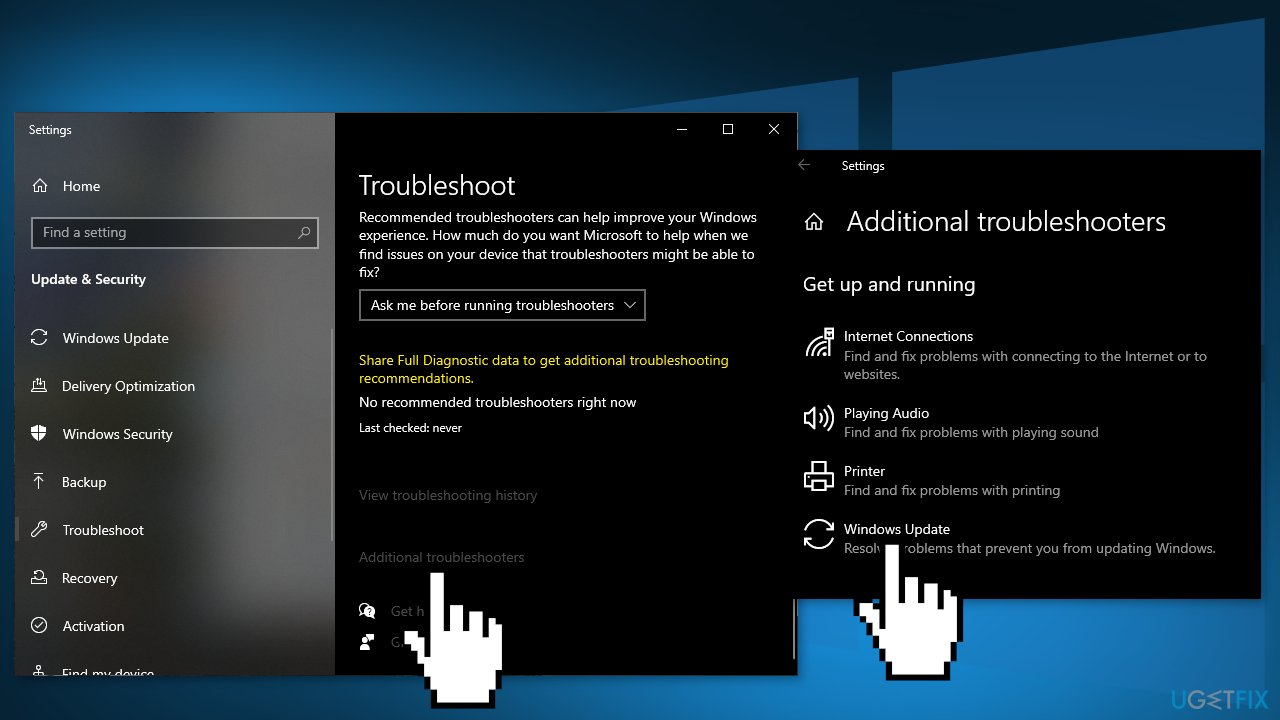
- Run the Update troubleshooter
- Restart
Method 2. Repair Corrupted System Files
Use Command Prompt commands to repair system file corruption:
- Open Command Prompt as administrator
- Use the following command and press Enter:
sfc /scannow
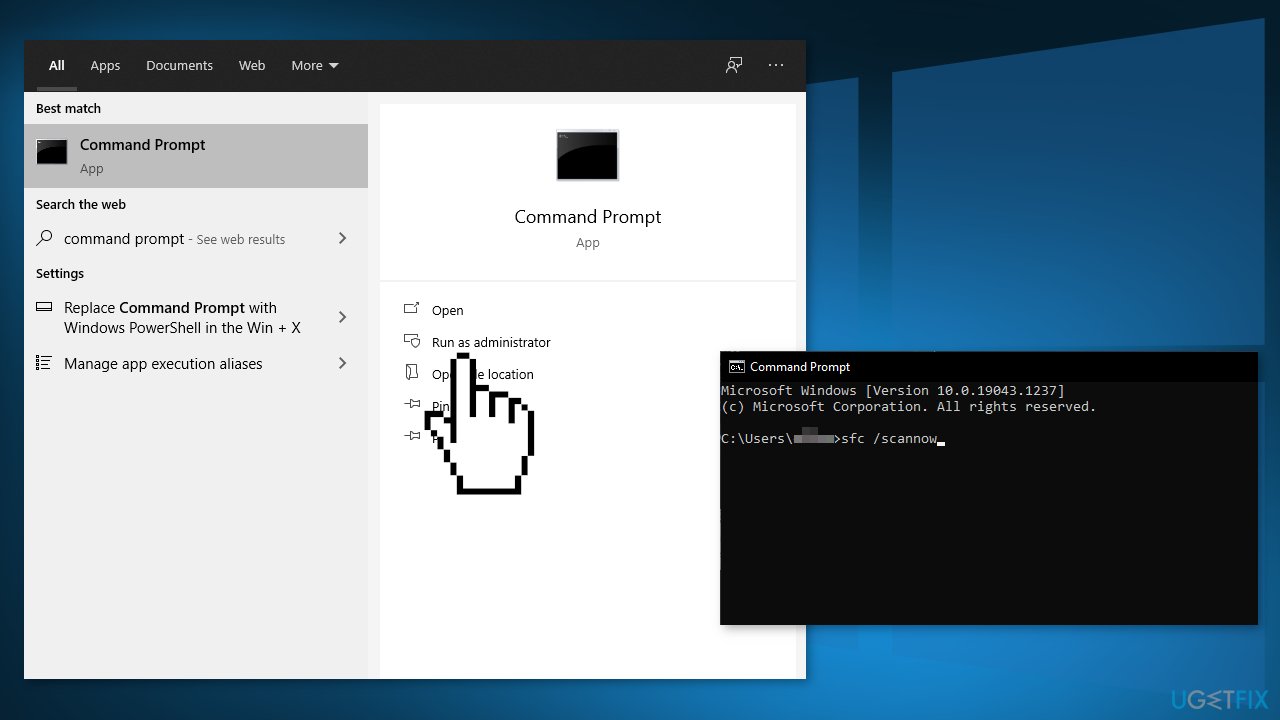
- Reboot your system
- If SFC returned an error, then use the following command lines, pressing Enter after each:
DISM /Online /Cleanup-Image /CheckHealth
DISM /Online /Cleanup-Image /ScanHealth
DISM /Online /Cleanup-Image /RestoreHealth
Method 3. Reset every Windows Update Component
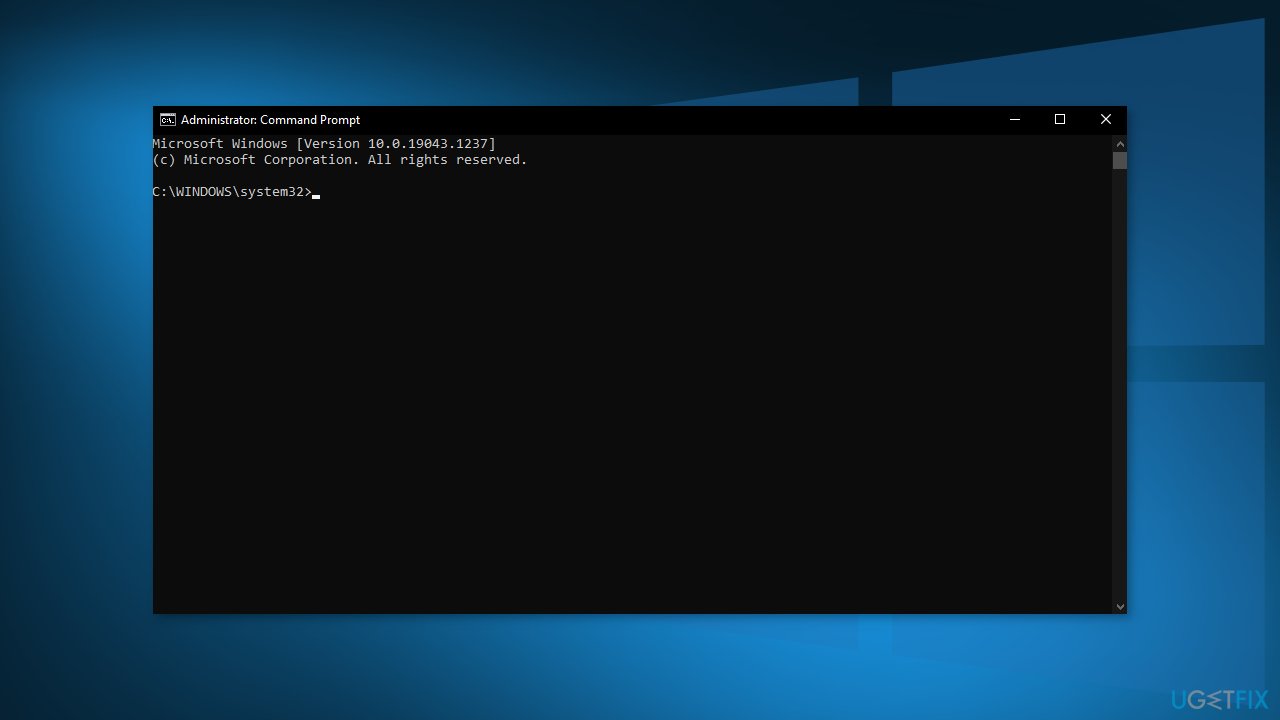
- Open Command Prompt as administrator again
- Copy and paste the following commands, pressing Enter after each:
net stop bits
net stop wuauserv
net stop appidsvc
net stop cryptsvc
Del “%ALLUSERSPROFILE%\\Application Data\\Microsoft\\Network\\Downloader\\*.*”
rmdir %systemroot%\\SoftwareDistribution /S /Q
rmdir %systemroot%\\system32\\catroot2 /S /Q
regsvr32.exe /s atl.dll
regsvr32.exe /s urlmon.dll
regsvr32.exe /s mshtml.dll
netsh winsock reset
netsh winsock reset proxy
net start bits
net start wuauserv
net start appidsvc
net start cryptsvc
- Restart your PC
Method 4. Reset Windows Update Service
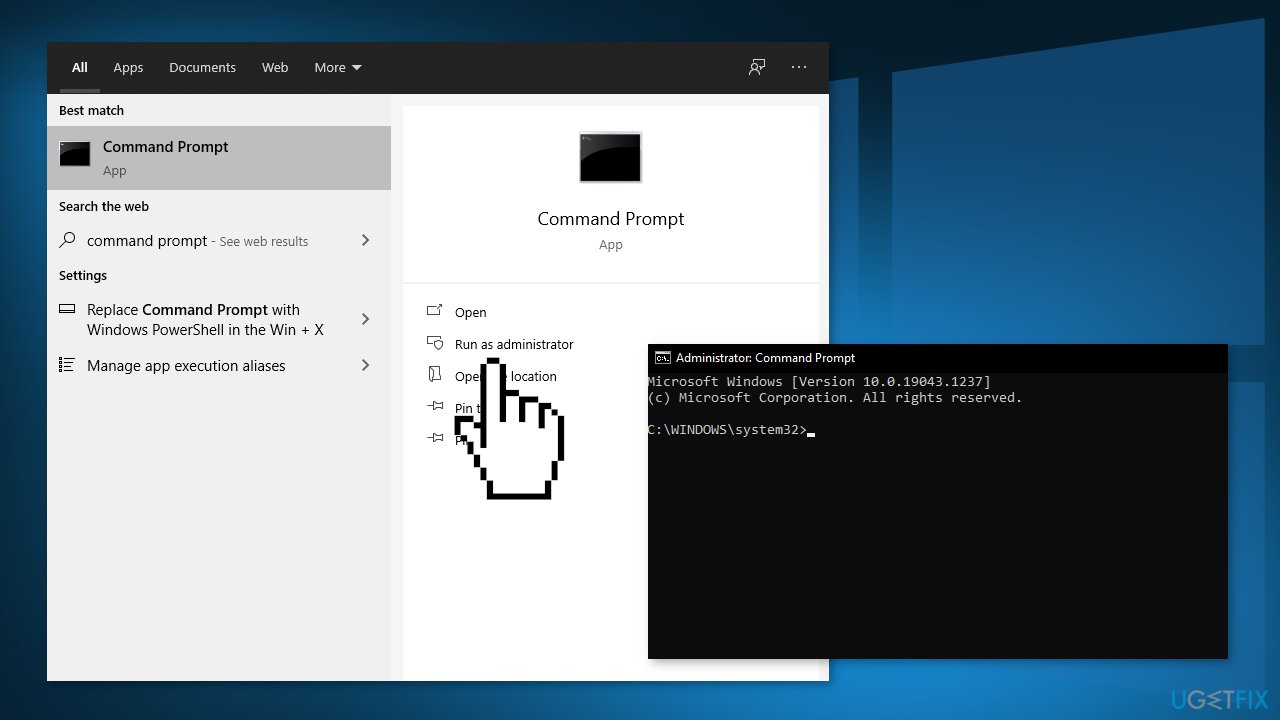
- Open Command Prompt as administrator again
- Copy and paste the following commands, pressing Enter after each:
net stop wuauserv
net stop cryptSvc
net stop bits
net stop msiserver
Ren C:\\Windows\\SoftwareDistribution SoftwareDistribution.old
Ren C:\\Windows\\System32\\catroot2 Catroot2.old
net start wuauserv
net start cryptSvc
net start bits
net start msiserver
- Restart your PC
Method 5. Download the Updates Manually
Whenever Windows updates fail to install automatically, you can always try doing it manually. First, you need to find out which KB number is relevant to you.
- Right-click Start button and pick Settings
- Go to Update & Security
- On the right, locate and click View update history
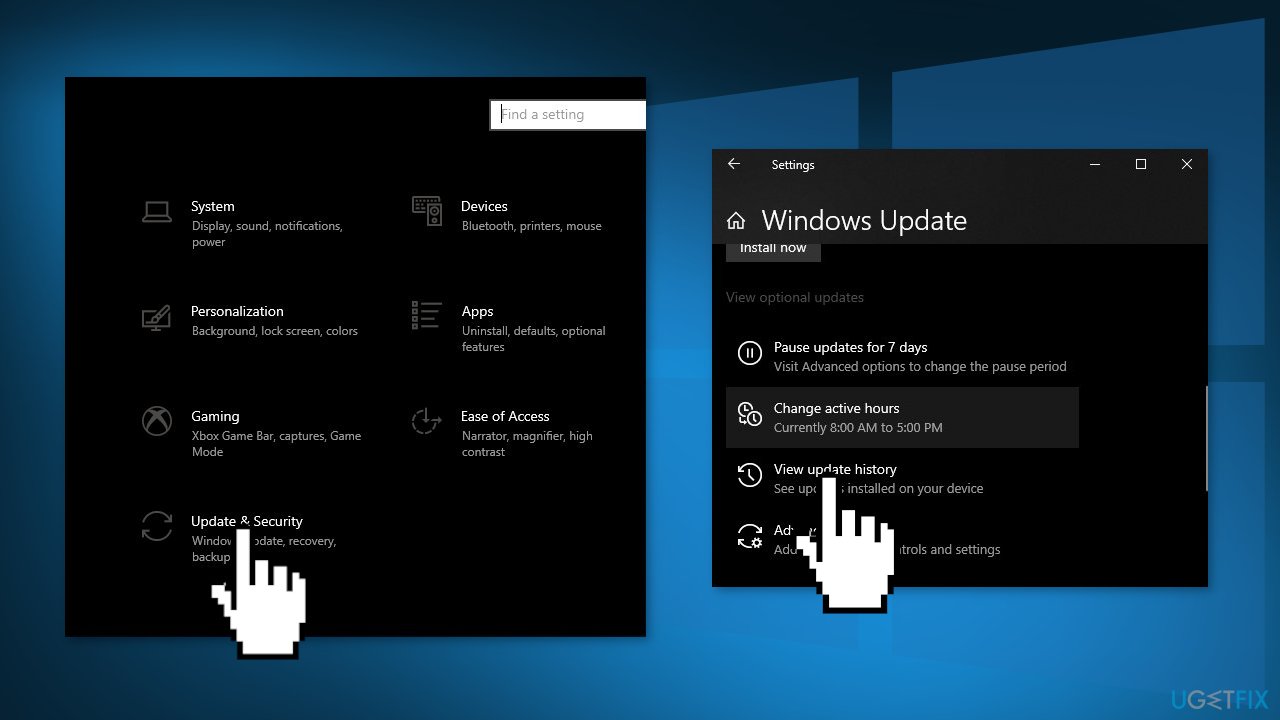
- From the list, note the KB number that fails to install with the error code
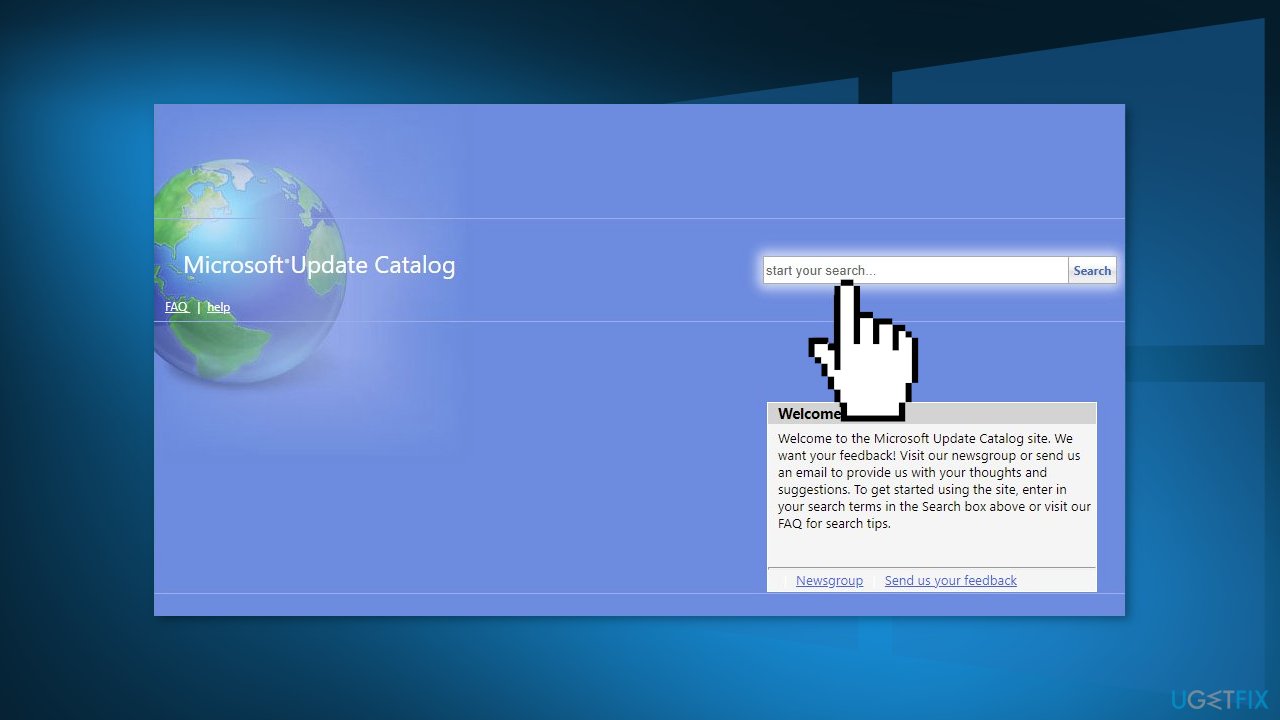
- Go to Microsoft Update Catalog page, type in the KB number and press Search
- Download the update and install it manually
(Note: if you are dealing with a Windows upgrade issue, make sure you also download KB4498524 and KB4515384 updates as well)
Method 6. Update via Media Creation Tool
- Download Windows 10 installation media from the official website
- Open the tool once it installed
- Agree to license terms
- Choose Upgrade this PC now
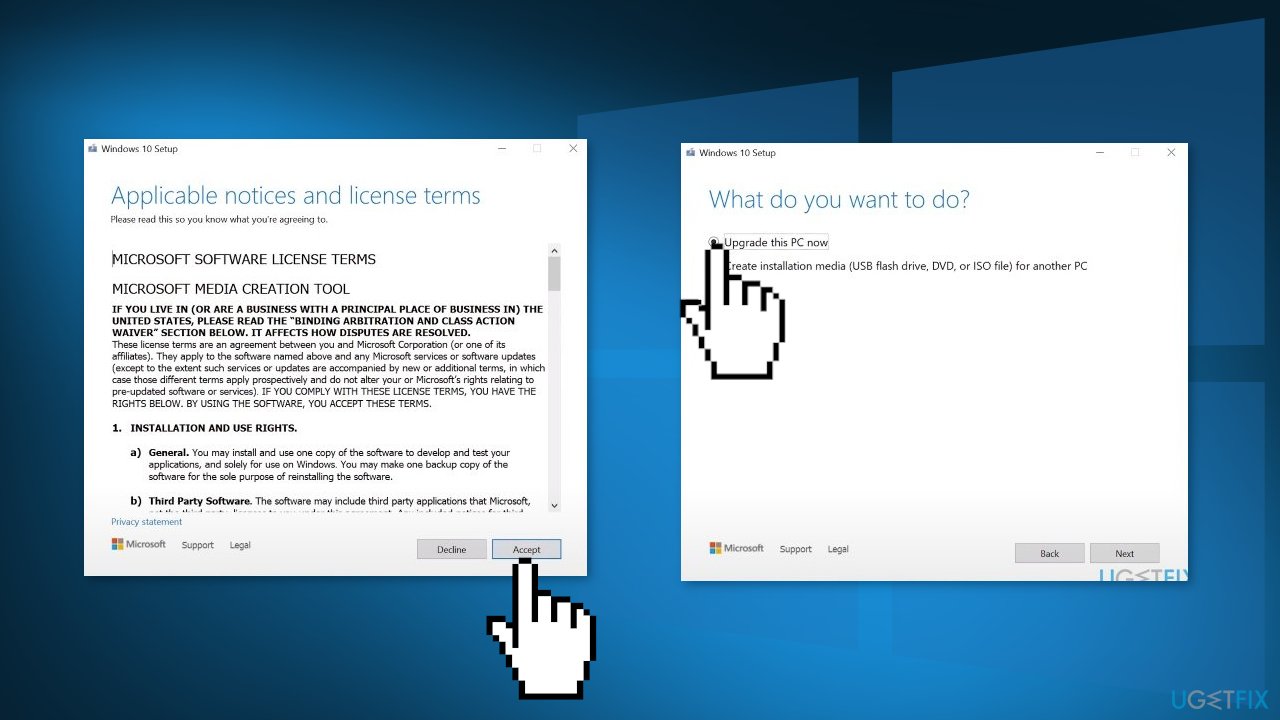
- Wait for the update to be installed
Bottom line
To fix the Windows update error 0x800f084f, you can try running the Update Troubleshooter, repairing corrupted system files, or downloading updates manually. If these methods do not resolve the issue, consider using a repair tool that can automatically fix various Windows errors.
Frequently asked questions
The error 0x800f084f typically occurs due to missing or corrupt system files, issues with the update components, or problems with the Windows Update service itself on Windows 10 or Windows 11.
To fix the 0x800f084f error on Windows 11, you can run the Windows Update Troubleshooter and ensure that your system files are intact by executing the 'DISM' and 'SFC' commands in the Command Prompt.
Yes, you can manually download and install the required updates from the Microsoft Update Catalog website, which can help bypass the 0x800f084f error on both Windows 10 and Windows 11.




Report an issue
What's wrong with this guide? We review every report and update or remove content.
Report received — thank you. We'll review and fix it.
You need a free account to submit a report.
Be the first to comment