How to fix
Windows 10 Update Error Code 0x8024002E
on Windows
Resolve the Windows 10 update error code 0x8024002E effortlessly with our expert-tested solutions. Fix it in minutes for smooth system updates!


What causes How to Fix Windows 10 Update Error Code 0x8024002E?
- Malware infection
- Bad gateway
- Antivirus and WU conflict
- Faulty WU configuration
- Windows Update service blocked
Repairs Windows system files, removes malware, and restores a clean OS state — without reinstalling.
Microsoft is really getting on my nerves! When are they going to fix those Windows 10 Update bugs?? It’s probably a fifth time in several months when I encounter an error pop-up during the installation of an update. This time, the update fails to install with an error code 0x8024002e. Any suggestions?
Windows 10 is a great OS and probably the majority of its users will admit that. Unfortunately, but it has lots of gaps and bugs, which have to be improved/fixed continuously.[ref en-1] That’s why Microsoft is working hard to release updates and hotfixes regularly. The whole updating system has changed significantly as Microsoft has switched to cumulative updates from a single update model, as well as the disabled user’s control over the updating process.
Consequently, Windows 10 updates come bundled in a single update package and are installed automatically. Unfortunately, but the updating process in Windows 10 system often fails with errors. Error Code 0x8024002E “WU_E_WU_DISABLED - Non-managed server access is disallowed” is one of them.[ref en-2]
This bug is delivered in a pop-up form when downloading an update on Windows Server Update Services (WSUS) or during automatic installation via Windows Updates (WU). The 0x8024002E error indicates the fact that Windows Update service has been blocked.
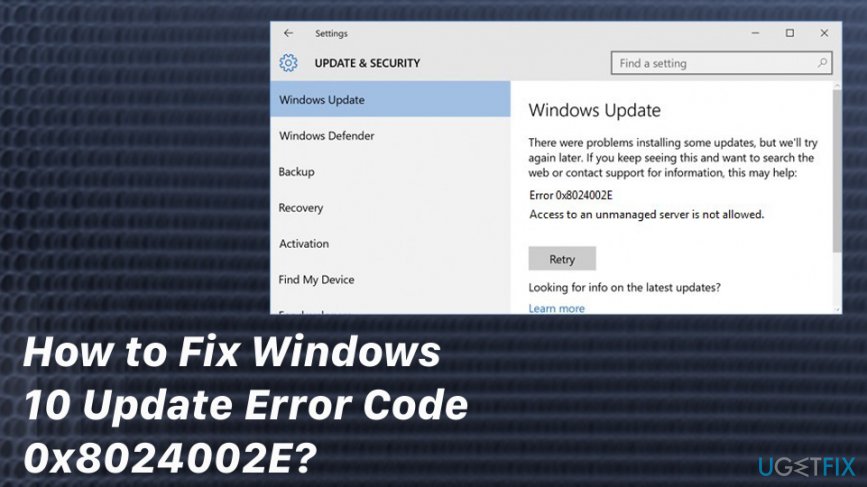
There are several reasons for this bug, including malware infection, bad gateway, antivirus and WU conflict, faulty WU configuration, and similar. Since it’s not clear yet what the exact reason for the 0x8024002E error occurrence is, in this post, we will provide all possible 0x8024002E error fixes.
Ways to fix Update Error 0x8024002E on Windows 10
If the installation of Windows Update has been terminated and you received an error 0x8024002E pop-up, there are several things that you can try. First of all, reboot your PC and a router and check if the WU works. If it still brings out an error, check the system for malware.[ref en-3] For this purpose, you may use [d1]. If it detects malware, make sure that you remove it all. If that did not help either, disable your antivirus temporarily to check if the reason for 0x8024002E bug isn’t related to the software conflict. If these simple steps did not help to fix 0x8024002E error, try the following:
Method 1. Run sfc / scannow
- Click Win key + X and select Command Prompt (Admin).
- Type sfc /scannow command and press Enter.
- Wait for the system to execute the scan and repair issues. After that, restart the system.
Method 2. Reset Windows Update Components
- Click Win key + X simultaneously and select Command Prompt (Admin).
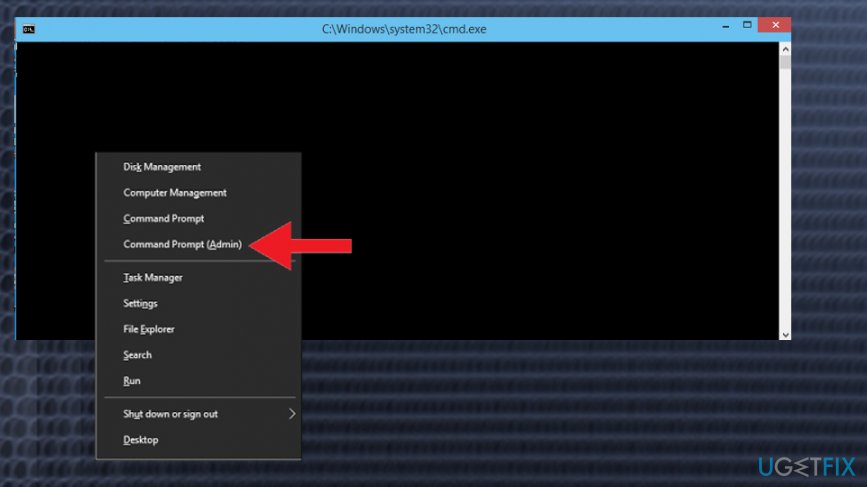
How to fix windows 10 update error code 0x8024002e admin command prompt - Now your task is to disable BITS, Cryptographic, MSI Installer, and the Windows Update Services. For this purpose, type the following commands in the Command Prompt window and press Enter after each of them:
net stop wuauserv
net stop cryptSvc
net stop bits
net stop msiserver - After that, type the following commands to rename SoftwareDistribution and Catroot2 folders. Don’t forget to type Enter after each of them:
ren C:\\Windows\\SoftwareDistribution SoftwareDistribution.old
ren C:\\Windows\\System32\\catroot2 Catroot2.old - Once done, enable BITS, Cryptographic, MSI Installer and the Windows Update Services (disabled before). This can be done by inputting the following command and pressing Enter after each of them:
net start wuauserv
net start cryptSvc
net start bits
net start msiserver - Finally, close Command Prompt window and reboot your PC.
Method 3. Change Windows Update property to Automatic
- Click Ctrl + Shift + ESC and go to Services Tab.
- Click Open Services and then scroll down to find Windows Update.
- Double-click on it to open Properties.
- Locate Startup type and set it to Automatic.
- Finally, click Apply and OK.
Method 4. Run Windows Update Troubleshooter
- Right-click on Win key and select Control Panel.
- Type Troubleshooting in the search box and click on search results.
- Click View All on the left pane and locate Windows Update.
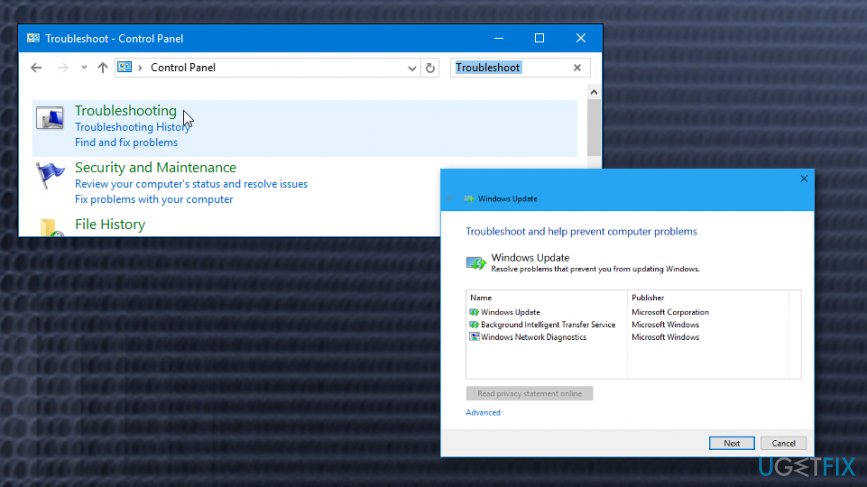
How to fix windows 10 update error code 0x8024002e troubleshoot - Now the troubleshooter should perform a scan. Wait for it to finish and then reboot the system.
Bottom line
To fix the Windows 10 Update Error 0x8024002E, you can try rebooting your PC and router, checking for malware, and temporarily disabling your antivirus. If these steps do not resolve the issue, further investigation into the Windows Update service settings may be necessary.
Frequently asked questions
The error code 0x8024002E indicates that there is a problem with the Windows Update process, often related to missing or corrupted update files. This can prevent your system from downloading and installing necessary updates.
To fix the 0x8024002E error in Windows 11, you can try running the Windows Update Troubleshooter, which can automatically detect and fix issues related to updates. Additionally, resetting the Windows Update components manually can also help resolve the error.
To prevent the 0x8024002E error from reoccurring in Windows 10, ensure your system is regularly updated and free from malware. Also, maintaining sufficient disk space and using a reliable internet connection during updates can minimize the chances of encountering this error.




Report an issue
What's wrong with this guide? We review every report and update or remove content.
Report received — thank you. We'll review and fix it.
You need a free account to submit a report.
Be the first to comment