How to fix
Error code 0x87E10BC6
on Windows
Resolve the 0x87E10BC6 error on Windows 10 and 11 effortlessly. Get expert-tested solutions and fixes that ensure smooth operation, updated 2025.


What causes How to fix error code 0x87E10BC6 in Windows?
- Xbox Live Core services issue
- DRM management issue
- Incorrect product key
- Conflicting third-party antivirus software
- Windows not updated
Repairs Windows system files, removes malware, and restores a clean OS state — without reinstalling.
Hello. I tried activating Windows on my computer but I received an error code 0x87E10BC6. What could be the problem?
Some users report receiving an error code 0x87E10BC6 in Windows 10. This error is known to appear when trying to launch a game from the Xbox app, activate a Windows license, or use a DVD player. The cause for the appearance of the error might be Xbox Live Core services or the DRM management[ref en-1] issue. However, the main scenario where the error pops up remains Windows activation.
If users want to activate Windows, they need a digital license or a product key. Depending on how users got their copy of Windows 10, they will need a digital license or a 25-character product key to activate it. A digital license is a method of activation in Windows 10 that doesn't require you to enter a product key. A product key is a 25-character code used to activate Windows. What you'll see is PRODUCT KEY: XXXXX-XXXXX-XXXXX-XXXXX-XXXXX.
Before proceeding with the troubleshooting guide, make sure that you have the correct product key. If everything is in check and the process still fails, you will be able to apply 5 solutions from our guide that may help you fix the error code 0x87E10BC6 in Windows. You can also try using a maintenance tool such as [d1] that can fix various system errors, BSoDs,[ref en-2] corrupted files, registry[ref en-3] issues, etc.
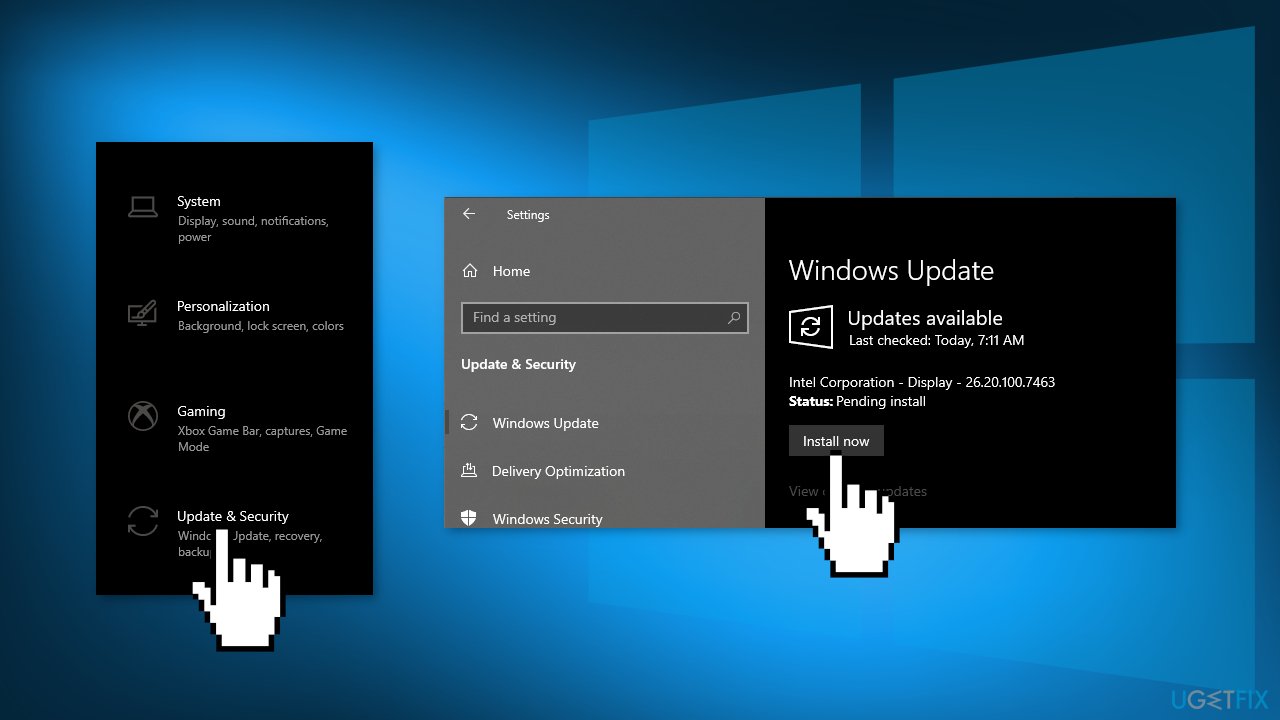
Solution 1. Update Windows
- Click Settings from your start menu and click Update & Security
- Choose Windows Upgrade from the left panel and click the Check for updates button, and then your computer will check for, download, and install any updates found
Solution 2. Run the Activation Troubleshooter
- Press Windows key + R to open up a Run dialog box
- Type ms-settings:activation and press Enter
- Scroll down to the Activate Windows Now section and click Troubleshoot
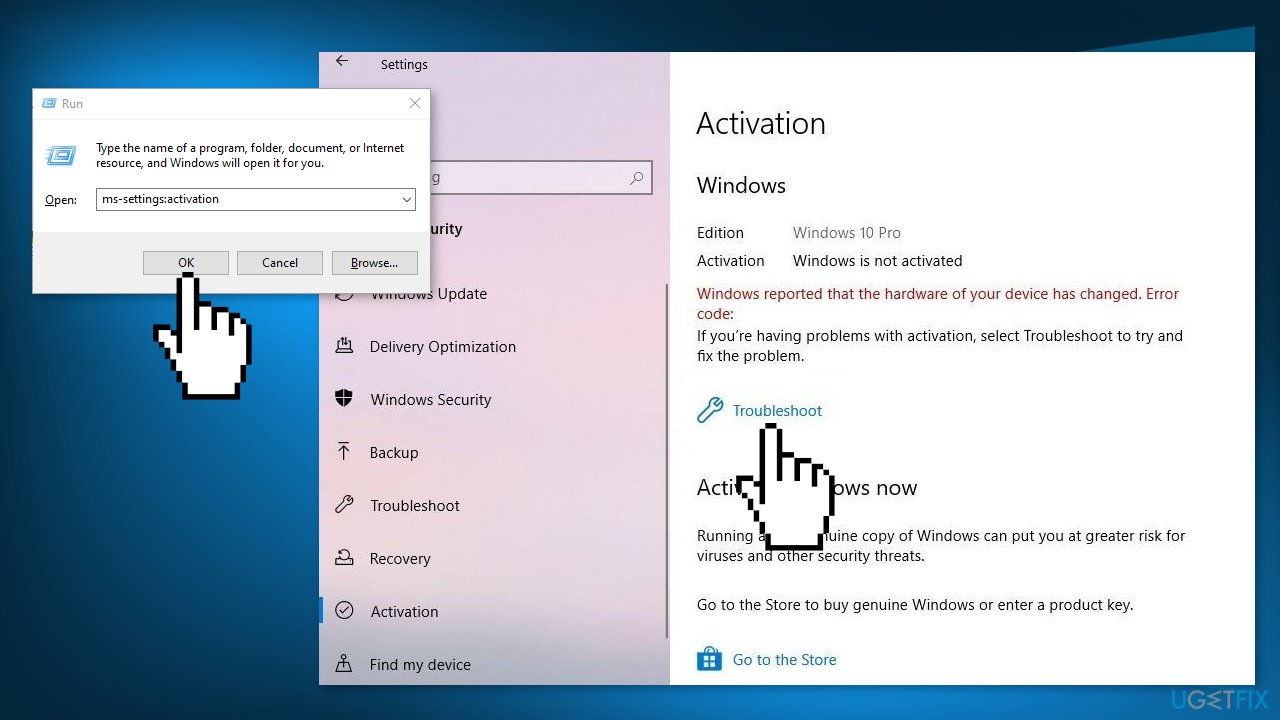
- Press Apply this fix if shown
- Restart your computer, and see if the problem is resolved
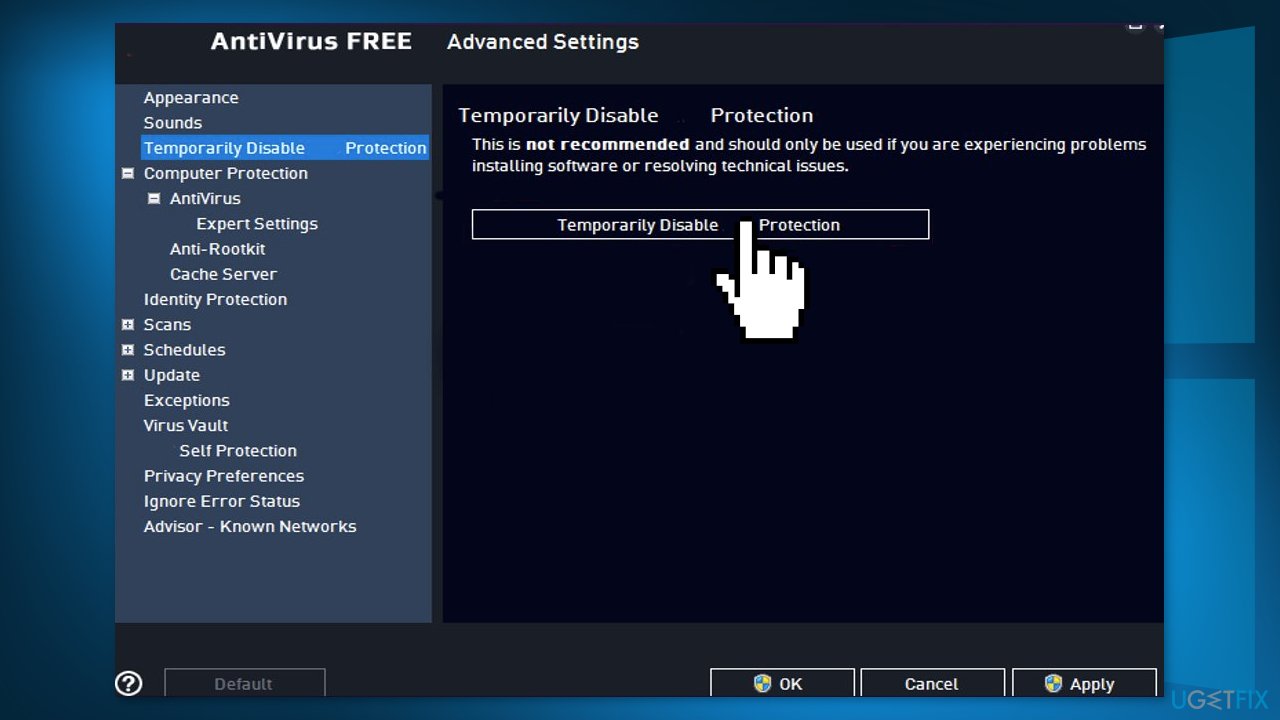
Solution 3. Uninstall Third-Party Antivirus Software
Some security programs might be conflicting with Microsoft servers and data packages that they send during the activation process, mistakenly perceiving these servers as insecure. Thus, it is known that removing AV software helped some users when trying to fix Windows errors.
- Right-click the antivirus icon and select Disable
- You can also double-click the antivirus icon and look for a Disable option there
- You also have the option to remove the program completely by going to Apps & Features
Solution 4. Use System Restore
System Restore can roll back the system back to a previous point when the error was not present. Use this utility and choose a restore point before the error started appearing.
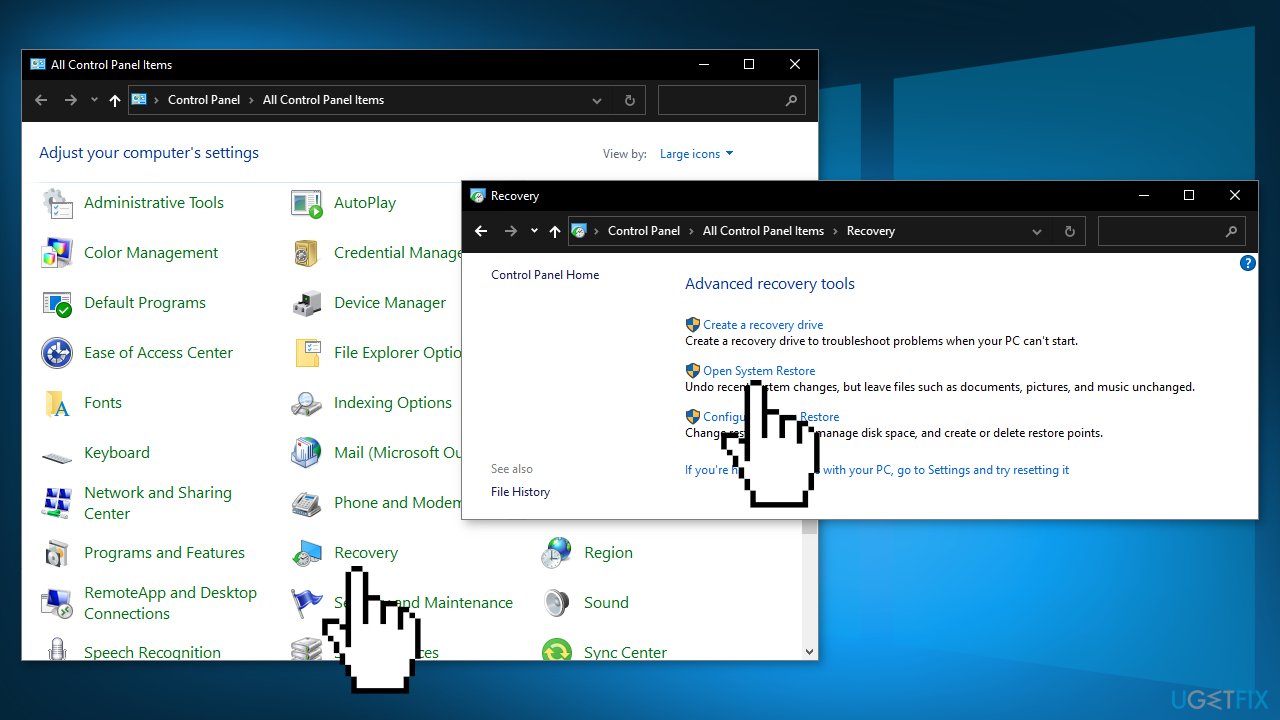
- Search for Control Panel in your taskbar
- Change the view mode to Large icons
- Click on Recovery, then Open System Restore
- If prompted, enter your user password
- Follow the on-screen instructions and wait for the wizard to complete the restoration
- Restart your computer
Solution 5. Run SLMGR
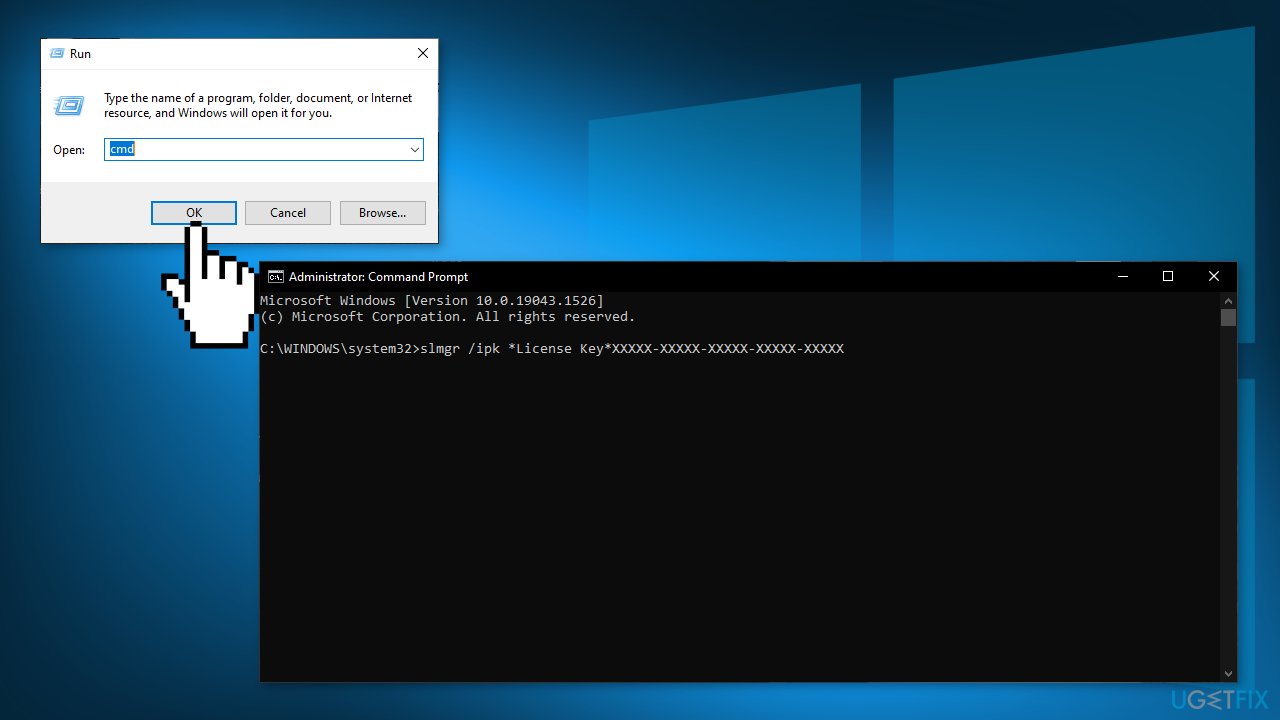
- Press Windows key + R to open a Run dialog box
- Type cmd and press Ctrl + Shift + Enter
- When you see the UAC (User Account Control), click Yes to grant administrative privileges
- Type the following commands and press Enter after each one:
slmgr /ipk *License Key*
slmgr /ato
- Restart your computer and wait for the next startup to complete in order to see if the activation has been successful
Bottom line
To fix error code 0x87E10BC6, you can try updating Windows, running the Activation Troubleshooter, or uninstalling any third-party antivirus software that may be causing conflicts. If these solutions do not resolve the issue, consider using a maintenance tool to address potential system errors.
Frequently asked questions
Error code 0x87E10BC6 typically indicates an issue with the Xbox app or related services, often due to network problems or corrupted files.
To troubleshoot this error, try resetting the Xbox app through the Settings menu or running the Windows Store Apps troubleshooter.
Yes, ensuring that your Windows 10 or Windows 11 is up to date can help fix compatibility issues that may cause the 0x87E10BC6 error.




Report an issue
What's wrong with this guide? We review every report and update or remove content.
Report received — thank you. We'll review and fix it.
You need a free account to submit a report.
Be the first to comment