How to fix
Block pop-up ads on Google Chrome
on Windows
Easily block pop-up ads on Google Chrome for a smoother browsing experience on Windows 10 or Windows 11. Expert-tested solutions included!

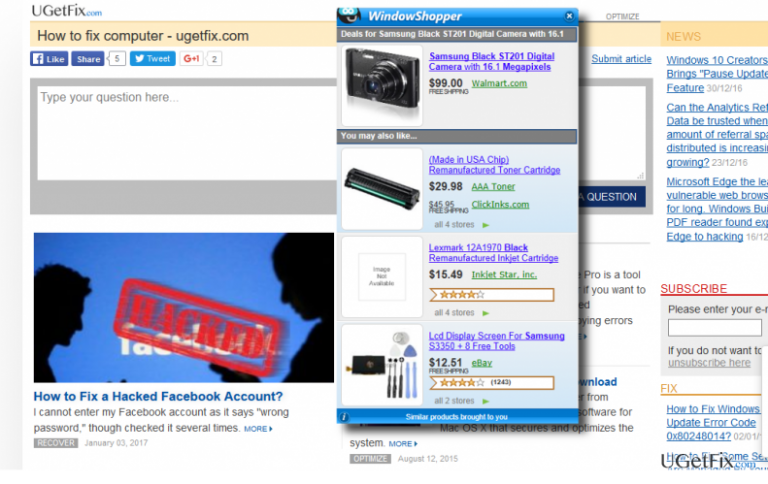
What causes How to Block pop-up ads on Google Chrome?
- Adware-type programs infecting the system
- Installation of unwanted browser add-ons or extensions
- Websites programmed to display ads by default
- Tracking cookies creating personalized ads
- Increased number of ads due to browsing history
Repairs Windows system files, removes malware, and restores a clean OS state — without reinstalling.
Chrome is stuffed with ads, so I cannot browse without accidentally clicking on them. I’ve checked for malware on the system, but my antivirus found nothing, so I don’t understand what the matter is. Could you please tell me if there is a way to block pop-ups on Chrome?
Netizens are going mad about personalized advertisements every day. Unfortunately, but there is no chance to block all ads on the Internet because that’s how small website manage to gain the profit and maintain the business. Each ad is monetized, so the more clicks it gets, the more money its creators and affiliates receive. Unfortunately, but sometimes a number of ads become unbearable and start irritating the user a lot.
In most of the cases, Google Chrome starts generating an unusually big amount of personalized advertisements when the system gets infected with an ad-supported web browser add-on, toolbar, plug-in or extension. Adware-type programs tend to be spread via software bundles, so usually they are installed on the system without being noticed and then gets injected into web browser’s extensions list automatically. Consequently, web browser starts displaying lots of pop-up ads, banner ads, interstitial ads, video ads, and other types of personalized commercial advertisements. Since adware-type programs are filled with tracking cookies, the pop-ups are developed in accordance with the web browsing history, so if you were recently looking for a pair of shoes, most probably now you see a pop-up with the shoes offer available on some third-party shopping site.
In addition to adware infection, thousands of websites are programmed to display ads by default once the internet user accesses the website and reopen then on a particular schedule. Unfortunately, but pop-up ads disrupt web browsing process significantly because each click causes redirects to affiliate websites. However, there is a bigger problem than the annoyance, which is related to security. Many advertisements belong to third parties, which are not verified and controlled in any way. As a consequence, there is no guarantee what kind of content is disguised under the pop-ups, meaning that clicking on the ads poses a risk of getting a PC infected. Thus, make sure that you NEVER click on the advertisements that offer to install software, check your PC for virus online or similar. Nevertheless, decent ads that offer to buy some items can also be misused by hackers, so be careful too. All in all, if a number of commercials on your web browser has become unbearable, there is a way to block pop-up ads on Chrome or at least minimize them. There are several things you can try both separately or simultaneously.
How to Block pop-up ads on Google Chrome?
Step 1. Check the system for malware
If the number of ads within Chrome has increased all of a sudden, it might be that you have accidentally installed an ad-supported extension, which is now tracking your online activities and, therefore, generates lots of personalized advertisements. Beware that they may be linked to doubtful third-party websites, which is why it’s not recommended clicking on the pop-ups that contain offers that are related to the pages that you’ve recently viewed. To check for potentially unwanted programs (PUPs) on your PC, you can run a scan with [d1]. However, sometimes potentially unwanted programs are dismissed by antivirus, which is why you should also check Add/Remove Programs list and uninstall the unknown/suspicious software that you are not familiar with.
Step 2. Clean Google Chrome for potentially unwanted programs
Click on this link to download Chrome Cleanup Tool. Click on the Download now button and run the application. Once it is executed, click on Remove suspicious programs button and wait for the process to be finished.
Step 3. Reset Chrome’s settings
- Open Chrome and right-click on three horizontal lines at the top right corner.
- Select Settings and click Show advanced settings.
- Find Reset settings and click it.
- To confirm the changes, click Reset.
Step 4. Enable Chrome’s blocking pop-ups feature
- Open Chrome and click Menu (three horizontal lines at the top right corner).
- Go to Settings and click on Advanced settings.
- After that, find and open Content Settings.
- Select Pop-ups and set it to Do not allow.
For Android users:
- While signed into your Google Account, heed to My Account.
- Look for the option like Ad settings (in the center section).
- Select Manage Ad Settings and the unmark the types of ads you are not fond of receiving.
- If a confirmation window shows up, read it and tap Turn off if you agree with everything.
- After that, click Got it on the pop-up.
Step 5. Install an ad-blocker utility
There is a variety of Chrome extensions that can be used against pop-up ads on Chrome. Unfortunately, some of them are said to be ad-supported themselves, which is why it’s crucial to select a reputable application and download it from the trusted source.
Hopefully, after initiating these five simple steps you receive lesser pop-ups on Chrome. If these steps did not help, try to repeat them in case you have skipped some important steps. Good luck!
Bottom line
To block pop-up ads on Google Chrome, consider removing unwanted extensions, using ad-blocking software, and adjusting browser settings to limit ads. If these solutions do not work, further investigation into potential adware infections may be necessary.
Frequently asked questions
Open Chrome, click on the three-dot menu, go to 'Settings', then 'Privacy and Security', and select 'Site Settings'. Under 'Pop-ups and redirects', toggle the setting to 'Blocked'.
Ensure that your Chrome browser is updated to the latest version and check for any unwanted extensions that may be causing the issue, then remove them.
You can enable the 'Block pop-ups' option in Windows 10's Settings under 'Privacy & security', which can complement Chrome's settings for a more comprehensive approach.




Report an issue
What's wrong with this guide? We review every report and update or remove content.
Report received — thank you. We'll review and fix it.
You need a free account to submit a report.
Be the first to comment