How to fix
Svchost.exe application error
on Windows
Resolve the svchost.exe application error on Windows 10 and 11 easily with our expert-tested solutions and tips. Fixed in minutes!


What causes How to fix svchost.exe application error?
- Corrupted Windows updates
- Interrupted installation of Windows updates
- Corrupt system files
- Potential malware infection
- Malicious executable files
Repairs Windows system files, removes malware, and restores a clean OS state — without reinstalling.
Each time I start my computer I get an annoying error: svchost.exe - Application Error. Is there anything I can do to fix this problem?
At some point, Windows started launching internal services from .dll files[ref en-1] instead of .exe files. However, it is not possible to launch .dll files in the same way .exe files are started, so developers created Svchost.exe (Service Host).
Svchost.exe is a universal service that is used by many different hosting[ref en-2] containers. Each of them can run (unlimited) amount of system services, and they are all connected into a set of groups.
However, while the service is legitimate and used by many programs, several errors are encountered by users, and they are always looking how to fix Svchost.exe Application Error. Our team compiled a guide which would help users with this issue.

There are several different variations of Svchost.exe Application Error, some of those include:
- The instruction at "0x745f2780" referenced memory at "0x00000000". The memory could not be "read"
- The instruction at “0x7c918fea” referenced memory at “0x00000010″. The memory could not be "written.”
- The instruction at 0x00007FFA78E93CF5 referenced memory at 0x0000000000000000. The memory could not be "read."
Now, there are several reasons why users can encounter Svchost.exe Application Error. In most cases, the problem is related to Windows updates which got corrupted or interrupted during installation. This issue can be solved by rolling back latest Windows updates.
Additionally, users can run DISM, and SFC scans to repair corrupt system files. This can be complicated for those who are less computer-savvy, so we recommend using [d1] which can automatically fix Svchost.exe Application Error and help repair corrupted files.
Additionally, Svchost.exe Application Error can be caused by malware,[ref en-3] although it is not likely. However, we suggest you scan your system using reputable security software just to be sure. Keep in mind that every executable can be malicious if the virus entered your machine.
Here is the video with all information you need for solving this problem:
[youtube 9f7Dhbjnzss]
Solution 1. Stop Windows Updates interacting with desktop
- Click on Start and type in Services
- Scroll down and locate Windows Update
- Double-click on it and go to Log On
- Deselect Allow service to interact with desktop and click OK
- Then, go to General tab and make sure the the Startup type is set to Automatic
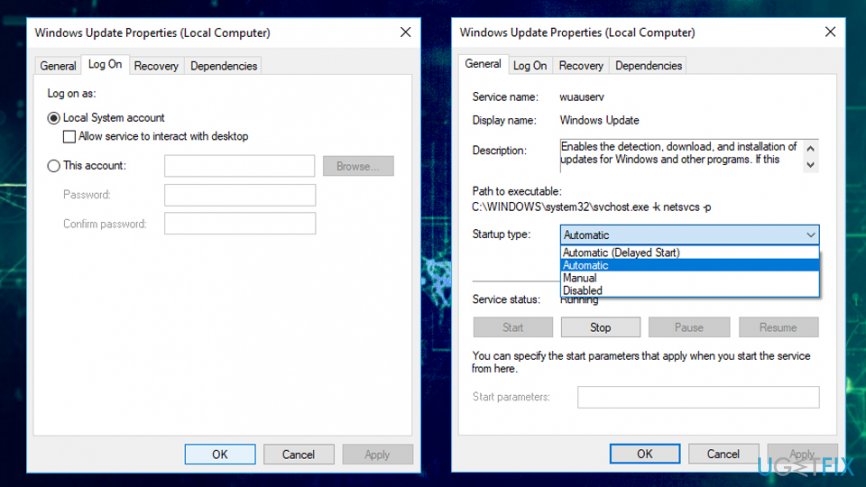
Fix svchost exe application error sop service interact with desktop
Solution 2. Roll back Windows updates
Windows updates may induce many errors. In such a case, revert the latest patch the following way:
- Click on Start and type in Control panel into the search box
- Select Programs > Uninstall a program
- Find the latest Windows update, right-click on it and pick Uninstall
- Restart your PC
Solution 3. Check Startup programs
- Right-click on Start button and pick Task Manager
- Go to Startup tab
- Disable all programs except Windows Defender
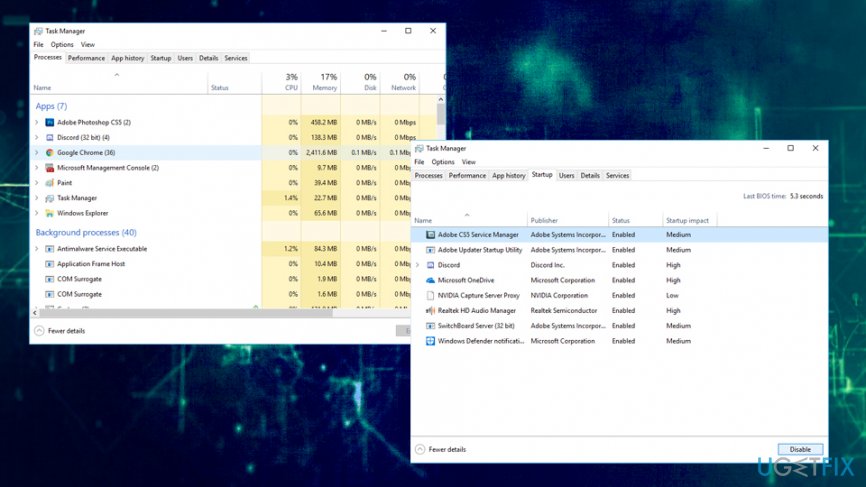
Fix svchost exe application error disable startup processes
Solution 4. Disable all background apps
Additionally, you can also disable all background apps:
- Right-click on Start and select Settings
- Go to System and then select Privacy
- Scroll down to Background apps and disable all apart Windows Defender
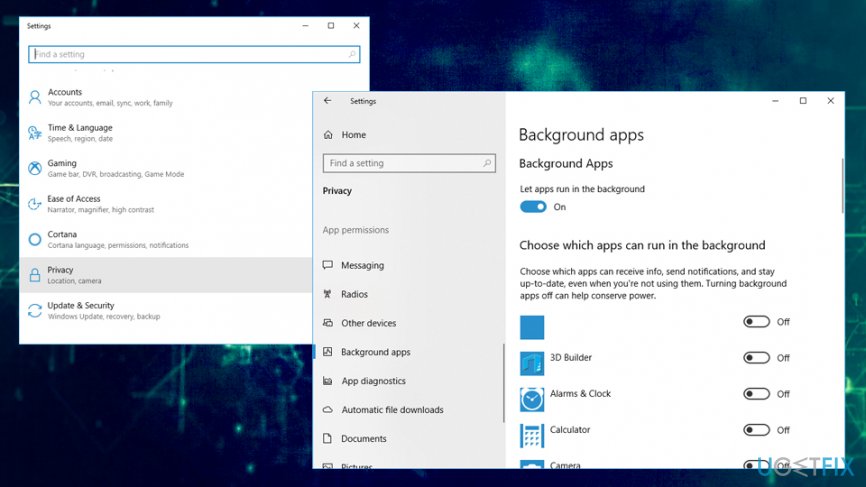
Fix svchost exe application error disable background apps
Solution 5. Run automated built-in scans
Windows have excellent built in tools that can fix several problems related to software and system files. Thus, try running System File Checker first:
- Press Start button and enter Command Prompt or cmd into the search box
- Right click on Command Prompt and select Run as administrator
- In the opened window type in sfc /scannow
- If any errors were found, System File Checker will automatically fix them
- Reboot your computer
In case that does not help, try running DISM scan:
- Go to Command prompt (admin) again and type in these commands, hitting Enter after each:
- Dism /Online /Cleanup-Image /CheckHealth
- Dism /Online /Cleanup-Image /ScanHealth
- Dism /Online /Cleanup-Image /RestoreHealth
- Reboot your machine
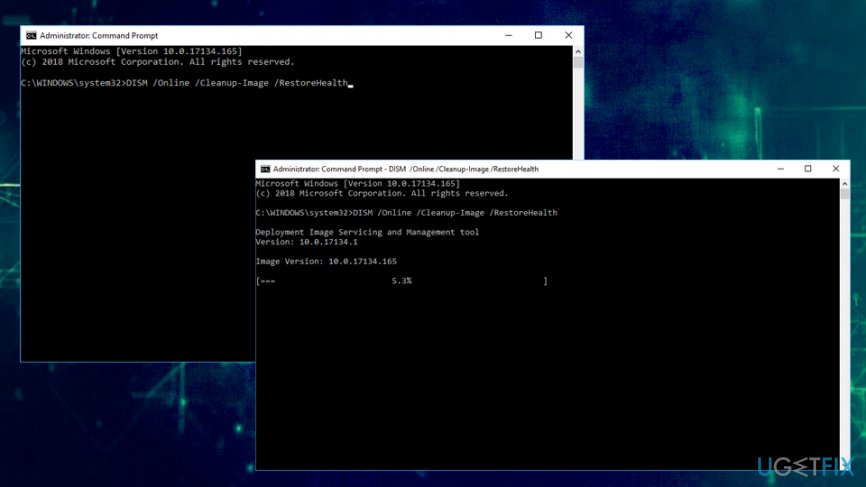
Fix svchost exe application error run dism
Bottom line
To fix the svchost.exe Application Error, users can roll back the latest Windows updates, run DISM and SFC scans to repair corrupt system files, and scan for malware using reputable security software. If these solutions do not resolve the issue, consider using automated tools to fix the error.
Frequently asked questions
Common causes include corrupted system files, malware infections, and issues with Windows updates or services. Running a system file check can help identify and fix these problems.
You can troubleshoot svchost.exe errors by performing a clean boot, checking for Windows updates, and using the DISM tool to repair the system image. Additionally, scanning for malware is crucial.
Ending the svchost.exe process can cause system instability as it hosts essential Windows services; it's advisable to identify the specific service causing issues instead. Use the command prompt to find which services are running under that process.




Report an issue
What's wrong with this guide? We review every report and update or remove content.
Report received — thank you. We'll review and fix it.
You need a free account to submit a report.
Be the first to comment