How to fix
Windows Update Error Code 0x80246007
on Windows
Resolve Windows Update Error Code 0x80246007 quickly with our expert-tested solutions. Get your updates back on track in minutes!

What causes How to Fix Windows Update Error Code 0x80246007?
- Corrupted Windows Update database
- Colliding Windows processes
- Misconfiguration of mail and calendar settings
- Issues with Background Intelligent Transfer Service (BITS)
Repairs Windows system files, removes malware, and restores a clean OS state — without reinstalling.
Hello. I can’t update Windows apps. Windows Update service returns an error code 0x80246007. Immediately after the bug, I tried to perform sfc/scannow, but it found zero file errors. Could you please help me with this?
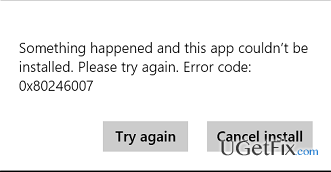
0x80246007 Error is thrown during the scan for available updates using Windows Update service. This bug check may appear interchangeably with the 0x80240002, 0x80073cff, and many others. While, usually, this error prevents updates for apps from being installed, recently some Windows 10 users have reported that it appears when trying to install Windows 10 builds, including the latest 14393. There are several speculations about the culprit of this bug check, but it seems that, in most of the cases, it is triggered by the corrupted Windows Update database. Also, some of the Windows processes can collide with the Windows Update service and, therefore, prevent running the updates. Luckily, there are a couple of 0x80246007 error fixes, and we are going to provide them in this short post.
How to Fix Windows Update Error Code 0x80246007?
Solution 1. Reset BITS Service
- Click Win key + R, type services.msc, and press Enter.
- Click Background Intelligent Transfer Service (BITS).
- Right-click BITS and opt for Properties.
- Go to General tab and set Startup Type to Automatic.
- Click OK and then Apply to save the changes.
Solution 2. Perform a clean boot
- Click Win key + S and type msconfig in the search bar.
- Select System Configuration and navigate to the Services tab.
- Mark Microsoft Services box and then select Disable all.
- Press Ctrl + Alt + Delete to Open Task Manager.
- Open Startup and disable programs that are set to boot during Windows startup.
- Once done, restart your PC.
After that, go to the Windows Update and try to install the updates. If the 0x80246007 error is thrown again, then go to the next fix. If nevertheless, no errors appear, you should find out which processes have caused them. For this purpose, enable Windows processes step-by-step and check for the bug each time.
Solution 3. Fix mail and calendar issue
Very often mail and calendar misconfiguration triggers system issues. Thus, in this case, you should try to perform these steps:
- Click Ctrl + Shift + ESC to open Task Manager.
- Select File and then click Run New Task.
- Type Get-appxprovisionedpackage –online | where-object {$_.packagename –like “*windowscommunicationsapps*”} | remove-appxprovisionedpackage –online.
- After that, check if the issue persists. For that, try to download app updates or run Windows Update service.
Solution 4. Use a System Restore Point
This option is extremely helpful. However, it’s not going to work if you did not have a System Restore Point created. If you have this option enabled recently, then you should perform the following steps to fix the 0x80246007 bug.
Hold power button to turn off your PC and then restart the system.
- Before Windows boot window shows up, press F8 to boot into Safe Mode.
- If the login screen shows up, type in your credentials.
- Once the system is booted, disable your antivirus.
- Click Win key and type system restore.
- Select Create a restore point, select System Restore and hit Next.
- Click on the latest systems restore point and click Next.
Finally, run a scan with [d1], which is a PC optimization tool with an inbuilt antivirus system. It will not only ensure an error-free system but will also protect it from malware infections and error emergence.
Bottom line
To fix the Windows Update error code 0x80246007, you can reset the BITS service, perform a clean boot, or address mail and calendar issues. If none of these solutions work, further investigation into the specific processes causing the error may be necessary.
Frequently asked questions
Error code 0x80246007 typically indicates that there is a problem with the Windows Update service or its components in Windows 10 or Windows 11.
To fix this error, you can try restarting the Windows Update service and running the Windows Update Troubleshooter through the Settings menu.
Yes, you can manually reset the Windows Update components by stopping the services, renaming the SoftwareDistribution and Catroot2 folders, and then restarting the services in Windows 11.




Report an issue
What's wrong with this guide? We review every report and update or remove content.
Report received — thank you. We'll review and fix it.
You need a free account to submit a report.
Be the first to comment