How to fix
Take high resolution screenshots
on Windows
Capture stunning high-resolution screenshots in Windows 10/11 effortlessly. Follow our expert-tested tips for flawless images every time!

What causes How to take high resolution screenshots in Windows 10/11?
- Low resolution settings
- Improper scaling settings
- Blurry app rendering
- Use of outdated screenshot tools
- Incorrect display settings
Repairs Windows system files, removes malware, and restores a clean OS state — without reinstalling.
Hello. I wanted to know if it is possible to take better quality screenshots on my Windows PC. They turn out as blurry and low resolution. I will appreciate any ideas on how to fix this.
When using any operating system, there comes a time when taking a screenshot would come in handy. With screenshots, users can share important information. However, some Windows users have complained that the screenshots are of low quality.
If you want to take screenshots on Windows, you can use the PrintScreen button or the Snipping Tool.[ref en-1] With the PrintScreen button, users then have to paste the image into Paint or another program and save it in the desired format. Users can have more freedom when using the Snipping Tool which is why it is the first choice for many.
People can choose which part of the screen they want to capture and pick if they want to save the whole window or just a small rectangular section. However, people want clear images and not a blurry mess. So if your screenshots are bad quality, you should go to your settings, and tweak them. In this guide, you will find steps on how to take high-resolution screenshots in Windows 10 and 11.
You should also have a maintenance tool like [d1] installed in your system, as it can fix most system errors, BSODs,[ref en-2] corrupted files, and registry[ref en-3] issues. Otherwise, if you are ready to begin the guide, follow the step-by-step instructions provided below.
Take better quality screenshots in:
Windows 10
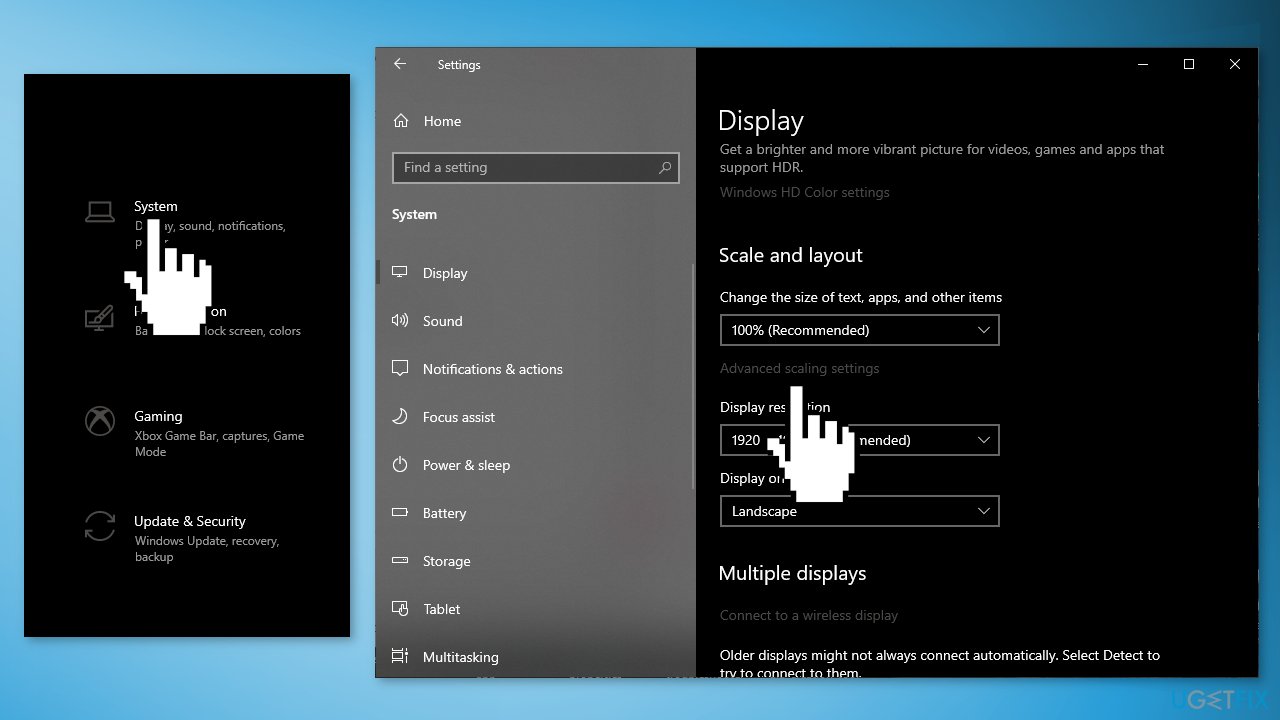
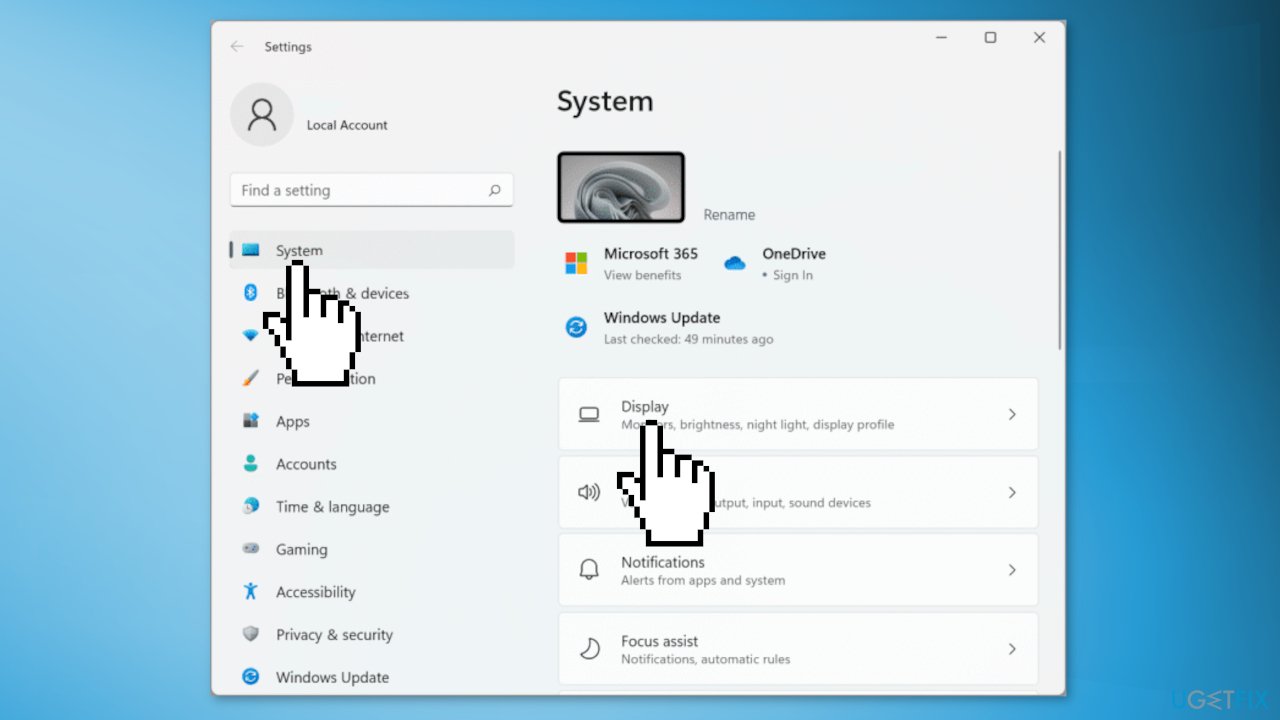
- Go to Settings, choose System and then select Display
- Under the Scale and layout section, click on Advanced scaling settings
- Turn the slider below Let Windows try to fix apps, so they are not blurry from off to on
- You can also enter a custom scaling size between 100 and 500
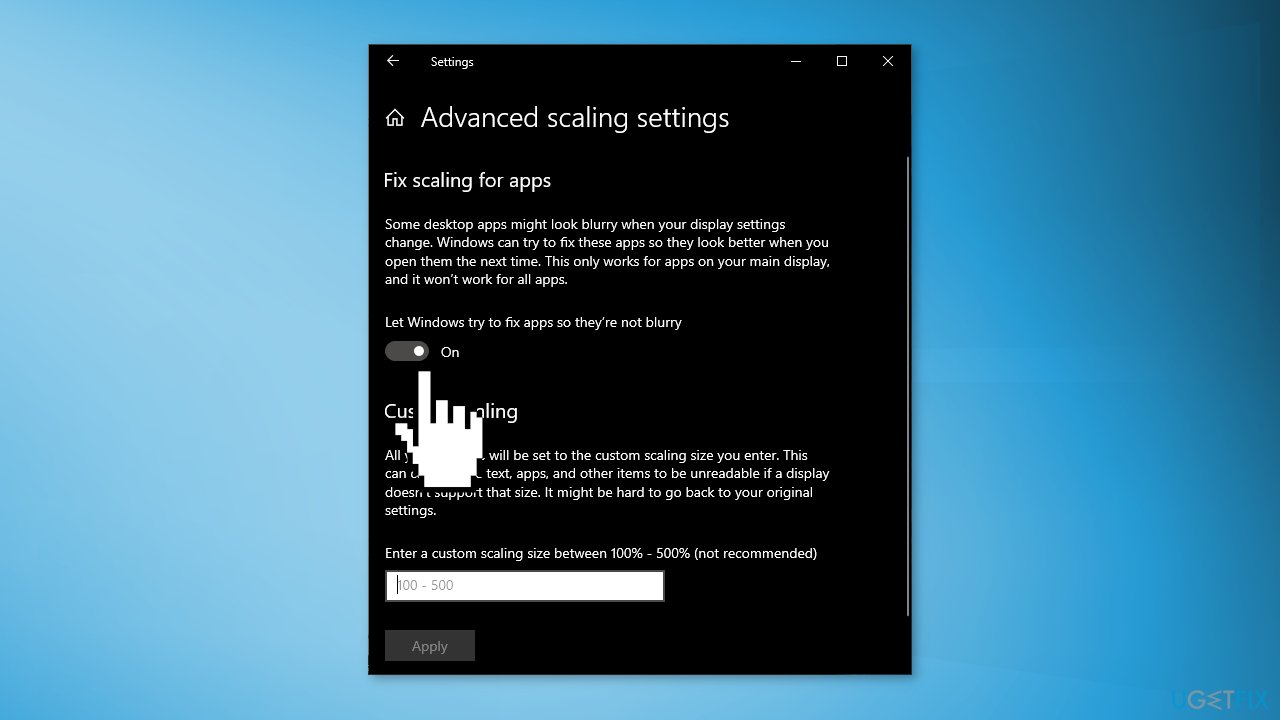
- Hit the Apply button to allow the changes to take effect
Windows 11
- Open Settings and go to System
- Choose Display and then select Custom scaling
- Enter a custom scaling size between 100 and 500
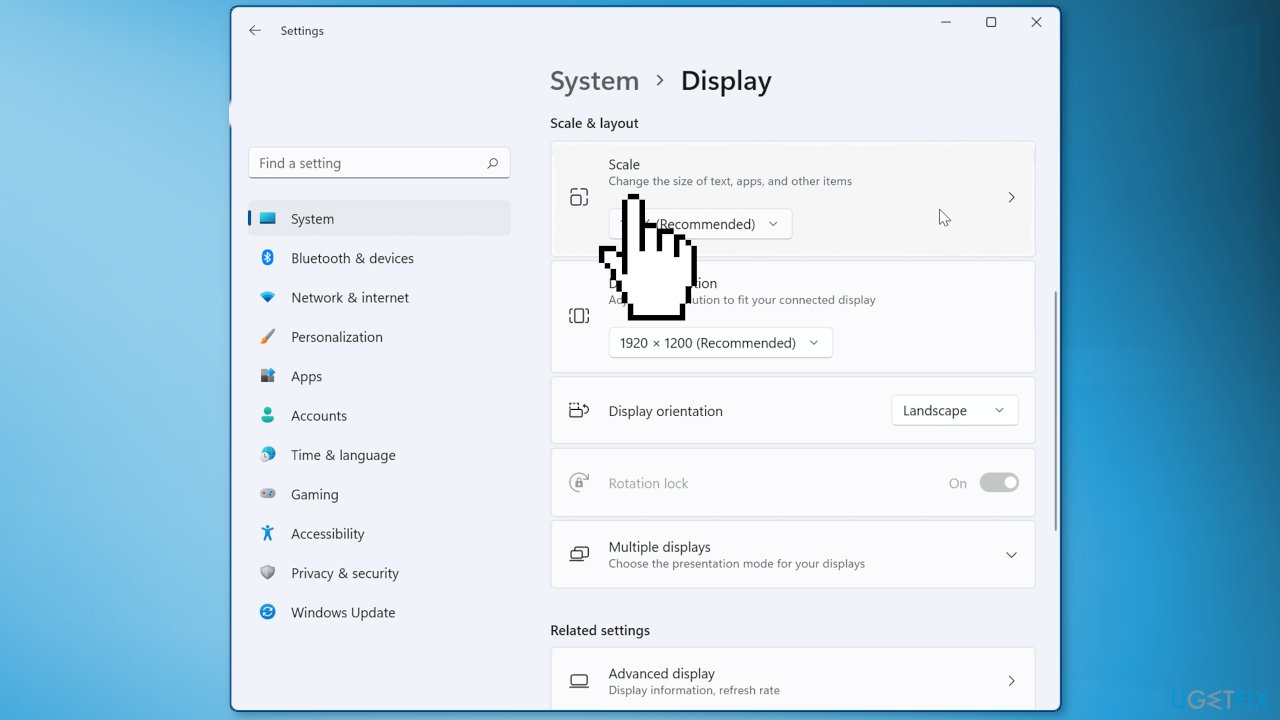
- Keep in mind that this can cause some texts, apps, and items to be unreadable if your display does not support that size
Bottom line
To take high-resolution screenshots in Windows 10 and 11, adjust your scaling settings in the Display section of the Settings menu. Ensure that the option to let Windows fix apps is enabled and consider entering a custom scaling size. If these solutions do not resolve the issue, consider using a maintenance tool to fix system errors.
Frequently asked questions
You can use the Snipping Tool, Snip & Sketch, or the Print Screen key combined with tools like Paint or Word to capture high resolution screenshots.
Make sure to use the 'Save As' option in your screenshot tool and select a file format such as PNG or BMP, which maintain higher quality.
There are no specific settings for screenshots, but ensuring your display resolution is set to the highest available will help capture better quality images.




Report an issue
What's wrong with this guide? We review every report and update or remove content.
Report received — thank you. We'll review and fix it.
You need a free account to submit a report.
Be the first to comment