How to fix
Error code M7111-1935-107016 on Netflix
on Windows
Resolve Netflix error code M7111-1935-107016 on Windows 10 or 11 effortlessly. Quick solutions and expert-tested tips to get you streaming again!

What causes How to fix error code M7111-1935-107016 on Netflix?
- Bugs in the web browser
- Corrupted browser cache and data
- Data contradiction
- Netflix profile corruption
- Glitches with the streaming application
Repairs Windows system files, removes malware, and restores a clean OS state — without reinstalling.
Hello. I was watching the movie on Netflix and the streaming stopped with the error code M7111-1935-107016. It says that something went wrong. I try to restore the browser on the computer where I use Netflix and nothing happened. It still appears on the screen. I might sometimes load the streaming again, but the issue repeats. What can I do here?
The issue occurs for users of the Netflix streaming service. It shows up when streaming videos, shows, and movies, and it stops the process completely. This is irritating, and users cannot watch anything when it appears over and over again. M7111-1935-107016 on Netflix can be seen on Windows, iOS, Android, macOS devices and on SmartTVs or different operating systems.[ref en-1]
The issue can be caused by bugs in the web browser and corrupted data on the machine. There is no particular reason that could be a universal cause of the issue for all people. However, there are various probable causes for the issue, so solutions also exist.
A common reason for various issues can be corrupted browser cache and data. The official report for error code M7111-1935-107016 from Netflix[ref en-2] states that the problem is related to browser issues and that a quick refresh should help. As for other file corruption, [d1] and similar tools can help with system performance recovery. There are some instances where this is not enough.
The error code can appear when the issue with data contradiction and Netflix profile corruption occurs. You might need to delete the profile and create a net one from scratch. Glitches with the streaming application often occur, and reset suggestions appear with the error message.[ref en-3]
Some cases can be solved by re-signing to the account. Other options that should help to fix error code M7111-1935-107016 on Netflix are listed below. Follow them if these quick mentions haven't helped you right away.
1. Re-sign to your account
- Go to the right corner of the site and hit the sign-out option.
- Enter your actual user name and password click on the Sign-in button.
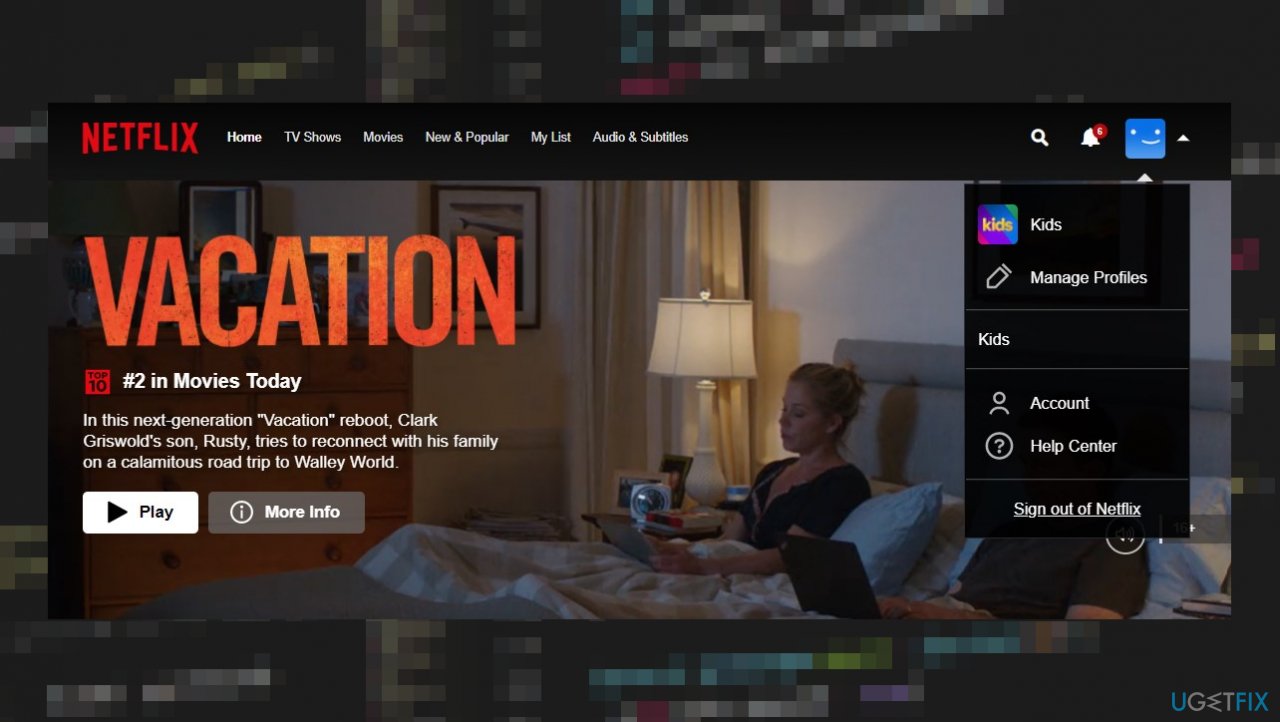
Error code m7111 1935 107016 on netflix sign out - You will be signed in now.
2. Clear the web browser cache
- From the upper right corner of the browser, click Menu.
- Click Settings.
- Go to Privacy and security, and find Clear browsing data.
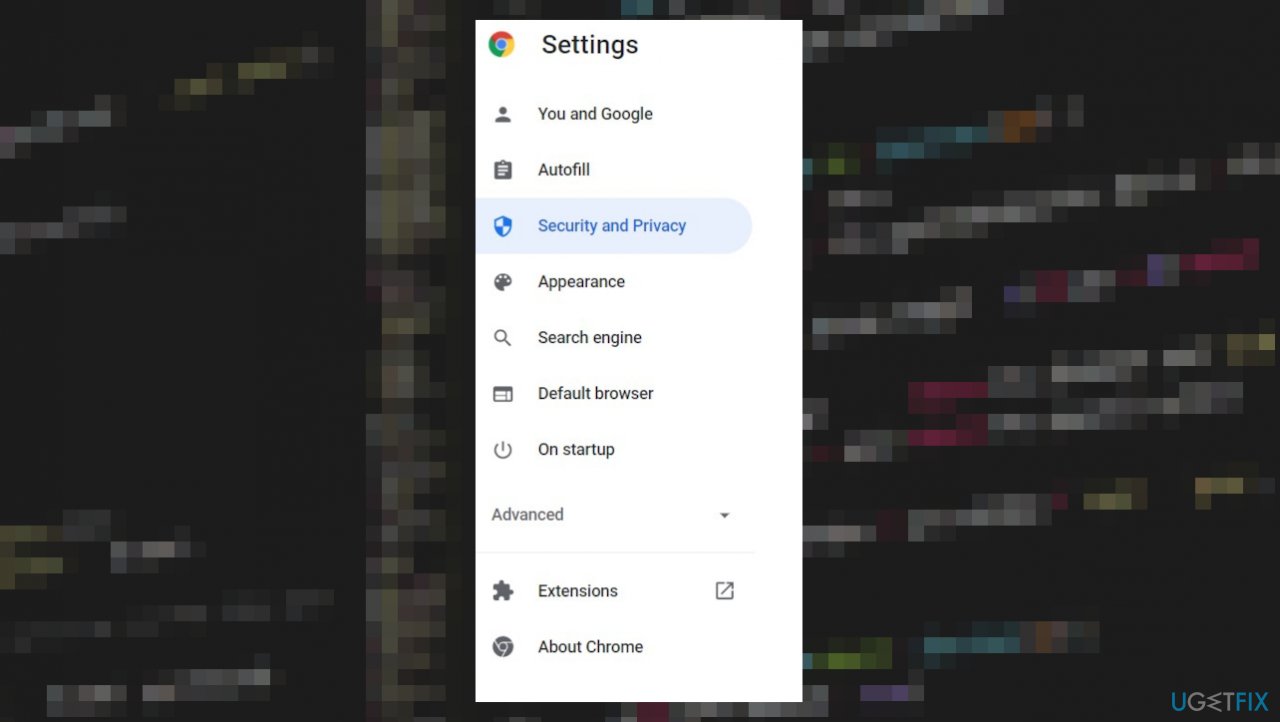
Error code m7111 1935 107016 on netflix settings - Click Advanced.
- From the Time range drop-down menu, select All time.
- Uncheck everything except Cookies and other site data.
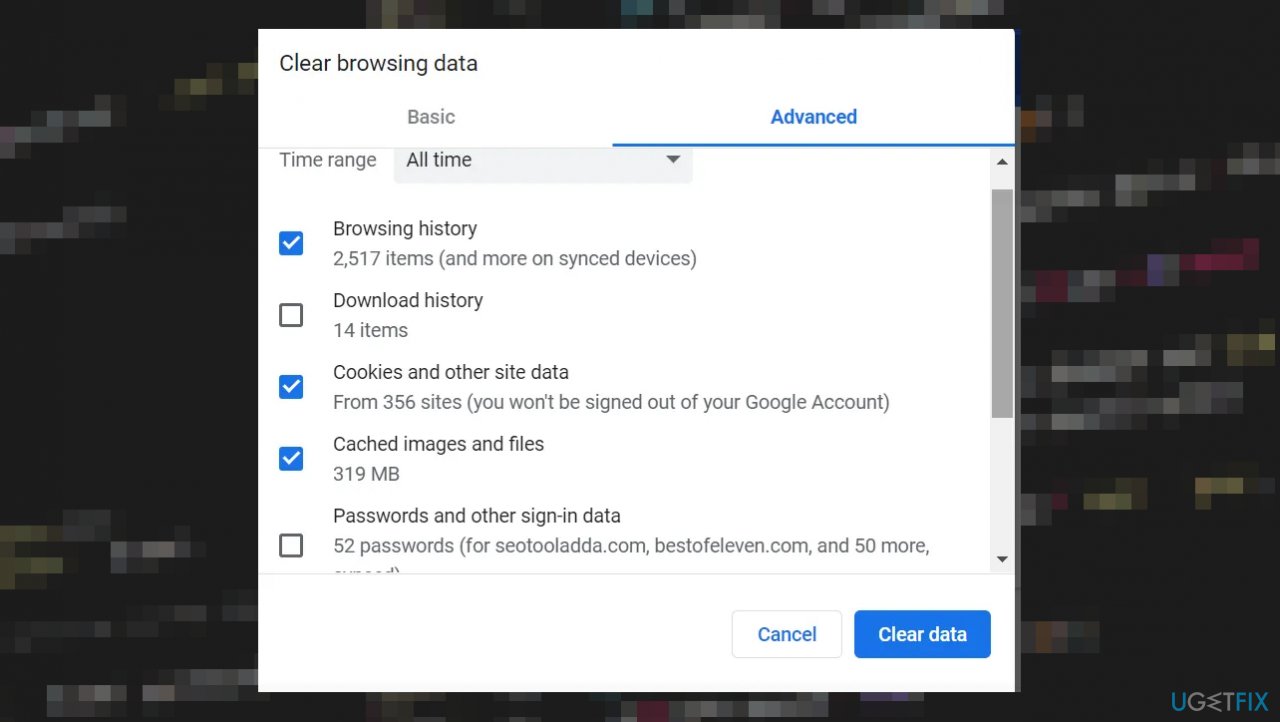
Error code m7111 1935 107016 on netflix clearing data - Click Clear data.
3. Reset the browser
- Navigate the settings on the browser.
- Click on the advanced option at the bottom.
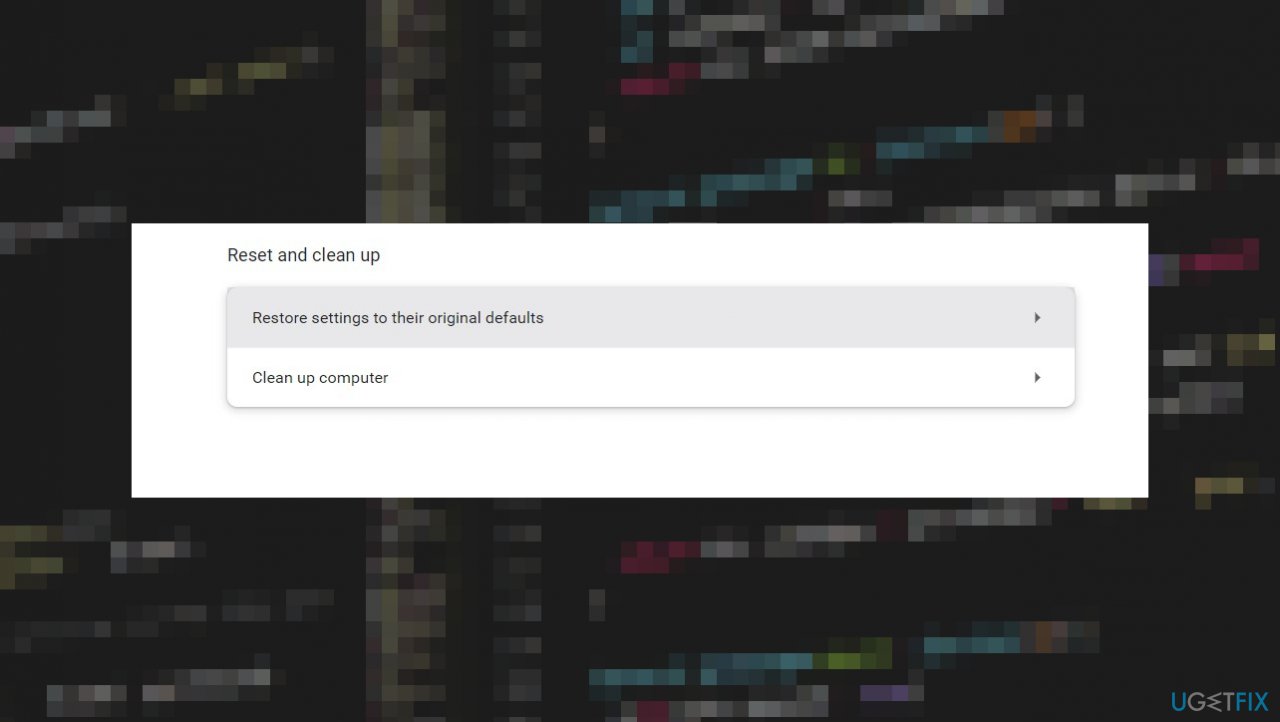
Error code m7111 1935 107016 on netflix reseting - Select the Reset and clean up option from the advanced menu.
- Click on the Restore settings to their original defaults option.
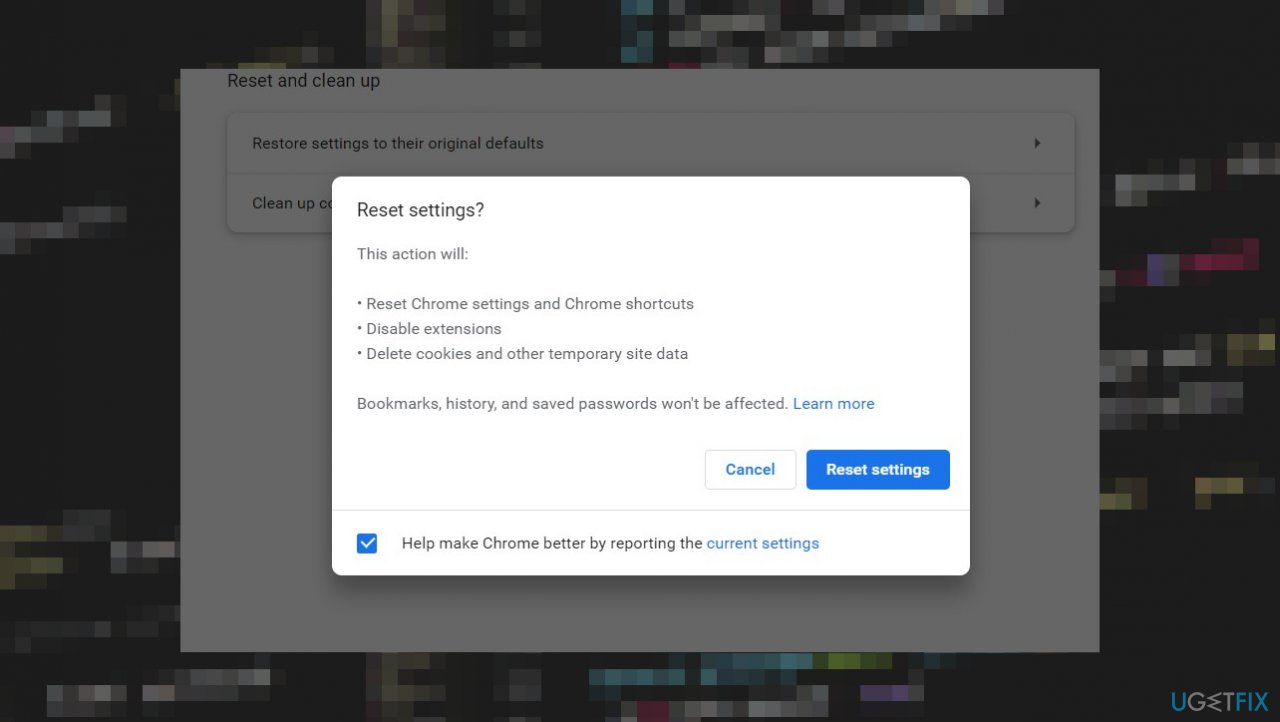
Error code m7111 1935 107016 on netflix reset - Select the Reset settings.
4. Delete the corrupted Netflix account
- Open your browser and go to Netflix.
- Type the Netflix credentials to log in to your account.
- Open your profile.
- Click the drop-down menu and select Manage Profiles.
- It will take you to the Edit Profile
- Click Delete Profile from the below right corner and confirm the deletion.
- Select the plus (+) option on the main page to add your profile again.
- Create your profile and set Save.
5. Flush DNS and Reset Winsock
- Search for CMD in the bottom bar.
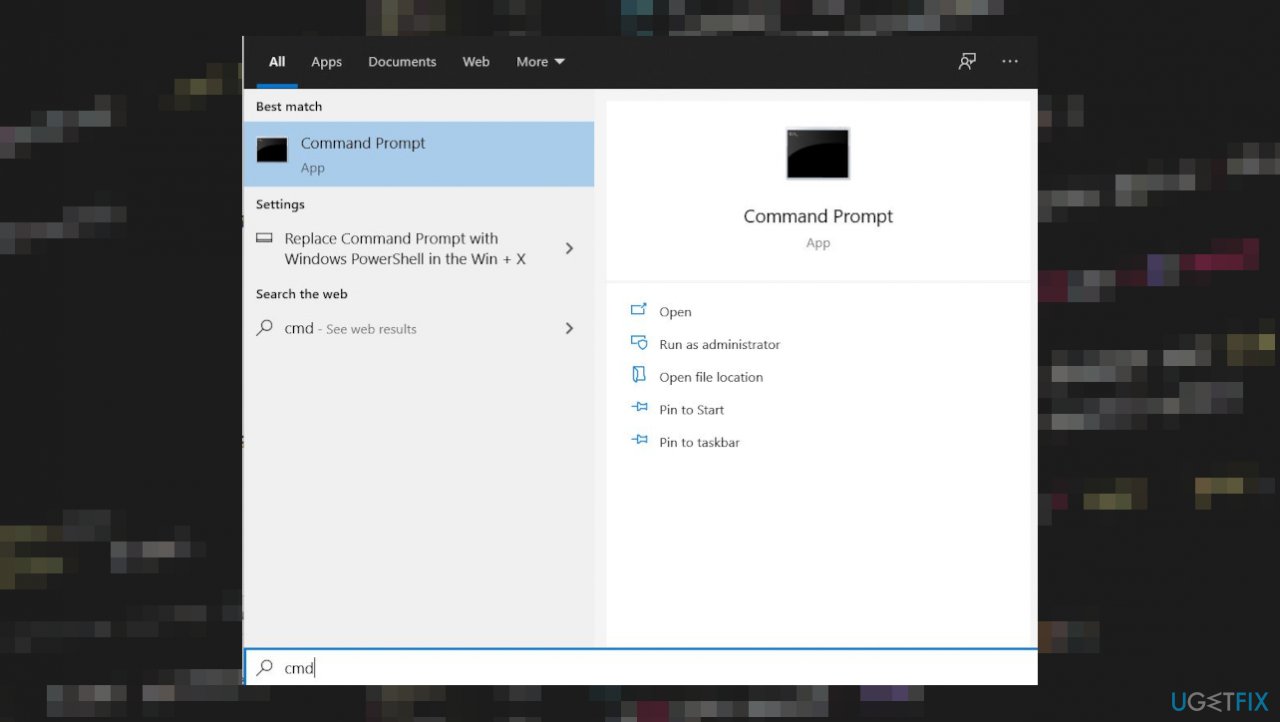
Error code m7111 1935 107016 on netflix cmd - Open Command Prompt with administrator rights and execute commands one by one:
ipconfig /fluchdns
ipconfig /registerdns
netsh winsock reset
Bottom line
To fix error code M7111-1935-107016 on Netflix, you can try re-signing to your account, refreshing the browser, or deleting and recreating your Netflix profile. If these solutions do not resolve the issue, consider using tools for system performance recovery or checking for additional fixes.
Frequently asked questions
This error typically indicates a problem with your browser settings or an issue with Netflix's streaming capabilities on your device. It can often result from outdated browser versions or conflicting extensions.
To fix this error, try clearing your browser cache and cookies, and ensure your browser is updated to the latest version. Additionally, disabling any unnecessary extensions may help resolve the issue.
Using the Microsoft Edge browser is recommended for Windows 11 users, as it is optimized for streaming and typically provides better compatibility with Netflix. Ensure that Edge is updated to the latest version for the best experience.




Report an issue
What's wrong with this guide? We review every report and update or remove content.
Report received — thank you. We'll review and fix it.
You need a free account to submit a report.
Be the first to comment