How to fix
0x800f0954 error when installing NET Framework
on Windows
Resolve the 0x800f0954 error when installing NET Framework on Windows 10 or 11 effortlessly with expert-tested solutions. Fixed in minutes!


What causes How to fix 0x800f0954 error when installing NET Framework in Windows?
- System cannot reach the WU server
- CBS logs generated by the DISM utility
- Issues with Windows Update settings
- Registry configuration problems
- Problems with the installation package
Repairs Windows system files, removes malware, and restores a clean OS state — without reinstalling.
Hello. I have tried to install the NET Framework on my Windows PC but I received the 0x800f0954 error which interrupted the process. What could be causing the problem?
The .NET Framework is a proprietary software framework developed by Microsoft. It was created for building and running Windows applications. The NET framework consists of developer tools, programming languages, and libraries to build desktop and web applications. It is also used to build websites, web services, and games.
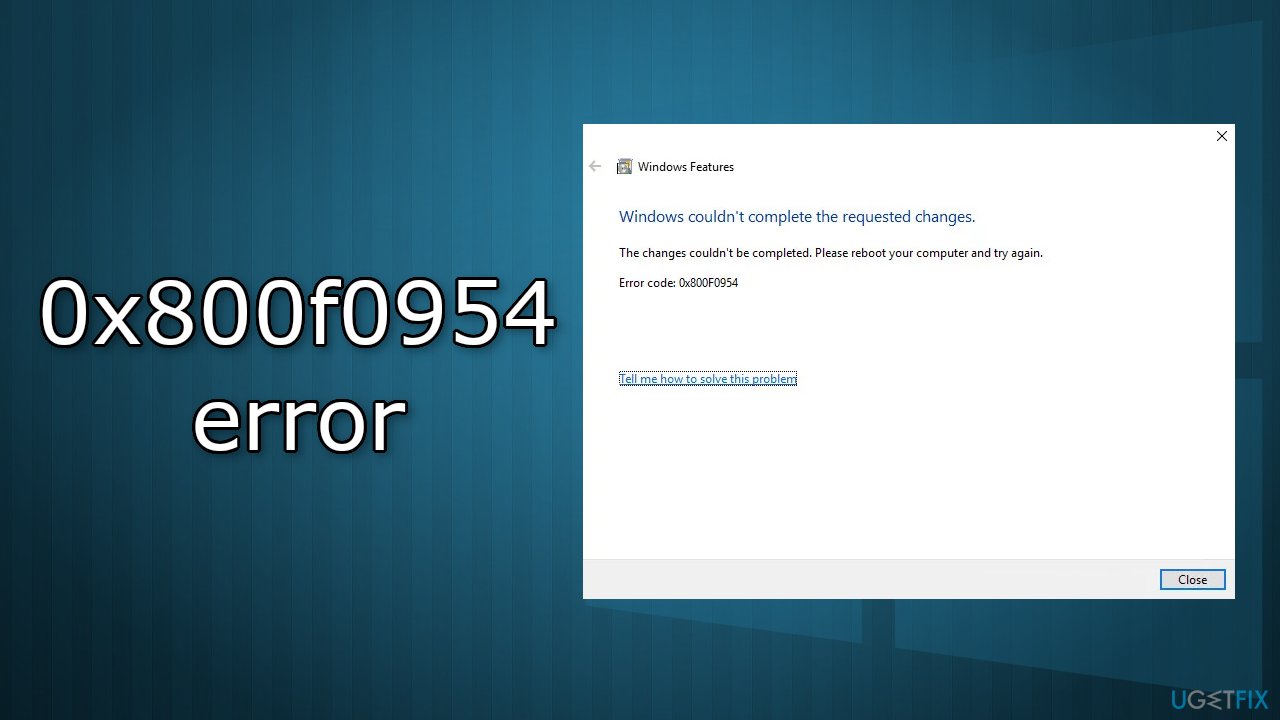
Unfortunately, some users are receiving an error code 0x800f0954 when attempting to install .NET Framework 3.5 or a different optional feature in Windows. Most people report that the error appears while trying to install the package via Windows Features. However, others are getting it while using the DISM tool.[ref en-1] The 0x800f0954 error was confirmed to occur on Windows 7, Windows 8.1, and Windows 10.
It is unknown what exactly could be causing the error to occur when installing NET Framework but in most cases, the error appears because the system cannot reach the WU server. The CBS logs generated by the DISM utility could also be triggering the issue.
In this guide, you will find 5 solutions that could help you fix the 0x800f0954 error when installing NET Framework in Windows. If you want to avoid a long troubleshooting process, you can use a maintenance tool like [d1] that can fix most system errors, BSODs,[ref en-2] corrupted files, and registry[ref en-3] issues. Otherwise, proceed with the steps below carefully.
Solution 1. Bypass the WSUS
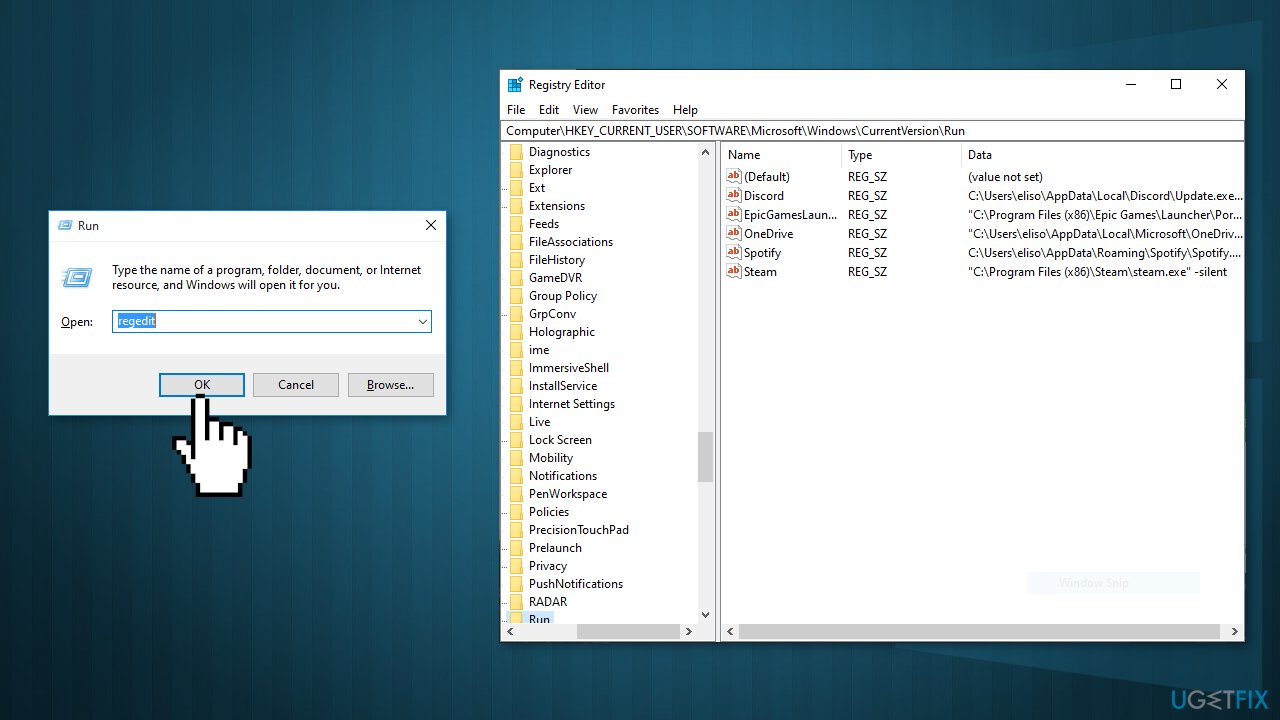
- Press Windows key + R to open the Run box
- Type regedit and hit Ctrl + Shift + Enter to open the Registry Editor
- When prompted by the UAC (User Account Control), click Yes to grant administrative privileges
- Use the left-hand pane to navigate to the following location:
HKEY_LOCAL_MACHINE\\SOFTWARE\\Policies\\Microsoft\\Windows\\WindowsUpdate\\AU
- If the WindowsUpdate key does not exist, you have to create it manually
- Right-click on the Windows key, select New > Key and name it WindowsUpdate
- Right-click on the newly created key and select New > Key and name it AU
- With the AU key selected, move to the right-hand pane, right-click on an empty space and choose New > String value
- Rename the newly created string value to UserWUServer
- Double-click on it and set its Value Data to 0
- Close the Registry Editor, restart your computer, and see if the issue has been resolved
Solution 2. Clean the CBS logs
- Open File Explorer and navigate to the following location:
C:\\Windows\\Logs\\CBS
- Once you get inside the CBS folder, select everything there and choose Delete
- After every file .log and .cab file is deleted, you can close the CBS folder
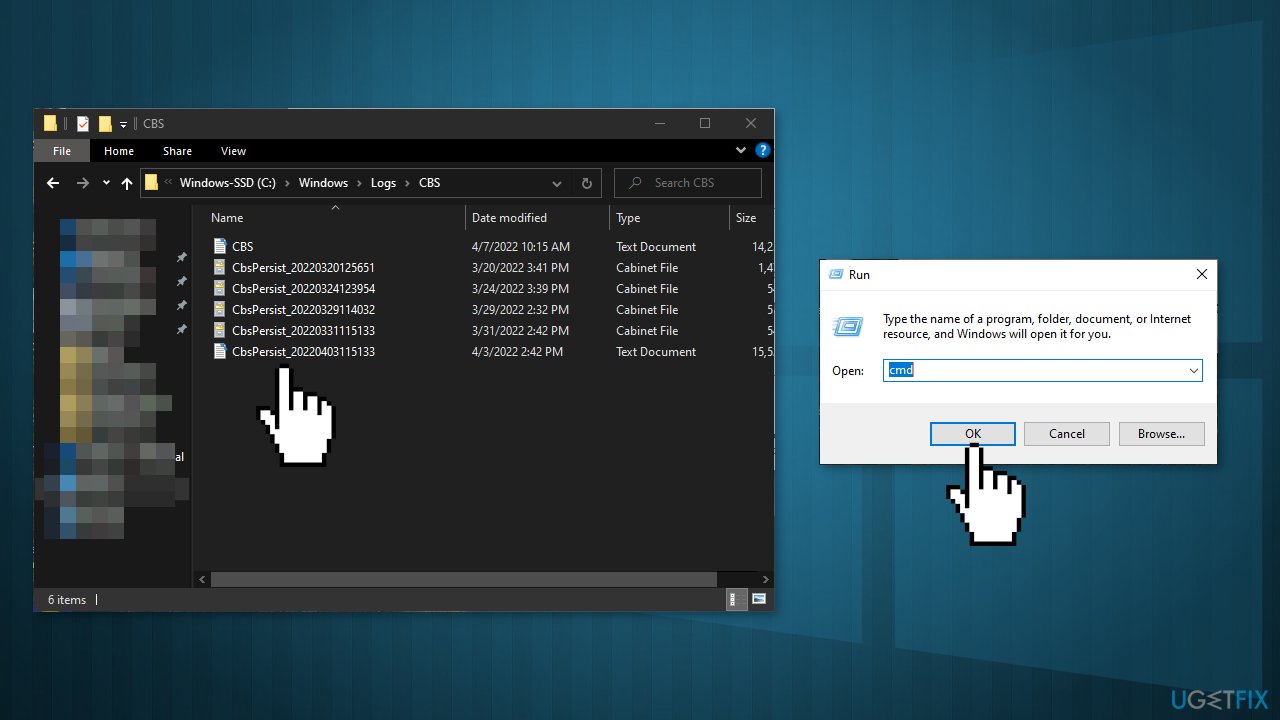
- Press Windows key + R to open the Run dialog box
- Type cmd and press Ctrl + Shift + Enter to open up an elevated Command Prompt
- When you see the UAC (User Account Control), click Yes to grant administrative privileges
- Type the following command and press Enter:
Dism.exe /online /enable-feature /featurename:NetFX3 /source:C:\\
- After hitting Enter, the .NET Framework should install without the 0x800f0954 error
Solution 3. Use PowerShell to install .NET Framework 3.5
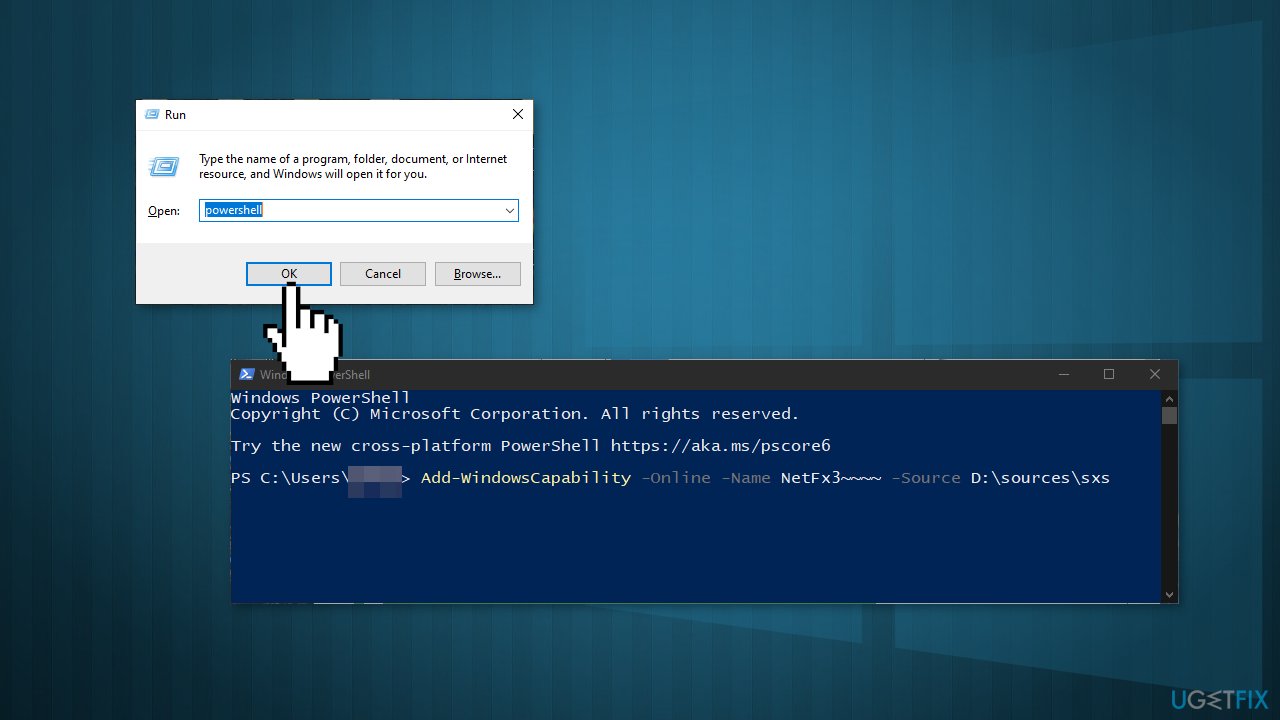
- Press Windows key + R to open up a Run box
- Type powershell and press Ctrl + Shift + Enter
- When prompted by the UAC (User Account Control), click Yes to grant administrative privileges
- Type the following command and press Enter to run it:
Add-WindowsCapability –Online -Name NetFx3~~~~ –Source D:\\sources\\sxs
- Close the elevated Powershell prompt and restart your machine
- At the next system startup, attempt to install the .NET Framework 3.5 once again and see if the issue has been resolved
Solution 4. Use the Group Policy Editor
- Press Windows key + R to open up a Run dialog box
- Type gpedit.msc and press Enter to open up the Local Group Policy Editor
- Click Yes to grant administrative privileges
- Once you’re inside the Local Group Policy Editor, use the left-hand pane to navigate to the following location:
Computer Configuration\\Administrative Templates\\System
- Then, with System selected, go over to the right-hand pane and double-click on the Specify settings for optional component installation and component repair
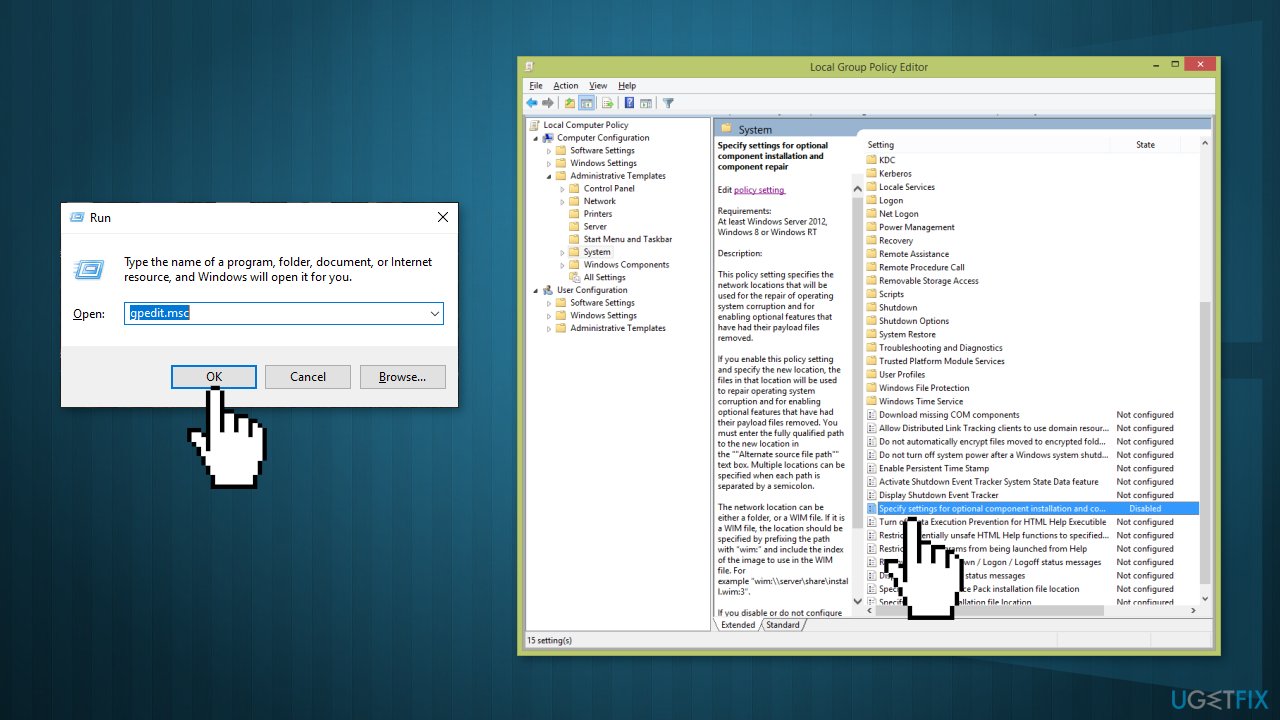
- Set the policy to Enabled and make sure to check the box associated with Download repair content and optional features directly from Windows Update instead of Windows Server Update Services (USUS)
- Hit Apply to save the configuration, then close the Local Group Policy Editor and restart your computer
Solution 5. Change Registry Value UseWUServer
- Press Windows + R, type regedit in the dialogue box, and press Enter
- Once in the registry editor, navigate to the following path:
HKLM/Software/Policies/Microsoft/Windows/WindowsUpdate/AU/UseWUServer
- Change the value from 1 to 0
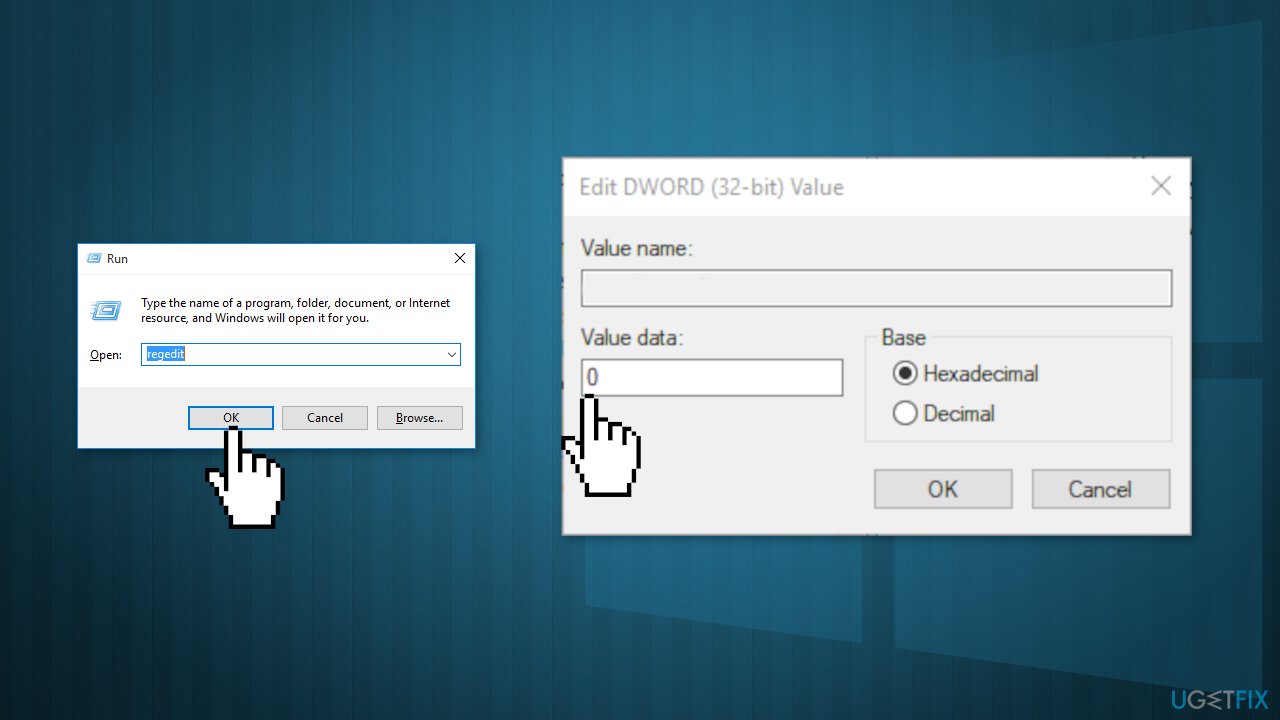
- Restart your computer and start the update service again
- Check if the issue is resolved
Bottom line
To fix the 0x800f0954 error, you can bypass the WSUS, check your registry settings, or use a maintenance tool. If these solutions do not resolve the issue, consider seeking additional technical support.
Frequently asked questions
The 0x800f0954 error typically occurs due to issues with Windows Update or when the system cannot access the necessary files needed for .NET Framework installation.
To fix the error on Windows 11, you can try running the Windows Update Troubleshooter and ensure that your system is fully updated before attempting the installation again.
Yes, you can download the .NET Framework installer directly from Microsoft's website and run it, which may help bypass the error caused by Windows Update issues.




Report an issue
What's wrong with this guide? We review every report and update or remove content.
Report received — thank you. We'll review and fix it.
You need a free account to submit a report.
Be the first to comment