How to fix
Windows update or Windows Store error 0x80246013
on Windows
Resolve Windows update or Store error 0x80246013 quickly and easily with our expert-tested solutions for Windows 10 and 11. Fixed in minutes!

What causes How to fix Windows update or Windows Store error 0x80246013?
- Windows Store Apps Troubleshooter not run
- Update Troubleshooter not run
- Data files in the specified location not relocated
- Corrupted system files
- Registry issues
Repairs Windows system files, removes malware, and restores a clean OS state — without reinstalling.
Hello. I tried to download an app from the Windows Store but I received an error 0x80246013. What could be the problem? Any tips would be appreciated.
Windows is one of the most popular operating systems in the world. It is very sophisticated and appreciated for its user-friendly interface, customization abilities, built-in troubleshooters, and much more. To keep the system running smoothly, people have to keep it updated and install the newest feature updates and security patches.[ref en-1]
Windows also has a Microsoft Store where users can install, and update apps in one place. Since its release, Windows users do not need to use third-party sources anymore to get software. People can download games, tools, and many other types of programs directly from Microsoft. This minimizes the risk of PUP (potentially unwanted program),[ref en-2] and malware infections.
However, some people report encountering an error code 0x80246013 whenever they try to install system updates or apps from the Windows Store. It is unclear why exactly this could be happening and why users receive the same error in two different situations. In this guide, you will find 5 methods that could help you fix the Windows update or Windows Store error 0x80246013.
You can also use a maintenance tool like [d1] if you want to avoid a lengthy troubleshooting process. This powerful software can fix various system errors, BSODs,[ref en-3] corrupted files, and registry[ref en-4] issues. Otherwise, you can follow the step-by-step instructions provided below.
Method 1. Run Windows Store Apps Troubleshooter
- Right-click the Start button and hit Settings from the list
- In the Settings window, click on the Update & Security option
- Select Troubleshoot from the left-hand side pane
- From the options look for the Windows Store Apps and click on it
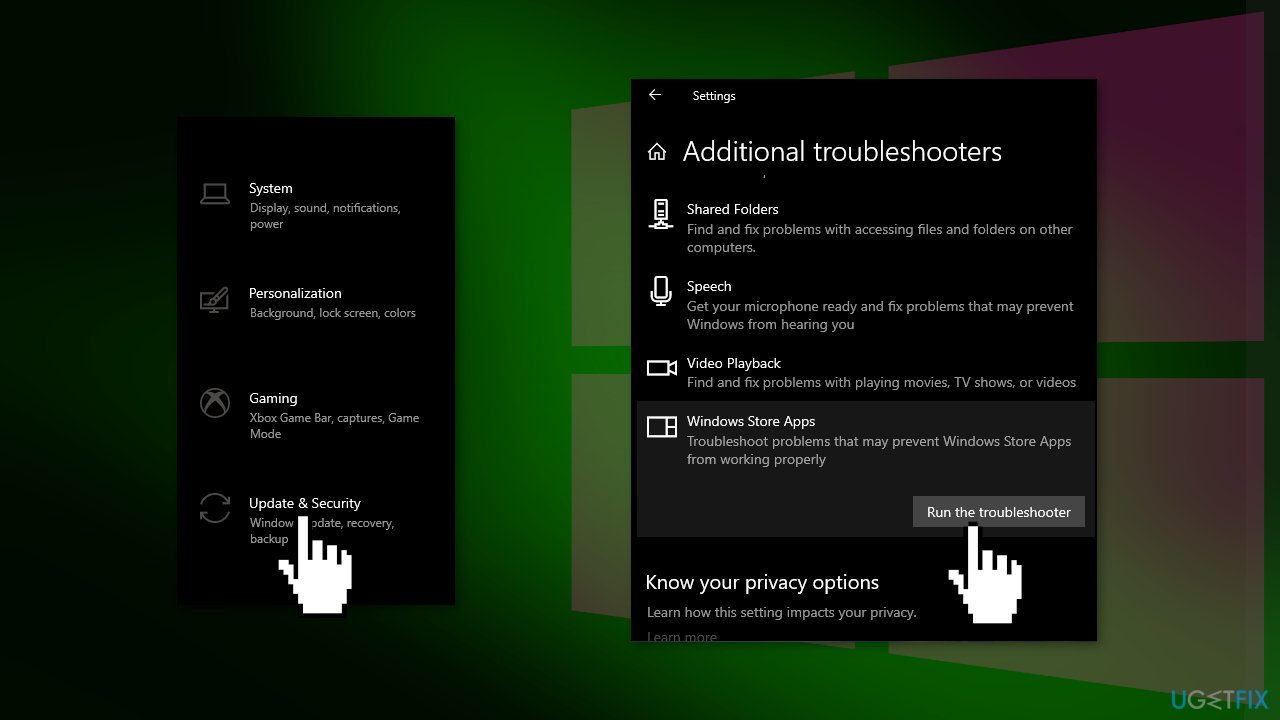
- Once expanded, hit Run the Troubleshooter option
Method 2. Run the Update Troubleshooter
- Press the Windows + X keys and go to Settings
- Go to Update and Security
- Click Troubleshooter
- Select Additional troubleshooters
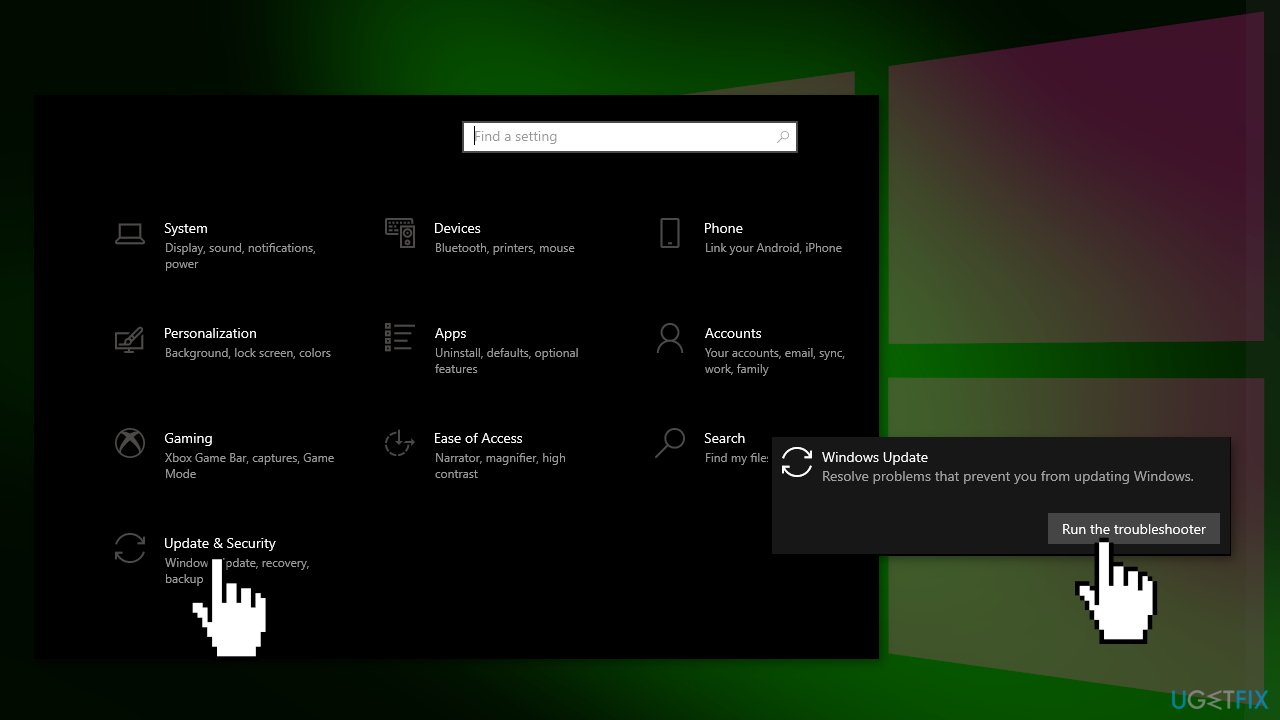
- Run the Update troubleshooter
- Restart
Method 3. Relocate Data Files
- Navigate to the following path in Explorer:
C:\\Windows\\System32\\config\\systemprofile\\AppData\\Local\\Microsoft\\InstallAgent\\Checkpoints
- If this location exists on your PC, then here you may find two data files:
9ND94HKF4S0Z.dat
9NCGJX5QLP9M.dat
- Move them temporarily to your desktop and see if the problem persists
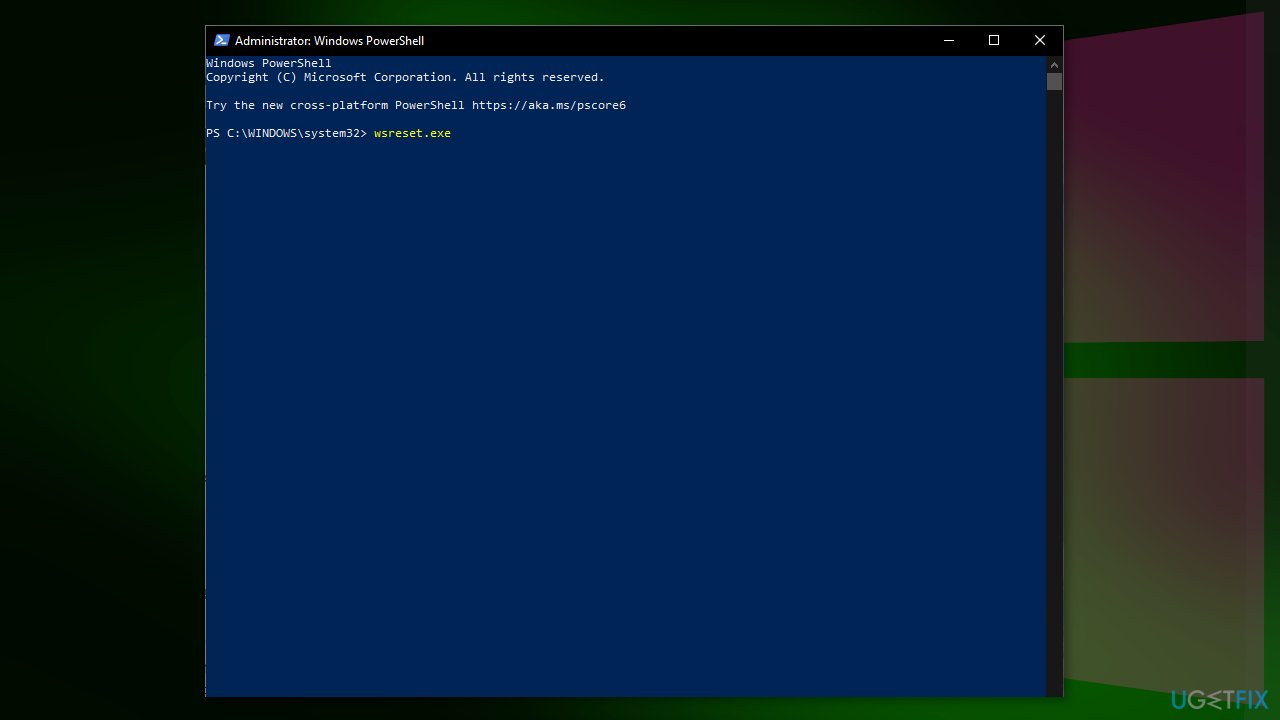
Method 4. Reset Microsoft Store
- Open the Windows Powershell from the search bar by typing powershell
- Right-click on the search result and select Run as Administrator
- If a UAC opens, hit Yes to provide your consent
- Type WSReset.exe and hit Enter
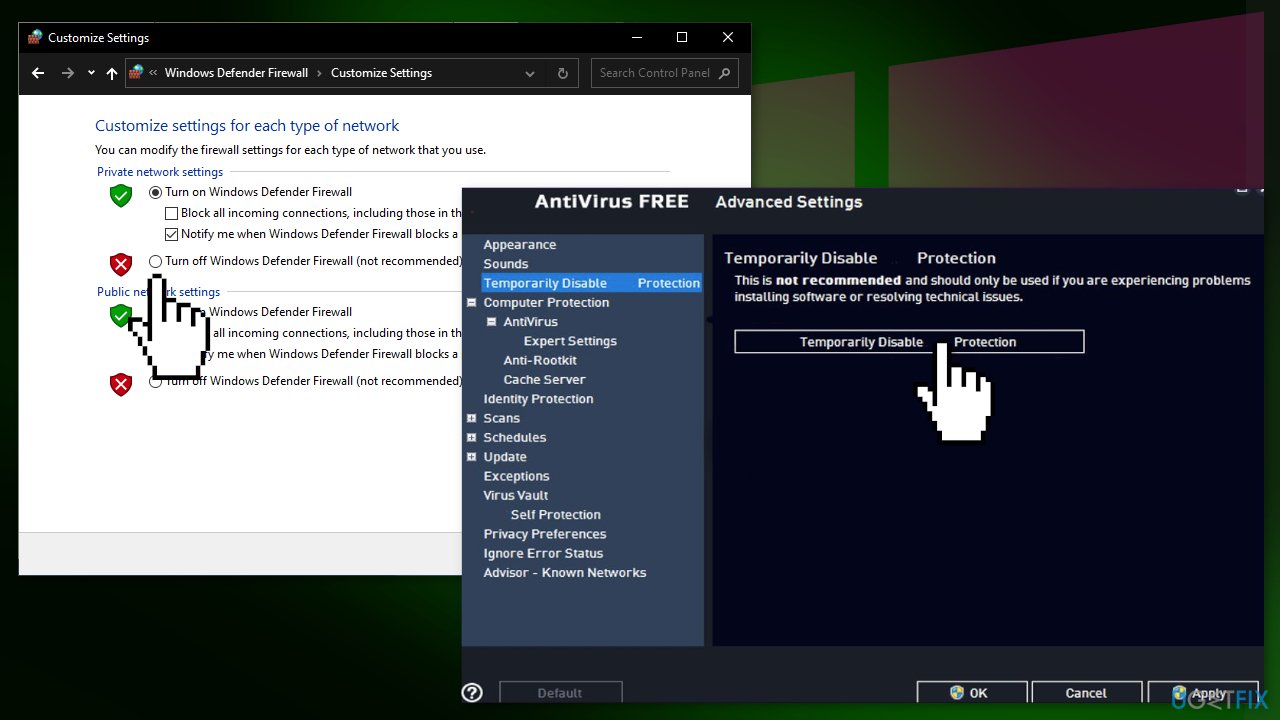
Method 5. Disable Firewall and Antivirus Software
- Open the Run dialogue box by hitting the Window + R keys simultaneously
- Enter Control Panel in the text field and tap Enter
- Set the View by option to Small Icons
- Locate Windows Defender Firewall and click on it
- Navigate to the left-hand side section and switch the Turn Windows Defender Firewall on or off to Off
- Hit OK
Bottom line
To fix the Windows update or Windows Store error 0x80246013, you can run the Windows Store Apps Troubleshooter and the Update Troubleshooter. Additionally, relocating specific data files may help resolve the issue. If these methods do not work, consider using a maintenance tool to address various system errors.
Frequently asked questions
Error code 0x80246013 typically indicates a problem with the Windows Update or Windows Store services, often related to network connectivity or incorrect settings.
You can reset the Windows Update components by running the Command Prompt as an administrator and executing specific commands to stop services, delete temporary files, and restart the services.
Yes, running the Windows Store Apps troubleshooter in Windows 10 or Windows 11 can help identify and resolve issues related to the error 0x80246013.




Report an issue
What's wrong with this guide? We review every report and update or remove content.
Report received — thank you. We'll review and fix it.
You need a free account to submit a report.
Be the first to comment