How to fix
Script Error
on Windows
Resolve Script Errors in Windows 10 and 11 quickly with effective solutions. Get your PC running smoothly again—expert-tested for reliability.


What causes How to fix Script Error in Windows?
- Browser unable to execute JavaScript or VBScript instructions
- Error on the webserver or programming end of a software program
- Incorrect code implementation or bad configuration
- Software program or operating system unable to load the script correctly
- Browser settings blocking scripts
- Security software falsely perceiving a harmless script as a threat
Repairs Windows system files, removes malware, and restores a clean OS state — without reinstalling.
Hello. Recently I started receiving Script Errors on my Windows computer. I have no idea what they mean and why they appear. Any tips would be appreciated.
A script error is an error that occurs when the instructions from a script can not be executed correctly. Most PC users will encounter script errors while using the browser. This can happen because the browser is unable to execute JavaScript or VBScript (or other scripting languages)[ref en-1] instructions from a website. However, script errors can be caused by desktop applications too.
A common reason for scripting errors is that an error has occurred behind the scenes, either on the webserver for errors in a web browser or on the programming end of a software program. Incorrect code implementation or some other bad configuration on the software side is impossible to fix for users. The problem has to be fixed by the developers themselves.
However, scripting errors can also be caused by the software program or operating system that is unable to load the script correctly. For example, there might be a setting in your web browser that is blocking scripts, or your security software might be blocking a harmless script because it falsely perceives it as a threat.
In this guide, you will find 7 steps that could help you fix the Script Error in Windows. You can also use a maintenance tool like [d1] if you want to avoid a lengthy troubleshooting process. This powerful software can fix most system errors, BSODs,[ref en-2] corrupted files, and registry[ref en-3] issues. Otherwise, follow the steps provided below.
Solution 1. Update Windows and other Software
- Type Updates in Windows search and press Enter
- In the new window, click Check for updates
- Install everything available (including optional updates)
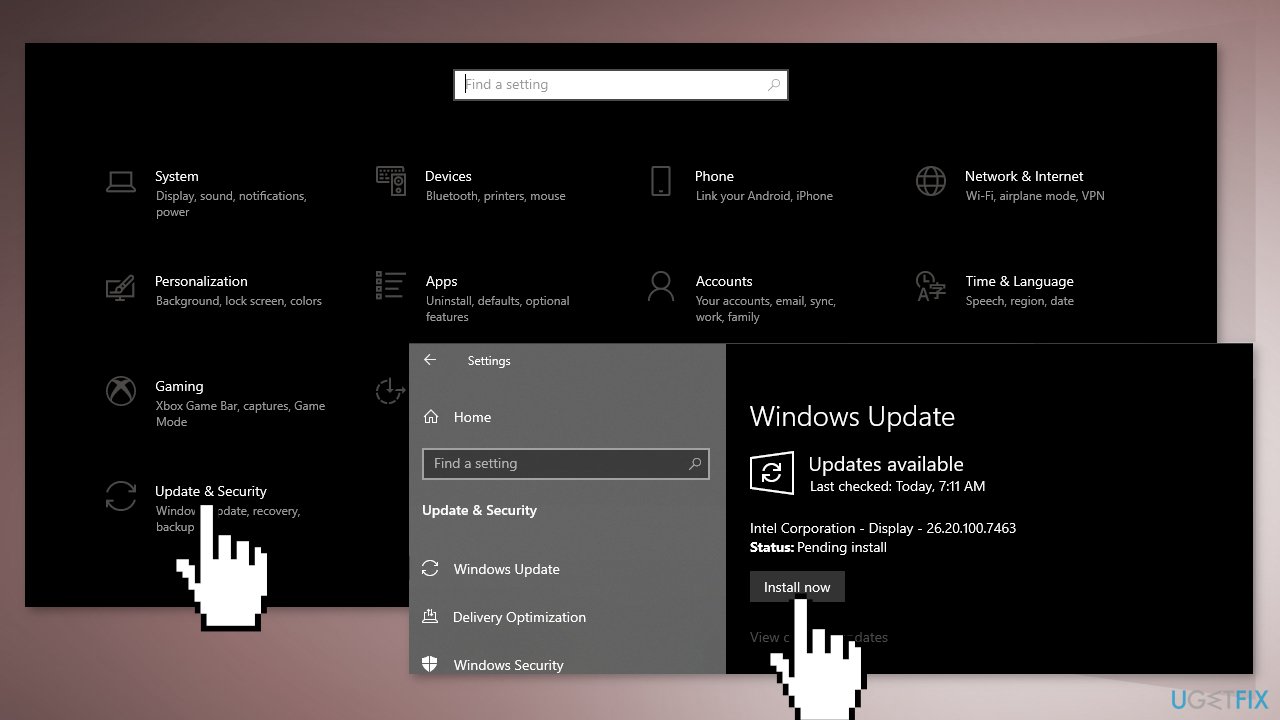
- Reboot your system
Outdated software might be what's causing the specific script error that you're seeing. This might be because the website or program showing the error, has a minimum requirement that your computer doesn't meet. You can update applications by going to Apps & Features on your Windows computer.
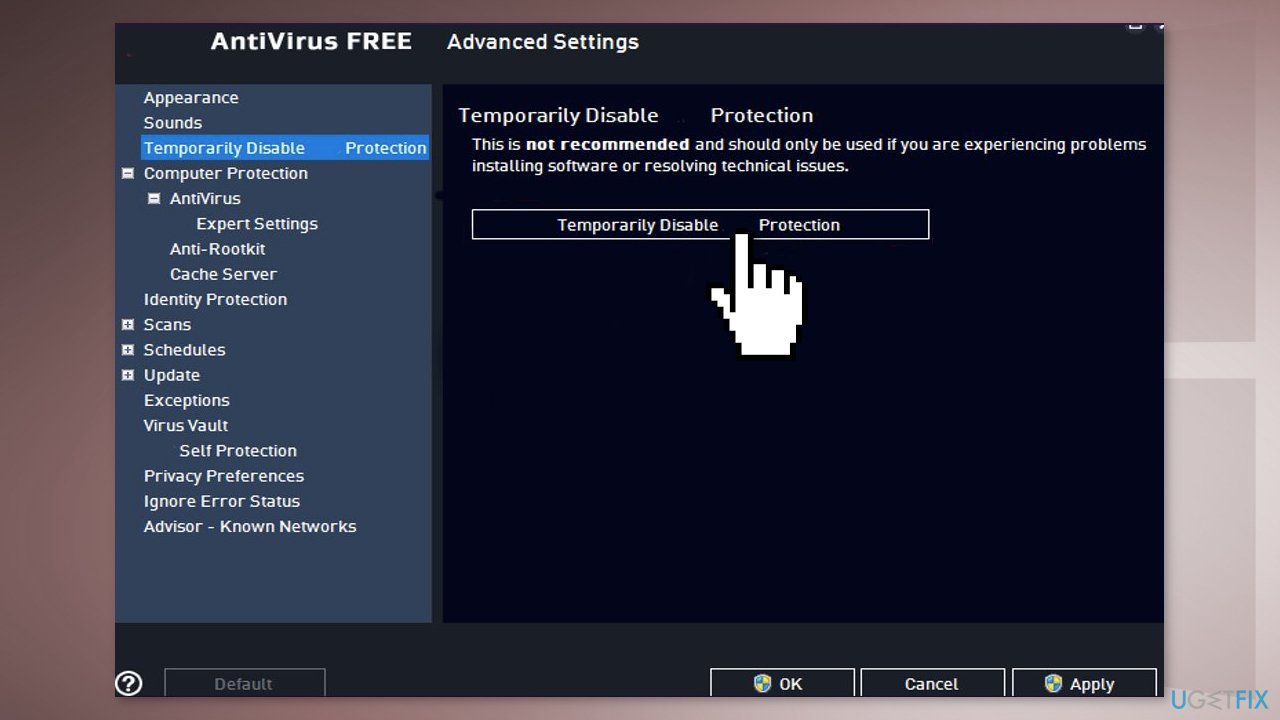
Solution 2. Disable Third-Party Security Software
If you have any third-party antivirus software installed on your system, you should try disabling it. In case the Script Error disappears with the antivirus software disabled, it’ll become obvious that the issue was caused by it. You can disable the antivirus by launching it and looking for the option in the settings.
Solution 3. Remove all Temporary Internet Files
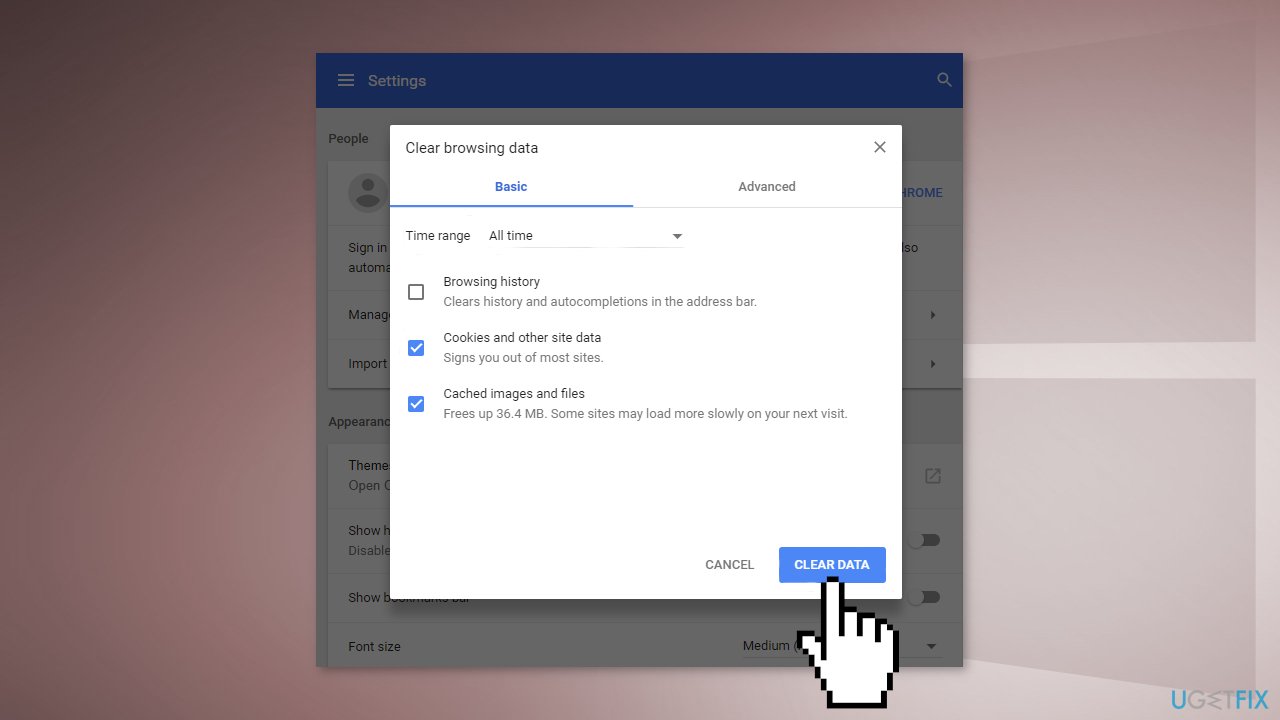
It is a good idea to delete all the cache and offline files. An outdated file may be trying to execute, resulting in an error due to conflict. Once you delete the cache, the browser will download new files, and it should resolve the script error problem. Depending on the browser, the process may differ. In Chrome:
- On your computer, open Chrome
- At the top right, click More
- Click More tools, then Clear browsing data
- To delete everything, select All time
- Next to Cookies and other site data and Cached images and files, check the boxes
- Click Clear data
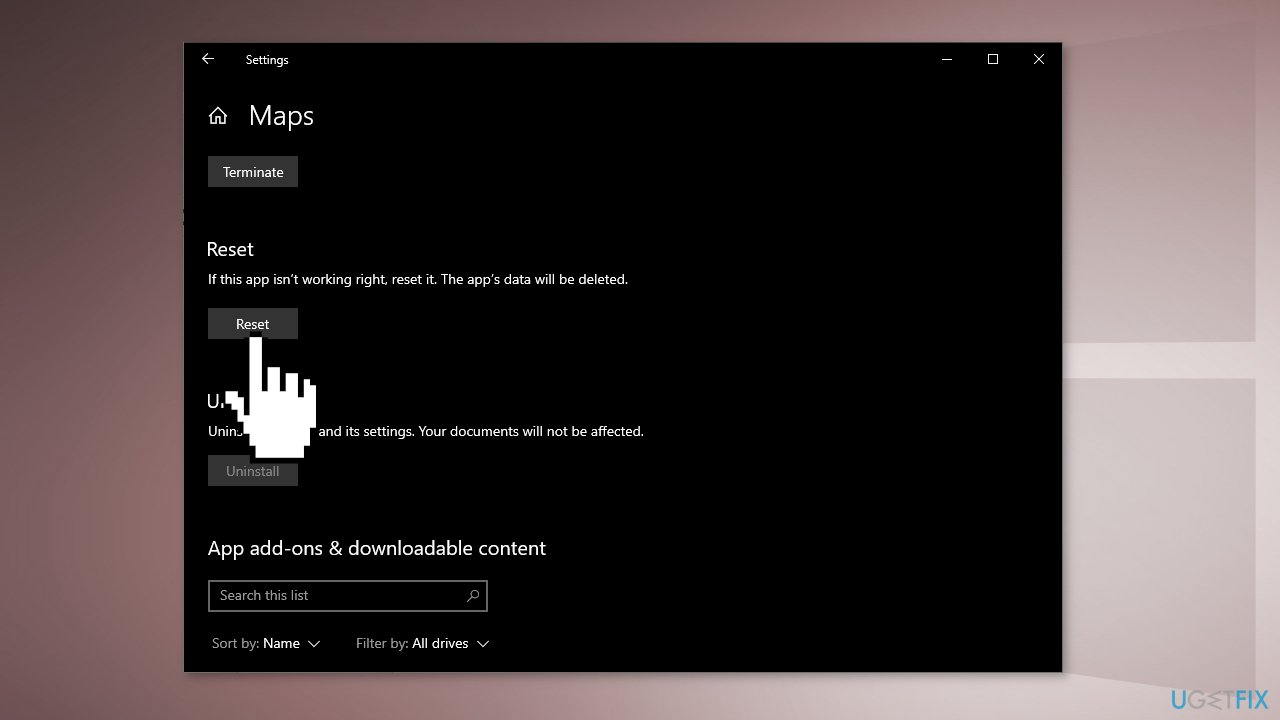
Solution 4. Reset Apps causing the Errors
Windows also allows you to reset applications, so they will be downloaded automatically if there is any script.
- Go to Windows Settings and press on Apps
- Select the app, and go into Advanced Settings.
- Reset the application
Solution 5. Turn off Scripting Errors in IE
- Press the Windows Key + R key to open the Run box
- Type in inetcpl.cpl command and press Enter to launch Internet Properties
- Open the Advanced tab
- Find the Browsing section, and then look at the settings
- Make sure both Disable script debugging (Internet Explorer) and Disable script debugging (Other) has a check next to them
- Confirm that Display a notification about every script error is not checked
- Press OK to save the changes
Solution 6. Disable Smooth Scrolling
This is at the bottom because it's the least likely cause of a script error. However, if you're getting an error when viewing videos in Internet Explorer, or the video just doesn't display correctly, the Smooth Scrolling option in IE could be causing issues with scripts that are trying to run on the page.
- Use the Run dialog box (Windows Key + R) to enter the inetcpl.cpl command
- Navigate to the Advanced tab
- Under the Browsing section, toward the bottom, remove the checkmark next to Use smooth scrolling
- Press OK to save and exit
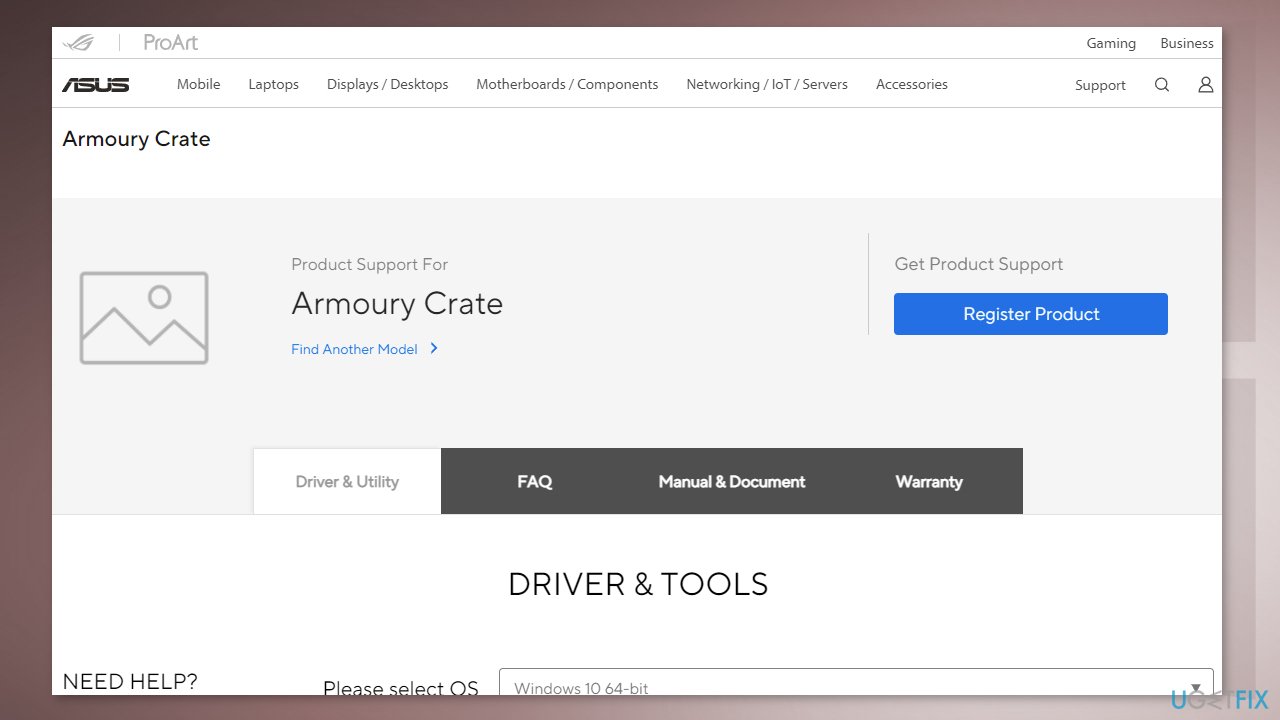
Solution 7. Reinstall Armoury Crate
The problem can be related to the ROG Ryujin. If you have an ASUS computer with Armoury Crate and you experience the Script Error on startup, you may need to reinstall it.
- Use the official uninstaller from ASUS and install Armoury Crate by going to the ASUS webpage
- Follow the provided instructions
Bottom line
To fix Script Errors in Windows, you can update Windows and other software, or disable third-party security software. If these solutions do not resolve the issue, consider using a maintenance tool to address system errors.
Frequently asked questions
Script Errors can be caused by outdated web browsers, corrupted browser settings, or issues with the website's scripting. Ensuring your system and browsers are up-to-date often resolves these issues.
You can disable script debugging by going to Internet Options, selecting the Advanced tab, and unchecking the options for 'Disable script debugging (Internet Explorer)' and 'Disable script debugging (Other).'
Yes, resetting your browser settings can help resolve script errors by restoring default configurations and removing any problematic extensions or settings.




Report an issue
What's wrong with this guide? We review every report and update or remove content.
Report received — thank you. We'll review and fix it.
You need a free account to submit a report.
Be the first to comment