How to fix
Remote Desktop Gateway server is temporarily unavailable
on Windows
Resolve the "Remote Desktop Gateway server is temporarily unavailable" error on Windows 10/11 with easy solutions. Expert-tested and updated 2025.


What causes How to fix Remote Desktop Gateway server is temporarily unavailable?
- Invalid site finding in IIS manager
- Issues with the SSL certificate
- Incorrect firewall setup
- Faulty DNS records and settings
- Corrupted system files
Repairs Windows system files, removes malware, and restores a clean OS state — without reinstalling.
Help me! The computer cannot connect to the remote device because of the server issue. It states that the server is unavailable, but I cannot solve the issue with the network administrator. Restarted and checked, all of that, but no difference. What else can I do?
The issue with the Remote Desktop Gateway server temporarily unavailable is occurring on various Windows systems. Users mainly report that the error occurs and the server connection fails.[ref en-1] The issue can be fixed by removing the invalid piece, but there are various reasons and particular causes for the issue, so solutions can differ from instance to instance.
The previously used Remote Desktop protocol was pretty vulnerable to various cyber attacks.[ref en-2] Criminals used the breakthrough to spread malware like the dangerous ransomware. This is why it was replaced by the Remote Desktop Gateway.
The problem can occur when port 443 is used by more than one site. Removing the invalid site finding from the IIS manager can fix the issue entirely. There might be some issues with the SSL certificate directly.[ref en-3] In such cases, the same problem occurs, so verification might be needed.
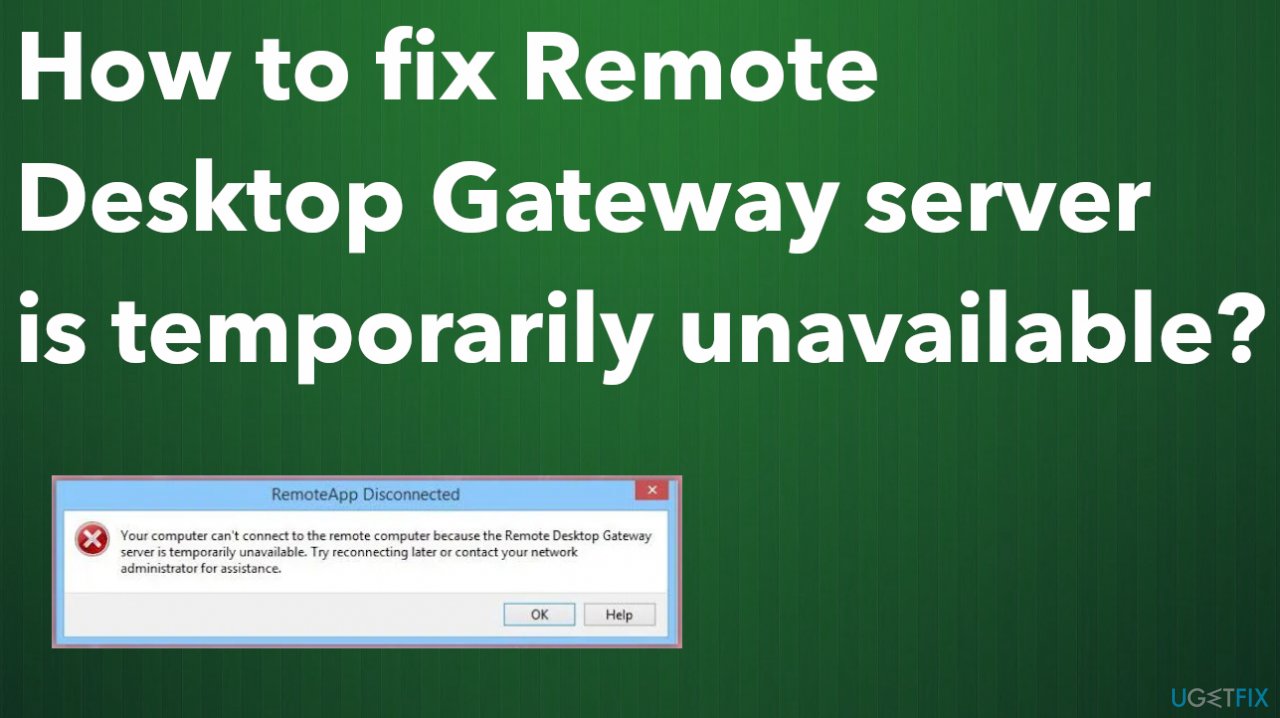
Also, the issue with the Remote Desktop Gateway server is temporarily unavailable error message can be caused by the firewall setup that is wrong or settings that need to be updated. Your computer can display the same message when the connection to a remote computer is initiated. The error delivers a pop-up with the message:
Your computer cannot connect to the remote computer because the Remote Desktop Gateway server is temporarily unavailable
Another reason for these errors is faulty DNS records and settings related to the IP address. There are various system files that get corrupted and damaged, so errors occur out of nowhere. It is possible to fix the Remote Desktop Gateway server is temporarily unavailable issue by altering those settings, and checking or verifying preferences.
If you need a quick check for damaged system data or malicious pieces, run [d1] before doing anything else. This scan can improve the performance and help with the success of the connection error fix.
1. Change registry value
- Press Win+R to open the Run box, and type regedit.
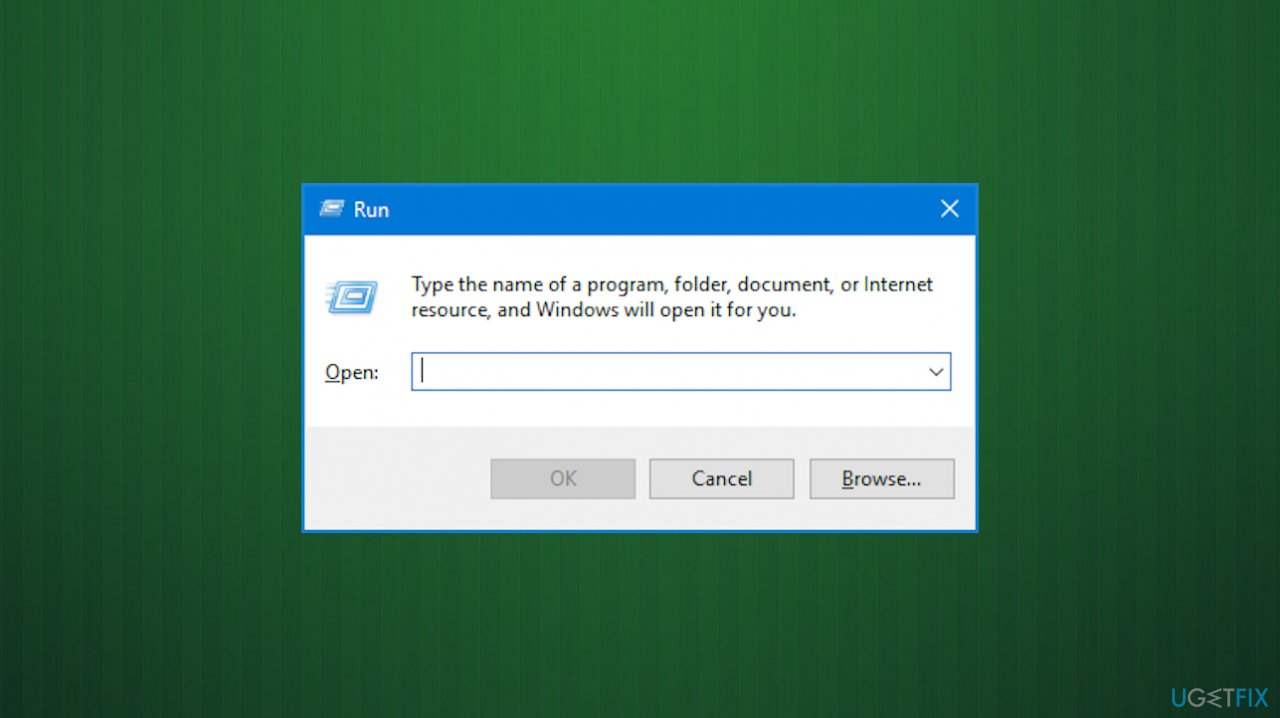
Remote desktop gateway temporary not avail run box - Click the OK button.
- Click on the Yes button.
- Navigate to this path: HKEY_CURRENT_USER\\Software\\Microsoft
- Right-click on Microsoft > New > Key.
- Name it as Terminal Services Client.
- Right-click on Terminal Services Client.
- Go to New > DWORD (32-bit) Value.
- Name it as RDGClientTransport.
- Double-click on it to set the Value data as 1.
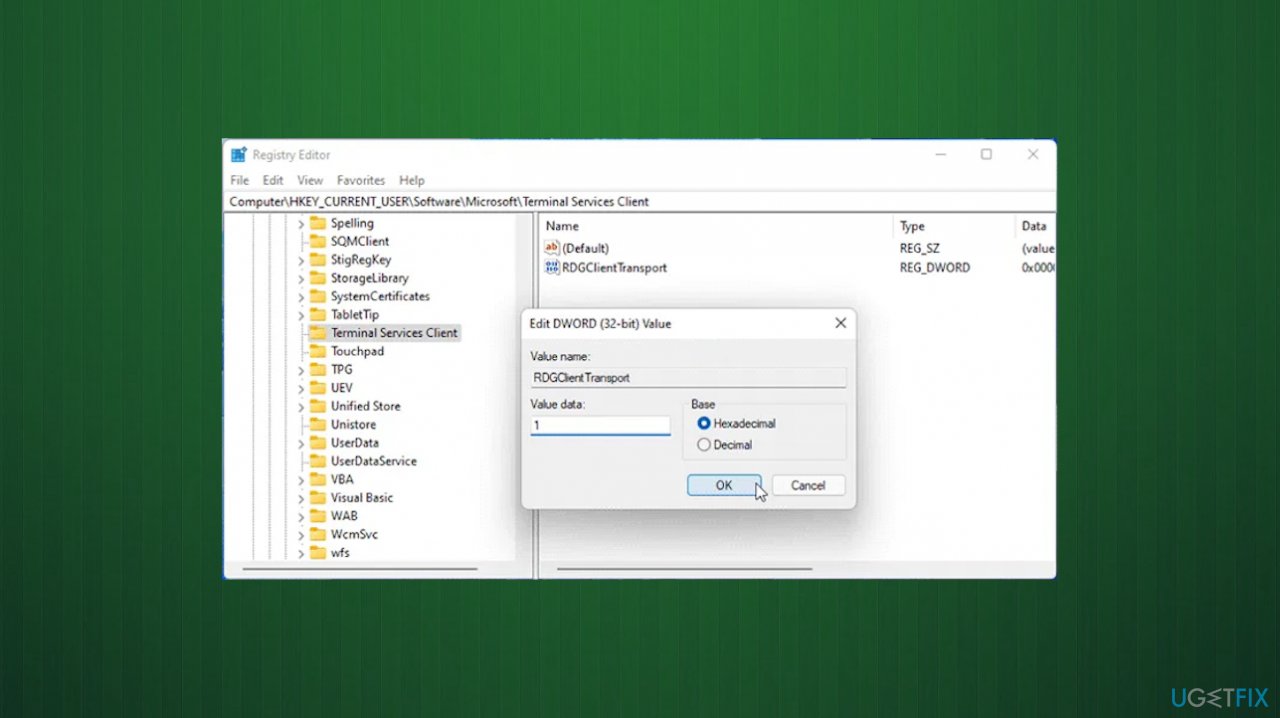
Remote desktop gateway temporary not avail registry - Click the OK button and restart your computer.
2. Disable Windows Firewall
- Click on the Start menu, search for Settings then.
- Select the Open option.
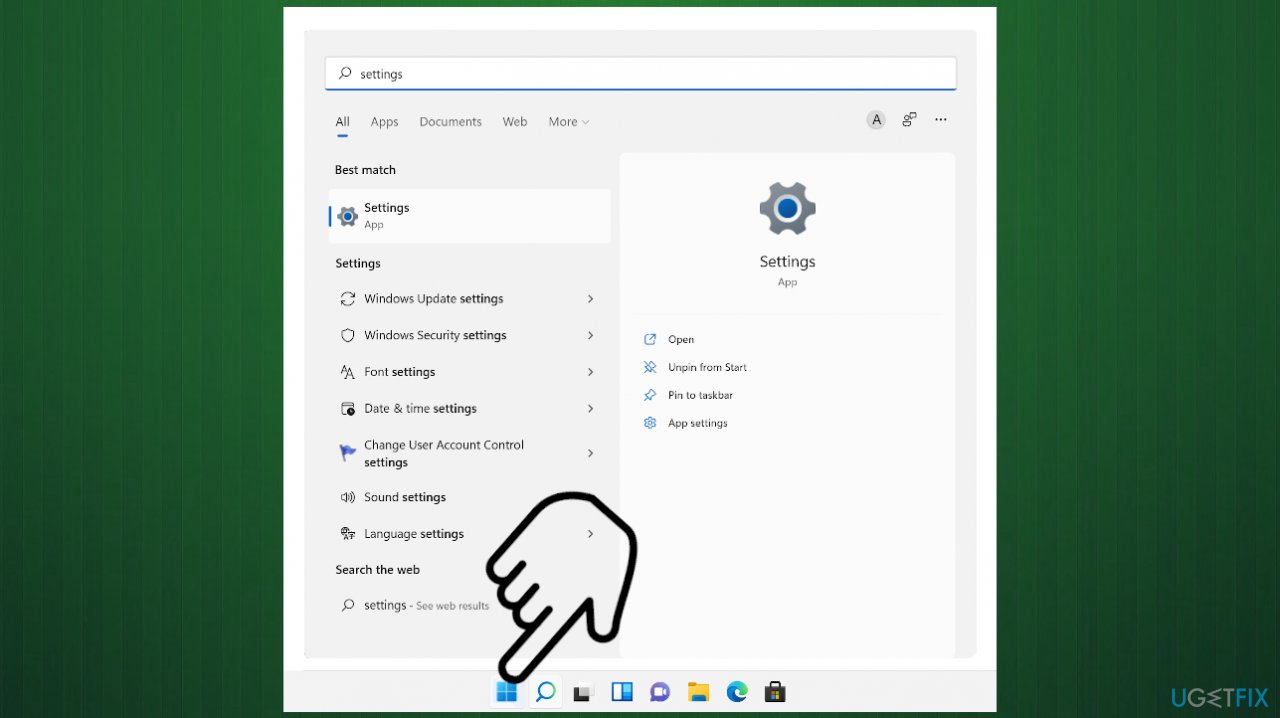
Remote desktop gateway temporary not avail settingsapp - From the left-side panel, choose Network & Internet.
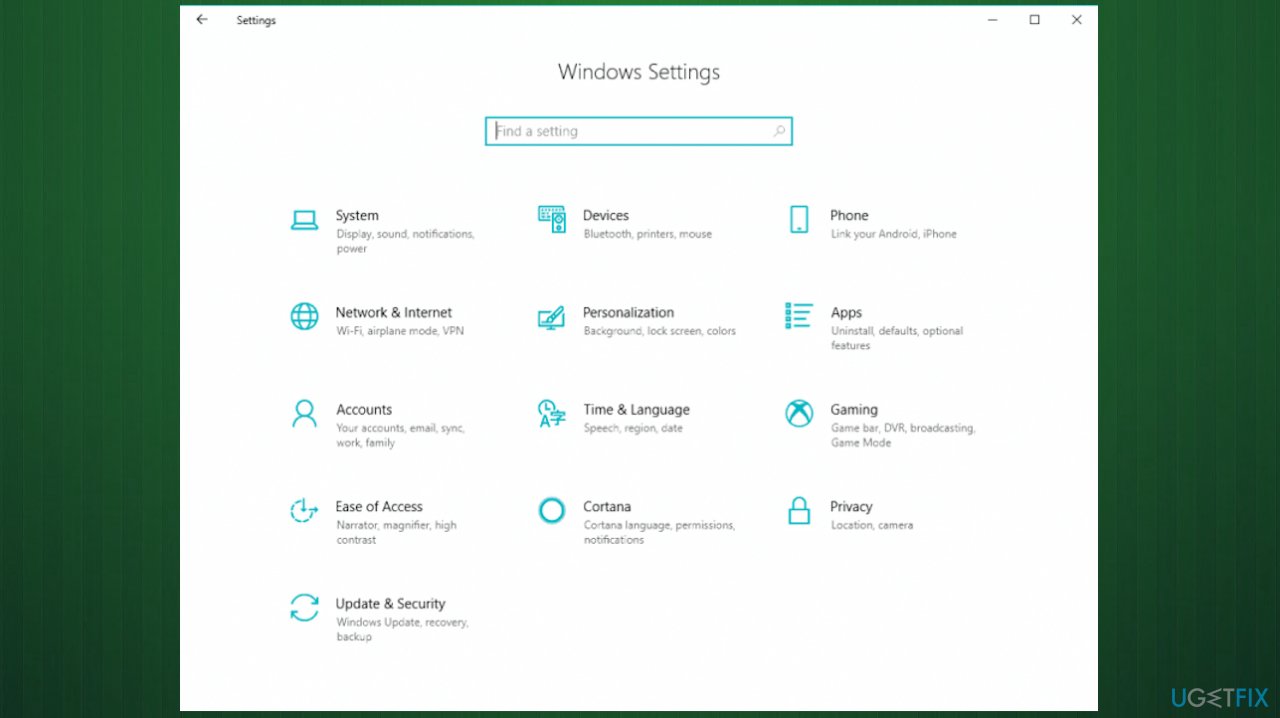
Remote desktop gateway temporary not avail settings - Click on Proxy.
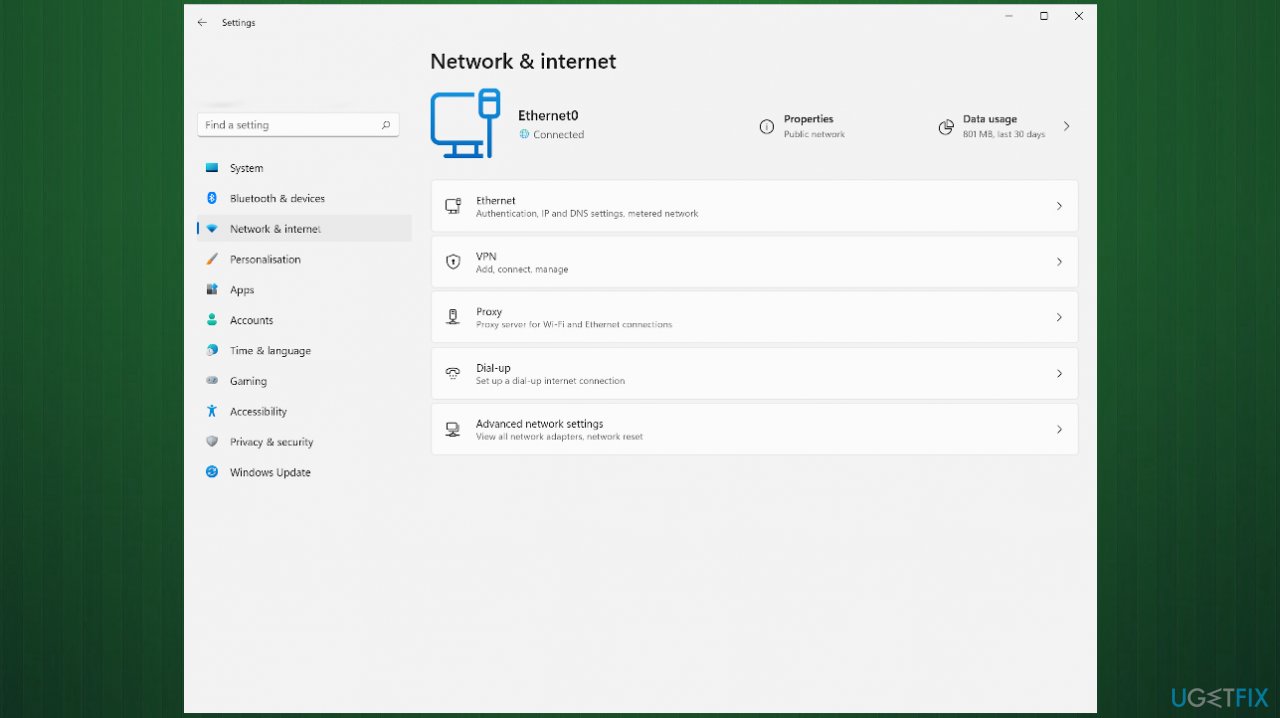
Remote desktop gateway temporary not avail network - Make sure all settings are disabled.
- Select the Start menu, search for Firewall then.
- Click on Windows Defender Firewall.
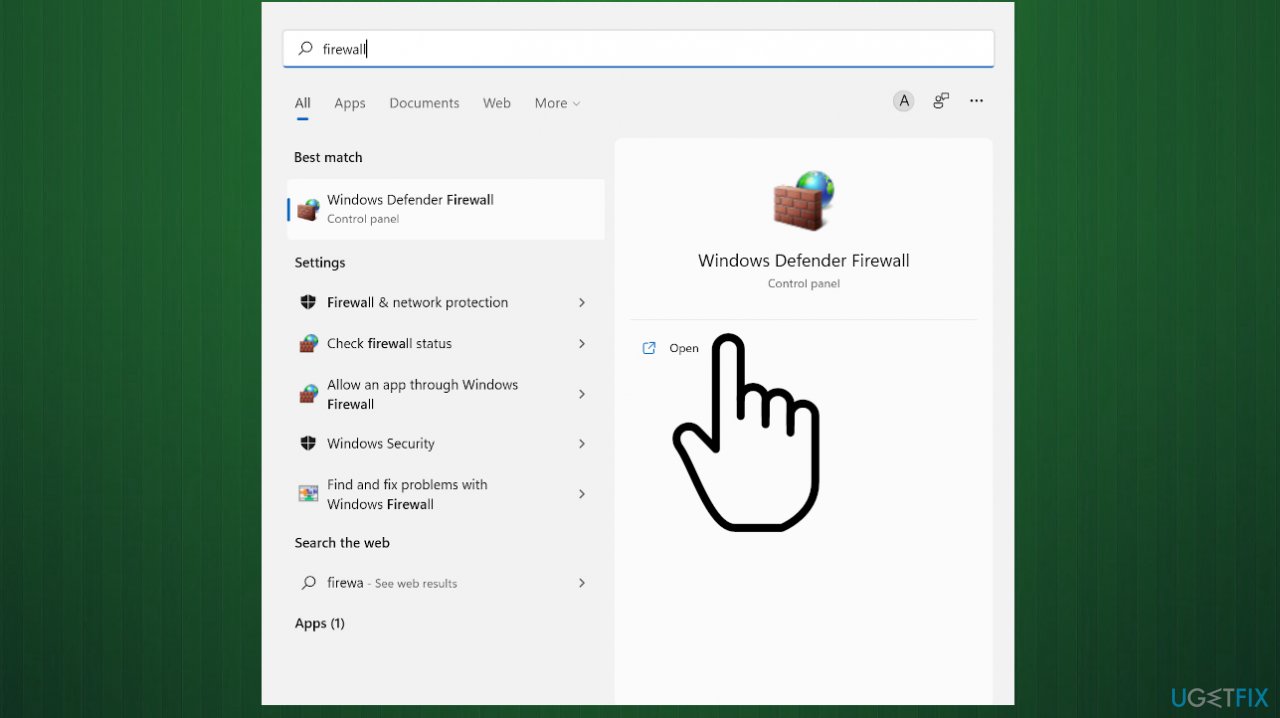
Remote desktop gateway temporary not avail firewall - Hit Turn Windows Defender Firewall on or off.
- Choose the Turn off Windows Defender Firewall option.
- Then click on the OK button.
3. Verify the correct IP
- Create the same Internet FQDN in your local DNS record. Users can access RemoteApp via the same rdweb internally and externally.
- Keep TCP port 443 and UDP port 3391 open. The packets from the client computer in the other domain must make it to the Remote Desktop Gateway.
- Verify that the FQDN for the Remote Desktop Gateway server resolves to the proper IP address.
- Run a wireshark or netmon capture on the Remote Desktop Gateway server when you want to connect.
- You can also create a forward lookup zone for the Remote Desktop Services (RDS) domain over your domain.
- Then create the DNS records that are necessary for the FQDN.
4. Check the Site Bindings to port 443
- Open IIS Manager.
- Go to the Default Web Site.
- Open Site Bindings on the right-hand menu.
- Remove the invalid binding.
Bottom line
The issue with the Remote Desktop Gateway server being temporarily unavailable can be addressed by removing invalid site findings from the IIS manager, verifying SSL certificates, and checking firewall settings. Additionally, correcting DNS records and repairing corrupted system files may resolve the problem. If these solutions do not work, consider running a system scan for damaged data or malware.
Frequently asked questions
Check your network connection and ensure that the Remote Desktop Gateway service is running. You may also need to restart the Remote Desktop services from the Services management console.
Verify that your firewall settings allow Remote Desktop connections and ensure that the gateway server settings are correctly configured. If the issue persists, try resetting the Remote Desktop Protocol settings.
Yes, you can open the Services app in Windows 10 or Windows 11, locate the Remote Desktop Gateway service, and check its status. If it is not running, you can start it manually.




Report an issue
What's wrong with this guide? We review every report and update or remove content.
Report received — thank you. We'll review and fix it.
You need a free account to submit a report.
Be the first to comment