How to fix
“The display settings could not be saved” error
on Windows
Resolve the "The display settings could not be saved" error in Windows 10/11 easily. Get expert-tested solutions and fix the issue in minutes!


What causes How to fix “The display settings could not be saved” error in Windows?
- Wrong settings' configuration
- Corrupted files
- Outdated display drivers
- Improperly plugged wires
- Insufficient power input for monitors
Repairs Windows system files, removes malware, and restores a clean OS state — without reinstalling.
Hello. I have been trying to configure my display settings in Windows but I receive an error "The display settings could not be saved." What could be the issue?
Windows is one of the most popular operating systems in the world. It is used by many different groups. It is suitable for corporate environments as well as home users. It is especially popular in the gaming community. Some people use multiple monitors with their Windows PC for productivity reasons. There are also video games that offer split-screen mode. People can use several monitors to play a game with their friends.
However, some users report that they have received "The display settings could not be saved" error in Windows when they tried to connect multiple monitors. The error message is said to be quite common and can appear because of wrong settings' configuration, corrupted files, and outdated display drivers.[ref en-1]
In this guide, you will find 5 steps that could help you fix "The display settings could not be saved" error in Windows. Before beginning the troubleshooting process, make sure that all wires are properly plugged in and that all the monitors have the desired power input they require.
You can also use a maintenance tool like [d1] to scan your system. This powerful software can fix various system errors, BSODs,[ref en-2] corrupted files, and registry[ref en-3] issues. Otherwise, follow the step-by-step instructions below.
Method 1. Use the NVIDIA Control Panel
If you have an NVIDIA graphics card, you should use the NVIDIA control panel to manage and connect all of your displays:
- Right-click on your desktop and select NVIDIA control panel
- Click on Display category using the left navigation pane and click on Set up multiple displays
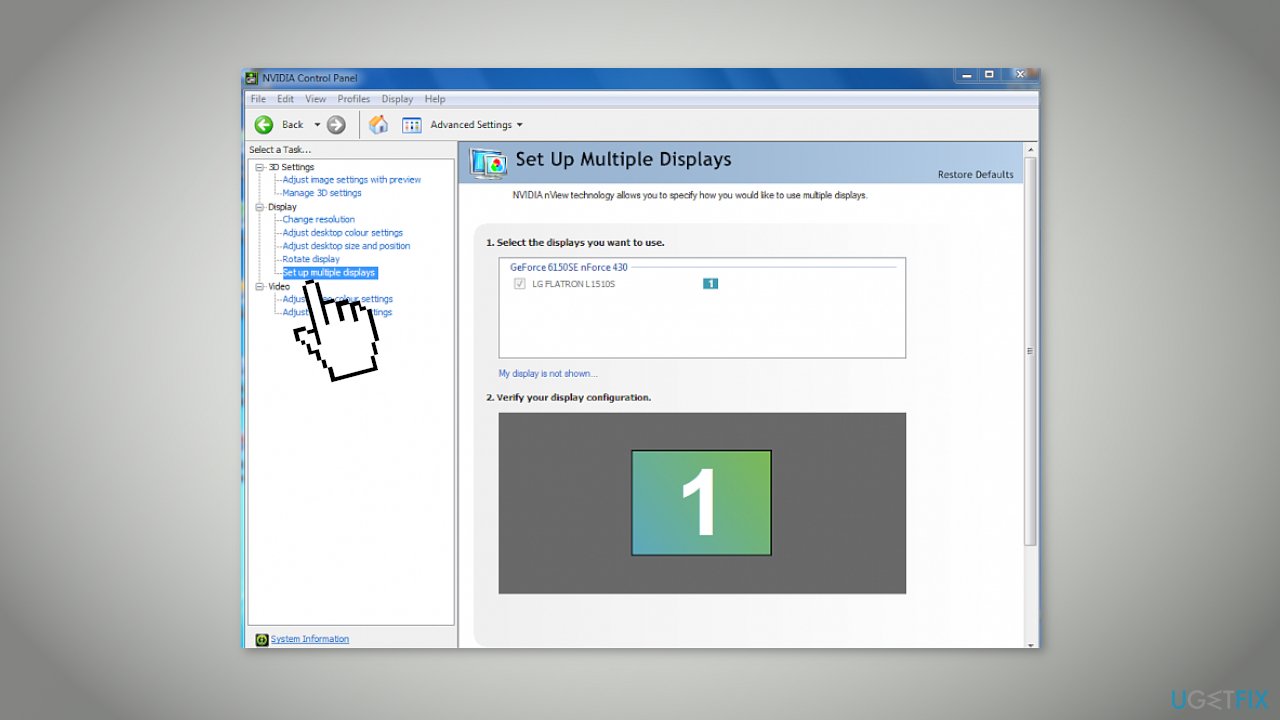
- Using the control panel you can configure which displays do you want to use and which screen to set up as your main display
Method 2. Reset External Display Cache
- Open the Registry Editor
- Go to the following key:
HKEY_LOCAL_MACHINE\\SYSTEM\\CurrentControlSet\\Control\\GraphicsDrivers\\
- Right-click on the subkey Configuration and select Delete from the context menu
- Delete two other subkeys - Connectivity and ScaleFactors
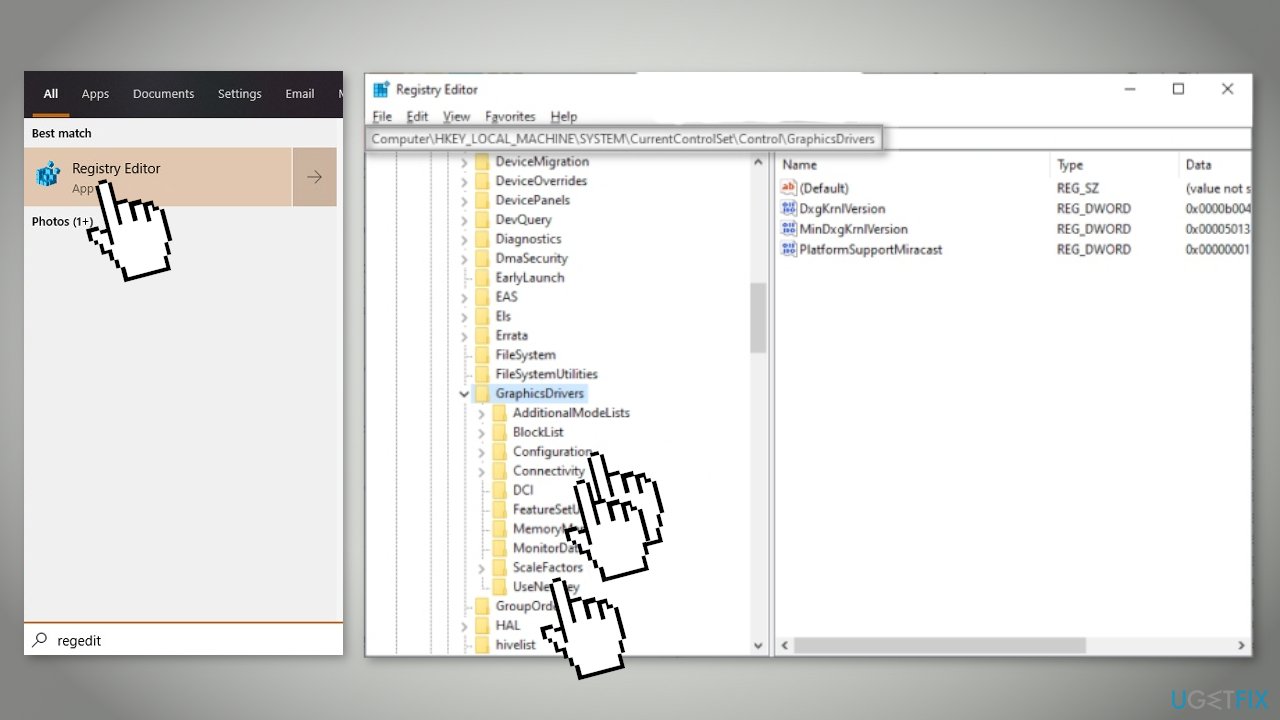
- Restart Windows
Method 3. Change the Display Resolution
If you want to connect more than 1 monitor, your resolution should be set to the lowest one. For example, if the resolutions of 3 monitors are 1024×720, 1336×768, and 800×600, you should set the resolution to 800×600.
- Right-click on your desktop and select Display settings
- Select Advanced display settings
- Change the resolution according to the explanation given above
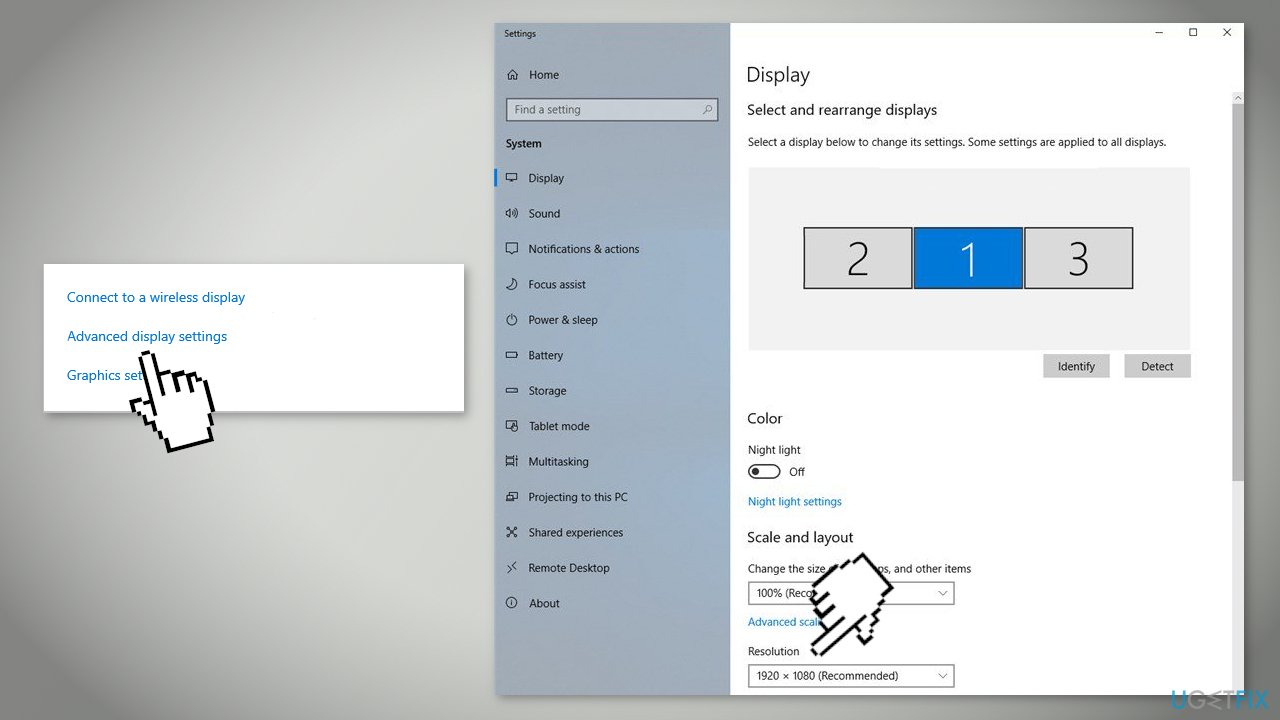
- Save the changes and exit
- Restart your computer and check if the problem got solved
Method 4. Use the Duplicate Screen First
Some users reported that using the duplicate screen before the extended display solved the problem.
- Connect all your monitors and select Duplicate desktop on..
- A prompt might come up asking you to confirm your changes. Click on Yes
- After the changes are made, go back to the same monitor and click on Extend these displays
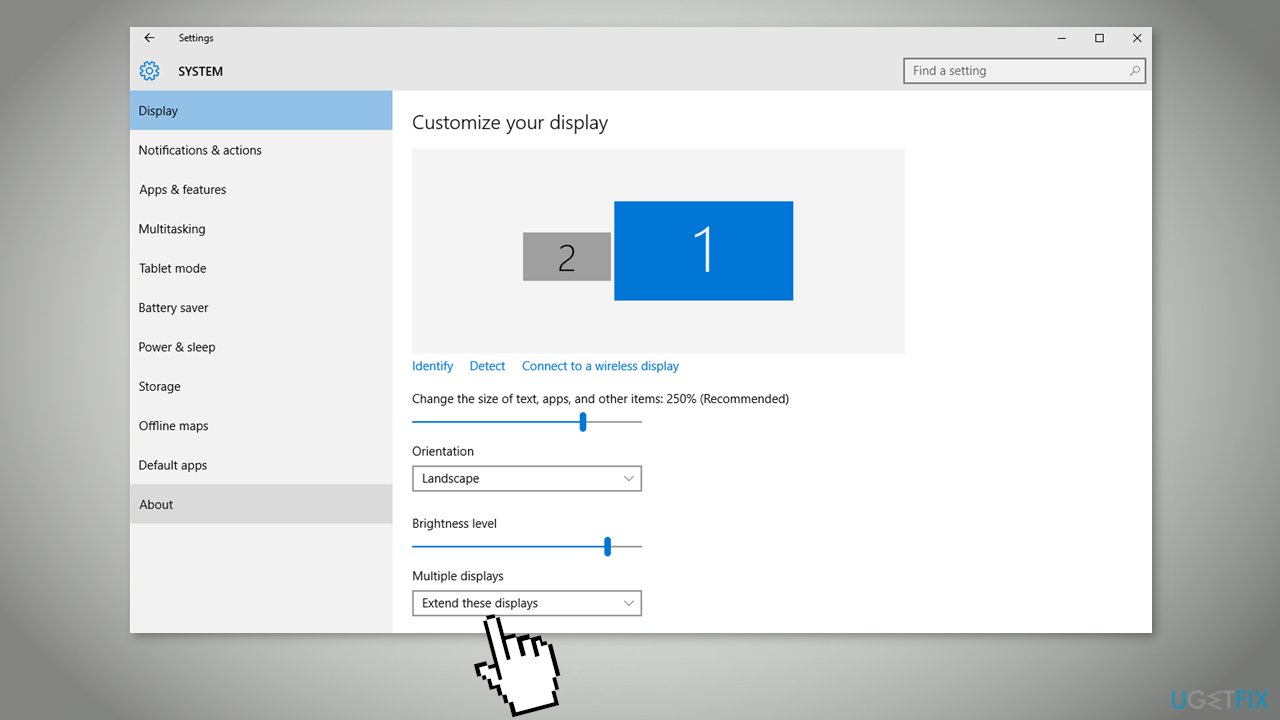
- Save changes when prompted and check if the monitor is displaying everything correctly
Method 5. Reinstall Graphics Drivers
- Right-click on the Windows key and select Device Manager from the list
- Expand the Display adapters section and right-click on your display hardware
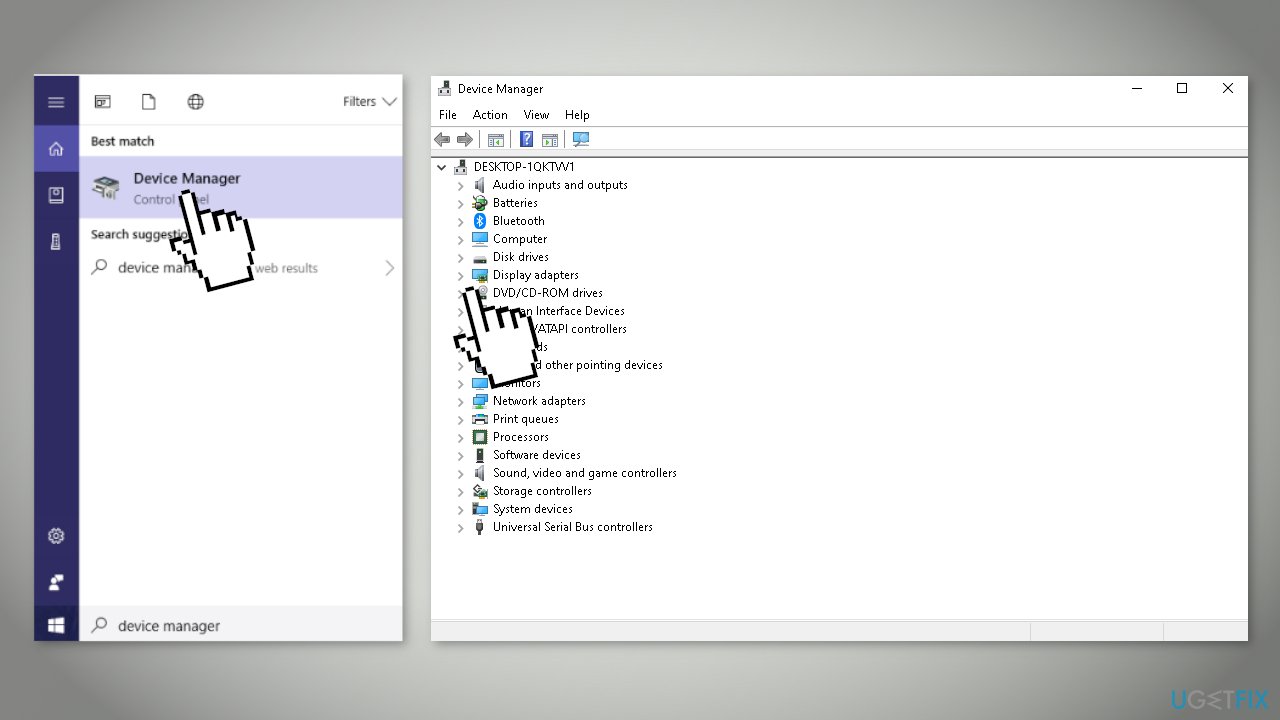
- Select Uninstall device from the menu
- Windows will pop a dialogue box to confirm your actions, press OK
- Restart your device
- If that did not help, you can try using a dedicated utility, like [rev id="DriverFix"] that can install and update drivers automatically
Bottom line
To fix the 'The display settings could not be saved' error, you can use the NVIDIA Control Panel to manage displays, reset the external display cache via the Registry Editor, or change the display resolution. If none of these methods work, consider using a maintenance tool to scan your system for additional issues.
Frequently asked questions
This error typically occurs due to corrupted display drivers or incorrect display settings. Updating your graphics drivers or resetting the display settings can often resolve the issue.
To reset your display settings in Windows 11, right-click on the desktop, select 'Display settings', and then scroll down to 'Scale and layout' to adjust the settings. You might also consider reverting to default settings in the 'Advanced display' section.
Yes, ensure that your graphics card drivers are up to date by visiting the manufacturer's website or using the Device Manager in Windows 10 or 11. Installing the latest drivers can often fix display-related errors.




Report an issue
What's wrong with this guide? We review every report and update or remove content.
Report received — thank you. We'll review and fix it.
You need a free account to submit a report.
Be the first to comment