How to fix
App Installation Failed error 0xC00CE224
on Windows
Resolve the App Installation Failed error 0xC00CE224 on Windows 10 and 11 quickly with our expert-tested solutions. Fixed in minutes!

What causes How to fix App Installation Failed error 0xC00CE224 in Windows?
- Cache problems
- Windows services issues
- Account sign-in problems
- Outdated Windows updates
- Outdated Store apps
Repairs Windows system files, removes malware, and restores a clean OS state — without reinstalling.
Hello. I have been trying to download an app from the Microsoft Store but I receive an error 0xC00CE224. Any suggestions on how to fix this would be appreciated.
Microsoft Store is a digital distribution platform where people can download various apps. It is a very convenient application that lets users install, and update programs all at once. The apps that get listed have to go through an extensive review process so Windows users finally have a place where they can safely install apps and not worry about PUP (potentially unwanted program),[ref en-1] and malware infections.
However, the store was released not that long ago, for Windows 8, and users continue to have problems with it. Recently, users started experiencing the App Installation Failed error 0xC00CE224. Usually, the Windows Store malfunctions because of cache problems, Windows services, etc.
If you are running into issues when trying to install apps from the Windows Store, the first thing you should try is to sign out of your account and then sign in again. Sadly, this action fixes the problem for a small number of people, so you might have to apply more complicated troubleshooting methods.
In this guide, you will find 9 steps that could fix the App Installation Failed error 0xC00CE224 in Windows. You will learn how to use the built-in troubleshooter and manually repair common causes of the error. If you want to avoid going through the guide, you can use a maintenance tool like [d1] that can save a lot of time. This powerful software can fix common Windows problems, like system errors, corrupted files, BSODs,[ref en-2] and registry[ref en-3] issues.
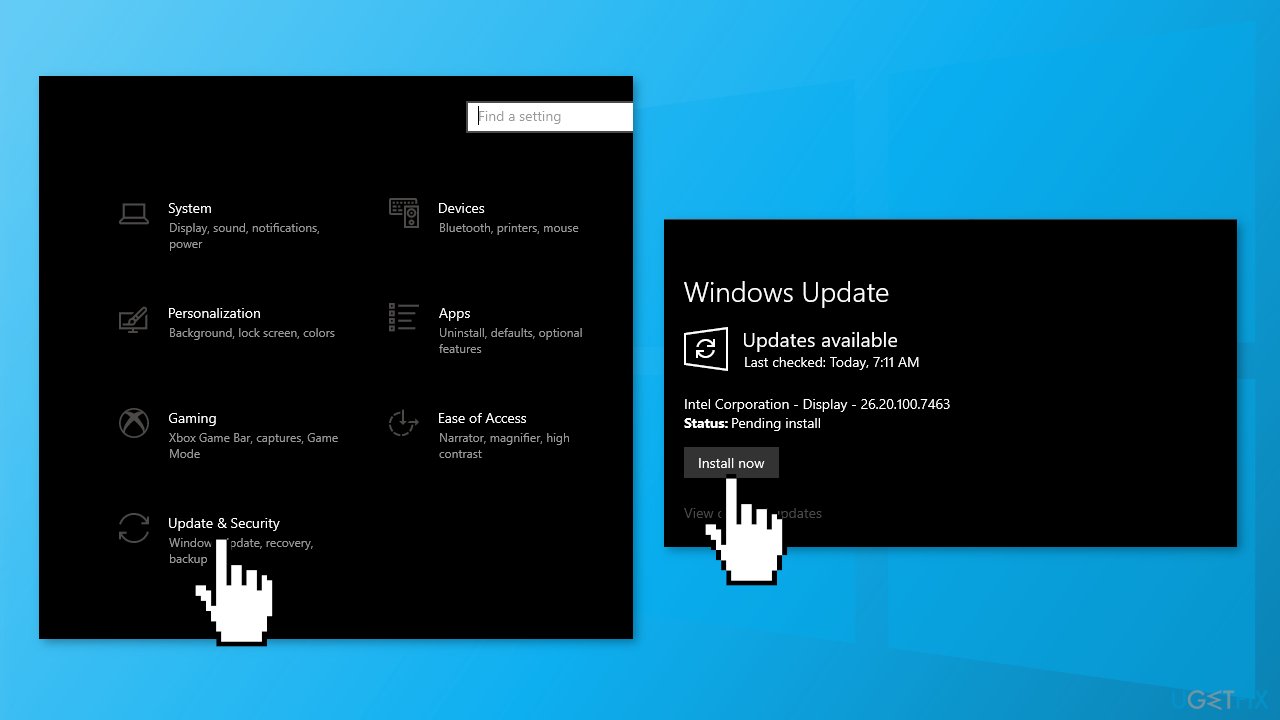
Solution 1. Install Windows Updates
- Type Updates in Windows search and press Enter
- In the new window, click Check for updates
- Install everything available (including optional updates)
- Reboot your system
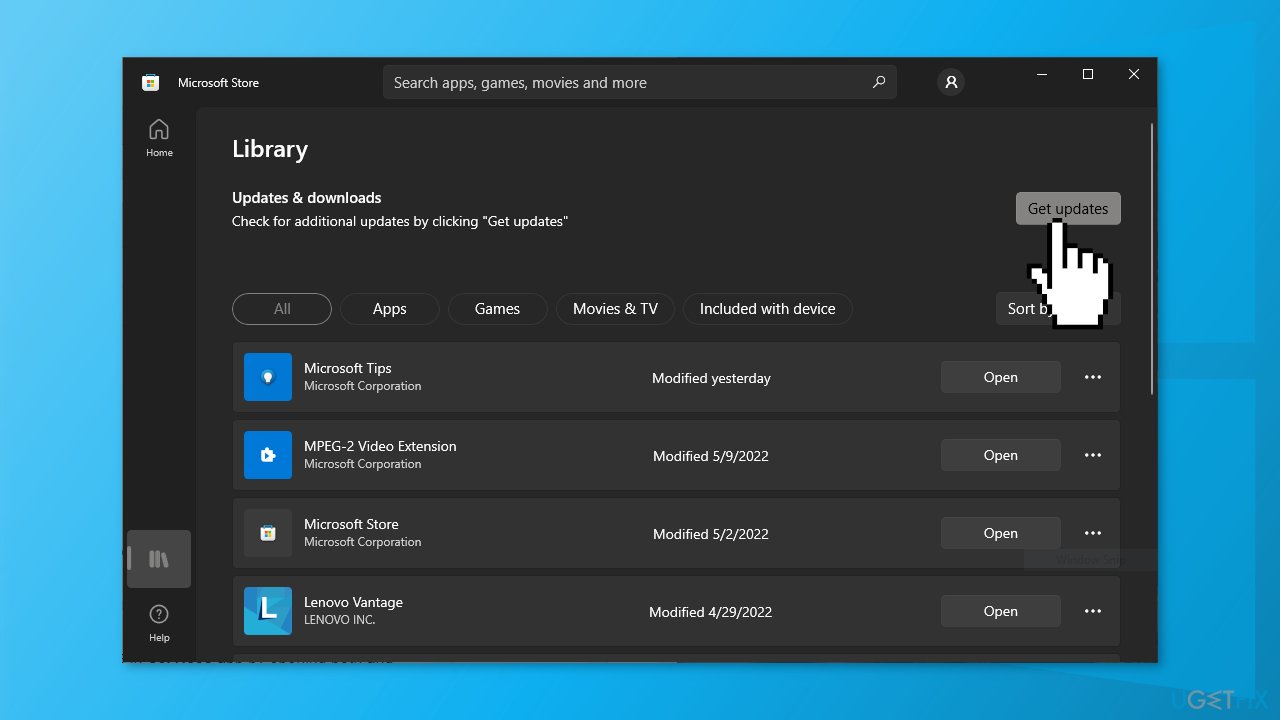
Solution 2. Update Store Apps
- Open the Microsoft Store
- Select More, go to Downloads and updates and press Get updates
Solution 3. Delete the “Download” Folder
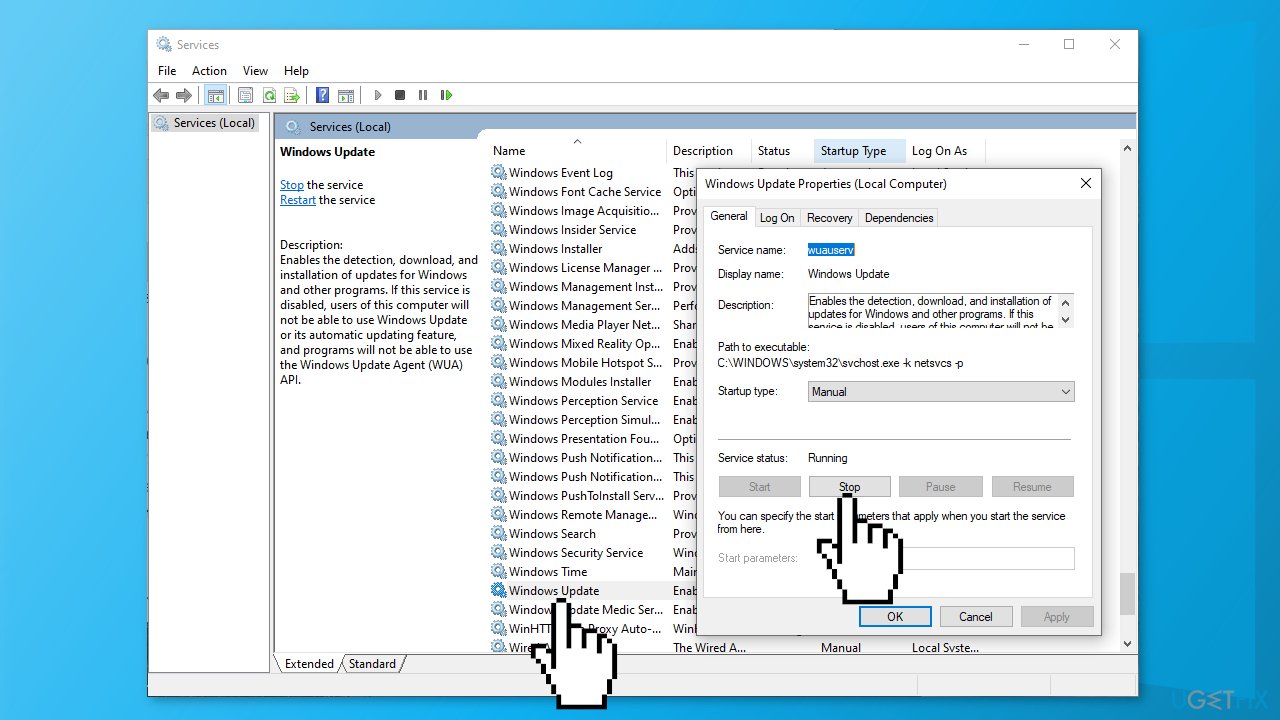
- Type Services in Search box, run the Services app as Administrator, open Windows Update Service and Background Intelligent Transfer Service and Stop them
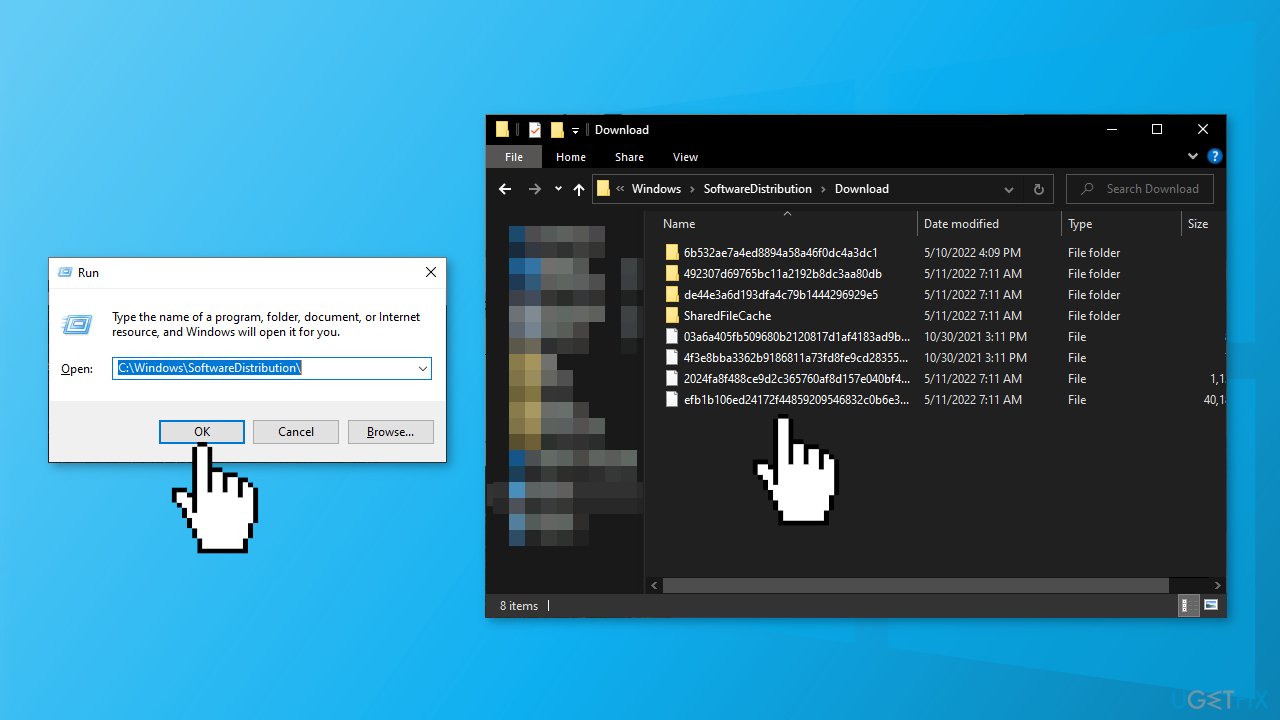
- Press Windows key + R, copy and paste C:\\Windows\\SoftwareDistribution\\ press the Enter button
Open the Download folder, select and delete all the files
- Restart Windows Update and Background Intelligent Transfer services in Services app by opening both and choosing Start
Solution 4. Run Windows Store Apps Troubleshooter
A Troubleshooter is a tool that could help you resolve various issues on your Windows PC.
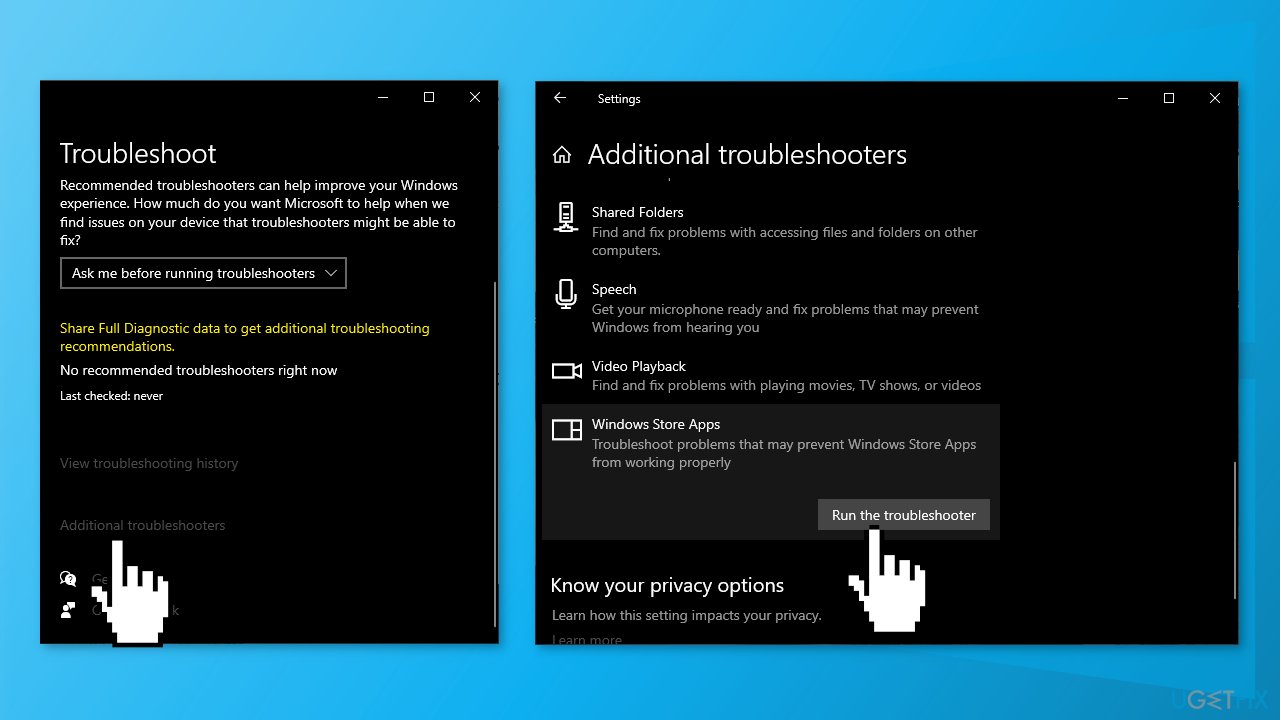
- Type Troubleshoot in Windows search and press Enter
- Click Additional troubleshooters if you can't see them listed
- Scroll down to find Windows Store Apps
- Click and select Run the troubleshooter
- Wait till the scan is over and the suggested fixes are applied
Solution 5. Reset Microsoft Store
- Press Windows + I keys to bring up Windows Settings
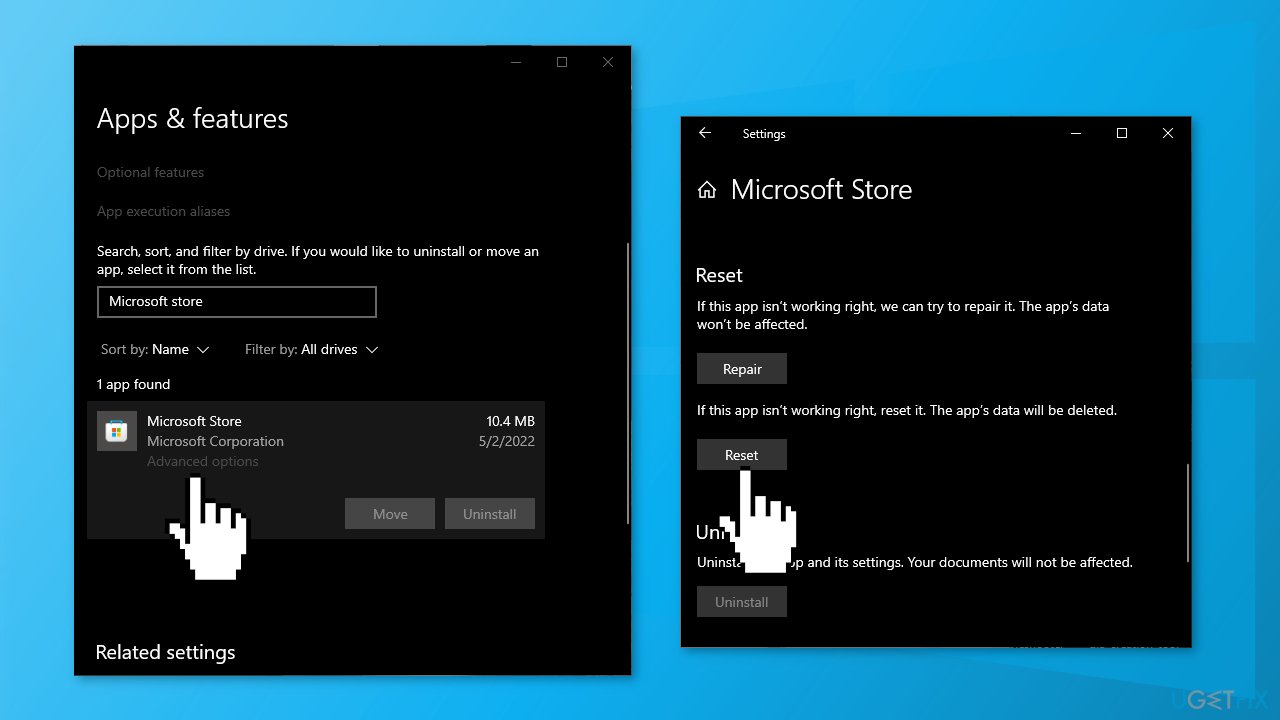
- Go to Apps and click on Apps and features
- Search for Microsoft Store in the search bar
- Click on the Advanced options and press Reset
Solution 6. Re-register the Microsoft Store
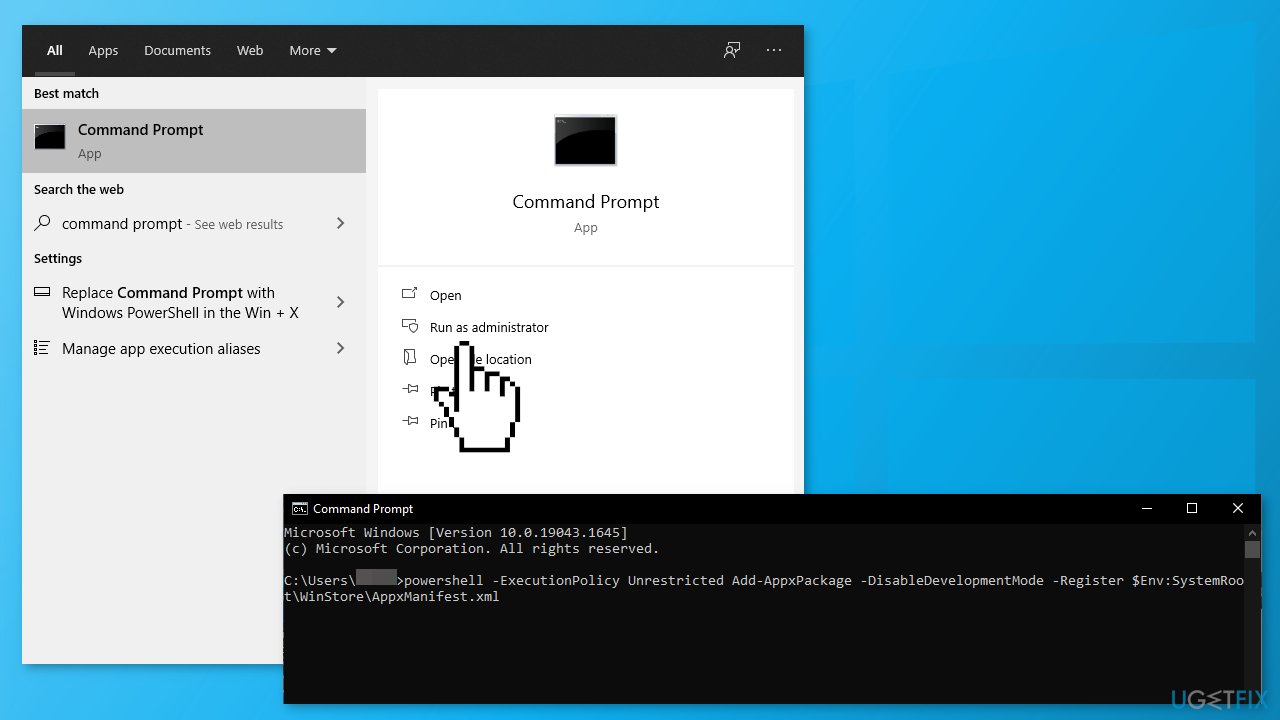
- Type cmd in the Search, choose the Command Prompt and click Run as Administrator
- Copy and paste the following command and click Enter:
powershell -ExecutionPolicy Unrestricted Add-AppxPackage -DisableDevelopmentMode -Register $Env:SystemRoot\\WinStore\\AppxManifest.xml
Solution 7. Clear the LocalCache Folder
- Open the Run box by pressing the Windows key + R
- Type in %localappdata% and click OK
- Open Packages, go to Microsoft.WindowsStore_8wekyb3d8bbwe, and click on LocalCache folder
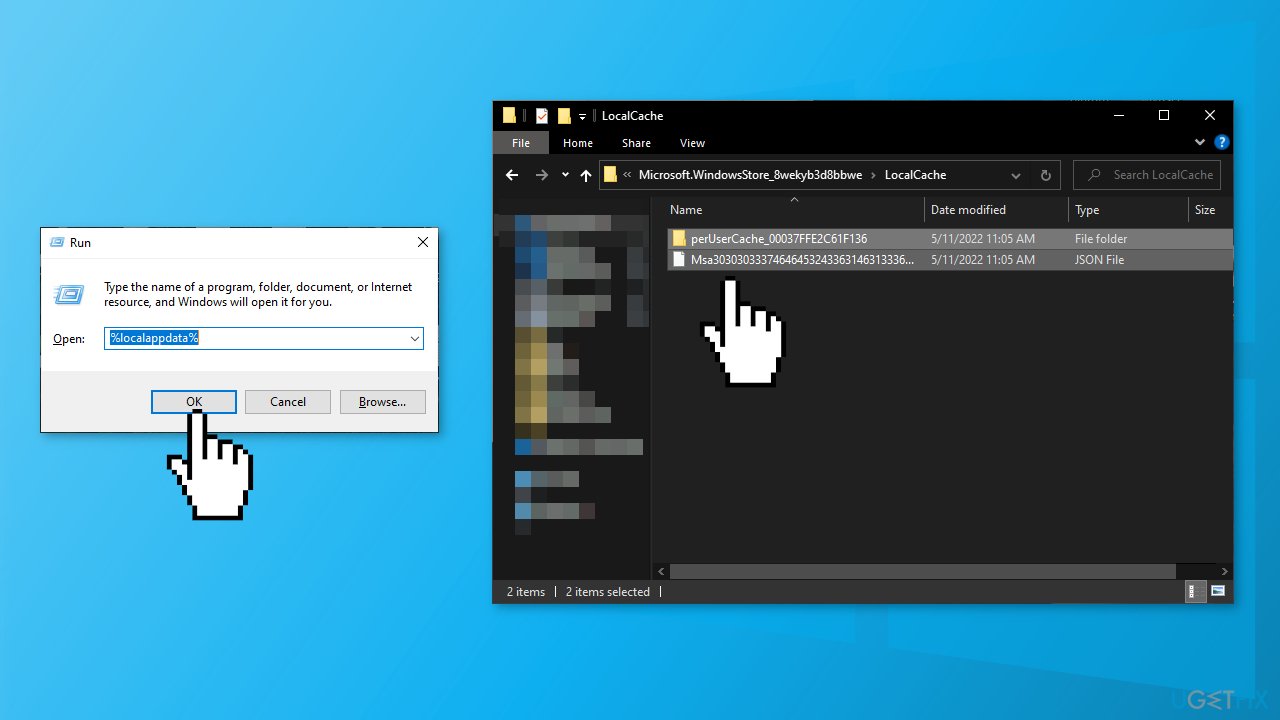
- Press the Ctrl + A to select all the content
- Press the Delete button
Solution 8. Fix the Microsoft Store Install Service
- Type services in the Search box, choose Run as Administrator
- Find Microsoft Store Install Service in the Services tab and ensure that it is running and set to Manual
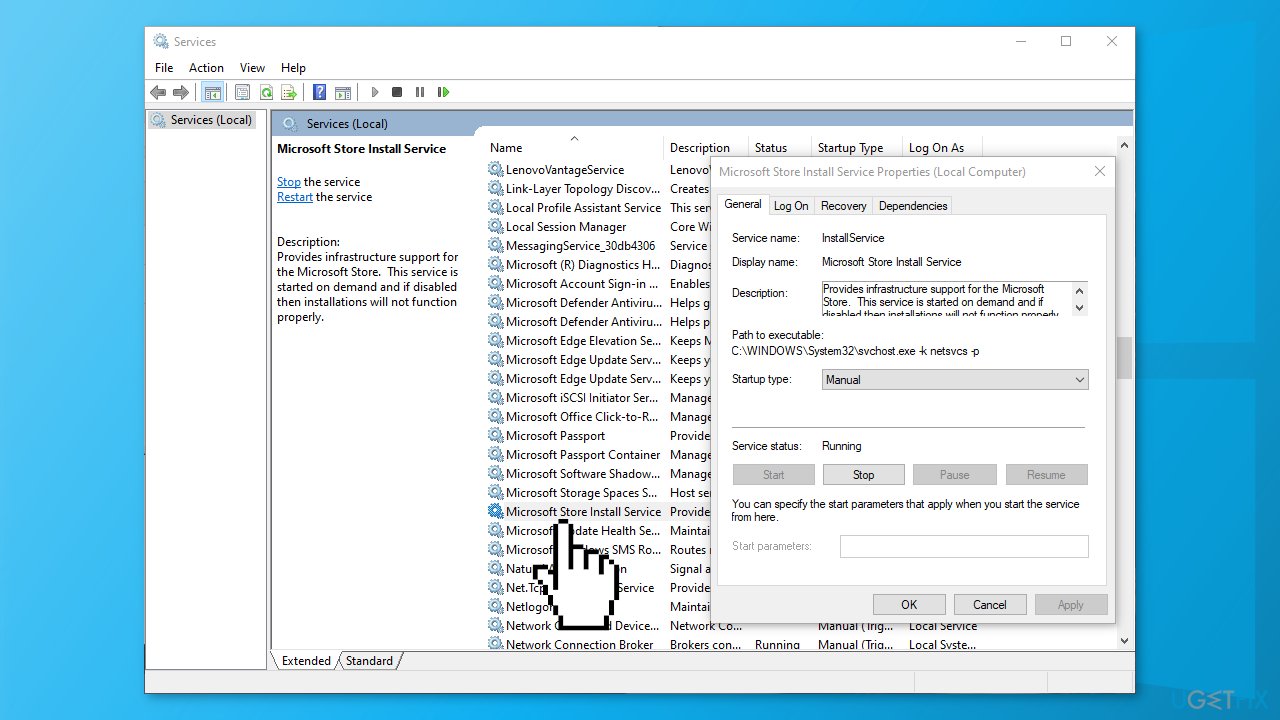
- If it is not - restart the PC
Solution 9. Perform a Repair Install of Windows
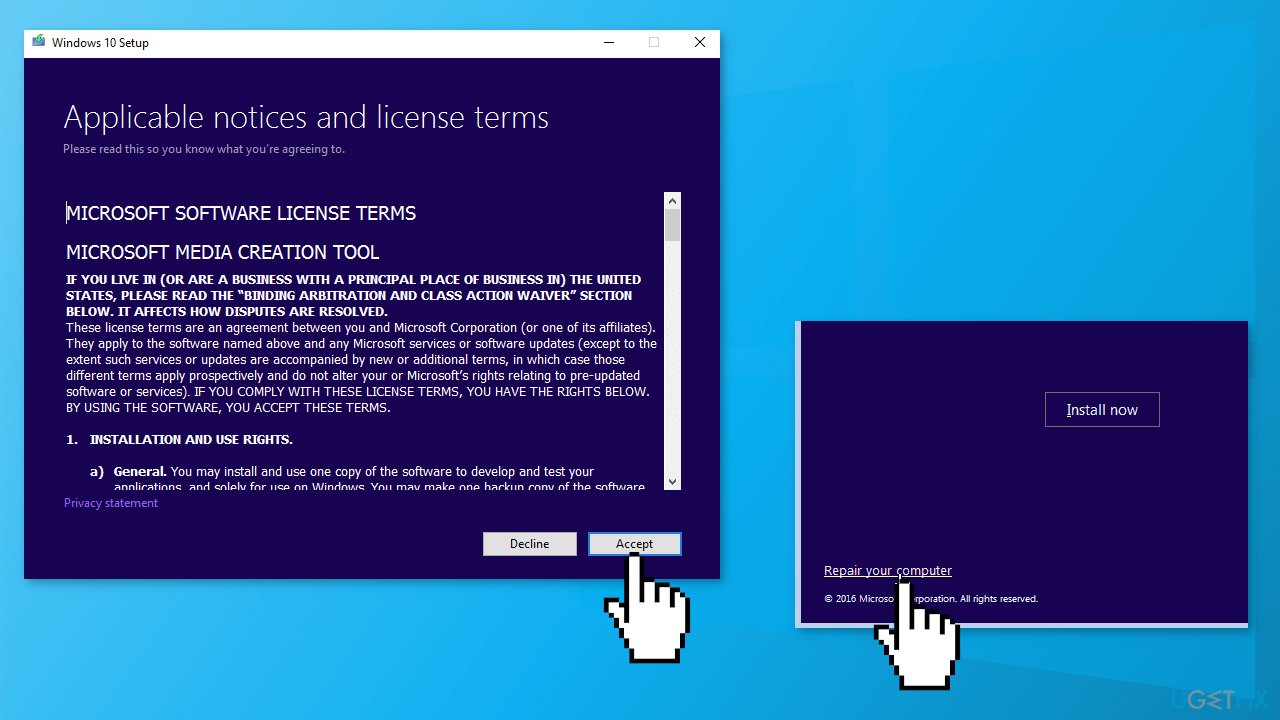
- Download the Media Creation Tool from the official Microsoft website
- Approve the license terms when prompted
- Select Create installation media…
- Select the language, Edition and Architecture when prompted
- Select ISO file when asked to choose the media you want to output to
- Click the Finish
- Navigate to your newly-created ISO file in Explorer
- Right-click the file and select Mount
- Double-click the setup-exe file on the mounted ISO
- Follow the on-screen instructions
Bottom line
To fix the App Installation Failed error 0xC00CE224, you can try installing Windows updates, updating Store apps, or deleting the 'Download' folder. If these solutions do not resolve the issue, consider using a maintenance tool to address common Windows problems.
Frequently asked questions
This error typically occurs due to issues with the Windows Store cache or corrupted app files. Clearing the cache or reinstalling the app may resolve the issue.
To clear the Windows Store cache, press Win + R, type 'wsreset.exe', and hit Enter. This will reset the cache and may help fix the installation error.
Yes, ensure that your user account has the necessary permissions to install apps from the Microsoft Store. Running Windows 10 or Windows 11 as an administrator can help bypass permission issues.




Report an issue
What's wrong with this guide? We review every report and update or remove content.
Report received — thank you. We'll review and fix it.
You need a free account to submit a report.
Be the first to comment