How to fix
KB5013943 causing application errors
on Windows
Resolve application errors from KB5013943 on Windows 10 and 11 easily. Quick fixes and expert-tested solutions await you. Zero traces left!

What causes How to fix KB5013943 causing application errors?
- KB5013943 cumulative update installation
- .NET Framework 3.5 not enabled
- Windows Communication Foundation (WCF) components not activated
- Windows Workflow (WWF) components not activated
- Specific applications affected by the update
Repairs Windows system files, removes malware, and restores a clean OS state — without reinstalling.
Hello. I recently installed the latest Windows updates and I keep receiving errors when I try to open my applications. What could be the problem?
Recently, Windows 11 users started experiencing errors when trying to launch certain applications. The issue seems to have started after people installed the latest KB5013943[ref en-1] cumulative update. The update was supposed to fix security vulnerabilities and bugs. Specifically, it had to fix a bug causing .NET Framework 3.5[ref en-2] apps not to open if they used the Windows Communication Foundation (WCF) and Windows Workflow (WWF) components.
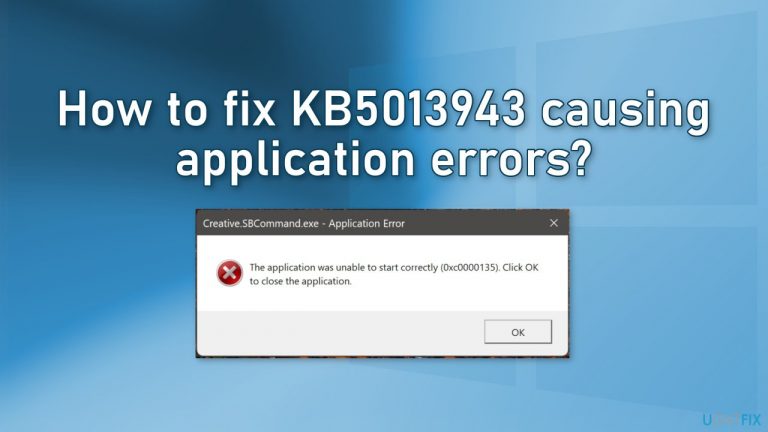
However, now many people report specifically receiving the 0xc0000135 error when trying to use apps such as ProtonVPN, PowerShell, Event Viewer, Sound Blaster Command, KeePass, Visual Studio, Discord, and ShareX. The full error message reads as follows:
The application was unable to start correctly (0xc0000135). Click OK to close the application
The KB5013943 update seems to have made the situation worse and users are flooding the forums looking for solutions. In this guide, you will find 3 steps that could help you fix the KB5013943 causing application errors. If they do not work, you may have to wait for Microsoft to release another fix.
You can also use a maintenance tool like [d1] that can fix most system errors, BSODs,[ref en-3] corrupted files, and registry issues. Otherwise, follow the step-by-step instructions below.
Method 1. Enable .NET 3.5 framework in the Control Panel
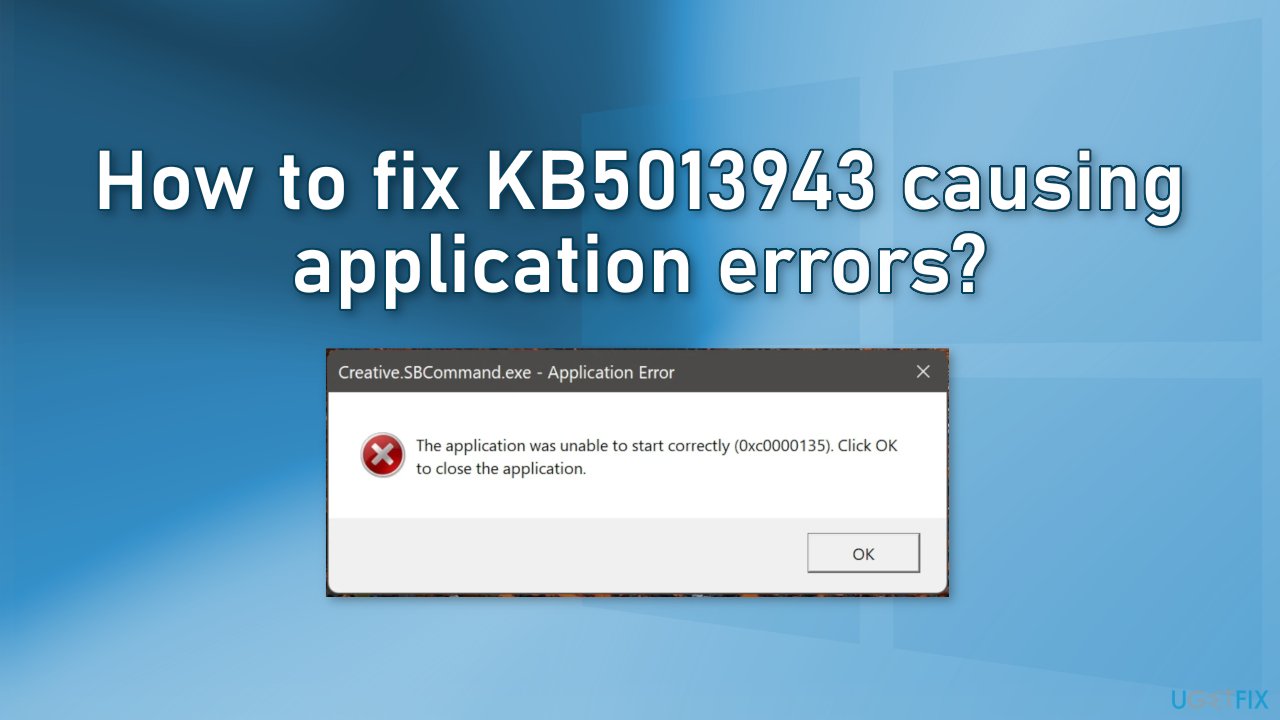
- Go to Control Panel and click on Programs
- Pick the Turn Windows features on or off option
- Make sure .NET Framework 3.5 (includes .NET 2.0 and 3.0) and Net Framework 4.8 Advanced Services are checked
Method 2. Enable .NET 3.5 framework using Command Prompt
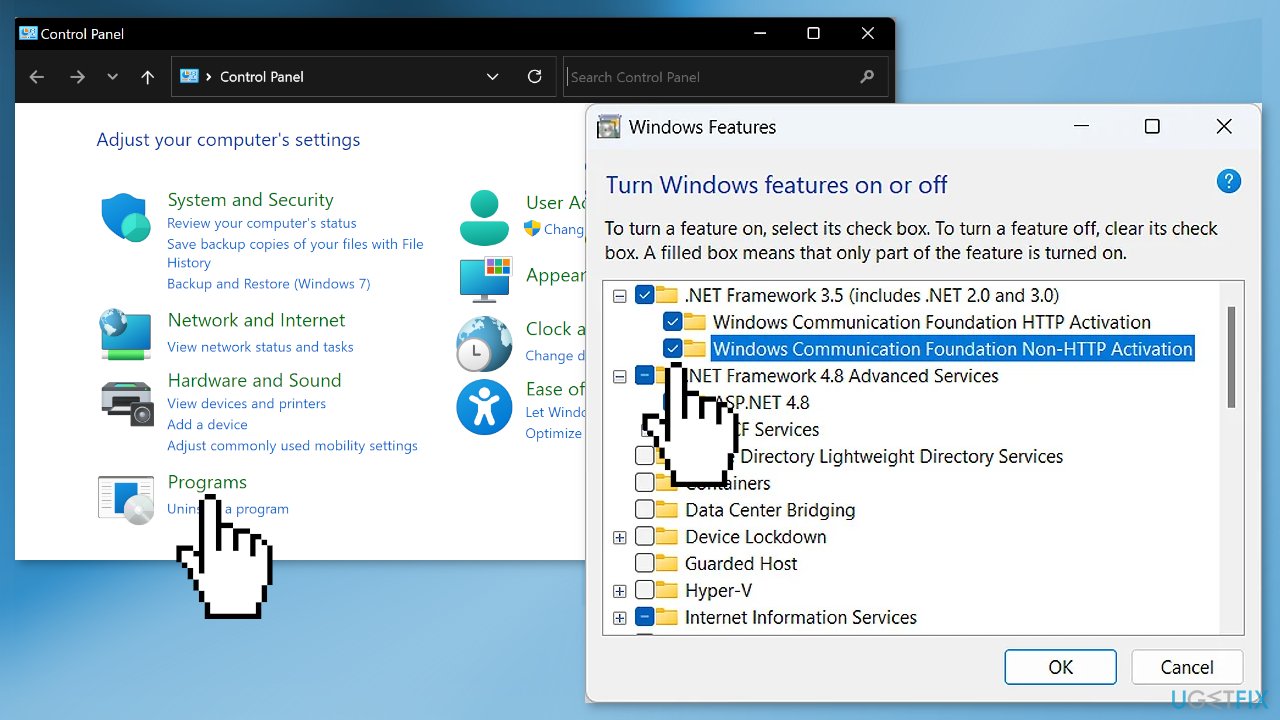
- Type command prompt in the search and choose run as an administrator
- Type in the following commands and press Enter after each one:
dism /online /enable-feature /featurename:netfx3 /all
dism /online /enable-feature /featurename:WCF-HTTP-Activation
dism /online /enable-feature /featurename:WCF-NonHTTP-Activation
Method 3. Uninstall the KB5013943 Update
Before proceeding, keep in mind that this can leave your device unprotected from the latest security threats.
- In Settings, from the left sidebar, select Windows Update
- On the Windows Update page, click Update History
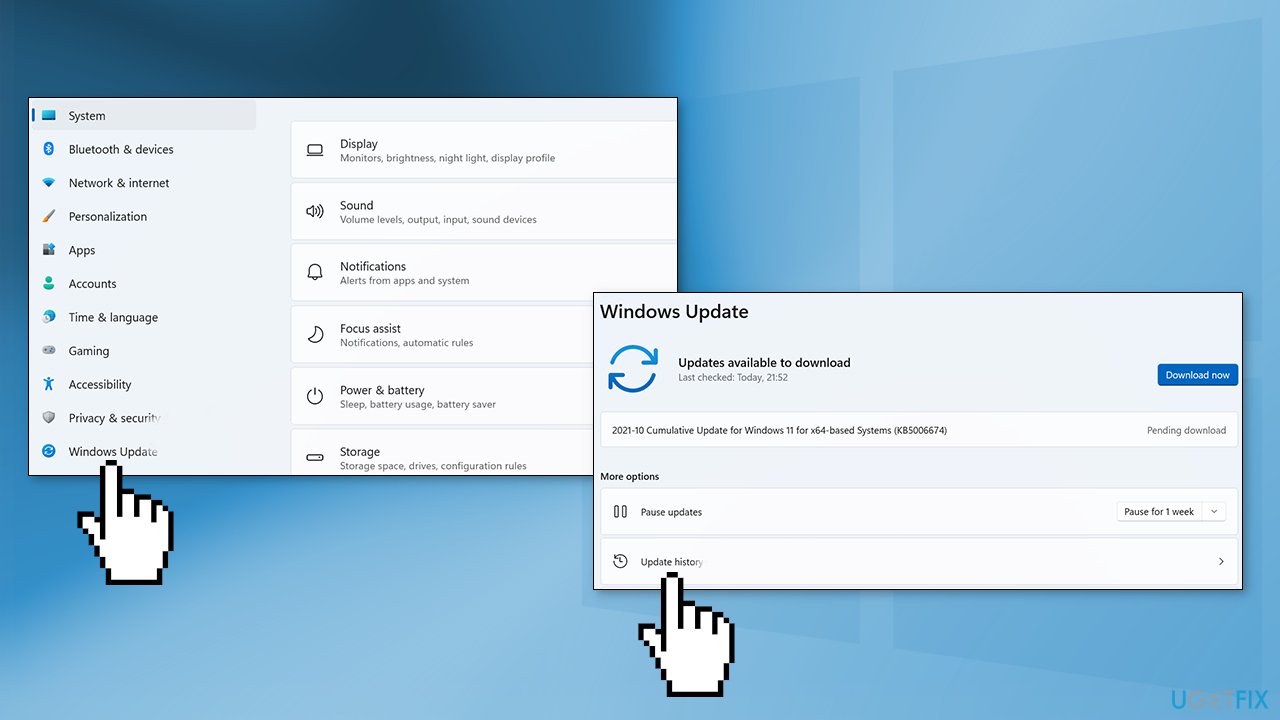
- From the Related Settings section, choose Uninstall Updates
- To remove an update, select it in the list and then click Uninstall
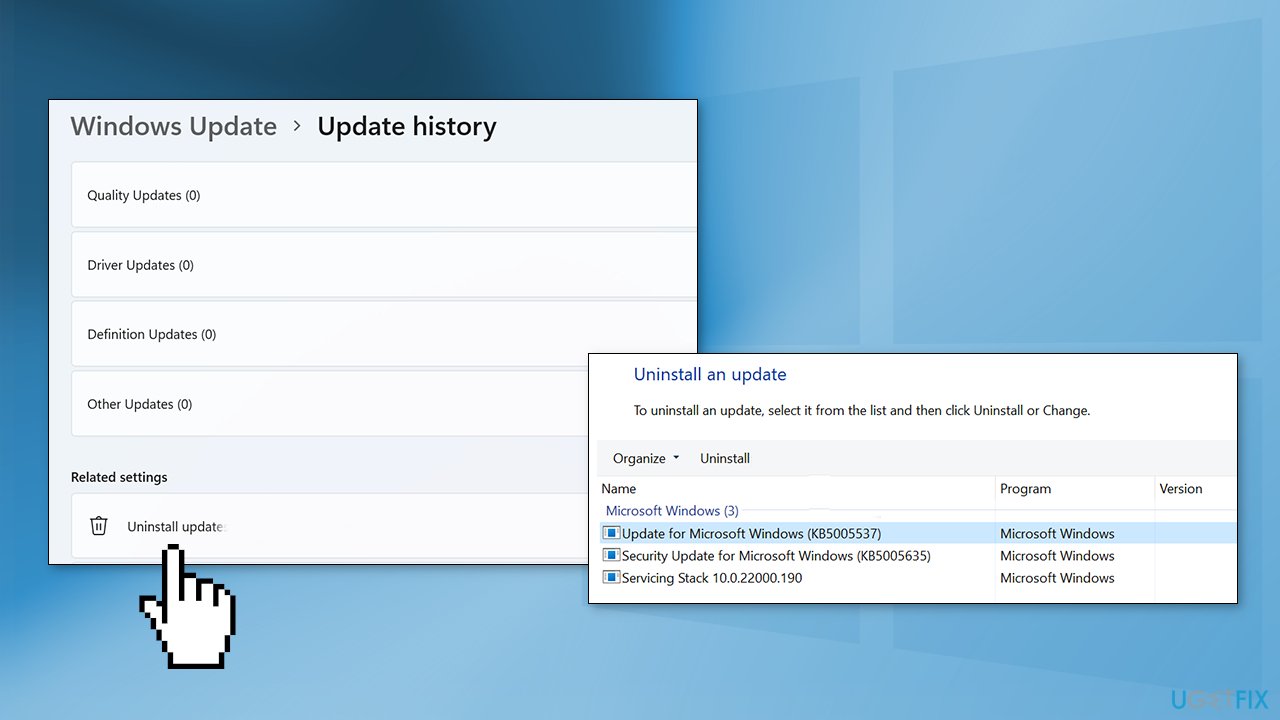
- Click Yes in the prompt to continue
Bottom line
To fix the application errors caused by KB5013943, you can enable the .NET 3.5 framework through the Control Panel or Command Prompt, or uninstall the KB5013943 update. If these methods do not resolve the issue, you may need to wait for Microsoft to release another fix.
Frequently asked questions
You can try uninstalling the update via Settings > Update & Security > Windows Update > View update history > Uninstall updates, then select KB5013943 to remove it.
To prevent issues, you can pause updates temporarily in Settings > Windows Update, or check for any newer updates that may address the application errors.
Look for error messages or unusual behavior after installing the update, and consider checking forums or Microsoft's support page for reports from other users experiencing similar issues.




Report an issue
What's wrong with this guide? We review every report and update or remove content.
Report received — thank you. We'll review and fix it.
You need a free account to submit a report.
Be the first to comment