How to fix
Boot configuration error code 0xc0000034
on Windows
Resolve boot configuration error code 0xc0000034 on Windows 10 or 11 effortlessly. Get expert-tested solutions to fix your boot issues in minutes.

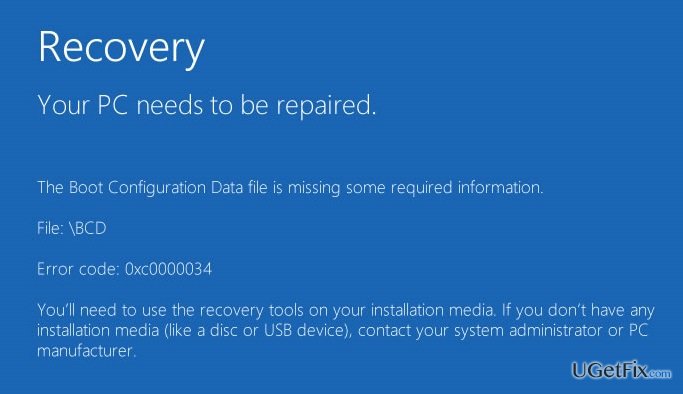
What causes How to fix boot configuration error code 0xc0000034 on Windows?
- Windows Boot Manager (Bootmgr) entry is missing
- Boot Configuration Data (BCD) store is corrupted
- Boot\BCD file is damaged on the active partition
- Prolonged boot preparation sessions
- System slowdowns and software crashes
Repairs Windows system files, removes malware, and restores a clean OS state — without reinstalling.
Ok, so I have a laptop for two months with Windows 10 preinstalled. Everything worked fine until today. I’ve restarted my laptop and get a BSOD with an error code 0xc0000034. I’ve tried reinstalling the system multiple times, but in vain because the error keeps reoccurring. Please help me as I’ve never dealt with such an issue before. Thanks!
Error code 0xc0000034 is a current Windows boot configuration error, also known as BSOD “The Boot Configuration Data file is missing.” Before the screen opens, people might notice prolonged boot preparation sessions, system slowdowns, software crashes, random Internet disconnection, and similar malfunctions. However, the 0xc0000034 error shows up unexpectedly and freezes the Windows screen without even booting the system up.
While the majority of people who have reported a 0xc0000034 error on Microsoft and other IT forums run Windows 10, the bug is not limited to this newest version of Windows. The culprit of the issue is Windows Boot Manager (Bootmgr) entry or rather its lack in the Boot Configuration Data (BCD) store. In some of the cases, 0xc0000034 BSOD may occur due to the Boot\BCD file damaged on the active partition.
Your PC/Device needs to be repaired.
The Boot Configuration Data for your PC is missing or contains error.
File: \EFI\Microsoft\Boot\BCD
Error code: 0xc0000034
Even though this BSOD is fatal, there is a solution that you can practice without professional technicians. However, there is only one method – to use bootable Windows Installation Media. If you have managed to log in to your account, we would recommend you to initiate a full system scan with a PC optimization tool, for example, [d1]. It will fix current system errors, which may prevent upcoming Windows Installation procedure. After that, follow the steps given down below:
How to fix boot configuration error code 0xc0000034 on Windows?
For 0xc0000034 error fixes, you have to prepare a DVD or USB with a bootable Windows Installation Media. Once you have an external drive prepared, go to the official Microsoft's website and download the latest version of the Windows OS, e.g. Windows 7, 8, 8.1, XP, Vista or 10. If you don't know how to create a Windows Installation Media, find relevant information here. Once done, follow these steps:
- Boot the system using a Windows Installation Media.
- Select language, time, currency, and keyboard/input method.
- When the options are set, click Next.
- Select Repair your computer (NOT Install Windows) and opt for Troubleshoot.
- Click Advanced option and select Automatic Repair or Startup Repair.
- When the system detects the OS, select the one that is running on your PC.
- Finally, unplug the USB or remove DVD bootable media and boot up your device.
Hopefully, after re-installing Windows OS, you have managed to boot the system normally without encountering 0xc0000034 BSOD. If after all the problem reoccurs, please contact Microsoft-certified technicians and let them know about the bug.
Bottom line
To fix the boot configuration error code 0xc0000034, you can use bootable Windows Installation Media to repair the system. Additionally, running a full system scan with a PC optimization tool may help resolve underlying issues. If these methods do not work, consider seeking professional assistance.
Frequently asked questions
The error code 0xc0000034 indicates that the boot configuration data (BCD) is missing or corrupted, preventing Windows from starting properly.
You can fix the error by booting from Windows installation media, selecting 'Repair your computer,' and then using the 'Startup Repair' or 'Command Prompt' to rebuild the BCD.
Yes, you can attempt to resolve the issue by accessing the advanced startup options through the Settings app or by interrupting the boot process three times to trigger recovery mode.




Report an issue
What's wrong with this guide? We review every report and update or remove content.
Report received — thank you. We'll review and fix it.
You need a free account to submit a report.
Be the first to comment