How to fix
KB5013942 fails to install
on Windows
Resolve the KB5013942 installation failure on Windows 10 and 11 effortlessly. Apply expert-tested solutions and fix the issue in minutes!

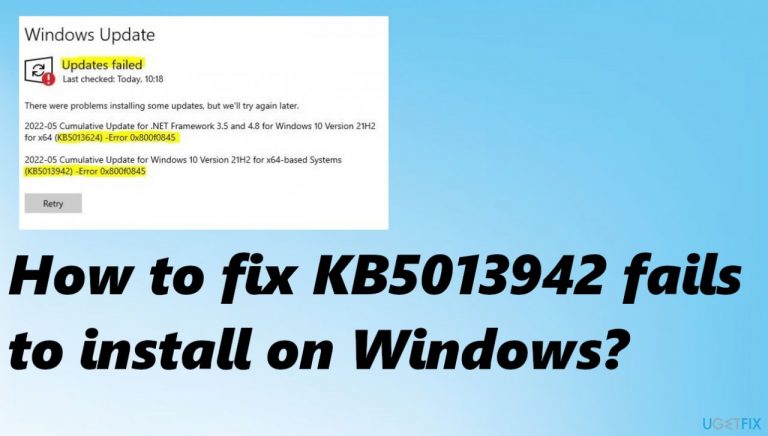
What causes How to fix KB5013942 fails to install on Windows?
- Issues with the internet connection
- Interference from security software or VPN tools
- Insufficient disk space
- Altered or damaged system files
- Malware installation consequences
Repairs Windows system files, removes malware, and restores a clean OS state — without reinstalling.
Hello, I need help. The Windows 10 update fails on me. I tried to update a few times. I even deliver error code 0c800f0845. I need to install this KB5013942 update as soon as possible. I get BSOD windows, this error and it starts again. I need to do this soon until the blue screen is not ending in full-on PC death. Please, offer something for me
KB5013942 fails to install on Windows is the issue that people, unfortunately, report these days. It is common for the Windows update to deliver an error or fail to install the upgrade because of different reasons. Installations like this can get stuck due to issues with the internet connection because the download and installation of updates require proper internet.
Another issue that can lead to these problems and user reports[ref en-1] online can be related to the security software, third-party applications like security software, or VPN tools.[ref en-2] Not enough disk space before installing the upgrade can also result in the failure of a particular update like KB5013942.
Once the update fails to install on Windows with the Error 0x800f0845, it can mean that there are some altered or damaged files that are needed but not found. This data corruption or missing devices, and driver files can trigger the failure of the particular Windows update. It happens pretty commonly with various system processes.
Error 0x800f0845 can be solved with the proper repair of the system data. These issues can be malware[ref en-3] installation consequences, so you want to run [d1] to see if there are any leftovers, virus damage, or other issues that lead to problems with the PC. This is a quick solution for file repair and virus damage recovery. Then you can move on with direct fixes if needed.
1. Troubleshoot the Windows update
- Press Windows key + X.
- Go to Settings.
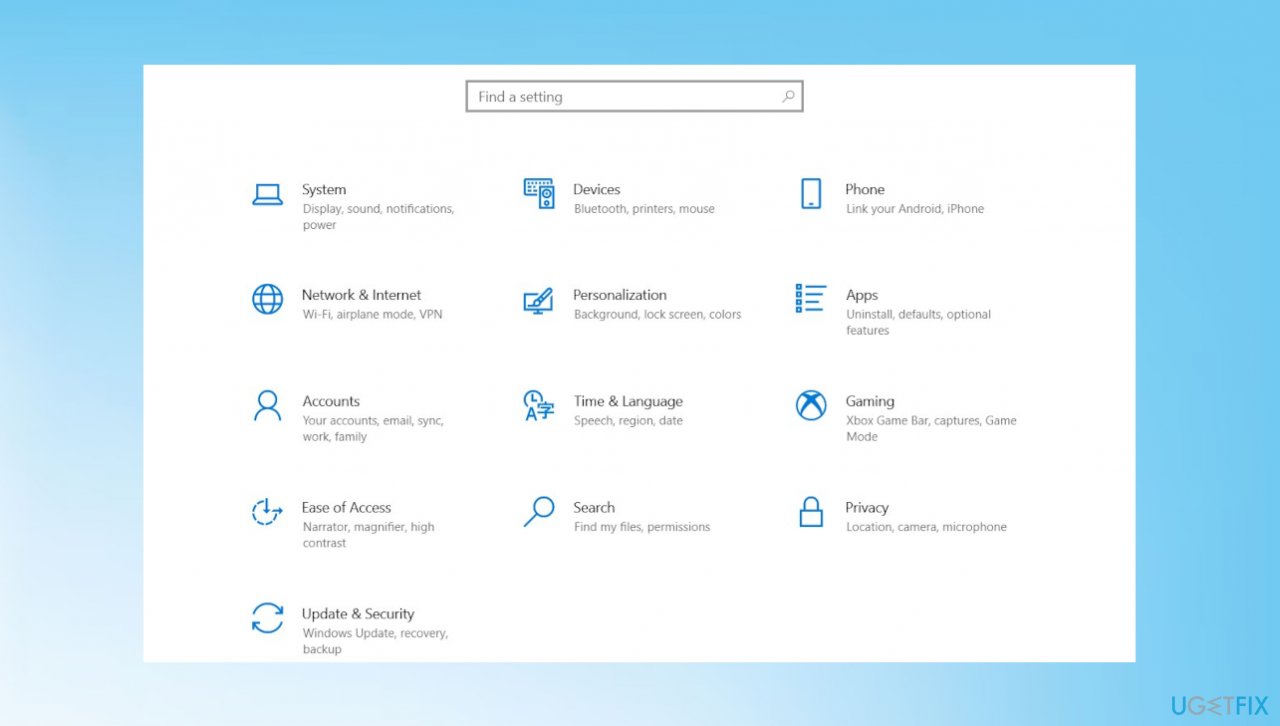
Update kb5013942 fail error settings - Click Update and Security.
- Click Troubleshooter then Additional troubleshooters.
- Look for Windows Update and then hit Run the troubleshooter.
2. Clear Windows Update Files
- Type services.msc on start menu search and hit the enter key.
- Scroll down and locate the Windows update service.
- Right-click and select stop.
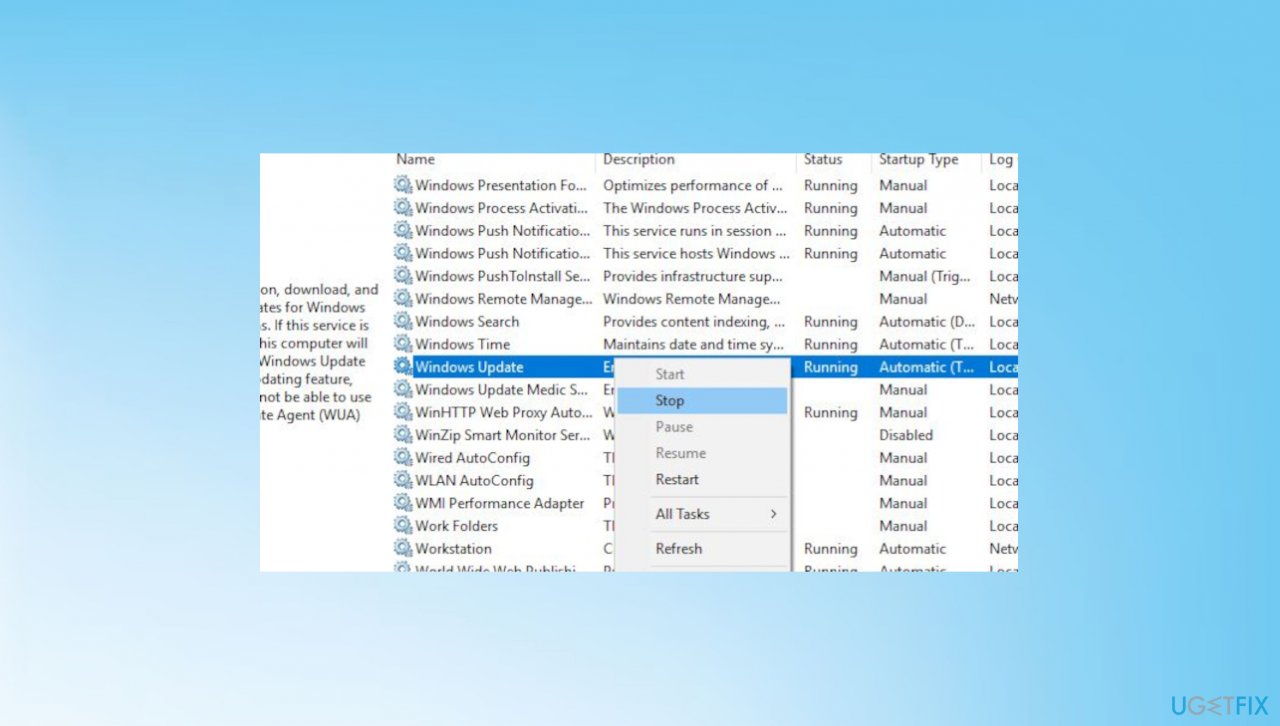
Update kb5013942 fail error service - Do the same with its related service BITS (Background Intelligent Transfer Service).
- Now press Windows + E keyboard short and Go to the following location.
C:\\Windows\\SoftwareDistribution\\Download - Delete everything inside the download folder, but do not delete the folder itself.
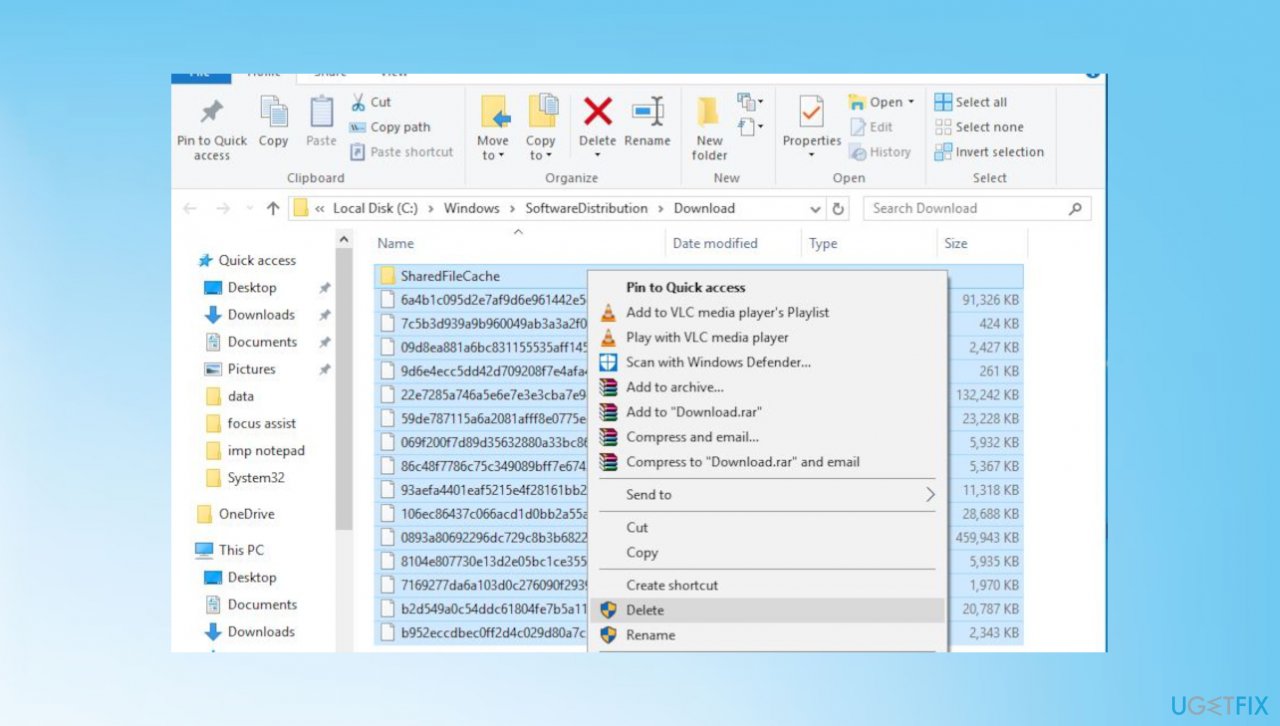
Update kb5013942 fail error clear folder - Press CTRL + A to select everything and then press Delete to remove the files.
- Again open windows services and restart the services (windows update, BITS) which you previously stopped.
3. Check for the updates again
Sometimes faulty updates can trigger these issues, so restarting the machine, waiting a bit, and trying again can help.
- Hit the Windows key and X.
- Then go to Settings.
- Click Update and Security.
- Check for Updates and install the one that is available.
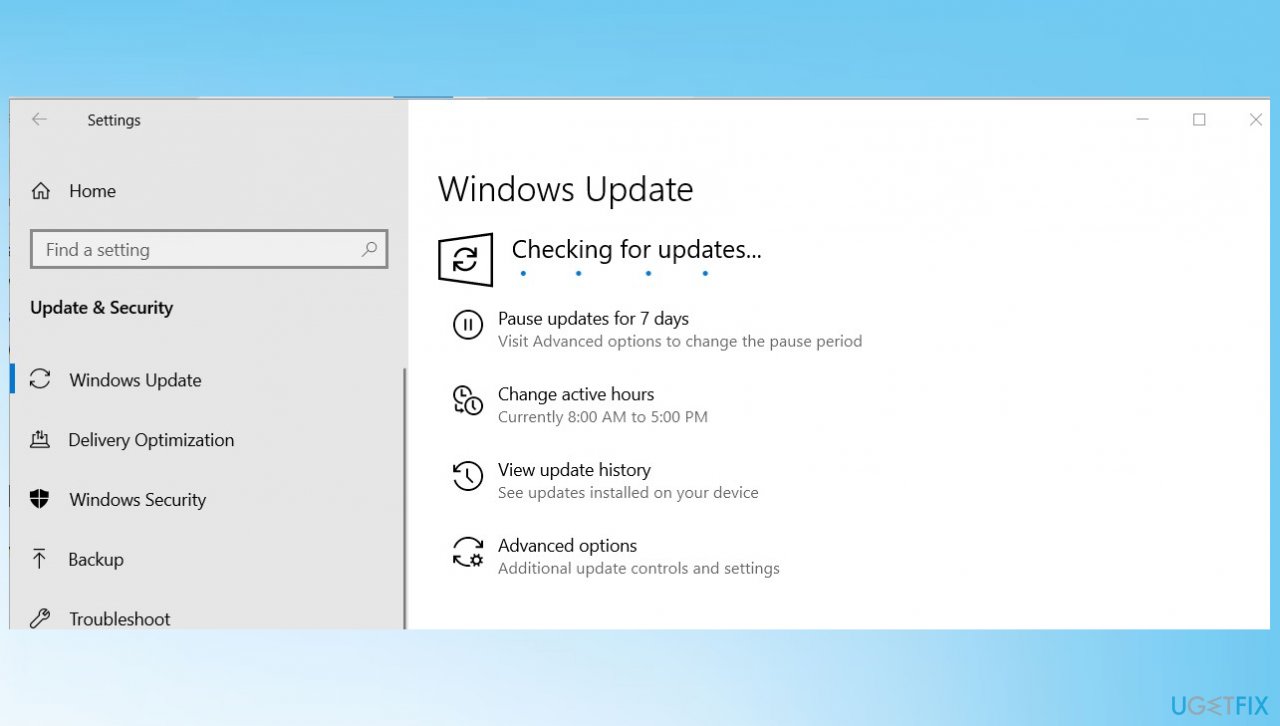
Update kb5013942 fail error updates
4. Run DISM command and System File checker
- Search for CMD.
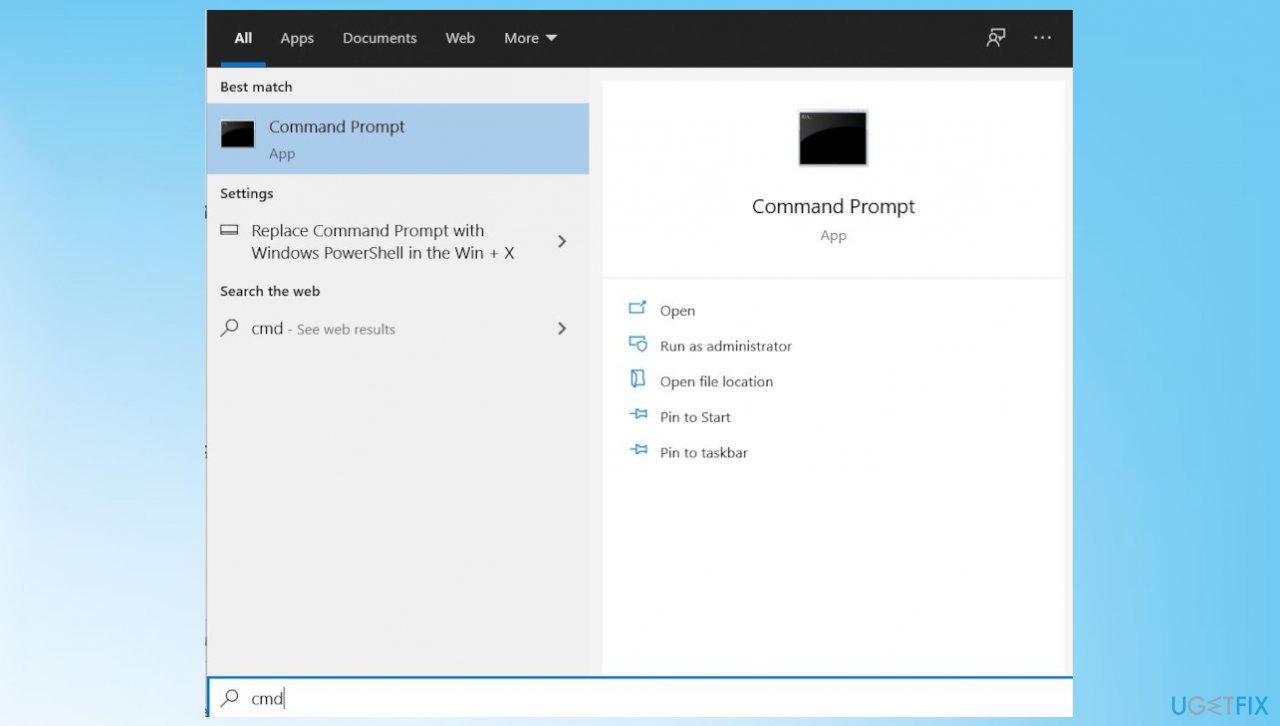
Update kb5013942 fail error cmd - Open the command prompt as administrator.
- Type command DISM /Online /Cleanup-Image /RestoreHealth and press enter key.
- Once the scanning process is complete, run the system file checker utility command sfc /scannow.
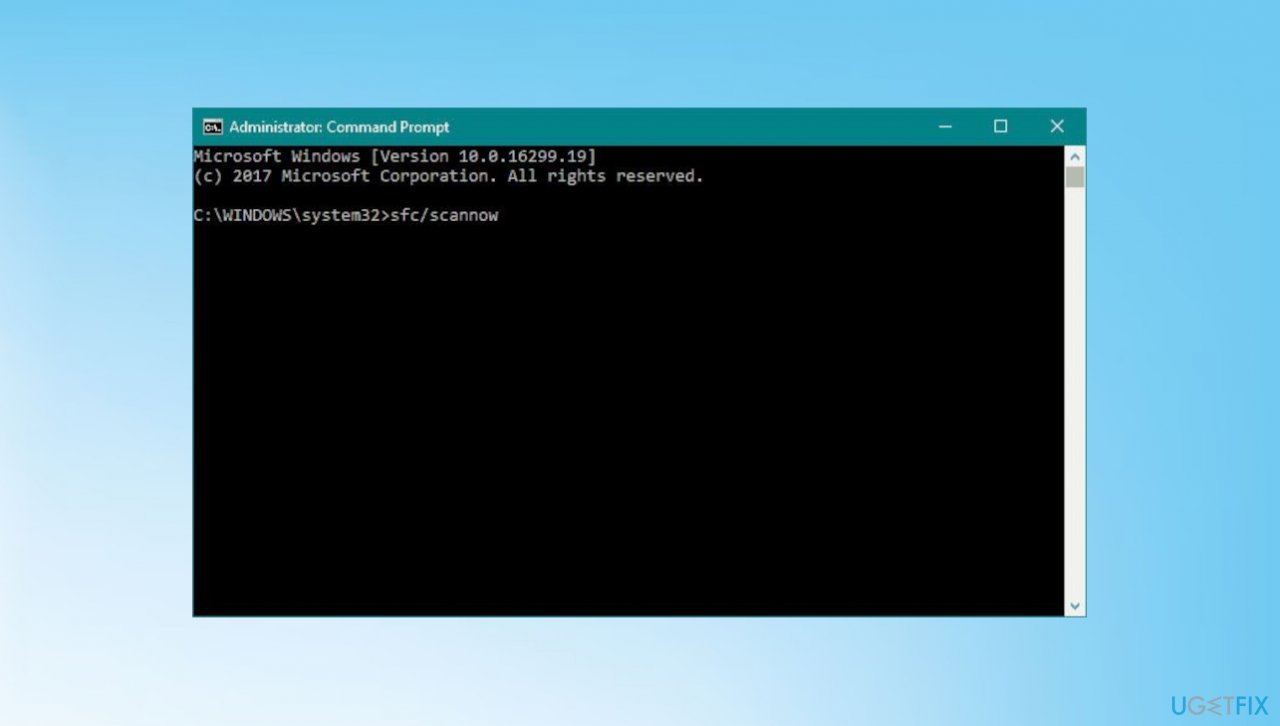
Update kb5013942 fail error sfc - Wait until the scanning process completes and reboot your computer.
- Try to update again.
Bottom line
To fix the KB5013942 installation failure, you can troubleshoot the Windows update, clear Windows Update files, and repair system data. If these solutions do not resolve the issue, consider running a malware scan to check for any underlying problems.
Frequently asked questions
Try running the Windows Update Troubleshooter to identify and fix issues related to the update. Additionally, ensure that your system is fully updated and free of any pending updates before attempting the installation again.
You can manually download the update from the Microsoft Update Catalog website and install it by double-clicking the downloaded file. Make sure to select the correct version that matches your Windows 11 architecture (32-bit or 64-bit).
Common reasons include corrupted system files, insufficient disk space, or conflicts with third-party software. Running the System File Checker (sfc /scannow) can help resolve issues with system files.




Report an issue
What's wrong with this guide? We review every report and update or remove content.
Report received — thank you. We'll review and fix it.
You need a free account to submit a report.
Be the first to comment