How to fix
Couldn’t remove your device from Microsoft account – how to fix
on Windows
Easily fix the issue of removing devices from your Microsoft account on Windows 10 or 11. Expert-tested solutions for seamless troubleshooting!

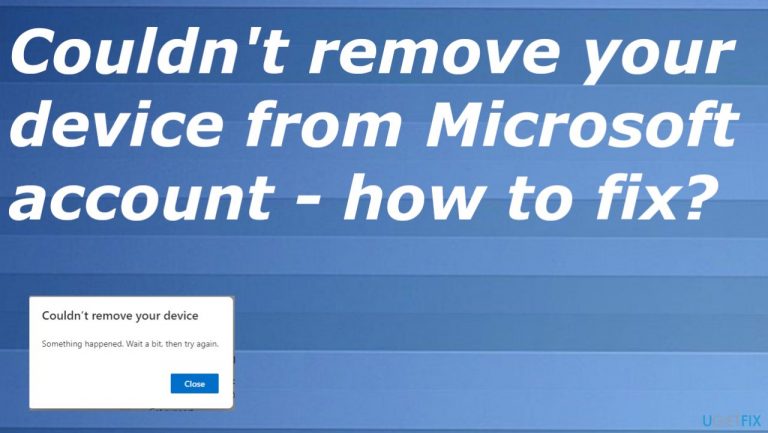
What causes Couldn’t remove your device from Microsoft account – how to fix?
- Device connection issue with Microsoft account
- Possible bug on Microsoft's end
- OneDrive usage affecting device removal
- Device listed under profile but cannot be removed
- No need to remove old devices to associate new ones
Repairs Windows system files, removes malware, and restores a clean OS state — without reinstalling.
I want to remove the laptop from my Microsoft account, but the process ends with a pop-up about the issue. I cannot repeat the action properly it always ends with an error. I can trigger the process, and get to see the Cancel or Remove options, but clicking Remove gets me nowhere. Can you help?
Couldn't remove your device from your Microsoft account pop-up can indicate that something is wrong with the device and the connection to the machine and Microsoft account. Generally, you don't need to remove these old devices to associate the account to a new device. You only need to sign in to your MS account.[ref en-1]
However, users need help doing these removing processes and complain online about the occurring issues.[ref en-2] These problems seem to bother people on various devices, and these machines often run Windows 10 or new Windows 11[ref en-3] even. These issues might appear due to the OneDrive usage and the Microsoft account relation.
You might see the device listed under the profile, but there is no device that could be removed, so the issue appears to bother you. You might want to remove the device from OneDrive and see if that helps with the issue when "Couldn't remove your device from Microsoft account" appears.
This issue is possibly a bug on Microsoft's end, so you might want to submit the feedback for support and wait for the particular answer and a possible fix. Some of the users even state that after a certain time or the update on the machine, the issue stopped appearing, and the device got removed without doing that again.
It was addressed by some of the support people online in forums, but not officially from the company. This is the bug that has been bothering people for a while, and users experience the problem occasionally. Microsoft hasn't released an update or a solution, however.
You can rely on the provided methods below or wait for the updates, and spend some time waiting for the change. The waiting seems to be an occurring method for other users who experienced Couldn't remove your device from Microsoft account issue. It might be a matter of time, but we list some solutions. You can also run a quick check with [d1], so the issues with altered files and damaged data get solved.
1. Check for the updates for the OS
Your machine might not get to the end result of removing this device because of the improper Windows installation or the state. The bug might be fixed with the more recent OS version, so checking for that can help.
- Right-click Start button and pick Settings.
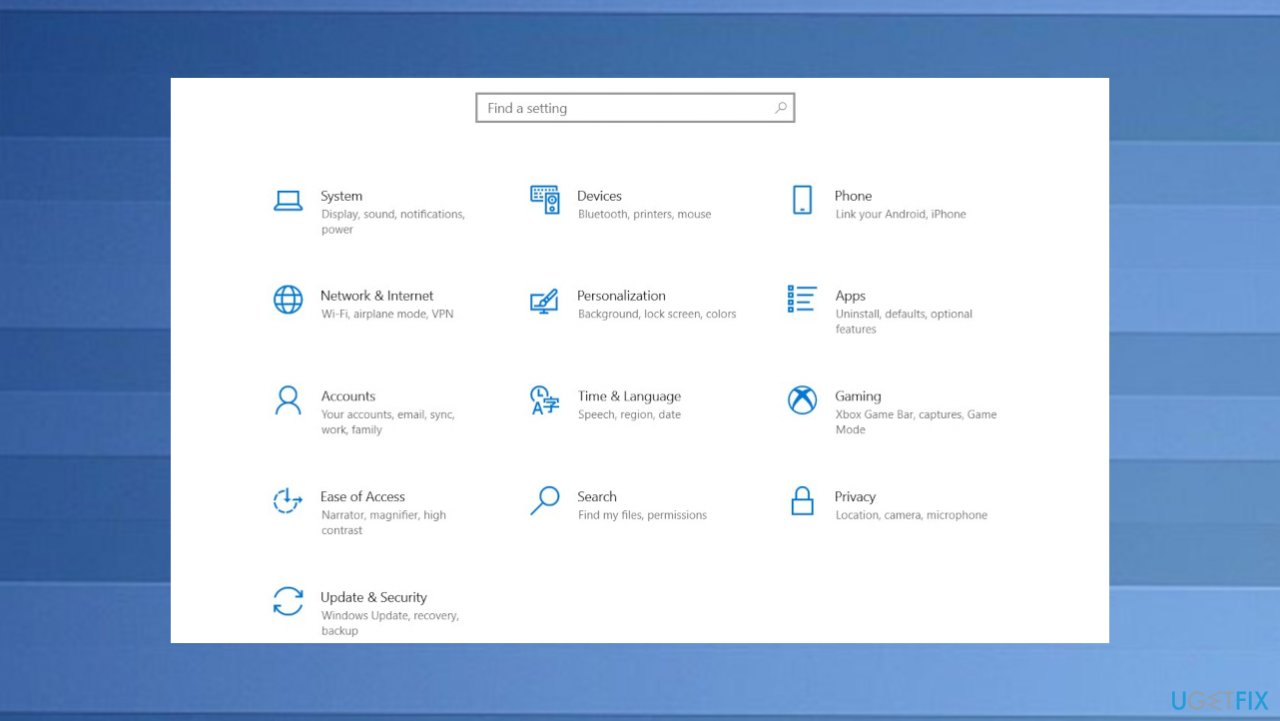
Cant remove the device from microsoft account settings - Go to Update & Security.
- Choose Windows updates.
- Hit Check for the updates.
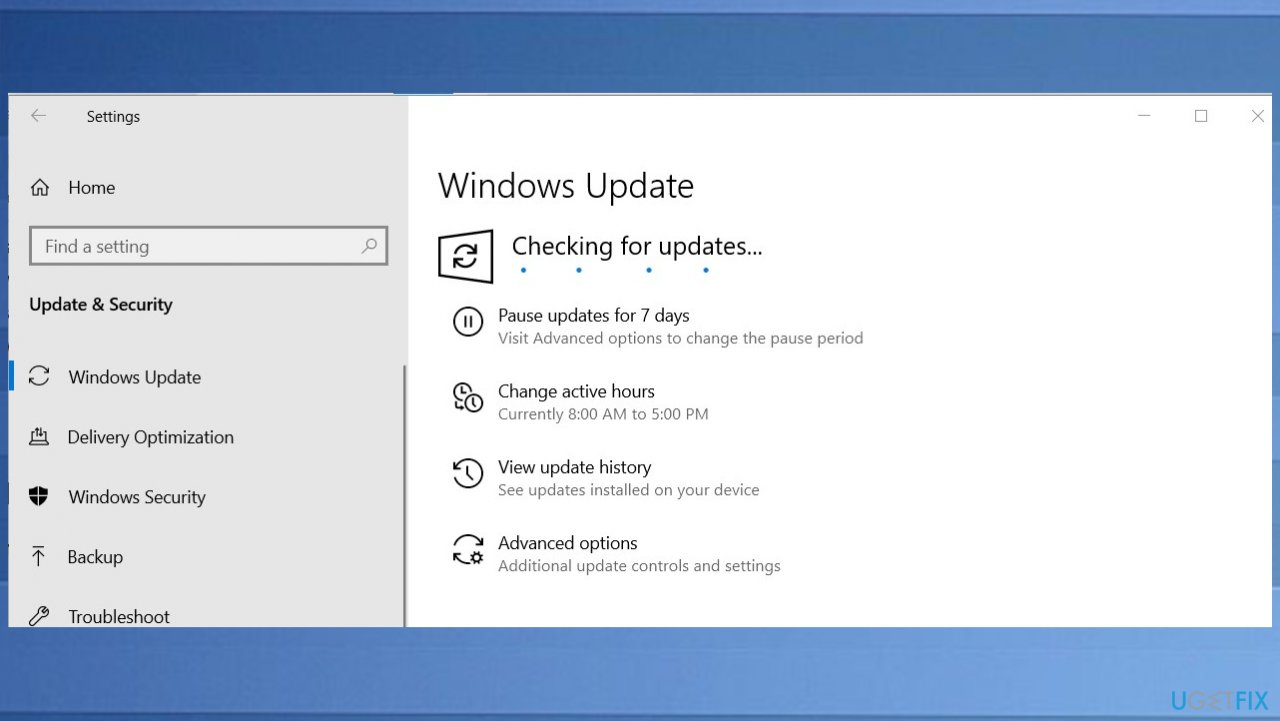
Cant remove the device from microsoft account updates - If there are any available - install.
2. Remove your Microsoft account linked to devices
- Go to Settings.
- You can do that by hitting Windows key and I.
- Then Accounts.
- Choose Your account.
- Tap or click Disconnect my Microsoft account, and restart the device.
3. Remove the device from the account
- Go to account.microsoft.com/devices, sign in.
- Then find the device you want to remove.
- Select Show details to see info for that device.
- Under your device's name, select More actions.
- Then select Remove.
- Review your device details, and select the check box, I'm ready to remove this device.
- Then select Remove.
Bottom line
To resolve the issue, consider removing the device from OneDrive and submitting feedback to Microsoft for support. Some users have found that the problem resolves itself after a period of time or following a system update. If these methods do not work, waiting for an official update from Microsoft may be necessary.
Frequently asked questions
Try signing into your Microsoft account online and removing the device from the Devices section. If that doesn't work, ensure that you are not logged into the device while attempting the removal.
Check your account permissions and ensure that you're using the correct Microsoft account associated with the device. Additionally, you can try resetting the device or checking for updates that might resolve the issue.
Common error messages include 'We couldn't remove your device' or 'Device removal failed.' These often suggest issues with account synchronization or permissions.




Report an issue
What's wrong with this guide? We review every report and update or remove content.
Report received — thank you. We'll review and fix it.
You need a free account to submit a report.
Be the first to comment