How to fix
Mouse cursor constantly changes to “Busy” after Windows update
on Windows
Is your mouse cursor stuck on "Busy" after a Windows 10 or Windows 11 update? Discover quick fixes to regain control, expert-tested solutions await!

![[Fix] Mouse cursor constantly changes to “Busy” after Windows update](https://ugetfix.com/wp-content/uploads/articles/askit/fix-mouse-cursor-constantly-changes-to-busy-after-windows-update-1_en-768x432.jpg)
What causes [Fix] Mouse cursor constantly changes to “Busy” after Windows update?
- Windows Explorer malfunction
- Third-party security program interference
- Issues caused by the 2022-04 cumulative update
- System errors
- Corrupted files
Repairs Windows system files, removes malware, and restores a clean OS state — without reinstalling.
Hello. Since I updated my Windows computer my mouse cursor keeps acting weird. It often changes to "busy" and becomes unresponsive. How do I fix this?
Windows is one of the most well-known operating systems in the world. It was developed by Microsoft and it is used by many different individuals. It is great for gaming, working, and entertainment. However, as with many other software, some issues can arise.
Windows updates have been known to cause some problems from time to time. Recently, users noticed that their mouse cursor constantly changes to "Busy" after updating with the 2022-04 cumulative update for x64-based systems.[ref en-1] The bug was reported to affect both Windows 10 and Windows 11 machines.
Although it is unknown why exactly the update caused this mouse cursor malfunction for some people, users have found a couple of fixes that helped. For some Windows users, the issue was caused by Windows Explorer, for others - a third-party security program.
In this guide, you will find 4 steps that could help you fix the mouse cursor constantly changes to "Busy" after Windows update problem. However, if you want to avoid a long troubleshooting process, you can use a maintenance tool like [d1] that can fix most system errors, BSODs,[ref en-2] corrupted files, and registry[ref en-3] issues. Otherwise, follow the step-by-step instructions below.
Method 1. Restart Windows Explorer
- Click Start, type Task Manager, and open it
- Click on the Processes tab
- Find Windows Explorer in the list
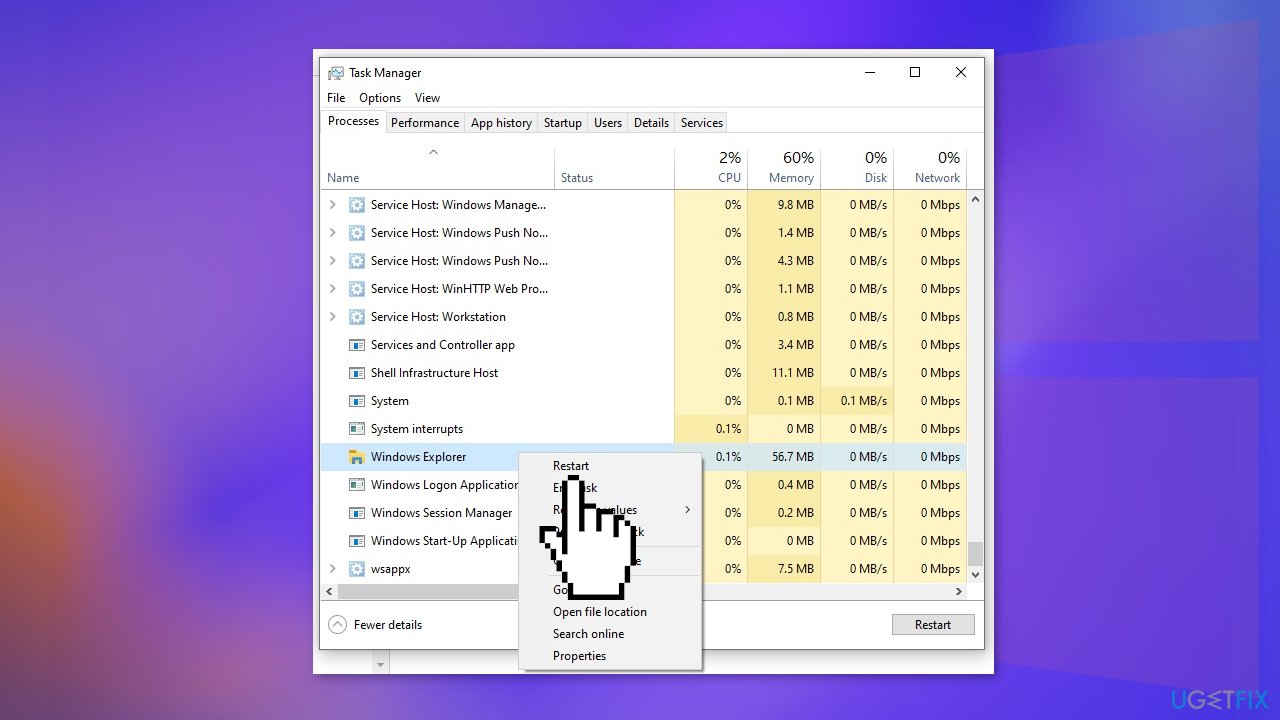
- Right-click on it and hit Restart
Method 2. Perform System Restore
- Press Windows key + R to open the Run box
- Type rstrui.exe and hit Enter
- When the System Restore window opens, normally it suggests a restore point
- Select your desired restore point date and time before the issue started, hit Next and Finish
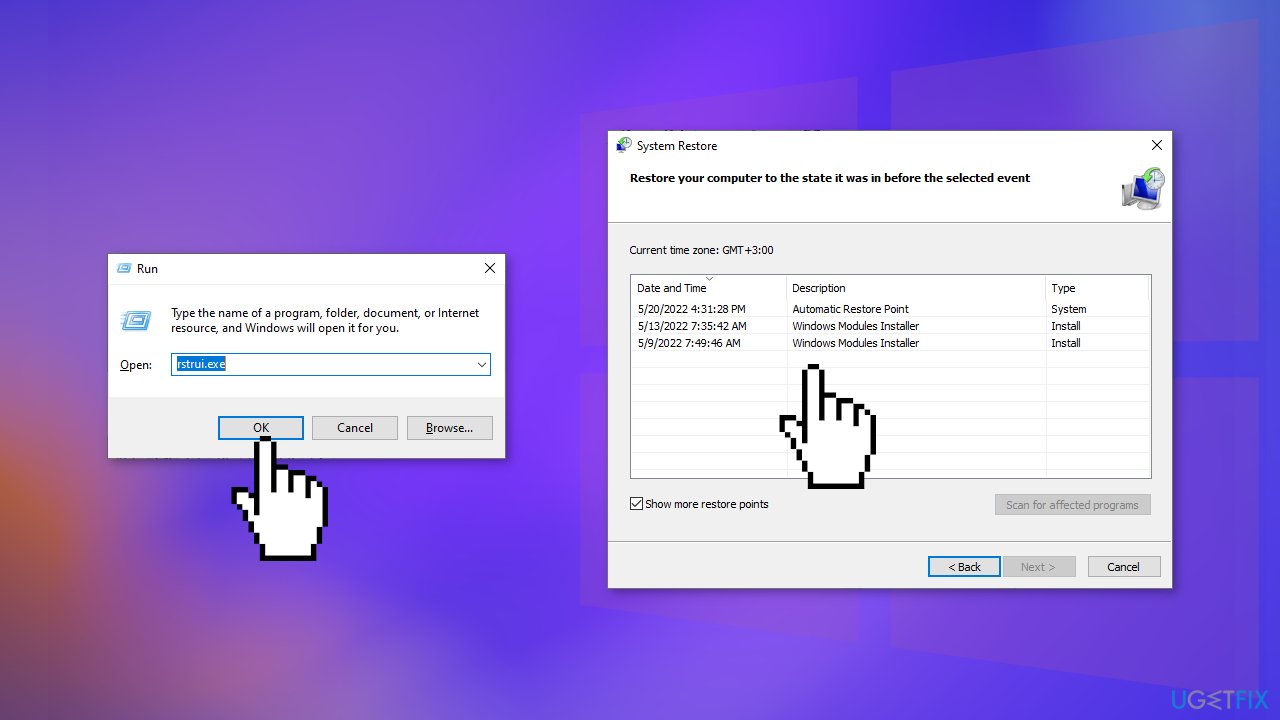
- Restart your PC and see if the problem was fixed
Method 3. Uninstall Third-Party Antivirus Software
If you have any third-party antivirus software installed on your system, you should try uninstalling it to see if the mouse cursor issue will disappear. Some users report that the cause of the problem was Norton Security and it disappeared after an uninstallation.
- Go to Apps & Features
- Find the problematic program in the list, click on it, and click Uninstall
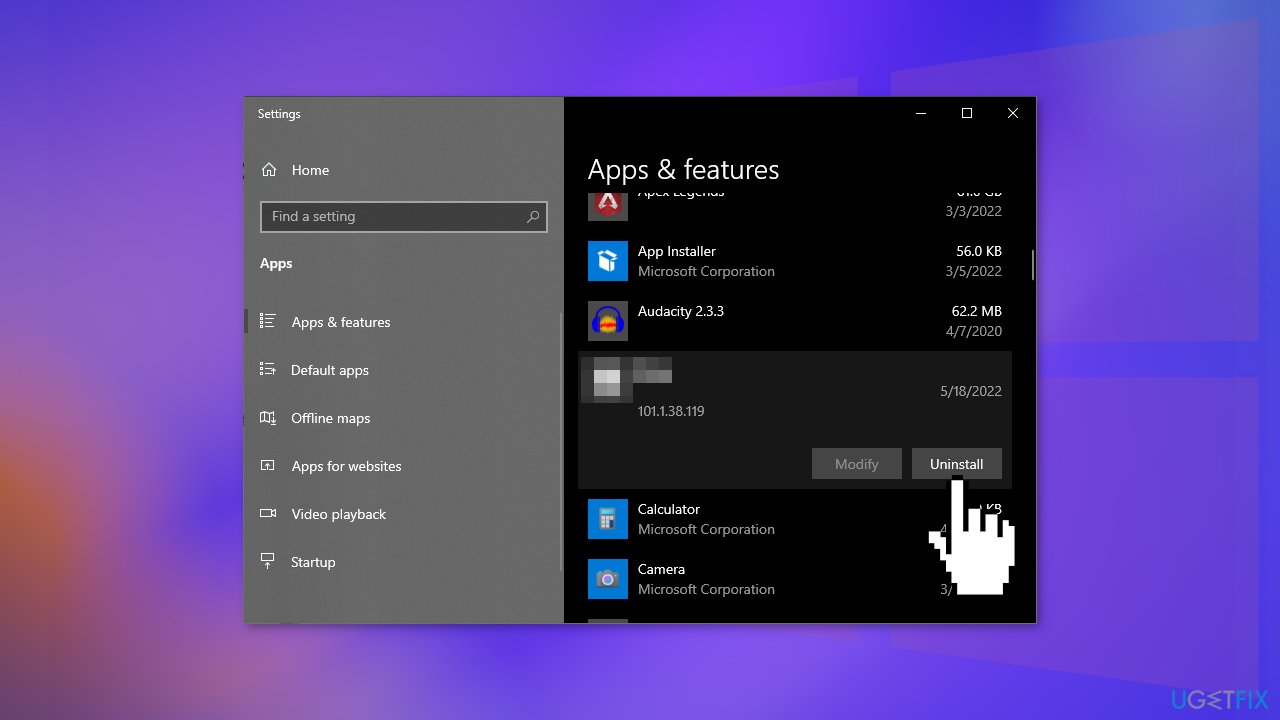
- Wait for the process to finish
Method 4. Uninstall Armory Crate
If you have an Asus computer, the Armory Crate was reported to cause various issues, including the mouse cursor. Try uninstalling it to see if it helps.
- Go to the Armoury Crate support website
- Find the Driver & Utility tab and select your OS to download Armoury Crate Uninstall Tool
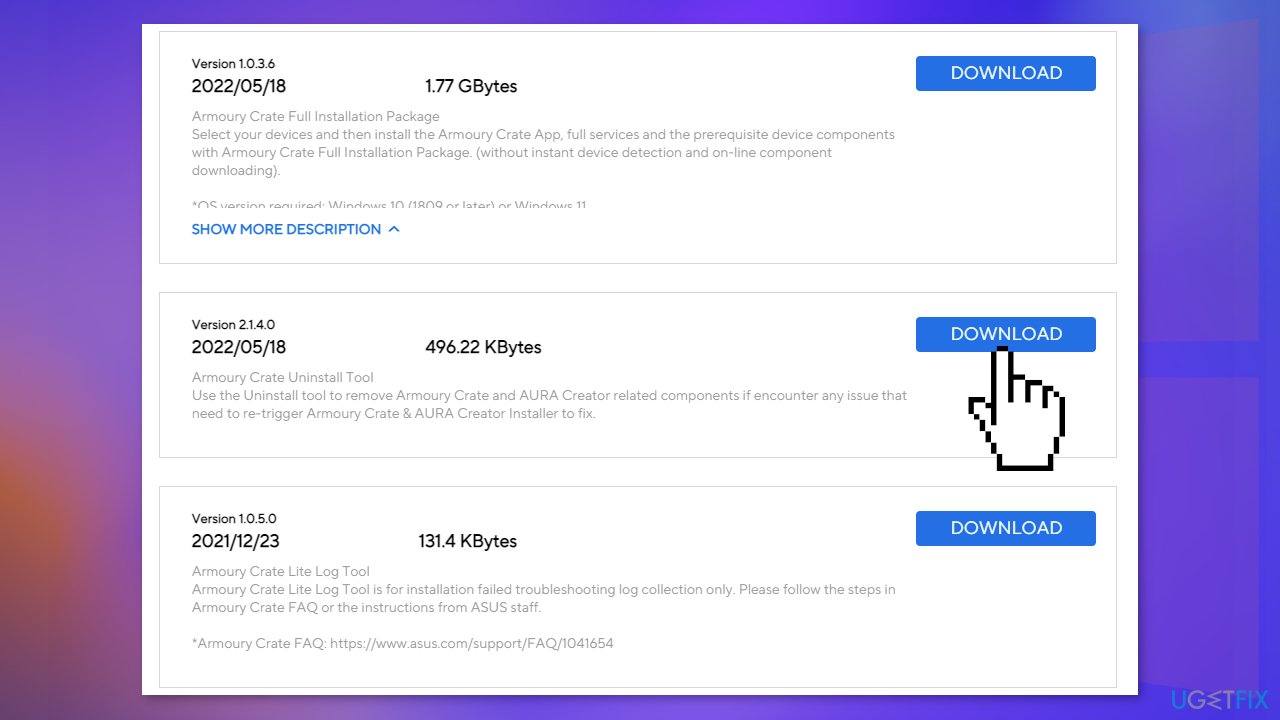
- Unzip Armoury_Crate_Uninstall_Tool.zip and double-click Armoury Crate Uninstall Tool.exe to start the uninstall process
- Restart the system to complete the uninstallation
Bottom line
To resolve the mouse cursor issue, you can restart Windows Explorer, perform a system restore, or uninstall any third-party antivirus software. If these methods do not work, consider using a maintenance tool to fix system errors.
Frequently asked questions
This issue may occur due to outdated drivers or software conflicts introduced by the update in Windows 10 or Windows 11.
Try updating your mouse drivers, running the Windows Troubleshooter, or checking for any pending updates that might resolve the problem.
You can prevent this by ensuring that all software is up-to-date and by disabling any unnecessary startup programs that might be causing performance issues.




Report an issue
What's wrong with this guide? We review every report and update or remove content.
Report received — thank you. We'll review and fix it.
You need a free account to submit a report.
Be the first to comment