How to fix
WIN32K_CRITICAL_FAILURE Blue Screen
on Windows
Resolve the WIN32K_CRITICAL_FAILURE Blue Screen in Windows 10 or 11 effortlessly. Quick fixes and expert-tested solutions await you! Fixed in minutes.


What causes How to fix WIN32K_CRITICAL_FAILURE Blue Screen in Windows?
- Malfunctioning Win32k.sys driver
- Incompatibility with installed applications
- Corrupted system files
- Bugs in the operating system
- Issues with Windows updates
Repairs Windows system files, removes malware, and restores a clean OS state — without reinstalling.
Hello, my computer crashed today with BSOD, which referenced WIN32K_CRITICAL_FAILURE. I went on with my day, and then it happened again. Please help me resolve this as I need my PC to be stable. Thanks for the advice.
While Blue Screen of Death crashes are unpleasant occurrences and many users would rather not experience them, they play an important role in Windows' ecosystem - to prevent damage to the OS.
Upon critical system failure, the PC is automatically rebooted, and users are usually presented with a blue screen that includes an error code and sometimes a bug check number - these are both used for problem identification.
WIN32K_CRITICAL_FAILURE is one of the Blue Screen crashes that users may encounter at any point when using a Windows PC. It can occur on any Windows version (7, 8, 9, 10, 11) and is also not specific to a particular event on the system. It has a bug check value of 0x00000164 or 0x164.
When trying to fix WIN32K_CRITICAL_FAILURE Blue Screen, it is important to know what it actually means. When looking closer at the error code, you could see that it references the Win32k.sys file, which is a driver[ref en-3] file. It is a core part of Kernel and is responsible for Windows Graphical User Interface (GUI) functions.

If the driver malfunctions, you might expect a BSOD to happen, and, usually, it is resolved automatically after a restart. However, if the problem does not go away and repeats itself, it is time to find a way to fix the WIN32K_CRITICAL_FAILURE error once and for all.
1. Run a system repair tool
Windows is an intricate OS that consists of thousands of files and components. Considering how customizable it is (installing different apps, tweaking settings, scheduling different tasks, etc.), it is unsurprising that sometimes not everything might work correctly due to incompatibility or simple bugs.[ref en-1]
While sometimes fixing problems is simple, other times, especially when the issue is severe, it might be difficult to get to the root cause of it. Therefore, we recommend you try using a PC repair and maintenance utility. It can automatically help you find solutions for the most common Windows errors, including BSODs, registry[ref en-2] errors, and other malfunctions. Also, the app can find and remove already installed malware from the system and fix its damage.
- Download [d1].
- Click on the ReimageRepair.exe

1 - If User Account Control (UAC) shows up, select Yes
- Press Install and wait till the program finishes the installation process
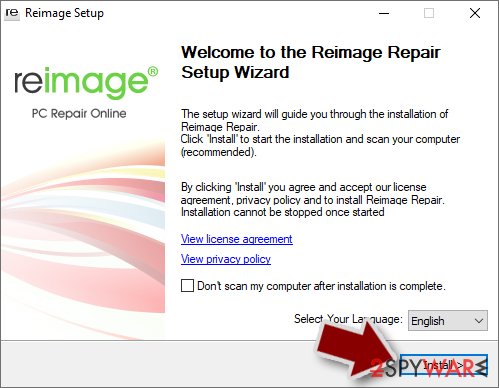
2 - The analysis of your machine will begin immediately
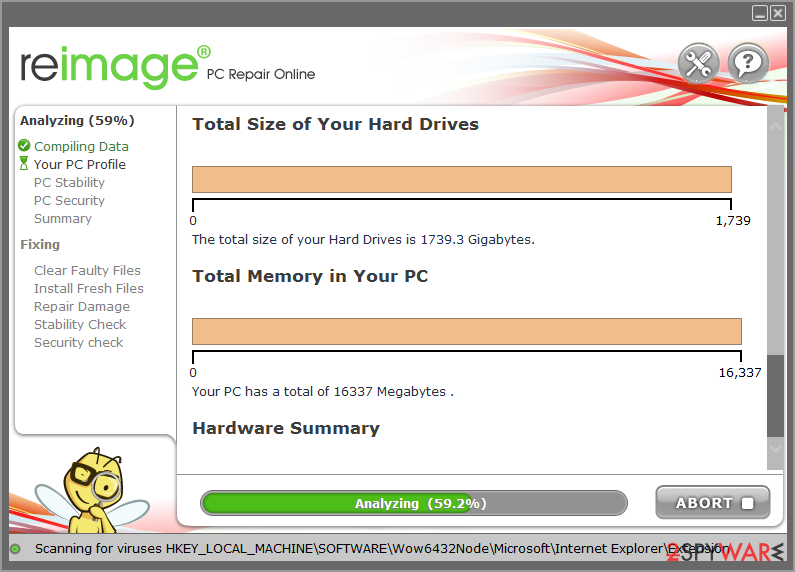
3 - Once complete, check the results - they will be listed in the Summary
- You can now click on each of the issues and fix them manually
- If you see many problems that you find difficult to fix, we recommend you purchase the license and fix them automatically.
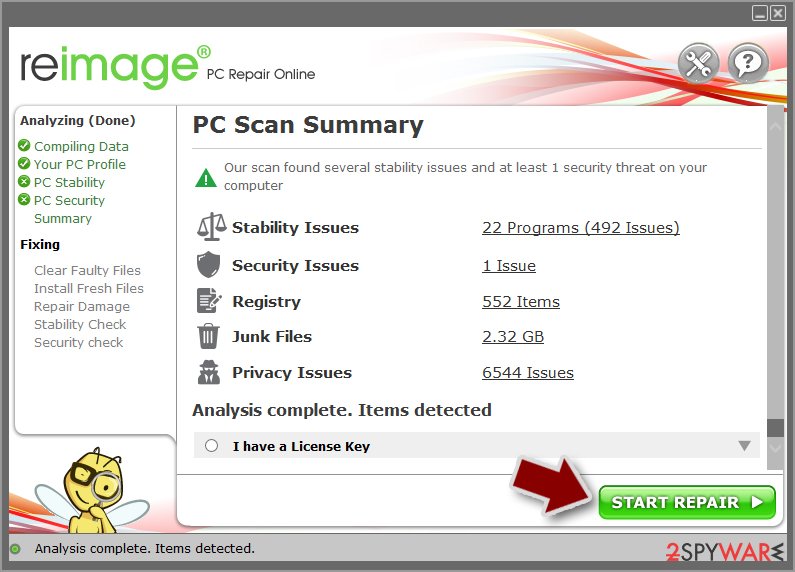
4
2. Repair damaged system files
System file corruption could always be the cause of BSODs. Try repairing them as follows:
- Type cmd in Windows search
- Right-click on Command Prompt result and select Run as administrator
- Paste the following command into the new window:
sfc /scannow - Press Enter and wait till the scan is finished
- Once done, run this set of commands, pressing Enter after each:
DISM /Online /Cleanup-Image /CheckHealth
DISM /Online /Cleanup-Image /ScanHealth
DISM /Online /Cleanup-Image /RestoreHealth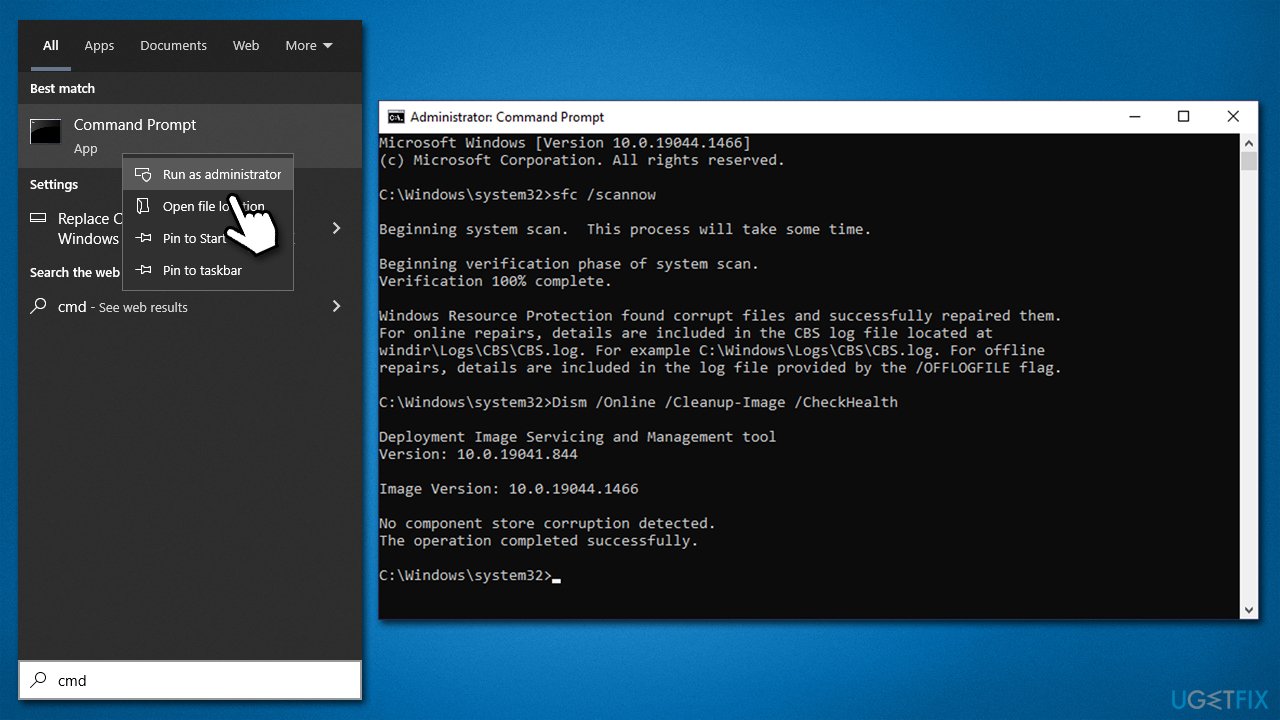
How to fix win32k critical failure blue screen in windows run sfc dism - Restart your PC.
3. Check your memory
- In Windows search, type Windows Memory Diagnostics and press Enter
- Select Restart now and check for problems (recommended)
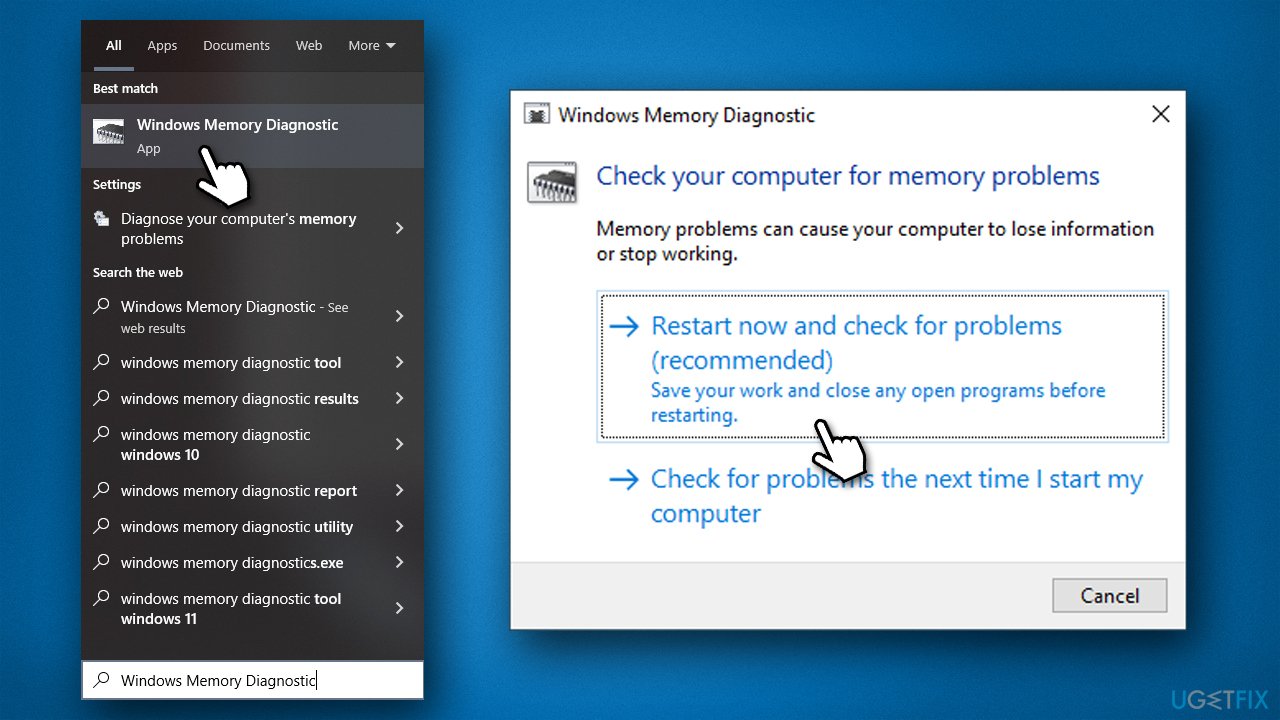
How to fix win32k critical failure blue screen in windows check memory - Your PC will immediately restart and the test will begin
- Be patient, as it might take a while.
4. Rollback display drivers
- Right-click on Start and pick Device Manager
- Expand Display Adapters
- Here, right-click on the GPU and select Properties
- Go to the Driver tab
- Click on Roll back driver and select OK
- Chose the reason for doing so and click Next
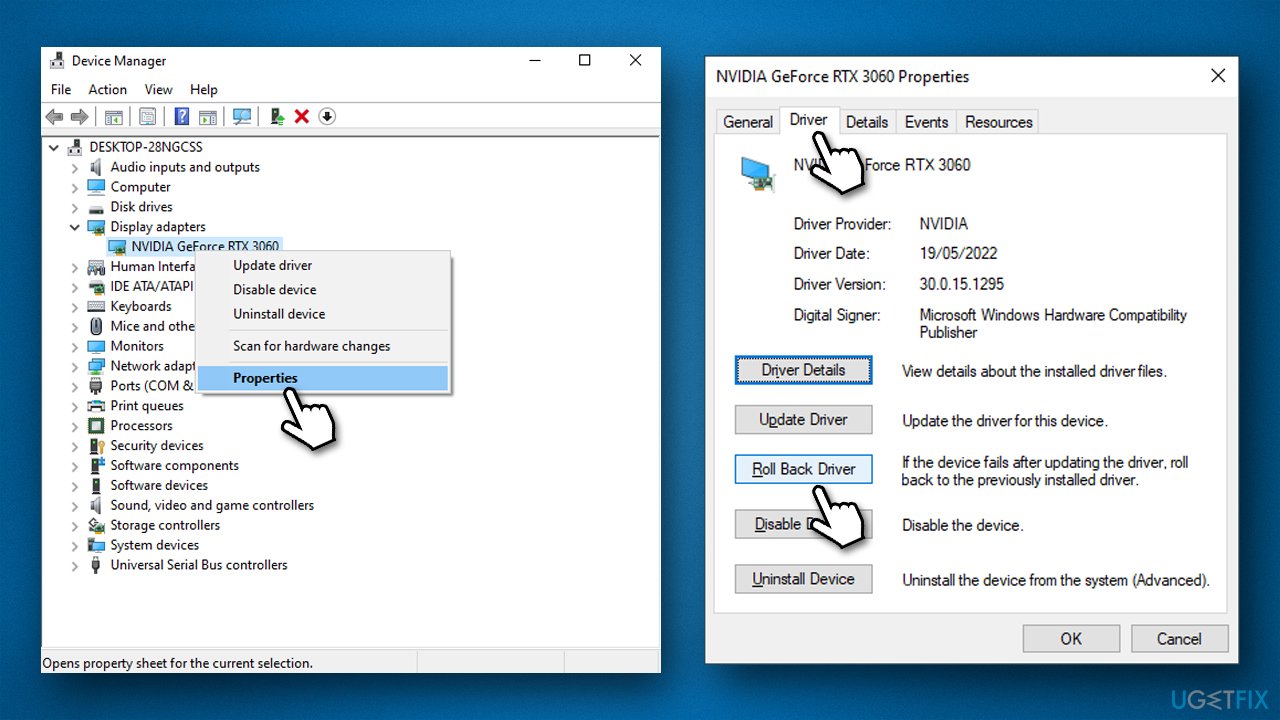
How to fix win32k critical failure blue screen in windows rollback driver - Restart the system once complete.
5. Update drivers
We recommend keeping all drivers up to date. Windows can be used to update drivers, although it's not always effective, thus, you should try using [rev id="DriverFix"] instead - you won't have to worry about driver problems. Alternatively, proceed with the following:
- Type Updates in Windows search and press Enter
- In the Settings window, click Check for updates
- Install the main updates
- Next, click View all optional updates
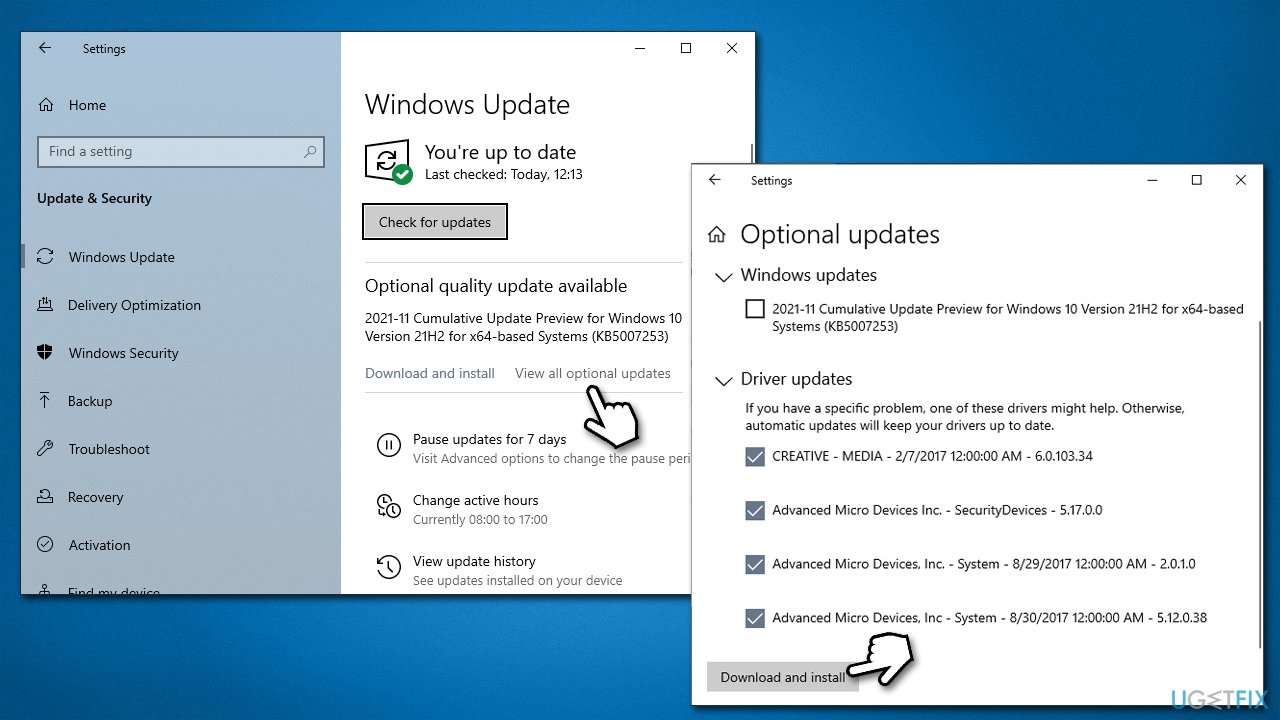
How to fix win32k critical failure blue screen in windows update drivers - Tick all the available driver update boxes and install them all
- Restart your system.
6. Reset Windows
If none of the solutions helped you, you could opt for resetting your computer. Prepare some file backups as a precautionary measure and disconnect all the unnecessary external devices, e.g., printers, cameras, etc.
- Right-click on Start and pick Settings
- Go to Update & Security and pick Recovery
- Find Reset this PC section and click Get Started
- Select Keep my files > Cloud download
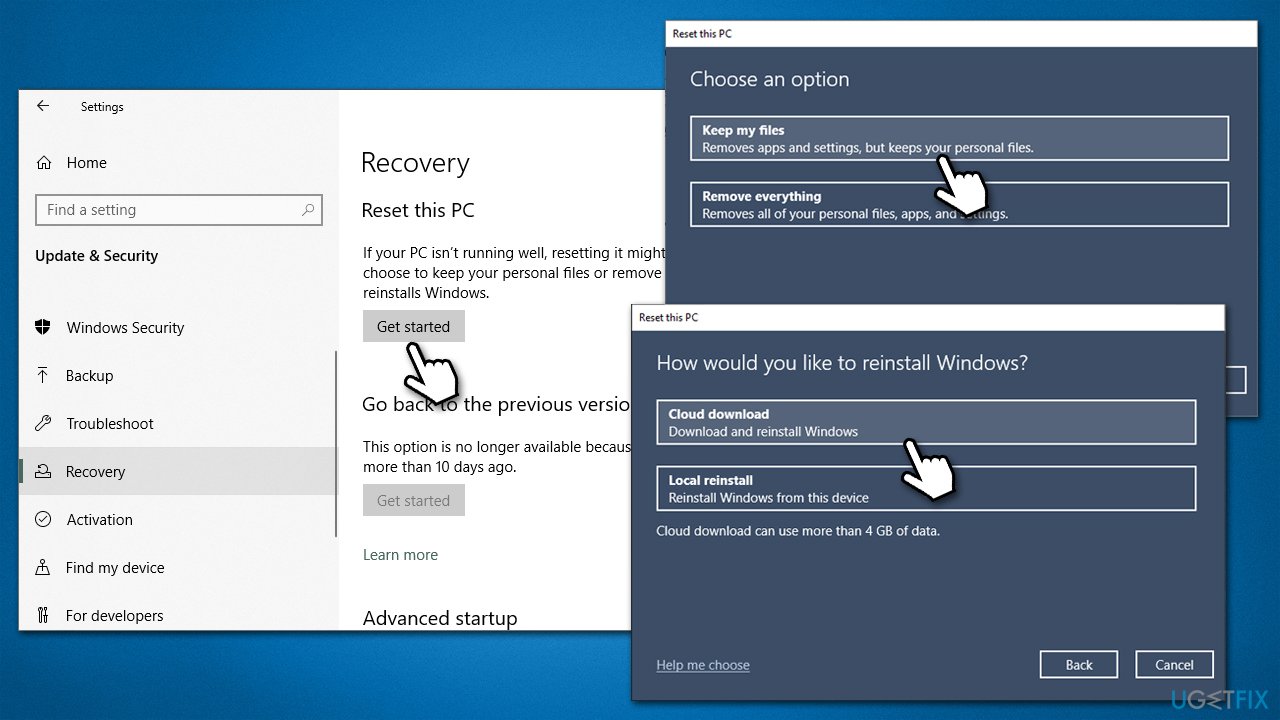
How to fix win32k critical failure blue screen in windows reset windows - Follow on-screen instructions – your computer will restart.
Bottom line
To fix the WIN32K_CRITICAL_FAILURE error, you can run a system repair tool to address potential issues with system files and drivers. If the problem persists after attempting these fixes, consider seeking professional help or further troubleshooting steps.
Frequently asked questions
This error is typically caused by faulty drivers, corrupted system files, or hardware issues, often related to graphics drivers or third-party software conflicts.
You can start by booting into Safe Mode to uninstall recent updates or drivers, and then run the System File Checker (SFC) tool to repair corrupted system files.
To prevent this error, ensure your system is regularly updated, keep your drivers updated, and avoid installing unverified third-party software that may conflict with system processes.




Report an issue
What's wrong with this guide? We review every report and update or remove content.
Report received — thank you. We'll review and fix it.
You need a free account to submit a report.
Be the first to comment