How to fix
What is new icon
on Windows
Discover the new icon in the Windows 10 and Windows 11 search bar and learn how to disable it easily. Fix your interface in minutes, expert-tested!

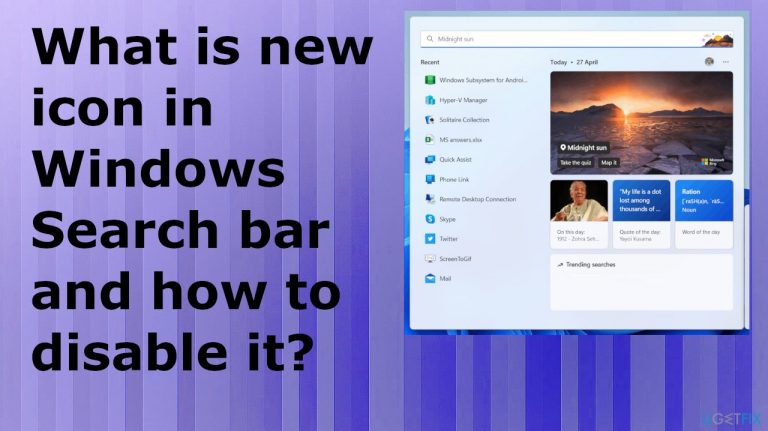
What causes What is new icon in Windows Search bar and how to disable it?
- Update of Windows 10 or Windows 11
- Introduction of Search Highlights feature
- Periodical updates with new content
- Illustrations appearing on Taskbar and Search bar
- User confusion regarding the new icon
Repairs Windows system files, removes malware, and restores a clean OS state — without reinstalling.
Hello. This new icon showed up and I don't know what that is. I updated the machine and I want to know what that is how to disable that icon in the Windows Search bar. I have never seen that and it is useless. It is a random image, I think, not an actual icon, so it makes no sense to me. How to change it back?
What is this new icon in the Windows Search bar, and how to disable it - the question that users often list in various forums online these days.[ref en-1] This is the issue that appears after the update of Windows 10 or Windows 11.[ref en-2] This is the Search highlights function that can be turned off.
Microsoft recently improved the feature of search on Windows machines and introduced this Search Highlights feature. This is the periodical update with new content centered around the events online or you, your organizations. The feature also includes the illustrations that appear on the Taskbar and on the Search bar too. This is what confuses people.
The feature delivers interesting and notable moments each day and includes educational moments in your region and on a global scale. The feature started to appear back in march with the 2022 Cumulative Update Preview for Windows 10 that month.[ref en-3] You can click on the illustration and get more details at a glance, but not everyone is happy about this feature.
This new icon in the Windows Search bar is questionable for some, and users want to know how to disable it. The application can be useful for schools, and organizations because it helps to explore files and browse through people's charts. It is possible to disable it.
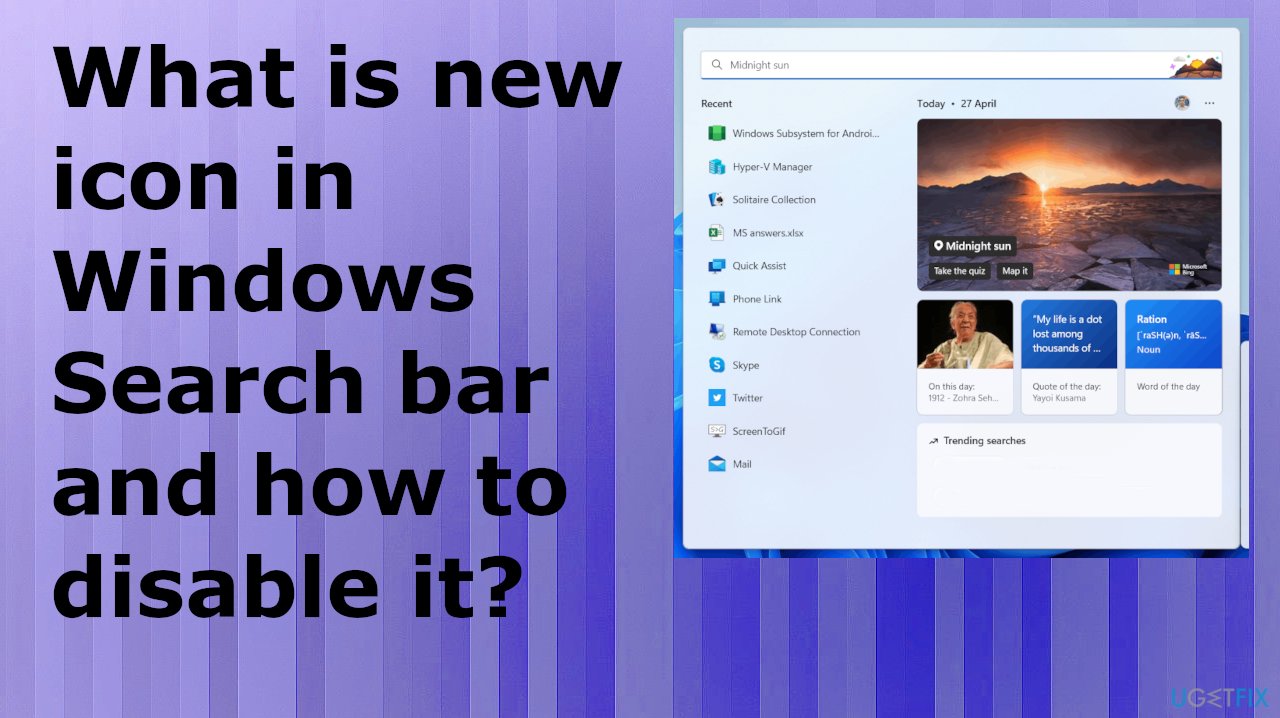
1. Turn of Search Highlights
- Right-click an empty area of the Taskbar.
- Click Search.
- Then Uncheck Search Highlights.
- This is how you turn them off.
2. Manage Search Highlights with Policy
- Search for Edit group policy.
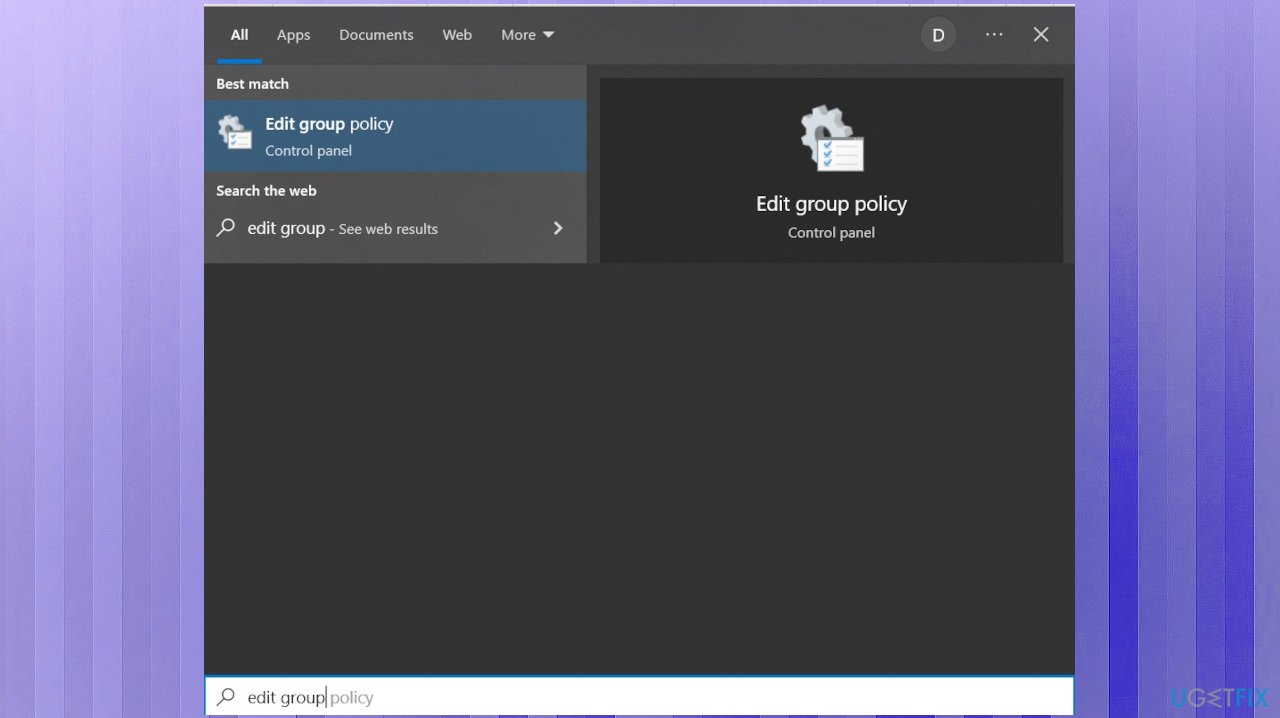
New icon windows search group policy - Choose Computer Configuration.
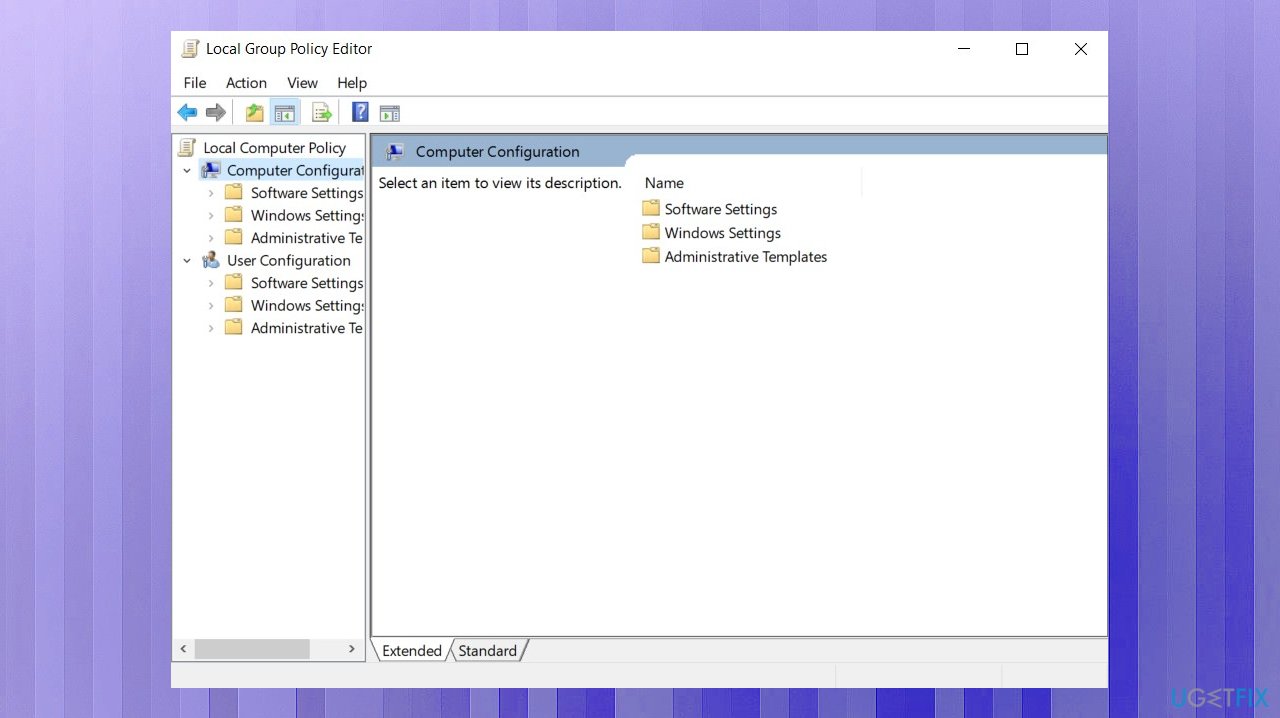
New icon windows search computer cinfig - Find and select Administrative Templates.
- Hit Windows Components.
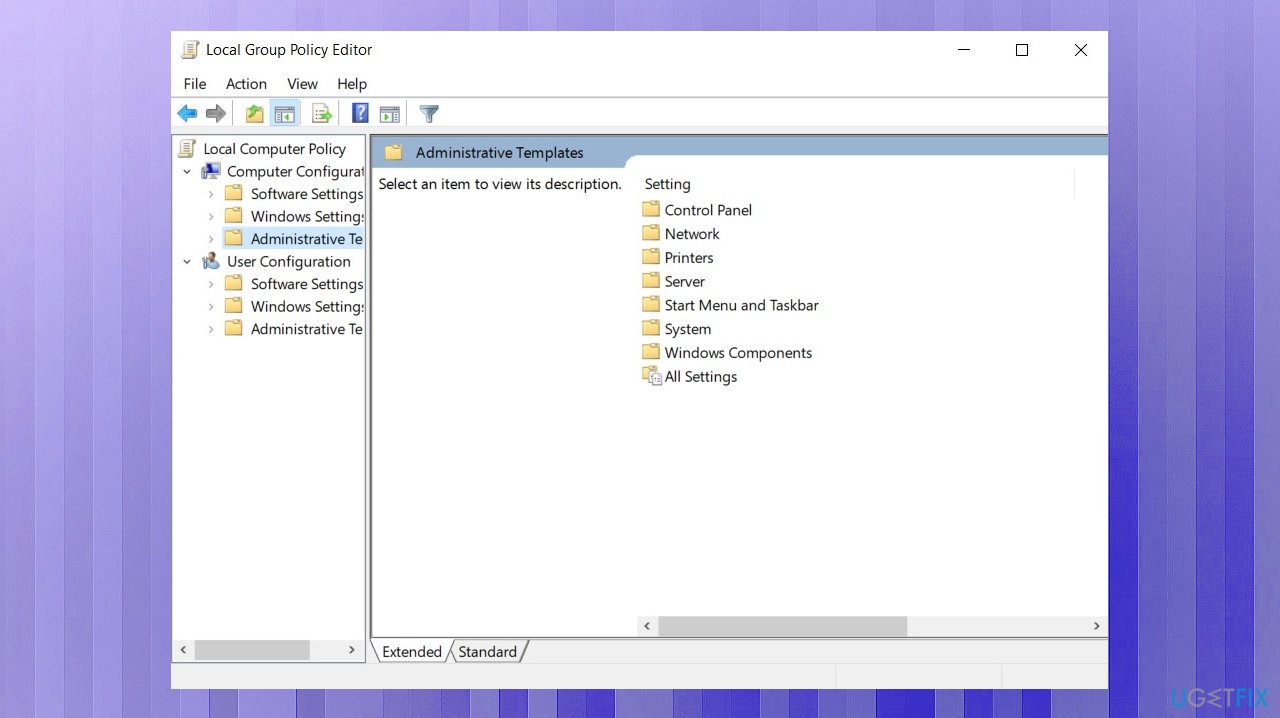
New icon windows search admin templates - Choose Search.
- Double-click Allow search highlights.
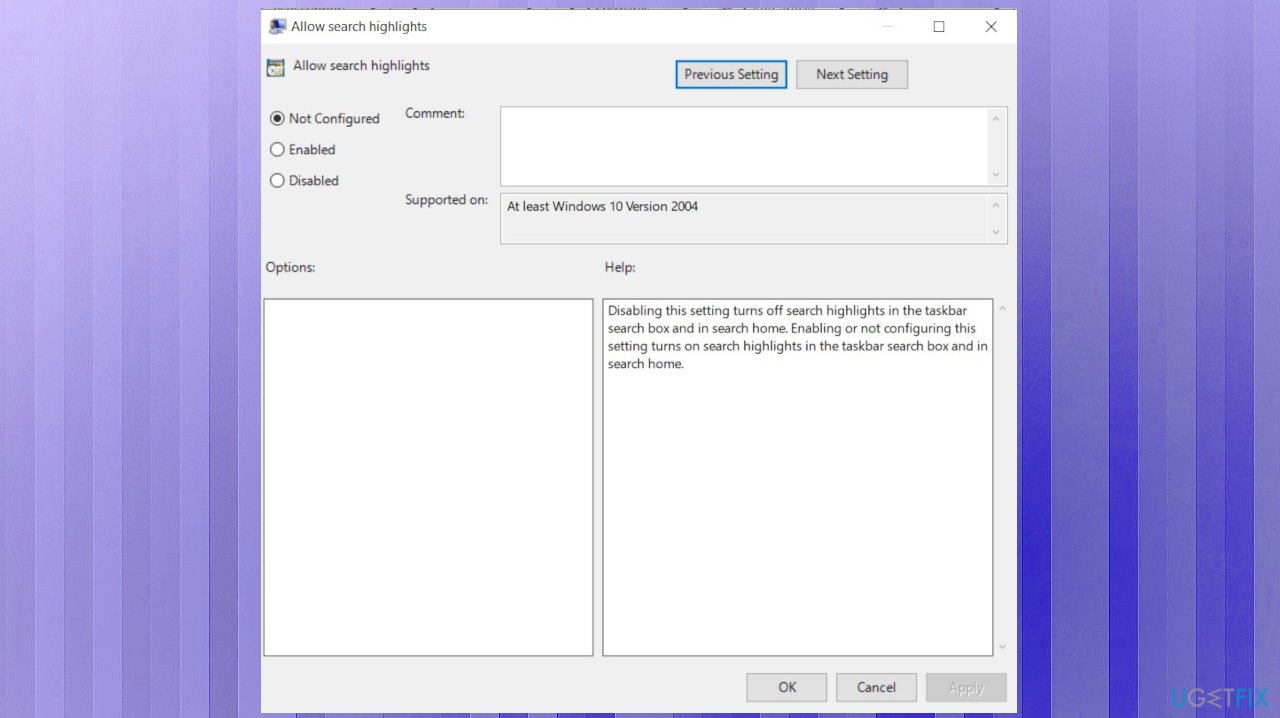
New icon windows search allow search - Here you can disable or enable the feature. Non configured leases the function enabled by default.
3. Changing the Taskbar behavior
- Right-click on the taskbar and select Taskbar settings.
- Click on Taskbar behaviors.
- Uncheck the box to Show recent searches when I hover over the search icon.
4. Customize the search box
- Right-click on the Taskbar.
- In the pop-up menu select search.
- You can see three sub-menus for customizing the search box.
- Select the Disabled menu to disable/remove the search box from taskbar.
- Choose Show search icon menu to show only the search icon.
- Select Show search box menu to show the search box (Windows 10 default) in taskbar.
Bottom line
To disable the new icon in the Windows Search bar, users can right-click an empty area of the Taskbar, click Search, and uncheck Search Highlights. Alternatively, they can manage Search Highlights through the group policy settings. If these methods do not resolve the issue, further troubleshooting may be necessary.
Frequently asked questions
The new icon in the Windows Search bar represents a feature that integrates enhanced search capabilities in Windows 10 and Windows 11, providing quick access to web and local search results.
To disable the new icon in the Windows Search bar on Windows 11, go to Settings, select 'Privacy & security', then 'Search permissions', and toggle off the relevant settings.
Disabling the new icon will not affect your search results in Windows 10, but it may limit access to some integrated features that enhance search functionality.




Report an issue
What's wrong with this guide? We review every report and update or remove content.
Report received — thank you. We'll review and fix it.
You need a free account to submit a report.
Be the first to comment