How to fix
“The digital signature for this file couldn’t be verified” Error
on Windows
Resolve the "digital signature couldn't be verified" error on Windows 10 quickly and easily. Expert-tested solutions ensure seamless performance.

What causes How to fix “The digital signature for this file couldn’t be verified” Error on Windows 10?
- File or software not digitally signed
- Third-party software installation
- Incompatibility with Windows 10
- Corrupted system files
- Boot manager issues
Repairs Windows system files, removes malware, and restores a clean OS state — without reinstalling.
Hello, I need serious help. I cannot boot up my PC due to an error, which says: “The digital signature for this file couldn't be verified.” Not an IT specialist myself, but would like to fix the issue without paying scads of money. Could you please tell me if this error is fatal or is it possible to fix it at home? Would highly appreciate your help! Thanks a lot.
“The digital signature for this file couldn't be verified” (also known as Error Code 0xc0000428) is a boot manager error that may occur on all Windows OS versions. However, since these days Windows 10 scores older versions and attracts more users every day, we will be directing Windows 10 OS in this post.[ref en-1] Many users have complained about this issue in online forums already but solutions are not working for each and every one of them the same.[ref en-2]
Before we proceed to help you fix the “The digital signature for this file couldn't be verified” error, we’d like to explain what is “Digital signature” and what the culprit of this issue may be. As explained by various sources, Digital Signature is a mathematical technique used to validate the authenticity and integrity of a message, software or digital document.
In other words, if a software, document, message, a financial transaction is digitally signed, its user or recipient is assured that the software, document, etc. is secure and owned by that particular organization or person. Therefore, the digital signature helps to prevent forgery, tampering and shaking off the responsibilities.
Having this in mind, the meaning and the culprit of “The digital signature for this file couldn't be verified” is clear - a file or software that has been installed on your operating system is not digitally signed by an appropriate party, which is why it cannot function on Windows 10 OS.
How to fix “The digital signature for this file couldn't be verified” Error on Windows 10?
Since this phenomenon may happen if you have recently installed third-party software, which, for example, cannot pay Microsoft for its digital signature or it has been released recently and is pending for a digital signature.[ref en-3] You should scan the system with [d1] and find if there are any malware programs or system errors that could possibly be fixed automatically.
Anyway, “The digital signature for this file couldn't be verified” error prevents you from booting to your OS, which is bad, of course. Nevertheless, you might not need to contact a professional technician after performing the steps provided down below.
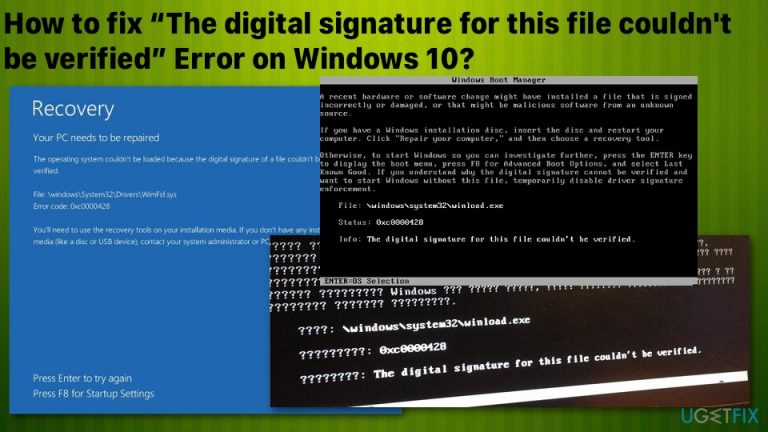
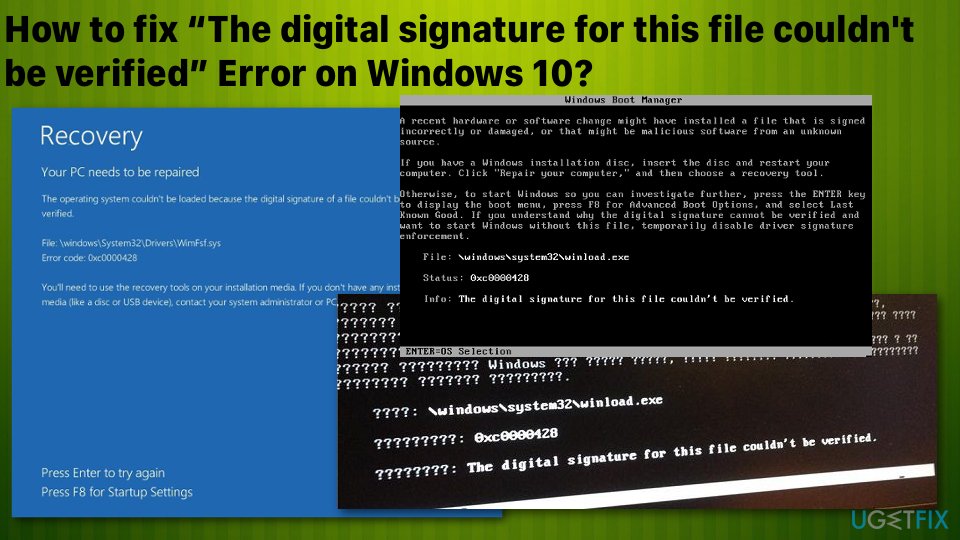
A recent hardware or software change might have installed a file that is signed incorrectly or damaged, or that might be malicious software from an unknown source.
File: \\windows\\system32\\winload.exe
Status: 0xc0000428
Info: The digital signature for this file couldn’t be verified.
Method 1. Rebuild Boot Manager
NOTE: this method requires having a recovery drive or bootable Windows 10 installation media. For this purpose, you can prepare a USB stick and download an ISO file from the official Microsoft website on a working computer.
- Plug-in a bootable USB drive and boot the PC.
- Press any key to boot from USB.
- Set your language preferences and click Next.
- Select Repair your computer and then Troubleshoot.
- Click Advanced options and select Command Prompt.
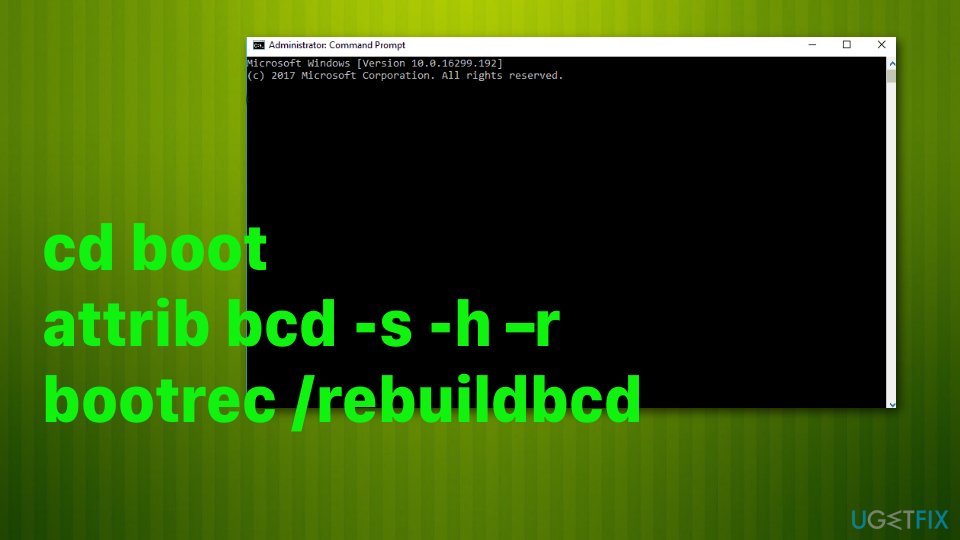
How to fix the digital signature for this file couldnt be verified error on windows command prompt - To continue, select your account and type the following commands in the Command Prompt window. Don’t forget to hit Enter after each of them:
C:
cd boot
attrib bcd -s -h –r
bootrec /rebuildbcd
NOTE: C: here stands for a root drive, so don’t forget to change it to your OS root drive if needed.
Method 2. Repair startup
- While a USB with a Windows 10 installation media is plugged into your PC, press Power button and then press any key.
- In case the system fails to detect hard drive automatically, read everything that is given during the restart process and try to the reference to the key, which has to be pressed to interrupt normal startup (usually, F2, F10, ESC, or DEL).
- Then using the arrow keys go to the option, for example, Boot, Boot Options, Boot Order or something similar, and then press Enter.
- After that, find CD, USB flash drive or DVD under the Boot list and change its place from down below to the top using the arrow keys. Once done, hit Enter.
- Once done, press F10 key to save the changes.
- When the confirmation window shows up, click Yes and wait for the system to restart.
- Select the language that you prefer, time, currency, keyboard, and other settings, and then press Next.
- Then select Repair your computer option and wait for the System Recovery Options to open.
- Once opened, select the Windows installation drive, and press Next.
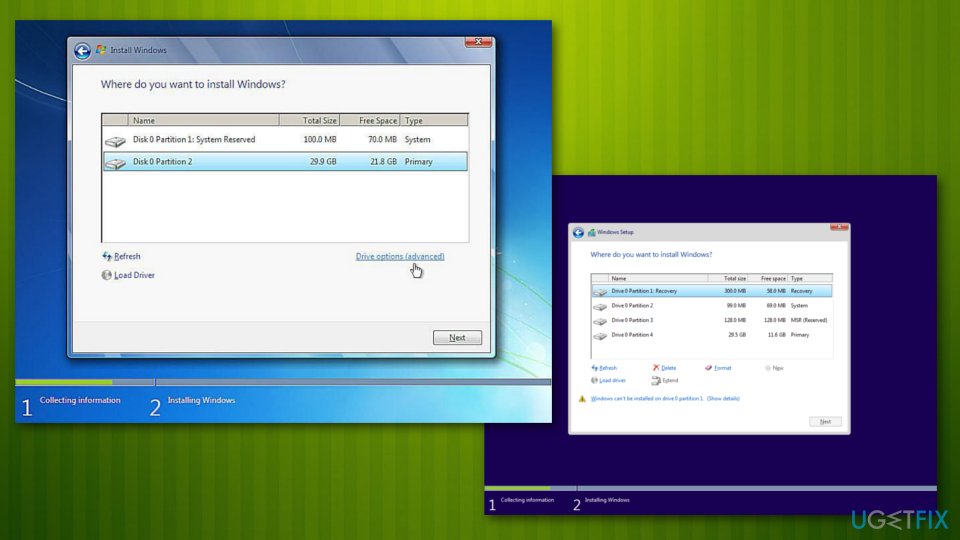
How to fix the digital signature for this file couldnt be verified error on windows install - After that, click Startup Repair option and wait for the process to complete.
Method 3. Disable digital signature temporarily
- Click Win key + S and select Update & Security.
- Select Recovery on the left pane.
- At the bottom of the page, you should see Advanced startup with a Restart now button below.
- Click Restart now button and wait for the system to reboot.
- Once the PC reboots, select Troubleshoot option.
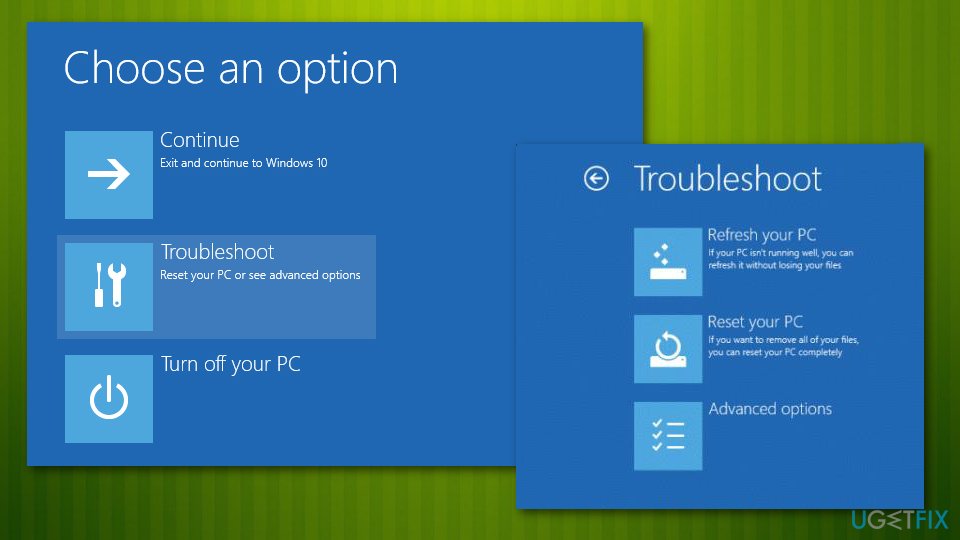
How to fix the digital signature for this file couldnt be verified error on windows troubleshoot - Select Advanced options and click Startup Settings.
- Find the Disable driver signature enforcement option and click F7 to enable it.
Method 4. Perform System Restore from Safe Mode
- Restart your PC
- As soon as you see Windows loading animation, press and hold Power button on your PC until it shuts down. Do the same two more times and you should enter the Advanced Startup mode automatically.
- From here, pick the following options: Troubleshoot > Advanced options > Startup Settings and Restart.
- Next, pick F5 or 5 to access Safe Mode with Networking.
- Once loaded, type Create a restore point in Windows search and press Enter.
- Click System Restore.
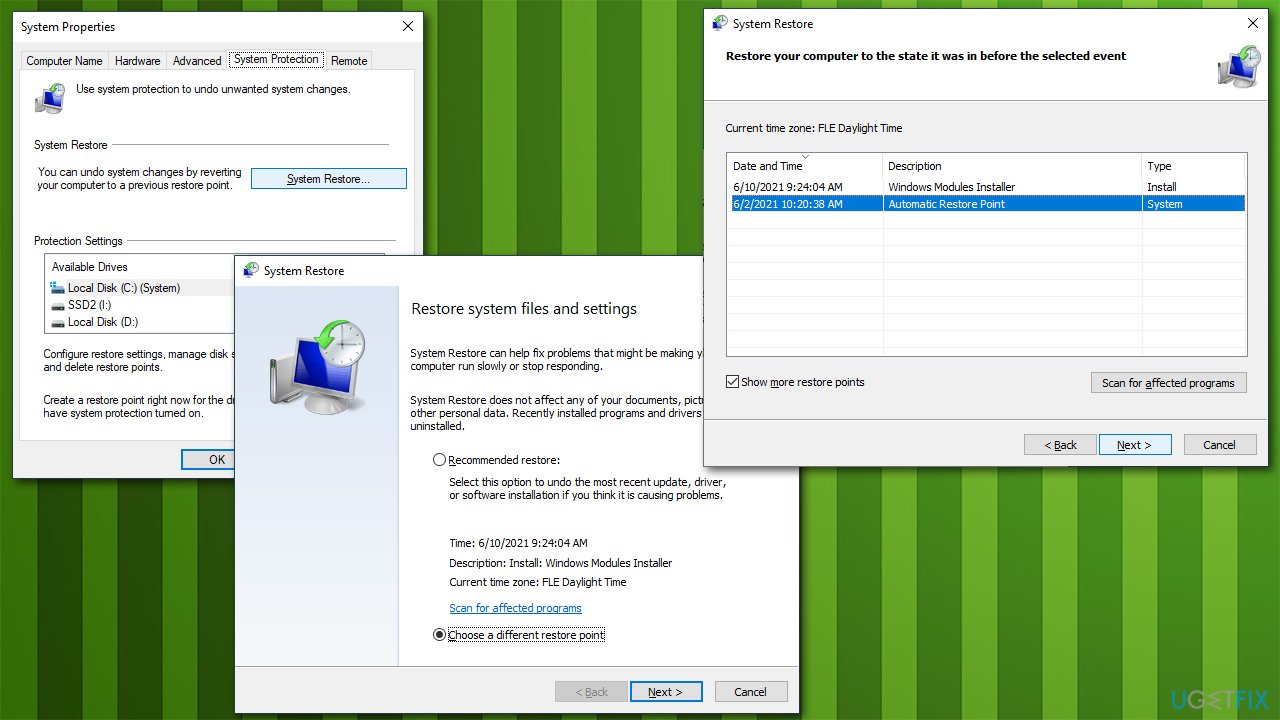
The digital signature for this file couldnt be verified use system restore - Pick a point in time before the problem existed and click Next.
- You PC will restart several times.
Bottom line
To fix the error, you can try uninstalling recently installed third-party software, repairing corrupted system files, or checking the boot manager settings. If none of these solutions work, consider seeking professional help.
Frequently asked questions
This error typically occurs when the digital signature of a file is missing, invalid, or has been tampered with, making Windows 10 unable to verify its authenticity.
You can resolve this issue by checking for Windows updates, running the System File Checker, or reinstalling the affected software to ensure that the files are not corrupted.
Yes, temporarily disabling driver signature enforcement can allow you to install unsigned drivers, but it is recommended to enable it again for security reasons after the installation.




Report an issue
What's wrong with this guide? We review every report and update or remove content.
Report received — thank you. We'll review and fix it.
You need a free account to submit a report.
Be the first to comment