How to fix
Windows Update Error Code:0x800706b5
on Windows
Resolve Windows Update Error Code 0x800706b5 efficiently with expert-tested solutions. Get your Windows 10 or 11 system running smoothly again! Fixed in…


What causes How to Fix Windows Update Error Code:0x800706b5?
- Incorrectly configured update files
- Installation failure
- Windows Update service issues
- Malware
- Out-of-date operating system components
Repairs Windows system files, removes malware, and restores a clean OS state — without reinstalling.
Hello. I’m facing a problem with the Windows Update service. When I try to install pending updates, I receive an error code 0x800706b5 and none of the updates are installed. What can I do to fix it?
Windows Update is by far the most problematic service on Windows OS. Usually, people can successfully access the service and launch the search for pending updates. However, there are two types of Windows update bugs, i.e. the search fails by delivering zero updates and an error message, or the list of available updates is delivered, but could not be installed due to various reasons.
One of the Windows Update errors is 0x800706b5. While this error is not new (it emerged in 2015 soon after Windows 10 was released), many people are still encountering it judging from the reports on the Microsoft forum. Besides, we noticed a lack of instructions on how the 0x800706b5 error can be fixed.
A failure to install updates because of this issue might expose the system to possible security flaws because updates frequently include security fixes. Maintaining an updated operating system is essential to safeguard against the newest dangers. Performance problems may arise from out-of-date operating system components over time. Updates frequently contain bug fixes and improvements that might improve the system's general stability and performance.
Usually, it’s difficult to determine the culprit of Windows Update errors, but often the problem occurs due to some incorrectly configured update files, installation failure, Windows Update service issues, malware, and similar. Therefore, we will provide several fixes that many people approved to be helpful in 0x800706b5 error fix.
To start with, you should scan your PC with a professional utility, such as [d1]. It’s a multifunctional utility, that maintains the system by fixing its registries,[ref en-1] system files, software incompatibility, and BSODs[ref en-2] as well as removes damage done by malware. Once you perform the scan and if the issue persists, try to perform the following steps.
Method 1. Run the Windows Update Troubleshooter
- Press the Windows key + I to open Windows Settings.
- Within the Windows Settings, navigate to the System tab.
- Scroll down the options in the System tab and locate Troubleshoot; click on it.
- Inside the Troubleshoot screen, find and select the Other troubleshooters option.
- A list of various troubleshooters will be displayed.
- Look for the Windows Update troubleshooter in the list.
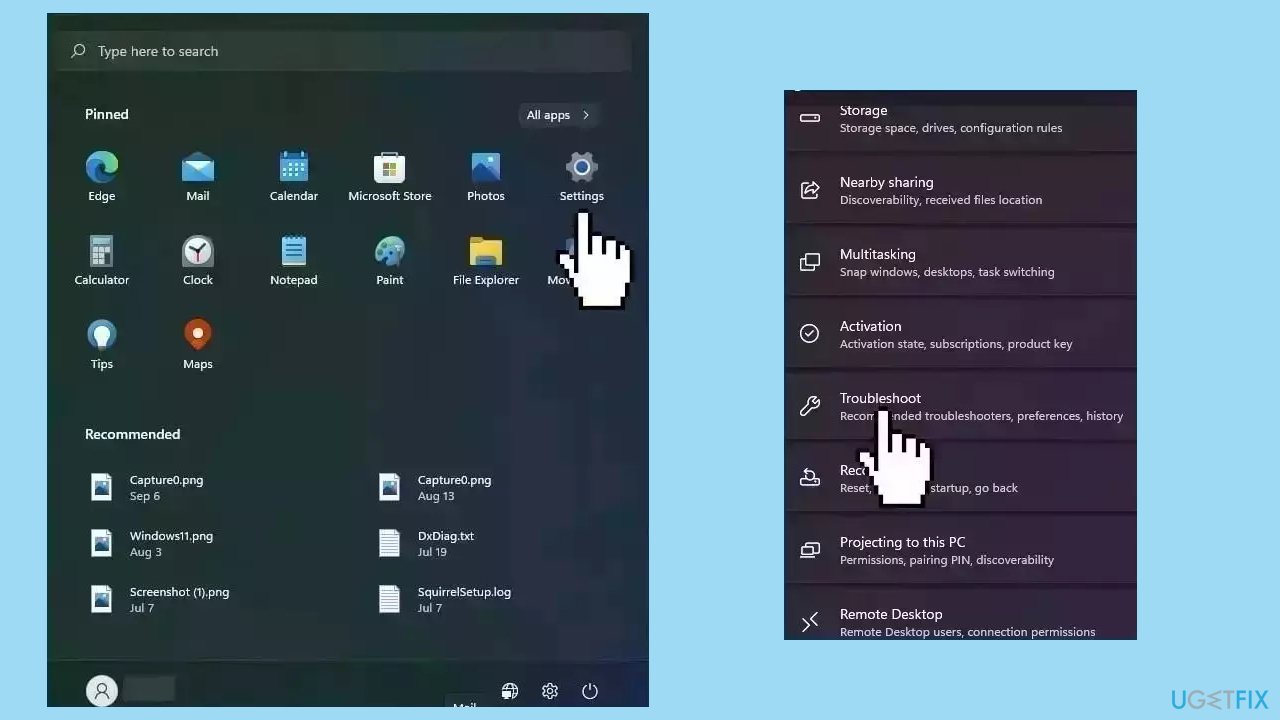
- Click on the Run button associated with the Windows Update troubleshooter.
- Allow the troubleshooter to complete its process.
- Once the troubleshooter finishes, check your computer to determine if the issue has been resolved.
Method 2. Fix Corrupted System Files
Use Command Prompt commands to repair system file corruption:
- Open Command Prompt as administrator
- Use the following command and press Enter:
sfc /scannow
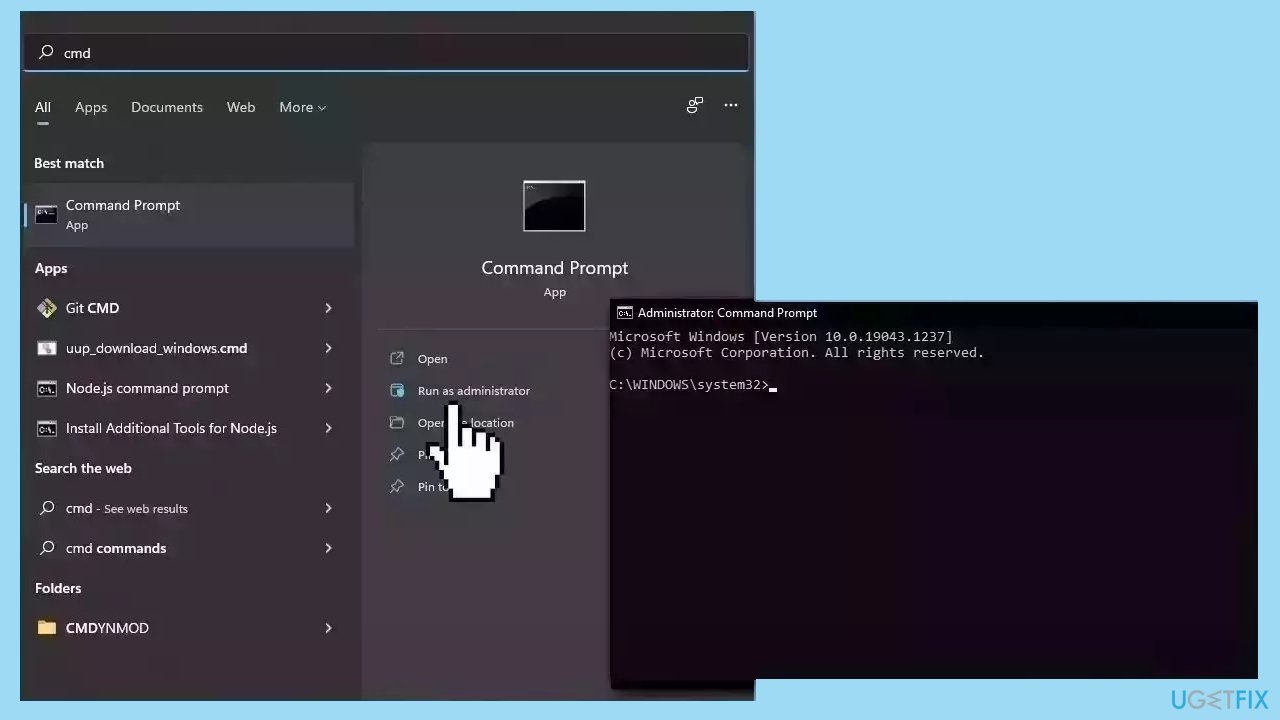
- Reboot your system
- If SFC returned an error, then use the following command lines, pressing Enter after each:
DISM /Online /Cleanup-Image /CheckHealth
DISM /Online /Cleanup-Image /ScanHealth
DISM /Online /Cleanup-Image /RestoreHealth
Method 3. Start the Windows Installer Service
- Press the Windows key + R to open the Run dialog.
- Type services.msc in the Run dialog's message box.
- Click OK or press Enter.
- The Services window will open.
- Scroll down to locate the Windows Installer service in the list.
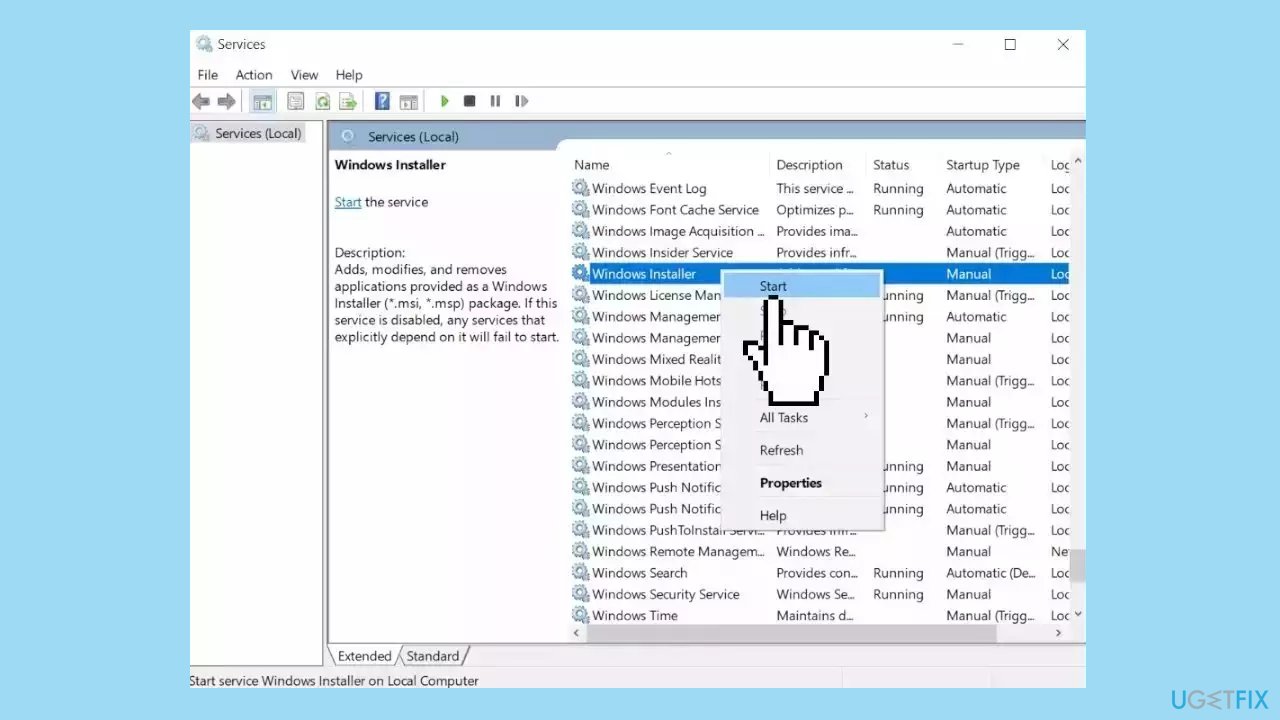
- Right-click on the Windows Installer service.
- Select Start from the context menu that appears.
- Close the Services window.
- Try running Windows Update again to check if the issue is resolved.
Method 4. Restart the Windows Update Service
- Press the Windows key + R to open the Run dialog.
- Type services.msc into the Run dialog's input box.
- Click OK or press Enter.
- The Services window will appear.
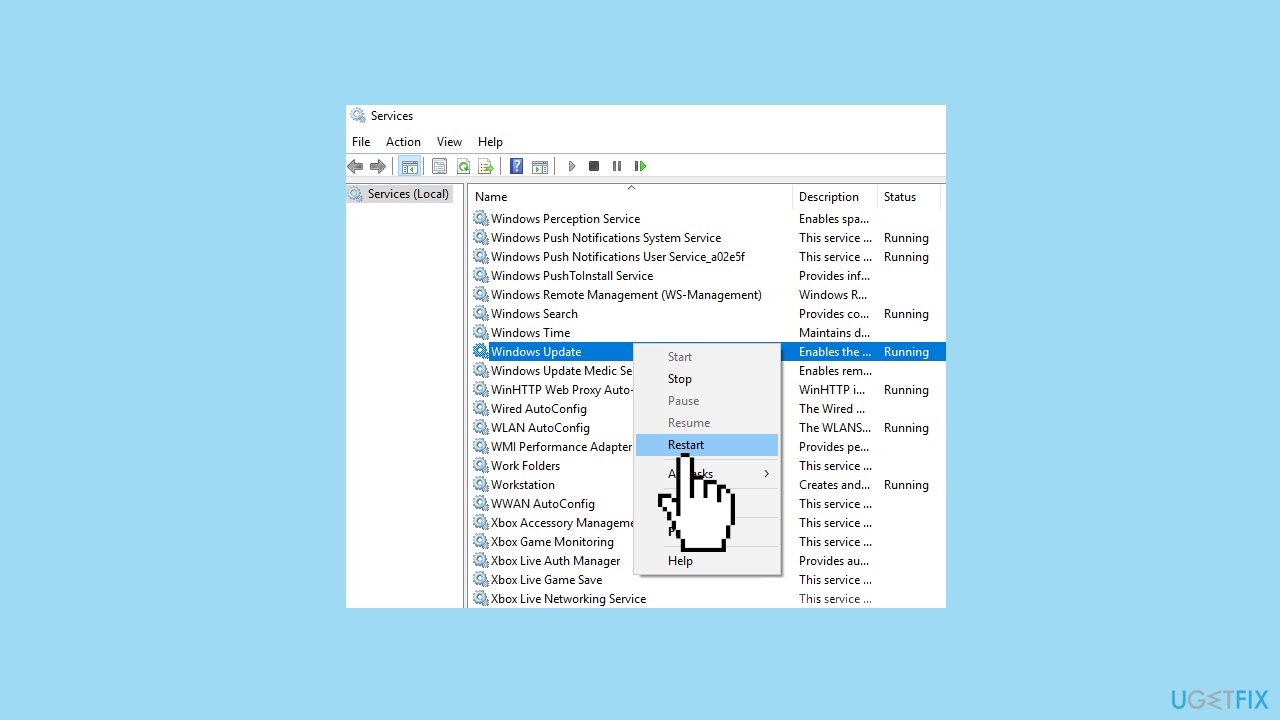
- Scroll through the list of services to locate the Windows Update Service.
- Right-click on the Windows Update Service from the list.
- Choose Restart from the context menu.
Method 5. Delete the Software Distribution Folder
- Open File Explorer and navigate to the C: drive.
- Open the Windows folder.
- Find the folder named Software Distribution and open it.
- Inside the Software Distribution folder, locate the Data Store and Download folders.
- Access the Data Store folder and the Download folder.
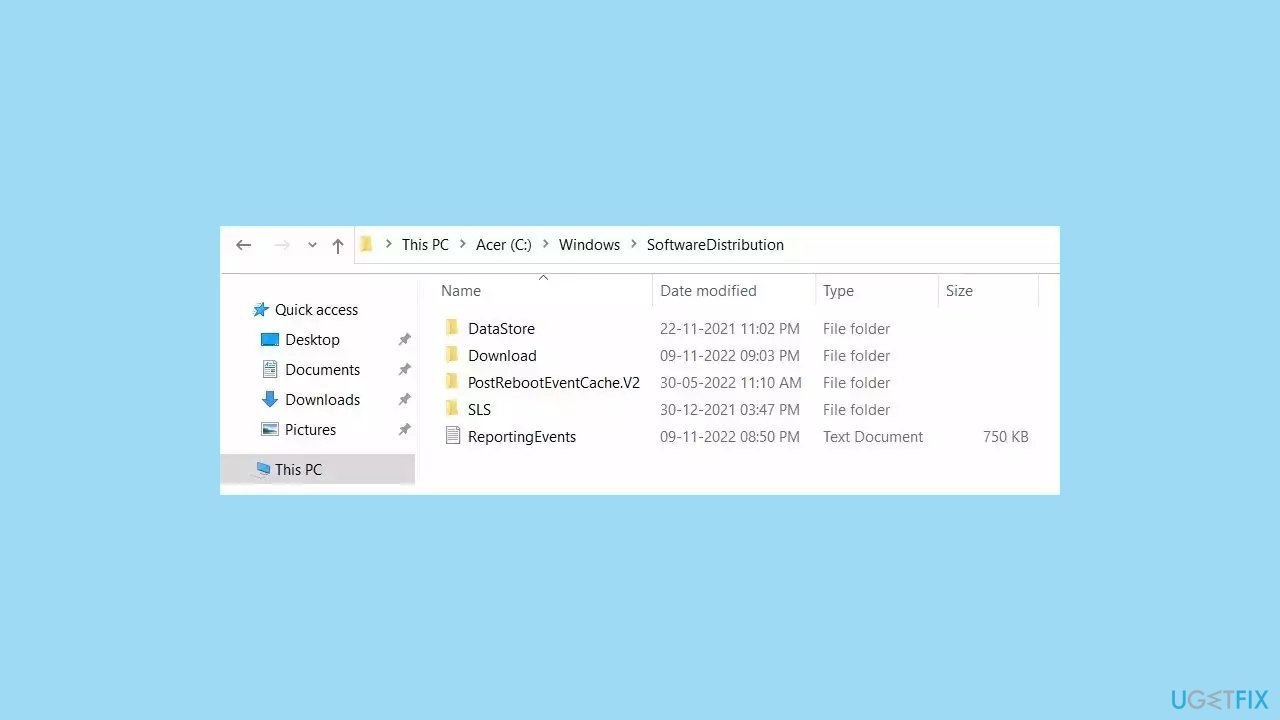
- Delete all the files and folders contained within the Data Store and Download folders.
- Restart your computer to apply the changes.
- After restarting, run Windows Update again to check for updates.
Method 6. Reset Windows Update Components
- Click on Search and type cmd.
- Select Run as administrator.
- When User account control appears, click on Yes.
- Copy and paste the following commands, one at a time, then press Enter after each:
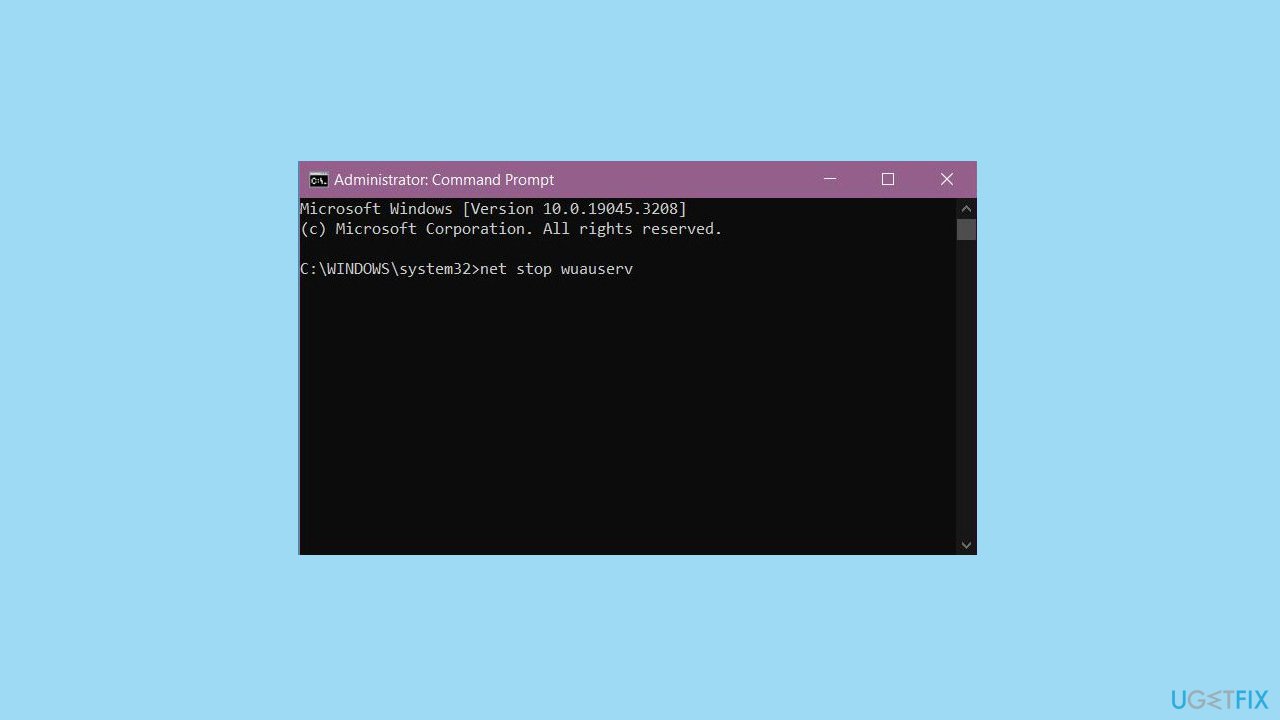
net stop bits
net stop wuauserv
net stop appidsvc
net stop cryptsvc
Del “%ALLUSERSPROFILE%\Application Data\Microsoft\Network\Downloader\*.*”
rmdir %systemroot%\SoftwareDistribution /S /Q
rmdir %systemroot%\system32\catroot2 /S /Q
regsvr32.exe /s atl.dll
regsvr32.exe /s urlmon.dll
regsvr32.exe /s mshtml.dll
netsh winsock reset
netsh winsock reset proxy
net start bits
net start wuauserv
net start appidsvc
net start cryptsvc
-
Restart your PC.
Method 7. Install the Update Manually
Whenever Windows updates fail to install automatically, you can always try doing it manually. First, you need to find out which KB number is relevant to you.
- Right-click Start button and pick Settings.
- Go to Update & Security.
- On the right, locate and click View update history.
- From the list, note the KB number that fails to install with the error code.
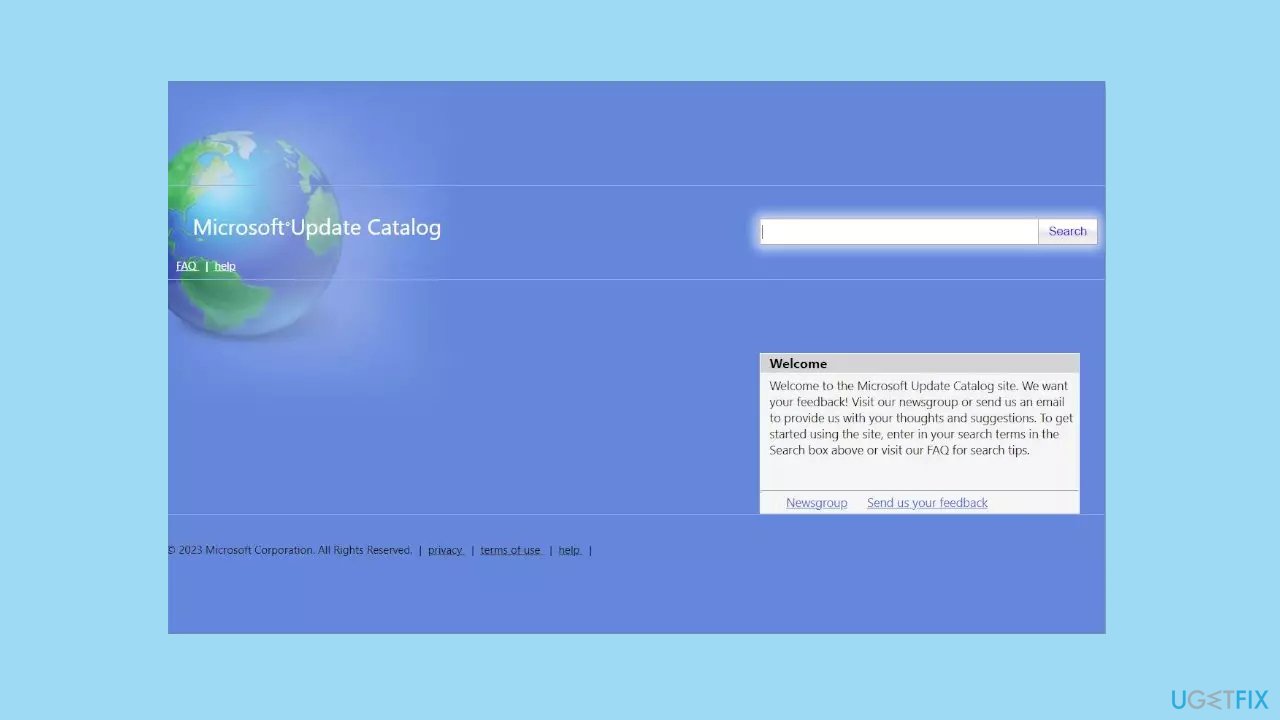
- Go to Microsoft Update Catalog page, type in the KB number, and press Search.
- Download the update and install it manually.
Method 8. Try Clean Boot
- Open the Search menu, type in system configuration, and press Enter.
- Under the Services tab, tick the Hide all Microsoft services box.
- Click on Disable all button.
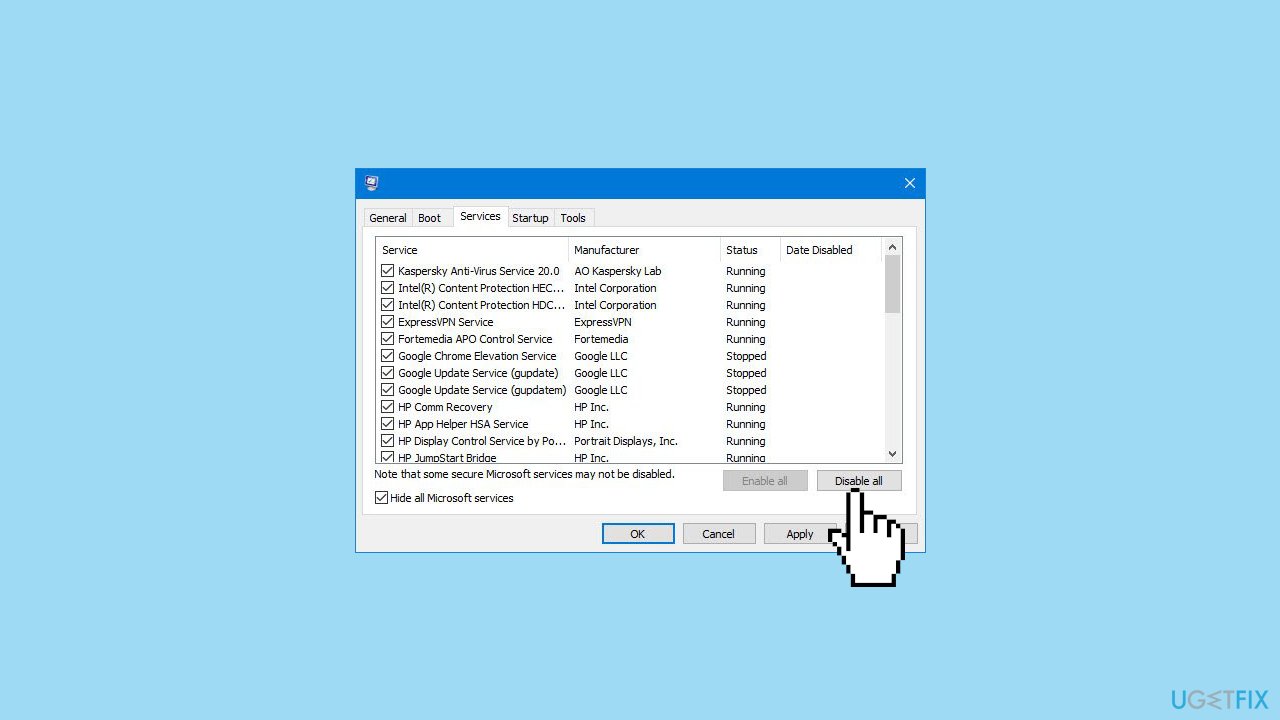
- Head over to the Startup tab and click on Open Task Manager.
- Select a third-party program and click on Disable at the top.
- Repeat this step to disable all third-party apps and programs.
- Restart your PC to enter the clean boot state and see if the issue persists.
- If the issue disappeared in the clean boot state, then you can be certain that a third-party app is causing it.
- Go through all recently installed apps or programs and remove them one by one.
Bottom line
To fix the 0x800706b5 error, you can start by scanning your PC with a professional utility to address system issues. Additionally, running the Windows Update Troubleshooter may help resolve the problem. If these methods do not work, further investigation into the specific error may be necessary.
Frequently asked questions
This error typically occurs due to issues with the Windows Update service or conflicts with third-party antivirus software. Ensuring that the Windows Update service is running and temporarily disabling any antivirus can help resolve the issue.
You can troubleshoot this error by running the Windows Update Troubleshooter, which can automatically identify and fix common problems. Additionally, resetting the Windows Update components manually may also be required for a complete fix.
Yes, you can fix this error without reinstalling Windows 10 by applying various troubleshooting methods such as running system scans, resetting Windows Update components, or performing a clean boot. These methods are effective in addressing the underlying issues causing the error.




Report an issue
What's wrong with this guide? We review every report and update or remove content.
Report received — thank you. We'll review and fix it.
You need a free account to submit a report.
Be the first to comment