How to fix
Error 0x80004003 when setting up microphone
on Windows
Resolve the 0x80004003 microphone error in Windows 10 and 11 easily. Get your audio back on track with expert-tested solutions and screenshots.

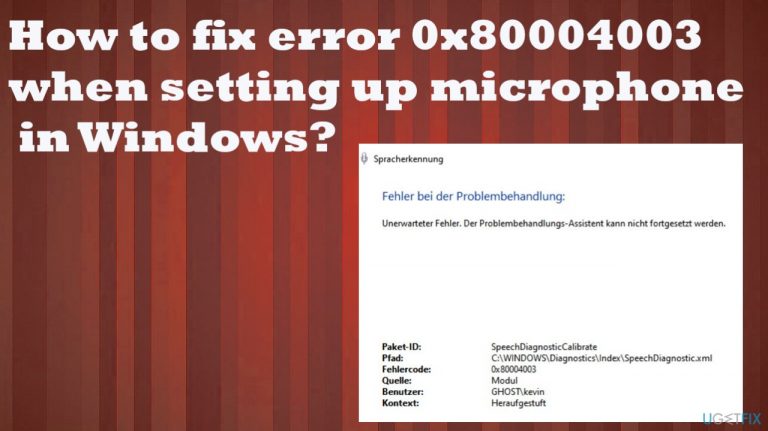
What causes How to fix error 0x80004003 when setting up microphone in Windows?
- Malfunction preventing the machine from running the needed procedure
- Corrupted, outdated, or not responding system files
- Inability of programs to load normally
- Malware installations or virus leftovers
- Compatibility problems on the computer
Repairs Windows system files, removes malware, and restores a clean OS state — without reinstalling.
Hello. I try to set up my microphone, but it comes up with the issue and the error code 0x80004003. The troubleshooting comes with the error too. The troubleshooting wizard was working, and my microphone and headset also work okay elsewhere. Something is not okay. Help me fix this.
The error 0x80004003 when setting up a microphone in Windows can occur when the problem or malfunction appears to keep the machine from running the needed procedure. Users[ref en-1] report these issues appearing like a blue screen of death[ref en-2] with the same error code.
Often when the PC shows the error, it indicates the malfunction with the application you use or try to launch or with the system component. It is a common error, based on particular reports and questions from users online. It can be caused by the issue with the Windows store if the message appears when installing software.
The error 0x80004003 in Windows is the Microsoft Store error that is common for Windows 10 and 11. It occurs when you try to download the app from the MS Store or launch the storefront application. It can also deliver the message about the issue to find the page.
Sometimes the error occurs, and the message still lets you continue with the procedures without showing the critical error window screen. You can still see another error code without the error 0x80004003 when setting up the microphone in Windows. That is because of corrupted, outdated, or not responding system files, or programs.
It also can cause issues when programs can't load normally when the performance is slowed down. Some software can be unable to run successfully, or the system gets shut down suddenly. There are various causes for the error and triggers that can make things worse, so it is particularly important to have the right solution.
These can often be triggered by malware[ref en-3] installations, virus leftovers, or issues related to the compatibility problems on the computer. You can correct those issues and solve problems with [d1]. These apps can repair corrupted files, and damaged system components and can even help to fix error 0x80004003 in Windows.
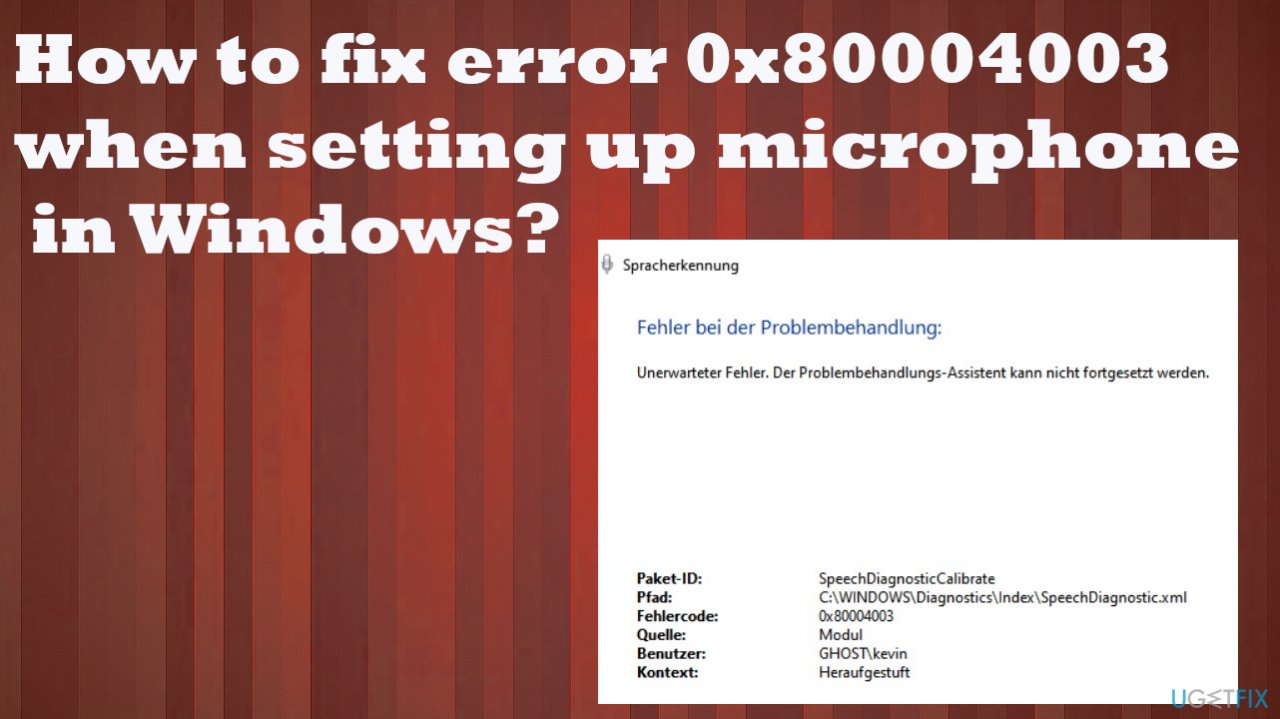
1. Disable the Windows Update service
- Press Windows key + R.
- Type services.msc, then hit Enter.
- Search for Windows Update.
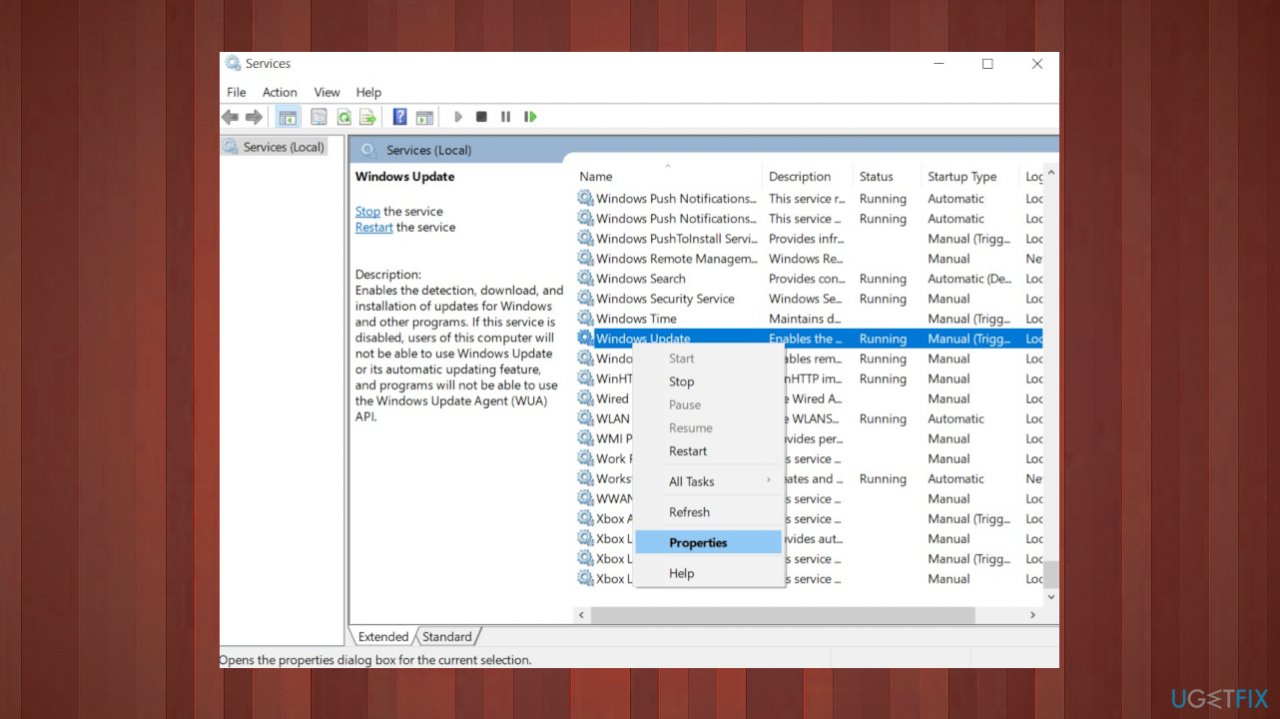
Error 0x80004003 properties - Right-click on Windows Update, then select Properties.
- Under General tab, set the Startup type to Disabled.
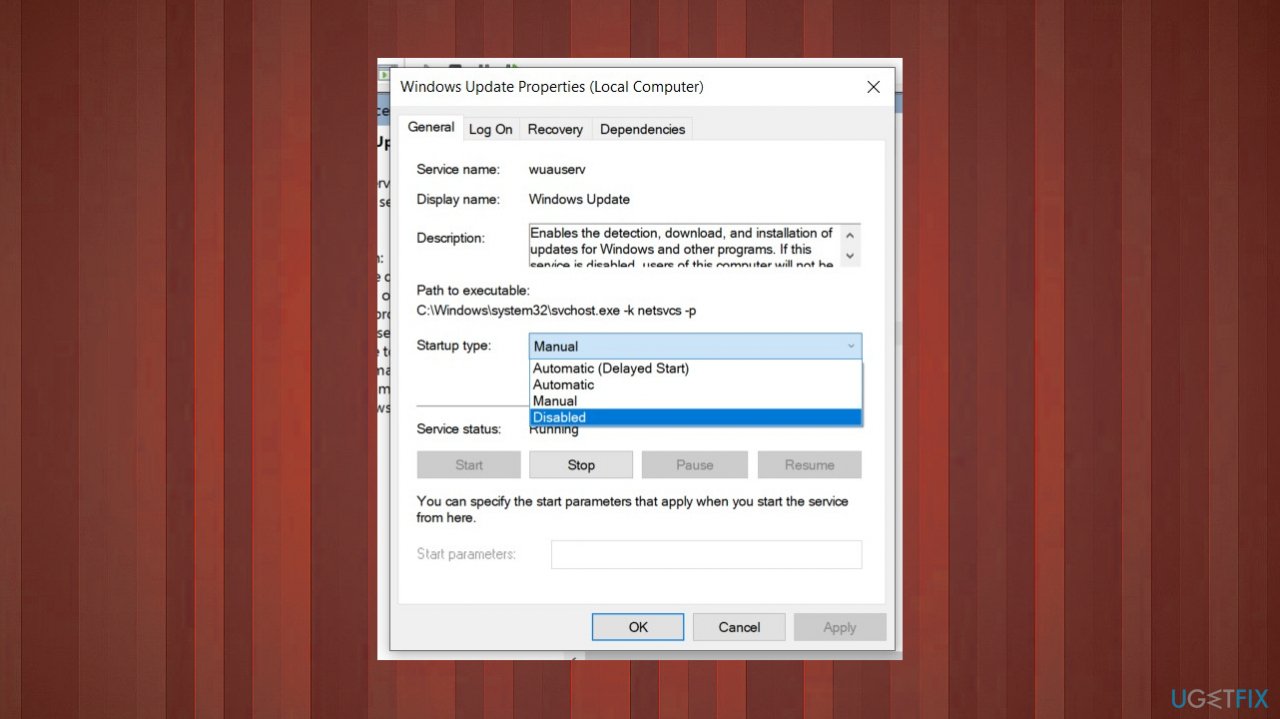
Error 0x80004003 startup - Click Stop.
- Click Apply, and then click OK.
- Restart your computer.
2. Uninstall the update
- Select Start.
- Go to Settings.
- Choose Update and Security.
- Windows Update.
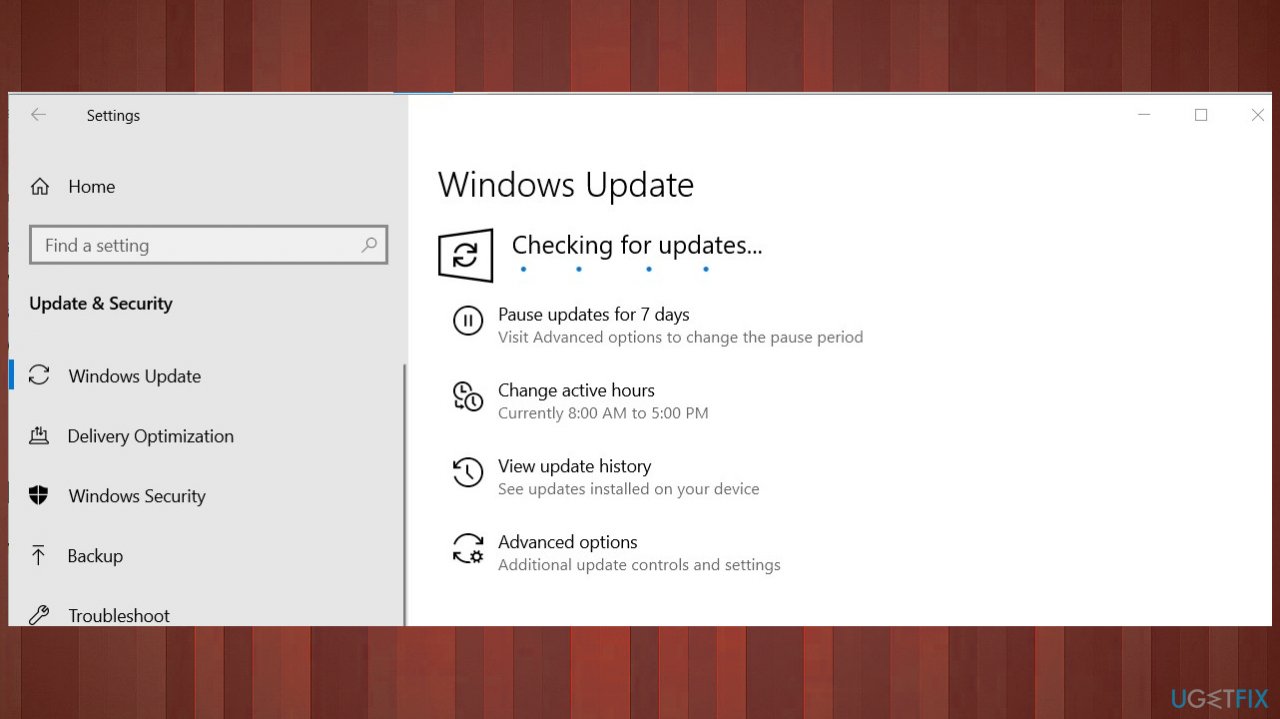
Error 0x80004003 updates - Choose the View Update history and Uninstall updates.
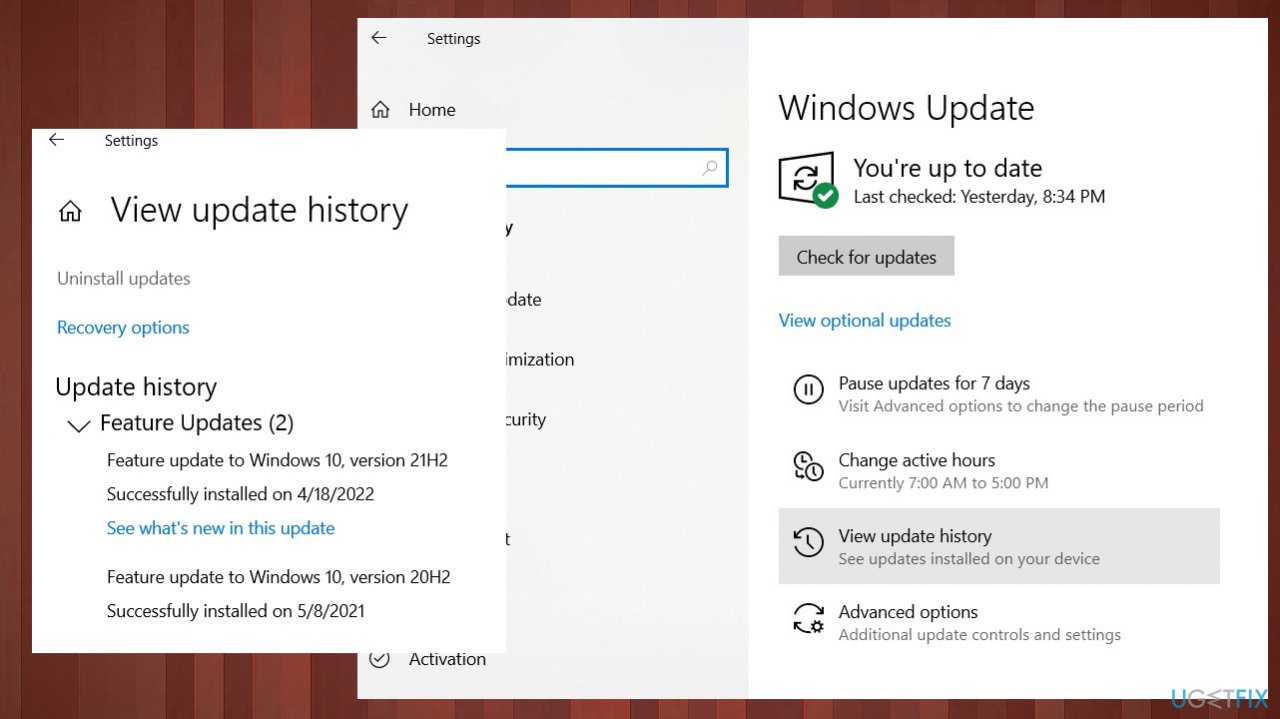
Error 0x80004003 update history - Then click Uninstall Update, it will go to the Uninstall Update window.
- Then find the update and click Uninstall.
- Restart the computer to confirm.
3. Troubleshoot Windows Store App
- Open Settings by clicking the button Start and select the application on the menu.
- Select option Troubleshoot navigation on tab System.
- Click Other trouble-shooters to display some options.
- Click Other trouble-shooters
- Press the button Run for Windows Store Apps to launch that troubleshooter.
- Press the Run button
- Then go through the instructions provided.
4. Alter Date & time settings
- Open Settings.
- Go to the Time & language section.
- Click on the Date & time menu on the right side.
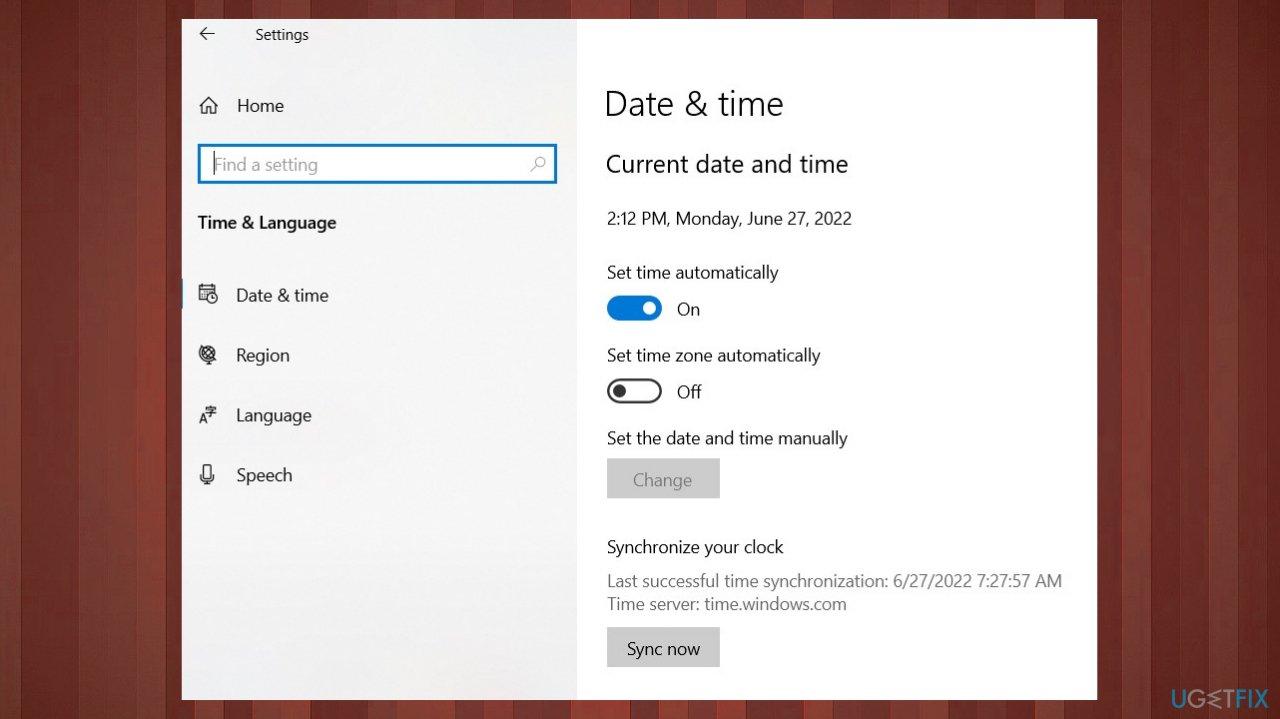
Error 0x80004003 datetime - Toggle the Set time automatically button to turn it on.
- Expand the Time zone list, and select the correct time zone based on your location.
5. Change Background app permissions
- Go to Settings on your computer.
- Select the Apps section.
- Click on the Apps & features menu on the right side.
- Find the Microsoft Store app.
- Click on the three-dotted icon and select the Advanced options.
- Head to the Background apps permissions section.
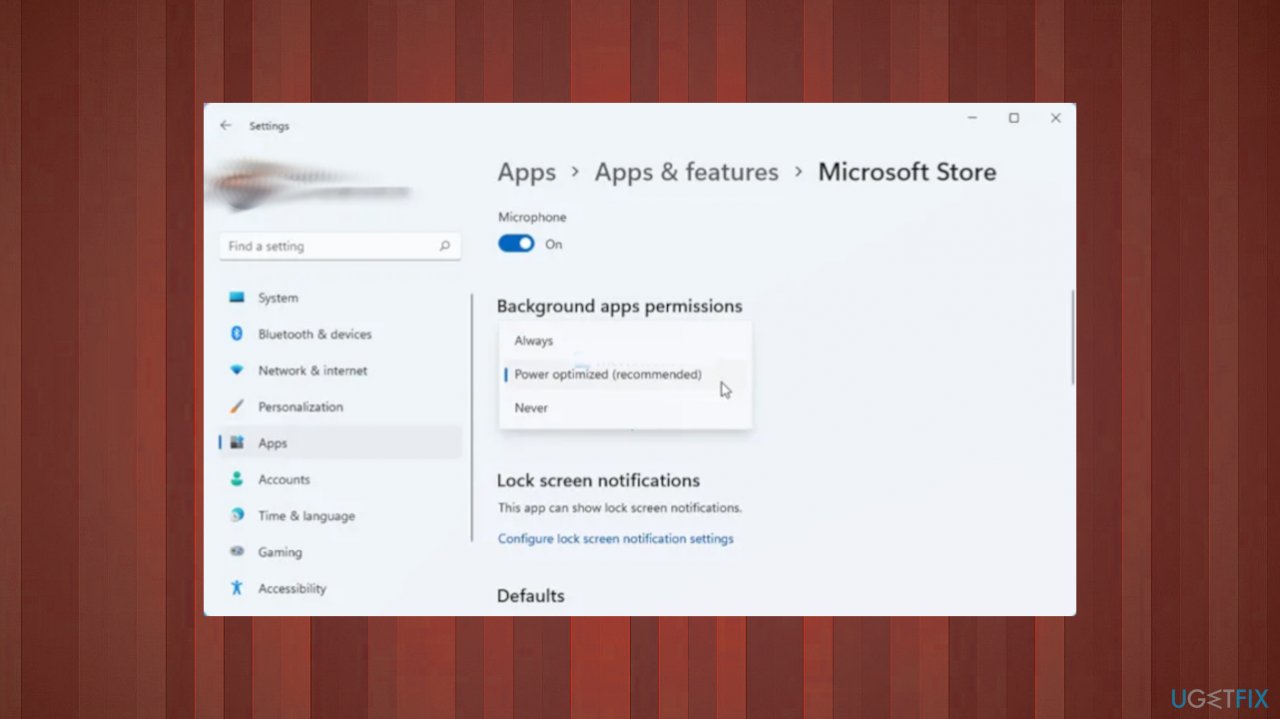
Error 0x80004003 power options - Expand the drop-down list.
- Select the Power optimized (recommended) option.
Bottom line
To fix error 0x80004003, you can repair corrupted files and damaged system components using specific applications. If these solutions do not resolve the issue, consider checking for malware or compatibility problems.
Frequently asked questions
Error 0x80004003 typically indicates a null reference error, meaning that the system can't access the microphone due to a configuration issue or a corrupted driver in Windows 10.
To fix error 0x80004003 in Windows 11, try updating your audio drivers, checking microphone permissions, and ensuring the device is properly connected.
Yes, ensure that the microphone is enabled in the Sound settings and that privacy settings allow apps to access it in both Windows 10 and Windows 11.




Report an issue
What's wrong with this guide? We review every report and update or remove content.
Report received — thank you. We'll review and fix it.
You need a free account to submit a report.
Be the first to comment