How to fix
Corsair mic not working
on Windows
Resolve your Corsair mic issues on Windows 10 and 11 effortlessly. Get expert-tested solutions and tips for quick fixes—zero traces left!

What causes How to fix Corsair mic not working on Windows?
- Signal quality issues
- Incorrect system settings
- Corrupted headset drivers
- Missing system files due to OS upgrade
- Compatibility issues after software upgrades
Repairs Windows system files, removes malware, and restores a clean OS state — without reinstalling.
Hey. I get the issue with my headset. The Corsair one. It is not working on Windows for me. Sometimes sound fails me too, but the main issue is with the microphone that is not picking up any sounds while I play with my friends online. It works fine on my phone, so the issue is with Windows, I am sure. Help me.
Corsair mic not working on Windows is the issue that people encounter when the headset stops working, and the repetition of the issue gets very annoying when the microphone is needed for online work or study. The common reports from users show that signal quality can affect the capability to record audio. System settings can also be incorrect, so the issue occurs.
The problem can require reinstallation of the headset drivers when those are corrupted or affected otherwise. Driver issues[ref en-1] and corrupted system files are commonly causing problems with the machine and common processes or third-party applications. Those can include Corsair mic not working on Windows.
These problems can be triggered by the Windows operating system upgrade because there are issues caused by the missing system file or incorrect leading of the operating system. Software upgrades can also lead to issues with equipment and compatibility. Check for the more recent updates without bugs, for example.[ref en-2]
The quick way to fix the Corsair microphone not working on Windows would be unplugging and replugging the headset or the microphone, checking the enable option on the system and default settings. These problems can be related to previous malware[ref en-3] infections and leftovers, so run [d1] to take care of the affected files and programs if those are the root cause before moving on with manual solutions.
1. Make Corsair the default device
- Open Control Panel.
- Change View by to Large icons.
- Select Sound.
- Navigate to the Recording tab.
- Left-click on Corsair Microphone and choose the Properties button.
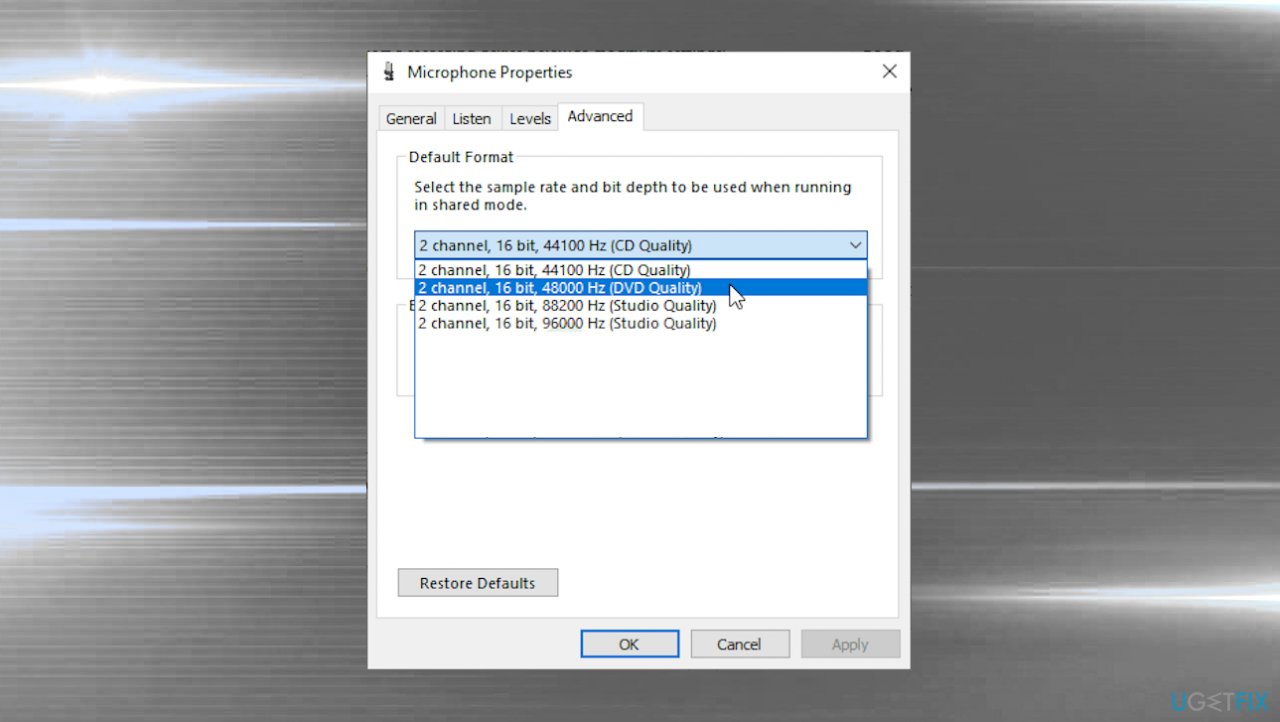
- Go to the Advanced tab in the Microphone Properties window and check the Default Format section.
- Choose 2 channel, 16 bit, 44100 Hz (CD Quality).
Corsair mic not working on windows defaul - Then go back to Sound window.
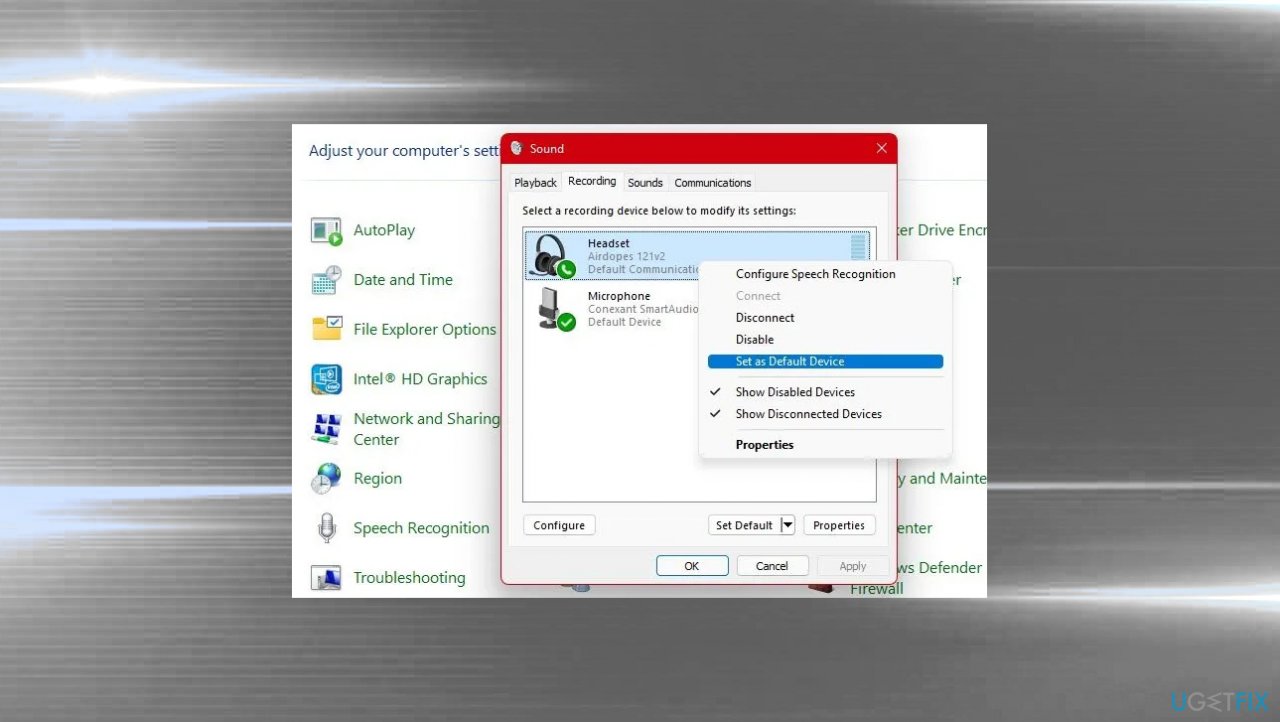
- Right-click the device and choose Set as default.
Corsair mic not working on windows default device - Click Apply and Ok.
2. Troubleshoot
- Open Settings.
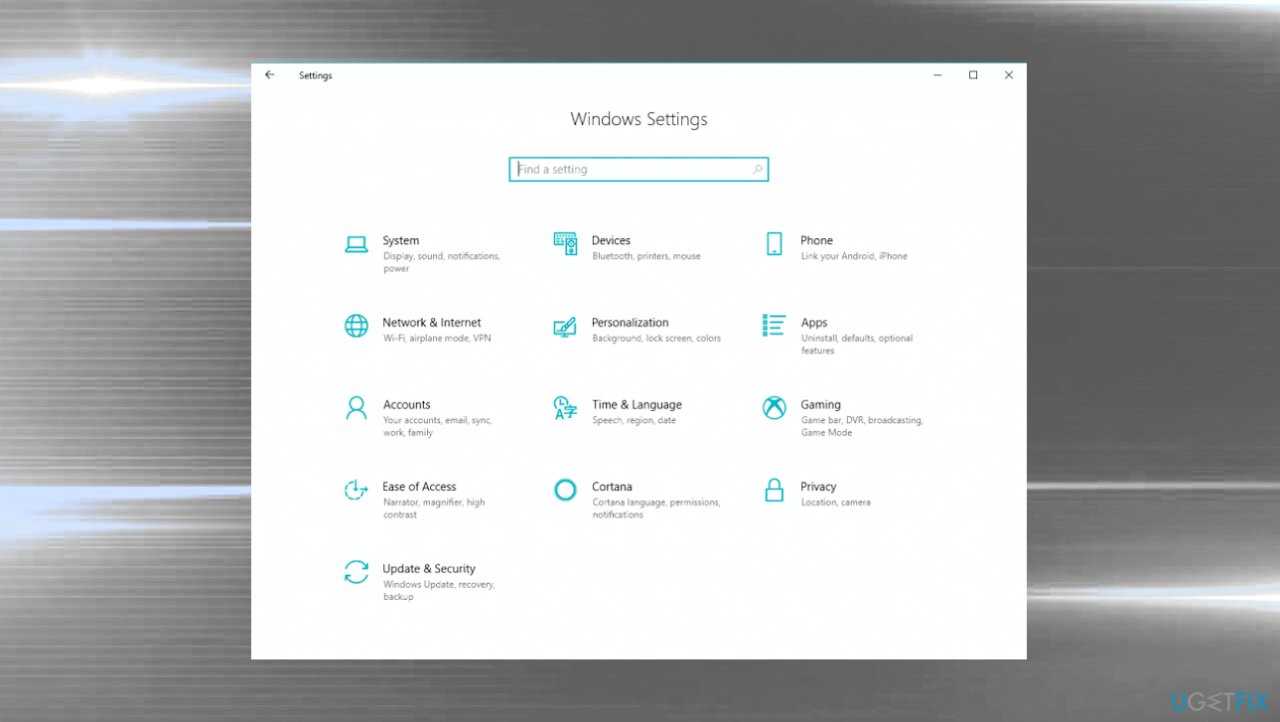
Corsair mic not working on windows settings - Click System or Update & Security on Windows 10.
- Hit Troubleshoot.
- Other/ Additional troubleshooters.
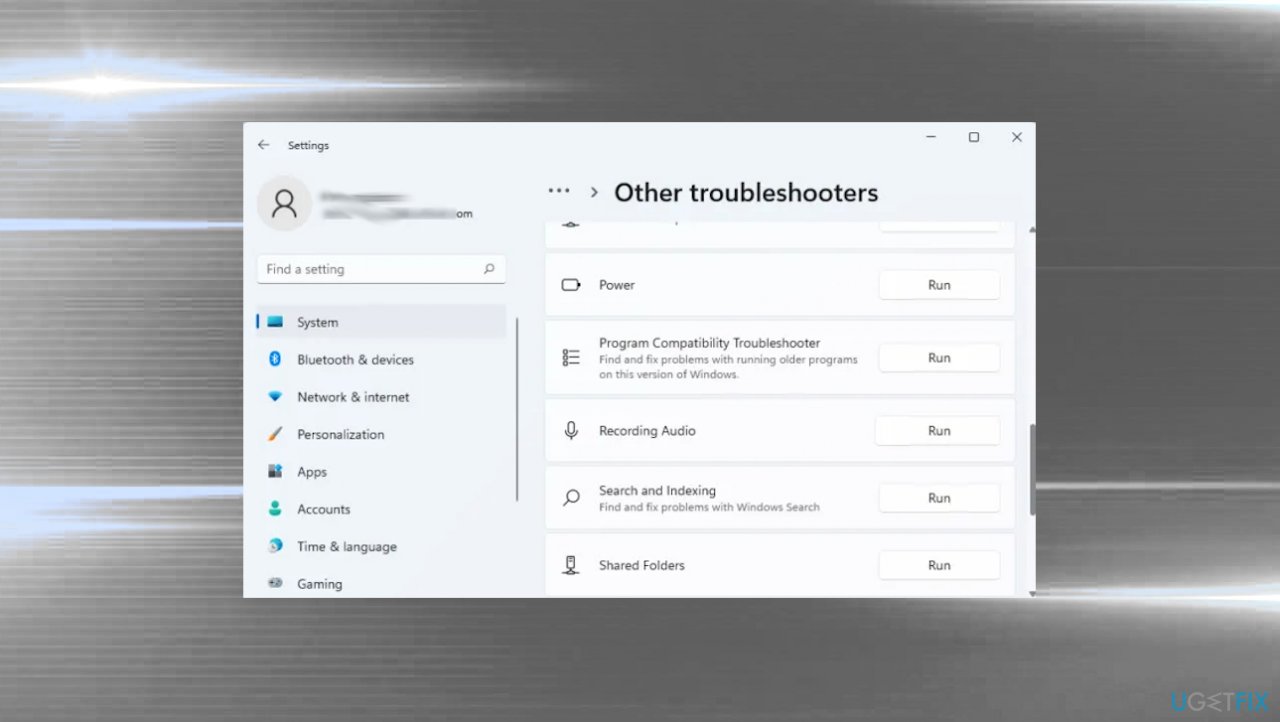
Corsair mic not working on windows troubleshooters - Look for the Recording Audio troubleshooter.
- Then click on the Run troubleshooter button.
3. Reinstall audio drivers
- Open Device Manager.
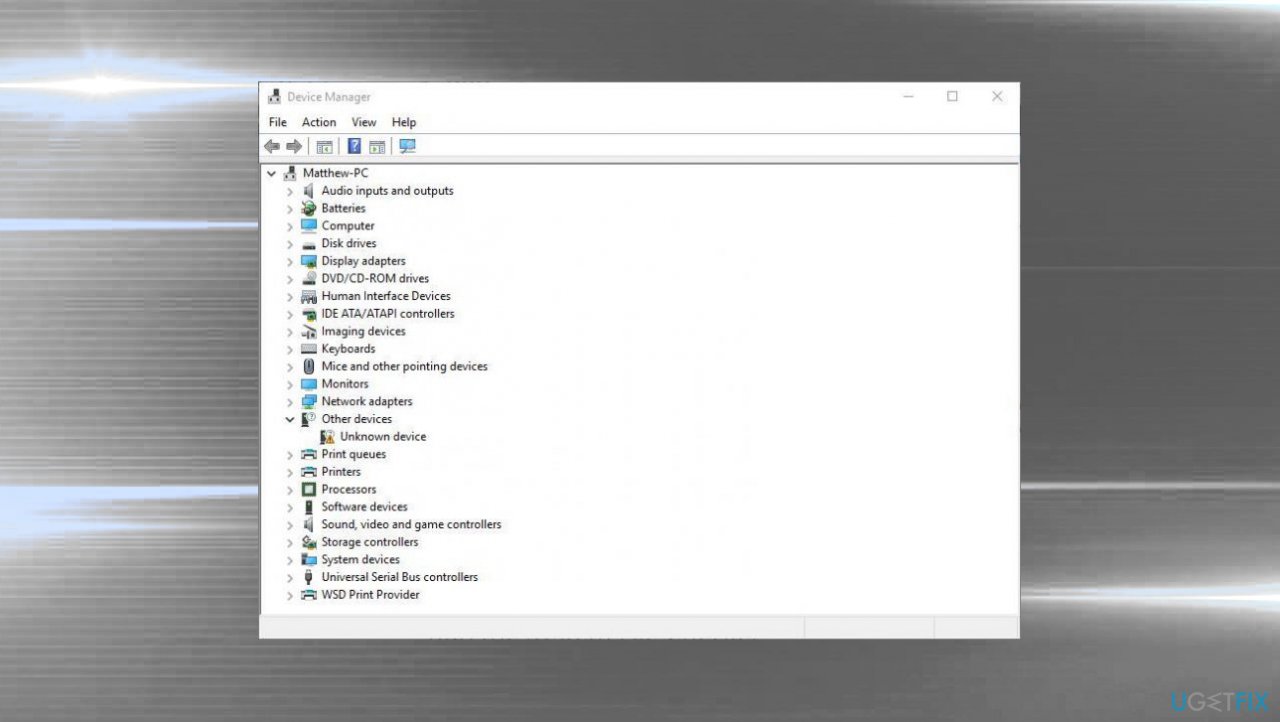
Corsair mic not working on windows device manager - Expand Sound, video and game controllers.
- Right-click the Corsair audio driver and select Uninstall device from the menu.
- Restart your computer.
- Drivers should be installed automatically from scratch after the reboot.
4. Allow apps to access the microphone
- Open the Settings app by hitting Windows and I keys. You can also search for it.
- Go to the Privacy section.
- At the left side of the window, you should see the App permissions section.
- Scroll down until you reach Microphone and click that.
- Check if the Microphone access for this device option is on. If it’s not, click on Change and set the slider to on.
- Switch the slider under the Allow apps to access your microphone option to On.
- Scroll down in the list of installed apps on your computer. Switch the slider next to the apps you wish to provide access.
- Restart your computer.
Bottom line
To fix the Corsair microphone not working on Windows, try making Corsair the default device in the Sound settings, and ensure the correct default format is selected. If these steps do not resolve the issue, consider checking for malware or reinstalling the headset drivers.
Frequently asked questions
This issue may occur due to incorrect audio settings or outdated drivers. Ensure that your microphone is set as the default device in the sound settings and check for any driver updates.
Start by checking the microphone's connection and ensure it's plugged into the correct port. You can also run the Windows Troubleshooter for audio devices to help identify and fix any issues.
If it works elsewhere, check your Windows 11 privacy settings to ensure apps have permission to access the microphone. Additionally, try disabling any audio enhancements in the sound settings as they may interfere with microphone functionality.




Report an issue
What's wrong with this guide? We review every report and update or remove content.
Report received — thank you. We'll review and fix it.
You need a free account to submit a report.
Be the first to comment