How to fix
Error Code 0x000000EA
on Windows
Resolve Error Code 0x000000EA on Windows 10 effortlessly. Our expert-tested guide ensures quick fixes and smooth performance, with screenshots.

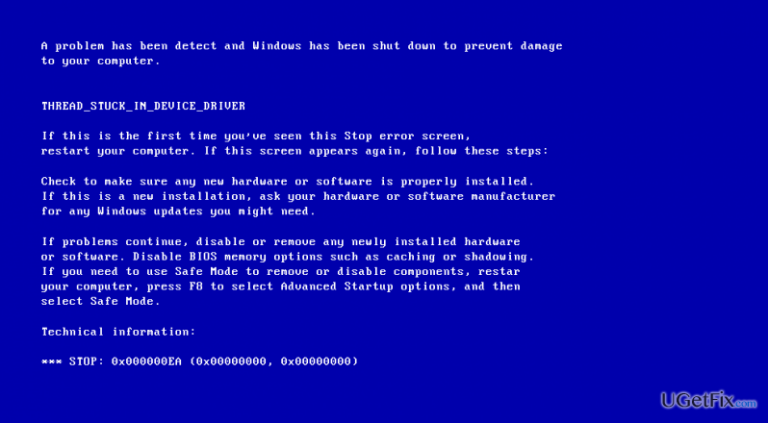
What causes How to Fix Error Code 0x000000EA on Windows 10?
- Nvidia problems
- AMD graphics card issues
- Corrupted graphics drivers
- Out-of-date graphics drivers
- Malware infection
Repairs Windows system files, removes malware, and restores a clean OS state — without reinstalling.
I keep receiving a BSOD with the code 0x000000EA. I’ve read some posts on the Internet saying that this bug check may be triggered by Nvidia problems, but I did not find fixes for it. Could you please help because this reoccurring BSOD gets on my nerves!
0x000000EA is an error code, which shows up on the BSOD THREAD_STUCK_IN_DEVICE_DRIVER. These codes may be used interchangeably as they are always displayed alongside. According to experts, the culprit of BSOD is related to the AMD and Nvidia graphics cards, which might have been corrupted, infected by malware or got out-of-date. While the occurrence of 0x000000EA error code prevails on Windows 10 OS, older versions can also encounter this bug check. However, due to the best-developed graphics card chipset support, Windows 10 may be the most vulnerable to graphics card issues.
In the majority of the cases, 0x000000EA bug check shows up when a PC user attempts to play an HD game or use multimedia. The attempt to launch the game forces the device driver to get stuck in the infinite loop. That’s because the hardware is occupied by another app/procedure or at least that’s how PC’s graphics card comprehend the situation. Nevertheless, specialists have already provided a list of fixes that appeared helpful in 0x000000EA error fixes, so if you can’t get rid of irritating BSOD, here’s what you have to do:
Fix 1. Update Graphics Drivers
- Right-click on the Win key and select Device Manager.
- Locate Display Adapters on the list and expand it by clicking.
- Find your graphics card, right-click on it, and select Update Driver Software.
- This way system will automatically check and update your drivers. After that, restart your PC.
- Once done, go to the official website of your GPU manufacturer, download, and install the latest version of your graphics driver.
Fix 2. Run available BIOS updates
- Click Win key + R, type cmd, and press Enter.
- Type wmic bios get smbiosbiosversion in the Command Prompt window and press Enter. This way, you will find out the version of your BIOS. Write down it somewhere because you're going to need it later.
- After that, navigate to the official website of your PC’s/laptop’s motherboard manufacturer and check if there is a newer version of the type of your BIOS available. If it is, download it and run its .exe file.
- Finally, restart your PC.
Hopefully, these two solution methods helped you to fix 0x000000EA error easily. If, however, the problem is still chasing you, we would highly recommend you to run a system scan with [d1] or [rev id=”RegCure Pro”]. Both programs have been developed for system optimization, performance improvement, and malware protection. Therefore, a thorough scan with one of these programs might help you to fix 0x000000EA BSOD in no time.
Bottom line
To fix the 0x000000EA error code, you can update your graphics drivers and run available BIOS updates. If these solutions do not resolve the issue, consider seeking further assistance or exploring additional troubleshooting methods.
Frequently asked questions
Error code 0x000000EA, also known as the 'THREAD_STUCK_IN_DEVICE_DRIVER' error, indicates that a device driver is causing a malfunction, often related to graphics hardware.
To update your graphics driver, go to Device Manager, expand the 'Display adapters' section, right-click your graphics card, and select 'Update driver' to automatically search for updates.
Yes, rolling back to a previous driver version can resolve the error; simply navigate to Device Manager, right-click the graphics card, select 'Properties', and choose the 'Driver' tab to use the rollback option.




Report an issue
What's wrong with this guide? We review every report and update or remove content.
Report received — thank you. We'll review and fix it.
You need a free account to submit a report.
Be the first to comment