How to fix
Rainbow Six Extraction server connection error code BRAVO-00000206
on Windows
Resolve the Rainbow Six Extraction server connection error code BRAVO-00000206 on Windows 10 and 11 effortlessly. Expert-tested solutions await you!

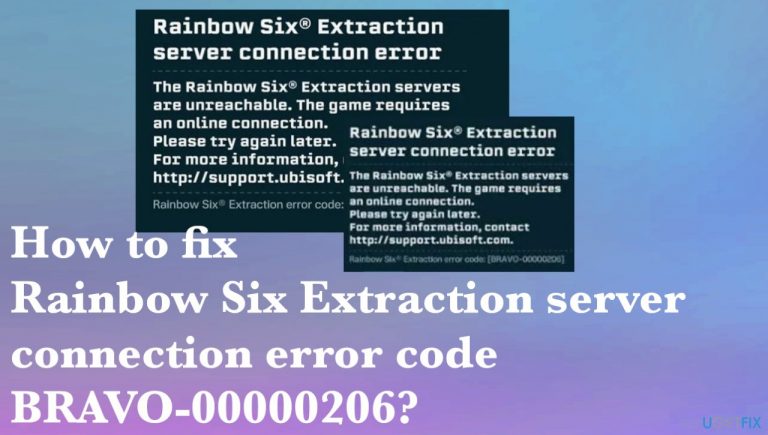
What causes How to fix Rainbow Six Extraction server connection error code BRAVO-00000206?
- Poor internet connection
- Game server issues
- Corrupted or damaged game files
- Server under maintenance
- Antivirus or third-party security program blocking the game
Repairs Windows system files, removes malware, and restores a clean OS state — without reinstalling.
Hello. I get this annoying Server connection error on my PC and I read that it happens on PS5 and other consoles. I would like to fix this, but the game just tries to boot and nothing happens. Haven't found a proper solution for the Rainbow Six Extraction server error code BRAVO-00000206. Can you help?
Rainbow Six Extraction server connection error code BRAVO-00000206 is the issue occurring with the popular multiplayer tactical shooter game developed by Ubisoft.[ref en-1] Complaints about this error have been surfacing online, and people state that the problem arises when the game is launched, or the connection to game servers is started.[ref en-2]
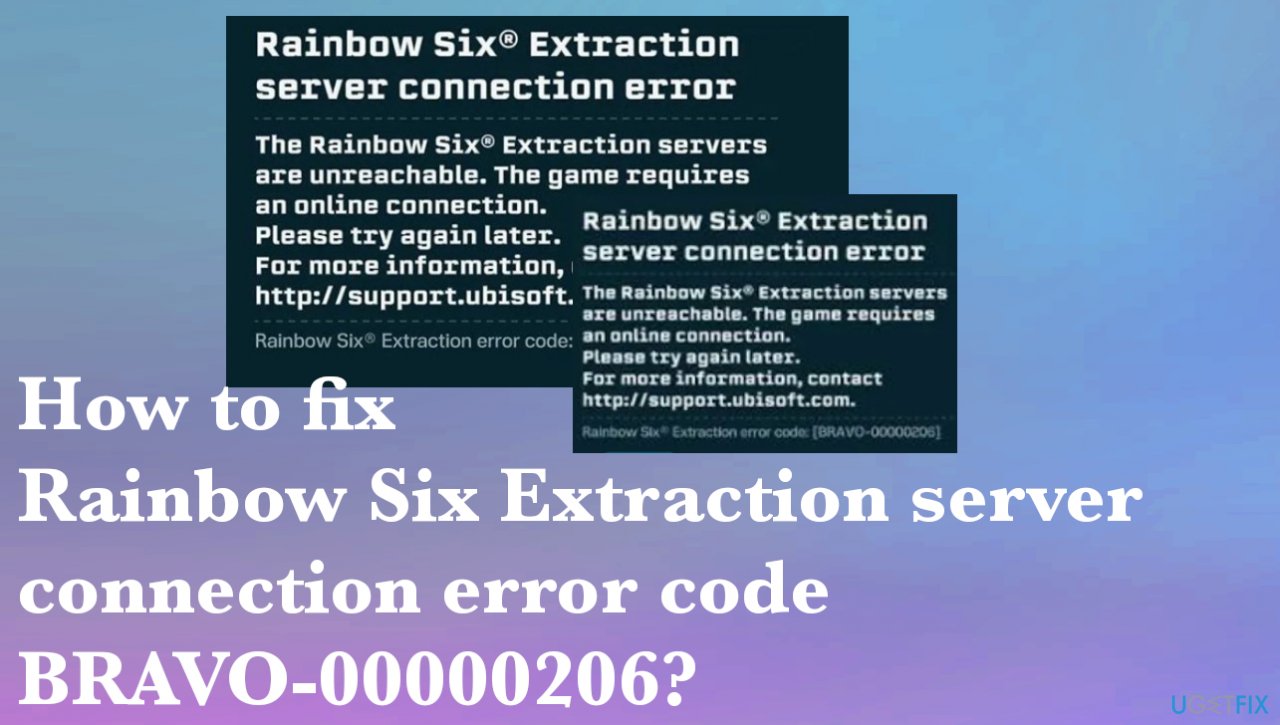
This error provides the message about the unreachable servers and the particular requirement for an online connection. No other details just a tip to try again later. The problem occurs due to the poor internet connection or is related to the game server issues. There are chances that these problems are caused by corrupted or damaged game files.
Other reasons for the error like this could be relayed to the server that is under maintenance, but this could be a temporary issue only. Sometimes these issues with particular program errors can appear due to compatibility problems. Rainbow Six Extraction server connection error code BRAVO-00000206 can appear when the antivirus tool or a third-party security program clocks the game.
These common issues with the network, servers and other programs are common, but the different reasons and root causes call for a particular different solution for the issues with the machine. If you checked your connection and tried particular quick options, you can try to fix malware[ref en-3] leftover and system file damage problems by running the scan with the [d1] tool. This could be a great way to solve system data issues before trying to fix the Rainbow Six Extraction server connection error code BRAVO-00000206 manually with the instructions below that require more attention and knowledge.
1. Verify the game files
- Start Ubisoft Connect and navigate to its Games tab.
- Select the Rainbow Six Extraction.
- Then click on the Properties option.
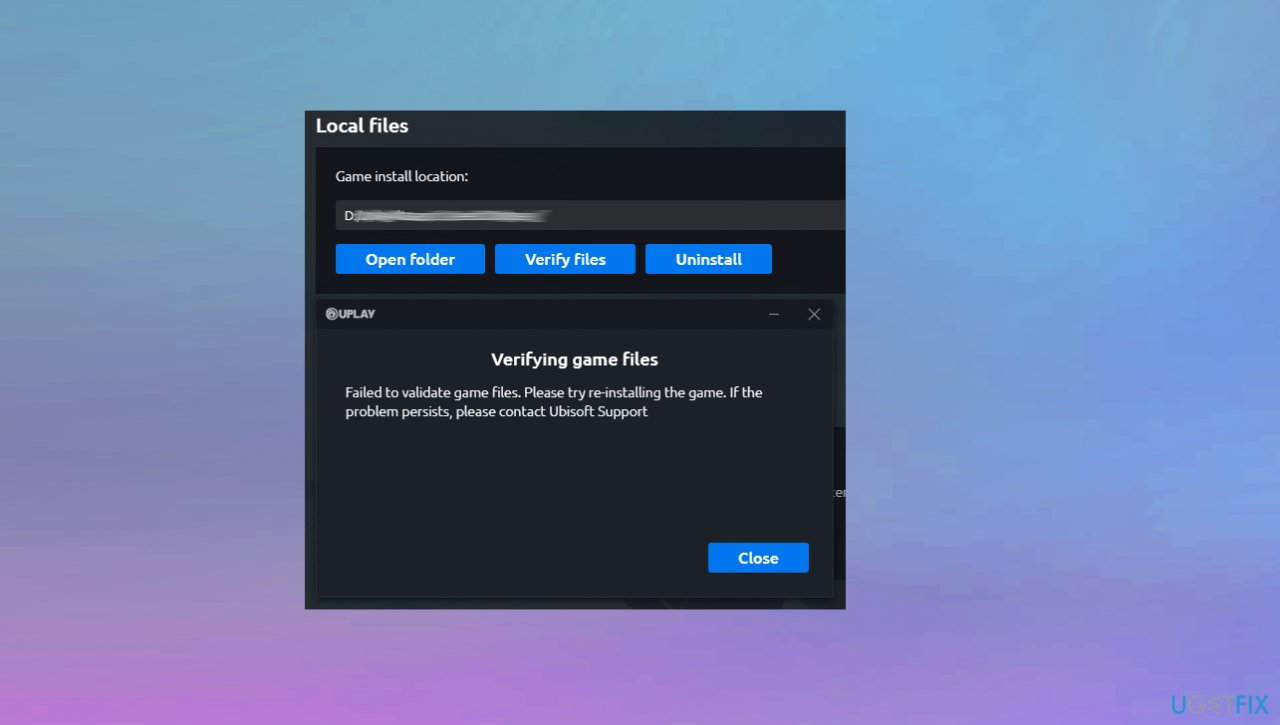
Rainbow six extraction server connection error verify files - Press the Verify Files option and when you get a prompt, choose the Repair option. Ubisoft Connect will take a few minutes to verify and fix your game files.
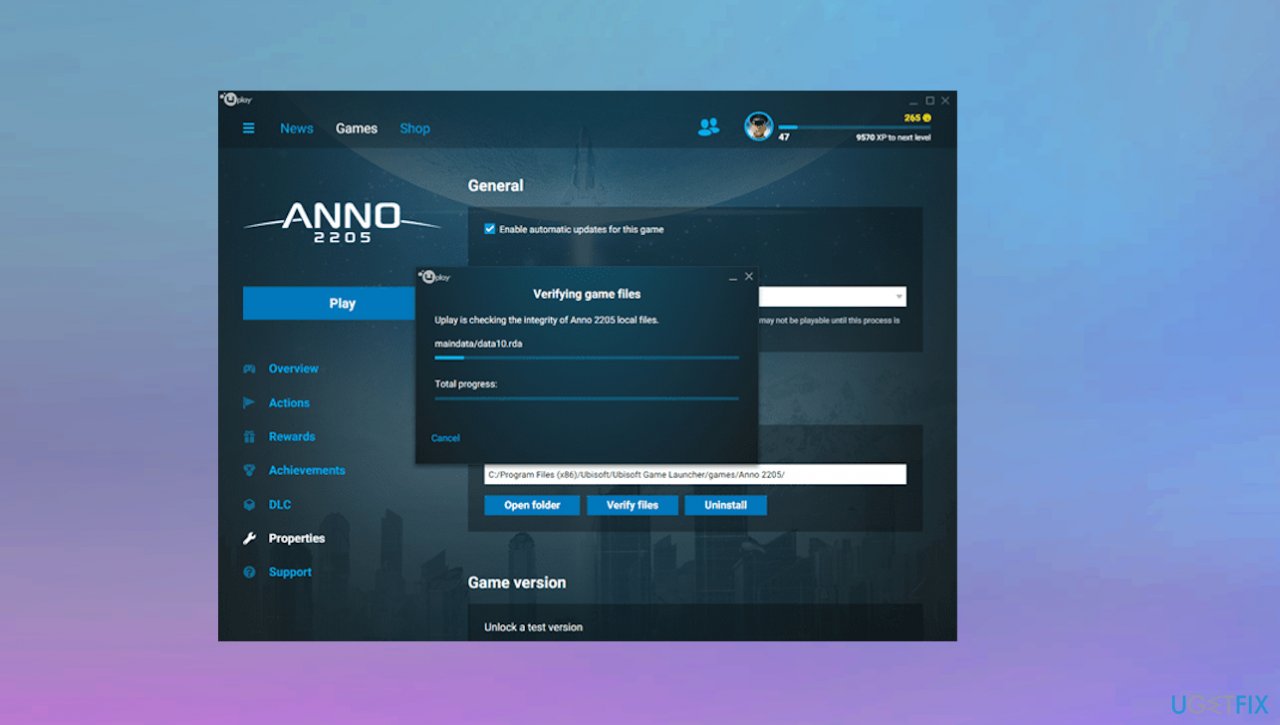
Rainbow six extraction server connection error files - Once the process is complete, relaunch the game.
2. Clear the DNS cache
- Type cmd in the start search screen and run as administrator.
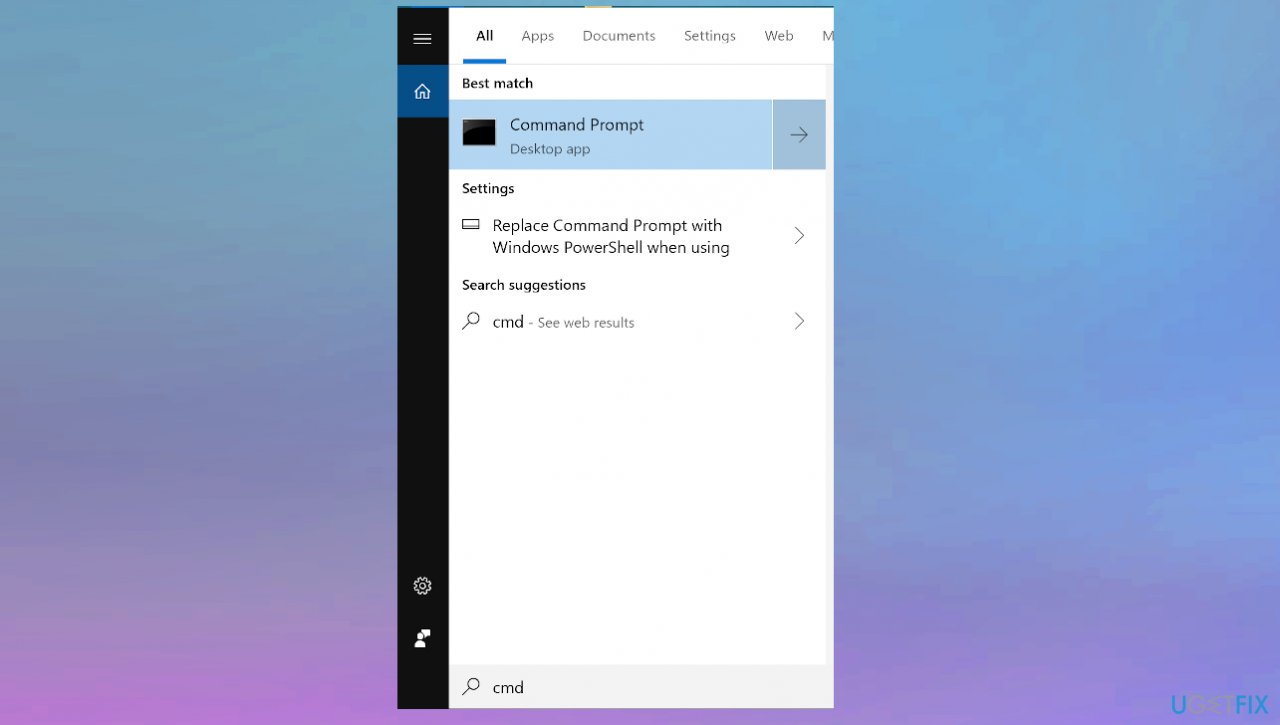
Rainbow six extraction server connection error cmd - Once the black window appears, type the following code in order and press enter:
ipconfig /flushdns
netsh int ipv4 reset
netsh int ipv6 reset
netsh winhttp resetproxy
netsh winsock reset
ipconfig /registerdns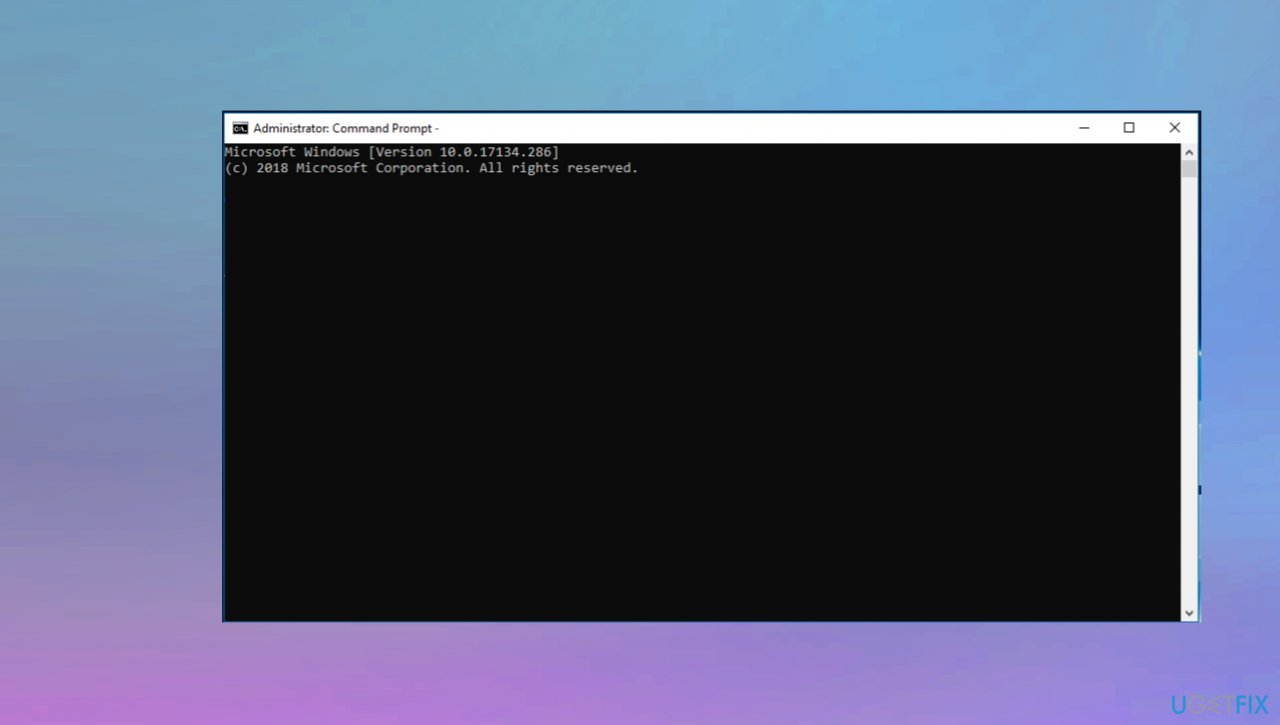
Rainbow six extraction server connection error prompt - Once done it will show that your DNS cache and proxies have been cleared successfully.
3. Switch to a Google DNS server
- Open the Run dialog box by pressing Win+R and then enter ncpa.cpl in it to bring up the Network Connections window.
- Right-click on your active connection, and from the appeared context menu.
- Choose the Properties option.
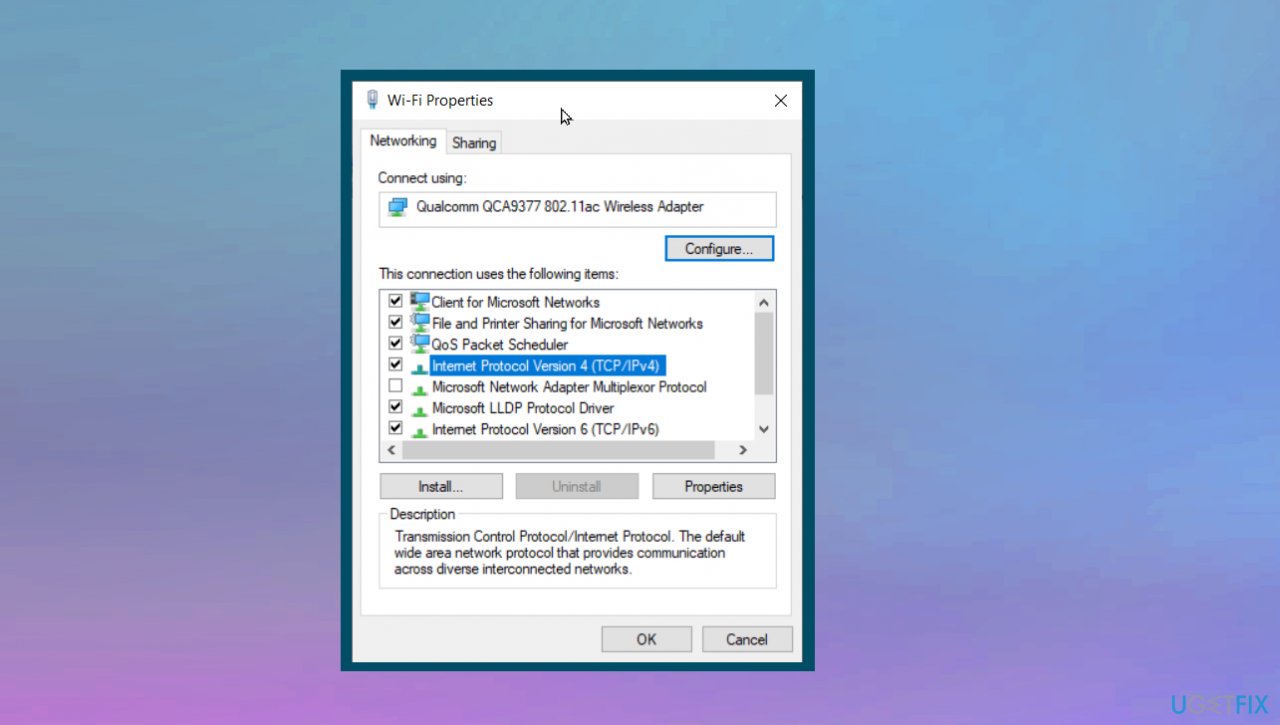
Rainbow six extraction server connection error dns changes - Tap on the Internet Protocol Version 4 (TCP/IPv4) option and then click on the Properties button.
- Now, click on the Use the following DNS server addresses option and type in the below addresses:
Preferred DNS server: 8.8.8.8
Alternate DNS server: 8.8.4.4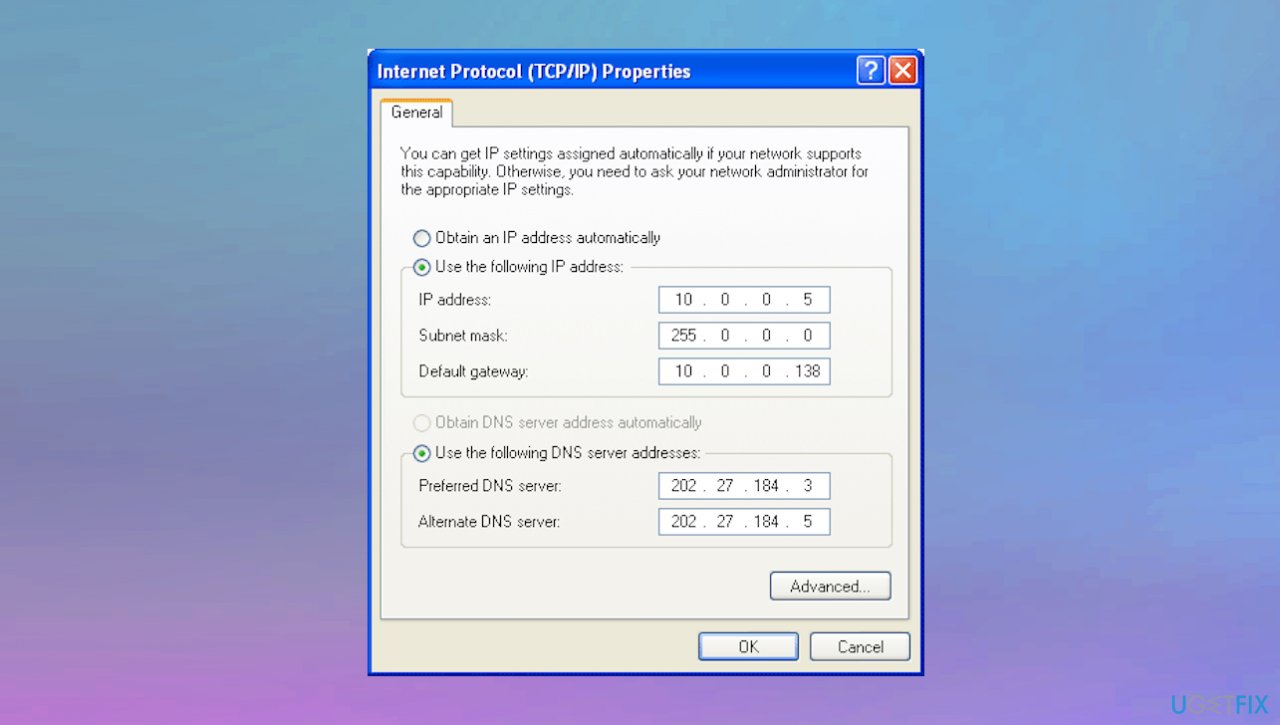
Rainbow six extraction server connection error dns - Press the Apply and OK to save changes.
4. Clean Ubisoft Connect Launcher cache
- Open Run box again.
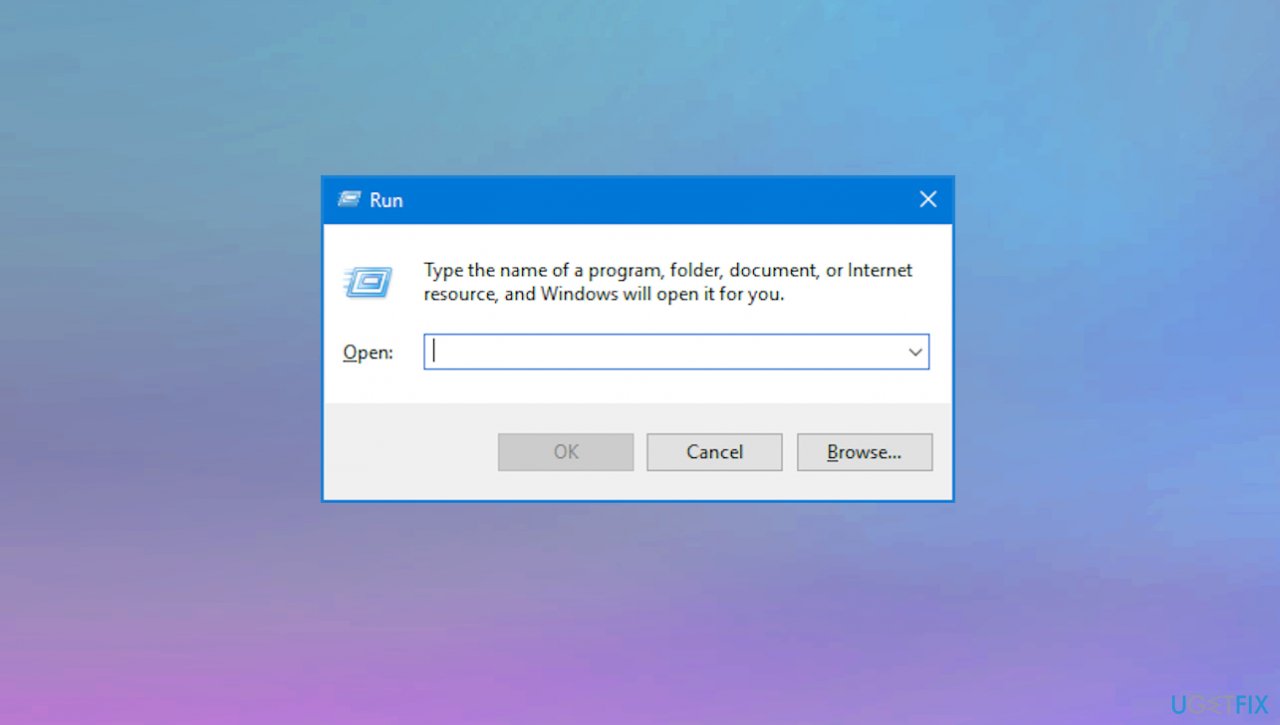
Rainbow six extraction server connection error run box - Type %UserProfile%\AppData\Local into the search box and press enter.
- Then empty the recycle bin by deleting the Ubisoft Game Launcher folder.
Bottom line
To fix the Rainbow Six Extraction server connection error code BRAVO-00000206, you can verify the game files through Ubisoft Connect, check your internet connection, and ensure that no security programs are blocking the game. If these solutions do not resolve the issue, consider running a malware scan and checking for system file damage.
Frequently asked questions
First, check your internet connection and restart your router. If the issue persists, try verifying the game files through the Ubisoft Connect client.
Yes, Windows 11 firewall settings might block the game's connection, so ensure that Rainbow Six Extraction is allowed through the firewall.
Updating Windows 10 or 11 can help resolve this error by ensuring you have the latest network drivers and system updates that may affect game connectivity.




Report an issue
What's wrong with this guide? We review every report and update or remove content.
Report received — thank you. We'll review and fix it.
You need a free account to submit a report.
Be the first to comment