How to fix
“Unexpected Error”
on Windows
Resolve the "Unexpected Error" in Windows Defender on Windows 10 or 11 easily. Get expert-tested solutions that fix the issue in minutes!

What causes How to fix “Unexpected Error” in Windows Defender?
- Missing updates
- Third-party antivirus interference
- Corrupted system files
- Issues with the Security Center service
Repairs Windows system files, removes malware, and restores a clean OS state — without reinstalling.
Hello. I tried to use Windows Defender to run a scam but I received a message saying "Unexpected Error." What could be the problem?
Windows Defender or Microsoft Defender Antivirus is an anti-malware component of Microsoft Windows. It provides some basic functions when it comes to operating system security. It can warn users about malware[ref en-1] infections and other cybersecurity threats.
When Windows Defender first came out, it only protected users from spyware. Now, people can feel safe when using Windows without third-party antivirus software. However, sometimes people run into issues when trying to use it. Users report receiving an "Unexpected Error" when trying to run a scan. The full message reads as follows:
Threat service has stopped. Restart it now.
Unexpected error. Sorry, we ran into a problem. Please try again.
While it is unknown what exactly could cause the Windows Defender to produce this error, we prepared 6 steps that could help you fix it. The problem is suspected to appear because of missing updates, third-party antivirus interference, or the Security Center service.
Manual troubleshooting can become a lengthy process, so you can also use a maintenance tool like [d1] that can fix most system errors, BSODs,[ref en-2] corrupted files, and registry[ref en-3] issues. Otherwise, follow the step-by-step instructions below.
Method 1. Install Windows Updates
- Type Updates in Windows search
- Click Check for updates and wait till the process is finished
- If optional updates are available, install them too
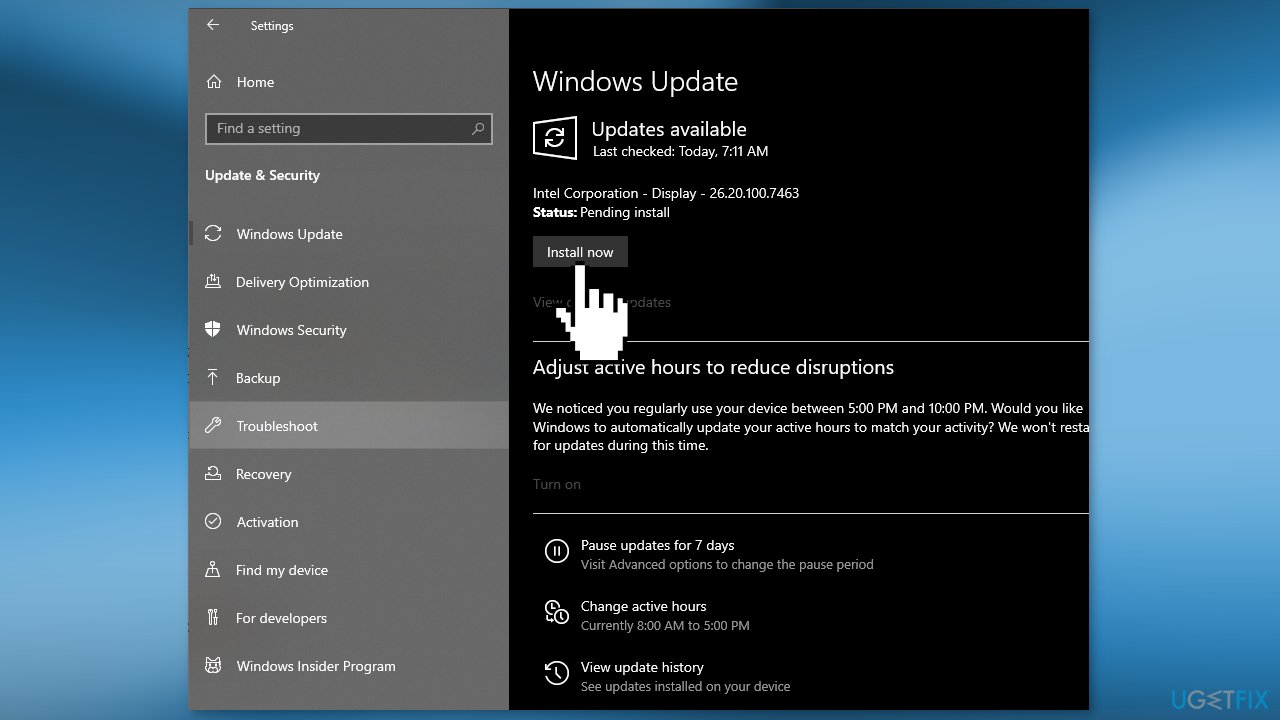
- Once done, restart your system
Method 2. Fix Corrupted System Files
Use Command Prompt commands to repair system file corruption:
- Open Command Prompt as administrator
- Use the following command and press Enter:
sfc /scannow
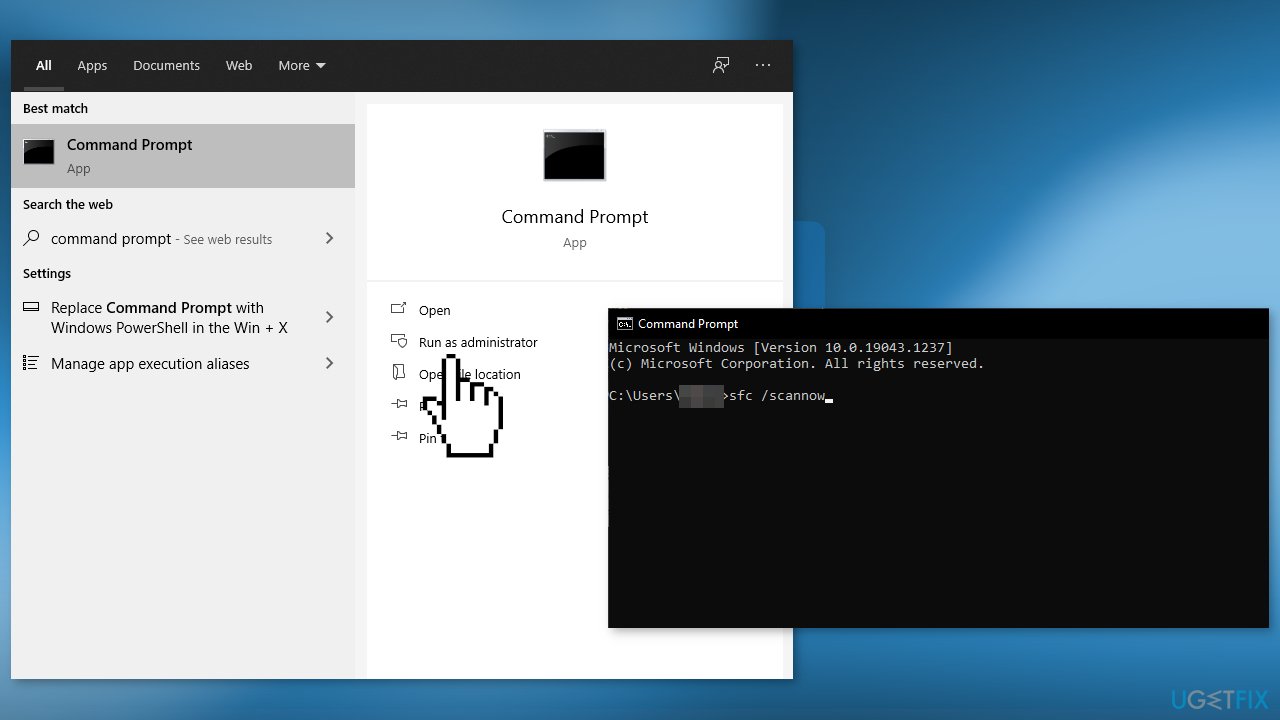
- Reboot your system
- If SFC returned an error, then use the following command lines, pressing Enter after each:
DISM /Online /Cleanup-Image /CheckHealth
DISM /Online /Cleanup-Image /ScanHealth
DISM /Online /Cleanup-Image /RestoreHealth
Method 3. Uninstall Third-Party Security Software
Your third-party antivirus program could be interfering with Windows Defender, resulting in an error. We suggest you try to uninstall the software and see if the issue disappears.
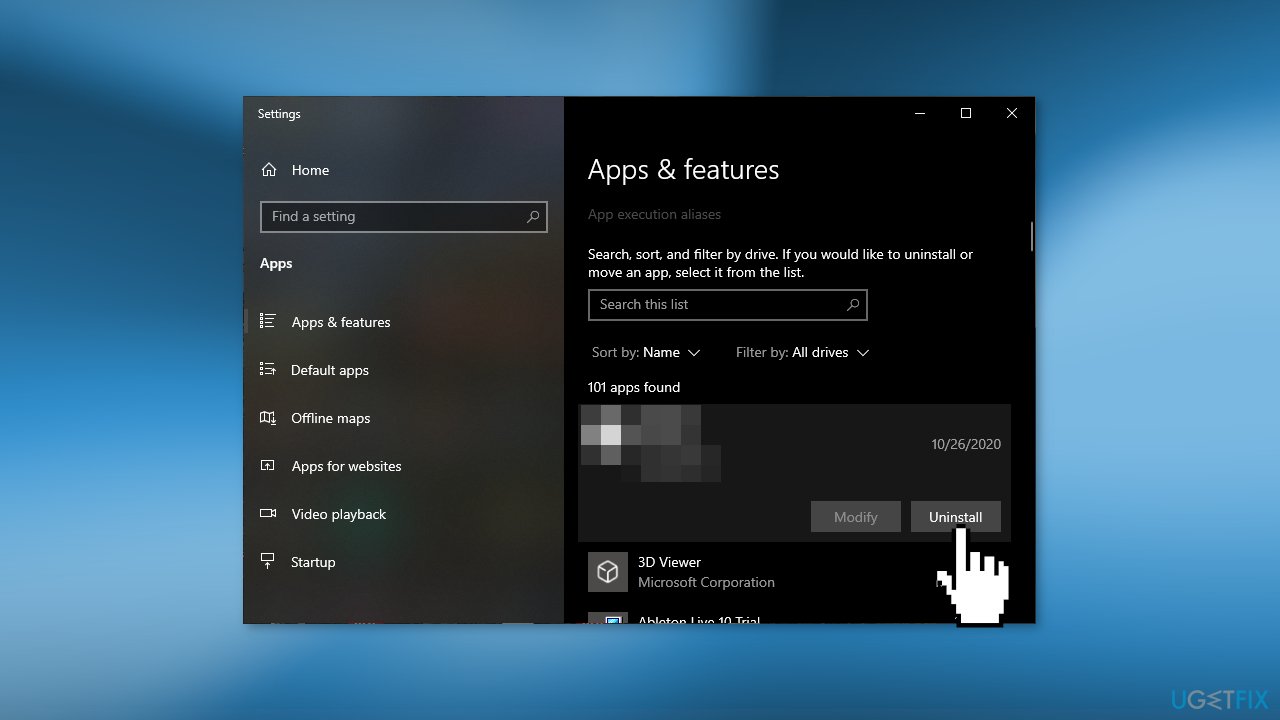
- Go to Apps & Features
- Find your antivirus in the list and click on it
- Press Uninstall and finish the process
Method 4. Restart the Security Center Service
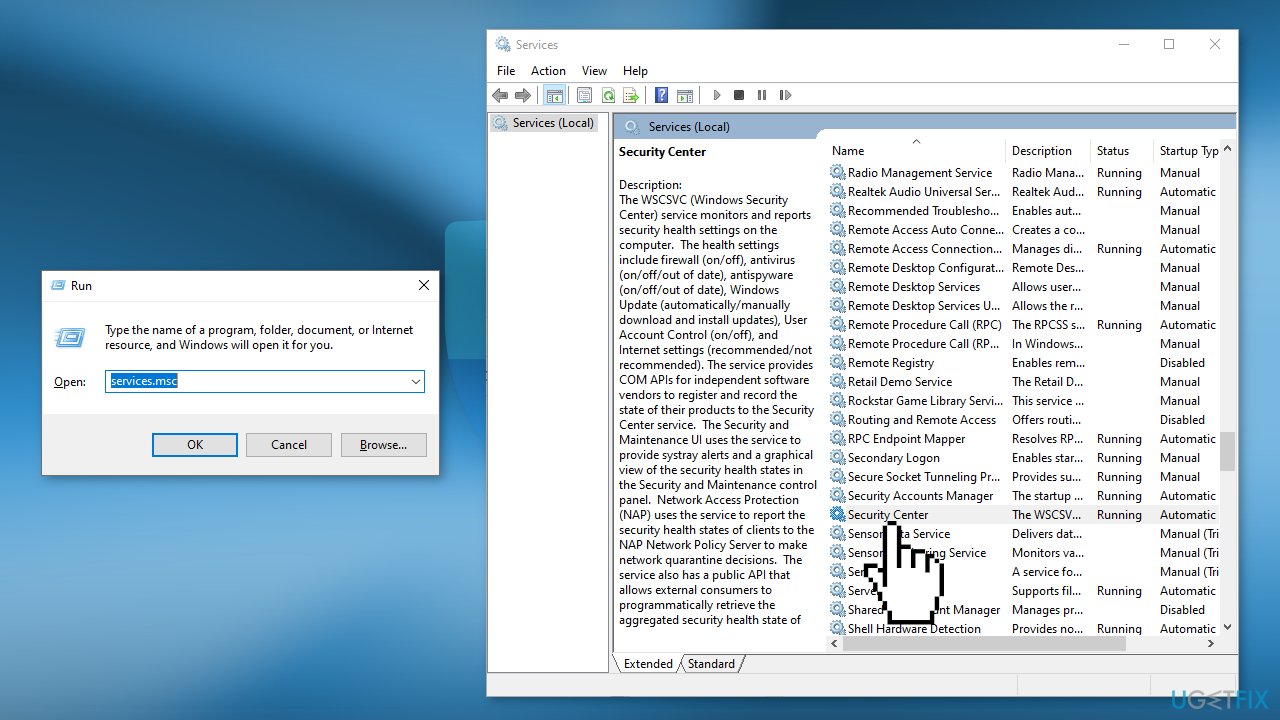
- Press Windows key + R to open the Run box
- Type services.msc and hit Enter
- In Services, search for Security Center
- Right-click on Security Center and click on Restart
Method 5. Change Registry Key Values
- Press Windows key + R to open the Run box
- Type Regedit and press Enter
- Navigate to HKEY_LOCAL_MACHINE\SOFTWARE\Policies\Microsoft\Windows Defender
- Change both DisableAntiSpyware and DisableAntiVirus values to 0 by double-clicking
- If the keys are not showing, right-click on an empty space, select New, and click on DWORD (32-bit) Value
- Name the key DisableAntiSpyware and set the value to 0
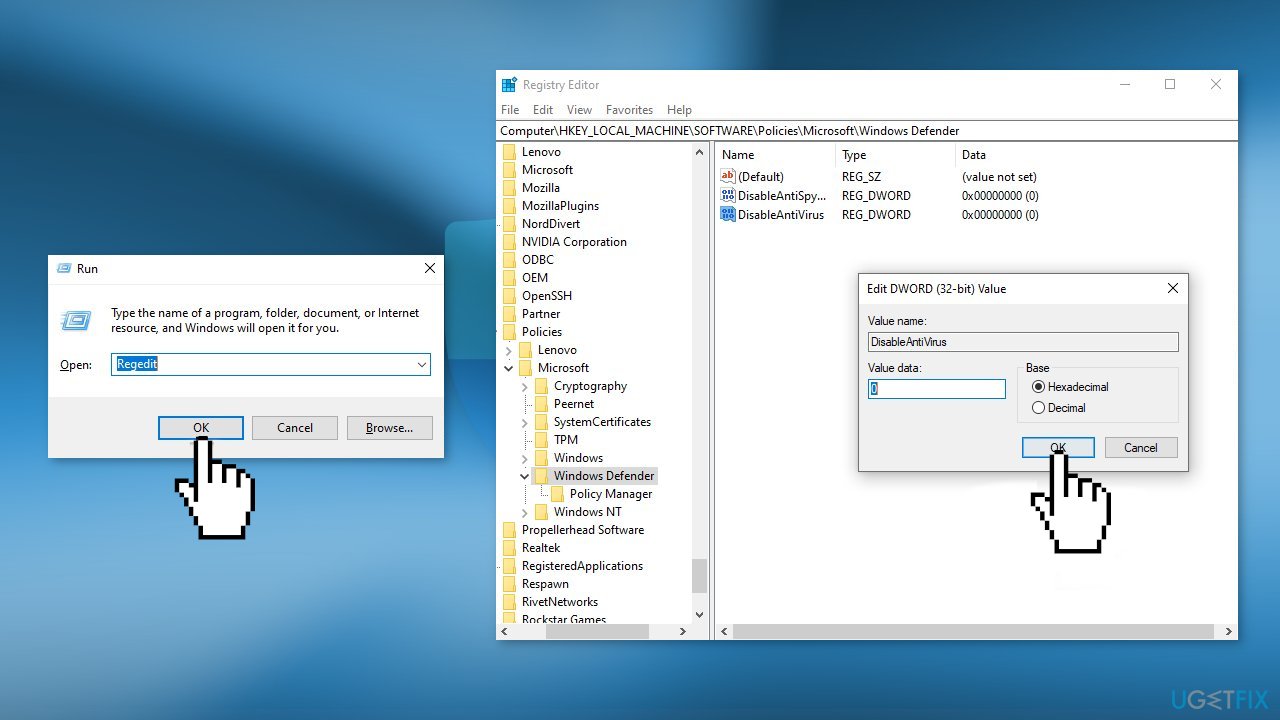
- Do the same for DisableAntiVirus
Method 6. Perform a Repair Upgrade
- Download the Windows 10 ISO file from the official Microsoft website
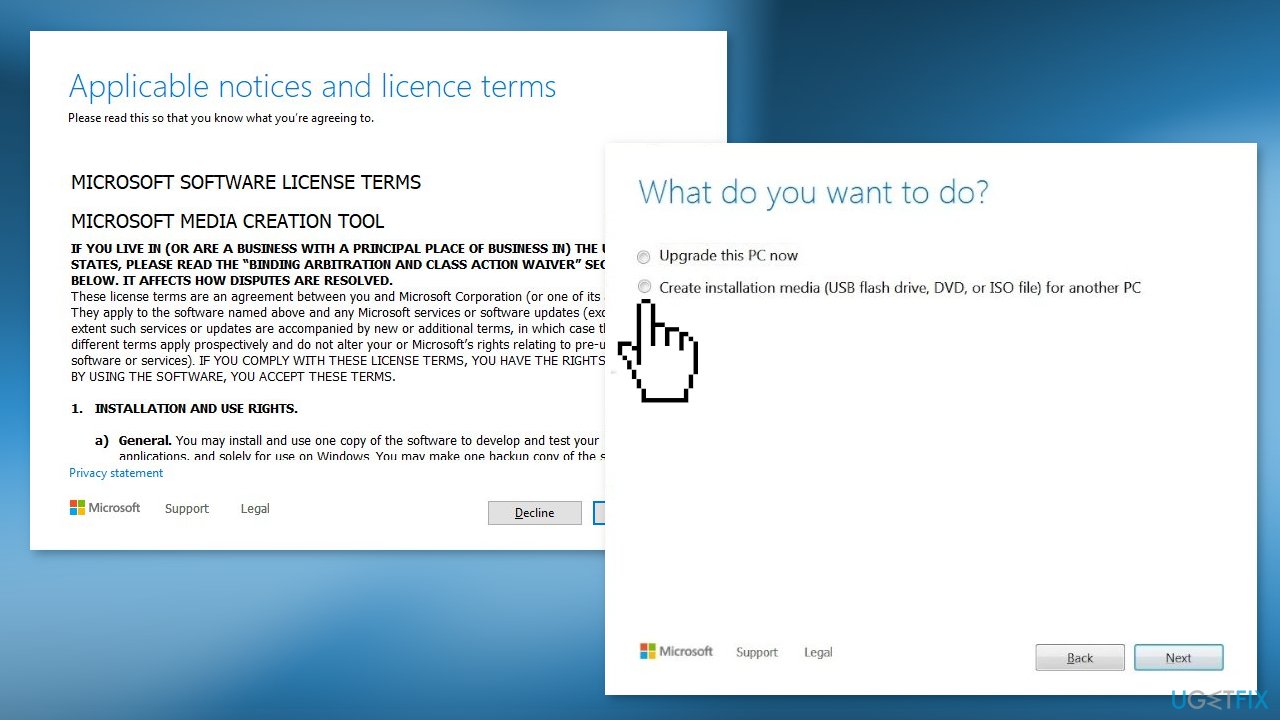
- If you agree to the license terms, select Accept
- On the What do you want to do? page, select Create installation media for another PC and then select Next
- Select the language, edition, and architecture (64-bit or 32-bit) for Windows 10
- In Select which media you want to use, Select ISO file then click Next
- Select the download location then click Save
- Windows 10 ISO file will be downloaded
- Right-click Windows 10 ISO file and click Mount
- Open Setup.exe
- To get important updates, select Download and install updates
- Ensure that Keep personal files and applications is checked
- Click on Install to start the upgrade
Bottom line
To fix the 'Unexpected Error' in Windows Defender, you can install Windows updates, repair corrupted system files using Command Prompt, or uninstall any third-party security software that may be causing interference. If these steps do not resolve the issue, consider using a maintenance tool to fix system errors.
Frequently asked questions
First, try running the Windows Defender Troubleshooter by going to Settings > Update & Security > Troubleshoot. If that doesn't resolve the issue, consider resetting Windows Defender settings to default.
Yes, you can try repairing the Windows Security app via Settings > Apps > Apps & features, then select Windows Security and choose the 'Repair' option. Additionally, running a system file checker scan using 'sfc /scannow' in Command Prompt can help.
To prevent future errors, ensure that your Windows 10 is up to date by checking for updates regularly and consider performing regular system maintenance, including disk checks and malware scans.




Report an issue
What's wrong with this guide? We review every report and update or remove content.
Report received — thank you. We'll review and fix it.
You need a free account to submit a report.
Be the first to comment