How to fix
System Restore Error 0x81000204
on Windows
Resolve System Restore Error 0x81000204 on Windows 10 quickly and efficiently with our expert-tested solutions, fixing issues in minutes.

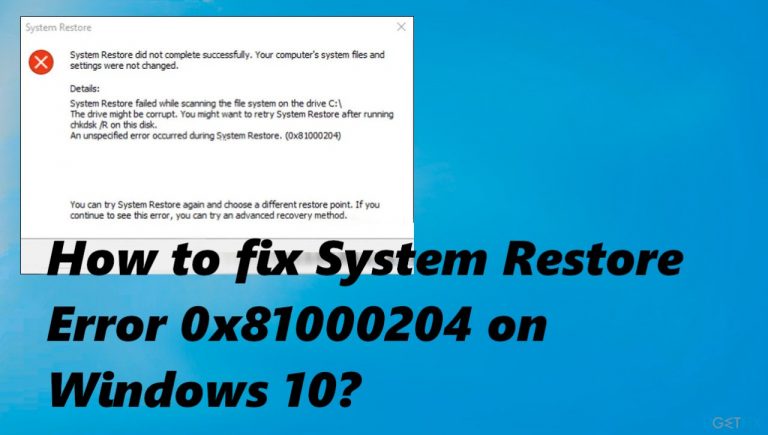
What causes How to fix System Restore Error 0x81000204 on Windows 10?
- Malware infection
- Leftovers from a previous infection
- Damaged files
- Corrupted system data
- Incorrect file installation after Windows Update
Repairs Windows system files, removes malware, and restores a clean OS state — without reinstalling.
The issue when I open some programs on the computer occurs. I restored the machine to the previous point fixing it, but now another problem started to bother me. System Restore Error 0x81000204 appears with the message about the problem of restoring the system process. Can you help?
System Restore Error 0x81000204 on Windows 10 is the issue that bothers people constantly. It mainly occurs when users try to restore the machine to a previous working state of the system via the Restore utility. The error can list the message about the unsuccessful process of restoring.
Users[ref en-1] report the issue for years, so the problem can appear on Windows 10 and older machines. System Restore Error 0x81000204 on Windows 10 can be caused by malware infection[ref en-2] or leftovers from the infection that was active prior. Damaged files and system data, and programs can trigger issues like this too.
It is possible that the problem with the system restoring utility gets caused by the incorrect file installation after the Windows Update installation. These issues are common with the latest Windows 10 upgrades.[ref en-3] Some files can be missing or even corrupted during these or other processes, so particular issues with system processes occur.
You can try to solve these issues by running a process that helps with malware leftovers, virus damage, or corrupted files. A tool like [d1] can run the check on the system and improve the performance even though it might not fix the error fully. Then you can rely on the guide and method listed that can help to properly fix System Restore Error 0x81000204 on Windows 10.
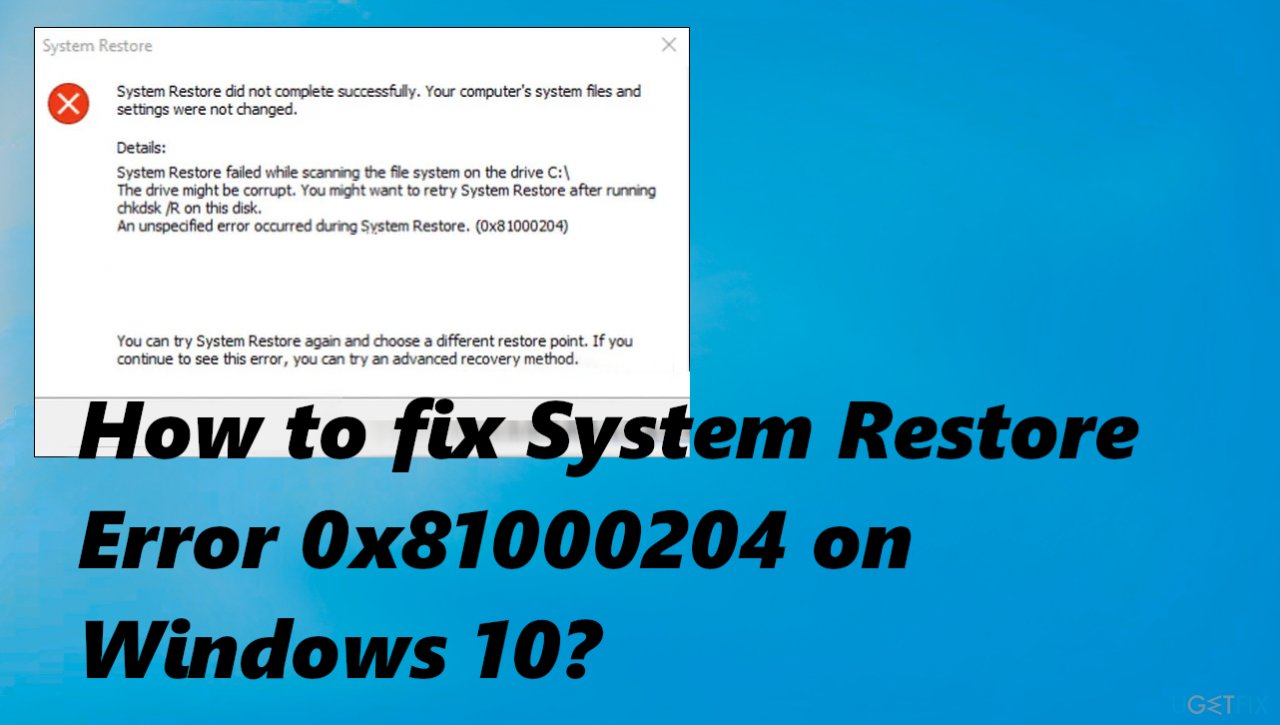
1. Run CHKDSK scan
- Press Windows + R keys together on your keyboard to open a Run dialog.
- Inside the text field of the dialog, type cmd and press Ctrl + Shift + Enter to open Command Prompt as an administrator.
- Once you are inside the Command Prompt window, type the command below and hit Enter to execute it:
chkdsk /x /f /r - If a confirmation appears asking if you would like to run the command when your computer boots the next time, type Y.
- Once done, reboot your PC.
2. Run the SFC scan
- Type in cmd in Windows search.
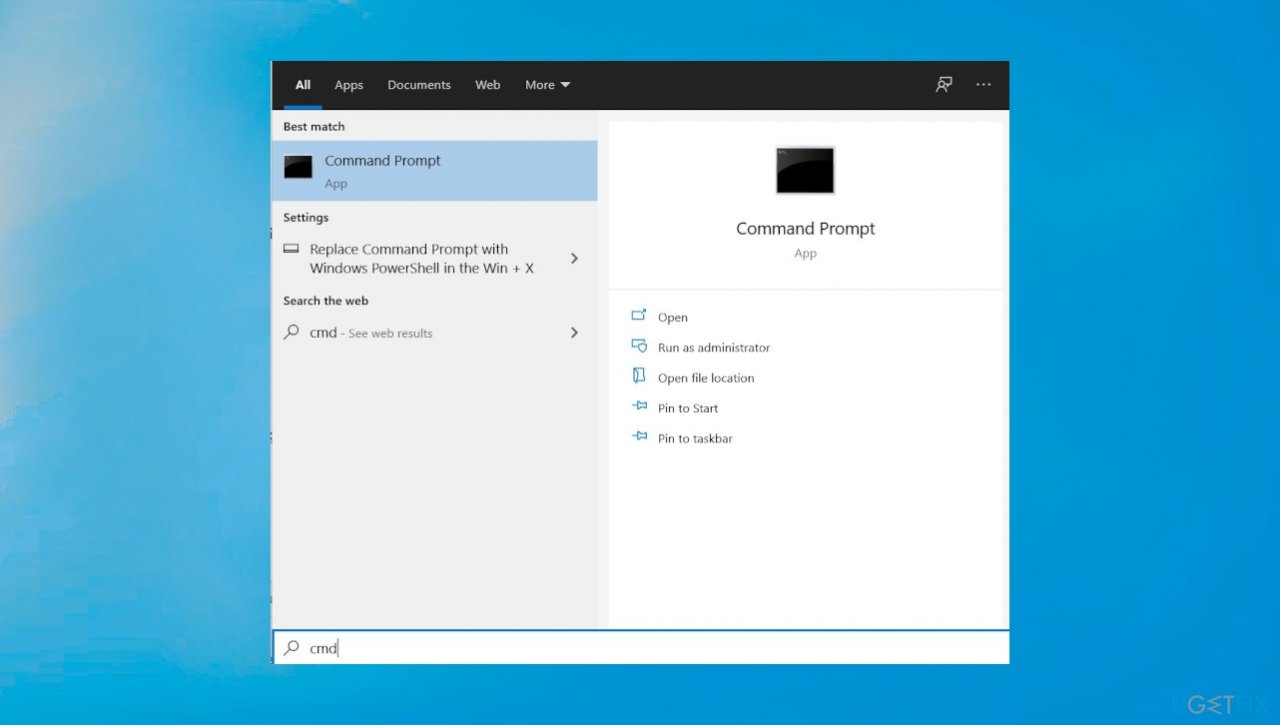
Sytem restore 81000204 cmd - Right-click on Command Prompt and pick Run as administrator.
- When the User Account Control window shows up, click Yes.
- In the new window, type in sfc /scannow and press Enter.
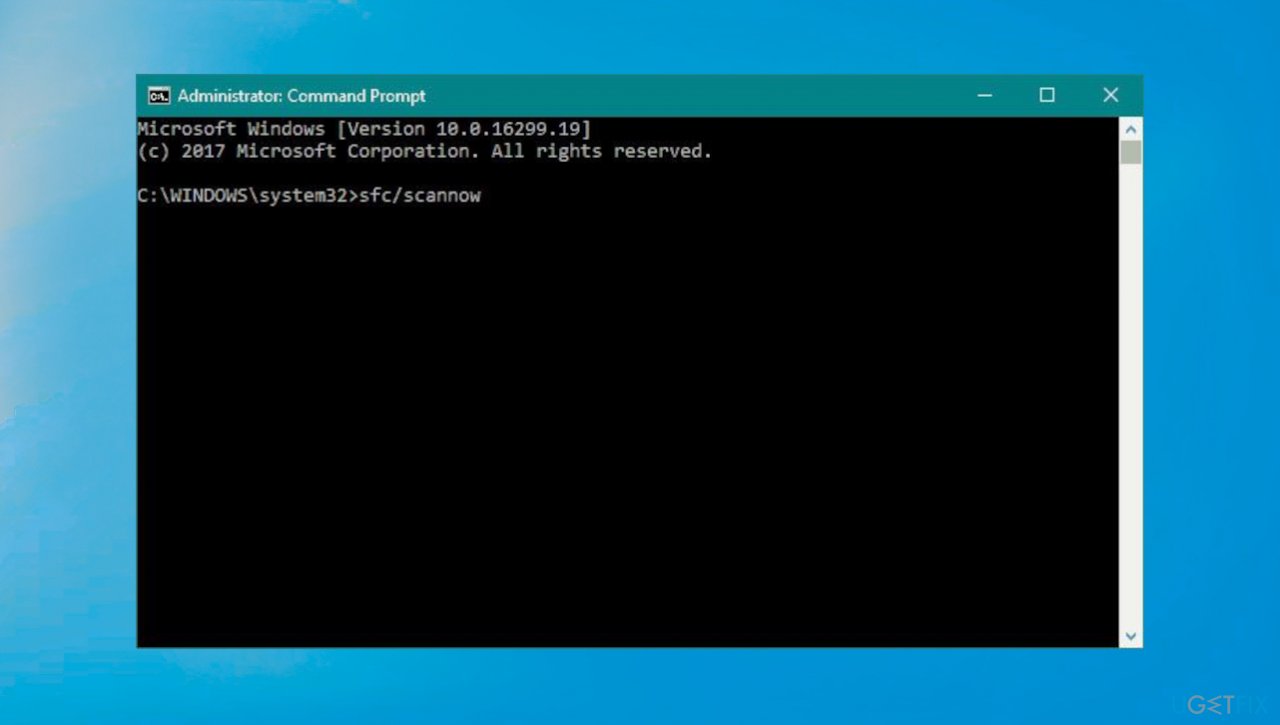
Sytem restore 81000204 sfc - Restart the machine.
3. Restore the machine in Safe Mode
- Click on the Start menu on your taskbar and while holding the Shift key.
- Click on Restart from the context menu.
- You should now be able to see a list of options on a blue screen.
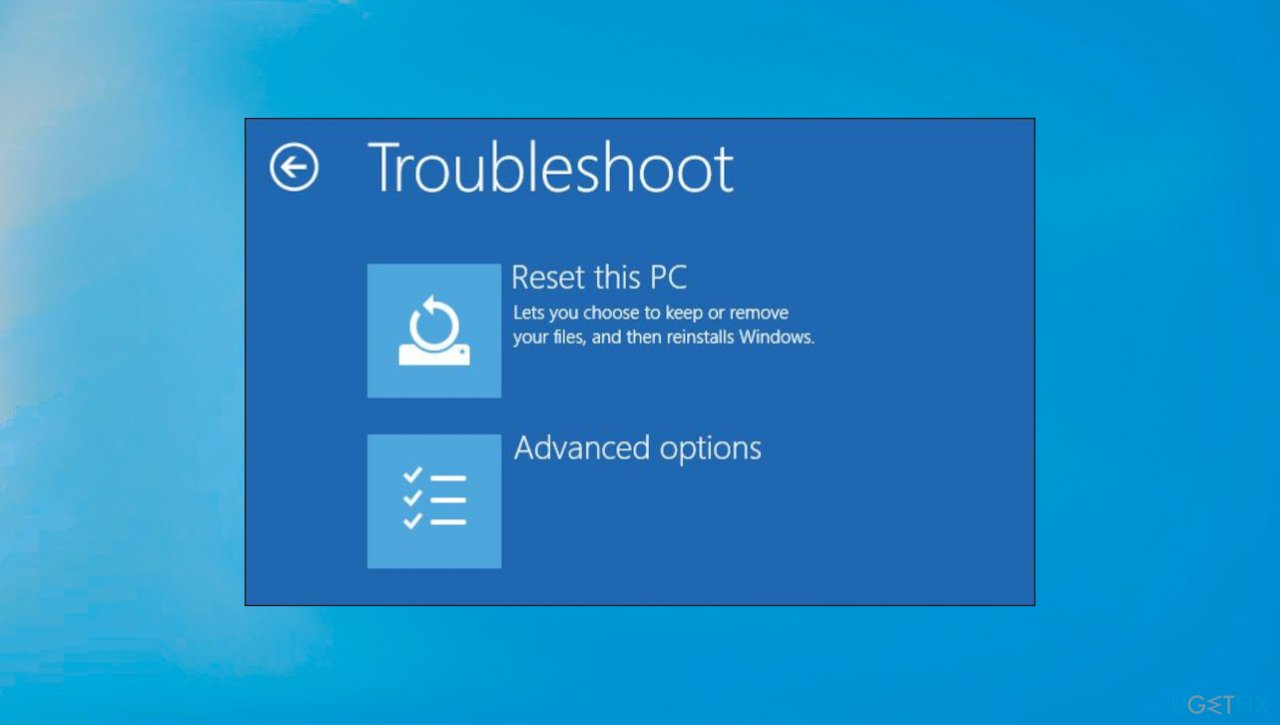
Sytem restore 81000204 troubleshoot - Select Troubleshoot, then Advanced options.
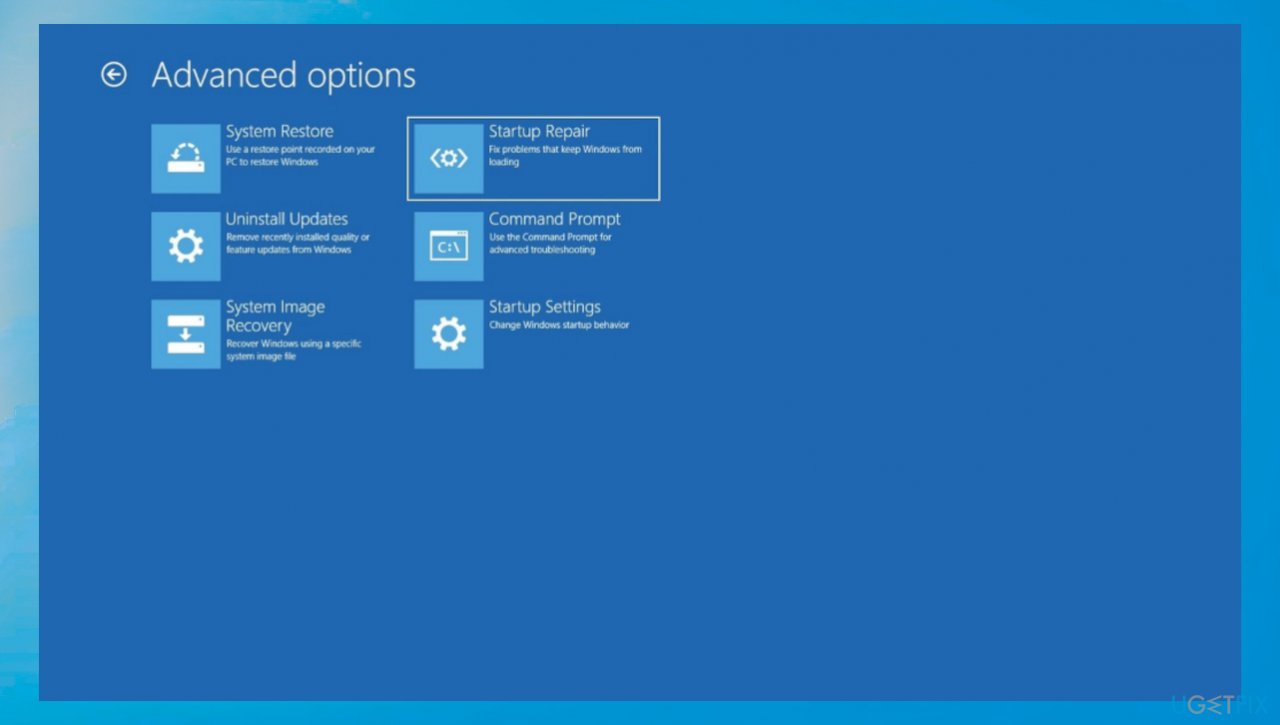
Sytem restore 81000204 advanced startup - Click on Startup Settings in the Advanced options window and restart your PC.
- Upon reboot, press F4 to launch Windows in Safe Mode.
- Try performing a system restore.
4. Reset System Restore settings
- Type cmd in the search area of the taskbar and click on Run as administrator.
- Click on Yes in the confirmation prompt.
- Inside the Command Prompt window, type the commands listed below one by one and hit Enter after each to execute them:
reg delete “HKLM\\SOFTWARE\\Policies\\Microsoft\\Windows NT\\SystemRestore” /v “DisableSR” /f
reg delete “HKLM\\SOFTWARE\\Policies\\Microsoft\\Windows NT\\SystemRestore” /v “DisableConfig” /f
reg delete “HKLM\\SOFTWARE\\Policies\\Microsoft\\Windows NT\\SystemRestore” /v “DisableSR” /f schtasks /Change /TN “Microsoft\\Windows\\SystemRestore\\SR” /Enable
vssadmin Resize ShadowStorage /For=C: /On=C: /Maxsize=25GB
sc config wbengine start= demand
sc config swprv start= demand
sc config vds start= demand
sc config VSS start= demand - Once Command Prompt executes the commands successfully, close the Command Prompt window and restart your PC.
Bottom line
To fix System Restore Error 0x81000204 on Windows 10, you can run a CHKDSK scan to check for file system errors. If the issue persists, consider using a tool to address malware leftovers and corrupted files. If none of these solutions work, further troubleshooting may be necessary.
Frequently asked questions
This error typically signifies that the System Restore feature is unable to access the restore points, often due to corrupted files or settings.
You can try running the System File Checker tool by executing 'sfc /scannow' in the Command Prompt to repair any corrupted system files.
Ensure that the Volume Shadow Copy service is running and that System Protection is enabled for the drive where Windows is installed.




Report an issue
What's wrong with this guide? We review every report and update or remove content.
Report received — thank you. We'll review and fix it.
You need a free account to submit a report.
Be the first to comment