How to fix
DistributedCOM error 10005
on Windows
Resolve the DistributedCOM error 10005 on Windows 10 and 11 quickly with expert-tested solutions and detailed instructions. Fixed in minutes!


What causes How to fix DistributedCOM error 10005 in Windows?
- Problems with the Windows Search service
- Lack of permissions to access the DCOM server
- Corruption of files and programs
- Cyber infections
- Issues with system processes
Repairs Windows system files, removes malware, and restores a clean OS state — without reinstalling.
Hello. The system error DistributedCOM error 10005 bothers me. It appears with a Blue Screen, and the issue persists. I found that this is not that major, but it seems to be a serious problem, and I want to get rid of this. Can you help me?
DistributedCOM error 10005 in Windows is the problem appearing on the machines running Windows 10 or Windows 11 operating systems. The problem occurs commonly, and users get bothered by this.[ref en-1] The issue appears when there are problems with the Windows Search.
DCOM or Distributed Component Object Model is the proprietary Microsoft technology allowing the COM software to communicate across the network. The service needs this DCOM wire protocol to communicate with the components on other computers. When the process fails, these errors can appear on the screen and bother people or even cause issues with other processes and programs.
The error with this10005 code indicates that the program is trying to access the DCOM server without the particular permissions to do that. This is very common for Windows devices, and it is not fixed with a system upgrade.[ref en-2] It is possible to fix the issues in some cases by deleting some keys in the registry and altering settings related to the Windows Search service that can trigger this particular error code.
This is one of the methods to fix the error, but you want to follow the instructions below properly. There are some cyber infections[ref en-3] or corruption of files and programs that can lead to problems with the machine. You should run the application like [d1] and fix any indicted issues, or corrupted files. This is how you can repair the performance of the machine before you go to the guide below that helps you fix DistributedCOM error 10005 in Windows.

1. Restart the Windows Search service
- Search for services in the bottom search box.
- Open Services app.
- Find the Windows Search service.
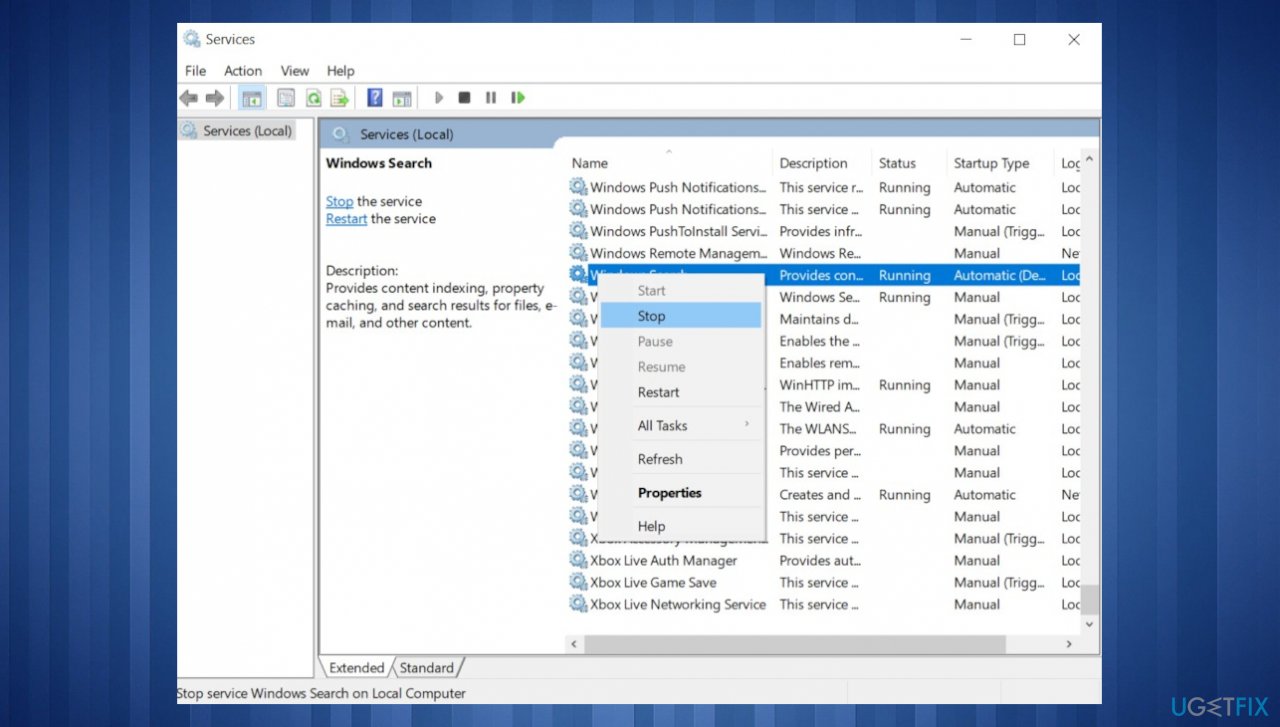
10005 dcom error services - Double-click on it and click the Stop button.
- Expand the Startup type drop-down menu.
- Choose the Manual option.
- Choose the Start button.
- Click the OK button.
2. Verify Group Policy settings
- Press Win+R to open the Run box.
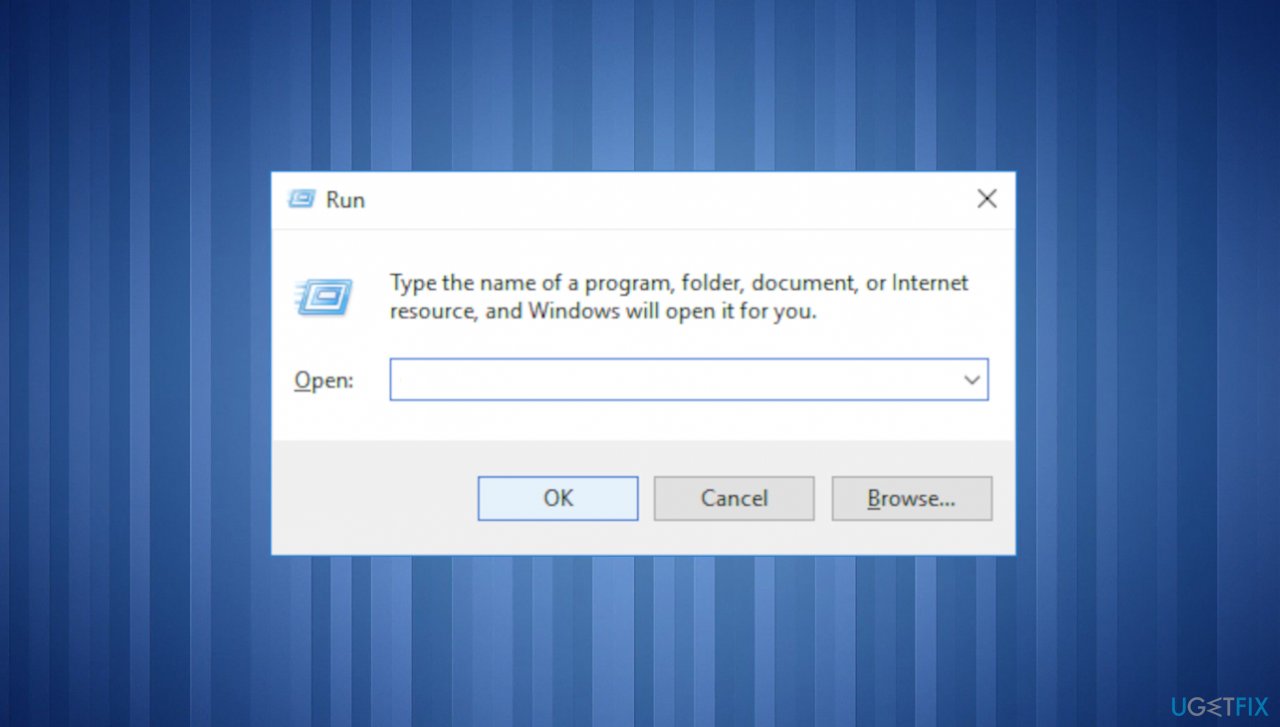
10005 dcom error run box - Type gpedit.msc and click the OK button.
- Navigate to: User Configuration.
- Got to Administrative Templates.
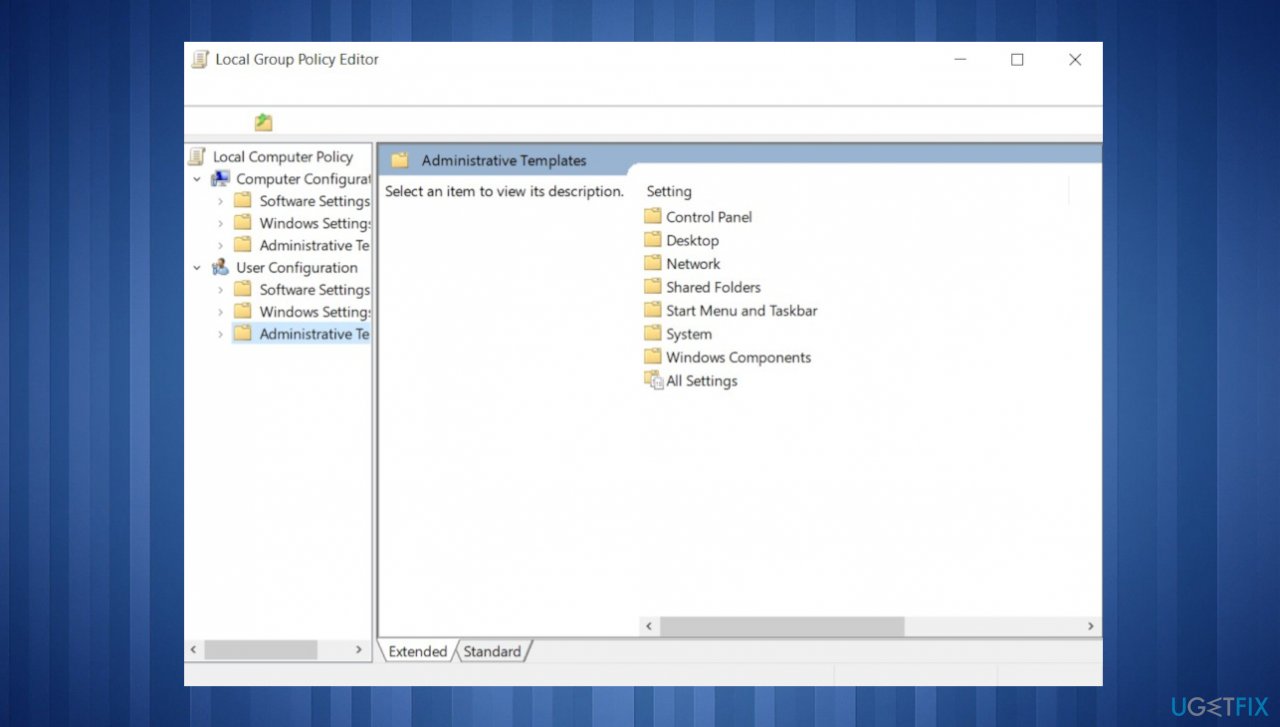
10005 dcom error administrative templates - Double-click Windows Components and find File Explorer.
- Double-click on the Turn off display of recent search entries in the File Explorer search box.
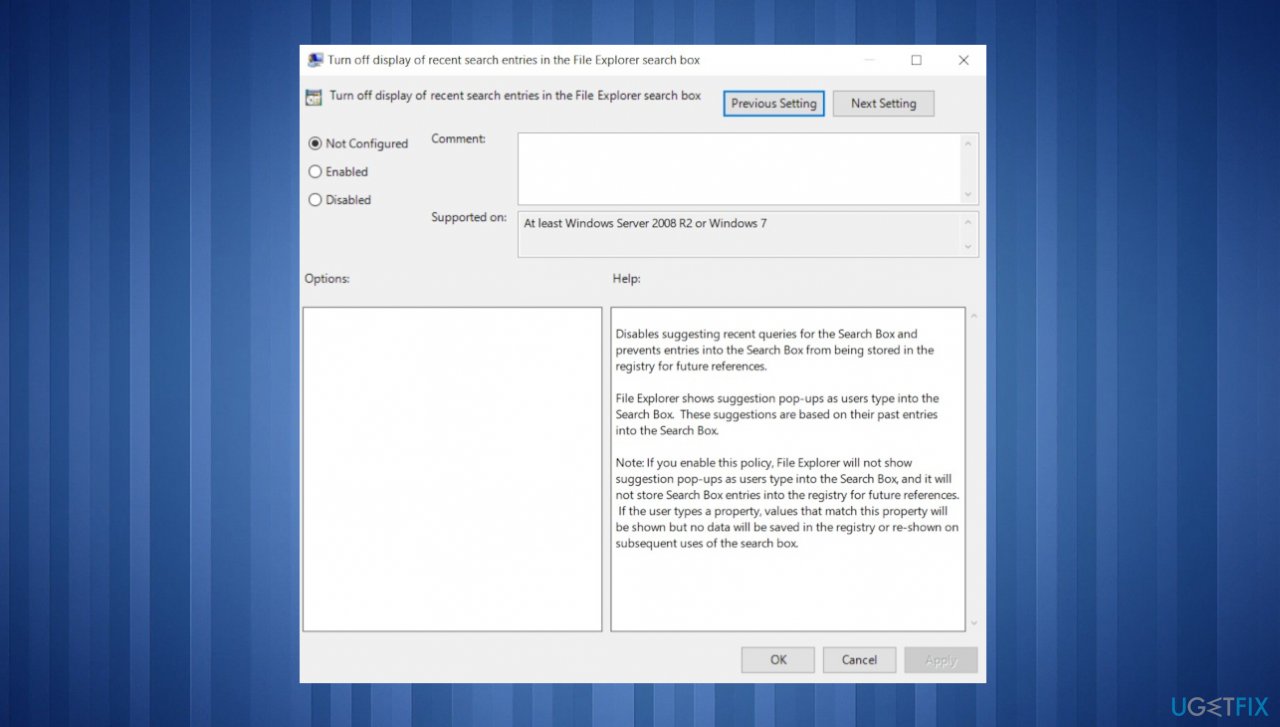
10005 dcom error group settings - Choose the Not Configured option.
- Click the OK button.
3. Verify Registry files
- Press Win+R to open the Run dialog box.
- Type regedit and click the OK button.
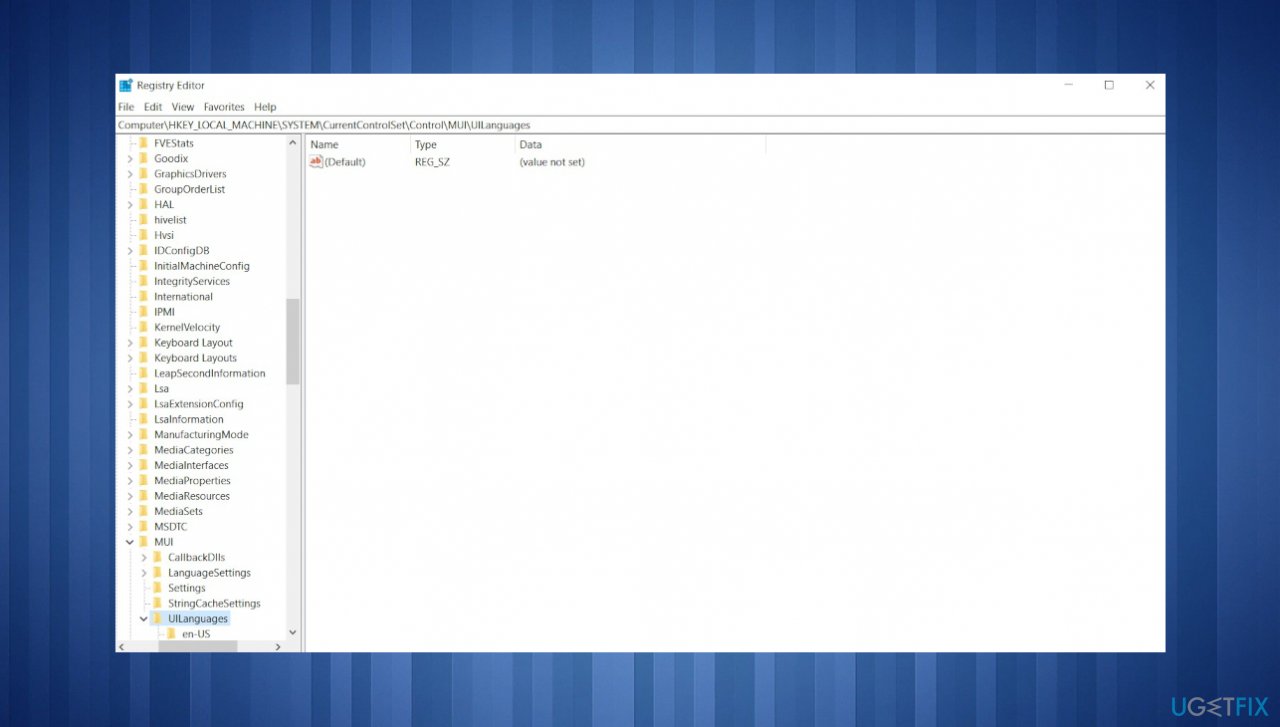
10005 dcom error registry - Navigate to this path: HKEY_CURRENT_USER\Software\Policies\Microsoft\Windows\Explorer
- Double-click on the DisableSearchBoxSuggestions REG_DWORD value.
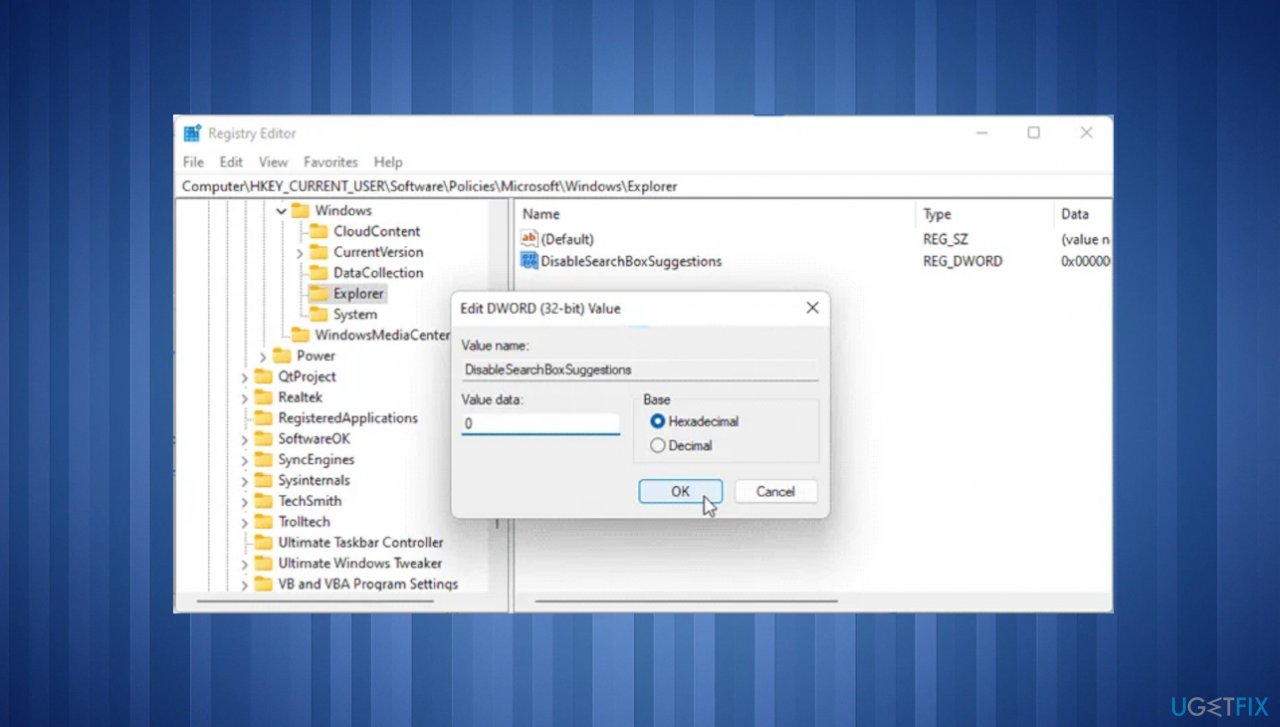
10005 dcom error reg edit - Set the Value data as 0.
- Click the OK button.
- Restart your computer.
Enabling or disabling DCOM
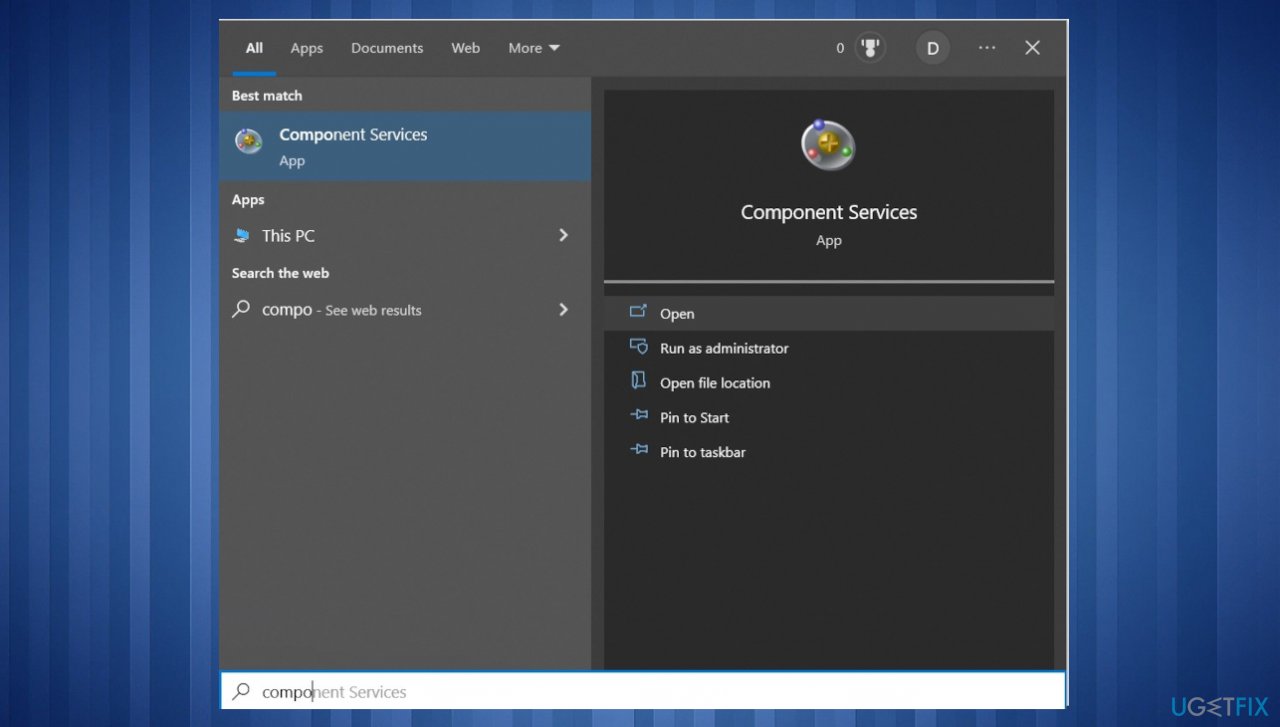
- Search for component services in the bar at the bottom.
- Choose the app result to open Component Services.
10005 dcom error components - Click the Computers folder, right-click the computer for which you want to enable or disable DCOM, and then click Properties.
- Click the Default Properties tab.
- To enable DCOM, select the Enable Distributed COM on this computer check box.
- Click OK.
Bottom line
To fix DistributedCOM error 10005, you can restart the Windows Search service and verify Group Policy settings. If these methods do not resolve the issue, consider running a repair application to address any corrupted files.
Frequently asked questions
DistributedCOM error 10005 occurs when a COM server application fails to start correctly, often due to permission issues or missing registrations. This error can disrupt the functioning of applications relying on COM components.
To fix DistributedCOM error 10005 in Windows 11, you can check the permissions for the affected COM server in the Component Services, ensuring that the required user accounts have the necessary access rights. Additionally, re-registering the problematic application may also resolve the issue.
Yes, modifying the registry to adjust DCOM configuration settings can help resolve DistributedCOM error 10005 in Windows 10. However, be cautious and back up the registry before making any changes, as incorrect modifications can lead to further issues.




Report an issue
What's wrong with this guide? We review every report and update or remove content.
Report received — thank you. We'll review and fix it.
You need a free account to submit a report.
Be the first to comment