How to fix
Windows backup failed error 0x80780166
on Windows
Troubleshoot the Windows backup error 0x80780166 effortlessly. Follow our expert-tested guide for Windows 10 and 11 users and fix it in minutes!


What causes How to fix Windows backup failed error 0x80780166?
- Corrupted Windows system files
- Malfunctioning operating system
- Localized issue within the WindowsImageBackup folder
- Attempting to make a backup on top of a failed one
- Application crashes or DLL errors
Repairs Windows system files, removes malware, and restores a clean OS state — without reinstalling.
Hello, I was trying to make a backup of my Windows 10, and I encountered an error 0x80780166. As a result, I can't create a system image and the backup that I need. Is there anything that I can do to resolve this? Any tips would be greatly appreciated.
Backups are systems that allow users to retrieve certain files or configuration settings of an operating system in case something goes wrong. For example, users might need to reinstall Windows due to some major stability issues or constant BSODs, and they want their system to be just like they left it before starting the recovery process, and that's why backups are extremely important in many situations.
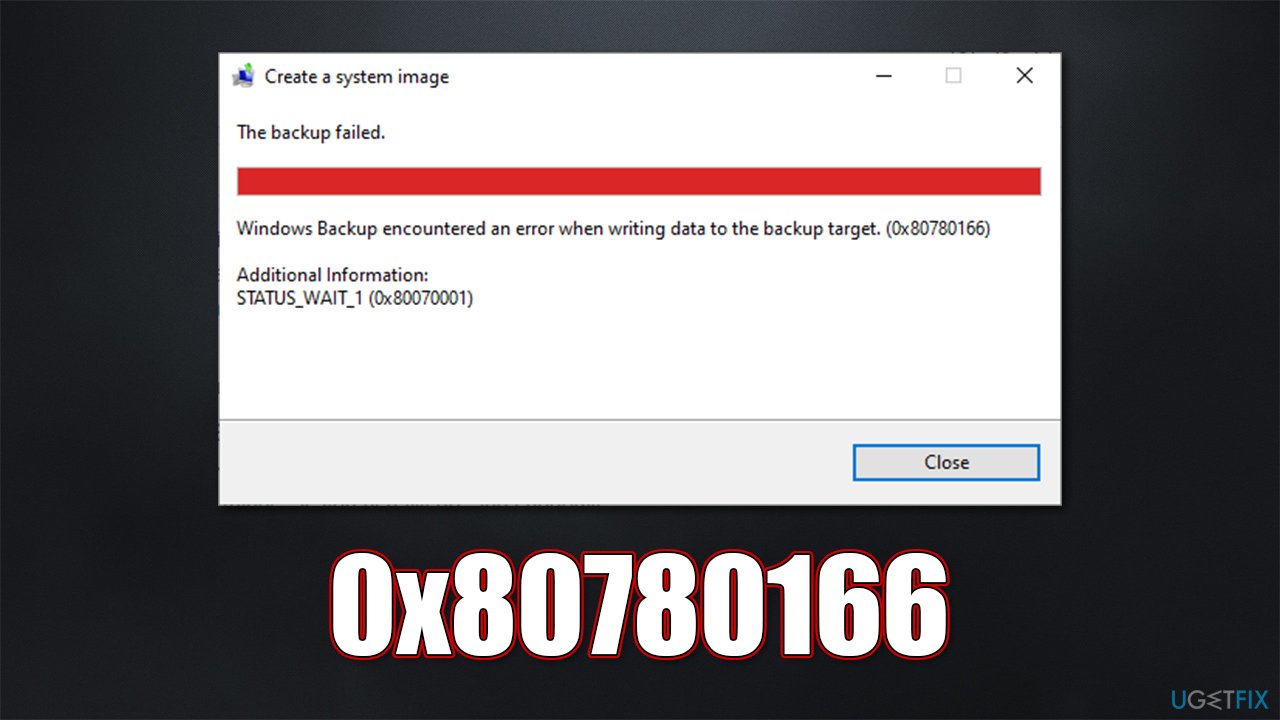
Unfortunately, not all such procedures end up being successful, and the backup failed error 0x80780166 is one of them. Users reported that they already had a malfunctioning operating system before the issue occurred, although others claimed that there was nothing out of the ordinary. Here's the typical message that comes with the error:
The backup failed
Windows Backup encountered an error when writing data to the backup target (0x80780166)
Additional Information:
The system cannot find the file specified
There could be numerous reasons why the error shows up, as each of the machines is using different configurations. For example, if Windows system files are corrupted, users are more likely to encounter a variety of other issues, including application crashes, DLL[ref en-3] errors, BSODs,[ref en-2] or Windows update failures.
In other cases, the 0x80780166 backup error could simply be related to a localized issue within the WindowsImageBackup folder when an attempt to make a backup on top of a failed one is made.
Regardless of what is the situation you are dealing with, below, we provide several methods that should help you fix the error. Before proceeding, we recommend you attempt an automatic repair option with [d1], which is great for dealing with various common Windows issues.
1. Repair system corruption
We recommend starting from this step because corrupted system files often cause all sorts of failures on the operating systems, including backup errors. Once this solution is tested (and doesn't work), you can proceed with the other ones right away.
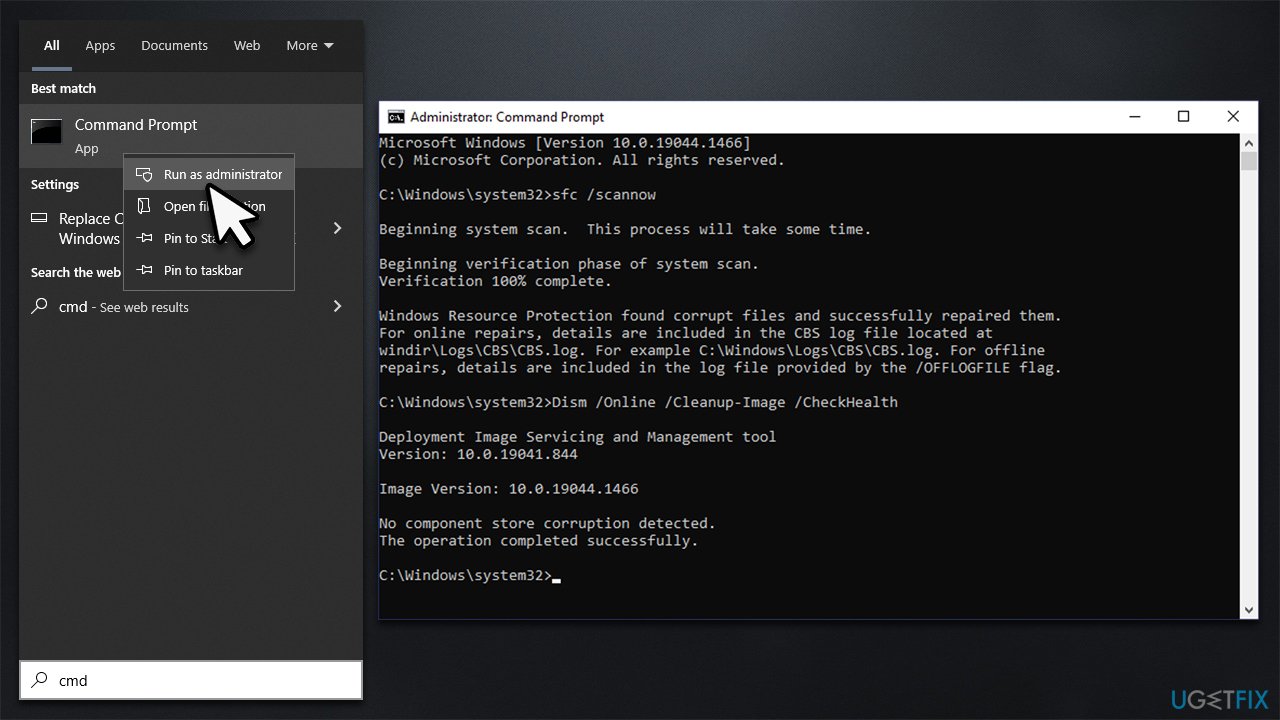
- Type cmd in Windows search
- Right-click on Command Prompt and pick Run as administrator
- When User Account Control shows up, click Yes
- Use the following command lines, pressing Enter after each:
sfc /scannow
DISM /Online /Cleanup-Image /CheckHealth
DISM /Online /Cleanup-Image /ScanHealth
DISM /Online /Cleanup-Image /RestoreHealth - Restart your device and try creating a backup again.
2. Clear the WindowsImageBackup folder
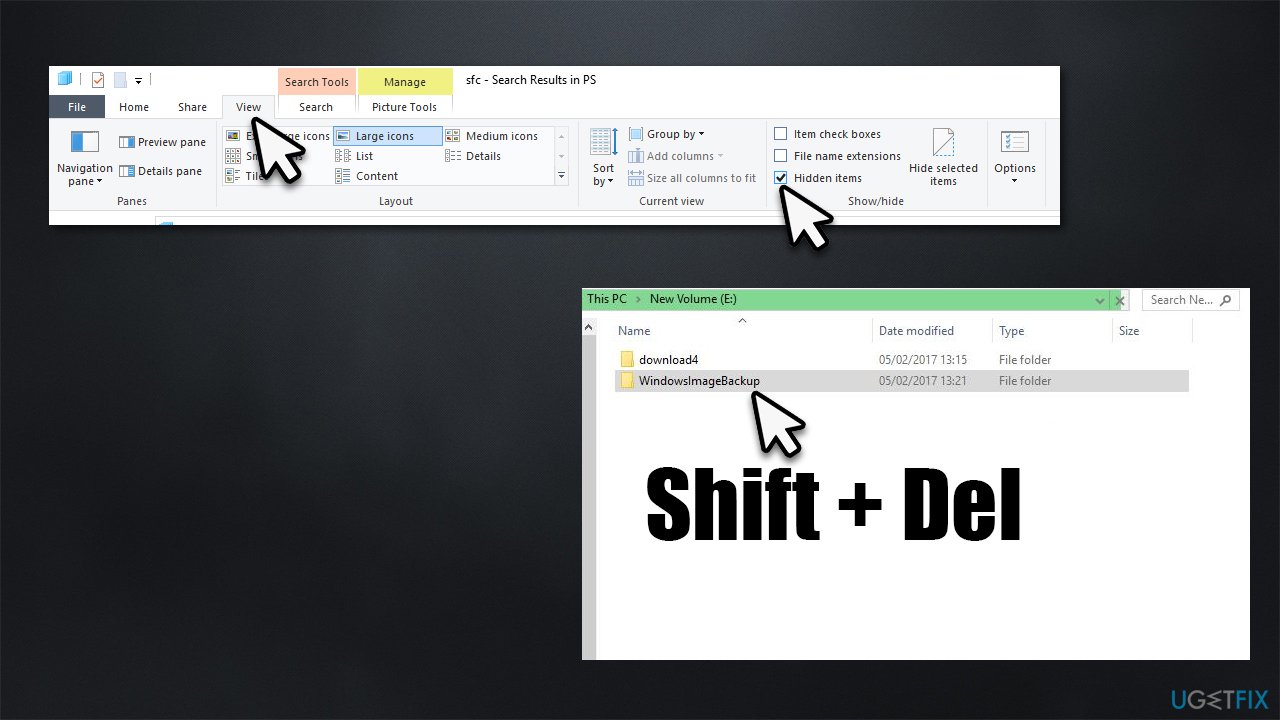
As mentioned, sometimes bugged[ref en-1] files within Windows caches could start causing issues. WindowsImageBackup is a storage area for all backups made by users, and if it gets corrupted, issues may arise. You can clear it to resolve this issue. Don't forget that you need to enable "Hidden items" in File Explorer to be able to see it first - it could be located on the drive you tried to create the backup on (which means it could be the external HDD or similar portable storage devices).
3. Enable the Volume Shadow Copy service
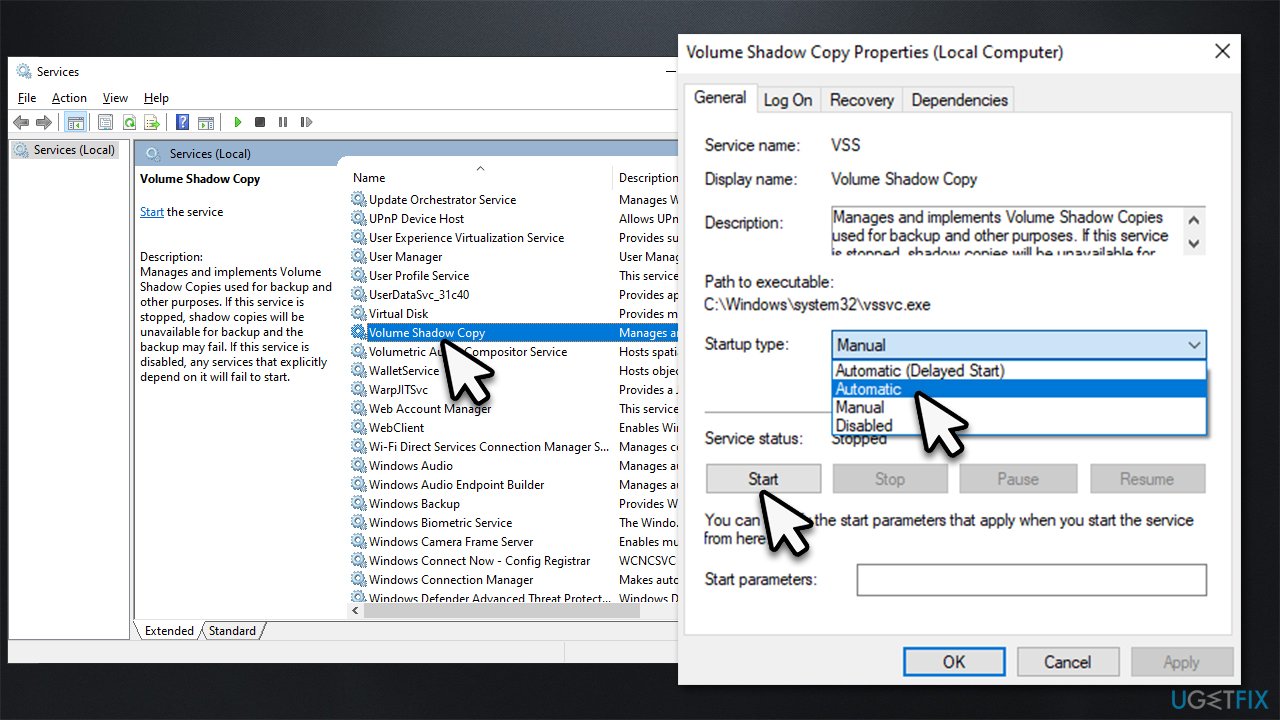
The vast majority of people managed to resolve the error after they enabled the Volume Shadow Copy Service, which was initially disabled.
- Type Services in Windows search and hit Enter
- Scroll down to find the Volume Shadow Copy service and double-click it
- Under Startup type, pick Automatic
- Click Start, Apply, and OK.
4. Ensure your disk is not malfunctioning
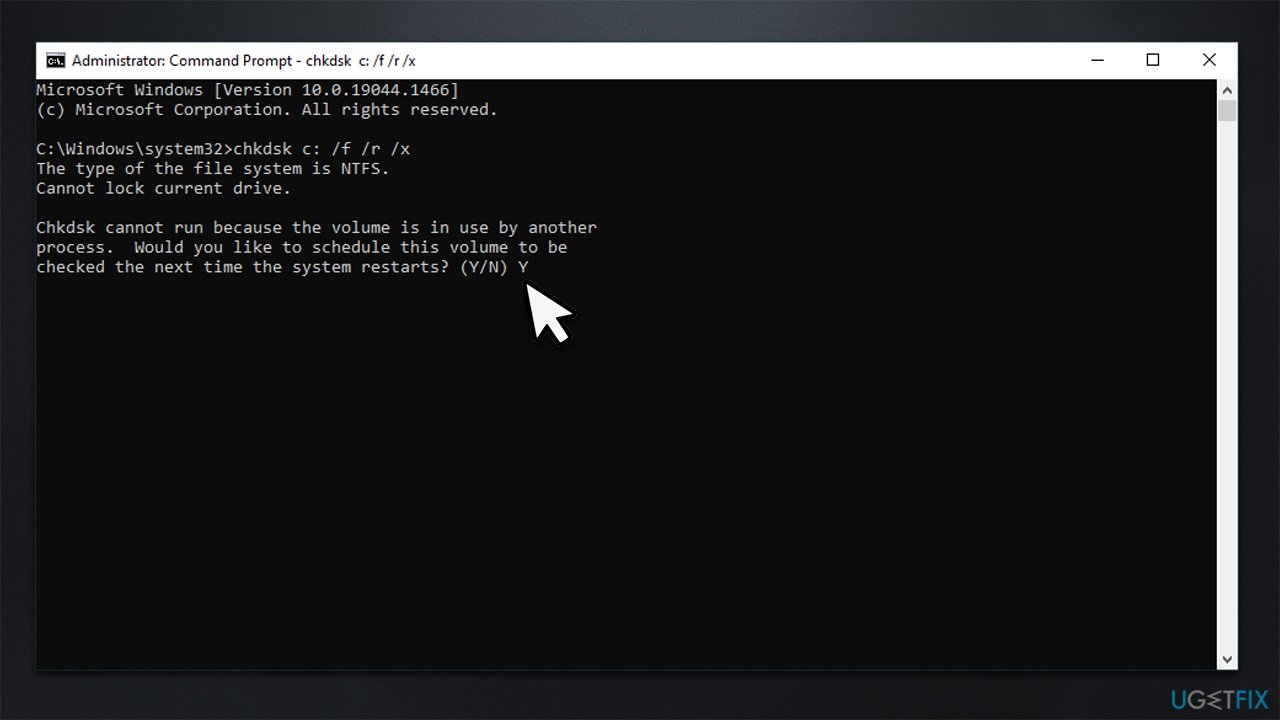
If your hard drive is not working properly, it may fail to create a backup. Thus, you should run a Check Disk command to ensure it's not the case:
- Open Command Prompt as administrator, as previously explained
- If you are using a hard drive (HDD) for storing your operating system files on, use the following command and press Enter:
chkdsk c: /f - If you are using a Sold State Driver (SSD) for Windows, use the following command instead:
chkdsk c: /f /r /x - If you are asked whether you want to proceed with the check after a reboot, type in Y and hit Enter
- Restart the system to begin the check - results will be displayed after the system loads back up.
5. Try System Restore
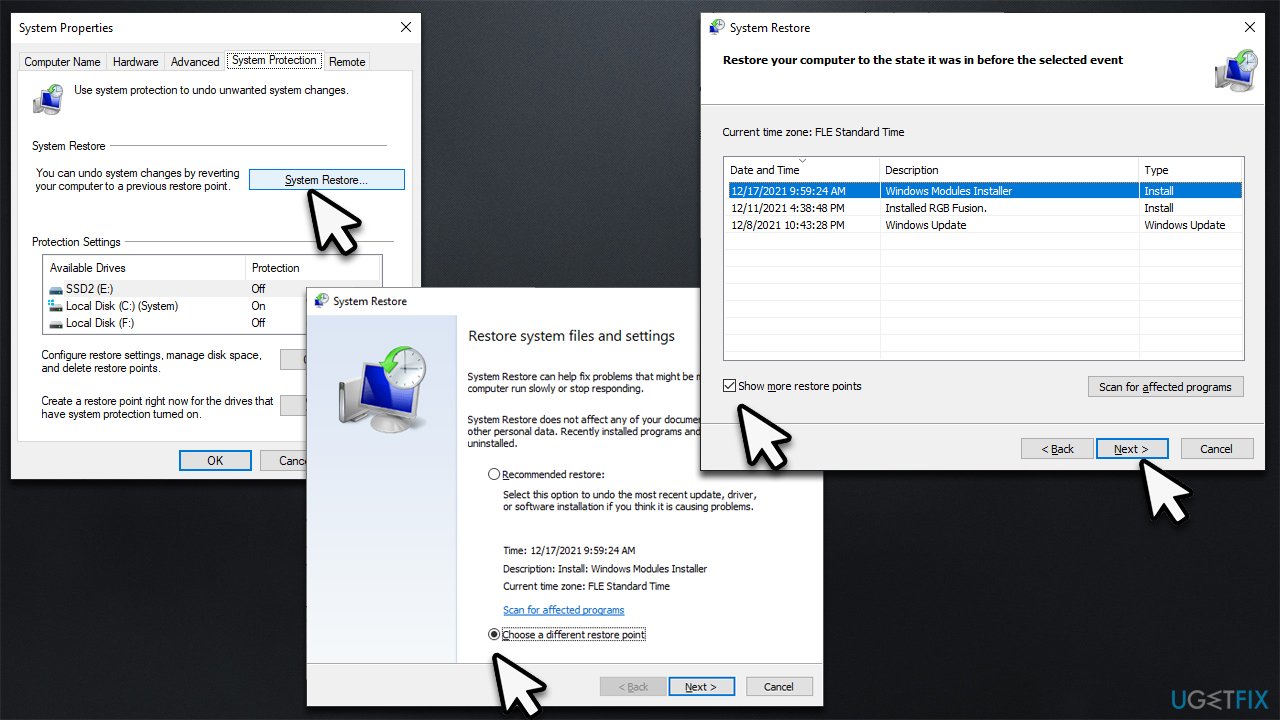
If the issue occurred just recently, you could try going back and bringing Windows into a time when everything worked well.
- Type in Create a Restore Point in Windows search and hit Enter
- Click System Restore
- Pick Choose a different restore point (if available) and click Next
- Mark the Show more restore points checkbox
- Choose a time before issues occurred
- Click Next and reboot the system as required.
Bottom line
To fix the Windows backup failed error 0x80780166, you can start by repairing system corruption, attempting an automatic repair, and addressing any localized issues within the backup folder. If these methods do not resolve the issue, further troubleshooting may be necessary.
Frequently asked questions
The error code 0x80780166 typically indicates that there is a problem with the backup configuration or the backup drive, often related to disk space or permissions.
To fix this error, ensure that the backup drive has enough free space, check the drive's permissions, and consider running the Backup and Restore troubleshooter in Windows 10 or Windows 11.
Yes, you can run the Check Disk utility by opening Command Prompt as an administrator and typing 'chkdsk /f X:', replacing 'X' with your backup drive letter, to scan and fix any file system issues.




Report an issue
What's wrong with this guide? We review every report and update or remove content.
Report received — thank you. We'll review and fix it.
You need a free account to submit a report.
Be the first to comment