How to fix
Error Code 0xc180010c-0xa0019
on Windows
Resolve Error Code 0xc180010c-0xa0019 on Windows 10 and 11 effortlessly. Get expert-tested solutions today, and enjoy a smoother user experience!

What causes How to Fix Error Code 0xc180010c-0xa0019 on Windows?
- Insufficient USB device storage space
- Conflicts with anti-virus software
- Connected peripherals causing interference
- Incorrect partition selection
- Issues with Windows 7 compatibility
Repairs Windows system files, removes malware, and restores a clean OS state — without reinstalling.
I’ve downloaded Windows 10 Media Creation tool, but when trying to run it, I receive an error 0xc180010c-0xa0019. Could someone guys please help? I’m running Windows 7 currently, but want to upgrade to Windows 10. Thanks.
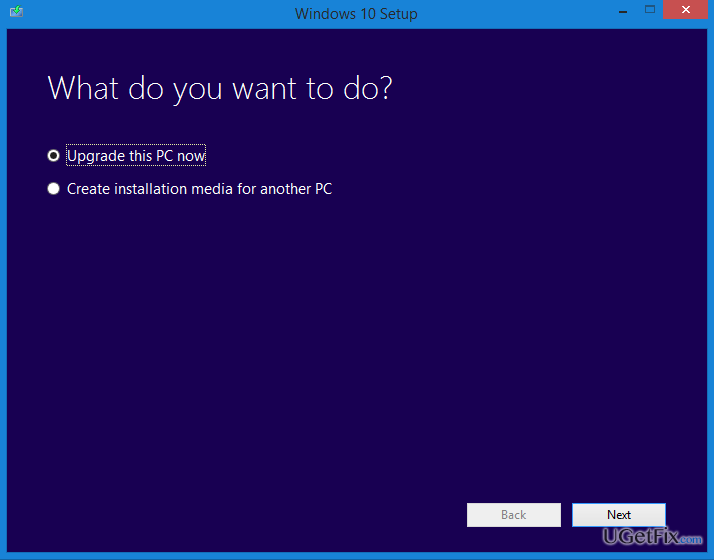
0xc180010c-0xa0019 is an error code showing up for users who attempt to download Windows 10 Media Creation Tool and save it to the computer and/or USB device. In some rare cases, the same bug check may emerge when trying to install Anniversary Update or cumulative updates. In most of the cases, the error prevents Windows 7 users, both desktop and laptop, from downloading and installing Windows 10 install to a USB device, which is very disappointing both for the user and for the Microsoft. However, the company doesn’t seem to be doing a lot about this issue yet because the number of people encountering 0xc180010c-0xa0019 bug increases, but the appropriate solution hasn’t been provided anywhere. The tips we will provide below are not approved by Microsoft but can be practiced safely as they cannot cause damage to your PC or laptop.
How to Fix Error Code 0xc180010c-0xa0019 on Windows?
If you are encountering the same issue, then, first of all, check if your USB device has enough free space (at least 4GB). If the storage is sufficient, then you should try to disable your anti-virus. There’s no secret that anti-virus software tends to conflict with other programs, so click on its icon on the taskbar and select Disable. Don’t forget to terminate its process/-es via Task Manager before that. If disabling anti-virus did not solve the problem, try to disable all peripherals from your PC/laptop leaving only a mouse and keyboard plugged in. Then try to download Windows 10 Media Creation tool and save it to your device. NOTE: make sure that you select the right partition. If these simple steps did not help, refer to the tips provided below.
Tip 1. Perform a Clean Boot
Windows 7:
- Log on to the administrator account.
- Click Start, type msconfig.exe in the Windows search and hit Enter.
- Open General tab and click Selective startup.
- Uncheck Load startup items box.
- Then open Services tab and mark Hide all Microsoft services box.
- Select Disable all and click OK.
- Finally, reboot the system.
Windows 10:
- Click Win key and type msconfig.
- Click System Configuration and open Services tab.
- Mark Hide all Microsoft services box and select Disable all.
- Open Startup tab and click Open Task Manager.
- Click on each startup item and select Disable.
- Close Task Manager and click OK on the System Configuration window.
- Reboot the system.
After that, try to download the Windows 10 Media Creation Tool.
Tip 2. Run Registry Editor
- Click Start and type regedit in the search box.
- Select Registry Editor.
- Using the left pane, navigate to the following location: HKEY_LOCAL_MACHINE\SOFTWARE\Microsoft\Windows\CurrentVersion\WindowsUpdate\OSUpgrade.
- Right-click on the right side of the window and go to New -> DWORD (32-bit) value.
- Rename the value to AllowOSUpgrade.
- Double-click on the newly created value and change its value to 1 with the hexadecimal base.
- Close Registry Editor and try to install Windows 10 Media Creation Tool again.
Tip 3. Runs DISM and SFC tools
- Click Win key + X and select Command Prompt (Admin).
- Type sfc /scannow command and press Enter.
- Then type the following commands and hit Enter after each of them:
DISM.exe /Online /Cleanup-image /Scanhealth
DISM.exe /Online /Cleanup-image /Restorehealth - Close Command Prompt and reboot the system.
Tip 4. Scan the system with a professional anti-virus
For this purpose, we recommend using [d1]. This utility is multifunctional as it has a built-in anti-virus features but primarily works as an optimization tool, which is capable of fixing damaged system files, registry issues, corrupted applications, and similar problems that may be preventing downloading Windows 10 Media Creation Tool and, therefore, triggering 0xc180010c-0xa0019 error.
Bottom line
To fix error code 0xc180010c-0xa0019, ensure your USB device has at least 4GB of free space, disable your anti-virus software, and disconnect unnecessary peripherals. If these steps do not resolve the issue, consider performing a clean boot or exploring additional troubleshooting tips.
Frequently asked questions
This error typically occurs due to issues with Windows Update or corrupted system files that prevent the installation of updates.
To fix this error on Windows 11, try running the Windows Update Troubleshooter and performing a system file check using the 'sfc /scannow' command in Command Prompt.
Yes, you can manually reset the Windows Update components by stopping the Windows Update service, deleting the SoftwareDistribution folder, and then restarting the service.




Report an issue
What's wrong with this guide? We review every report and update or remove content.
Report received — thank you. We'll review and fix it.
You need a free account to submit a report.
Be the first to comment