How to fix
Windows did not detect any networking hardware error
on Windows
Resolve the "Windows did not detect any networking hardware" error quickly and easily on Windows 10 or 11. Expert-tested solutions await!

What causes How to fix Windows did not detect any networking hardware error?
- Windows update issues
- Driver problems
- Selective suspend property causing conflicts
- Recent Windows updates affecting network detection
Repairs Windows system files, removes malware, and restores a clean OS state — without reinstalling.
Hello. I received an error message “Windows did not detect any networking hardware” after updating Windows. I cannot connect to the Internet. What should I do?
Windows is one of the most popular operating systems. However, it relies on thousands of processes to keep running smoothly. Even if just one thing goes rogue, people can start seeing errors, experiencing bugs, glitches, and missing features.
Some people have encountered the “Windows did not detect any networking hardware” error message after upgrading or updating Windows. If Windows cannot detect networking hardware, it will not be able to connect to the Internet. This kind of error can cause a lot of inconveniences.
It is unknown why exactly this error could be triggered but in this guide, you will find 6 steps that could help you fix it. You will learn how to run built-in automatic troubleshooters, uninstall previous Windows updates, restore the system to a previous point, and how manually install drivers.[ref en-1]
However, manual troubleshooting can be a lengthy process. We suggest using a maintenance tool like [d1]. This powerful software can fix various system errors, BSODs,[ref en-2] corrupted files, and registry[ref en-3] issues. Otherwise, follow the step-by-step instructions below.
Solution 1. Run Network Adapter Troubleshooter
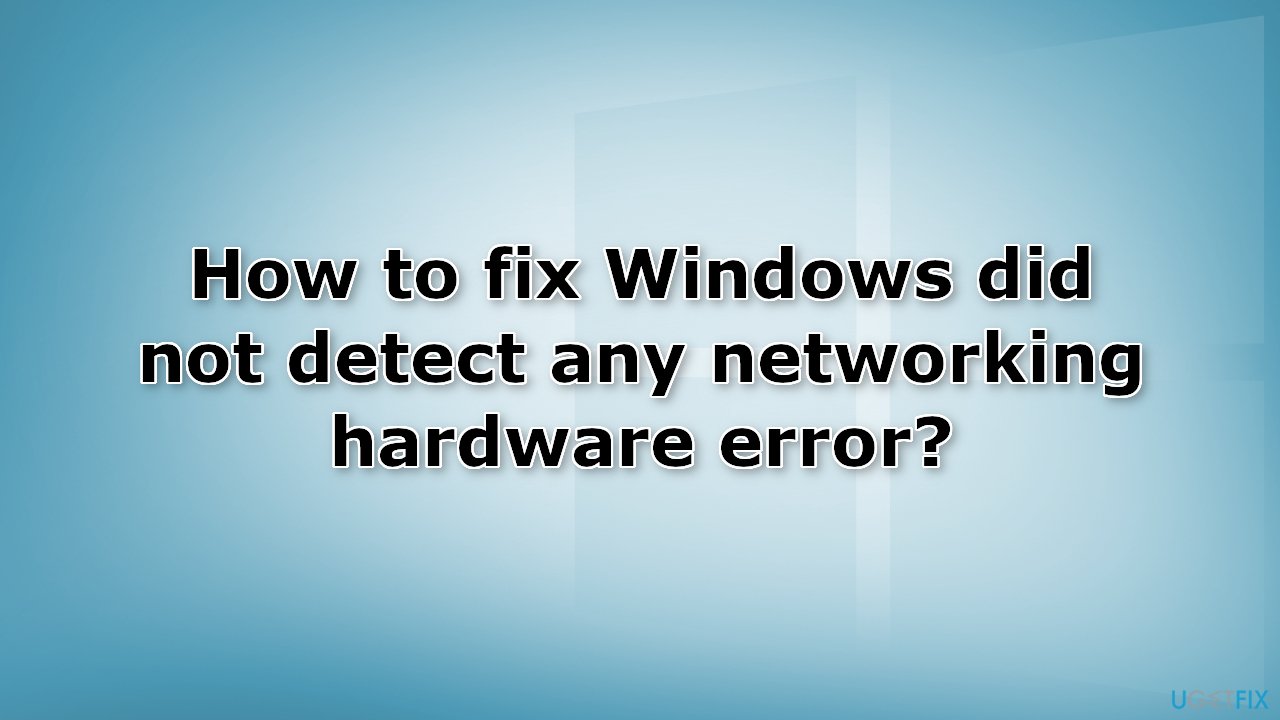
- Open Windows Settings and go to System
- Press on Troubleshoot, then Other troubleshooters/Additional troubleshooters
- Locate Network Adapter and click Run
Solution 2. Roll Back Network Driver
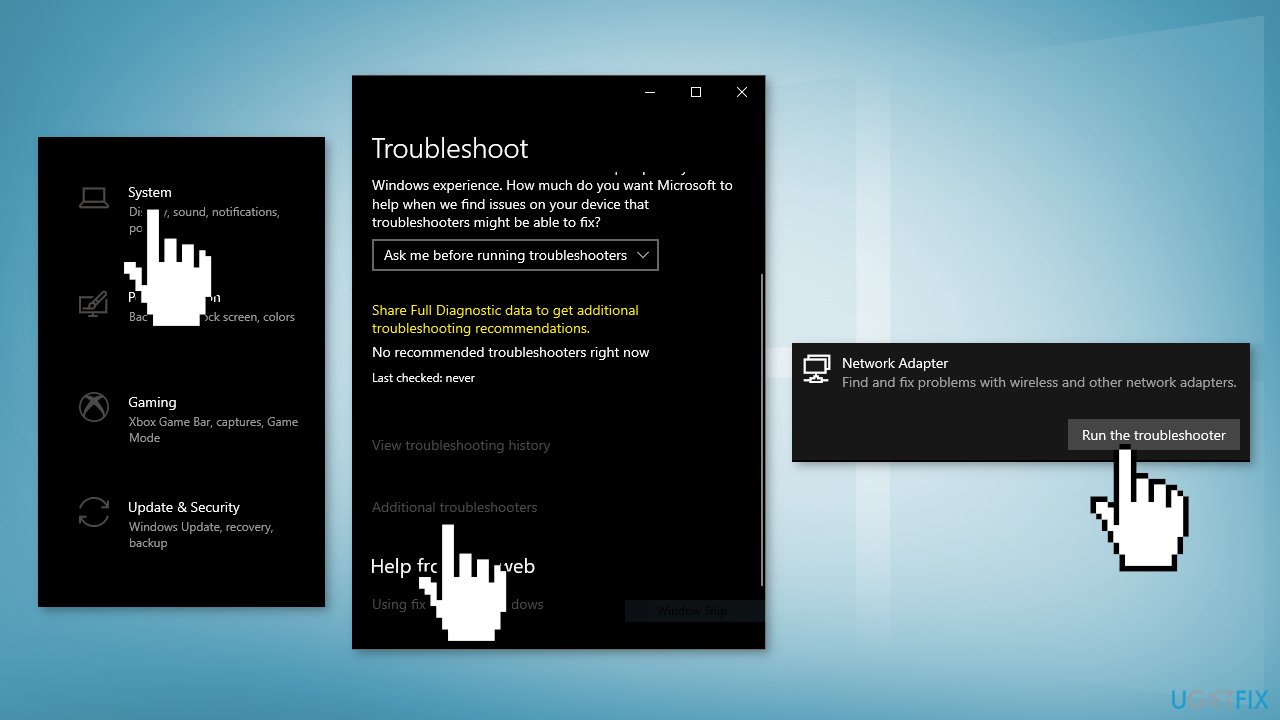
- Open the Device Manager
- Expand the Network adapters in the list
- Right-click on your Network driver and select Properties
- Select the Driver tab
- Click on the Roll Back Driver button
Solution 3. Disable the Selective Suspend Property
Some users have found Marvell Avaster Wireless-AC Network Controller the cause of this error.
- Open the Device Manager and expand Network adapters
- Right-click on the Marvell Avaster Wireless-AC Network Controller and select Properties
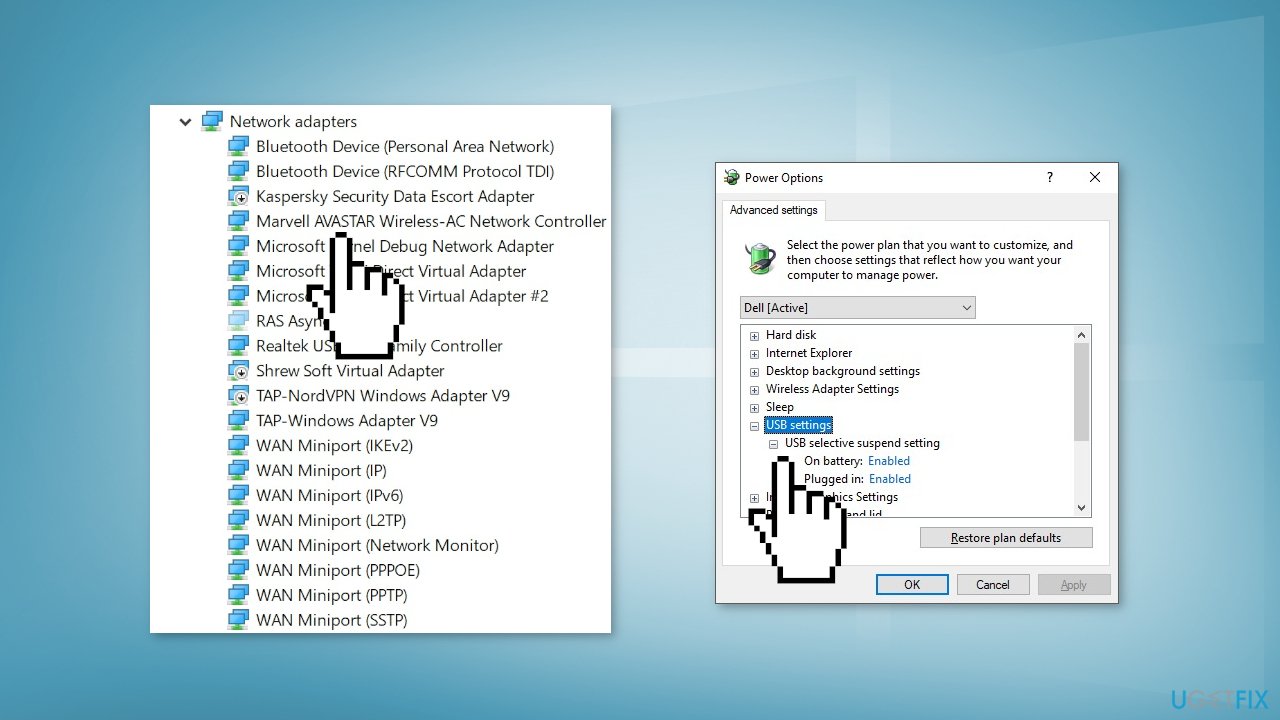
- If the Advanced tab is available, click on it and then disable Selective Suspend
Solution 4. Uninstall Recent Windows Update
- In Settings, from the left sidebar, select Windows Update
- On the Windows Update page, click Update History
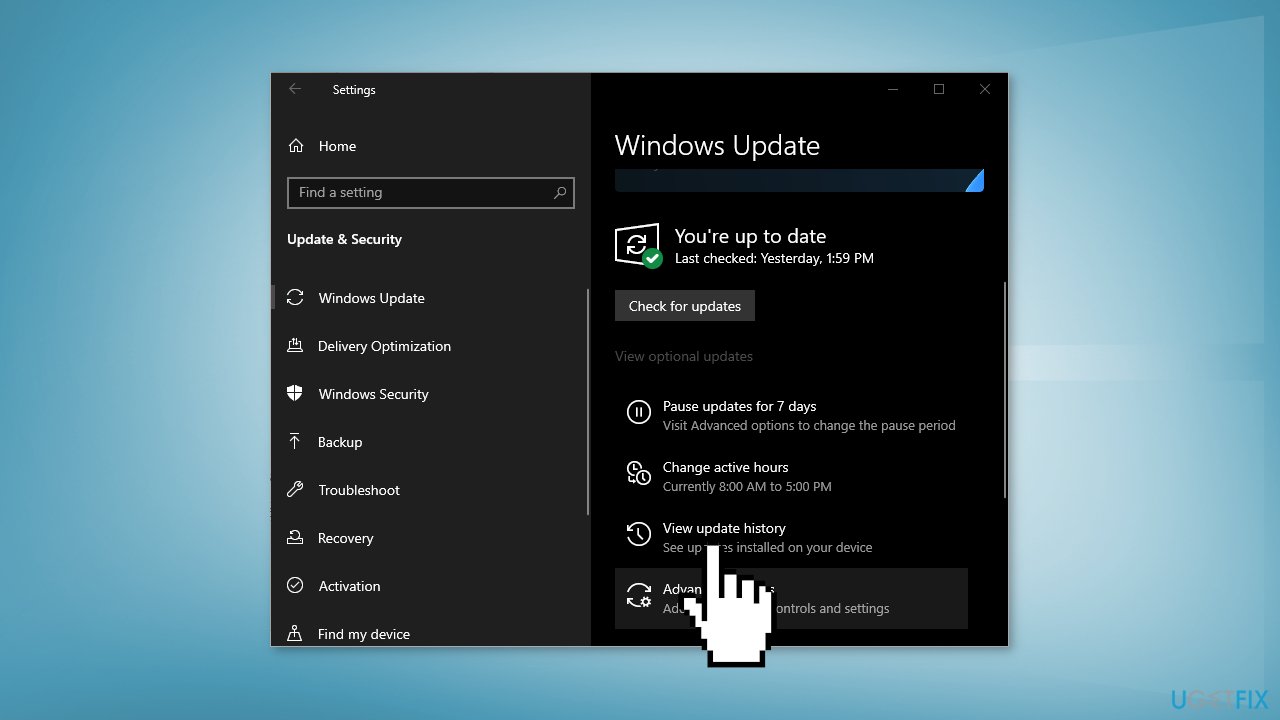
- Note the most recent update number
- From the Related Settings section, choose Uninstall Updates
- To remove an update, select it in the list and then click Uninstall
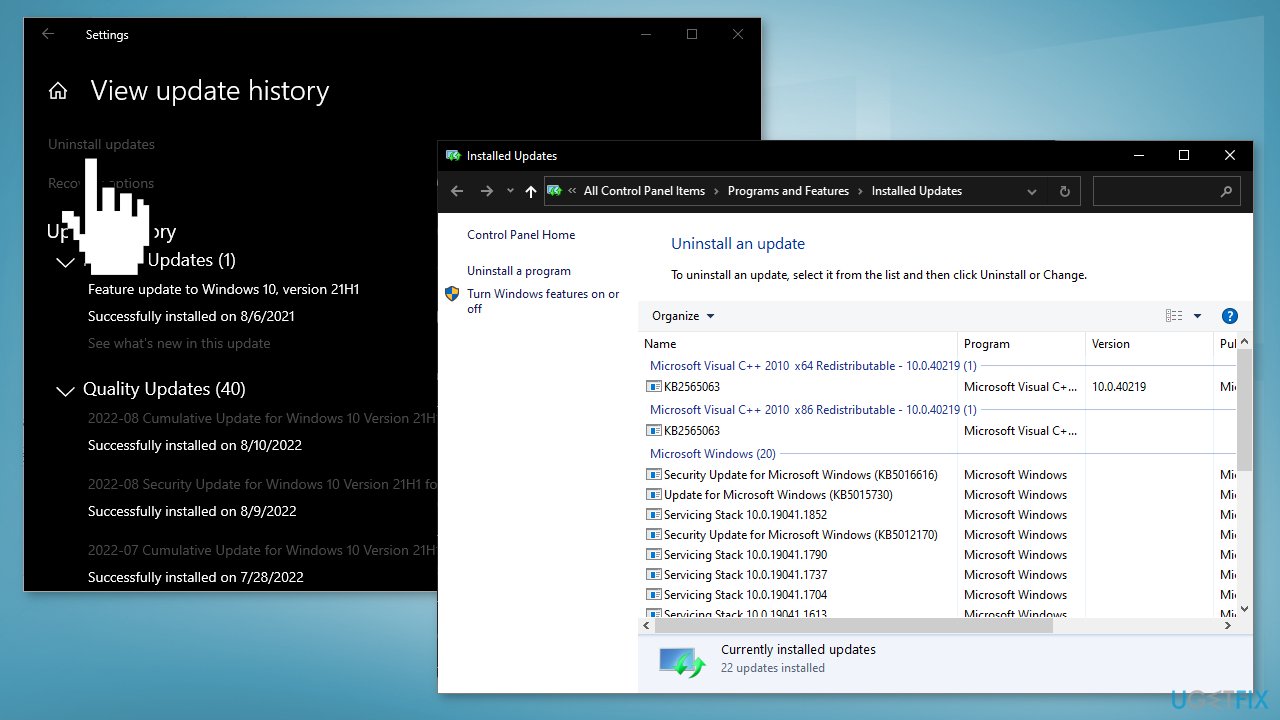
- Click Yes in the prompt to continue
Solution 5. Run System Restore
- Go to the Start menu, type
restore, and click on Create a restore point - Click System Restore, then follow the prompts until you can select a restore point
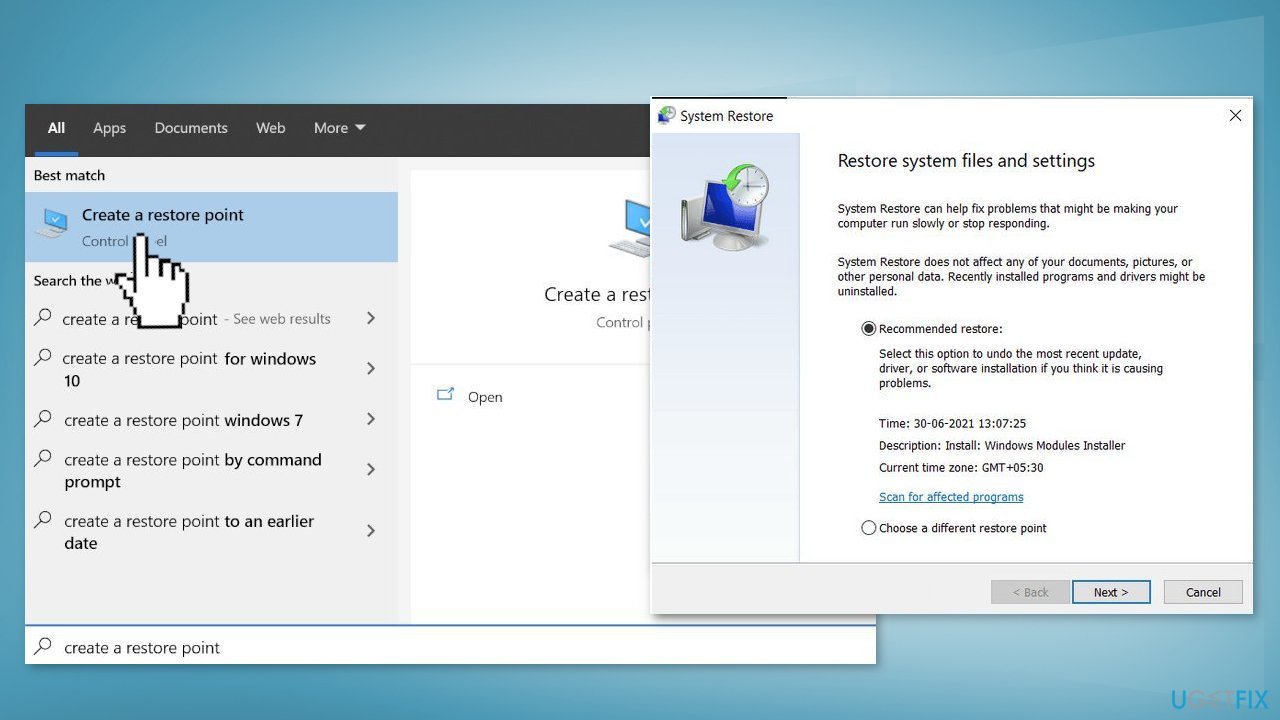
- Select the one you want (ideally before the networking hardware error appeared) and go ahead with the process
Solution 6. Install the Network Driver Manually
- Open the Device Manager and expand Network adapters
- Right-click on your Network driver and select Uninstall device
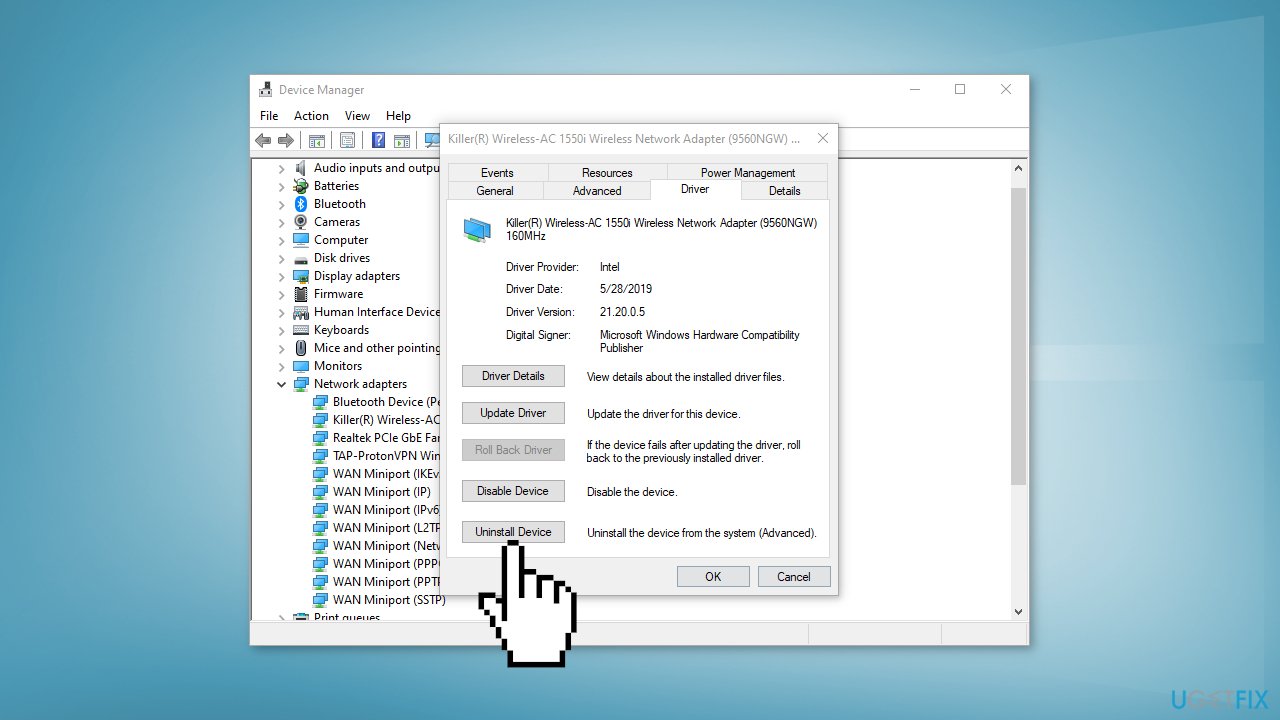
- Download the latest version of your network driver from your computer manufacturer’s official website
- You can also use an automatic tool, like [rev id="DriverFix"] that can find the best drivers for your device
Bottom line
To fix the 'Windows did not detect any networking hardware' error, you can run the Network Adapter Troubleshooter, roll back the network driver, disable the selective suspend property, or uninstall recent Windows updates. If none of these solutions work, consider using a maintenance tool to address potential system errors.
Frequently asked questions
Try rolling back the network adapter driver in Device Manager, as recent updates can sometimes cause compatibility issues with drivers on Windows 10.
Go to Settings > Network & Internet > Status, then click on 'Change adapter options' to enable the network adapter that's currently disabled.
You can try uninstalling the network adapter from Device Manager and restarting your PC, which will prompt Windows 10 to reinstall the driver automatically.




Report an issue
What's wrong with this guide? We review every report and update or remove content.
Report received — thank you. We'll review and fix it.
You need a free account to submit a report.
Be the first to comment